Which Budget Monitor Is Best for Coding
If you've been staring at a 1080p 24-inch screen wondering which budget monitor is best for coding, you're not alone. Most developers hit a wall when they realize their monitor is the one piece of gear they interact with for eight or more hours a day, yet it's the last thing they upgrade. The good news is that as of 2026, the budget monitor market has gotten genuinely good.
You no longer need to spend $500+ to get sharp text, decent colors, and a screen that won't wreck your eyes.
The trick is knowing what actually matters for coding and what's just marketing fluff. A monitor built for gaming or media consumption isn't necessarily the right tool for reading code all day. Let's break down what to look for, compare the best options in the budget range, and figure out which one fits your setup.
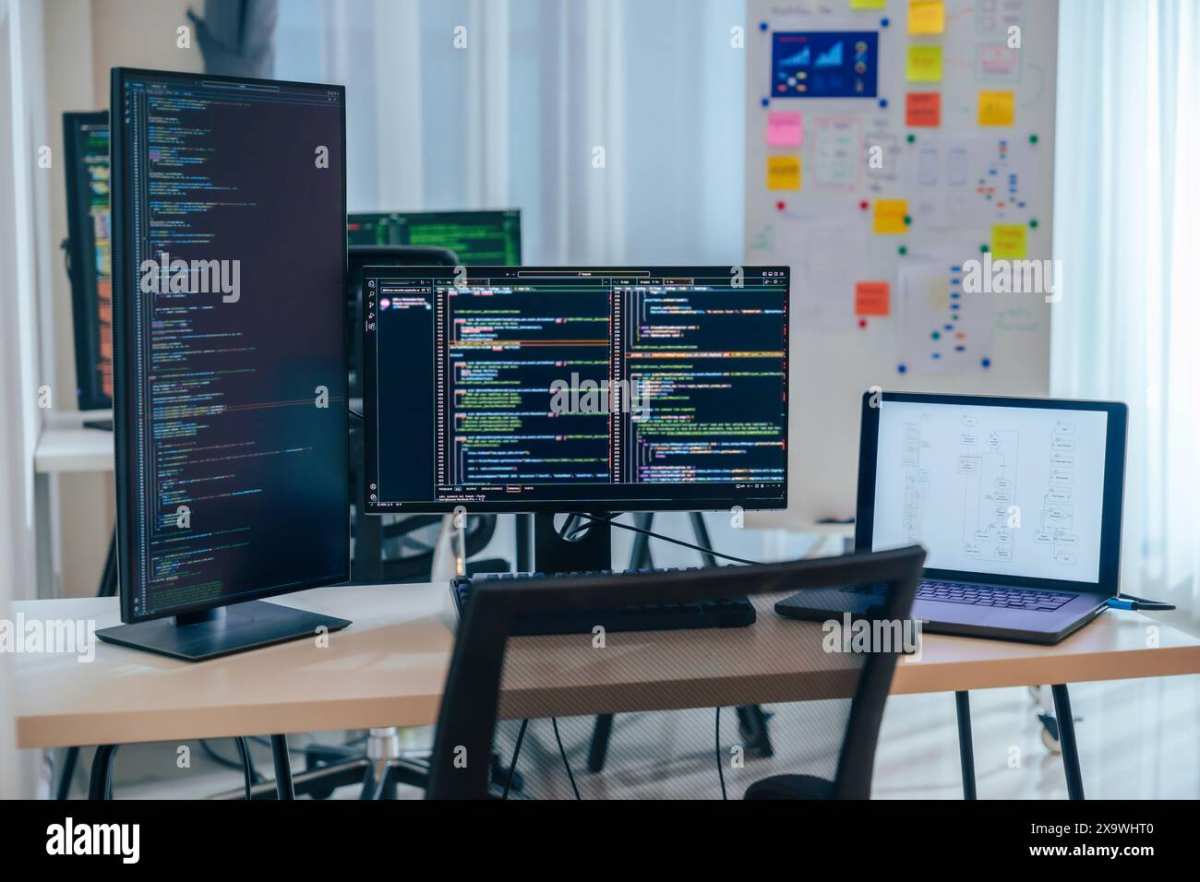
Quick Answer
For most coders on a budget, a 27-inch 1440p IPS monitor hits the sweet spot. It gives you roughly 109 pixels per inch, which keeps text razor-sharp without requiring display scaling. Models from Dell, LG, and BenQ in the $200 to $300 range consistently rank highest for text clarity and eye comfort.
If you're under $180, a 24-inch 1080p IPS panel is still a solid choice.
Why Most Budget Monitors Fail Coders (And What to Look For Instead)
Here's the thing. Most budget monitor roundups are written by people who care about refresh rates, response times, and HDR gaming performance. Those specs matter if you're playing Cyberpunk at 144fps.
They matter a lot less if your primary workload is reading Python in VS Code for nine hours straight.
The specs that actually matter for coding are different. Text clarity comes first. That means pixel density and panel type matter more than anything.
Eye comfort comes second. You want a Flicker-Free backlight and a blue light filter that doesn't turn your screen into a pumpkin. Ergonomics come third.
A stand that lets you adjust height and tilt will do more for your neck than any spec sheet number.
Then there's the stuff that sounds important but doesn't move the needle much. Refresh rate above 75Hz is barely noticeable when you're scrolling through code. HDR on a budget monitor is almost always terrible and not worth chasing.
Response time only matters if you're also gaming, and even then, 5ms IPS panels are more than fine.
The real mistake people make is buying a "gaming" monitor because it has a higher refresh rate, then wondering why text looks worse than on a cheaper office panel. TN panels with 165Hz look great in motion but have narrow viewing angles and washed-out colors that make code harder to read. For coding, a 60Hz or 75Hz IPS panel will serve you better every time.
The Quick Answer: Best Budget Monitors for Coding Right Now
Based on aggregate reviews, manufacturer specs, and verified buyer feedback, here are the standout picks in the budget category as of 2026.
Best overall for coding: Dell S2722QC, 27-inch 4K IPS, USB-C with 65W power delivery, excellent text clarity, typically $250 to $300.
Best value 1440p: LG 27QN600-B, 27-inch 1440p IPS, 99% sRGB, height-adjustable stand, usually around $200 to $230.
Best ultra-budget pick: BenQ GW2780, 27-inch 1080p IPS, Flicker-Free, Low Blue Light, built-in speakers, often under $160.
Best for MacBook and USB-C laptops: ASUS ProArt PA248CV, 24-inch 1080p IPS, factory-calibrated, USB-C with 65W PD, around $200.
Best for dual-monitor setups: AOC 24B2XH, 24-inch 1080p IPS, thin bezels, VESA mount, usually $120 to $140, so buying two won't destroy your budget.
Each of these wins in a different scenario. The right one depends on your screen size preference, whether you need USB-C, and how much desk real estate you're working with.
What Actually Matters When Choosing a Monitor for Coding
Let's get into the specifics. These are the factors that separate a monitor you'll love for coding from one that'll give you a headache by Wednesday.
Resolution and Screen Size (The Pixel Density Question)
This is the single most important decision. Pixel density determines how sharp text looks, and it's a function of both resolution and screen size.
| Setup | Pixel Density | Text Sharpness | Scaling Needed? |
|---|---|---|---|
| 24-inch 1080p | ~92 PPI | Good | No |
| 27-inch 1080p | ~82 PPI | Noticeable softness | No |
| 27-inch 1440p | ~109 PPI | Excellent | No |
| 27-inch 4K | ~163 PPI | Outstanding | Yes (150%) |
| 32-inch 4K | ~138 PPI | Excellent | Yes (125-150%) |
The 27-inch 1440p combination is the sweet spot because it gives you high pixel density without requiring display scaling. At 100% scaling on a 27-inch 1440p panel, text is sharp and you get a comfortable amount of screen real estate. You can fit two code windows side by side with room for a browser or terminal.
A 27-inch 1080p panel looks noticeably soft. Text edges aren't as crisp, and if you're coming from a laptop with a high-DPI display, the difference is jarring. It's usable, but it's not ideal for long coding sessions.
4K at 27 inches is gorgeous for text, but it requires scaling to make UI elements readable. On Windows, 150% scaling works well but effectively gives you the same workspace as 1080p. On macOS, 4K at 27 inches works beautifully because Apple's HiDPI rendering handles it natively.
If you're on a Mac, a 27-inch 4K monitor is arguably the best choice.
Panel Type: IPS vs VA vs TN
For coding, IPS is the clear winner. Here's why.
- IPS (In-Plane Switching): Best color accuracy, wide viewing angles, good text clarity. This is what you want. Most budget IPS panels cover 99% sRGB, which is plenty for coding and web development.
- VA (Vertical Alignment): Higher contrast ratio (3000:1 vs 1000:1), which means deeper blacks. Great if you use dark-themed IDEs. But VA panels can have slower pixel response times and slight color shift at angles. Text clarity is generally good but not quite as sharp as IPS.
- TN (Twisted Nematic): Fast response times, high refresh rates, but terrible viewing angles and washed-out colors. Avoid for coding unless you're on an extremely tight budget and also game competitively.
The only reason to consider VA over IPS for coding is if you strongly prefer dark themes and want that extra contrast. Otherwise, IPS is the safer bet.
Connectivity: Why USB-C Matters More Than You Think
If you're connecting a laptop, especially a MacBook or a thin Windows ultrabook, USB-C with power delivery is a game-changer. A single cable carries video, data, and charges your laptop. That means one plug instead of a mess of HDMI, power brick, and dongles.
Look for at least 60W power delivery if you're using a laptop. Some budget USB-C monitors only deliver 15W, which isn't enough to charge anything larger than a tablet while in use. The Dell S2722QC and ASUS ProArt PA248CV both deliver 65W, which covers most 14-inch and 15-inch laptops.
If you're on a desktop with a dedicated GPU, DisplayPort is the way to go. It supports higher bandwidth and is more reliable for 1440p and 4K signals. HDMI 2.0 is fine for 1440p at 60Hz, but you'll want DisplayPort or HDMI 2.1 for higher refresh rates or 4K.
Ergonomics: The Stand Matters More Than the Specs
This is the thing nobody talks about until their neck hurts. A monitor stand that only tilts is a problem if you're over 5'8" and your desk is at standard height. You want height adjustment at minimum.
Swivel and pivot are bonuses.
If the monitor you want has a bad stand, factor in the cost of a VESA monitor arm. Most budget monitors have 100x100mm VESA mounting, and a decent arm costs $30 to $50. It's worth every penny because it lets you position the screen at exactly the right height and distance.
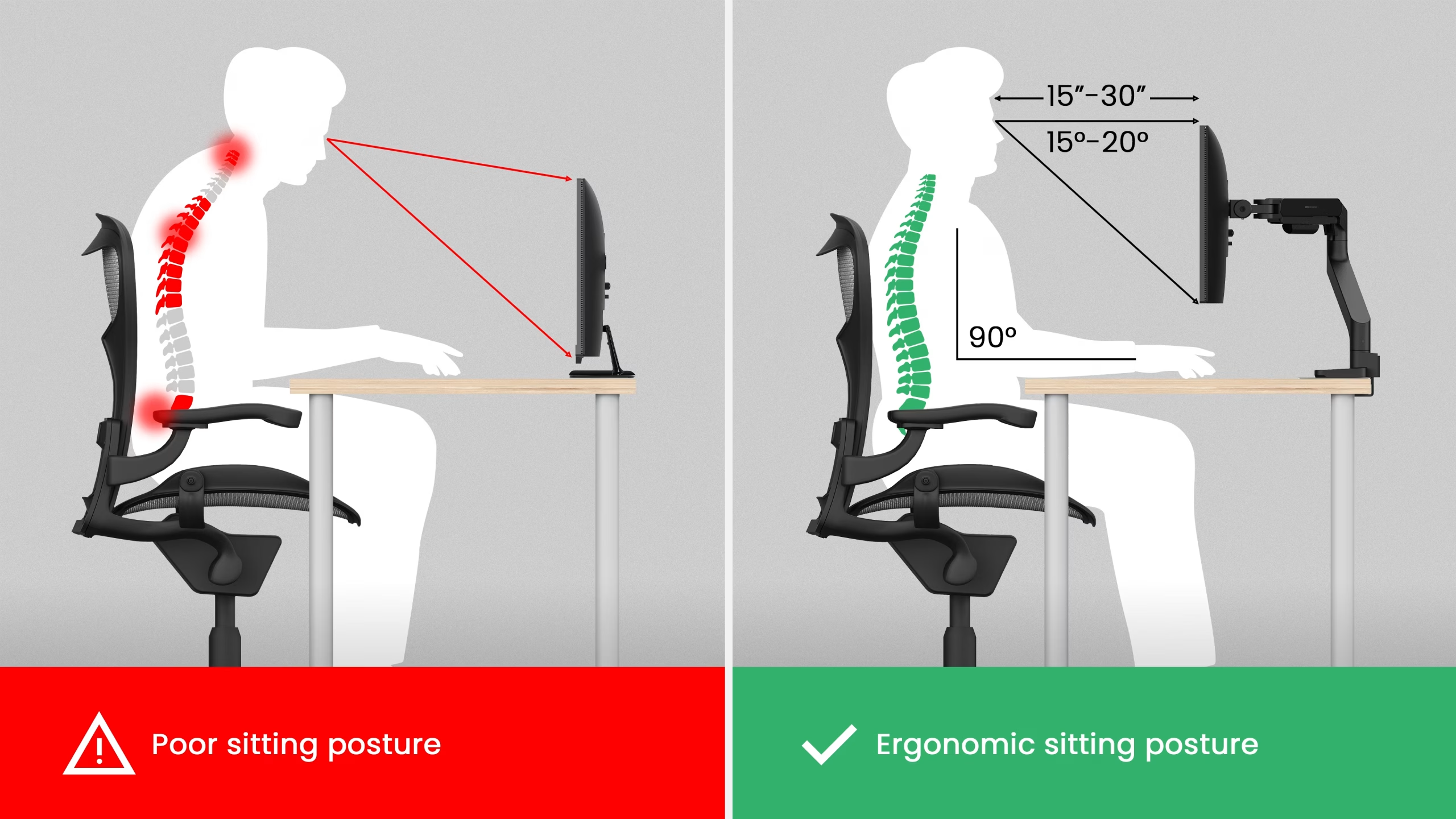
The ideal position is with the top of the screen at or slightly below eye level, about an arm's length away. This keeps your neck neutral and reduces strain over long sessions.
The 27" 1440p Sweet Spot: Why It's the Coding Gold Standard
There's a reason 27-inch 1440p monitors keep showing up in developer setups. It's the combination that just works.
At 2560×1440 on a 27-inch panel, you get roughly 109 pixels per inch. That's high enough that text looks crisp and well-defined at 100% scaling, but not so high that you need to fiddle with display scaling settings. On Windows, this means no blurry apps that don't handle DPI scaling well.
On macOS, it means the display works as a standard non-Retina panel without any of the rendering quirks that come with 4K at non-integer scaling factors.
The workspace is genuinely useful. You can comfortably run two code panels side by side in VS Code, or have your IDE on one half and a browser with documentation on the other. Add a terminal in a split pane and you've got a full development environment on a single screen.
Screen real estate comparison at native resolution:
- 24-inch 1080p: About 44 lines of code in a standard editor at a readable font size.
- 27-inch 1440p: About 60 lines of code, plus room for a sidebar and terminal.
- 27-inch 4K at 150% scaling: Roughly equivalent to 1080p workspace, but text is much sharper.
The 27-inch 1440p panel gives you the most usable workspace without scaling headaches. That's why it's the recommendation that comes up again and again in developer communities.
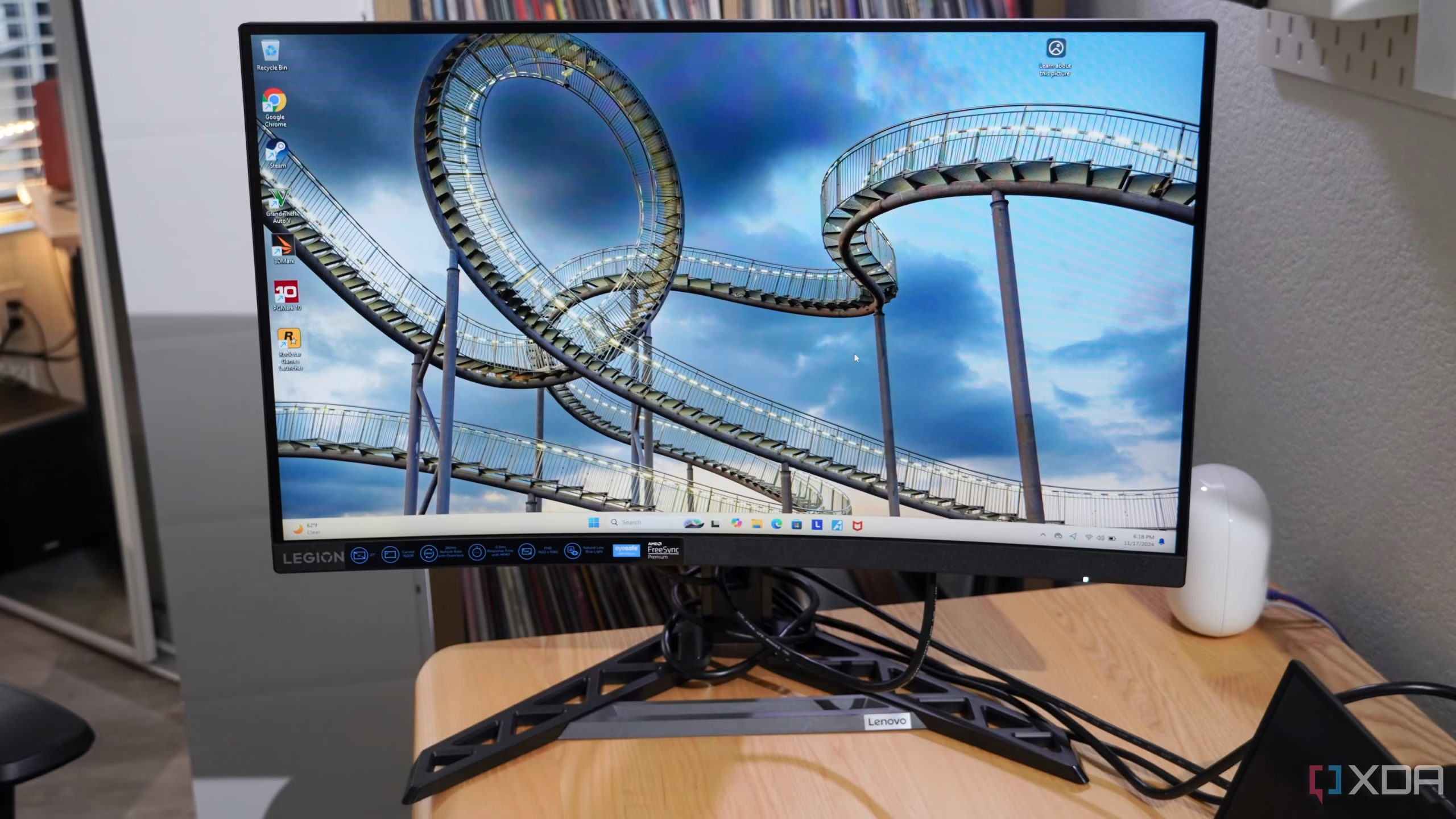
Budget 27-inch 1440p monitors have also gotten much better in the last couple of years. Panels that used to cost $400+ are now available from reputable brands in the $200 to $280 range. The LG 27QN600-B, the Dell S2722QC (which is technically 4K but often priced competitively), and the AOC Q27B2S are all solid examples of what's available without breaking the bank.
One caveat. If you're on macOS and you care about Retina-quality text rendering, 1440p at 27 inches won't look as sharp as a 4K display or an Apple Studio Display. macOS is optimized for HiDPI (double-density) rendering, and 1440p at 27 inches isn't dense enough to trigger that. Text will still look good, just not as crisp as you'd see on a 4K panel or a MacBook's built-in screen.
Windows doesn't have this issue because its font rendering works well at any DPI.
Top Picks Compared: Side-by-Side Breakdown
Let's put the top contenders next to each other so you can see how they stack up for coding specifically.
| Model | Size | Resolution | Panel | Refresh | USB-C PD | Stand Adjust | Typical Price |
|---|---|---|---|---|---|---|---|
| Dell S2722QC | 27" | 4K | IPS | 60Hz | 65W | Tilt only | $250-300 |
| LG 27QN600-B | 27" | 1440p | IPS | 75Hz | No | Height, tilt | $200-230 |
| BenQ GW2780 | 27" | 1080p | IPS | 60Hz | No | Tilt only | $140-160 |
| ASUS ProArt PA248CV | 24" | 1080p | IPS | 60Hz | 65W | Full ergo | $190-210 |
| AOC 24B2XH | 24" | 1080p | IPS | 75Hz | No | Tilt only | $120-140 |
Dell S2722QC is the best pick if you're on macOS or you want the sharpest text possible. The 4K resolution at 27 inches gives you Retina-level pixel density, and the USB-C with 65W power delivery means a single cable to your laptop. The downside is the stand only tilts, so you'll probably want a VESA arm.
Also, at 4K you'll need 150% scaling on Windows, which reduces your effective workspace.
LG 27QN600-B is the best all-around value. The 1440p resolution at 27 inches is the coding sweet spot, the IPS panel has good color accuracy, and the stand actually has height adjustment. No USB-C is a drawback for laptop users, but if you're on a desktop or you don't mind a separate charging cable, this is hard to beat for the price.
BenQ GW2780 is the pick if you're trying to spend as little as possible while still getting a decent IPS panel. The 1080p resolution at 27 inches is its main weakness. Text won't be as sharp as the 1440p options.
But BenQ's Eye-Care features (Flicker-Free and Low Blue Light) are legit, and the price is hard to argue with.
ASUS ProArt PA248CV is the best choice for color-accurate work. It's factory-calibrated to Delta E < 2, which matters if you're doing frontend development or design work alongside coding. The 24-inch 1080p size is smaller, but the pixel density is actually fine at this size, and the USB-C with 65W PD makes it a great MacBook companion.
AOC 24B2XH is the budget dual-monitor king. At around $120 to $140, you can buy two for less than a single premium panel. The thin bezels make multi-monitor setups look clean, and the IPS panel is perfectly adequate for coding.
The stand is basic, but VESA compatibility means you can mount it on an arm.
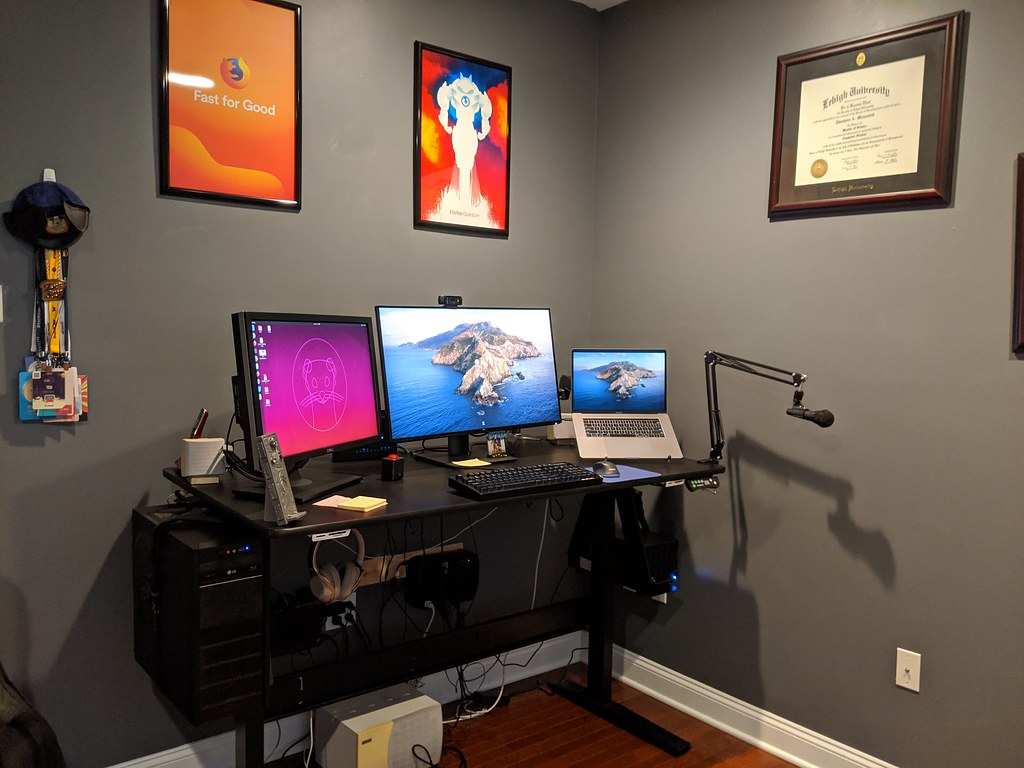
The right pick comes down to your priorities. Want the sharpest text and USB-C? Dell S2722QC.
Want the best balance of price, resolution, and ergonomics? LG 27QN600-B. Need to spend as little as possible?
BenQ GW2780 or AOC 24B2XH.
Best for MacBook and USB-C Laptop Users
If you're coding on a MacBook or a USB-C Windows laptop, your monitor choice changes a bit. You need a display that plays nice with your machine's video output and ideally charges it through the same cable.
The Dell S2722QC is the standout here. Its USB-C port delivers 65W of power delivery, which covers the MacBook Air and the 13-inch MacBook Pro without issue. The 14-inch MacBook Pro with M3 can charge over USB-C but will charge more slowly under heavy load.
For the 16-inch MacBook Pro, 65W isn't enough to charge at full speed, but it'll maintain battery life during normal coding work.
The ASUS ProArt PA248CV is another strong option, especially if color accuracy matters for your work. It also delivers 65W over USB-C and comes factory-calibrated. The 24-inch size is smaller, but the 1080p resolution at that size gives you a sharp 92 PPI, which is perfectly readable.
One thing to watch out for on macOS. Not all 1440p monitors handle macOS font rendering well. Apple's HiDPI system works best at resolutions that are exact multiples of the panel's native resolution.
A 4K monitor at 150% scaling gives you an effective 2560×1440 workspace with Retina-quality rendering. A native 1440p monitor doesn't get that treatment, so text won't look quite as smooth as on a 4K panel or Apple's own displays.
If text sharpness is your top priority on a Mac, go 4K. The Dell S2722QC or the LG 27UN650-W (4K, USB-C with 60W PD) are both solid budget-friendly options. If you'd rather have more screen real estate without scaling and you're okay with slightly less crisp text, a 27-inch 1440p panel like the LG 27QN600-B works fine.
You'll just need a separate USB-C charging cable since that model doesn't have USB-C input.
Best for Dual-Monitor and Multi-Screen Setups
A lot of coders run two monitors, and for good reason. One screen for your IDE, one for documentation, browser, or terminal. It's a workflow that genuinely boosts productivity.
The challenge with dual-monitor setups on a budget is that buying two good monitors gets expensive fast. That's where the AOC 24B2XH shines. At around $120 to $140 each, two of them runs you $240 to $280 total.
That's less than a single premium 27-inch 1440p panel, and you get more total screen real estate.
Thin bezels matter more than you'd think in a dual setup. Thick bezels between two screens create a distracting gap right in your field of view. The AOC 24B2XH has reasonably thin side bezels, which makes the dual configuration feel more seamless.
VESA mount compatibility is almost essential for dual-monitor arms. A good dual-monitor arm frees up desk space and lets you position each screen at the exact right height and angle. Look for a gas-spring arm that supports 100x100mm VESA and the weight of your monitors.
Most budget IPS panels in the 24-inch range weigh around 3 to 4 kg with the stand removed, which is well within the range of affordable arms.
If you want one large monitor instead of two smaller ones, a 32-inch 4K panel gives you similar real estate to two 24-inch 1080p screens. The Samsung S33A (32-inch 4K) sometimes dips below $300 and is worth considering if you prefer a single clean setup without a bezel gap in the middle.
Best Ultra-Budget Pick Under $180
Sometimes the budget is the budget. If you need to stay under $180, you still have decent options. You just need to be realistic about the trade-offs.
The BenQ GW2780 at around $140 to $160 is the best value in this range. You get a 27-inch IPS panel with BenQ's Eye-Care features, built-in speakers (not great, but they exist), and a clean, professional look. The downside is 1080p at 27 inches, which gives you only about 82 PPI.
Text won't be as sharp as a 1440p panel, but it's perfectly readable if you sit a normal distance from the screen.
The AOC 24B2XH at $120 to $140 is the other strong contender. The 24-inch 1080p size gives you a higher pixel density (around 92 PPI), so text actually looks sharper than on the BenQ despite being cheaper. You lose screen real estate compared to 27 inches, but the image quality is better.
If you can stretch to $180, keep an eye out for sales on the LG 27QN600-B. It occasionally drops into the $180 to $190 range during major sales events, and at that price it's a steal for a 27-inch 1440p IPS panel.
A few things to avoid in the ultra-budget range. Don't buy a TN panel just because it's cheaper. The viewing angle and color quality difference is immediately noticeable and will bother you within a week.
Also avoid no-name brands with suspiciously low prices. Panel quality control varies wildly, and you're more likely to get dead pixels, backlight bleed, or a panel that dies after six months. Stick with Dell, LG, BenQ, ASUS, AOC, or Samsung.
Ergonomics and Eye Comfort: The Stuff People Ignore Until It's Too Late
You can buy the sharpest, most color-accurate monitor in the world, and it'll still wreck your body if it's positioned wrong. Ergonomics isn't glamorous, but it matters more than any spec when you're coding eight hours a day.
The top of your screen should be at or slightly below eye level. When you're looking straight ahead, your gaze should fall about one-third of the way down the screen. This keeps your neck in a neutral position instead of craned forward or tilted down.
If your monitor sits too low (common with laptops and monitors on thick stands), you'll feel it in your neck and upper back within a few weeks.
Distance matters too. For a 27-inch monitor, you want to sit about 24 to 30 inches from the screen. Closer than that and you'll be moving your head to see the edges.
Farther and you'll be squinting at small text.
Flicker-Free technology and Low Blue Light modes are standard on most budget monitors now, but they're not all created equal. Flicker-Free means the backlight doesn't pulse-width modulate (PWM) to control brightness. PWM dimming can cause headaches and eye strain for sensitive people, especially at lower brightness levels.
Look for monitors that are TÜV Rheinland certified for flicker-free operation. That certification means the panel was tested and verified, not just marketing claims.
Low Blue Light modes shift the color temperature warmer to reduce blue light exposure. Most monitors offer multiple levels. The strongest setting makes everything look very warm, which is fine for evening coding but terrible for color-accurate work.
Use it as a toggle, not a permanent setting.
Take breaks. The 20-20-20 rule works. Every 20 minutes, look at something 20 feet away for 20 seconds.
It sounds trivial, but it genuinely reduces eye fatigue over long sessions. No monitor spec can substitute for that.
Common Mistakes Coders Make When Buying a Monitor
Buying a gaming monitor for coding is the most common mistake. High refresh rates, fast response times, and aggressive curve radii look great in a product listing. They do almost nothing for reading code.
A 60Hz IPS panel with good text clarity will serve you better than a 165Hz TN panel with washed-out colors.
Ignoring the stand is another one. A monitor with a fixed stand that only tilts is a problem waiting to happen. You'll end up propping it on books or buying a separate mount anyway.
Check the stand specs before you buy. Height adjustment is the minimum you should accept.
Chasing 4K on Windows without thinking through scaling is a trap. At 27 inches, 4K requires 150% scaling to make text and UI elements readable. That gives you the same effective workspace as 1080p.
You're paying for sharper text, not more space. If you want more workspace, a 32-inch 4K panel or a 27-inch 1440p panel at 100% scaling is the better play.
Buying based on specs alone without checking panel lottery is another issue. Budget monitors, especially IPS panels, can vary unit to unit. Backlight bleed, dead pixels, and color uniformity issues are more common at the lower end of the price range.
Buy from a retailer with a good return policy so you can swap a bad unit without hassle.
Finally, don't forget about cable quality. A cheap HDMI cable that can't handle the full bandwidth will limit your resolution or refresh rate. For 1440p at 75Hz, you need at least a High Speed HDMI cable.
For 4K at 60Hz, you need a Premium High Speed HDMI or DisplayPort 1.2 or better. The cable that comes in the box is usually fine, but if you're using an old cable from a drawer, it might be the bottleneck.
How to Set Up Your Monitor for Long Coding Sessions
Getting the settings right makes a real difference in how your eyes feel at the end of the day. Start with brightness. Most budget monitors ship at 100% brightness, which is way too harsh for indoor use.
Drop it to 40 to 60% and adjust from there. A good rule of thumb is that your screen brightness should roughly match the ambient light in the room.
Set your color temperature to around 6500K for daytime work. That's the sRGB standard and looks natural. Switch to a warmer setting (5000K or lower) in the evening to reduce blue light exposure.
Most monitors have a "Reading" or "Low Blue Light" preset that handles this.
On Windows, run ClearType (search for it in the Start menu). It walks you through a series of text samples and picks the rendering settings that look best on your specific panel. On macOS, font smoothing works automatically, but you can adjust it in System Settings if text looks too thin or too thick.
Set your IDE to a dark theme if your panel has good contrast. Dark themes reduce overall light output and are easier on the eyes during long sessions. Pair it with a monospace font at 13 to 14px for comfortable reading.
Final Verdict: Which One Should You Actually Buy?
If you want the single best budget monitor for coding and you don't need USB-C, get the LG 27QN600-B. The 27-inch 1440p IPS panel hits the sweet spot for text clarity, the stand has height adjustment, and it's usually under $230.
If you're on a MacBook or USB-C laptop, get the Dell S2722QC. The 4K resolution gives you Retina-quality text on macOS, and the 65W USB-C power delivery means a single cable for video and charging.
If you're trying to spend as little as possible, the BenQ GW2780 at around $150 is the floor for a decent coding experience. The 1080p resolution at 27 inches isn't ideal, but the IPS panel and Eye-Care features make it a solid budget pick.
If you want two monitors, buy two AOC 24B2XH panels and a dual-monitor arm. You'll get more total screen real estate than any single budget monitor, and the total cost stays under $350.
Frequently Asked Questions
Is 1080p good enough for coding on a 27-inch monitor?
It's usable but not ideal. At 27 inches, 1080p gives you only about 82 pixels per inch, which means text won't look as sharp as on a 1440p panel. If you sit a normal distance away and don't come from a high-DPI laptop screen, you'll probably be fine.
If you're sensitive to text clarity, step up to 1440p.
Do I need a 4K monitor for coding?
No. 4K gives you sharper text, but at 27 inches it requires 150% scaling on Windows, which reduces your effective workspace. For most coders, a 27-inch 1440p panel offers the better balance of sharpness and usable screen space. 4K makes more sense at 32 inches or if you're on macOS and want Retina-quality rendering.
Is a 60Hz refresh rate fine for coding?
Absolutely. Refresh rate barely matters for coding. A 60Hz panel handles scrolling and cursor movement perfectly well.
The only reason to go above 60Hz is if you also game on the same monitor. Even then, 75Hz is a nice middle ground and common on budget IPS panels.
Should I buy a gaming monitor for coding?
Only if it has a good IPS panel and you also game. Many budget gaming monitors use TN panels with poor viewing angles and washed-out colors, which are worse for reading code. Look at the panel type and text clarity reviews, not the refresh rate, if coding is your primary use.
How important is USB-C for a coding monitor?
It's very convenient if you use a laptop. A single USB-C cable can carry video, data, and power, which keeps your desk clean. But it's not essential.
If you're on a desktop or you don't mind a separate charging cable, you can save money by skipping USB-C and going with a DisplayPort or HDMI connection instead.

Similar Posts





















