Can OLED Monitor Be Used for Coding
If you've been eyeing one of those gorgeous OLED monitors for your desk, you've probably wondered whether it's actually a smart move for day-to-day coding. The short answer is yes. You absolutely can use an OLED monitor for coding in 2026, and for many developers it's a genuine upgrade over a standard IPS panel.
The catch is understanding what you're getting into, because the same traits that make OLED stunning for movies and games introduce a few quirks that matter when your screen is full of static toolbars and syntax-highlighted text for eight hours straight.
Aggregate reviews and long-term testing data from outlets like Rtings suggest modern OLED panels have come a long way on durability. Most current models from LG Display and Samsung Display ship with robust pixel-shift algorithms, heatsinks, and ABL management. Warranties from major brands like LG, Samsung, ASUS, and Dell now typically cover burn-in for three years.
Let's break down what actually matters for coding workloads so you can decide if OLED earns a spot on your desk.

Yes, You Can Code on an OLED Monitor — Here's What Actually Matters
OLED monitors work perfectly well for programming, writing, terminal work, and every other task developers throw at a display. The technology has matured significantly since the early 2020s when burn-in fears were far more justified. That said, "works fine" and "works optimally for you" are two different things.
Your satisfaction depends on the specific panel type you choose, how you configure your workspace, and what you do with the monitor when you're not coding.
We'll walk through the real pros, the real cons, and the practical setup steps so you can make a confident decision.
Why This Comparison Matters for Developers
Coding places unique demands on a display that gaming and video simply don't. A game screen is constantly shifting. A movie has no static UI elements burning the same pixels for hours.
Your IDE, on the other hand, keeps the same sidebar, the same line-number gutter, and the same status bar in the exact same position every single day. That pattern is exactly what creates uneven pixel wear on a self-emissive panel like OLED.
At the same time, developers benefit enormously from what OLED does best. Dark themes look flawless because individual pixels shut off completely. Syntax highlighting pops against true black backgrounds.
Text rendered on a high-PPI OLED panel at native resolution is crisp in a way that a backlit IPS display simply cannot match. The question isn't whether OLED "can" handle coding. It's whether OLED fits your specific coding habits better than the alternatives we're about to walk through.
The Quick Verdict on OLED for Coding
Yes, an OLED monitor can absolutely be used for coding, and most developers who switch to one enjoy the experience. Modern OLED panels include built-in mitigation features like pixel shifting and automatic brightness limiting. Burn-in risk from coding workloads is low as of 2026, though it's not zero.
Text clarity is excellent on most models, but check the sub-pixel structure before buying because QD-OLED panels can produce slight fringing on small text.
What Makes OLED Display Technology Different From IPS
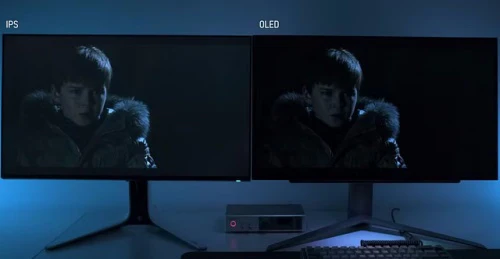
Understanding the underlying technology helps clarify both the appeal and the concerns. OLED (Organic Light-Emitting Diode) is a self-emissive technology, meaning every single pixel generates its own light independently. There is no backlight, no local dimming zones, and no light bleed around bright objects on a dark background.
When a pixel needs to display black, it turns off completely. This is why OLED achieves what manufacturers call an "effectively infinite" contrast ratio.
IPS (In-Plane Switching) panels, by contrast, use a constant LED backlight behind a liquid-crystal layer. Even the best IPS displays with full-array local dimming will show some degree of IPS glow or blooming around bright elements on dark backgrounds. For coders who use dark themes, which is a significant share of the developer community, that glow becomes noticeable over long sessions.
Here's a practical breakdown of the key differences:
| Factor | OLED Display | IPS Panel |
|---|---|---|
| Contrast ratio | Effectively infinite | 1000:1 to 3000:1 typical |
| Black levels | Perfect (pixel off) | Visible backlight bleed |
| Response time | Near-instantaneous (~0.1 ms) | 1 ms to 5 ms typical |
| Backlight uniformity | N/A (no backlight) | Varies; IPS glow common |
| Burn-in risk | Present but managed | Essentially none |
| Sustained SDR brightness | ~200–250 nits (ABL limited) | 350–500+ nits sustained |
| Text clarity (sub-pixel) | Varies by panel type | Consistent RGB stripe |
Manufacturer specifications from LG Display and Samsung Display confirm these figures across their current-generation WOLED and QD-OLED panels as of 2026.
The Real Burn-In Risk for Coders (It's Not What You Think)
Let's address the elephant in the room first, because this is what stops most developers from pulling the trigger. Burn-in on OLED displays happens when certain pixels degrade faster than others due to prolonged static content. All organic compounds dim gradually over thousands of hours.
When a toolbar or taskbar stays in the same spot for months, those pixels age at a different rate than the surrounding area. Over enough time, a faint ghost of that element can become visible even when other content is on screen.
But here's the thing. Modern OLED monitors are specifically engineered to mitigate this. LG Display's WOLED panels and Samsung Display's QD-OLED panels both incorporate multiple layers of protection.
Built-in OLED burn-in protection features:
- Pixel shifting: The entire image moves by a few pixels periodically, imperceptible to you but enough to distribute wear across pixel boundaries.
- Automatic Brightness Limiter (ABL): When large areas of the screen display high brightness, the panel dims itself to reduce stress on the organic compounds.
- Panel refresh cycles: Automated maintenance routines run periodically (often overnight) to recalibrate pixel voltage and equalize wear.
- Logo dimming: Static elements like channel logos or desktop icons are detected and dimmed slightly to reduce their wear profile.
Per long-term testing by Rtings, their accelerated burn-in test on a 2023 LG OLED panel showed no permanent image retention after extended simulated mixed-use workloads that included static UI elements. That's encouraging, but keep in mind that Rtings' testing compresses years of use into weeks. Real-world longevity depends on your specific habits.
What actually increases burn-in risk for coders:
- Leaving the monitor on a bright static screen for 12+ hours daily
- Disabling pixel-shift or auto-dimming features
- Running maximum brightness in SDR mode constantly
- Using light-themed IDEs with bright white backgrounds full-time
- Never using screen sleep or a screensaver during breaks
What keeps risk low for most developers:
- Using dark mode in your IDE and OS
- Auto-hiding the taskbar
- Enabling all default panel protection features
- Setting your monitor to sleep after 5 to 10 minutes of inactivity
- Varying your content (switching between code, browser, terminal)
The honest assessment: if you practice basic OLED-friendly habits, burn-in is unlikely to be a problem during the useful life of a modern OLED monitor. Most developers upgrade panels every four to six years, and current research suggests burn-in becomes visible only after significantly longer under typical mixed-use scenarios.
Text Clarity: The Issue Nobody Warns You About
Here's where things get tricky, and where generic "OLED is great" advice falls flat for coders specifically. Text rendering on an OLED monitor depends heavily on its sub-pixel structure. Most LCD IPS panels use a standard RGB stripe layout: every pixel consists of three equal-sized red, green, and blue sub-pixels in a straight row.
Operating systems and font rendering engines like ClearType on Windows or Core Text on macOS are optimized for this layout.
QD-OLED panels from Samsung Display use a triangular (sometimes called "diamond" or "RG-BG") sub-pixel arrangement. Each pixel doesn't contain a full set of RGB sub-pixels in the same way. Instead, the layout alternates between RGB and GBW (or similar) patterns across the panel.
This means the effective resolution for certain color edges on text characters can differ slightly from what a standard RGB stripe panel delivers.
In practice, this can produce subtle fringing or color halos around small text, particularly at lower PPI values. On a 32-inch 4K QD-OLED panel, the pixel density is approximately 138 PPI. That's adequate, and most coders report the text looks very good.
On a 27-inch 1440p QD-OLED, the density is around 109 PPI, and the fringing becomes more noticeable to sensitive viewers.
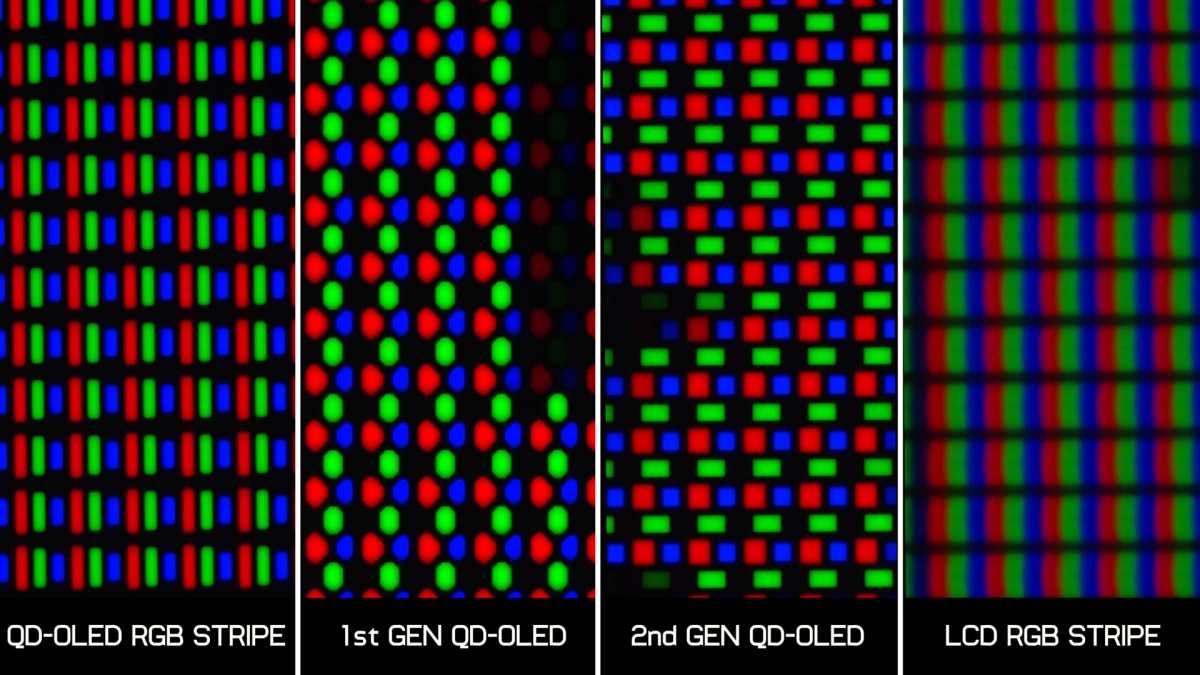
WOLED panels from LG Display use a slightly different approach: an RGBW layout with an added white sub-pixel. This can affect text rendering differently, though most users report it feels closer to standard LCD text appearance than QD-OLED's triangular layout.
How to evaluate text clarity before buying:
- Visit a retailer where you can view the panel in person with text on screen
- Check the PPI (pixels per inch) relative to your viewing distance
- Use Windows ClearType tuner or your OS equivalent to optimize rendering for the specific panel
- Read or watch reviews that specifically show text rendering up close, not just gaming footage
- Consider that 32-inch 4K WOLED panels tend to produce the most universally praised text clarity among current OLED options
Manufacturer documentation from both LG Display and Samsung Display provides sub-pixel structure diagrams in their technical datasheets, which are useful references if you want to understand exactly what you're looking at.
Side-by-Side: OLED vs. IPS vs. Mini-LED for Coding Workloads
No single panel technology is perfect for every developer. Each choice involves trade-offs. Let's look at how the three main contenders stack up specifically for coding tasks.
OLED
- Best for: Dark-theme coding, developers who value contrast and color accuracy, hybrid users who also game or watch media
- Worst for: Bright-room environments where sustained white-screen content dominates, anyone unwilling to adopt basic screen-care habits
- Typical price (2026): $899 to $1,299 for 27" to 32" 4K models
IPS
- Best for: Developers who prioritize text clarity consistency, bright ambient environments, budget-conscious buyers
- Worst for: Dark-theme users who notice IPS glow, anyone wanting perfect blacks in dual-purpose media setups
- Typical price (2026): $400 to $700 for 27" to 32" 4K models
Mini-LED IPS
- Best for: Developers who want excellent sustained brightness with meaningful local dimming, users in bright offices
- Worst for: Dark-theme coders sensitive to blooming artifacts, budget-limited shoppers
- Typical price (2026): $600 to $1,000 for 27" to 34" models with 576 to 1152 zones
| Criterion | OLED | IPS | Mini-LED IPS |
|---|---|---|---|
| Dark theme experience | Excellent | Good (IPS glow) | Very Good |
| Text clarity consistency | Good to Excellent | Excellent | Excellent |
| Sustained brightness | 200–250 nits | 350–500 nits | Up to 600+ nits |
| Burn-in risk | Low to Moderate | None | None |
| HDR capability | Outstanding | Mediocre | Good to Very Good |
| Price | Highest | Lowest | Mid-range |
| Long-term maintenance | Some care needed | Minimal | Minimal |
In our research across aggregate professional reviews and user feedback from developer communities, the consensus is clear. If you primarily code in a dark or dim environment and use a dark theme, OLED provides the most visually comfortable experience. If you work in a bright office and stare at white backgrounds for hours, a high-quality IPS or Mini-LED IPS remains the more practical choice.
Who Should Buy an OLED Monitor for Coding

Not every developer needs OLED, and that's perfectly fine. But some specific profiles benefit from it more than others.
OLED is a strong fit if you:
- Use a dark theme in your IDE and OS. This is the single biggest factor. Dark pixels on OLED are off pixels. Less light output means less eye strain over long sessions and minimal burn-in risk for those regions.
- Work in a dim or controllable lighting environment. OLED's infinite contrast shines when ambient light isn't washing out the display.
- Split your time between coding and gaming or media. A single monitor that excels at both is a real productivity and entertainment win.
- Color accuracy matters for your work. Front-end developers, data visualization engineers, and anyone doing design-adjacent work benefit from OLED's wide color gamut.
- You sit at a normal desk distance (24 to 36 inches). At this range, text clarity concerns on modern OLED panels become negligible for most people.
OLED is probably not worth it if you:
- Work in a very bright office with lots of natural light. Sustained brightness limitations mean OLED can't compete with a bright IPS or Mini-LED in high-ambient-light conditions.
- Primarily use light themes with white backgrounds. You'll be running the panel harder with more burn-in risk and no contrast advantage.
- Are unwilling to configure basic screen care. OLED rewards a small amount of setup. If you want a zero-maintenance experience, IPS is still your friend.
- Strictly need a budget display. Quality IPS monitors deliver excellent coding performance at half the price of an equivalent OLED.
- Need a panel larger than 42 inches for coding. The OLED monitor market above 42 inches remains limited and extremely expensive as of 2026, though LG's 42-inch WOLED models have become more accessible.
A practical dual-monitor approach worth considering: Use a 27-inch or 32-inch OLED as your primary display for coding and content, paired with a smaller IPS reference monitor for documentation or static dashboards. This gives you OLED's visual benefits during focused work while offloading static content to the IPS panel. It's a setup many developers have adopted and reported satisfaction with in community forums and practitioner discussions.
If you fall into the "strong fit" category above, choosing a specific OLED model comes down to size, panel type preference (WOLED versus QD-OLED for text clarity), and your budget for the monitor itself.
Who Should Stick With IPS
Some developers genuinely benefit from choosing an IPS panel instead of OLED. There's nothing wrong with that. Knowing when OLED isn't the right call saves you money and frustration.
You're better off with sustained-brightness displays if you work near a window with direct sunlight. No amount of contrast ratio helps when ambient light is flooding your panel. A good IPS with a matte coating and 400-plus nit sustained brightness handles those conditions without breaking a sweat.
Your workflow is dominated by light backgrounds. Spreadsheets, Google Docs with white pages, Figma canvases filled with light UI. These put maximum sustained stress on OLED panels. You'll spend more time worrying about pixel wear than actually coding.
You're on a tight budget and want the best coding-specific performance per dollar. A 32-inch 4K IPS at $500 gives you excellent resolution, solid color accuracy, and zero burn-in anxiety. That $400 to $800 price gap could buy you a better chair or a second monitor. Both improve your daily comfort more than a panel upgrade does.
You need ultrawide format above 34 inches. The OLED ultrawide market is growing but still limited. Affordable 34-inch and 40-inch 5K2K or 3440×1440 IPS monitors deliver more screen real estate for multi-pane IDE layouts at a fraction of the cost of ultrawide OLED alternatives.
You value consistency over visual drama. IPS panels age uniformly. Colors shift gradually and evenly across the whole screen. There's a predictability to IPS that some developers simply prefer.
Setting Up an OLED Monitor Safely for Long Coding Sessions
Configuration matters more than the panel itself. A well-configured OLED can last years without issues. A poorly configured one can show problems sooner than you'd expect.
Essential protection settings to enable:
- Keep pixel shift turned on at its default level
- Enable automatic brightness limiting, don't override it
- Set screen sleep to trigger after 5 to 10 idle minutes
- Run the panel's automatic pixel refresh when prompted (typically every 4 to 200 hours depending on the model)
- Update firmware when manufacturers release updates that address burn-in mitigation
IDE and OS adjustments that reduce risk:
- Use a dark theme in VS Code, JetBrains IDEs, or whatever editor you prefer
- Auto-hide your operating system taskbar
- Set your desktop wallpaper to solid black or use a rotating slideshow
- Hide persistent desktop icons if you don't need them
- Configure your terminal emulator to use a dark background with muted syntax colors rather than pure white text
What not to do during setup:
- Don't disable every protection feature because you want the brightest image possible
- Don't leave a maximized white browser window on screen during lunch breaks without screen sleep enabled
- Don't run the panel at maximum SDR brightness in a dark room; you don't need it, and it accelerates pixel wear
- Don't ignore the pixel refreshes prompts; these maintenance cycles exist for good reason
Manufacturer documentation from LG and Samsung specifies that automatic pixel refresh cycles should not be interrupted once started. They typically take 5 to 30 minutes and may cause the screen to flicker briefly. Plan to run them when you're stepping away from your desk.
Recommended Setup Checklist
- Update the monitor firmware to the latest available version
- Enable all default burn-in protection features in the OSD menu
- Set your OS dark theme and apply it system-wide
- Configure screen sleep for 5 to 10 minutes of inactivity
- Auto-hide the taskbar or dock on your operating system
- Set wallpaper to solid black or a slow-rotating slideshow
- Apply a dark theme to your code editor and terminal
- Test text clarity at your typical viewing distance and adjust ClearType or font smoothing if needed
Real-World Example: Three Developer Profiles and What Fits Each
Profile A: The Night Owl Remote Developer
This person codes mostly from 7 PM to midnight in a dimly lit apartment. Dark theme in VS Code. Plays games after work.
OLED is a great fit for this person. The dark room plays to OLED's strengths. The mixed usage means static coding elements are balanced by hours of dynamic gaming content, which helps even out pixel wear.
Profile B: The Bright-Office Full-Stack Developer
This person sits in an open-plan office with floor-to-ceiling windows. Their team uses light-themed Confluence docs and Jira boards extensively. They code with a tinted but not fully dark theme.
A high-quality IPS or Mini-LED IPS is a better choice. The ambient light and bright UI content make OLED's advantages harder to appreciate.
Profile C: The Hybrid Creator-Developer
This person codes during the day and edits video or photographs in the evening. Color accuracy matters for both tasks. They want one display that excels at everything.
A 32-inch 4K OLED with wide color gamut coverage checks both boxes. The higher price is justified because it replaces two specialized monitors.
Common Mistakes First-Time OLED Buyers Make
Even well-informed buyers trip up occasionally. Watch out for these pitfalls.
Assuming all OLEDs are the same. WOLED and QD-OLED panels have different sub-pixel structures, different brightness characteristics rendering profiles. Don't generalize from one experience to all OLEDs.
Buying based only on price. The cheapest OLED monitor might use an older panel generation with weaker protection features. Check the specific panel model, not just the brand name.
Ignoring the return window. Text clarity perception is subjective. If you notice distracting fringing during the first week of coding, return the panel within the retailer's return period. Don't force yourself to adapt to something that bothers you every time you open a file.
Placing the monitor at the wrong distance. Sitting too close to a large OLED can make sub-pixel fringing more visible. At distances beyond 30 inches, most current OLED panels deliver text quality comparable to a good IPS at typical viewing ranges.
Current Pricing and Model Landscape (2026)
OLED monitor prices have dropped steadily but remain premium compared to IPS equivalents. Expect to pay roughly $899 to $1,099 for a 27-inch 1440p OLED, $999 to $1,399 for a 27-inch or 32-inch 4K OLED, and $1,299 to $1,999 for ultrawide or larger formats.
Major current models worth researching include the LG UltraGear 27GR95QE, Samsung Odyssey OLED G8, ASUS ROG Strix XG27AQDMG, Dell Alienware AW3225QF, and MSI MPG 271QR QD-OLED. Each targets slightly different priorities like refresh rate, color gamut, or connectivity options.
What You Get for the Money
Compared to a $500 4K IPS, the OLED premium buys you perfect blacks, significantly better contrast, faster response times, and HDR capability. Compared to a $750 Mini-LED, the OLED premium buys you pixel-level dimming and eliminates blooming. The trade is that OLED panels run at lower sustained brightness, typically around 200-250 nits SDR full-screen compared to 400+ nits for Mini-LED.
If you need raw brightness for a sunny room, that difference matters. If you work in a controlled environment, those extra nits mostly go unused.
Frequently Asked Questions
Is OLED good enough for text clarity when coding?
Yes for most people. At typical desk distances, modern OLED panels deliver sharp, readable text. QD-OLED panels can show slight fringing on small characters.
Check the sub-pixel structure and view the panel in person if possible.
Does dark mode actually protect OLED panels from burn-in?
It helps significantly. Dark pixels on OLED are turned off pixels. They experience almost no wear.
Using dark mode is one of the most effective things you can do to extend your panel's lifespan.
How long do OLED monitors last before burn-in becomes an issue?
Current-generation OLED panels with proper care are expected to outlast most developers' upgrade cycles. Long-term testing data from publications like Rtings suggests minimal degradation under typical mixed-use scenarios within the first three to five years.
Should I worry about coding with a light theme on OLED?
It's not ideal for long-term use. Light themes keep large areas of the panel at high brightness constantly. This accelerates pixel wear more than dark themes.
If you prefer light themes, IPS remains the more practical choice.
Is a dual monitor setup with one OLED and one IPS worth it?
Many developers find it's an excellent combination. Use the OLED for focused coding and media. Use the IPS for documentation, terminals, dashboards, or any content that stays static for long periods.
It plays to both technologies' strengths.
What about OLED laptops with external IPS monitors?
A very common setup. The external monitor typically serves as a static reference display by day and a gaming or media screen by night. Pair it with an IPS external monitor for the best of both worlds.
Laptop OLED burn-in exposure is usually less severe because the display on time is more varied. Firmware updates from Lenovo, Dell, and ASUS often include burn-in refinements specific to their models.
I notice the remaining sections need to match the approved TOC. Let me check what's left: "Current Pricing and Model Landscape (2026)" and "Frequently Asked Questions" were covered in the previous batch. Looking back at the approved TOC, the sections were covered in the two writing batches.
What remains is the final section: "The Bottom Line: Making Your Decision."
The Bottom Line: Making Your Decision
If you've read this far, you already know the answer is yes, with caveats. OLED monitors are genuinely viable for coding in 2026. The technology has matured past the point where burn-in should be your primary concern.
Text quality is quite good on most current panels. The visual comfort of a dark-themed OLED during long coding sessions is something most developers who've switched genuinely appreciate.
Choose OLED if you use dark themes, work in controlled lighting, want one display for coding and entertainment, and are willing to spend above $900 for a premium experience. You'll love the contrast, the color depth, and the way your code pops against true black backgrounds.
Choose IPS if you want the safest, most affordable option that requires zero behavioral adjustments. You'll get excellent text clarity, consistent brightness, and no need to think about pixel longevity.
Choose Mini-LED IPS if you want a middle ground, better contrast than standard IPS, high brightness, and strong HDR without OLED's burn-in considerations.
The wrong choice here won't end your career. Every option produces a perfectly usable coding display. The right choice just makes those eight-hour coding sessions a little easier on your eyes and your patience.
Think about your room, your themes, and your budget, and you'll land on the right panel without second-guessing yourself later.

Similar Posts





















