How to Choose the Best Budget Monitor
Figuring out how to choose the best budget monitor shouldn't feel like a guessing game, but it does for most people. The market is flooded with confusing model numbers, inflated specs, and panels that look great on paper but disappoint in person.
The good news is that as of 2026, the budget monitor category is genuinely strong. You can get a solid IPS display with accurate colors and a responsive panel for under $200. The trick is knowing which specs actually matter for how you'll use the screen. If you are exploring similar hardware setups, see our detailed guide on how to choose budget monitor for editing.
Let's walk through it step by step.
Quick Answer
Choose a budget monitor by matching it to your primary use case first. For most people, a 24-inch 1080p IPS panel at 75Hz or 144Hz hits the sweet spot. If your budget stretches past $200, a 27-inch 1440p IPS display is the best value upgrade.
Avoid TN panels and fake HDR certifications. Always check port compatibility with your device before buying.
Step 1: Lock In Your Primary Use Case
Before you look at a single spec sheet, you need to be honest about what you'll actually do with this monitor 80% of the time. The "best" budget monitor for a competitive gamer is completely different from the best one for someone staring at spreadsheets all day. Readers evaluating this setup should also consider how to find budget gaming monitor for comparative benchmarks.
Here's how the main use cases break down:
- Office and productivity: You want sharp text, decent color accuracy, and an ergonomic stand. Refresh rate barely matters. Panel quality and adjustability are king.
- Competitive gaming: You need high refresh rate (144Hz or above), low response time, and adaptive sync. Color accuracy is secondary.
- Creative work: Color accuracy (sRGB coverage), resolution, and panel uniformity matter most. You should not compromise here.
- Casual home use: A decent IPS panel at 60Hz or 75Hz is perfectly fine. Don't overspend on features you won't notice.
- Console gaming: Check that the monitor supports the resolution and refresh rate your console outputs. PS5 and Xbox Series X behave differently at budget price points.
Write down your primary use case. If you have two equal uses, pick the one with the higher performance demand. That becomes your anchor for every decision that follows.
Step 2: Pick Your Resolution and Size Combo
This is where most budget buyers either get great value or waste money. Screen size and resolution are deeply linked, and getting the wrong combination means a soft, pixelated image you'll notice every single day.
Here's the core principle: pixel density determines how sharp text and images look. Too few pixels spread across too large a screen, and everything looks fuzzy.
The Three Main Combinations
| Size | Resolution | Pixel Density (PPI) | Verdict |
|---|---|---|---|
| 24" | 1080p (Full HD) | ~92 PPI | Sharp enough for most desk distances. The safe default. |
| 27" | 1080p | ~82 PPI | Visible pixelation. Text looks soft. Avoid this combo. |
| 27" | 1440p (QHD) | ~109 PPI | The sweet spot. Noticeably sharper than 1080p at this size. |
If you're sitting 2 to 3 feet from the screen, which is typical for a desk setup, that 27-inch 1080p panel will bother you within a week. The pixels are simply too large. Manufacturer specs confirm that 27-inch 1080p displays show visible individual pixels at normal viewing distances.
When to Consider 4K at Budget Prices
A few 4K monitors have crept into the $250 to $300 range as of 2026. That's genuinely impressive, but there's a catch. Your GPU needs to push four times as many pixels as 1080p.
If you're gaming, you'll need a capable graphics card to avoid stuttering. For office use though, 4K at 27 or 32 inches gives you incredible text clarity and screen real estate.
The rule of thumb: 24 inches for 1080p, 27 inches for 1440p, 32 inches or above for 4K. Stray from these pairings and you're paying for size without the resolution to back it up.
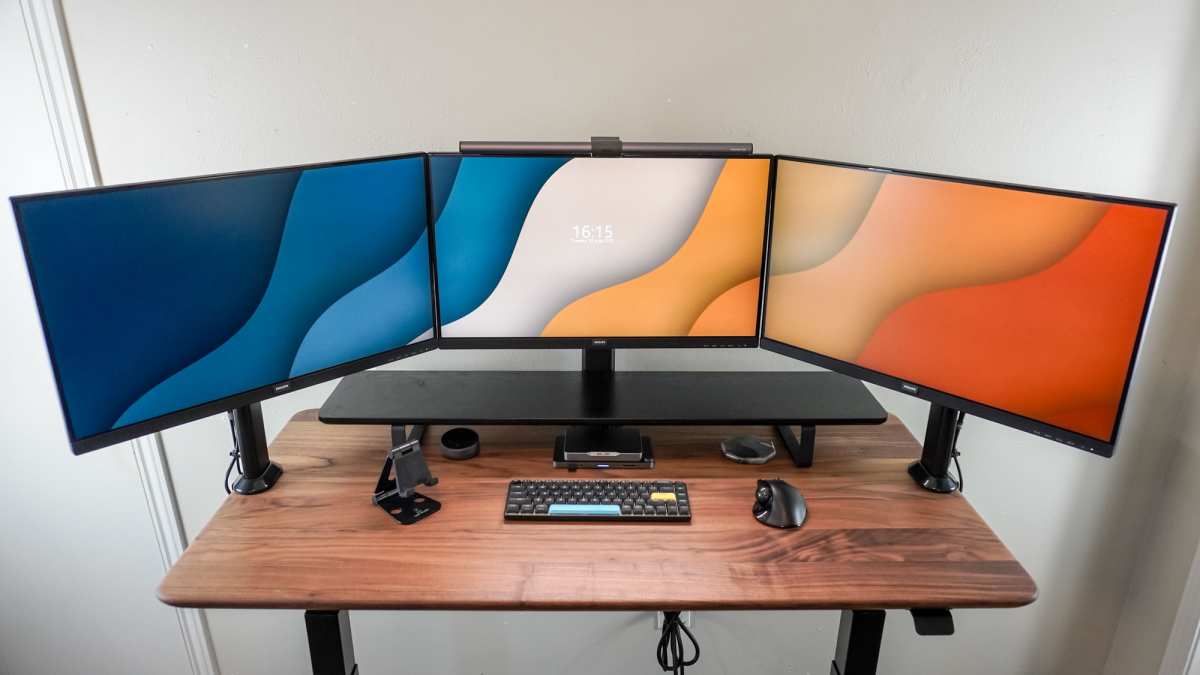
Step 3: Choose Your Panel Type
Panel technology determines how your monitor looks, how colors shift when you move your head, and how fast pixels can change. There are three main types you'll encounter in the budget range, and one emerging option worth knowing about.
IPS (In-Plane Switching)
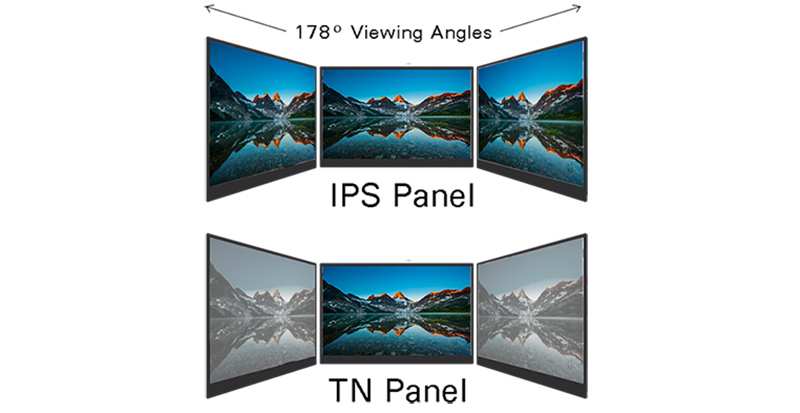
IPS panels are the default recommendation for most people, and for good reason. They offer wide viewing angles, meaning colors stay consistent even when you're looking at the screen from the side. Color accuracy tends to be strong out of the box.
Response times have improved dramatically, with many budget IPS panels now hitting 1ms MPRT or 4ms GtG.
The downside is that IPS panels typically have lower contrast ratios than VA panels. Blacks can look slightly grey in a dark room. Some IPS glow is visible in the corners, though it's rarely distracting during normal use.
Best for: Office work, creative tasks, general use, and most gaming scenarios.
VA (Vertical Alignment)
VA panels deliver the best contrast ratios in the budget category. That means deeper blacks and a more cinematic image, which is great for watching movies or playing atmospheric games. Color reproduction sits between IPS and TN.
The tradeoff is slower pixel response times, especially in dark transitions. This can cause "black smearing" where fast-moving objects leave a trail. For competitive gaming, this is a real problem.
For everything else, it's usually fine.
Best for: Media consumption, single-player gaming, dark room use.
TN (Twisted Nematic)
TN panels used to dominate the budget gaming market because of their fast response times and high refresh rates. But IPS panels have caught up in speed while offering far better color and viewing angles. TN panels look washed out when viewed off-center and typically have poor color accuracy.
There's almost no reason to buy a new TN panel in 2026 unless you're chasing the absolute lowest response time for professional esports. Even then, budget IPS options are competitive.
Best for: Almost no one anymore. Skip it.
OLED at Budget Prices
OLED technology delivers perfect blacks, infinite contrast, and blazing response times. It's the best panel type available. The problem is that true OLED monitors still start around $400 to $500 and above.
A few budget-adjacent options exist, but they're rare and often have lower peak brightness than premium models.
Keep an eye on this space. Prices are dropping, and OLED will likely become a realistic budget option within the next couple of years.
Step 4: Match Refresh Rate and Response Time to Reality
Monitor manufacturers love to slap "144Hz" or "165Hz" on the box because it looks impressive. But refresh rate only matters if your system can actually produce that many frames per second.
What Refresh Rate Actually Does
Refresh rate measures how many times per second the screen updates. A 60Hz monitor redraws the image 60 times per second. A 144Hz monitor does it 144 times.
Higher refresh rates make motion look smoother and reduce input lag.
The jump from 60Hz to 75Hz is surprisingly noticeable. It's a small bump, but once you see it, going back feels sluggish. The jump from 60Hz to 144Hz is dramatic.
Going beyond 144Hz to 165Hz or 240Hz offers diminishing returns that most people won't perceive.
Do You Actually Need High Refresh Rate?
- Office and productivity: 60Hz or 75Hz is perfectly fine. You won't notice a difference at 144Hz for scrolling documents.
- Casual gaming: 75Hz to 100Hz is a nice middle ground. Smooth enough without demanding a powerful GPU.
- Competitive gaming: 144Hz is the practical minimum. 165Hz is ideal if your hardware supports it.
- Console gaming: Most console games run at 30fps or 60fps. A 60Hz display is sufficient, though 120Hz helps with frame pacing on supported titles.
Response Time: The Spec That Lies
Manufacturer response time claims are almost always misleading. A monitor advertised as "1ms GtG" might only achieve that with aggressive overdrive settings that cause inverse ghosting. The real-world response time is often 4ms to 6ms.
For budget monitors, look for panels that achieve 4ms GtG or lower in independent testing. That's fast enough for smooth motion without artifacts. Aggregate reviews from verified buyers are more useful than spec sheets here.
The honest takeaway: If you're not playing competitive shooters, a 75Hz IPS panel with decent response time will serve you better than a 144Hz panel with poor color quality.
Step 5: Check Connectivity Before You Buy
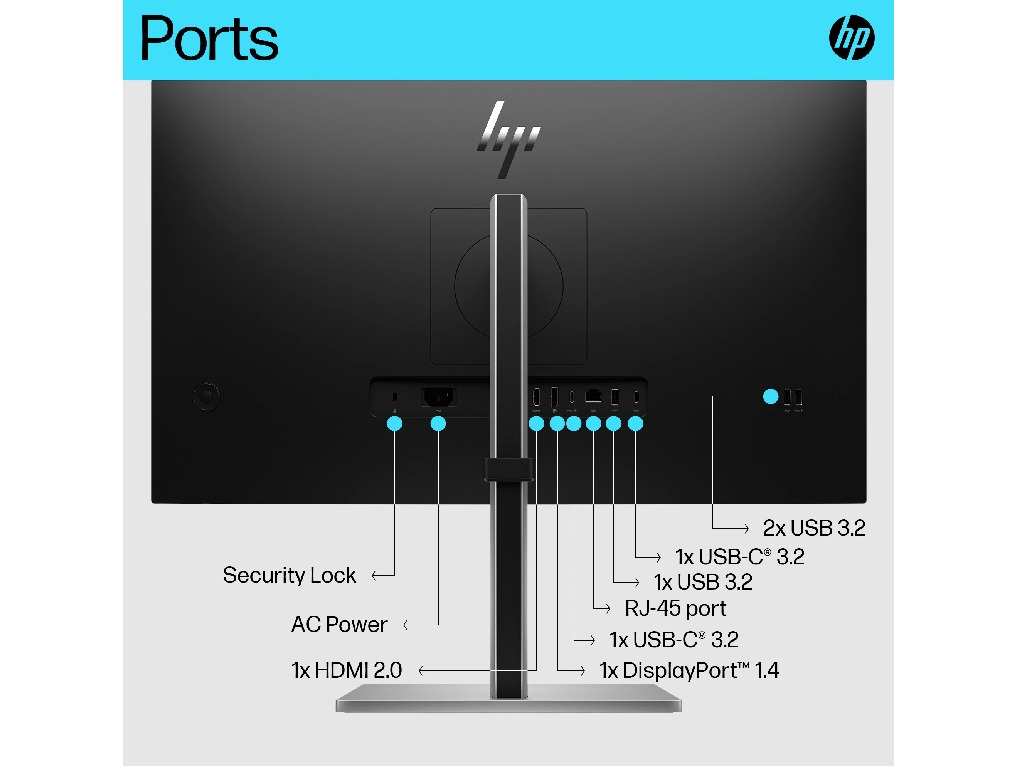
This is the step that causes the most frustration after unboxing. You get your new monitor home, pull out your cable, and realize the port doesn't match your device. Or worse, the port is an older version that can't deliver the resolution and refresh rate you paid for.
HDMI Versions Matter More Than You Think
Not all HDMI ports are created equal. The version determines the maximum resolution and refresh rate the cable and port can handle.
| HDMI Version | Max at 1080p | Max at 1440p | Max at 4K |
|---|---|---|---|
| HDMI 1.4 | 144Hz | 60Hz | 30Hz |
| HDMI 2.0 | 240Hz | 144Hz | 60Hz |
| HDMI 2.1 | 240Hz+ | 240Hz | 120Hz+ |
If you're buying a 1440p 144Hz monitor and your GPU only has HDMI 1.4, you're capped at 60Hz at that resolution. You'd need DisplayPort to unlock the full refresh rate.
DisplayPort: The Safer Bet for PC Gaming
DisplayPort 1.4 supports 1440p at 144Hz with no compression. It's the standard connection for PC monitors and what most gaming-focused displays expect you to use. If your GPU has a DisplayPort output, use it over HDMI whenever possible.
USB-C With Power Delivery
More budget monitors are including USB-C connectivity, and it's a genuine quality-of-life feature if you're connecting a laptop. A single USB-C cable can carry video signal and charge your laptop simultaneously. Look for monitors that provide at least 65W power delivery if you want this to work effectively.
Check your laptop's power requirements first. A thin and light laptop might charge fine at 45W, but a gaming laptop typically needs 100W or more. The monitor won't damage anything, but it won't charge your laptop as fast as its dedicated brick.
What About VGA and D-Sub?
Some budget monitors still include VGA ports for legacy compatibility. That's fine as a backup, but VGA is an analog signal. Image quality is noticeably softer compared to digital connections.
Use it only if you have no other option.
Step 6: Judge Build Quality and Ergonomics
A monitor's stand and adjustability affect your comfort more than any spec sheet number. Budget monitors often cut corners here, shipping wobbly stands with zero height adjustment. If you're using this screen eight hours a day, that's a real problem.
What to Look For in a Stand
At minimum, you want tilt adjustment so you can angle the screen to reduce glare. Height adjustment is strongly preferred because it lets you position the top of the panel at or slightly below eye level. That's the ergonomic sweet spot for reducing neck strain.
Swivel and pivot are nice to have but rare at budget prices. Pivot lets you rotate the screen into portrait orientation, which programmers and document editors love. Swivel is useful if you occasionally share the screen with someone sitting beside you.
VESA Mount as Your Backup Plan
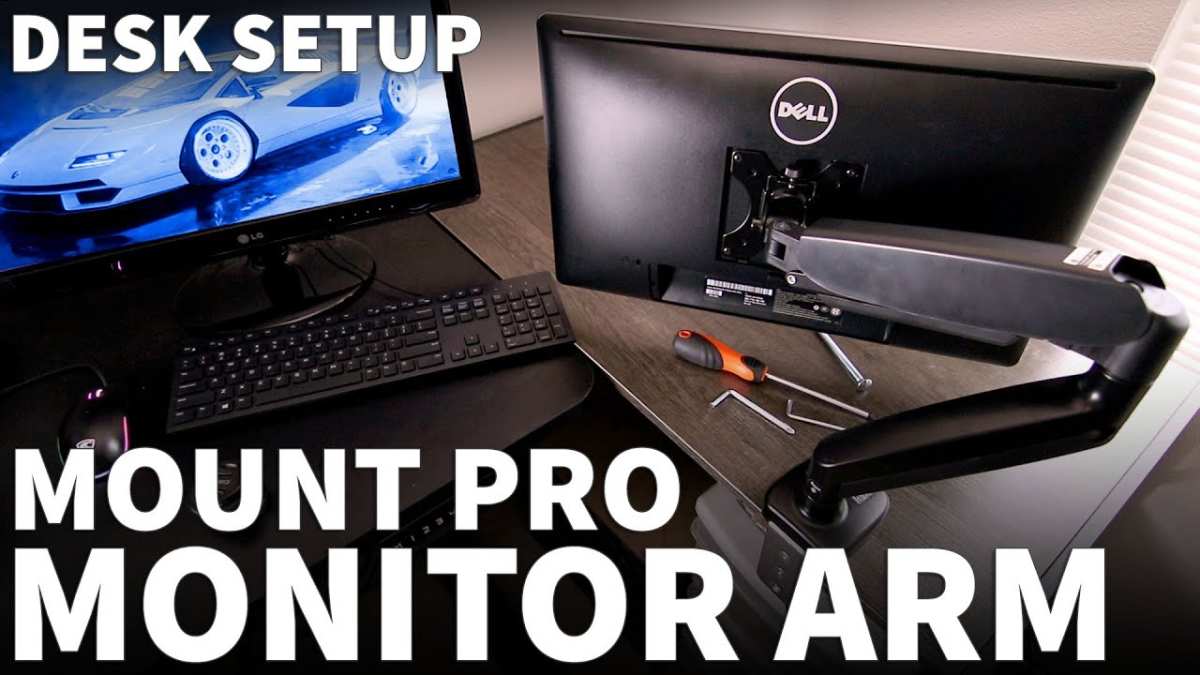
If the included stand is terrible, VESA mount compatibility saves you. Most budget monitors support either 75x75mm or 100x100mm VESA patterns. A basic monitor arm costs $25 to $40 and gives you full height, tilt, swivel, and rotation control.
Check the monitor's VESA specs before buying. Some budget models omit VESA mounting entirely, which locks you into whatever stand ships in the box. That's a dealbreaker if you plan to use an arm or wall mount.
Bezel Size Matters for Multi-Monitor Setups
If you're planning a dual-monitor setup, thin bezels make a noticeable difference. The bezel is the frame around the visible display. Thinner bezels mean less visual gap between two screens side by side.
Most budget monitors as of 2026 have reasonably thin bezels on three sides with a slightly thicker bottom chin. That's perfectly acceptable. Just avoid anything with bezels over 10mm on the sides if you plan to run dual displays.
Common Mistakes That Waste Your Budget
After reviewing hundreds of buyer feedback reports and forum discussions, the same mistakes come up again and again. Here's what to watch for.
Buying a "Gaming" Monitor With a TN Panel
Some budget gaming monitors still ship with TN panels to hit aggressive refresh rate numbers at low prices. You get 144Hz, but the colors shift when you tilt your head and the viewing angles are terrible. Always verify the panel type before buying.
If the spec sheet doesn't say IPS, it's probably TN.
Paying for HDR400 That Doesn't Look Good
VESA's DisplayHDR 400 certification sounds impressive. In practice, most budget monitors with this certification lack the local dimming and peak brightness needed for real HDR impact. The image often looks worse with HDR enabled than disabled.
HDR600 and above is where HDR starts to matter, and that's still rare in the true budget range.
Ignoring the Panel Lottery
Budget monitors sometimes suffer from quality control inconsistencies. Backlight bleed, uneven brightness, and dead pixels vary unit to unit. This is known as the "panel lottery." You might get a perfect screen or one with a bright corner glow.
Buy from retailers with a solid return policy. Check your monitor for uniformity and dead pixels as soon as you unboxing it. Most manufacturers have a dead pixel threshold in their warranty, often three to five bright pixels for an IPS panel.
Know the policy before you need it.
Overspending on Refresh Rate You'll Never Use
If your laptop or desktop GPU pushes 70fps in your favorite game, a 144Hz monitor won't magically make it 144fps. You'll see 70fps on a 144Hz screen, which is fine, but you're paying for headroom you can't use. Match the monitor to your hardware's actual output.
Choosing Size Over Resolution at the Wrong Price Point
A 32-inch 1080p monitor sounds like a great deal until you sit in front of it. The pixel density drops to around 70 PPI, and everything looks soft. At that size, you need 1440p or 4K for a sharp image.
Don't let a low price on a large screen tempt you into a resolution mismatch.
Real-World Pricing Guide: What Gets You What
Budget monitor pricing has stabilized into clear tiers as of 2026. Here's what each price range realistically gets you.
$100 to $150
This is the entry-level sweet spot. You'll find 24-inch 1080p IPS panels at 75Hz or 100Hz. Color accuracy is decent for everyday use.
Build quality is basic, often with a simple tilt-only stand. This range is ideal for students, office workers on a tight budget, or anyone who needs a reliable second screen.
$150 to $200
This is where the best overall value lives. You can get 24-inch 1080p at 144Hz for gaming or 27-inch 1440p at 75Hz for productivity. IPS panels in this range often have better color coverage, sometimes hitting 95% to 100% sRGB.
Stands tend to be sturdier with more adjustment options.
$200 to $300
At this tier, 27-inch 1440p at 144Hz becomes available. You're getting a genuinely good gaming and productivity display. Some models offer USB-C with power delivery.
Color accuracy improves, and you may find panels with wider gamut coverage suitable for light creative work.
When to Buy
Monitor prices drop reliably during major sales events. Black Friday, Prime Day, and back-to-school season typically see 15% to 25% discounts on popular models. If your current screen still works, waiting for a sale is the smartest move you can make.
The Decision Guide: Best Budget Monitor for Each Use Case
Here's how to match everything we've covered to your specific situation.
Best for Office Productivity
Look for a 24-inch 1080p IPS panel at 60Hz or 75Hz. Prioritize a stand with height adjustment and a blue light filter. sRGB coverage of 95% or higher keeps colors accurate for documents and web browsing. USB-C is a bonus if you're docking a laptop.
Best for Competitive Gaming
A 24-inch 1080p IPS panel at 144Hz or 165Hz with FreeSync or G-Sync Compatible support. Response time of 4ms GtG or lower. Make sure your GPU has DisplayPort output to unlock the full refresh rate.
Avoid anything with a TN panel, no matter how cheap.
Best for Creative Work
A 27-inch 1440p IPS panel with 95% to 100% sRGB coverage at minimum. Check reviews for out-of-box color accuracy. Some budget IPS panels ship well-calibrated, while others need manual adjustment.
This is one area where spending closer to $200 to $300 pays off.
Best for Console Gaming
For PS5 and Xbox Series X, a 27-inch 1440p or 4K display at 120Hz with HDMI 2.1 support. The PS5 and Xbox Series X can output 4K at 120Hz, but budget monitors with HDMI 2.1 are still limited. A 1440p 120Hz display with HDMI 2.0 is a more realistic budget choice for console players.
Best All-Rounder Under $200
A 27-inch 1440p IPS panel at 75Hz hits the sweet spot for most people. You get sharp text, good color, enough screen real estate for multitasking, and enough resolution to future-proof your setup. This is the recommendation that satisfies the widest range of users.
Expert Tips Most Buyers Miss
Calibrate Your Monitor Out of the Box
Budget monitors rarely ship with accurate default settings. The color temperature is often too blue, and the brightness is cranked too high. Spend ten minutes adjusting the settings.
Set brightness to around 120 cd/m² for a well-lit room. Choose the "sRGB" or "Standard" preset if available. Your eyes will thank you.
Pixel Density Matters More Than Spec Sheets Emphasize
Manufacturer specs focus on refresh rate and response time. But pixel density determines how sharp everything looks, and you notice that every second you're using the screen. A 27-inch 1080p panel at 82 PPI looks noticeably softer than a 24-inch 1080p panel at 92 PPI.
Prioritize the right resolution-to-size ratio over a higher refresh rate.
How to Work Around the Panel Lottery
When your monitor arrives, display a full-screen solid black image in a dark room to check for backlight bleed. Then display solid white, red, green, and blue screens to check for dead or stuck pixels. Most dead pixel policies require three or more bright pixels for an RMA, but some retailers accept returns within 14 to 30 days for any reason.
Buy from those retailers when possible.
Why Warranties and Return Policies Matter More on Budget Gear
Premium monitors have tighter quality control. Budget monitors have more variance. A three-year warranty with a clear dead pixel policy is worth paying an extra $10 to $20 for.
Check the manufacturer's warranty terms before buying. Some brands are better than others about honoring claims on budget models.
Frequently Asked Questions
Is 1080p still good enough for a monitor in 2026?
Yes, 1080p is perfectly fine at 24 inches for gaming, office work, and general use. The pixel density at that size is sharp enough for most desk setups. Where 1080p struggles is at 27 inches and above, where the lower pixel density becomes visible.
Should I buy a refurbished premium monitor instead of a new budget one?
It depends on the deal. A refurbished 27-inch 1440p IPS monitor from a reputable brand can outperform a new budget panel. But refurbished displays carry more risk.
Backlight wear, dead pixels, and remaining lifespan are harder to verify. Buy only from sellers with a solid return policy.
Do I need 144Hz if I don't play competitive games?
No. For office work, media consumption, and casual gaming, 60Hz or 75Hz is smooth enough. The jump to 144Hz is most noticeable in fast-paced games and when scrolling quickly through web pages.
If you don't do either of those things often, save your money.
What's the difference between FreeSync and G-Sync Compatible?
FreeSync is AMD's adaptive sync technology. G-Sync Compatible is NVIDIA's certification for monitors that meet their adaptive sync standards. Most modern budget monitors work with both AMD and NVIDIA GPUs.
Check the monitor's spec sheet for explicit compatibility with your GPU brand.
Can I use a budget monitor for photo editing?
Yes, if you choose carefully. Look for an IPS panel with 95% to 100% sRGB coverage and good out-of-box color accuracy. A 27-inch 1440p display gives you enough resolution for editing.
Avoid TN panels and anything with less than 90% sRGB coverage. For professional print work, you'd still want a higher-end display with Adobe RGB coverage.
Final Checklist Before You Checkout
You've done the research. You know your use case, your resolution, your panel type, and your price range. Here's the last verification before you spend your money.
- Confirm the panel type is IPS (or VA if you specifically want higher contrast)
- Verify the resolution matches the screen size correctly
- Check that your GPU has the right port for the resolution and refresh rate you want
- Read at least a handful of verified buyer reviews for quality control issues
- Confirm the return policy and dead pixel warranty terms
- Look for current pricing to make sure the deal is actually a deal
If everything checks out, buy with confidence. The budget monitor market in 2026 is genuinely good. You don't need to spend $500 to get a display that looks great and works reliably.
You just need to know what to look for, and now you do.

Similar Posts





















