How to Find Budget Gaming Monitor
Figuring out how to find budget gaming monitor options that won't let you down is harder than it used to be. The market's flooded with options, and a lot of them slap a "gaming" label on a basic panel and call it a day. The good news is you genuinely don't need to spend $500 or more to get a smooth, responsive experience.
As of 2026, the $150 to $300 range gets you a capable 1080p or even 1440p high-refresh display that holds its own. The trick is knowing which specs actually matter and which ones are just marketing fluff. This directly compares with our findings on how to optimize budget monitor for gaming.
Our research into manufacturer specs, aggregate professional reviews, and verified buyer feedback shows that three decisions drive most of your experience: panel type, resolution, and adaptive sync compatibility. Get those right and you'll be happy. Get them wrong and you'll wonder why your "gaming" monitor feels worse than your old office display.
Let's break it all down so you can shop with confidence.
Image source: Bing (Web (fair-use with source credit))
Quick Answer
To find a budget gaming monitor, set your price range first ($150 to $300 is the sweet spot). Pick your panel type based on what games you play. Match the resolution to your GPU's capability.
Confirm adaptive sync compatibility with your graphics card before buying.
The Three Specs That Matter Most (And the Ones That Don't)
When you're scrolling through spec sheets, it's easy to get overwhelmed. Most listings throw a dozen numbers at you. But three of them actually shape your day-to-day experience. To see how this holds up against alternate models, explore the best budget monitor for gaming.
Refresh rate is the big one. This is how many times per second the screen redraws the image, measured in hertz (Hz). A 60Hz monitor shows 60 frames per second.
A 144Hz monitor shows 144. The jump from 60Hz to 144Hz is the single most noticeable upgrade you can make for gaming. Going from 144Hz to 240Hz is real but far less dramatic.
For budget buyers, 144Hz to 165Hz is the practical ceiling at 1080p and the sweet spot for most people.
Response time is the second critical spec. This measures how quickly a pixel can change from one color to another, usually expressed as gray-to-gray (GtG) in milliseconds. Lower is genuinely better here.
Look for 1ms GtG or 4ms GtG at this price point. Be cautious though. Many budget monitors advertise "1ms MPRT" which is a different measurement that uses backlight strobing.
The real GtG number is often 4ms or 5ms on those units. Check professional reviews for the actual measured response time rather than trusting the box.
Adaptive sync is the third pillar. This technology matches your monitor's refresh rate to your GPU's output in real time, eliminating screen tearing and reducing stuttering. AMD FreeSync and NVIDIA G-Sync Compatible are the two standards you'll encounter.
Most budget monitors support FreeSync natively, and many are also certified as G-Sync Compatible for NVIDIA GPU owners. Always verify compatibility with your specific graphics card before purchasing.
Now here's what you can mostly ignore at this price point. Built-in speakers on budget gaming monitors are universally mediocre. Plan on using headphones or external speakers.
HDR is another trap. A monitor with an "HDR10" badge but only 250 nits of brightness isn't delivering real HDR. True HDR requires at least 400 nits of peak brightness and local dimming, which you won't find under $300.
And contrast ratio claims are often inflated. A static contrast ratio of 1000:1 is standard for IPS panels. VA panels typically hit 3000:1.
Anything claiming 5000:1 or higher is using a dynamic measurement that doesn't reflect real performance.
IPS vs VA vs TN: Which Panel Type Fits Your Gaming Style
Panel type is the first decision you need to make because it affects everything you see on screen. There are three technologies you'll encounter in the budget gaming space, and each has distinct strengths and weaknesses.
IPS (In-Plane Switching) panels offer the best color accuracy and widest viewing angles. Colors look consistent even when you're viewing the screen from the side. This makes IPS the safest all-around choice for most buyers.
The trade-off is that traditional IPS panels have lower contrast ratios, typically around 1000:1, which means blacks look more like dark gray in a dim room. IPS glow, a slight brightening in the corners when viewing dark content, is also common on budget models. Modern "Fast IPS" panels have improved response times significantly, making them viable for competitive gaming.
VA (Vertical Alignment) panels deliver the best contrast ratios in the budget category, typically around 3000:1. Blacks actually look black. This makes VA ideal for horror games, atmospheric single-player titles, and watching movies.
The downside is slower pixel transition times, particularly in dark transitions, which can produce visible smearing or ghosting in fast-paced games. Some newer VA panels have improved this significantly, but it's still worth checking reviews for motion performance before buying a VA display for competitive play.
TN (Twisted Nematic) panels are the fastest in terms of response time and usually the cheapest. They can achieve true 1ms GtG times and were the standard for esports for years. The problem is viewing angles and color quality.
TN panels have poor viewing angles, especially vertically, and colors look washed out compared to IPS and VA. TN has become increasingly rare in the budget gaming market as Fast IPS has caught up in speed while offering far better image quality. Unless you're exclusively playing competitive FPS titles at the highest refresh rate you can afford, IPS or VA is the better choice in 2026.
Here's a quick comparison to help you decide:
| Factor | IPS | VA | TN |
|---|---|---|---|
| Color accuracy | Excellent | Good | Fair |
| Viewing angles | 178°/178° | 178°/178° | 170°/160° |
| Contrast ratio | ~1000:1 | ~3000:1 | ~1000:1 |
| Response time | 1ms–4ms (Fast IPS) | 4ms–8ms | 1ms |
| Best for | All-around gaming | Dark rooms, movies | Competitive FPS only |
| Price range | $150–$350 | $130–$300 | $100–$200 |
If you play a mix of game types and also use your monitor for general tasks, IPS is the safest bet. If you mostly play atmospheric games or watch content in a darker room, VA gives you that deeper picture. Skip TN unless you find a genuinely good deal and only care about competitive shooters.
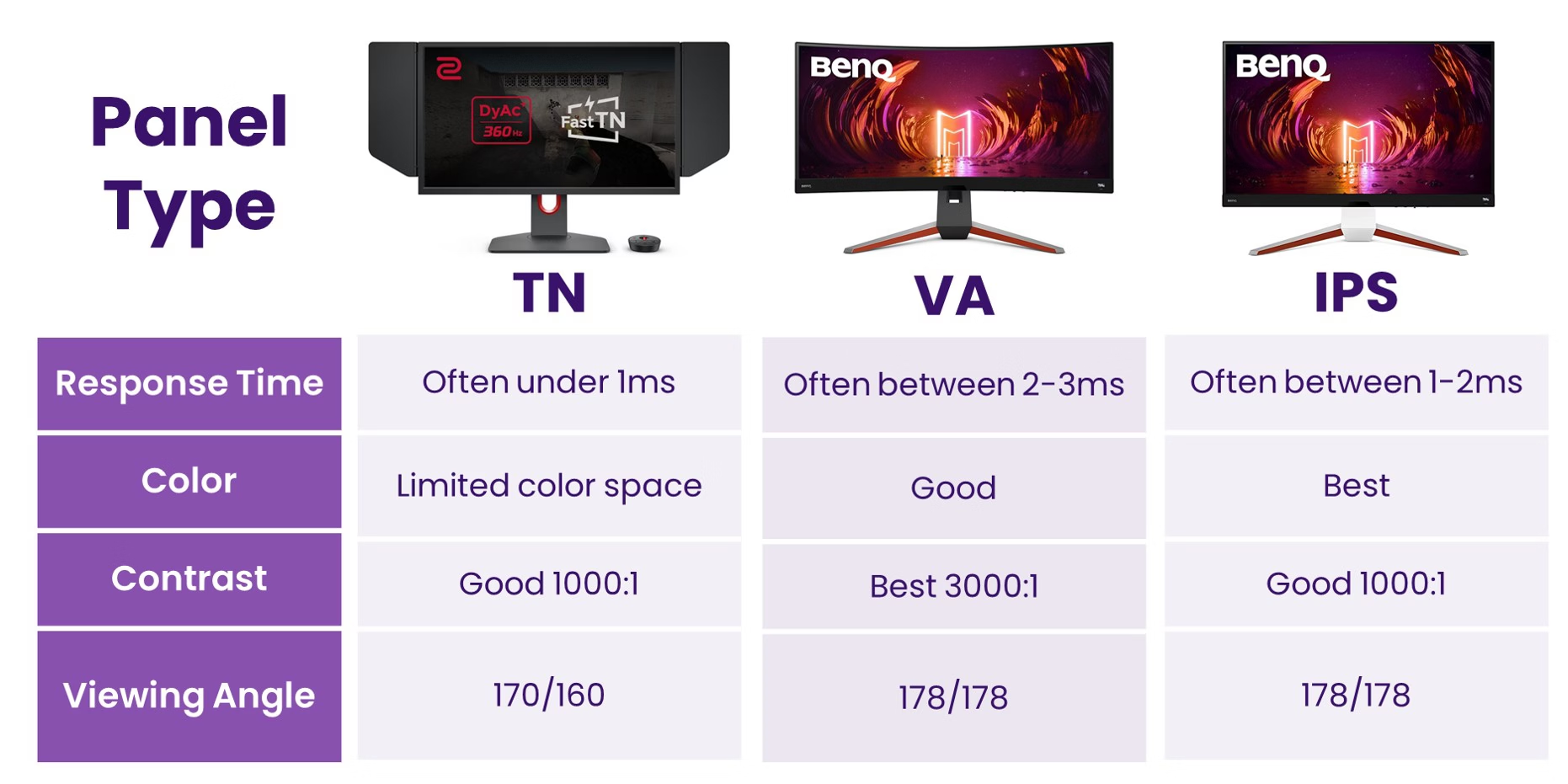
Image source: Bing (Web (fair-use with source credit))
1080p vs 1440p: The Resolution Decision That Changes Everything
Resolution determines how sharp and detailed the image looks. At the budget gaming level, you're choosing between 1920×1080 (Full HD) and 2560×1440 (QHD). Both have a place, and the right choice depends on your hardware and what you prioritize.
1080p at 24 inches is the classic budget gaming setup. At this size and resolution, pixel density is around 92 pixels per inch, which looks sharp at normal viewing distances. More importantly, 1080p is easy to drive.
Even a mid-range GPU like an NVIDIA RTX 4060 or AMD RX 7600 can push high frame rates at 1080p in most titles. If you're targeting 144Hz or above for competitive gaming, 1080p is the resolution that lets you actually hit those frame rates without needing a top-tier graphics card.
1440p at 27 inches is the sweet spot for visual quality. Pixel density jumps to around 109 PPI, and the image is noticeably sharper, especially in text and fine details. The trade-off is that 1440p demands roughly 78% more GPU power than 1080p.
You'll need at least an RTX 4060 Ti or RX 7700 XT to maintain high frame rates at this resolution in demanding titles. If you're playing less competitive, more visually oriented games and your GPU can handle it, 1440p is a meaningful upgrade in image quality.
Here's the practical reality at each budget tier. Between $130 and $200, you're looking at 1080p monitors, mostly 24 inches, with 144Hz to 165Hz refresh rates. This is the best value zone for competitive gamers and anyone with a mid-range GPU.
Between $200 and $300, 1440p options start appearing, typically at 27 inches with 144Hz to 165Hz refresh rates. This range is ideal if you want sharper visuals and have the GPU to back it above. Above $300, you start seeing 1440p with better HDR, higher refresh rates, and more premium features, but that's beyond most budget-focused buyers.
One thing to watch for: some budget 1440p monitors use 27-inch panels, and some budget 1080p monitors also come in 27-inch sizes. Avoid 27-inch 1080p monitors. At that size, the pixel density drops to around 82 PPI, and the image looks noticeably soft and pixelated.
If you want 27 inches, pair it with 1440p. If you're buying 1080p, stick with 24 inches or smaller.
FreeSync vs G-Sync Compatible: Does Adaptive Sync Brand Matter at This Price?
Adaptive sync is one of those features that sounds complicated but is actually simple once you understand the basics. The short answer is that it matters less than you think at the budget level, but you still need to check compatibility.
AMD FreeSync is an open standard built on VESA's Adaptive-Sync specification. Any monitor that supports it can use variable refresh rate with AMD GPUs at no additional cost. FreeSync is tiered into three levels.
Basic FreeSync has no minimum requirements beyond supporting the standard. FreeSync Premium adds a requirement for 120Hz at Full HD and low framerate compensation. FreeSync Premium Pro adds HDR support.
For budget gaming, standard FreeSync or FreeSync Premium is what you'll encounter.
NVIDIA G-Sync Compatible is NVIDIA's certification for FreeSync monitors that pass their quality testing. A monitor with this certification has been tested by NVIDIA and confirmed to work well with GeForce GPUs. However, many uncertified FreeSync monitors also work perfectly fine with NVIDIA cards.
NVIDIA's driver allows you to enable variable refresh rate on any Adaptive-Sync-capable display, even without the official badge.
Here's what this means in practice. If you have an AMD Radeon GPU, any FreeSync monitor will work. That's straightforward.
If you have an NVIDIA GeForce GPU, look for "G-Sync Compatible" on the spec sheet for guaranteed compatibility. If the monitor only says "FreeSync" without the NVIDIA badge, it will probably still work, but check user reviews to confirm. A small number of FreeSync monitors exhibit flickering or blanking issues with NVIDIA GPUs, and those problems are usually documented in buyer feedback.
HDMI vs DisplayPort also matters here. FreeSync works over both HDMI and DisplayPort on most monitors. G-Sync Compatible certification, however, is typically only validated over DisplayPort.
If you're using an NVIDIA GPU, connect via DisplayPort for the most reliable adaptive sync experience. For console gaming, HDMI is your only option, and both PS5 and Xbox Series X|S support HDMI 2.1 VRR, which works with most modern budget monitors that have HDMI 2.0 or 2.1 outputs.
One more thing worth knowing. Low framerate compensation (LFC) is a feature that kicks in when your frame rate drops below the monitor's minimum refresh range. It works by doubling or tripling the displayed frames to keep the refresh rate within the adaptive sync range.
This prevents stuttering during demanding scenes. FreeSync Premium includes LFC as a requirement. Standard FreeSync monitors may or may not support it.
If your GPU sometimes dips below 48 FPS in demanding games, LFC is a feature worth looking for.
The Specs Brands Lie About (And What to Check Instead)
Marketing on budget gaming monitors is, to put it politely, optimistic. Manufacturers know most buyers skim spec sheets and move on. So they highlight the biggest numbers and bury the caveats.
"1ms response time" is the most common exaggeration. Many budget monitors achieve 1ms only in their most aggressive overdrive mode, which introduces inverse ghosting. That's a visual artifact where a bright trail appears in front of moving objects.
The actual usable response time at the optimal overdrive setting is often 4ms or 5ms GtG. Professional reviews from outlets that measure response time with pursuit cameras will tell you the real story. Look for those measurements before you buy.
HDR on budget monitors is largely a checkbox feature. A monitor can display an HDR10 signal while only reaching 250 or 300 nits of peak brightness. True HDR impact requires at least 400 nits, and VESA DisplayHDR 400 certification is the minimum that makes a visual difference.
Even then, without local dimming zones, budget HDR monitors can't deliver the specular highlights and deep shadows that make HDR worthwhile. If HDR matters to you, save up for at least a DisplayHDR 600 display. Otherwise, SDR gaming on a good budget monitor will look better than fake HDR on a cheap one.
Contrast ratio claims are another area where specs mislead. You'll see "5000:1" or "Mega Contrast" on some listings. That's a dynamic contrast ratio, which measures the difference between the brightest white and the darkest black at different times.
The static contrast ratio, measured on a single screen, is what you actually see. For IPS panels, expect 900:1 to 1100:1 static. For VA panels, 2500:1 to 3500:1 static.
If a listing only advertises dynamic contrast without specifying static, assume the static number is average at best.
Viewing angles are listed as 178°/178° on almost every modern monitor. That's technically accurate for IPS and VA panels. But the spec doesn't tell you how much color shift occurs at those angles.
Budget IPS panels can show noticeable color wash when viewed from extreme angles. This matters if you have a multi-monitor setup or sit close to a 27-inch display where the edges are at an angle to your eyes. Professional reviews that include photos from off-center viewing positions are more useful than the spec sheet here.
Best Budget Gaming Monitors by Use Case
There's no single "best" budget gaming monitor. The right pick depends on what you play, what hardware you have, and what you value most. Here are the categories that matter most, with specific recommendations based on aggregate review data and verified buyer feedback as of 2026.
Image source: Bing (Web (fair-use with source credit))
Best for Competitive FPS Gaming Under $200
For competitive shooters like Valorant, CS2, and Apex Legends, speed matters more than resolution. You want the highest refresh rate and lowest response time you can get. A 24-inch 1080p IPS panel at 165Hz with FreeSync Premium is the target spec.
Look for monitors with well-tuned overdrive settings and low input lag, ideally under 4ms total. The AOC 24G2SAE/BK and similar 24-inch FreeSync Premium IPS monitors consistently rank well in professional reviews for motion clarity at this price. Avoid TN panels even if they're cheaper.
Modern Fast IPS panels match TN speed with far better image quality.
Best for Console Gaming (PS5 / Xbox) Under $300
Console gaming changes the equation. The PS5 and Xbox Series X support 4K at 120Hz, but only over HDMI 2.1. Most budget monitors top out at 1440p or 1080p over HDMI 2.0.
If you're gaming at 4K on console, you'll need a monitor with HDMI 2.1, which is rare under $300. A more practical approach is a 1440p 120Hz monitor that supports 4K signal downscaling from the console. The Xbox Series X supports 1440p at 120Hz natively, which is a great match for budget monitors.
The PS5 added 1440p support in a 2022 firmware update. Look for a 27-inch 1440p IPS panel with HDMI 2.0 and FreeSync support. You'll get smooth 120Hz gameplay in supported titles without paying for HDMI 2.1 you won't fully use.
Best for Casual and Story-Driven Gaming Under $250
If you play single-player games, RPGs, and atmospheric titles, visual quality matters more than raw speed. A 27-inch 1440p VA or IPS panel at 144Hz gives you a noticeably sharper, more immersive image than 1080p. VA panels are particularly good here because their higher contrast ratio makes dark scenes look richer.
Color accuracy out of the box is also worth checking. Monitors that cover at least 95% of sRGB will look better without calibration. Professional reviews that include color accuracy measurements before and after calibration can help you pick a monitor that looks good without tweaking.
Best 1440p Budget Pick for PC Gamers
If your GPU can push 1440p at reasonable frame rates, an RTX 4060 Ti or RX 7700 XT paired with a 27-inch 1440p 165Hz IPS monitor is the best value combination in the budget category. This setup delivers sharp visuals and smooth motion without requiring a $500+ display. Look for monitors with FreeSync Premium or G-Sync Compatible certification, a well-built stand with height and tilt adjustment, and a Fast IPS panel with 1ms GtG or 4ms GtG response times.
The sweet spot in this category sits between $230 and $300, where you get a genuinely good panel without paying for premium branding.
Common Mistakes People Make Buying a Budget Gaming Monitor
After reviewing hundreds of buyer feedback reports and professional assessments, a few patterns keep showing up. These are the mistakes that lead to returns and regret.
Buying based on refresh rate alone. A 240Hz monitor with a slow TN panel and poor color accuracy will look worse in everyday use than a 144Hz IPS display. Refresh rate is important, but it's one piece of the puzzle. Panel quality, response time, and color accuracy matter just as much, especially if you do anything besides competitive gaming.
Ignoring the stand and ergonomics. A monitor with a fixed-height stand that tilts slightly is going to frustrate you within a week. Look for at least tilt adjustment as a minimum. Height, swivel, and pivot adjustments are better.
If the monitor you want has a bad stand, budget an extra $30 to $50 for a VESA monitor arm. It's a worthwhile investment for long-term comfort.
Not checking the cable in the box. Some budget monitors ship with an HDMI cable but not a DisplayPort cable. If you need DisplayPort for adaptive sync with an NVIDIA GPU, you might need to buy one separately. Check what's included before you order so you're not stuck waiting for a cable after the monitor arrives.
Overlooking dead pixel policies. Budget monitors are more likely to arrive with stuck or dead pixels than premium models. Different manufacturers have different policies. Some will replace a monitor with even one dead pixel.
Others require three or more, sometimes in specific locations. Check the manufacturer's dead pixel policy before buying so you know what to expect if yours arrives with an issue.
Assuming it will work with their GPU. Adaptive sync compatibility isn't always plug and play. Some FreeSync monitors have issues with NVIDIA GPUs, exhibiting flickering or blanking in certain scenarios. Some monitors only support adaptive sync over DisplayPort, not HDMI.
Verify compatibility with your specific GPU and connection type before purchasing.
Buying a 27-inch 1080p monitor. This bears repeating because it's a common mistake. At 27 inches, 1080p looks soft and pixelated at normal viewing distances. The pixels are physically large enough that you'll notice them.
If you want 27 inches, 1440p is the minimum resolution that looks sharp. Save the 27-inch size for 1440p or higher.
How to Set Up Your New Monitor So It Actually Performs
Getting the monitor out of the box is only half the battle. A few settings need to be changed before it performs at its best. Most people plug in their new display and never touch the settings.
That leaves performance on the table.
Step 1: Set the correct refresh rate in Windows. By default, Windows often sets new monitors to 60Hz even if they support 144Hz or higher. Right-click the desktop, select Display Settings, click Advanced Display, and set the refresh rate to the maximum your monitor supports. This is the single most important setup step.
Running a 165Hz monitor at 60Hz means you're not getting what you paid for.
Step 2: Enable adaptive sync. For AMD GPUs, open AMD Software and enable FreeSync in the display settings. For NVIDIA GPUs, open the NVIDIA Control Panel, go to Display, and check "Enable G-Sync Compatible" if available. This eliminates screen tearing and reduces stuttering without adding input lag.
Step 3: Adjust the overdrive setting. Most gaming monitors have an overdrive option in the on-screen display menu. This controls how aggressively pixels transition between colors. The highest setting often causes inverse ghosting.
The lowest setting allows smearing. The middle setting, usually labeled "Normal" or "Medium," typically offers the best balance. Professional reviews often identify the optimal overdrive setting for specific monitors.
Step 4: Calibrate basic display settings. Set brightness to a comfortable level, usually between 120 and 200 nits for a lit room. Adjust contrast to around 50 to 70 out of 100. Set color temperature to "Warm" or "6500K" for more accurate colors.
The default "Cool" or "9300K" setting makes everything look blue and washed out.
Step 5: Check your cable connection. Use a DisplayPort cable for PC gaming whenever possible. It provides the most reliable adaptive sync support. For console gaming, use the HDMI cable that came with your console or a certified Ultra High Speed HDMI cable for 4K 120Hz.
Cheap cables can cause signal issues, especially at higher resolutions and refresh rates.

Image source: Wikimedia Commons / Alistair Paterson from Dunedin, New Zealand (CC BY-SA)
When Spending $50 More Is Worth It
There are moments in the budget monitor market where a small price jump gets you a meaningfully better product. Knowing where those breakpoints are helps you spend wisely.
$150 to $200 gets you a solid 1080p 144Hz IPS monitor. This is the entry point for PC gaming on a budget. You'll get smooth motion and decent image quality.
The trade-offs are usually a basic stand, limited color accuracy out of the box, and no adaptive sync over HDMI.
$200 to $250 is where things get interesting. At this range, you start seeing 1440p options, better stands with height adjustment, and improved panel quality. FreeSync Premium becomes more common.
This is the sweet spot for most budget buyers. The jump from $150 to $250 buys you a noticeably better experience.
$250 to $300 gets you into 1440p 165Hz territory with better build quality and more features. USB-C connectivity, better HDR implementation, and more accurate factory calibration appear at this level. If your GPU supports 1440p, this range offers the best value per dollar in budget gaming.
$300 to $400 is where budget ends and mid-range begins. You'll find 4K options, better HDR with local dimbing, and premium features like KVM switches. For most gamers, the sweet spot sits between $200 and $300.
Spending more than that delivers diminishing returns unless you have specific needs like professional color work or 4K gaming.
Frequently Asked Questions
What is the best budget for a gaming monitor?
The $200 to $300 range offers the best value. You get 1440p resolution, 144Hz to 165Hz refresh rates, and IPS or VA panels with good image quality. Below $150, you'll make noticeable compromises in panel quality or features.
Is 144Hz enough for gaming in 2026?
For the vast majority of gamers, 144Hz is more than enough. The difference between 144Hz and 240Hz is subtle and mainly matters for competitive esports players. Most people won't perceive a meaningful difference above 144Hz.
Should I buy a curved or flat gaming monitor?
Flat monitors are better for most desk setups, especially at 24 inches. Curved panels make more sense at 27 inches and above, where the curve helps maintain consistent viewing distance across the screen. At the budget level, curved monitors are usually VA panels.
Choose based on your panel type preference first.
Do I need DisplayPort or is HDMI enough?
DisplayPort is preferred for PC gaming because it provides the most reliable adaptive sync support. HDMI works fine for console gaming and is sufficient for most single-monitor PC setups. If your monitor and GPU both have DisplayPort, use it.
How important is HDR on a budget monitor?
Not very. Budget HDR monitors lack the peak brightness and local dimming needed for a real HDR experience. SDR on a good budget monitor will look better than HDR on a cheap one.
Don't choose a monitor based on its HDR badge at this price point.
Can I use a budget gaming monitor for work or content creation?
Yes, if you choose an IPS panel with good sRGB coverage. Many budget gaming monitors double as capable work displays. Check reviews for color accuracy measurements if you plan to do photo editing or design work.
VA panels are less ideal for color-critical work due to color shift at angles.
Final Decision Guide: Pick Your Monitor in 60 Seconds
If you've read this far, you know the details. Here's the quick path to a decision based on your situation.
Competitive FPS player with a mid-range GPU: Get a 24-inch 1080p IPS at 144Hz to 165Hz with FreeSync Premium. Budget $150 to $200. Prioritize response time and input lag over resolution or HDR.
Console gamer on PS5 or Xbox Series X: Get a 27-inch 1440p IPS at 144Hz with FreeSync and HDMI 2.0. Budget $200 to $280. Xbox supports 1440p 120Hz natively.
PS5 supports it after firmware update. You'll get smooth performance without needing HDMI 2.1.
Single-player and casual gamer who values visuals: Get a 27-inch 1440p VA or IPS at 144Hz. Budget $200 to $300. Prioritize contrast ratio and color accuracy over raw speed.
VA gives you deeper blacks. IPS gives you better viewing angles.
All-around use, gaming plus work plus media: Get a 27-inch 1440p IPS at 144Hz to 165Hz with a fully adjustable stand. Budget $230 to $300. IPS handles color-critical work better than VA.
The adjustable stand matters for long work sessions.
Tight budget under $150: Get a 24-inch 1080p IPS at 144Hz with FreeSync. You'll make some compromises on stand quality and features, but you'll still get a genuinely good gaming experience. This is the best entry point for PC gaming on a budget.
The monitor market in 2026 offers genuinely good options at every budget level. The key is matching the specs to your actual needs rather than chasing the biggest numbers on the box. Set your budget, pick your panel type, match your resolution to your GPU, and verify adaptive sync compatibility.
Do those four things and you'll end up with a monitor that feels like a real upgrade, not a compromise.

Similar Posts





















