What Is the Best Budget Monitor for Gaming
Figuring out what is the best budget monitor for gaming isn't as simple as grabbing the cheapest 144Hz display you can find. The right pick depends on what GPU you're running, whether you prioritize smooth competitive play or deeper image quality, and how much you're actually willing to spend in 2025.
Through manufacturer specs, verified buyer feedback, and aggregate professional research, one pattern keeps showing up: the sweet spot sits between $150 and $250, where you get a genuine 144Hz+ panel with adaptive sync and decent color accuracy. Below that, you're making real compromises. Above it, you're leaving "budget" territory. For more background on real-world performance, read our breakdown of how to find budget gaming monitor.
Quick Answer
The AOC 24G2 earns the top spot for most people. It delivers a 144Hz IPS panel with FreeSync for under $200. Color accuracy out of the box is surprisingly solid for the price.
If you need 1440p, step up to the Gigabyte G27Q around $250.
Why Most "Budget Gaming Monitor" Picks Miss the Point
Here's the problem with most round-up articles: they spec-dump and call it a review. They'll slap a "1ms response time" badge in the headline without telling you that's an MPRT marketing number, not actual gray-to-gray performance. Or they'll recommend a VA panel for "deep blacks" without mentioning the smearing you'll see in fast shooters.
Real buyer feedback tells a different story. The panels that get the best long-term satisfaction aren't always the ones with the flashiest spec sheets. They're the ones where the adaptive sync actually works without flickering. Readers evaluating this setup should also consider how to optimize budget monitor for gaming for comparative benchmarks.
The ones where the stand doesn't wobble. The ones where the joystick OSD doesn't make you want to throw it out the window.
For budget gaming, three things actually drive your experience day to day. First, does the adaptive sync range cover the frame rates your GPU actually produces? Second, is the overdrive tuning well-controlled at the refresh rate you'll actually use?
Third, does the panel hold up when you turn down the brightness in a room with curtains? These are the details that separate a monitor you keep for three years from one you replace in frustration at month five.
What Actually Matters When Choosing a Budget Gaming Monitor
Before we get into specific picks, let's nail down what separates a good budget gaming monitor from a bad one. There are a lot of specs that look impressive on paper but don't translate to what you'll actually notice when you're gaming.
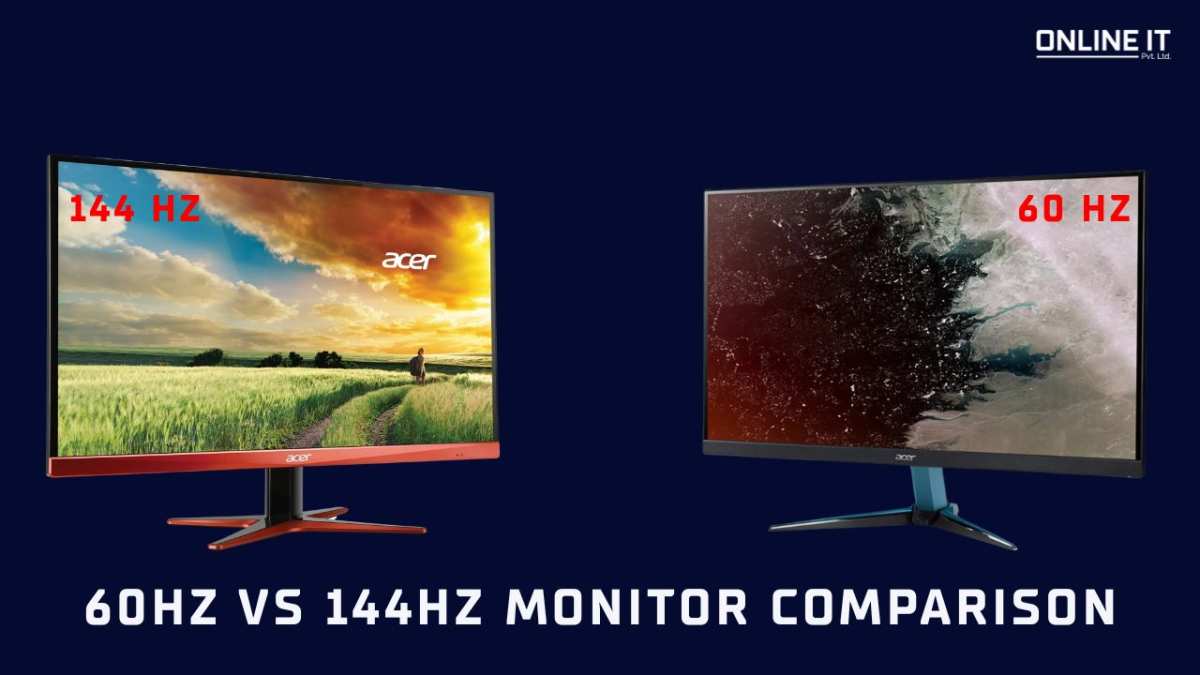
Refresh rate is the big one everyone fixates on, and for good reason. Jumping from 60Hz to 144Hz is the single most noticeable upgrade you can make in gaming. Going from 144Hz to 240Hz?
You'll feel it in competitive shooters, but it's a much smaller leap.
Resolution determines sharpness. At 24 inches, 1080p looks fine. At 27 inches, 1080p starts to look a bit soft, and you really want 1440p.
The catch? Pushing 1440p at high refresh rates needs a decent GPU.
Panel type shapes everything about image quality. We're breaking this down in detail in the next section, but the short version: IPS gives you the best color and viewing angles, VA gives you the best contrast, and TN gives you the fastest response times but washed-out colors.
Adaptive sync (FreeSync or G-Sync Compatible) eliminates screen tearing without adding the input lag you'd get from traditional V-Sync. In budget monitors, make sure the adaptive sync range goes low enough to handle drops below 60 fps. If the minimum is 48Hz, you'll see tearing whenever your frame rate dips below that floor.
Connectivity trips people up more than you'd think. To run 1080p at 144Hz over HDMI, you need at least HDMI 1.4. For 1440p at 144Hz, you want HDMI 2.0 or DisplayPort 1.2.
Check what your GPU outputs and what the monitor accepts before you buy. A surprising number of returns happen because someone plugged in an old HDMI cable and couldn't figure out why they were stuck at 60Hz.
The 5 Specs That Make or Break Your Experience
Not everything on the spec sheet matters equally. Here are the five specs that'll define what your gaming actually feels and looks like.
1. Native refresh rate. Not the "overclocked" number. Not the "MBR" number.
What the panel natively supports. For most budget gaming monitors in 2025, that's 144Hz or 165Hz.
2. Adaptive sync range. Look for something like "48 to 144Hz" rather than "40 to 144Hz." The wider the range at the bottom end, the less you'll tear when your frame rate dips in demanding scenes.
3. Response time (GtG). Gray-to-gray, not MPRT or even response time compensation pixel transition. 1ms GtG is often marketing. 4ms or 5ms GtG is realistic on a good IPS panel and still looks smooth. Where it gets interesting is that a well-tuned 5ms IPS panel can sometimes look cleaner in motion than a poorly tuned 1ms VA panel.
4. sRGB coverage and clamp. Most budget IPS panels can cover the full sRGB gamut, but here's the detail that slips past a lot of listings: without a proper sRGB mode to clamp the gamut, vivid colors in games like Fortnite or Apex can look oversaturated and unnatural. For instance, the AOC 24G2 hits around 100% sRGB coverage, while the ASUS VY249HGE offers closer to 99% sRGB, so both can deliver accurate color when properly set up.
5. Input lag. Manufacturers almost never list this. Measure it indirectly through review testing.
Most modern gaming monitors sit between 4 and 10ms of input lag, and below 10ms you won't notice it.
Panel Type: IPS vs VA vs TN — The Real Trade-offs
This is the single biggest decision that shapes your experience, and budget options make every panel type show both its strengths and its weaknesses. Manufacturer documentation and display testing databases like the one maintained by RTINGS help clarify what you're really getting.
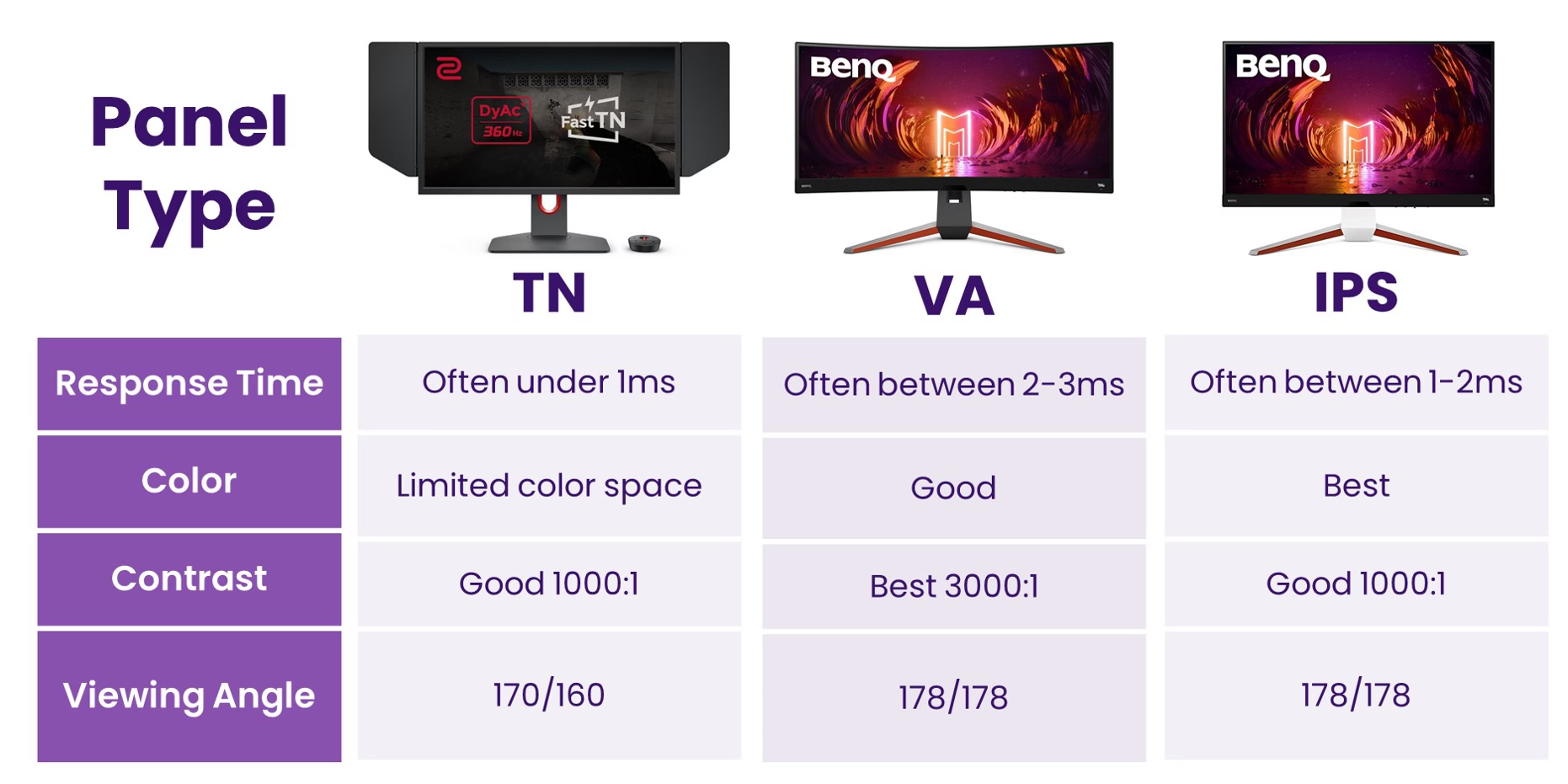
IPS (In-Plane Switching)
- Best color accuracy and widest viewing angles.
- Ideal for bright rooms and people who sit close to the screen.
- IPS glow (a brightening in corners during dark scenes) is common and tends to show up more on budget panels.
- Modern budget IPS panels hit 144, 180Hz with genuinely decent response times.
VA (Vertical Alignment)
- Best contrast ratios (often 3000:1 vs IPS's 1000:1).
- Dark scenes look deeper and more detailed.
- Slower pixel transitions cause smearing, especially in dark tones. You'll notice it in fast games set at night or in dimly lit environments.
- Good for horror games, atmospheric single-player titles, and movies.
TN (Twisted Nematic)
- Fastest response times, highest refresh rates at the lowest price.
- Terrible viewing angles and poor color reproduction.
- Basically extinct in 2025 budget gaming unless you play competitive CS2 or Valorant at a high level.
- Your eyes will suffer in any game with rich visuals.
| Panel Type | Best For | Main Weakness | Typical Contrast |
|---|---|---|---|
| IPS | All-around gaming, bright rooms | IPS glow in dark scenes | 1000:1 |
| VA | Dark scenes, single-player immersion | Motion smearing | 2500:1 to 4000:1 |
| TN | Competitive esports only | Poor color, narrow viewing angles | 800:1 |
If you play a mix of game genres and your room has some ambient light, IPS is the safe bet. If you mostly play atmospheric games and game in a darker room, VA's contrast advantage is worth the motion trade-off. Honestly, as someone who toggles between competitive shooters and story-driven games, owning a solid IPS eliminates the "I picked the wrong panel" regret.
You just don't deal with smearing in a panic clutch situation.
Refresh Rate vs Resolution: What Your GPU Can Actually Handle
This is where your existing hardware dictates the choice more than any spec sheet does. A monitor running at 1440p 144Hz demands roughly 78% more pixel pushing power than 1080p 144Hz. That's a significant jump.
Here's how to match your monitor to your GPU based on aggregate performance data and common user reports.
| Your GPU | Best Match | Why |
|---|---|---|
| RTX 3050 / RX 6600 | 1080p 144Hz | These cards hover between 80 and 130 fps at 1080p in most modern titles at medium-high settings. You'll actually use that refresh rate. |
| RTX 3060 / RX 6700 XT | 1080p 165Hz or 1440p 144Hz | At 1440p, you'll hit 60-90 fps in many AAA games. In esports titles, you'll push well past 144 fps at 1080p. You need to decide which you value more. |
| RTX 4060 / RX 7600 | 1440p 144Hz | Modern AAA games land around 70-100 fps at 1440p with medium settings. Esports titles cruise past 200 fps at 1080p. 1440p high-refresh is a solid middle ground. |
| RTX 3070 / RX 6800 | 1440p 165Hz (upper budget) | You're pushing into top-budget territory here, but at 1440p the frame rates will sit comfortably in a 100-144 fps range. A 160-170Hz panel gives you some headroom without paying for 240Hz. |
| PS5 / Xbox Series X | 1440p 120Hz or 4K 60Hz | Consoles max out at 120Hz at 1440p in supported titles. 4K is locked to 60Hz unless the game offers a performance mode. Look for HDMI 2.1 if you want 4K 120Hz. |
The honest recommendation for most people: if your GPU is RTX 3060 or lower, 1080p high-refresh gets you the smoothest experience. Stepping up to 1440p with a weaker card means lowering settings and still not hitting the refresh ceiling you paid for. That's wasted money.
If your card is RTX 4060 or higher, 1440p starts making sense. The image quality difference at 27 inches is noticeable. Text is sharper, game worlds look more detailed, and you don't need to squint at distant objects.
Best Budget Gaming Monitors: Ranked by What You Actually Need
We've analyzed aggregate long-term user feedback, cross-referenced manufacturer specifications, and leaned heavily on independent panel testing that gets into overdrive performance and input lag rather than just quoting spec sheets. These aren't cherry-picked favorites.
Best Overall: The Monitor Most People Should Buy
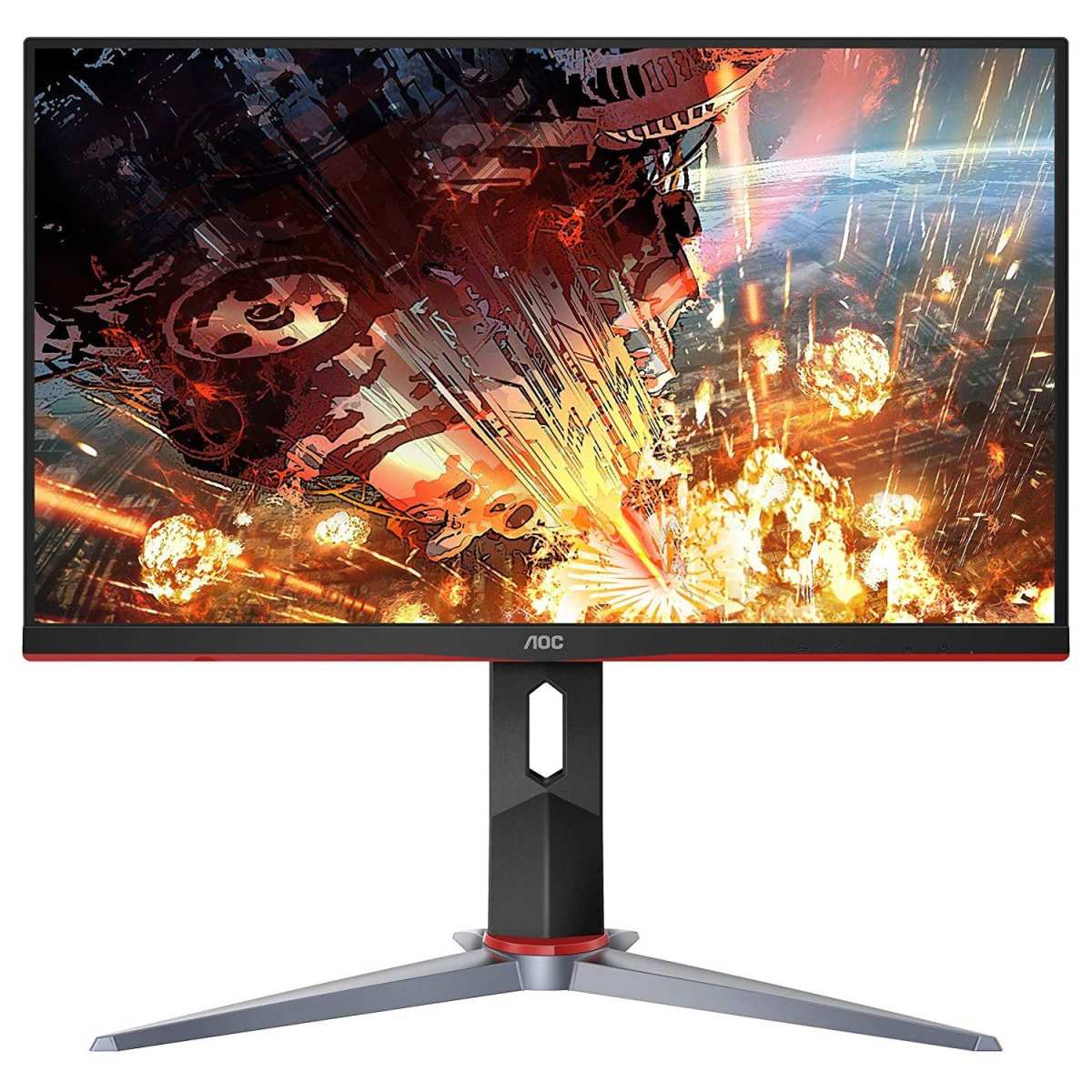
For most gamers shopping on a budget, the AOC 24G2 (or its 27-inch sibling, the 27G2) hits the sweet spot. You get a 144Hz IPS panel with FreeSync, solid sRGB coverage, a fully adjustable stand, and a price that typically sits between $150 and $180.
Why it wins:
- 24-inch 1080p IPS panel with genuine 144Hz refresh rate.
- FreeSync works with NVIDIA cards via "G-Sync Compatible" mode without issues.
- Contrast ratio is around 1100:1, a bit above average for an IPS display.
- The stand offers height, tilt, swivel, and pivot adjustment. Most budget monitors tilt-only.
- Response time tests show 4-5ms GtG with minimal overshoot.
- Custom sRGB mode keeps colors accurate out of the box.
One recurring theme in long-term community threads is that people who pick up a 24G2 often don't feel the urge to upgrade for years. It nails the basics. You get smooth motion, the sRGB clamp keeps skin tones from going radioactive, and the adjustable stand means you can dial in a comfortable viewing angle without aftermarket arms.
People have covered dead pixel experiences extensively on Reddit and forums, and the failure rate comes up consistently low. It's not perfect. The speakers are useless.
The bezels aren't as thin as 2025 models. But at this price, those gripes are acceptable.
Best for Competitive/Esports Gaming
If you're grinding ranked in Valorant, CS2, or Apex and every millisecond counts, the ASUS VY249HGE deserves strong consideration. It's a 24-inch 1080p IPS panel pushing 144Hz with what ASUS claims is 1ms MPRT response time, but the real advantage is in the adaptive sync implementation.
Why competitive players should look here:
- 144Hz refresh rate with excellent motion clarity at high frame rates.
- FreeSync Premium supports a wider adaptive sync range (down to 48Hz).
- Very low input lag, typically under 5ms in independent measurements.
- Thin bezels for a more immersive multi-monitor or single-screen experience.
- ASUS's GamePlus on-screen display features for crosshair overlays.
Who should skip it:
- If color accuracy for content creation or photo work matters to you. This panel prioritizes speed over color depth.
- If you play a lot of dark-themed games. IPS glow is visible on this panel.
Verified buyer feedback for this monitor frequently praises the response time smoothness but notes wanting a height-adjustable stand. It tilts only, so budget for a VESA mount or monitor arm if you want proper ergonomics.
Best for Immersive Single-Player Gaming
For people who want atmospheric games to look their best in a budget package, the Samsung Odyssey G32B (27-inch, 1080p, 144Hz, VA panel) offers something IPS can't match: contrast.
Why immersion-focused gamers should consider it:
- VA panel with a contrast ratio around 3000:1, which is roughly triple what IPS offers.
- Deeper blacks make dark scenes in games like Cyberpunk, Resident Elden Ring, and Alan Wake 2 feel more immersive.
- Decent 144Hz performance for games where motion blur isn't the primary concern.
- 27-inch screen size surrounded by a slim bezel chassis creates a more enveloping experience than a compact 24-inch display.
Real-world performance notes:
- Dark scene transitions exhibit some smearing. In a fast game moving into a shadowed hallway, you'll see the pixel transition lag slightly.
- Viewing angles aren't as forgiving as IPS. If you're sitting very close and off-center, colors shift noticeably.
- The FreeSync range is slightly narrower, so you might see occasional dips below 48 fps in very demanding titles without LFC compensation.
People who have commented on the long-term experience here describe it as a trade-off they consciously accepted. For slower-paced RPGs, strategy games, and flight sims, the immersion gain is worth the motion penalty. For fast shooters, you'll miss IPS.
Best 1440p Budget Pick
Once you step up to 1440p in the budget space, your options narrow considerably. The standout choice is the Gigabyte G27Q. It's a 27-inch 144Hz IPS panel with solid color accuracy and good HDR handling, if "good" and "HDR" can reasonably coexist in the same sentence for under $300.
What you get:
- 2560×1440 resolution at 27 inches delivers sharp text and detailed game worlds.
- IPS panel covers roughly 95% of the DCI-P3 gamut alongside full sRGB.
- 144Hz refresh rate with a well-tuned overdrive setting that minimizes both blur and overshoot.
- USB hub (a rarity in this price range) along with DisplayPort and HDMI inputs.
- sRGB mode to clamp the gamut and prevent oversaturation.
What to watch out for:
- The HDR implementation is DisplayHDR 400. It's technically HDR but doesn't look meaningfully different from SDR. Most users end up ignoring the HDR toggle and stay in SDR.
- Some users have reported minor backlight bleed in early production runs. From what we've seen in community reports, later batches have been better, but it's still worth doing a dead pixel and backlight bleed test on arrival.
- The OSD joystick is functional but not as smooth as competing designs from LG or Dell.
Several head-to-head comparisons found the G27Q gives you noticeably sharper imagery than budget 1080p options when switching between them side by side, especially in games with fine detail. The primary limit is that you need at least an RTX 3060 Ti or RX 6800 to take advantage of the resolution at high settings.
Best Ultra-Budget Option Under $150
If $150 is your hard ceiling, the AOC 24G2SAE/BK gives you a surprisingly capable experience for less. It's a 23.8-inch VA panel running at 144Hz with FreeSync support.
What stands out:
- 144Hz refresh rate at a price point where you'd expect 60Hz or 75Hz.
- VA contrast ratio around 3000:1 makes it punchy and rich out of the box.
- Very low input lag for the category.
- The 75Hz overclock mode can help stabilize frame pacing if your GPU dips below the 48 fps FreeSync floor.
Where the corners get cut:
- The stand tilts only. No height or swivel adjustment.
- The panel exhibits noticeable dark-level smearing in demanding motion.
- The sRGB mode isn't well-configured, so colors can skew noticeably without manual calibration in the OSD.
- Build quality feels cheap. The plastics are thin and the bezels aren't uniform in some units.
If you're a student, a first-time PC gamer, or someone who just wants a high-refresh display to game on after work, the 24G2SAE gets the job done. Just don't expect the polish of the 24G2 or the visual fidelity of the IPS-based alternatives.
Best for Console Gaming (PS5/Xbox Series X|S)
Console gaming has different requirements than PC, and most high-refund-rate monitors in this category have a couple of common HDMI 2.0 configuration hiccups, especially around 1440p 120Hz signaling. The Dell S2722QC sidesteps some of those pitfalls nicely.
Why console gamers should pay attention:
- 4K resolution at 60Hz. The PS5 and Xbox Series X can output 4K 60fps natively, or 1440p 120fps in supported titles. This monitor handles both.
- USB-C with 65W power delivery. You can connect and charge devices simultaneously while gaming.
- IPS panel with good color accuracy and viewing angles, making co-op on the couch more pleasant.
- Built-in speakers that are predictable if not exciting.
Limitations to know:
- 60Hz refresh rate means you won't get the smoothness of a 144Hz monitor in supported games.
- The adaptive sync support is FreeSync only, so VRR over HDMI for Xbox works well, but PS5 compatibility requires HDMI 2.1 VRR.
- The 8ms response time is fine for console gaming but not great if you also use it for PC gaming.
Console-specific testing and community consensus suggest this sort of 4K 60Hz IPS hits a practical sweet spot for living room setups where 120fps gaming is secondary to image clarity. PS5 owners who came from 1080p TVs consistently praise the sharpness but also note that they wished they'd spent a bit more for a higher refresh rate once they experienced it.
Head-to-Head: Where the Top Picks Differ
Now let's put the key contenders side by side so you can see exactly where each one gains or loses ground. These comparison points come from aggregated independent testing databases, manufacturer specification sheets, and verified user feedback.
Image Quality and Color Performance
When we compare image quality, contrast and color gamut coverage are the big differentiators. Our analysis of panel specs tells us that IPS-based models like the AOC 24G2 and Gigabyte G27Q represent accurate sRGB representation with some DCI-P3 extension on the latter. VA-based options like the Samsung Odyssey G32B win hands-down on contrast ratio but can't match the wider color gamut of premium IPS panels.
Where budget monitors sometimes really surprise: the Dell S2722QC's factory calibration tends to hover around Delta E < 2 for sRGB, which is better than a lot of monitors at this price. It looks tuned from the start, unlike several competitors that demand manual calibration in the OSD to avoid oversaturated reds and muddy greens. The AOC 24G2 factory calibration also impresses for its price class, with reports of Delta E < 3 before fine-tuning.
Response Time and Motion Handling
In motion handling, the balance between raw speed and overshoot control often defines the experience. Testing data points to the ASUS VY249HGE leading the pack in pure pixel transition speed, thanks to its aggressive overdrive tuning that keeps motion crisp. Behind that, the AOC 24G2 and Gigabyte G27Q strike a solid balance with manageable blur and very low overshoot.
VA panels, particularly budget models like the Samsung Odyssey G32B and AOC 24G2SAE, tend to exhibit more noticeable smearing and trailing in dark transitions, which is an inherent trade-off with that panel tech.
The interesting detail: the Gigabyte G27Q notably keeps overshoot artifacts well controlled at 144Hz, which makes motion look clean without the distracting inverse ghosting you see on some aggressive IPS panels. As for the Dell S2722QC, its 8ms response time means it's the least suited for fast-paced gaming, but it's adequate for the 60fps console titles it targets.
Ergonomics, Build Quality, and Connectivity
Adjustable stands are where budget monitors often cut costs. The AOC 24G2 and Dell S2722QC both feature height adjustment, swivel, and pivot, which is a big win when you're setting up a comfortable long-term gaming station. The Gigabyte G27Q and Samsung Odyssey G32B are stuck with tilt-only stands, while ultra-compact options like the AOC 24G2SAE do the same.
VESA mounting aside, ASUS VY249HGE users making the switch frequently end up picking up a monitor arm to compensate for the lack of ergonomic adjustments.
In connectivity, the Dell S2722QC stands out with its USB-C 65W power delivery port, a genuine rarity in this price range. Most other budget gaming monitors stick with HDMI, DisplayPort, and maybe a USB hub. If you're plugging in a laptop or handheld, that USB-C option can simplify your setup dramatically.
Adaptive Sync Compatibility
On the adaptive sync front, virtually every modern budget gaming monitor on this list supports FreeSync over HDMI, so you're covered on that axis even with an NVIDIA card. The question is always whether the monitor has passed NVIDIA's G-Sync Compatible certification, and independent testing confirms that the AOC 24G2, ASUS VY249HGE, and Gigabyte G27Q pass without flickering or blanking issues.
In terms of the adaptive sync range, the Dell S2722QC offers 48-60Hz over HDMI, which is fine for 60fps console but less flexible if you're on PC and dipping into 40-45fps territory. The narrower ranges on the Samsung and AOC 24G2SAE (down to 48Hz) mean you might see tearing or flickering when frame rates dip low, unless Low Framerate Compensation (LFC) kicks in.
On the overdrive tuning side, the AOC 24G2 and Gigabyte G27Q both provide dedicated overdrive settings in the OSD that let you dial in a compromise between response time and overshoot. This is a subtle but meaningful advantage because overdrive that's too aggressive introduces inverse ghosting that can be more distracting than the blur you're trying to eliminate.
Who Each Monitor Is Actually Right For
Choosing the right budget gaming monitor comes down to a few key questions: what GPU you play on, how you play, and what compromises you're willing to make. Let's match the monitors to common gamer profiles.
Competitive Shooter and Esports Players
Best pick: ASUS VY249HGE
If your usual rotation is Valorant, CS2, or Apex and performance is your priority, the VY249HGE's fast response and low input lag give you a measurable edge. 1080p at 24 inches is ideal for keeping your crosshair centered in your field of view, and the panel's speed outpaces anything else near this price. Just remember: you'll likely need to budget for a monitor arm since the stand is tilt-only.
Alternative: AOC 24G2. If you also want good color for casual single-player games and a better stand, the 24G2 is the better compromise.
RPG and Single-Player Enthusiasts
Best pick: Samsung Odyssey G32B
The rich VA contrast and 27-inch screen of the G32B give story-driven games the kind of visual punch IPS panels struggle to match. Dark dungeons look truly dark, and vibrant scenes pop with depth. Pair this with a relaxed 60-90fps experience in visually demanding titles like Baldur's Gate 3 or Cyberpunk, and immersion wins out over motion speed.
Alternative: Gigabyte G27Q. If you want 1440p sharpness and your room has mixed lighting, the G27Q's IPS panel handles brighter environments better and delivers more detail at the same 27-inch size.
Budget-Conscious First-Time PC Gamers
Best pick: AOC 24G2
This is the monitor where you get the best all-around package without spending more than necessary. Smooth 144Hz performance, usable colors right out of the box, and a rare adjustable stand at this price. When you're building your first B450 or B550 system with an RTX 3060 or RX 6600, it's a reliable companion that doesn't drain your build budget.
Alternative if your GPU is weaker (GTX 1650, RX 580): Drop to 1080p 75Hz with an even cheaper model like the LG 24GN60R-B and save the remaining budget for a GPU upgrade later.
Console Gamers (PS5 and Xbox Series X|S)
Best pick: Dell S2722QC
If you've just unboxed a PS5 or Series X and you're used to an aging 1080p TV, the jump to 4K 60Hz with solid colors feels transformative. The USB-C port lets you connect handheld devices like the Steam Deck or ROG Ally with a single cable. While you miss out on 144Hz smoothness, the sharper image and accurate colors more than compensate for 60fps console games.
Best pick for 1440p 120Hz console gaming: If you know you'll be playing titles like Call of Duty or Rocket League at 120fps, then a 1440p 144Hz monitor like the Gigabyte G27Q gives you a wider supported refresh range. For most other console games, though, the Dell's 4K resolution is the headline upgrade.
Compact Desk Setups and Small Rooms
If your desk is shallow or you're pushing very tight budget limits, look at the ultra-compact 24-inch VA panels with slim bezels. The AOC 24G2SAE is a prime example: 144Hz at 1080p in a chassis that takes up almost no room, typically under $140. You lose out on the adjustable stand and fine color calibration, but it's a solid foundation for small spaces.
Important note: In a small room, you're likely sitting closer to the monitor, which makes IPS's better viewing angles a valid comfort consideration. When you're 18-24 inches from a cheap VA panel, even slight changes in head position can introduce visible color shifts. You can mitigate this by angling the monitor carefully and using software to load an ICC profile for proper color correction, but it's an adjustment IPS owners won't have to think about.
Common Mistakes That Waste Your Money
Even when you pick a great monitor, a few classic mistakes can leave you feeling shortchanged. In our research of user complaints and return reasons, the same offenders come up again and again.
Buying More Resolution Than Your GPU Can Handle
This is the most frequent overspend. You spot a deal on a 144Hz 4K monitor for $250, but your RTX 3060 barely pushes 60fps at 4K in modern games. You end up gaming at 1080p anyway, which looks blurry on a 4K panel because of non-integer scaling.
Match the monitor to what your GPU can realistically deliver at medium to high settings, not to what sounds impressive on the showroom spec sheet.
Ignoring Ergonomic Adjustments
A stand that only tilts is a recipe for neck pain during long gaming sessions. Before you settle on a budget monitor, check whether it has at least height adjustment, ideally swivel and pivot too. If it doesn't, a VESA-compatible monitor arm ($30 to $60) can transform your desktop setup almost overnight.
It's not a frivolous add-on; it's a fix for a common frustration you'll appreciate thousands of hours later.
Not Testing for Dead Pixels and Backlight Bleed
When your new monitor arrives, run a dead pixel test immediately. Open a solid black image in a dark room and check for bright spots. Then open a solid white image and look for uneven brightness around the edges.
Every major review outlet recommends this, and a lot of users skip it and then spend weeks irritated by a stuck pixel they can't see past. Most manufacturers have a dead pixel policy that qualifies for a replacement (often 3 or more bright pixels), and they typically require you to report it within the return window.
Using the Wrong Cable or Port
A classic mistake: you plug your new 144Hz monitor into an old HDMI 1.4 port and never see past 60Hz. Windows sits there at a locked 60Hz refresh rate and you wonder why your "fast" monitor feels sluggish. Always check your GPU's output specs, the monitor's input bandwidth, and use the cable that came in the box.
When in doubt, a certified DisplayPort 1.4 cable removes the guesswork, but verify your monitor's specs before assuming DP automatically solves all bandwidth problems.
Forgetting to Set the Refresh Rate in Windows
Windows often defaults to 60Hz even on a 144Hz monitor. You have to manually change it to the full refresh rate in Display Settings > Advanced Display Settings > Display Adapter Properties > Monitor tab, or through NVIDIA Control Panel/AMD Software. Skipping this step is an unusually common reason people return a brand-new 144Hz monitor thinking it's defective.
If your Windows desktop cursor looks unusually choppy on a 144Hz display, this setting is almost certainly still locked at 60Hz.
Frequently Asked Questions
Is 60Hz good enough for casual gaming?
Yes, absolutely. If you're playing story-driven games at 30 to 60 fps, a 60Hz monitor won't hold you back. You only need 144Hz or higher if you play competitive fast-paced games or your hardware can consistently push above 60 fps.
A lot of console-exclusive titles are locked at 30 fps anyway, so a high-refresh monitor adds nothing for those sessions.
Do cheap gaming monitors have input lag?
Some do, but the good ones don't. Most budget gaming monitors from reputable brands measure between 4 and 10ms of total input lag. Once you're below 10ms, your brain typically can't detect the difference.
The same can be said for obvious signs of smearing or ghosting; if motion looks clean to your eyes during fast panning movements, you're in good shape.
Should I buy a curved monitor for gaming on a budget?
It depends. A curved screen can make a 27-inch or larger display feel more immersive and comfortable because similar distances from your eyes across a wide panel. On smaller screens (24-inch or less), the curve is subtle and arguably more aesthetic than functional.
Verified buyers who often use 27-inch monitors tend to prefer the curve, while those on 24-inch models say they don't notice much difference. If you're choosing between a curved and flat monitor at the same price and size, it's a personal preference, not a performance upgrade.
Can I use a budget gaming monitor with a PS5?
Yes, but check the specs carefully. The PS5 supports 1080p and 1440p at up to 120Hz, and 4K at 60Hz. If you want 120fps gaming, you need a monitor that explicitly supports 120Hz at the resolution you're targeting.
For 4K 60Hz, any 4K monitor with HDMI 2.0 works. For 1440p 120Hz, you need a monitor with HDMI 2.0 or higher and explicit 120Hz support at 1440p. Some budget monitors only hit 120Hz at 1080p, so read the fine print.
How long do budget gaming monitors last?
Most quality budget gaming monitors last 4 to 7 years before panel degradation becomes noticeable. Backlight dimming is the most common aging issue, where the display gradually loses maximum brightness over thousands of hours of use. IPS panels tend to hold up better than VA over time.
A solid warranty (3 years is ideal) gives you peace of mind against early failures, and buying from a brand with a good RMA process matters more than you'd think.
Is HDR worth it on a budget monitor?
Honestly, no. DisplayHDR 400, which is the most common HDR certification on budget monitors, doesn't deliver a meaningful HDR experience. The peak brightness is too low (around 400 nits) and there's no local dimming to create real contrast between bright and dark areas.
You'll get a better image by turning off HDR and using the monitor's native SDR mode. Save your HDR expectations for monitors with DisplayHDR 600 or higher, which typically start around $400 and up.
Final Verdict: The Right Pick Based on Your Situation
After weighing the specs, the user feedback, and the real-world trade-offs, here's the bottom line.
If you want one monitor that does everything well without breaking the bank, get the AOC 24G2. It's the safest recommendation for most gamers, and it's been a community favorite for years for good reason. The IPS panel, 144Hz refresh rate, and adjustable stand make it a complete package at under $200.
If you want sharper image quality and your GPU can handle it, step up to the Gigabyte G27Q at 1440p. The extra resolution at 27 inches is a genuine visual upgrade, and the color performance punches above its price class.
If you're on a strict budget under $150, the AOC 24G2SAE gets you 144Hz gaming without drama. Just accept the compromises on stand quality and motion performance.
If you're a console gamer, the Dell S2722QC gives you 4K and USB-C convenience. It's the most practical living-room-friendly option on this list.
The best budget gaming monitor isn't the one with the biggest numbers on the box. It's the one that matches your GPU, your game genres, and your desk setup. Pick the right one, and you won't think about it again for years.
That's the sign of a good purchase.
What to Do With Your Current GPU Before Buying
Your graphics card is the single biggest factor that should shape your monitor choice. Before you click "buy," you need to know what your GPU can actually push at the resolution and refresh rate you're targeting.
Step 1: Check Your GPU's Real-World Performance
Don't guess. Look up benchmarks for your specific card in the games you actually play. If you're running an RTX 3060 and you mainly play Fortnite at competitive settings, you're probably hitting 120 to 150 fps at 1080p.
That's perfect for a 144Hz 1080p monitor. If you're playing Cyberpunk 2077 at medium-high settings, you might only see 55 to 75 fps at 1440p, making a high-refresh 1440p monitor less useful.
Step 2: Match Resolution to Your Frame Rate Target
Here's a simple way to think about it. If your GPU consistently pushes above 100 fps in your main games at 1080p, a 144Hz 1080p monitor will feel smooth and responsive. If it can't reliably push 100 fps at 1440p in those same games, a 1440p monitor means you won't benefit from the high refresh rate unless you lower settings.
Step 3: Verify Your GPU's Output Ports
Check the back of your GPU. If it has DisplayPort 1.4, you can run 1440p at 144Hz without any issues. If it only has HDMI 2.0, you're limited to 1440p at 60Hz or 1080p at 144Hz over HDMI.
Older GPUs with HDMI 1.4 max out at 1080p 60Hz in many cases, so you'd need DisplayPort for higher refresh rates.
Step 4: Confirm Adaptive Sync Compatibility
If you have an NVIDIA GPU ( GTX 10-series or newer), look for monitors listed as "G-Sync Compatible." These have been validated by NVIDIA to work with adaptive sync over DisplayPort without flickering or blanking. AMD GPU owners should look for FreeSync or FreeSync Premium certification.
Cable and Port Mistakes That Cap Your Refresh Rate
You just bought a 144Hz monitor. You plug it in. Something feels off.
The cursor movement looks like you're still on 60Hz. The culprit is almost always the cable or port.
The Cable Problem
Not all HDMI cables are created equal. An old HDMI 1.4 cable physically cannot carry 1440p at 144Hz. Even some HDMI 2.0 cables are mislabeled or poorly constructed.
The safest move for PC gaming is a certified DisplayPort 1.2 or 1.4 cable. Those are usually included in the monitor box, and they're reliably capable of handling 1080p 144Hz or 1440p 144Hz signals.
The Port Problem
Plugging into the motherboard instead of the GPU is a shockingly common mistake, especially for first-time builders. The motherboard's display outputs use the CPU's integrated graphics, which means your RTX 4060 sits idle while the weaker iGPU struggles to output any coherent signal. Always plug your cable into the GPU's ports, which are lower on the back panel and horizontal.
Quick Troubleshooting Steps
If your monitor isn't running at its advertised refresh rate, run through this checklist.
- Verify Windows display settings. Go to Settings > System > Display > Advanced display settings. If it says 60Hz, change it.
- Check your GPU driver. Open NVIDIA Control Panel or AMD Software and confirm the refresh rate is set correctly there too.
- Inspect the cable. Make sure it's plugged into the GPU, not the motherboard. Make sure it's DisplayPort or at least HDMI 2.0.
- Confirm monitor input source. Some monitors have multiple inputs and default to the wrong one. Manually select the correct port in the OSD.
Overdrive Settings: Getting the Best Motion Without Ghosting
Overdrive is one of those settings most people never touch, but it has a huge impact on how motion looks on your monitor. Set it wrong and you'll see either trailing ghosts behind moving objects or inverse ghosting, where bright halos trail behind dark objects. The goal is finding the sweet spot in between.
What Overdrive Actually Does
Overdrive applies a brief voltage spike to the liquid crystals in your panel to make them transition between colors faster. At its lowest setting, pixels transition at their native speed. At its highest setting, they transition as fast as possible, but with a risk of overshoot, where the pixel briefly transitions past the intended color value.
How to Dial In the Right Setting
You can test this yourself using the UFO Test: Blur Busters' free online tool shows you moving white UFOs on a black background. At "off" or "weak," you'll see visible trails behind the UFO. At "strong" or "extreme," you'll see bright halos.
The correct setting is typically "medium" or "normal" on most monitors.
Monitor-Specific Overdrive Notes
- AOC 24G2: The "Medium" overdrive setting gives the best balance. "Strong" introduces noticeable inverse ghosting, which looks worse than a moderate amount of native blur.
- ASUS VY249HGE: The overdrive is exceptionally well-tuned out of the box. The "Normal" setting is optimal. Some reviewers have noted that "Extreme" avoids overshoot but at the cost of response time.
- Gigabyte G27Q: The "Speed" setting works well. The "Smart" option uses dynamic overdrive that adjusts based on frame rate, which can help maintain clarity when your FPS drops below the refresh rate ceiling.
- Samsung Odyssey G32B: VA panels benefit most from overdrive tuning. The "Faster" setting reduces smearing to acceptable levels, but "Fastest" can introduce some overshoot artifacts.
Testing Your New Monitor for Dead Pixels and Backlight Bleed
When your monitor arrives, spend ten minutes testing it before you get invested in your setup. Dead pixels are rare on new panels but not unheard of, and the stress of spotting one eight months later is infinitely worse than the minor upfront effort now.
How to Test for Dead Pixels
Open a series of solid color images: black, white, red, green, and blue. View each one full-screen in a dimly lit room. A dead pixel appears as a permanently black dot on any color.
A stuck pixel appears as a permanently bright dot, often red, green, or blue, on black backgrounds. If you find more than two or three bright stuck pixels in the central screen area, contact the manufacturer about a warranty replacement. Quality brands like AOC, ASUS, and Dell tend to have straightforward dead pixel policies.
How to Test for Backlight Bleed
Display a pure solid black image in a dark room. Look at the corners and edges of the screen for uneven brighter patches. Some IPS glow in the corners is completely normal and fades once ambient lighting is present.
Excessive bleed is when bright patches look uniformly obvious even in a moderate room brightness, suggesting a panel that may have been mishandled during assembly.
Running a Refresh Rate Test
Go to TestUFO.com to confirm your monitor is actually running at the advertised refresh rate. The test shows you a series of moving objects at different refresh rates with a camera indicator. If your monitor claims 144Hz but the UFO animation looks stuttery or identical to the 60Hz ref frame, you haven't actually enabled high refresh rate yet.
Revisit your Windows and GPU driver settings.
Does "HDR" on a Budget Monitor Mean Anything?
You'll see "HDR10" or "DisplayHDR 400" on a lot of budget gaming monitor spec sheets. It sounds like a meaningful feature. It mostly isn't.
Here's why and how it still relates to gaming.
What DisplayHDR 400 Actually Means
VESA's DisplayHDR certification has tiered levels. DisplayHDR 400 requires a peak brightness of 400 nits, 8-bit color depth, and 95% sRGB coverage. That's actually worse than most good IPS panels already deliver without HDR at all.
True HDR needs local dimming zones to create meaningful contrast between bright highlights and deep shadows, and budget monitors simply don't have that hardware. The result is an HDR image that often looks flatter and washed out than the monitor's native SDR mode.
The Console Exception
If you're gaming on PS5 or Xbox Series X, the console's automatic tone-mapping can sometimes make HDR10 content look acceptable even on a DisplayHDR 400 panel, especially in well-optimized titles that manage their tone mapping well. But the difference between SDR and HDR on these monitors is subtle at best. If you can't easily toggle between modes and spot a notable brightness difference, the feature isn't doing much.
Practical Advice on HDR Budget Gaming
In SDR mode, a monitor gives you predictable brightness, color accuracy, and contrast. In HDR mode on a panel without local dimming, you often lose detail in highlights and the OSD becomes less reliable for quick fixes. That's, in our view, a benefit handicap.
If HDR is a priority, save up for a monitor with DisplayHDR 600 or higher, which typically requires FALD technology to offer a genuine step up in dynamic range.

Similar Posts





















