What Is the Cheapest Good Gaming Monitor
You want a gaming monitor that doesn't suck, but you don't want to spend $400 to get there. That's the whole game. The good news is the budget monitor market has gotten genuinely good over the last few years, and you can get a sharp, smooth, responsive screen for a lot less than most people think.
The trick is knowing where the floor is. Spend too little and you're stuck with a washed-out panel, sluggish response times, and a screen that makes fast games look like mud. Spend a little more and you land in a sweet spot where the specs actually hold up in real use. Readers comparing various configurations should also examine whether touchscreen monitor good for gaming.
Let's break down exactly where that line sits as of 2026, and which monitors sit on the right side of it.
Quick Answer
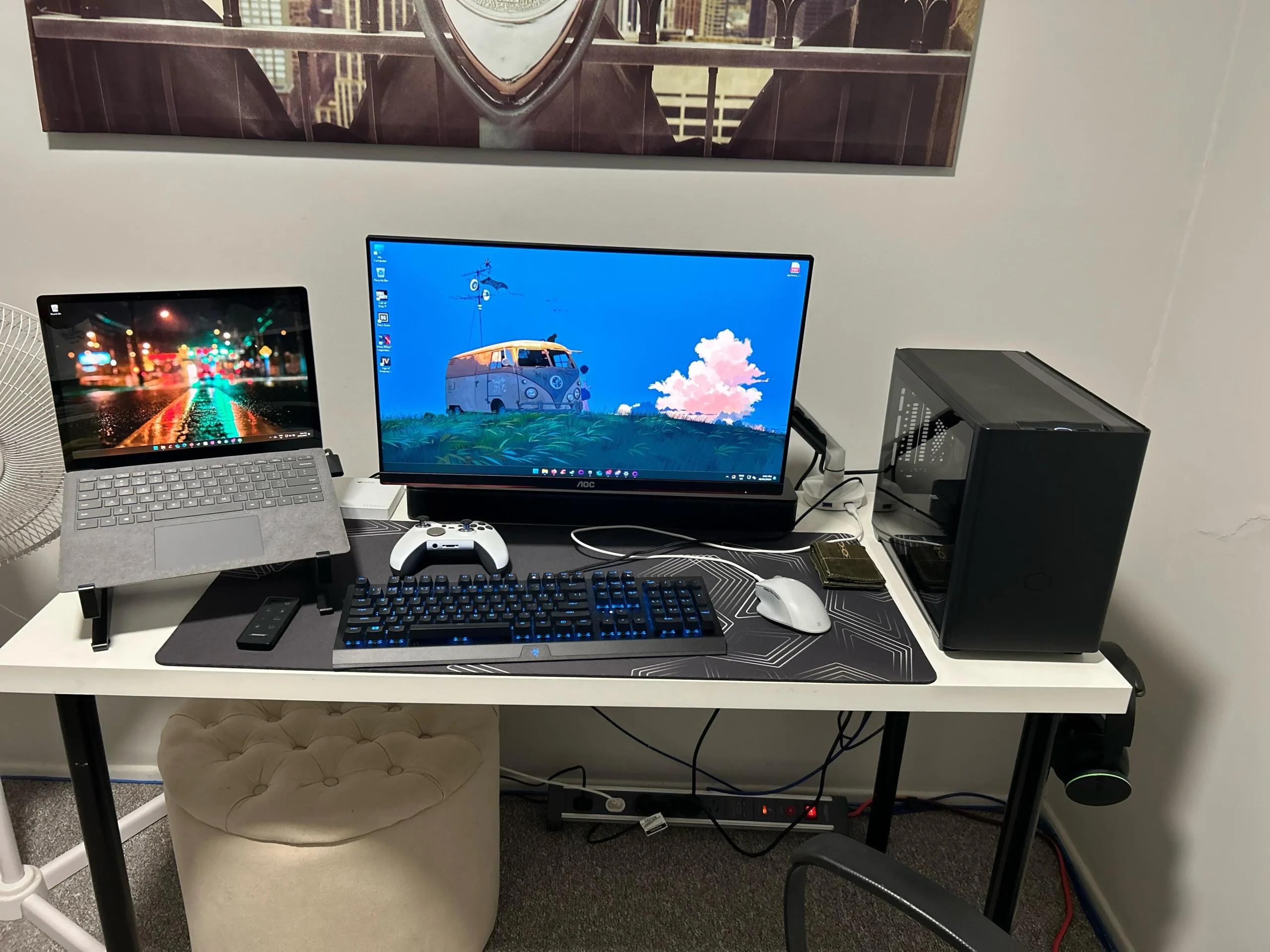
The cheapest good gaming monitor is a 24-inch 1080p IPS panel with 144Hz or higher refresh rate and adaptive sync. Expect to pay between $120 and $180 for a reliable model from a known brand. The AOC 24G2 and LG 24GN60R-B are two consistently recommended options in that range.
Going below $100 usually means sacrificing response time, color quality, or build. Readers evaluating this setup should also consider whether hdr600 monitor good for gaming for comparative benchmarks.
What "Cheapest Good Gaming Monitor" Actually Means
"Cheapest good" is a moving target, but it's not vague. It means the lowest price point where a monitor delivers a genuinely playable experience without major compromises. That means three things need to line up.
First, the panel type matters. IPS (In-Plane Switching) panels give you decent color accuracy and wide viewing angles, which is what most people want. VA panels offer deeper blacks but often suffer from black smearing in dark scenes.
TN panels are fast but look washed out unless you're sitting dead center. For a budget pick, IPS is the sweet spot.
Second, refresh rate needs to be at least 144Hz. Anything below that and you're not really getting a gaming monitor, you're getting a regular monitor with a marketing label. 144Hz is the baseline where motion starts looking noticeably smoother than a standard 60Hz screen.
Third, you need adaptive sync. AMD FreeSync and NVIDIA G-Sync Compatible both eliminate screen tearing without adding input lag. Most budget monitors support FreeSync, and many are certified G-Sync Compatible by NVIDIA.
That's a non-negotiable feature at this price.
The Real Price Tiers: What You Get at $100, $150, $200, and $250
Budget gaming monitors cluster into a few clear price bands. Here's what each one actually gets you.
| Price Range | What You Get | What You're Missing |
|---|---|---|
| Under $100 | 1080p, 75Hz-100Hz, basic TN or VA panel, no adaptive sync | Smooth motion, color quality, build quality |
| $120-$150 | 1080p, 144Hz, IPS panel, FreeSync, basic stand | Height adjustment, wide color gamut, premium features |
| $150-$200 | 1080p 165Hz or 1440p 144Hz, better IPS, G-Sync Compatible, better stand | Factory calibration, USB hub, HDR that's actually usable |
| $200-$250 | 1440p 165Hz, good IPS, solid build, better HDR, more inputs | True HDR, high brightness, professional color accuracy |
The $120 to $180 range is where most people should land. That's where you get a proper 144Hz IPS panel with adaptive sync and a stand that doesn't feel like it'll snap if you adjust it. Below $100, you're usually buying a monitor that'll work but won't impress.
Above $200, you start getting into 1440p territory, which is a meaningful step up in sharpness if your graphics card can push it. But for a lot of people, especially on a tight budget, 1080p at 144Hz is the better value play.
Specs That Matter Most (and the Ones That Don't)
Monitor spec sheets are designed to overwhelm you. Half the numbers are marketing fluff. Here's what actually affects your experience.
Response time is the big one. Look for 1ms GtG (Gray to Gray) or 5ms GtG at most. Slower than that and you'll see ghosting behind moving objects, which is distracting in fast games.
The catch is that many manufacturers quote "1ms" using an aggressive overdrive setting that introduces inverse ghosting. A real-world 4ms or 5ms panel often looks better than a 1ms panel with overdrive artifacts.
Input lag is different from response time. It's the delay between your mouse click and the screen reacting. Most modern gaming monitors sit between 4ms and 10ms of total input lag, which is fine.
Anything under 10ms is competitive.
Contrast ratio tells you how deep the blacks look. IPS panels typically sit around 1000:1, which is decent. VA panels can hit 3000:1 or higher, which looks better in dark scenes.
But VA panels often have slower pixel transitions in dark areas, causing black smearing. It's a trade-off.
Color gamut matters if you care about how games look. Most budget IPS panels cover around 99% of sRGB, which is fine for gaming. DCI-P3 coverage above 90% is nice but rare under $200.
Don't pay extra for wide gamut on a budget monitor unless you also do photo or video work.
HDR on budget monitors is almost always a label, not a feature. VESA DisplayHDR 400 certification requires only 400 nits peak brightness and no local dimming. The result is HDR that looks worse than SDR on most budget screens.
Skip HDR as a deciding factor until you're spending $300 or more.
Best Budget 1080p Gaming Monitors Worth Buying
1080p at 24 inches is still the most popular gaming setup for a reason. It's sharp enough, it's easy to drive with mid-range graphics cards, and the monitors are affordable. These are the models that consistently show up as the best value picks.
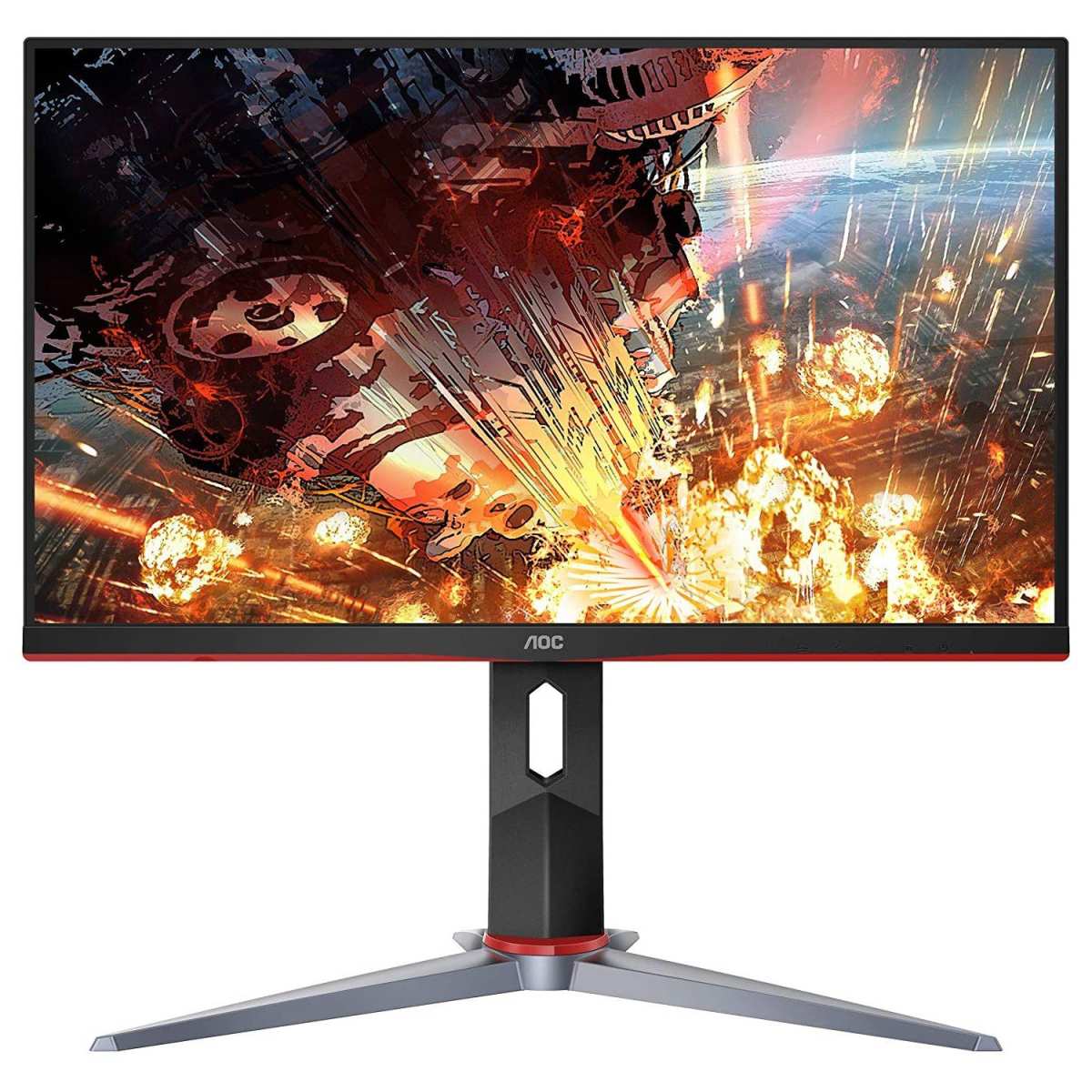
AOC 24G2 has been a budget king for years. It's a 24-inch IPS panel with 144Hz, FreeSync, and G-Sync Compatible certification. Response time is rated at 1ms MPRT (not true 1ms GtG, but still good in practice).
The stand is height-adjustable, which is rare at this price. It usually sells for around $150 to $170.
LG 24GN60R-B is LG's answer, and it's excellent. Same 24-inch 1080p IPS panel, 144Hz, with both FreeSync Premium and G-Sync Compatible. LG's quality control on IPS panels tends to be strong, and this one has good out-of-box color accuracy.
Price sits around $140 to $160.
MSI G241 is another solid pick. 24-inch IPS, 144Hz, FreeSync, and G-Sync Compatible. It's a bit more basic on the stand (tilt only), but the panel performance is strong. It often drops to around $130 on sale.
ViewSonic XG2405 rounds out the list. 24-inch IPS, 144Hz, FreeSync, with a surprisingly good stand for the price. ViewSonic's gaming line has been quietly solid, and this one usually goes for $140 to $160.
All four of these will give you a genuinely good gaming experience. The differences between them are small enough that you should buy whichever is cheapest when you're ready.
Best Budget 1440p Gaming Monitors Worth Buying
1440p is the resolution where things start looking noticeably sharper, especially at 27 inches. The pixel density jumps from about 92 PPI at 1080p/24" to around 109 PPI at 1440p/27". Text is cleaner, game worlds look more detailed, and you don't need a top-tier graphics card to drive it.
The catch is that 1440p monitors cost more, and you need a decent GPU to push high frame rates at that resolution. If you're running a GTX 1660 Super or RX 5600 XT or better, 1440p is worth considering.
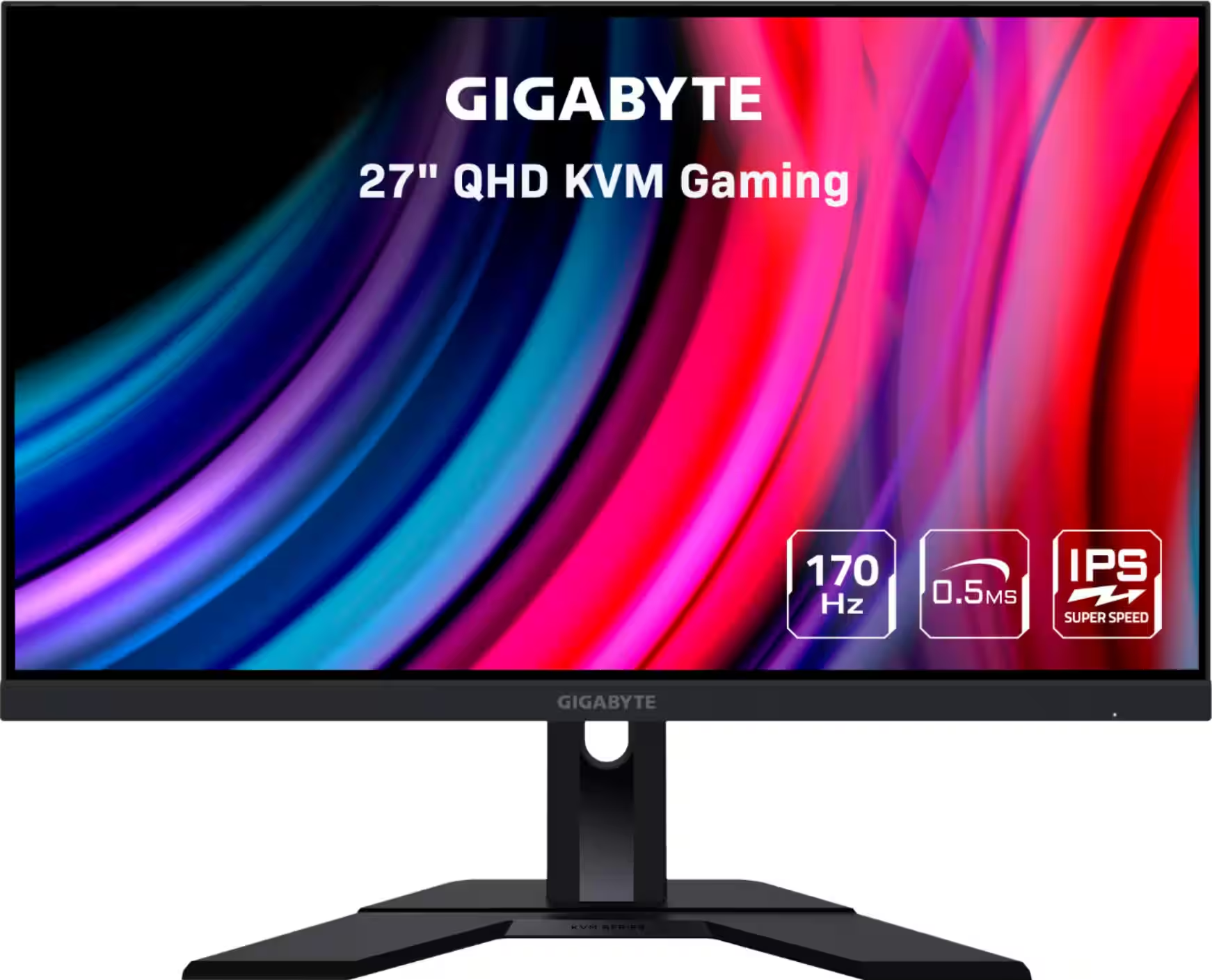
Gigabyte M27Q is the standout in this category. It's a 27-inch 1440p IPS panel with 170Hz, FreeSync Premium, and G-Sync Compatified. It uses a Samsung SS IPS panel with wide color gamut (about 92% DCI-P3), which is unusual at this price.
It usually sells for $230 to $280, and it punches well above its weight.
LG 27GN800-B is another strong option. 27-inch 1440p IPS, 144Hz, with FreeSync Premium and G-Sync Compatible. LG's Nano IPS technology gives it good color performance, and it's often available for $200 to $250.
AOC Q27G2S is a budget 1440p option that sometimes dips below $200. It's a 27-inch VA panel with 155Hz and FreeSync. The contrast ratio is better than IPS, but you may notice some black smearing in dark game scenes.
It's a good pick if you play a lot of story-driven games with dark visuals and want deeper blacks.
Dell S2722DGM is a curved VA option at 27-inch 1440p with 165Hz. Curved is a matter of personal preference, but the price is often competitive at $200 to $230. The curve is subtle (1500R), so it's not distracting if you've never used one before.
If your budget allows, 1440p is the better long-term investment. The sharpness difference is real, and prices have come down enough that it's accessible without stretching too far.
Best Budget High-Refresh Monitors (165Hz–240Hz)
Higher refresh rates make motion look smoother, but the jump from 144Hz to 240Hz is less dramatic than 60Hz to 144Hz. You'll notice it, especially in fast shooters, but it's not the same night-and-day difference.
That said, if you play competitive games like Valorant, CS2, or Apex Legends, every frame counts. A 240Hz monitor can give you a slight edge in motion clarity, and the input lag tends to be a touch lower on these panels.
Dell S2522HG is a 24.5-inch 1080p IPS panel with 240Hz and FreeSync Premium. It's G-Sync Compatible and usually sells for around $200 to $230. The stand is solid, and Dell's warranty support is better than most budget brands.
ASUS VG248QG is a 24-inch 1080p TN panel with 165Hz (overclockable to 180Hz) and G-Sync Compatible. TN means the colors aren't as good as IPS, but the response time is genuinely fast. It's often available for $150 to $170, making it one of the cheapest high-refresh options with adaptive sync.
Acer Nitro XV240Y is a 23.8-inch 1080p IPS panel with 165Hz and FreeSync Premium. It's G-Sync Compatible and usually priced around $140 to $160. The smaller size keeps the pixel density sharp, and the IPS panel means colors look good.
Samsung Odyssey G3 is a 24-inch or 27-inch VA panel with 144Hz and FreeSync Premium. It's not the fastest on this list, but Samsung's VA panels tend to have good contrast. The 24-inch version often drops to $130 to $150.
If you're playing competitive shooters and your GPU can push 200+ FPS, a 240Hz monitor is worth the extra cost. For everyone else, 144Hz or 165Hz is the better value.
Side-by-Side Comparison: Top Picks at Each Price Point
Here's a quick reference for the monitors we've covered, sorted by price and resolution.
| Monitor | Size | Resolution | Refresh Rate | Panel | Adaptive Sync | Typical Price |
|---|---|---|---|---|---|---|
| MSI G241 | 24" | 1080p | 144Hz | IPS | FreeSync, G-Sync Compatible | $130 |
| AOC 24G2 | 24" | 1080p | 144Hz | IPS | FreeSync, G-Sync Compatible | $150 |
| LG 24GN60R-B | 24" | 1080p | 144Hz | IPS | FreeSync Premium, G-Sync Compatible | $140 |
| ASUS VG248QG | 24" | 1080p | 165Hz | TN | G-Sync Compatible | $160 |
| Dell S2522HG | 24.5" | 1080p | 240Hz | IPS | FreeSync Premium, G-Sync Compatible | $210 |
| LG 27GN800-B | 27" | 1440p | 144Hz | IPS | FreeSync Premium, G-Sync Compatible | $220 |
| Gigabyte M27Q | 27" | 1440p | 170Hz | IPS | FreeSync Premium, G-Sync Compatible | $250 |
| Dell S2722DGM | 27" | 1440p | 165Hz | VA (curved) | FreeSync Premium | $220 |
The pattern is clear. Spend $130 to $160 for a solid 1080p 144Hz IPS setup. Spend $200 to $250 for 1440p or 240Hz.
The middle ground between those two tiers is where most people should focus.
Console Gaming: Best Cheap Monitors for PS5 and Xbox Series X
Console players have different priorities. The PS5 and Xbox Series X both support 4K output, but they also support 1440p and 120Hz, which is where budget monitors can work well.
The key feature for console gaming is HDMI 2.0 or higher with VRR support. Both consoles support HDMI Forum VRR, which works with most FreeSync monitors over HDMI. You don't need a DisplayPort connection for consoles.
LG 27GN800-B works well for consoles. It has HDMI 2.0, supports 1440p at 144Hz over HDMI, and VRR works with both PS5 and Xbox Series X. The 27-inch size is a good fit for desk or small room setups.
Gigabyte M27Q is another strong console pick. It has HDMI 2.0, supports 1440p at 165Hz, and the KVM switch is handy if you also connect a PC. VRR works over HDMI with both consoles.
AOC 24G2 is the budget console option. It's 1080p, which means the PS5 and Xbox will upscale from their internal resolution. It's not ideal for 4K content, but for gaming at 1080p or 1440p with VRR, it works fine.
One thing to watch for: the PS5 doesn't support 1440p output over all monitors. Some monitors require a firmware update or specific settings to accept 1440p from the console. Check user reports for your specific model before buying if 1440p console gaming is your goal.
Common Mistakes People Buying a Budget Gaming Monitor Make
The most common mistake is buying based on specs alone. A monitor with "1ms response time" and "240Hz" on the box might have terrible color accuracy, a flickering backlight, or a panel that looks washed out. Specs are a starting point, not the whole story.
Another mistake is ignoring the stand. A monitor with a fixed tilt-only stand is annoying to live with. You want at least height adjustment, and ideally swivel and pivot too.
If the stand is bad, factor in the cost of a VESA monitor arm, which adds $20 to $40 to your total.
Buying the cheapest option without checking the panel lottery is a gamble. Some budget monitors use different panel manufacturers across production runs, meaning two people can buy the same model and get slightly different performance. IPS glow, backlight bleed, and color temperature can vary.
Reading recent reviews and checking the specific panel model number helps.
People also overlook connectivity. If you need to connect both a PC and a console, make sure the monitor has enough HDMI and DisplayPort inputs. Some budget monitors skimp on ports, and you'll end up swapping cables.
Finally, don't buy a 4K monitor on a budget. 4K panels under $300 are usually slow, with poor response times and low refresh rates. You're better off with a sharp 1440p or 1080p panel at 144Hz than a sluggish 4K panel at 60Hz.
How to Spot a Bad Deal (Even When the Price Looks Right)
A low price doesn't always mean a good deal. Some monitors are cheap because they're using old or low-quality panels, and no amount of marketing can fix that.

Check the response time spec carefully. If a monitor claims "1ms" but doesn't specify GtG or MPRT, it's probably using MPRT (Moving Picture Response Time), which is a backlight strobing trick, not actual pixel response. True 1ms GtG is rare on budget IPS panels.
A realistic spec is 4ms to 5ms GtG.
Look at the contrast ratio. If it's not listed, that's a red flag. IPS panels should be around 1000:1.
VA panels should be 2500:1 or higher. If a monitor claims "1,000,000:1 dynamic contrast," that's a marketing number and meaningless. Static contrast is what matters.
Check the warranty and dead pixel policy. Some budget brands have strict dead pixel policies that make it hard to get a replacement. A single stuck pixel in the center of the screen is annoying, and you want a brand that'll honor a replacement for that.
Read recent user reviews, not just professional ones. Professional reviews test one unit, which might not represent the average. User reviews on Amazon, Best Buy, or Newegg will tell you about consistency issues, backlight bleed, and real-world problems that don't show up in a lab test.
Finally, compare the price to the monitor's history. Use a price tracking tool to see if the "sale" price is actually a discount. Some brands inflate the list price to make deals look better than they are.
Expert Tips for Getting the Most Out of a Budget Gaming Monitor
Calibrate your monitor out of the box. Most budget monitors ship with overly bright, cool-toned presets that look harsh. Dropping the brightness to 40-60%, switching to the sRGB or "Game" preset, and adjusting the color temperature to "Warm" makes a noticeable difference.
Enable adaptive sync in both your monitor's OSD and your graphics card control panel. FreeSync needs to be turned on in the monitor menu, and G-Sync Compatible needs to be enabled in the NVIDIA Control Panel. If you skip either step, you're not getting the benefit.
Use the right cable. A cheap HDMI cable might not support the full bandwidth for 144Hz at 1080p. Use the cable that came with the monitor, or buy a certified High Speed HDMI or DisplayPort cable.
This is a common cause of people thinking their monitor is broken when it's just a bad cable.
Set your refresh rate in Windows. Windows sometimes defaults new monitors to 60Hz. Go to Display Settings, Advanced Display, and make sure the refresh rate is set to the maximum your monitor supports.
This is the single most common "my monitor looks bad" fix.
Final Verdict: The Cheapest Good Gaming Monitor for Your Situation
If you want the best overall value, the AOC 24G2 at around $150 is the safest bet. It's been a consistent performer for years, the IPS panel looks good, and the stand is better than most at this price.
If you want 1440p and your GPU can handle it, the Gigabyte M27Q at $250 is the best budget 1440p monitor available. The wide color gamut and 170Hz refresh rate make it feel more expensive than it is.
If you're on a strict budget under $150, the MSI G241 or LG 24GN60R-B are both excellent. Buy whichever is on sale when you're shopping.
For console gaming, the LG 27GN800-B is the best balance of price, VRR support, and 1440p compatibility with both PS5 and Xbox Series X.
Frequently Asked Questions
Is 144Hz worth it over 60Hz for gaming?
Yes, the difference is immediately noticeable. Motion looks smoother, input feels more responsive, and fast-paced games become easier to track. Once you use 144Hz, going back to 60Hz feels sluggish.
Can I use a budget gaming monitor with a PS5?
Yes, as long as the monitor has HDMI and supports at least 1080p. For 120Hz on PS5, you need HDMI 2.0 or higher. VRR support over HDMI is a bonus that works with both PS5 and Xbox Series X.
Do I need G-Sync if I have an NVIDIA graphics card?
No, G-Sync Compatible (which uses FreeSync over DisplayPort) works with NVIDIA cards and is found on most budget monitors. You only need a full G-Sync module monitor for the best experience, and those cost significantly more.
How important is response time versus refresh rate?
Both matter, but response time affects motion clarity more directly. A 144Hz monitor with 5ms response time will look smoother than a 60Hz monitor with 1ms. Prioritize refresh rate first, then look for the best response time in your price range.
Should I buy a curved monitor for gaming?
Curved monitors are a matter of preference. A subtle curve (1500R or 1800R) can make immersion slightly better at 27 inches and above. At 24 inches, the difference is minimal.
Don't pay extra for curvature unless you specifically want it.

Similar Posts





















