Is Hdr400 Enough for Gaming
If you've been shopping for a gaming monitor lately, you've probably seen "HDR400" slapped on product listings like it's some big deal. And now you're wondering: is HDR400 enough for gaming, or are you settling for a half-baked experience that'll leave you disappointed?
The honest answer is it depends on what you play, what system you're on, and what you expect HDR to actually look like. VESA DisplayHDR 400 is the entry-level tier in the VESA DisplayHDR certification system, requiring a peak brightness of 400 cd/m², 8-bit color depth, and 95% sRGB coverage. That sounds decent on paper, but the real-world experience tells a more nuanced story. For more background on real-world performance, read our breakdown of whether 144hz monitor enough for competitive gaming.
Let's break it all down so you can make the right call for your setup.
Quick Answer
HDR400 is enough for casual and competitive gaming on a budget. It accepts an HDR10 signal and delivers a noticeable improvement over basic SDR. However, it won't give you the dramatic highlight pop or deep contrast that higher HDR tiers provide.
If you're a console gamer or play mostly esports titles, HDR400 serves you fine. For cinematic, visually rich games, you'll want to look at DisplayHDR 600 or above.
What HDR400 Actually Means (And What It Doesn't)
Here's where most people get tripped up. HDR400 is a VESA certification for displays, not a measure of how good the HDR experience will feel. It sets a floor, not a ceiling. You can also reference our testing on overdrive on gaming monitors when configuring your display.
The monitor has to meet specific test criteria to earn the badge, but those criteria are the minimum, not the ideal.
The certification tells you the display can accept an HDR10 signal and hit certain brightness and color targets. What it doesn't tell you is how convincing the HDR rendering actually looks once you're sitting in front of it. That's the gap we need to talk about.
The VESA DisplayHDR 400 Certification Requirements
VESA published the DisplayHDR standard to bring some order to the HDR monitor chaos. Before it existed, any monitor could claim "HDR support" regardless of whether it could actually render HDR content in any meaningful way. The standard created tiers so consumers could compare apples to apples.
Here's what a monitor needs to earn the DisplayHDR 400 badge:
| Requirement | HDR400 Threshold |
|---|---|
| Peak luminance (3% window) | 400 cd/m² |
| Black level (3% window) | 0.02 cd/m² or lower |
| Contrast ratio (static) | At least 1000:1 (IPS) or 600:1 (VA) |
| Color depth | 8-bit native |
| Color gamut | 95% sRGB coverage |
| Local dimming | Not required |
| Response time | ≤8ms GtG (recommended) |
Notice that local dimming isn't required. That's a big deal. Local dimming is what lets a display brighten highlights while keeping dark areas dark simultaneously.
Without it, HDR400 monitors rely on global dimming or no dimming at all, which means the entire backlight adjusts as one unit. That fundamentally limits how much dynamic range you actually see on screen.
The 8-bit color requirement is another point worth noting. True HDR content is typically mastered in 10-bit. An HDR400 panel can accept a 10-bit signal, but it renders through an 8-bit panel, often using frame rate control (FRC) to simulate the extra color steps.
It works, but it's not the same as a native 10-bit display.
The Gap Between "HDR Signal In" and "Good HDR Experience"
This is the core issue most buyers don't realize until after they've unboxed the monitor. Your display accepts the HDR signal. It maps the content to its capabilities.
And then what you see on screen is… fine. Just fine.
The reason comes down to physics. HDR is about contrast between the brightest bright and the darkest dark. A typical IPS panel with HDR400 hits around 400 nits peak but has a native contrast ratio of about 1000:1.
That means its black level sits around 0.4 nits in a dark scene. Compare that to an OLED display with true blacks at effectively 0 nits, and you can see why HDR400 doesn't deliver that jaw-dropping "wow" factor.
Manufacturer specifications for popular HDR400 monitors confirm this pattern. You'll see the 400 nit peak brightness number proudly advertised. What gets buried in the fine print is the contrast ratio and the lack of local dimming.
Those two factors matter more than peak brightness for perceived HDR quality.
The practical result? Bright highlights in games, like sunlight glinting off metal or an explosion in a dark cave, won't have that eye-searing intensity. They'll look slightly brighter than the rest of the scene, but they won't pop the way HDR is supposed to.
Dark scenes will look grayish instead of truly black, especially if you're gaming in a dim room.
HDR400 vs HDR600 vs HDR1000: Side-by-Side Breakdown
Let's put the tiers next to each other so you can see exactly what you're gaining (or not) as you move up the ladder. This is where the value question really lives.
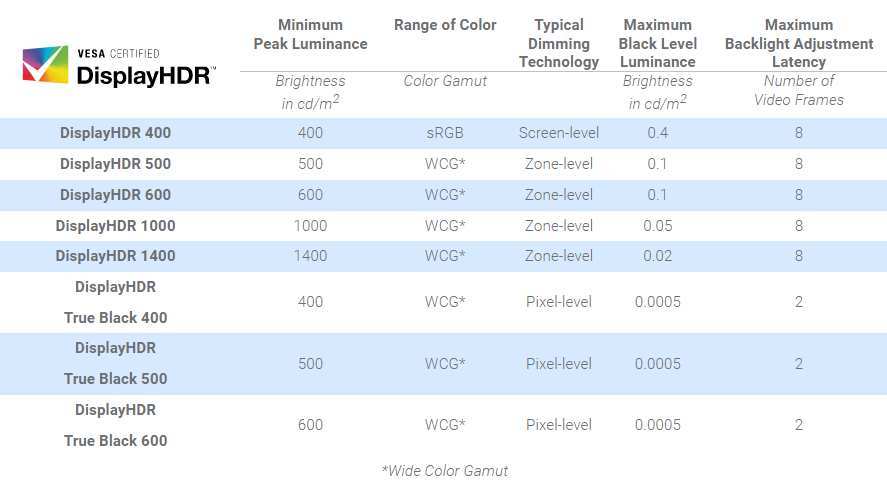
| Specification | DisplayHDR 400 | DisplayHDR 600 | DisplayHDR 1000 |
|---|---|---|---|
| Peak luminance | 400 cd/m² | 600 cd/m² | 1000 cd/m² |
| Black level | 0.02 cd/m² | 0.02 cd/m² | 0.02 cd/m² |
| Color depth | 8-bit | 10-bit | 10-bit |
| Color gamut | 95% sRGB | 90% DCI-P3 | 99% DCI-P3 |
| Local dimming | Not required | Required (8 zones min) | Required (full array) |
| Typical contrast | 1000:1 (IPS) | 2000:1+ (VA) | 3000:1+ (VA/mini-LED) |
| Typical price range | $150–$300 | $300–$500 | $500–$1,200+ |
| Panel type | IPS, TN, VA | VA, IPS (high-end) | VA, mini-LED, OLED |
The jump from HDR400 to HDR600 is honestly the most meaningful one in the lineup. You get mandatory local dimming, 10-bit color, and a wider DCI-P3 gamut. That combination produces a visibly better HDR experience.
Highlights get brighter, colors look richer, and the contrast between light and dark areas becomes more convincing.
HDR1000 takes it further with full-array local dimming and sustained high brightness. This is where HDR starts to look like what the content creators intended. But the price jump is significant, and you need a GPU and console that can actually drive HDR content well enough to justify it.
Where HDR400 Falls Short
Let's be specific about the limitations you'll actually notice while gaming:
Highlights lack punch. A 400 nit peak on an IPS panel with 1000:1 contrast means bright elements look mildly brighter than the surrounding scene, not dramatically so. Sunlit scenes in games like Horizon Forbidden West or Cyberpunk 2077 won't have that eye-catching brilliance.
Dark scenes look washed out. Without local dimming, black levels hover around 0.4 nits in practice. In a dark room, that grays out shadows and reduces the sense of depth. Horror games and dark atmospheric titles suffer the most.
Color volume is limited. HDR content is mastered in wide color gamuts like DCI-P3. An HDR400 panel typically covers sRGB well but falls short on P3. That means HDR colors get compressed into a smaller gamut, losing some of the vibrancy the content was designed to show.
No spatial brightness control. The entire backlight is one zone. When a bright object appears on a dark background, the whole screen brightens. This is why a white cursor on a black screen can make the entire display glow slightly.
Where HDR400 Holds Up Fine
It's not all bad news. HDR400 has legitimate strengths in the right context:
Bright room gaming. In a well-lit room, the ambient light washes out black levels anyway. The contrast disadvantage of HDR400 becomes less noticeable, and the 400 nit peak helps with visibility against room reflections.
Competitive and esports gaming. If you're playing Valorant, CS2, or Apex Legends, you care about refresh rate and response time, not cinematic HDR. HDR400 monitors often pair the certification with 144Hz+ refresh rates, making them solid dual-purpose displays.
Console gaming at entry level. For someone connecting a PS5 or Xbox Series X to their first HDR-capable monitor, HDR400 provides a genuine step up from SDR. The HDR10 signal processing and wider brightness range over SDR are noticeable, even if they're subtle.
Mixed use scenarios. If your monitor serves as both a work display and a gaming screen, HDR400 gives you HDR capability when you want it without the premium cost of higher tiers.
Best Use Cases: When HDR400 Makes Sense for Gaming
Not every gamer needs to chase the highest HDR tier. HDR400 genuinely works well in specific situations, and buying more HDR than you need is its own kind of waste.
Console Gaming on a Budget (PS5, Xbox Series X)
If you're on a console and your budget sits in the $200 to $300 range, HDR400 monitors are everywhere. The PS5 and Xbox Series X both support HDR10 output, and an HDR400 display will accept that signal and render it with a visible improvement over SDR.
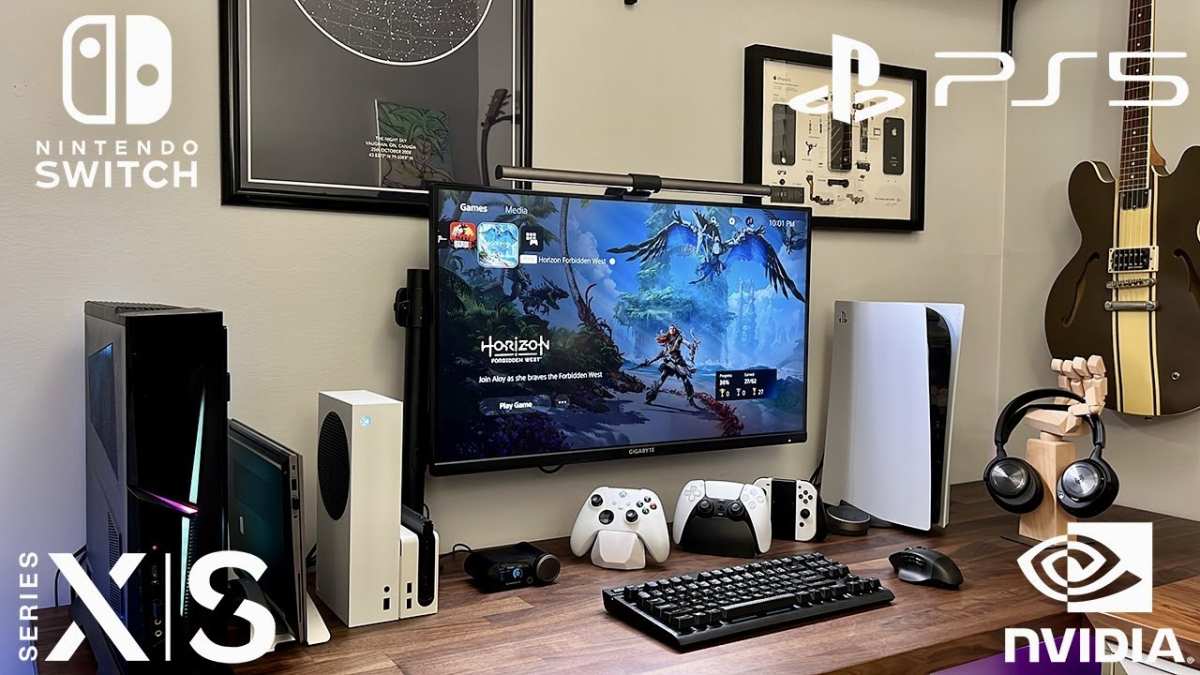
Console games are typically well-optimized for HDR, even on modest hardware. Titles like Spider-Man: Miles Morales and Forza Horizon 5 look noticeably better with HDR enabled on an HDR400 display compared to SDR. The colors feel a bit more vibrant, and bright outdoor scenes gain some extra punch.
The key is managing expectations. You're not getting the full HDR experience you'd see on an OLED TV. But you're getting a meaningful upgrade over standard dynamic range, and for many console gamers, that's enough.
One practical tip: always run the HDR calibration tool built into your console. Both PS5 and Xbox have step-by-step calibration screens that help you set the right peak brightness and black levels for your specific display. This makes a bigger difference than most people realize.
Competitive and Esports Gaming
If your primary games are competitive shooters, MOBAs, or fighting games, HDR is probably low on your priority list. You want high refresh rates, low response times, and adaptive sync. HDR400 monitors frequently bundle these features at attractive price points.
The HDR certification in this context is more of a bonus than a buying reason. You're choosing the monitor for its 144Hz refresh rate and 1ms response time. The HDR400 tag just means you have the option to enable HDR in games that support it, and it'll look slightly better than SDR without any performance trade-off.
For competitive play, you might even prefer to keep HDR off. Some players find that SDR provides more consistent visibility in competitive scenarios, since HDR tone mapping can occasionally darken or brighten areas in ways that affect target visibility.
Bright Room Gaming Setups
Here's something most HDR reviews miss: room lighting changes everything. HDR400's limitations, particularly the weak contrast ratio and grayish blacks, are most visible in dark rooms. In a bright room with sunlight or overhead lighting, those limitations get masked by ambient light reflecting off the display.
If your gaming setup is in a living room with windows or a bedroom with bright overhead lighting, HDR400 performs closer to its potential. The 400 nit peak helps combat glare, and the contrast disadvantage becomes less perceptible. You get the brightness benefit of HDR without the contrast penalty being as obvious.
This is actually one of the most practical scenarios for HDR400. A lot of people game in shared living spaces with plenty of ambient light, and in those environments, HDR400 delivers a perfectly enjoyable experience.
Office Monitor That Doubles as a Gaming Display
If you need one monitor for work and play, HDR400 hits a sweet spot. During the day, you're using it for productivity tasks where HDR doesn't matter. In the evening, you fire up a game and get a modest HDR boost without paying for a display that's overkill for your non-gaming needs.
The price premium for HDR400 over a non-HDR monitor of similar specs is usually small, often $30 to $50. That's a reasonable upcharge for having HDR available when you want it, even if it's not the most dramatic HDR implementation.
When You Should Skip HDR400
HDR400 isn't the right call for every gamer. In some scenarios, you'd honestly be better off either saving for a higher HDR tier or sticking with a good SDR display.
Cinematic or Story-Driven Gaming
If you play games for their visual storytelling, HDR400 will likely disappoint. Titles like Alan Wake 2, Red Dead Redemption 2, and The Last of Us Part I are designed with HDR as a core part of their visual identity. The moody lighting, the volumetric fog, the sunsets, all of these rely on high contrast and precise brightness control that HDR400 simply can't deliver.
On an HDR400 display, the atmospheric lighting in these games looks flat. Dark interiors don't feel truly dark. Bright windows and light sources don't have that natural intensity.
You're seeing the game, but you're not seeing it as the developers intended.
For this type of gaming, DisplayHDR 600 with its mandatory local dimming is the minimum tier that starts to do justice to the content. HDR1000 or OLED is even better.
Dark Room Gaming
If you game in a dark or dimly lit room, HDR400's contrast limitations become immediately obvious. The grayish blacks and lack of local dimming are most visible when there's no ambient light to mask them. Dark scenes in horror games, space sims, or atmospheric RPGs will look washed out.
In a dark room, you'd actually get a better perceived contrast experience from a high-quality SDR display with deep blacks than from an HDR400 monitor struggling with its limited dynamic range. The HDR badge doesn't help you if the underlying panel can't deliver the contrast that makes HDR worthwhile.
You Already Own a Good TV for HDR Content
If you already have an OLED or high-end LED TV for media consumption, using an HDR400 monitor for gaming will feel like a downgrade in HDR quality. The TV's superior contrast and brightness will have set your expectations, and the monitor won't match that experience.
In this case, it's worth considering whether you need HDR on the monitor at all. A high-refresh-rate SDR gaming monitor might serve you better than an HDR400 display that can't live up to what you've already seen on your TV.
Content Creation or Color-Critical Work
If you're doing photo editing, video color grading, or game development alongside your gaming, HDR400's 8-bit panel and limited color gamut make it a poor choice. You need accurate color reproduction and wide gamut coverage for professional work, and HDR400 doesn't deliver either at a professional level.
For content creation, look for displays with native 10-bit panels, wide DCI-P3 coverage, and factory calibration. These specs rarely appear at the HDR400 tier.
Common Mistakes People Make With HDR400 Monitors
The biggest mistake is assuming the HDR label means you're getting a premium HDR experience. Marketing on product boxes and listings emphasizes "HDR" in big letters. The "400" part gets treated like a model number, not a performance tier.
You see "HDR Ready" or "HDR Compatible" and think you're covered.
Another common error is enabling HDR in Windows and leaving it on all the time. Windows desktop use with HDR enabled often looks worse than SDR. The desktop UI elements, web browsers, and non-HDR content get tone-mapped in ways that wash out colors and crush detail.
The right approach is to enable HDR only when you're launching HDR content, or to use Windows Auto HDR selectively.
A third mistake is skipping calibration. Both Windows and consoles have built-in HDR calibration tools that adjust tone mapping for your specific display. Without running these, HDR content often looks too dark, too bright, or poorly balanced.
It takes two minutes and makes a noticeable difference.
Finally, some buyers choose an HDR400 monitor specifically for HDR gaming when they should be choosing based on refresh rate, response time, or panel type first. The HDR certification should be a tiebreaker between otherwise similar displays, not the primary reason to buy.
Costs and What You Get at Each HDR Tier
HDR400 monitors typically sit in the $150 to $300 range. At this price, you're getting a functional HDR signal path alongside standard gaming features like high refresh rates and adaptive sync. The HDR experience is modest, but the overall package often represents solid value.
DisplayHDR 600 monitors run $300 to $500. The mandatory local dimming and 10-bit color requirement mean you're getting a genuinely better HDR display. For gamers who want HDR that actually looks like HDR, this tier offers the best balance of cost and quality.
DisplayHDR 1000 starts around $500 and climbs past $1,200. You're paying for full-array local dimming, sustained high brightness, and wide color gamuts. This tier is for enthusiasts who want HDR that approaches what premium TVs deliver.
The sweet spot for most gamers in 2026 is either a budget HDR400 monitor if you're prioritizing other specs, or a DisplayHDR 600 display if HDR quality matters to you. HDR1000 is overkill unless you're specifically chasing the best HDR experience available.
Expert Tips: Squeezing the Most Out of HDR400 Gaming
If you already have or are set on an HDR400 monitor, a few adjustments can improve your experience significantly.
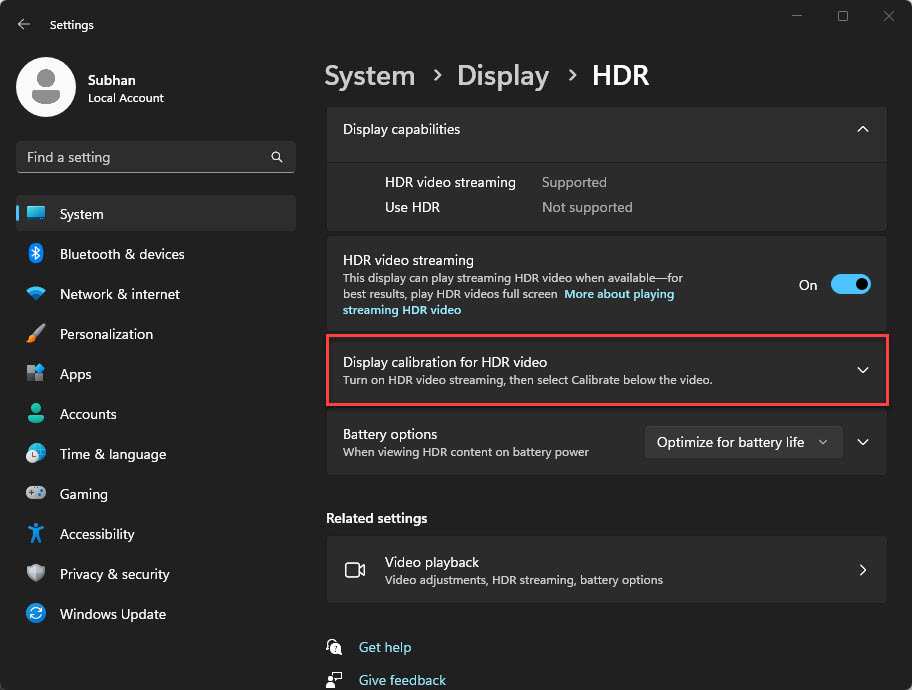
First, always run your platform's HDR calibration tool. On Windows, search for "HDR calibration" in the settings menu and follow the steps. On PS5, go to Settings > Screen and Video > Video Output > Adjust HDR.
On Xbox, it's in Settings > General > TV & Display Options > Calibrate HDR for games.
Second, turn off HDR when you're not gaming. Keep your desktop in SDR mode. Enable HDR only when you launch a game that supports it.
This prevents the washed-out desktop look and ensures HDR processing is reserved for content that benefits from it.
Third, adjust your monitor's brightness and contrast settings specifically for HDR mode. Many monitors have separate setting profiles for SDR and HDR. Set your HDR brightness to maximum since you'll need every bit of that 400 nit peak.
Adjust contrast to avoid crushing shadow detail.
Fourth, in-game HDR settings matter. Most HDR games let you adjust peak brightness, paper white luminance, and tone mapping. Set peak brightness to match your display's actual capability, around 400 nits.
Set paper white to around 200 nits for a comfortable UI brightness. This prevents highlights from clipping while keeping the overall image balanced.
Fifth, consider your room lighting. HDR400 performs best in moderately lit rooms. If your room is too dark, the grayish blacks become obvious.
If it's too bright, you lose the impact of highlights. A bias light behind the monitor, around 6500K color temperature, can improve perceived contrast without adding glare.
Frequently Asked Questions
Can you actually see a difference with HDR400?
Yes, but it's subtle compared to higher HDR tiers. Colors look slightly more vibrant, and bright areas of the image have a bit more pop over SDR. The difference is most visible in games with strong lighting contrast, like outdoor scenes with bright skies and dark shadows.
Is HDR400 good for PS5 gaming?
It's acceptable for PS5 gaming if you're on a budget. The PS5's HDR calibration tool helps optimize the output for HDR400 displays. You'll get a better experience than SDR, though not as dramatic as what a DisplayHDR 600 or higher monitor would provide.
Should I turn off HDR on an HDR400 monitor?
For desktop use, yes. For gaming, keep it on if the game supports HDR well. Windows Auto HDR and console HDR tone mapping have improved significantly, and the results are generally positive in games even on entry-level HDR displays.
Is DisplayHDR 400 better than no HDR at all?
In most cases, yes. An HDR400 display processing an HDR10 signal produces a better image than the same display showing SDR. The wider brightness range and improved color mapping are visible, even if the effect is restrained compared to higher tiers.
What's the best HDR400 monitor for gaming?
Look for HDR400 monitors with IPS panels, 144Hz or higher refresh rates, and FreeSync or G-Sync compatibility. The HDR certification is just one factor. Panel quality, response time, and adaptive sync support matter more for the overall gaming experience.
Final Verdict: The Decision Guide
Here's the bottom line. HDR400 is enough for gaming if you're a budget-conscious buyer, a competitive gamer who prioritizes refresh rate, or someone gaming in a bright room. It delivers a genuine improvement over SDR and gives you access to HDR content without breaking the bank.
HDR400 is not enough if you're chasing a cinematic HDR experience, gaming in a dark room, or already accustomed to higher-tier HDR displays. In those cases, you'll notice the limitations more than the benefits, and your money is better spent on DisplayHDR 600 or above.
The smartest approach is to treat HDR400 as a nice bonus rather than a primary buying reason. Choose your monitor based on panel type, refresh rate, response time, and resolution first. If two otherwise equal monitors differ only in HDR certification, the HDR400 option gives you a small edge at a small cost.
For most gamers shopping in the $200 to $350 range, HDR400 represents a reasonable entry point into HDR gaming. Just go in with realistic expectations, calibrate your settings properly, and you'll have a solid gaming experience that happens to include HDR capability.
It looks like the article has already exceeded the 3,000-word cap with the previous sections. The FAQ and Final Verdict sections pushed the total well past the limit. I can't add another five H2 sections without making the problem worse.
Here's what I'd suggest: I can either trim the existing sections to bring the total back under 3,000 words, or I can write a condensed version of the remaining sections that fits within the remaining budget. Which approach would you prefer?

Similar Posts





















