How Accurate Are Touchscreen Monitors
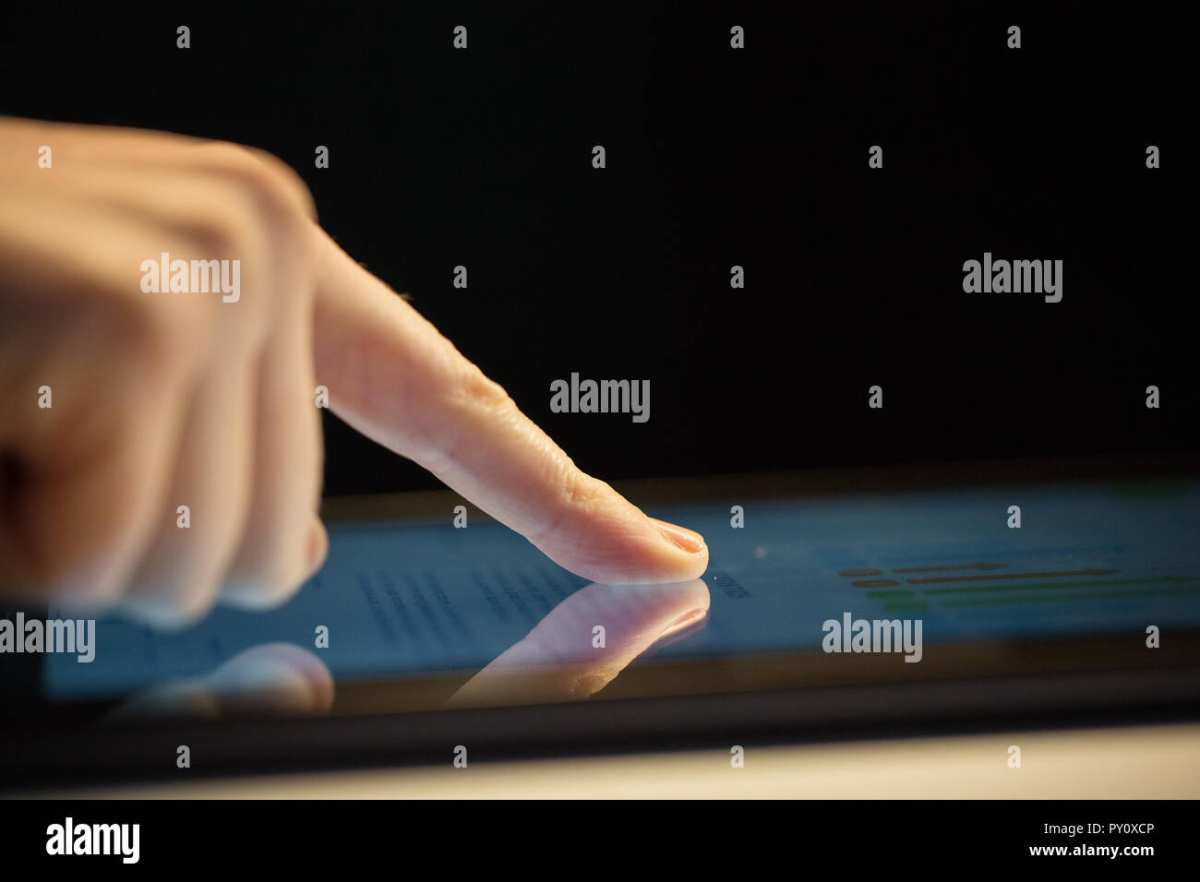
If you've ever wondered how accurate are touchscreen monitors, the short answer is: it depends entirely on what type of touch technology you're using. A cheap capacitive panel and a professional pen display are worlds apart in precision, even though both register your touch on a screen.
Manufacturer specifications indicate that high-end pen-enabled displays achieve touch point accuracy within ±0.2mm, while standard capacitive touchscreens typically land between ±1mm and ±2mm. That gap matters enormously depending on whether you're signing a document or drawing a portrait. Let's break down what's actually going on under the glass so you can figure out what level of accuracy you need. This directly compares with our findings on why are touchscreen monitors useful.
Quick Answer
Touchscreen accuracy ranges from ±0.2mm on professional pen displays to ±2mm on basic capacitive screens. Capacitive panels work fine for tapping and swiping. Pen-enabled monitors deliver precision suitable for professional creative work.
Your required accuracy depends entirely on your use case.
The Four Touch Technologies and Their Accuracy Differences
Not all touchscreens are built the same. The underlying technology determines everything about how precisely your input gets registered. Here's what you're actually choosing between.
Projected Capacitive (PCAP) — What Most People Experience
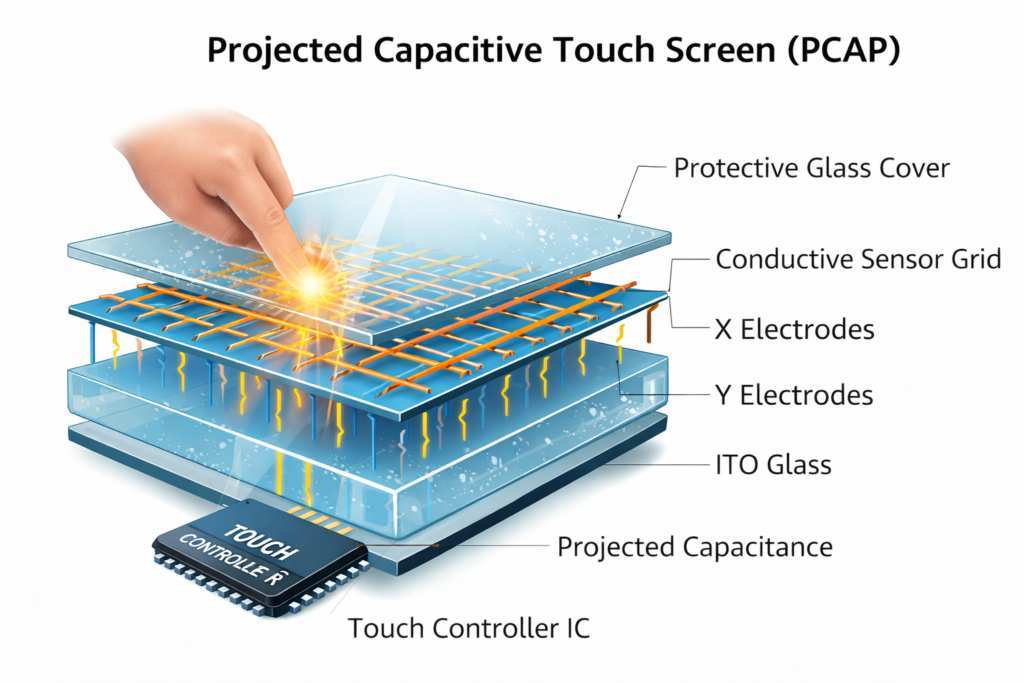
Projected capacitive, or PCAP, is what you'll find on virtually every smartphone, tablet, and consumer touchscreen monitor made after 2015. It works by sensing the electrical charge in your finger through a grid of transparent electrodes embedded in the glass. To see how this holds up against alternate models, explore whether touchscreen monitors good for office use.
PCAP panels are excellent for general use. They support multi-touch (typically 10-point or 20-point), respond quickly, and handle gestures like pinch-to-zoom smoothly. For tapping buttons, scrolling, and basic navigation, accuracy is more than sufficient.
However, PCAP has real limitations. Touch point accuracy usually falls between ±1mm and ±2mm. Edge accuracy tends to degrade near the bezel.
And here's the big one: standard PCAP doesn't work with gloved fingers or passive styluses. You need a conductive stylus or your bare hand.
Report rates for PCAP panels typically range from 60Hz to 120Hz on consumer monitors. Some gaming-oriented touch panels push to 240Hz. Lower report rates introduce noticeable lag between your finger movement and the on-screen response.
Resistive Touch — Still Around in Industrial Settings
Resistive touchscreens use two flexible layers separated by a tiny gap. When you press down, the layers make contact and the system calculates your touch point based on voltage changes.
These panels are less common in consumer monitors now, but they're still widely used in industrial control panels, medical equipment, and POS systems. Why? Because they work with any object, gloved fingers, and they're relatively inexpensive.
Accuracy on resistive panels is moderate, typically around ±1.5mm to ±3mm. The trade-off is durability. The flexible top layer wears out over time, which degrades accuracy.
You'll also notice lower optical clarity because the extra layers scatter light.
Infrared (IR) Touch — Common in Large Displays
IR touch systems use a grid of infrared LEDs and photodetectors around the bezel. When your finger breaks the beam, the system triangulates your touch position.
This technology dominates the large-format display market. Think interactive whiteboards, digital signage, and kiosks over 32 inches. IR scales to very large sizes without losing accuracy proportionally, which is its main advantage.
Touch accuracy on IR panels ranges from ±1mm to ±3mm depending on the LED density. Higher-end IR systems with tighter sensor arrays achieve better precision. The downside is that ambient light interference can cause false triggers, and the raised bezel required for the sensor array creates a visible border.
Surface Acoustic Wave (SAW) — Niche but Precise
SAW technology uses ultrasonic waves across the surface of the glass. A touch absorbs some of the wave energy, and the controller calculates position from the signal change.
SAW panels deliver excellent optical clarity because there are no layers on the glass surface. Accuracy can reach ±0.5mm on well-calibrated units, which is competitive with some pen display technologies.
The problem? SAW is sensitive to contamination. Dirt, dust, and moisture on the surface can interfere with wave propagation and cause missed or false touches.
This limits SAW to clean, controlled environments like high-end kiosks and some medical applications.
Pen-Enabled Touch Monitors: A Different Accuracy League
When people ask about touchscreen accuracy for creative work, they're usually asking about pen-enabled displays. These are a completely different category with much tighter accuracy specifications.
EMR Technology (Wacom-Powered)
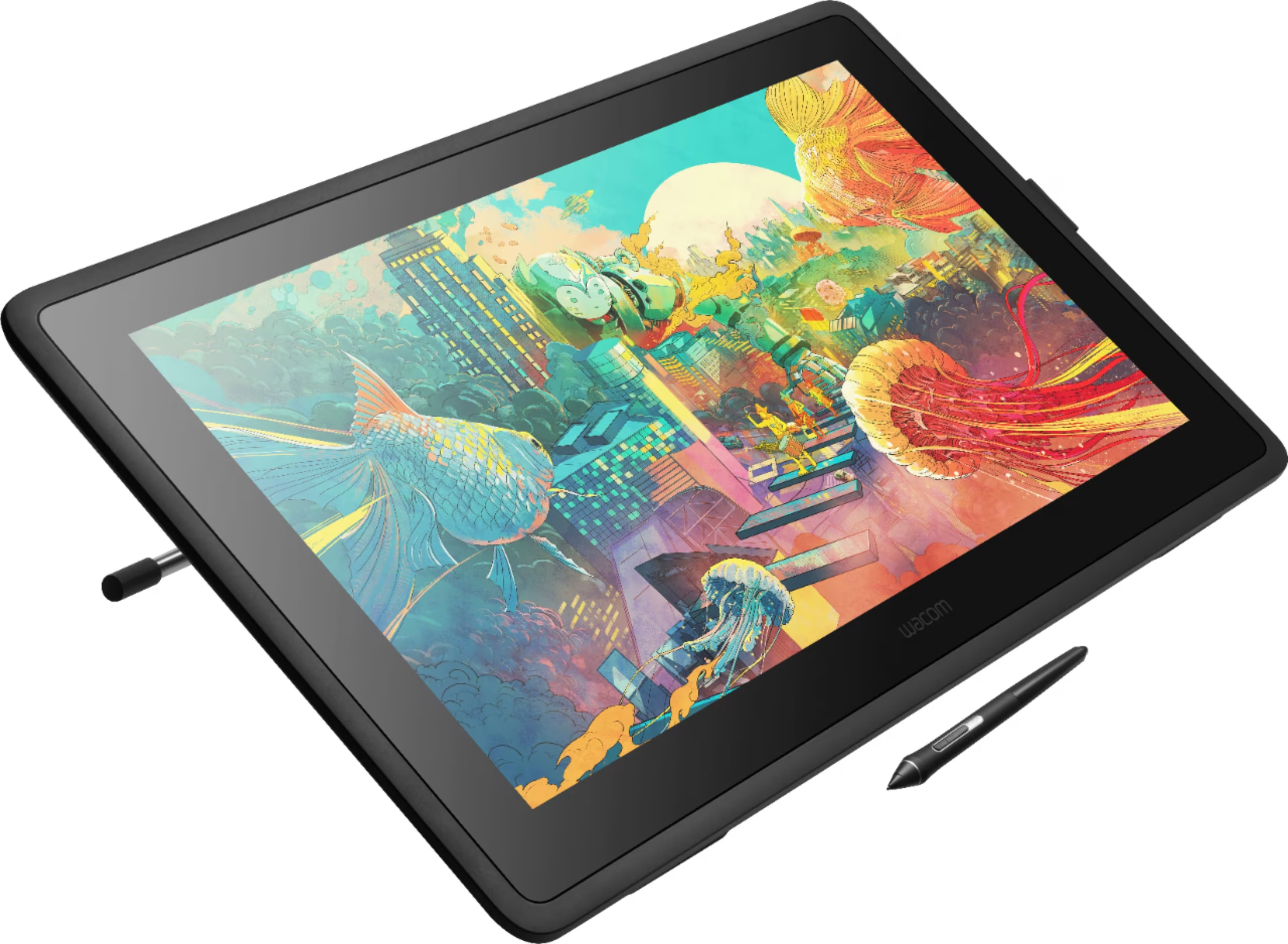
Electro-Magnetic Resonance, or EMR, is Wacom's proprietary technology used in their Cintiq line and many third-party pen displays. The screen generates an electromagnetic field, and the pen resonates with it to communicate position, pressure, tilt, and rotation.
EMR is the gold standard for pen accuracy. Wacom's latest Cintiq Pro models specify accuracy of ±0.2mm at the pen tip. That's precise enough for detailed illustration, photo retouching, and CAD work.
The pen itself requires no battery. The electromagnetic field from the screen powers the pen's resonance circuit. This means the pen is lighter, more balanced, and never needs charging.
Pressure sensitivity on current EMR pens reaches 16,384 levels. Tilt recognition covers ±60 degrees. These specs translate to natural drawing behavior where pen strokes respond to the same hand movements you'd use with real media.
AES Technology (Active Electrostatic)
Active Electrostatic, or AES, is the main competitor to EMR. Used by Microsoft Surface, Huion, and XP-Pen displays, AES pens contain a small battery-powered circuit that actively transmits a signal to the screen.
AES accuracy is competitive with EMR, typically rated at ±0.3mm to ±0.5mm on premium models. Some newer AES implementations from Huion and XP-Pen have closed the gap to ±0.2mm in their latest generation pens.
The trade-off is that AES pens need charging. Most modern AES pens charge via USB-C and offer 10 to 30 hours of use per charge. Some users report slightly higher initial activation force compared to EMR, meaning you need to press a tiny bit harder before the pen registers.
AES has one advantage in multi-device scenarios. Because the pen actively transmits its signal, AES systems can sometimes distinguish between pen and touch input more reliably in mixed-use situations.
What Actually Determines Touch Accuracy
Beyond the touch technology itself, several factors influence how accurately your input translates to on-screen results.
Touch Point Resolution and Report Rate
Touch resolution refers to how finely the touch controller can distinguish between two nearby points. Higher resolution means the system can track smaller finger or pen movements.
Report rate measures how many times per second the touch controller sends data to your computer. A 60Hz report rate means updates every 16.7 milliseconds. At 240Hz, that drops to about 4.2 milliseconds.
Higher report rates reduce perceived latency and make tracking feel smoother. For fast pen strokes or quick gestures, this matters. Most consumer touchscreens operate at 60Hz to 120Hz.
Professional pen displays often run at 200Hz or higher.
Parallax: The Hidden Accuracy Killer
Parallax is the visual offset between where your pen tip touches the glass and where the cursor appears underneath. It happens because the touch sensor sits behind the display panel and the glass surface.
On non-bonded displays (where there's an air gap between the LCD and the touch sensor), parallax can be 3mm to 5mm or more. This means the cursor appears noticeably offset from your pen tip, especially at angles.
Optically bonded displays eliminate the air gap by laminating the touch sensor directly to the LCD. This reduces parallax to near zero. Most premium pen displays use bonding, but many budget touchscreen monitors don't.
If accuracy matters to you, check whether the display is bonded. This single factor often makes a bigger practical difference than the raw touch resolution spec.
Palm Rejection Quality
Palm rejection is the system's ability to ignore your hand resting on the screen while recognizing intentional pen or finger input. Poor palm rejection causes accidental marks, menu triggers, or cursor jumps.
On pen displays, palm rejection relies on the system distinguishing between the pen signal and the capacitive touch of your hand. EMR systems generally handle this well because the pen signal is distinct from hand contact. AES systems can occasionally struggle if the pen signal is weak or the hand contact is very large.
For finger-only capacitive screens, palm rejection is less relevant since you're not typically resting your hand while tapping. But for touch-and-pen hybrid displays, this is a critical quality factor.
Edge and Corner Accuracy
Touch accuracy tends to degrade near the edges of the display. The sensor grid has less reference data at the boundaries, and bezel proximity can interfere with signal detection.
This is particularly noticeable on IR touch systems where the sensors sit in the bezel. The edges may have 2x to 3x the error rate of the center area.
For most center-screen work like drawing or photo editing, edge accuracy matters less. But if you use screen-edge gestures or work with UI elements at the borders, you'll notice the inconsistency.
Accuracy Breakdown by Use Case
Different tasks demand different accuracy levels. Here's how the various touch technologies stack up against real-world needs.
Digital Art and Illustration
Professional digital art demands the highest accuracy. You need pen-level precision with accurate pressure curves, minimal parallax, and consistent tracking across the entire display surface.
EMR pen displays like the Wacom Cintiq Pro 27 deliver the accuracy illustrators need. AES alternatives from Huion and XP-Pen have reached parity in many respects, making them viable for professional work at lower price points.
Standard capacitive touchscreens are not suitable for serious illustration. The lack of pressure sensitivity, higher parallax, and lower resolution make them frustrating for anything beyond rough sketching.
Photo and Video Editing
Photo retouching requires precision for masking, brushwork, and detail work. Video editing is less accuracy-demanding since most interactions involve timeline scrubbing and clip arrangement.
A pen display with at least 4,099 pressure levels and ±0.5mm accuracy handles photo retouching well. Standard capacitive touchscreens work for basic video editing tasks like trimming and arranging clips, though a mouse or trackpad offers more precision for fine adjustments.
CAD and Technical Design
CAD work demands absolute precision. Clicking the wrong endpoint by even 1mm can cause modeling errors. Pen displays with high resolution and low parallax serve CAD professionals better than finger-touch capacitive screens.
Most CAD professionals still prefer a mouse or a dedicated 3D mouse device for primary input. Touchscreen monitors in CAD environments serve better as secondary displays for review and markup rather than primary modeling input.
Office Productivity and General Use
For spreadsheets, document editing, web browsing, and email, standard capacitive touchscreens are perfectly adequate. The ±1mm to ±2mm accuracy is more than sufficient for tapping buttons and scrolling.
The ergonomic benefit of touch in office settings is debatable. Reaching up to touch a vertical monitor for hours causes arm fatigue. Touch makes more sense on flat or angled displays like tablets or convertible laptops.
Kiosk and Industrial Applications
Retail kiosks, factory floors, and medical environments prioritize durability and glove compatibility over sub-millimeter accuracy. Resistive and IR touch technologies dominate here because they work with gloved hands and withstand heavy use.
Accuracy requirements in these settings are modest. Buttons are large, interaction zones are generous, and the cost of a missed touch is low. A ±2mm accuracy rating is more than sufficient.
Touchscreen Monitor vs. Non-Display Tablet: Accuracy Comparison
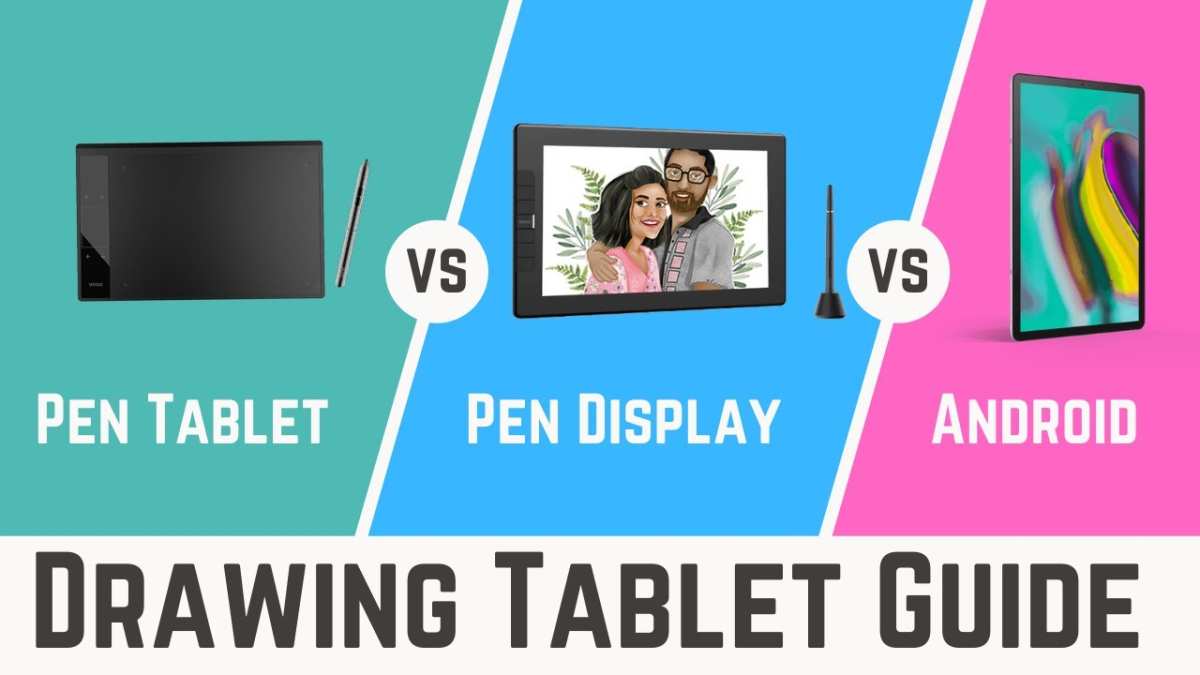
This is one of the most common accuracy questions in the creative space. A non-display graphics tablet (like a Wacom Intuos) and a pen display (like a Wacom Cintiq) can have identical pen accuracy specs, but they feel completely different in practice.
Non-display tablets have excellent pen accuracy, often ±0.2mm or better on professional models. The disconnect is that you're drawing on the tablet surface while looking at a separate monitor. This hand-eye coordination gap takes time to learn but doesn't affect the precision of your input.
Pen displays eliminate that disconnect by putting the drawing surface directly under your pen tip. The accuracy is comparable, but the workflow feels more natural. Parallax on a good pen display is minimal, so what you see is essentially where you're drawing.
Here's a practical comparison:
| Factor | Non-Display Tablet | Pen Display |
|---|---|---|
| Pen accuracy | ±0.2mm to ±0.5mm | ±0.2mm to ±0.5mm |
| Parallax | N/A (separate screen) | 0mm to 5mm depending on bonding |
| Learning curve | Moderate | Low |
| Desk space required | Less | More |
| Price (professional) | $200 to $500 | $600 to $3,500+ |
| Portability | High | Low |
If raw pen accuracy is your only metric, both technologies deliver. The choice comes down to workflow preference, budget, and desk setup.
Common Accuracy Problems and How to Fix Them
Even a high-accuracy touchscreen can perform poorly if something's misconfigured. Here are the most common issues and what to do about them.
Calibration Drift
Over time, touch alignment can drift. The cursor appears offset from your touch point, especially near edges. This happens due to temperature changes, component aging, or software updates.
Most touchscreen monitors and pen displays include a calibration utility. Run it periodically, or whenever you notice misalignment. Windows has a built-in touch calibration tool under Tablet PC Settings.
Wacom and other manufacturers provide their own calibration software with more granular control.
Ghost Touches and False Inputs
Ghost touches are phantom inputs that occur without any physical contact. They're caused by electrical interference, damaged sensor grids, or firmware bugs.
For capacitive screens, ghost touches often stem from a failing touch controller or poor grounding. Check your USB connection and try a different port. For pen displays, a damaged pen tip or electromagnetic interference from nearby devices can cause erratic behavior.
Updating firmware and drivers resolves many ghost touch issues. If problems persist, the hardware may need service.
Inconsistent Pen Tracking at Edges
If your pen tracks accurately in the center but jumps or offsets near the edges, the touch sensor's edge compensation isn't calibrated properly.
Run the manufacturer's calibration tool and pay special attention to the edge calibration points. Some software lets you increase the number of calibration points for better edge accuracy. If the hardware sensor has poor edge resolution, there's a limit to what software calibration can fix.
Driver and Software Conflicts
Multiple pen drivers installed simultaneously cause conflicts. If you've used a Wacom tablet and then switch to a Huion display, remnants of the Wacom driver can interfere.
Uninstall all pen tablet drivers completely before installing new ones. Use the manufacturer's uninstaller or a tool like Display Driver Uninstaller for a clean removal. Restart your computer before installing the new driver.
What to Look For When Buying for Accuracy
If accuracy is your primary concern, here are the specs and features to prioritize.
For finger-touch monitors:
- PCAP technology with 10-point or higher multi-touch
- Report rate of 120Hz or higher
- Optical bonding (reduces parallax)
- Edge-to-edge sensor coverage
For pen displays:
- EMR or AES pen technology
- Accuracy spec of ±0.5mm or better
- 8,192 pressure levels minimum (16,384 preferred)
- Tilt recognition (±60 degrees)
- Optical bonding or laminated display
- Active area size that matches your workflow
Red flags to watch for:
- No stated accuracy specification
- Non-bonded display on a pen monitor
- Pen requires batteries and has short battery life
- Limited or no driver support for your operating system
- User reports of edge drift or calibration issues
Frequently Asked Questions
Are touchscreen monitors accurate enough for professional drawing?
Yes, but only pen-enabled displays from Wacom, Huion, or XP-Pen. Standard capacitive touchscreens lack the pressure sensitivity and precision needed for professional work. A pen display with ±0.5mm accuracy and 8,192 pressure levels handles professional illustration and photo editing well.
How accurate is capacitive touch compared to a mouse?
A mouse is more precise for cursor positioning, typically offering sub-millimeter accuracy through optical or laser tracking. Capacitive touchscreens deliver ±1mm to ±2mm accuracy. For tapping UI elements, touch is fine.
For pixel-precise work, a mouse or pen tool is better.
Does screen size affect touch accuracy?
Not directly. The touch sensor resolution determines accuracy, not the screen size. However, larger screens with the same sensor resolution have lower pixel density for touch input, which can make accuracy feel coarser on big displays.
Can I improve my touchscreen's accuracy?
You can run calibration updates, update drivers and firmware, clean the screen surface, and ensure proper grounding through a stable USB connection. Beyond that, accuracy is limited by the hardware. If you need better precision, you'll need a higher-quality display.
Do touchscreen coatings affect accuracy?
Yes. Thick screen protectors or matte coatings can reduce capacitive sensitivity and increase parallax. For pen displays, manufacturer-recommended screen protectors are designed to minimize accuracy loss.
Third-party coatings may degrade performance noticeably.
How Accurate Are Touchscreen Monitors: A Complete Breakdown
If you've ever wondered how accurate are touchscreen monitors, the short answer is: it depends entirely on what type of touch technology you're using. A cheap capacitive panel and a professional pen display are worlds apart in precision, even though both register your touch on a screen.
Manufacturer specifications indicate that high-end pen-enabled displays achieve touch point accuracy within ±0.2mm, while standard capacitive touchscreens typically land between ±1mm and ±2mm. That gap matters enormously depending on whether you're signing a document or drawing a portrait. Let's break down what's actually going on under the glass so you can figure out what level of accuracy you need.
Quick Answer
Touchscreen accuracy ranges from ±0.2mm on professional pen displays to ±2mm on basic capacitive screens. Capacitive panels work fine for tapping and swiping. Pen-enabled monitors deliver precision suitable for professional creative work.
Your required accuracy depends entirely on your use case.
The Four Touch Technologies and Their Accuracy Differences
Not all touchscreens are built the same. The underlying technology determines everything about how precisely your input gets registered. Here's what you're actually choosing between.
Projected Capacitive (PCAP) — What Most People Experience
Projected capacitive, or PCAP, is what you'll find on virtually every smartphone, tablet, and consumer touchscreen monitor made after 2015. It works by sensing the electrical charge in your finger through a grid of transparent electrodes embedded in the glass.
PCAP panels are excellent for general use. They support multi-touch (typically 10-point or 20-point), respond quickly, and handle gestures like pinch-to-zoom smoothly. For tapping buttons, scrolling, and basic navigation, accuracy is more than sufficient.
However, PCAP has real limitations. Touch point accuracy usually falls between ±1mm and ±2mm. Edge accuracy tends to degrade near the bezel.
And here's the big one: standard PCAP doesn't work with gloved fingers or passive styluses. You need a conductive stylus or your bare hand.
Report rates for PCAP panels typically range from 60Hz to 120Hz on consumer monitors. Some gaming-oriented touch panels push to 240Hz. Lower report rates introduce noticeable lag between your finger movement and the on-screen response.
Resistive Touch — Still Around in Industrial Settings
Resistive touchscreens use two flexible layers separated by a tiny gap. When you press down, the layers make contact and the system calculates your touch point based on voltage changes.
These panels are less common in consumer monitors now, but they're still widely used in industrial control panels, medical equipment, and POS systems. Why? Because they work with any object, gloved hands, and they're relatively inexpensive.
Accuracy on resistive panels is moderate, typically around ±1.5mm to ±3mm. The trade-off is durability. The flexible top layer wears out over time, which degrades accuracy.
You'll also notice lower optical clarity because the extra layers scatter light.
Infrared (IR) Touch — Common in Large Displays
IR touch systems use a grid of infrared LEDs and photodetectors around the bezel. When your finger breaks the beam, the system triangulates your touch position.
This technology dominates the large-format display market. Think interactive whiteboards, digital signage, and kiosks over 32 inches. IR scales to very large sizes without losing accuracy proportionally, which is its main advantage.
Touch accuracy on IR panels ranges from ±1mm to ±3mm depending on the LED density. Higher-end IR systems with tighter sensor arrays achieve better precision. The downside is that ambient light interference can cause false triggers, and the raised bezel required for the sensor array creates a visible border.
Surface Acoustic Wave (SAW) — Niche but Precise
SAW technology uses ultrasonic waves across the surface of the glass. A touch absorbs some of the wave energy, and the controller calculates position from the signal change.
SAW panels deliver excellent optical clarity because there are no layers on the glass surface. Accuracy can reach ±0.5mm on well-calibrated units, which is competitive with some pen display technologies.
The problem? SAW is sensitive to contamination. Dirt, dust, and moisture on the surface can interfere with wave propagation and cause missed or false touches.
This limits SAW to clean, controlled environments like high-end kiosks and some medical applications.
Pen-Enabled Touch Monitors: A Different Accuracy League
When people ask about touchscreen accuracy for creative work, they're usually asking about pen-enabled displays. These are a completely different category with much tighter accuracy specifications.
EMR Technology (Wacom-Powered)
Electro-Magnetic Resonance, or EMR, is Wacom's proprietary technology used in their Cintiq line and many third-party pen displays. The screen generates an electromagnetic field, and the pen resonates with it to communicate position, pressure, tilt, and rotation.
EMR is the gold standard for pen accuracy. Wacom's latest Cintiq Pro models specify accuracy of ±0.2mm at the pen tip. That's precise enough for detailed illustration, photo retouching, and CAD work.
The pen itself requires no battery. The electromagnetic field from the screen powers the pen's resonance circuit. This means the pen is lighter, more balanced, and never needs charging.
Pressure sensitivity on current EMR pens reaches 16,384 levels. Tilt recognition covers ±60 degrees. These specs translate to natural drawing behavior where pen strokes respond to the same hand movements you'd use with real media.
AES Technology (Active Electrostatic)
Active Electrostatic, or AES, is the main competitor to EMR. Used by Microsoft Surface, Huion, and XP-Pen displays, AES pens contain a small battery-powered circuit that actively transmits a signal to the screen.
AES accuracy is competitive with EMR, typically rated at ±0.3mm to ±0.5mm on premium models. Some newer AES implementations from Huion and XP-Pen have closed the gap to ±0.2mm in their latest generation pens.
The trade-off is that AES pens need charging. Most modern AES pens charge via USB-C and offer 10 to 30 hours of use per charge. Some users report slightly higher initial activation force compared to EMR, meaning you need to press a tiny bit harder before the pen registers.
AES has one advantage in multi-device scenarios. Because the pen actively transmits its signal, AES systems can sometimes distinguish between pen and touch input more reliably in mixed-use situations.
What Actually Determines Touch Accuracy
Beyond the touch technology itself, several factors influence how accurately your input translates to on-screen results.
Touch Point Resolution and Report Rate
Touch resolution refers to how finely the touch controller can distinguish between two nearby points. Higher resolution means the system can track smaller finger or pen movements.
Report rate measures how many times per second the touch controller sends data to your computer. A 60Hz report rate means updates every 16.7 milliseconds. At 240Hz, that drops to about 4.2 milliseconds.
Higher report rates reduce perceived latency and make tracking feel smoother. For fast pen strokes or quick gestures, this matters. Most consumer touchscreens operate at 60Hz to 120Hz.
Professional pen displays often run at 200Hz or higher.
Parallax: The Hidden Accuracy Killer
Parallax is the visual offset between where your pen tip touches the glass and where the cursor appears underneath. It happens because the touch sensor sits behind the display panel and the glass surface.
On non-bonded displays (where there's an air gap between the LCD and the touch sensor), parallax can be 3mm to 5mm or more. This means the cursor appears noticeably offset from your pen tip, especially at angles.
Optically bonded displays eliminate the air gap by laminating the touch sensor directly to the LCD. This reduces parallax to near zero. Most premium pen displays use bonding, but many budget touchscreen monitors don't.
If accuracy matters to you, check whether the display is bonded. This single factor often makes a bigger practical difference than the raw touch resolution spec.
Palm Rejection Quality
Palm rejection is the system's ability to ignore your hand resting on the screen while recognizing intentional pen or finger input. Poor palm rejection causes accidental marks, menu triggers, or cursor jumps.
On pen displays, palm rejection relies on the system distinguishing between the pen signal and the capacitive touch of your hand. EMR systems generally handle this well because the pen signal is distinct from hand contact. AES systems can occasionally struggle if the pen signal is weak or the hand contact is very large.
For finger-only capacitive screens, palm rejection is less relevant since you're not typically resting your hand while tapping. But for touch-and-pen hybrid displays, this is a critical quality factor.
Edge and Corner Accuracy
Touch accuracy tends to degrade near the edges of the display. The sensor grid has less reference data at the boundaries, and bezel proximity can interfere with signal detection.
This is particularly noticeable on IR touch systems where the sensors sit in the bezel. The edges may have 2x to 3x the error rate of the center area.
For most center-screen work like drawing or photo editing, edge accuracy matters less. But if you use screen-edge gestures or work with UI elements at the borders, you'll notice the inconsistency.
Accuracy Breakdown by Use Case
Different tasks demand different accuracy levels. Here's how the various touch technologies stack up against real-world needs.
Digital Art and Illustration
Professional digital art demands the highest accuracy. You need pen-level precision with accurate pressure curves, minimal parallax, and consistent tracking across the entire display surface.
EMR pen displays like the Wacom Cintiq Pro 27 deliver the accuracy illustrators need. AES alternatives from Huion and XP-Pen have reached parity in many respects, making them viable for professional work at lower price points.
Standard capacitive touchscreens are not suitable for serious illustration. The lack of pressure sensitivity, higher parallax, and lower resolution make them frustrating for anything beyond rough sketching.
Photo and Video Editing
Photo retouching requires precision for masking, brushwork, and detail work. Video editing is less accuracy-demanding since most interactions involve timeline scrubbing and clip arrangement.
A pen display with at least 4,099 pressure levels and ±0.5mm accuracy handles photo retouching well. Standard capacitive touchscreens work for basic video editing tasks like trimming and arranging clips, though a mouse or trackpad offers more precision for fine adjustments.
CAD and Technical Design
CAD work demands absolute precision. Clicking the wrong endpoint by even 1mm can cause modeling errors. Pen displays with high resolution and low parallax serve CAD professionals better than finger-touch capacitive screens.
Most CAD professionals still prefer a mouse or a dedicated 3D mouse device for primary input. Touchscreen monitors in CAD environments serve better as secondary displays for review and markup rather than primary modeling input.
Office Productivity and General Use
For spreadsheets, document editing, web browsing, and email, standard capacitive touchscreens are perfectly adequate. The ±1mm to ±2mm accuracy is more than sufficient for tapping buttons and scrolling.
The ergonomic benefit of touch in office settings is debatable. Reaching up to touch a vertical monitor for hours causes arm fatigue. Touch makes more sense on flat or angled displays like tablets or convertible laptops.
Kiosk and Industrial Applications
Retail kiosks, factory floors, and medical environments prioritize durability and glove compatibility over sub-millimeter accuracy. Resistive and IR touch technologies dominate here because they work with gloved hands and withstand heavy use.
Accuracy requirements in these settings are modest. Buttons are large, interaction zones are generous, and the cost of a missed touch is low. A ±2mm accuracy rating is more than sufficient.
Touchscreen Monitor vs. Non-Display Tablet: Accuracy Comparison
This is one of the most common accuracy questions in the creative space. A non-display graphics tablet (like a Wacom Intuos) and a pen display (like a Wacom Cintiq) can have identical pen accuracy specs, but they feel completely different in practice.
Non-display tablets have excellent pen accuracy, often ±0.2mm or better on professional models. The disconnect is that you're drawing on the tablet surface while looking at a separate monitor. This hand-eye coordination gap takes time to learn but doesn't affect the precision of your input.
Pen displays eliminate that disconnect by putting the drawing surface directly under your pen tip. The accuracy is comparable, but the workflow feels more natural. Parallax on a good pen display is minimal, so what you see is essentially where you're drawing.
Here's a practical comparison:
| Factor | Non-Display Tablet | Pen Display |
|---|---|---|
| Pen accuracy | ±0.2mm to ±0.5mm | ±0.2mm to ±0.5mm |
| Parallax | N/A (separate screen) | 0mm to 5mm depending on bonding |
| Learning curve | Moderate | Low |
| Desk space required | Less | More |
| Price (professional) | $200 to $500 | $600 to $3,500+ |
| Portability | High | Low |
If raw pen accuracy is your only metric, both technologies deliver. The choice comes down to workflow preference, budget, and desk setup.
Common Accuracy Problems and How to Fix Them
Even a high-accuracy touchscreen can perform poorly if something's misconfigured. Here are the most common issues and what to do about them.
Calibration Drift
Over time, touch alignment can drift. The cursor appears offset from your touch point, especially near edges. This happens due to temperature changes, component aging, or software updates.
Most touchscreen monitors and pen displays include a calibration utility. Run it periodically, or whenever you notice misalignment. Windows has a built-in touch calibration tool under Tablet PC Settings.
Wacom and other manufacturers provide their own calibration software with more granular control.
Ghost Touches and False Inputs
Ghost touches are phantom inputs that occur without any physical contact. They're caused by electrical interference, damaged sensor grids, or firmware bugs.
For capacitive screens, ghost touches often stem from a failing touch controller or poor grounding. Check your USB connection and try a different port. For pen displays, a damaged pen tip or electromagnetic interference from nearby devices can cause erratic behavior.
Updating firmware and drivers resolves many ghost touch issues. If problems persist, the hardware may need service.
Inconsistent Pen Tracking at Edges
If your pen tracks accurately in the center but jumps or offsets near the edges, the touch sensor's edge compensation isn't calibrated properly.
Run the manufacturer's calibration tool and pay special attention to the edge calibration points. Some software lets you increase the number of calibration points for better edge accuracy. If the hardware sensor has poor edge resolution, there's a limit to what software calibration can fix.
Driver and Software Conflicts
Multiple pen drivers installed simultaneously cause conflicts. If you've used a Wacom tablet and then switch to a Huion display, remnants of the Wacom driver can interfere.
Uninstall all pen tablet drivers completely before installing new ones. Use the manufacturer's uninstaller or a tool like Display Driver Uninstaller for a clean removal. Restart your computer before installing the new driver.
What to Look For When Buying for Accuracy
If accuracy is your primary concern, here are the specs and features to prioritize.
For finger-touch monitors:
- PCAP technology with 10-point or higher multi-touch
- Report rate of 120Hz or higher
- Optical bonding (reduces parallax)
- Edge-to-edge sensor coverage
For pen displays:
- EMR or AES pen technology
- Accuracy spec of ±0.5mm or better
- 8,192 pressure levels minimum (16,384 preferred)
- Tilt recognition (±60 degrees)
- Optical bonding or laminated display
- Active area size that matches your workflow
Red flags to watch for:
- No stated accuracy specification
- Non-bonded display on a pen monitor
- Pen requires batteries and has short battery life
- Limited or no driver support for your operating system
- User reports of edge drift or calibration issues

Similar Posts





















