What Is HDR Monitor
So you've seen "HDR" slapped across monitor boxes and spec sheets, and you're wondering what it actually means. You're not alone. The term gets thrown around so loosely that it's hard to know what's real marketing and what's just a sticker.
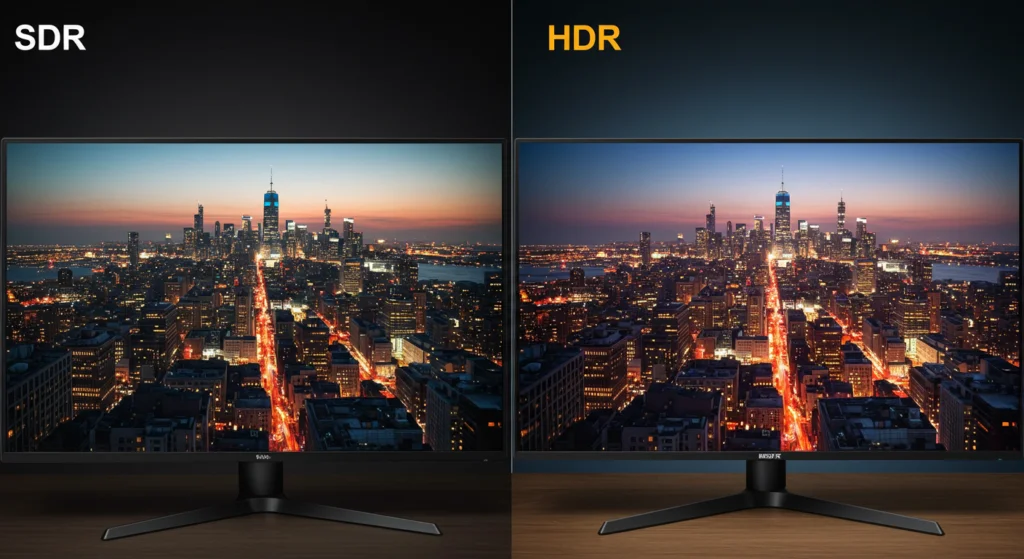
An HDR monitor is a display that can render a wider range of brightness and color than traditional SDR (Standard Dynamic Range) screens. The VESA DisplayHDR standard defines specific certification tiers for HDR monitors, starting at DisplayHDR 400 and going up to DisplayHDR 1400. But here's the catch.
Most monitors labeled "HDR" can't actually deliver a meaningful HDR experience. Let's break down why.
Quick Answer
An HDR monitor displays a wider range of brightness and color than standard screens. It shows brighter highlights and deeper blacks simultaneously. The VESA DisplayHDR standard rates monitors from 400 to 1400 nits peak brightness.
True HDR requires at least DisplayHDR 600 and local dimming. Most budget HDR monitors don't deliver a real HDR experience.
Why Most "HDR" Monitors Aren't Really HDR
Here's where it gets frustrating. Manufacturers can label a monitor as "HDR-compatible" even if it barely scratches the surface of what HDR is supposed to do. You'll see budget 1080p panels advertising HDR support when they can barely hit 300 nits of brightness.
That's not HDR. That's a checkbox.
The core issue is that HDR isn't a single feature. It's a combination of hardware capabilities that need to work together. A monitor needs high peak brightness, deep blacks, wide color gamut coverage, and proper tone mapping.
Strip away any of those and you're left with a washed-out image that arguably looks worse than SDR.
Aggregate user reviews consistently show the same complaint. People buy an "HDR" monitor, turn it on, and everything looks gray and flat. That's because the panel lacks the hardware to actually render the HDR signal properly.
The monitor accepts the input, but it can't display the expanded range.
The DisplayHDR Certification Tiers Explained
VESA (the Video Electronics Standards Association) created the DisplayHDR certification to bring some order to the chaos. It defines specific performance tiers that a monitor must meet to carry the badge. This is the single most useful tool for cutting through marketing noise.

Here's what each tier actually requires:
| Tier | Peak Brightness | Black Level | Color Gamut | Bit Depth | Dimming |
|---|---|---|---|---|---|
| DisplayHDR 400 | 400 nits | 0.4 nits | 95% sRGB | 8-bit + FRC | No local dimming |
| DisplayHDR 500 | 500 nits | 0.1 nits | 99% sRGB | 10-bit | Limited |
| DisplayHDR 600 | 600 nits | 0.1 nits | 90% DCI-P3 | 10-bit | Some local dimming |
| DisplayHDR 1000 | 1000 nits | 0.05 nits | 99% DCI-P3 | 10-bit | Full local dimming |
| DisplayHDR 1400 | 1400 nits | 0.02 nits | 99% DCI-P3 | 10-bit | Full local dimming |
There's also a "True Black" variant for OLED and other self-emissive panels. DisplayHDR True Black 400, 500, and 600 certify monitors with near-infinite contrast since each pixel produces its own light and can turn off completely.
The takeaway? DisplayHDR 400 is essentially meaningless for real HDR. It's a certification that the monitor can accept an HDR signal, not that it can display one well.
DisplayHDR 600 is where things start getting genuinely better than SDR. DisplayHDR 1000 and above is where HDR actually lives up to the hype.
What Makes Real HDR Work: Brightness, Local Dimming, and Color
Three things separate a real HDR experience from a marketing badge. Let's walk through each one.
Peak brightness is the headline number. HDR content is mastered with highlights that can reach 1,000 nits or even 4,000 nits in professional mastering. Your monitor can't hit those numbers, but the higher it goes, the more of that highlight detail you actually see.
A 400-nit panel crushes all that bright detail into a flat, clipped mess.
Local dimming is arguably more important than peak brightness. This is where the backlight is divided into zones that can dim independently. When a scene has a bright object on a dark background, local dimming lets the monitor keep the bright part bright while keeping the dark part actually dark.
Without it, you get that washed-out gray look in dark scenes.
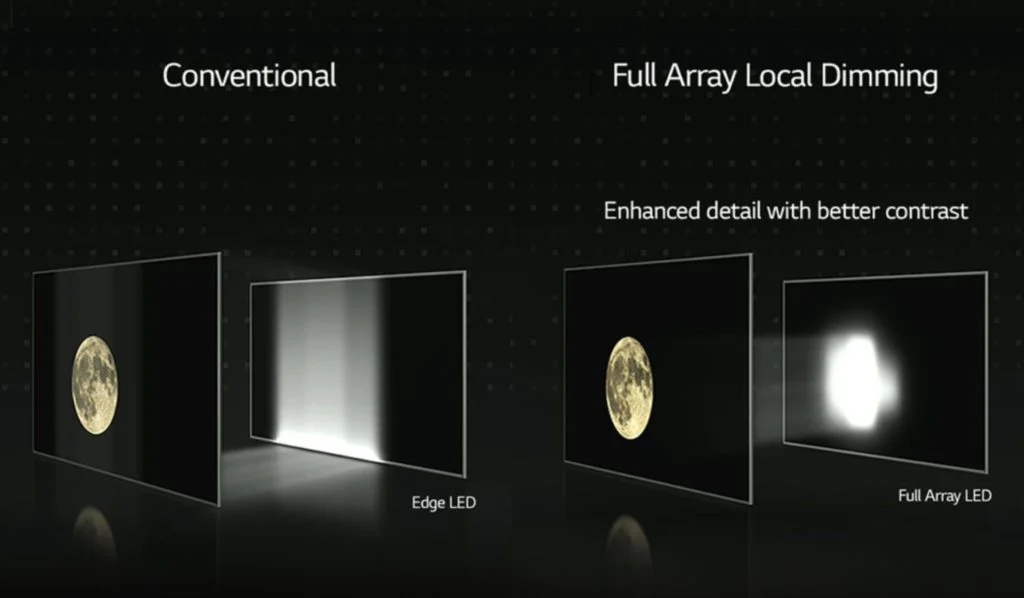
There are different levels of local dimming quality:
- No local dimming: The entire backlight is one zone. HDR looks terrible.
- Edge-lit dimming: A few zones along the edges. Marginal improvement.
- Full array local dimming (FALD): Hundreds or thousands of zones across the panel. This is what you want.
- OLED per-pixel dimming: Each pixel is its own zone. Perfect blacks, infinite contrast.
Color gamut is the third pillar. HDR content is typically mastered in the DCI-P3 color space, which is wider than the sRGB space that SDR content uses. A monitor needs to cover at least 90% of DCI-P3 to display HDR colors accurately.
Many budget HDR monitors only cover sRGB, which means they can't even show you the full color information in the content.
Bit depth matters too. HDR uses 10-bit color, which means over a billion colors compared to the 16.7 million in 8-bit SDR. This eliminates banding in gradients like sunsets and skies.
Some monitors use 8-bit panels with FRC (frame rate control) to simulate 10-bit, which works but isn't quite the same as a true 10-bit panel.
HDR Formats You'll Actually Encounter
Not all HDR is created equal at the format level either. There are four main HDR formats you'll come across, and they behave differently.
HDR10 is the baseline. It's an open standard defined by the Consumer Technology Association (CTA-861.3). Every HDR monitor and every piece of HDR content supports it.
HDR10 uses static metadata, which means it sets one brightness and color range for the entire video. It works, but it's not adaptive.
HDR10+ adds dynamic metadata. Instead of one setting for the whole video, it can adjust scene by scene or even frame by frame. Samsung developed it, and it's used on some streaming platforms.
It's royalty-free, which helped it gain adoption. However, very few PC monitors support HDR10+ natively.
Dolby Vision is the premium tier. It also uses dynamic metadata, but it's a proprietary format from Dolby Laboratories that requires licensing. Dolby Vision supports up to 12-bit color and can go up to 10,000 nits in theory.
Some high-end monitors support it, but it's far more common on TVs. On PC, Dolby Vision support is still limited and often requires specific hardware.
HLG (Hybrid Log-Gamma) is the odd one out. It was developed by the BBC and NHK for broadcast television. It's backward compatible with SDR displays, which makes it useful for live TV.
You'll rarely encounter HLG on a PC monitor unless you're working with broadcast content.
For PC gaming and general use, HDR10 is what you'll be working with 99% of the time. Dolby Vision is nice when it's available, but it's not a deciding factor for most monitor purchases in 2026.
SDR vs HDR: What You're Actually Gaining (and Losing)
Let's be honest about the tradeoffs. HDR isn't purely an upgrade in every situation.
What you gain:
- Brighter highlights that don't clip to white
- Deeper blacks that don't look gray
- More vivid, accurate colors in supported content
- Better shadow detail in dark scenes
- A more immersive, lifelike image overall
What you lose or deal with:
- Windows desktop can look washed out in HDR mode
- Some monitors add input lag when HDR is active
- SDR content displayed in HDR mode often looks worse than on an SDR monitor
- You may need to toggle HDR on and off depending on what you're doing
- Good HDR monitors cost significantly more than equivalent SDR monitors
The Windows HDR experience has improved a lot since Windows 11 added Auto HDR and the Windows HDR Calibration tool. But it's still not seamless. Many users report that they turn HDR on for gaming or movie watching, then turn it back off for everyday desktop work.
For competitive gaming, some players actually prefer SDR. The consistent brightness and lower input lag can matter more than visual fidelity when you're trying to win. HDR in fast-paced competitive titles can also make it harder to spot enemies in very bright or very dark areas if the tone mapping isn't well-tuned.
The honest answer is that HDR is a genuine improvement for single-player gaming, movie watching, and professional content work. For everything else, it's a nice-to-have that comes with some real usability headaches. Whether those headaches are worth it depends entirely on what you do with your monitor and how much you're willing to spend.
Who Actually Benefits from an HDR Monitor?
Not everyone needs HDR. Let's figure out whether your use case justifies the premium.
The people who benefit most from HDR monitors fall into three groups. Gamers playing single-player, story-driven titles. Professionals working with HDR content.
And movie enthusiasts who want the full streaming experience. If you fall into one of those groups and you're buying a mid-range or better monitor anyway, HDR is worth considering.
If you mainly play competitive shooters or use your monitor for spreadsheets and email, HDR will probably just give you headaches.
Gaming
This is where HDR shines brightest. Games with demanding lighting get a massive visual upgrade. Think sun-drenched open worlds, dark dungeons with torchlight, neon-lit cityscapes.
The added contrast and color depth make scenes feel more real.
Console gamers have had HDR available on Xbox Series X and PlayStation 5 for several years now. PC game support is growing rapidly. Titles like Cyberpunk 2077, Forza Horizon 5, Alan Wake 2, and most AAA releases from 2022 onward support HDR output.
As of 2026, the list of HDR-compatible PC games is substantial.
However, competitive gamers often disable HDR. Aggregate feedback across gaming communities suggests that tone mapping in some titles can make enemies harder to spot in dark areas. Some monitors also introduce 2 to 4 milliseconds of additional input lag in HDR mode.
For casual and single-player gaming, HDR is a clear win. For competitive play, test it yourself before committing.
Content Creation and Professional Work
If you're a video editor, color grader, or photographer working with HDR content, an HDR monitor is functionally required, not optional. You need to see what you're actually producing. Delivering HDR content on an SDR monitor is like editing audio with broken headphones.
DisplayHDR 1000 or better is the realistic minimum for professional HDR work. OLED panels with True Black certification are increasingly popular in this space because of their perfect black levels.
Price is a real consideration here. Professional-grade HDR monitors like the ASUS ProArt PA32UCG or the Dell UP3224K run well above $2,000. For independent creators doing HDR work on a budget, a DisplayHDR 1000 monitor paired with careful calibration can get you most of the way there for under $1,000.
Movie Watching and General Use
Streaming services like Netflix, Disney+, and Apple TV+ offer a growing library of HDR content, mostly in Dolby Vision. Watching these on a capable HDR monitor looks noticeably better than SDR. The improvement is less dramatic than in games because movies are typically viewed in controlled lighting where contrast differences are less extreme.
For general productivity, word processing, web browsing, and similar tasks, HDR provides no real benefit. Some users actively dislike the look of standard desktop applications in HDR mode due to inconsistent brightness handling across different apps.
How to Check If Your Setup Can Actually Do HDR
Before you buy an HDR monitor, make sure your entire chain supports it. HDR breaks if any single link in the chain doesn't meet requirements.
Cable, Port, and GPU Requirements
You need a GPU that supports HDR output. Most NVIDIA GTX 10-series cards and newer handle HDR. AMD RX 400-series and newer support it as well.
Integrated graphics from Intel's 7th-gen CPUs onward generally work, though experiences vary.
Your cable and port matter just as much. HDR at 4K 60Hz with 10-bit color requires either DisplayPort 1.4 or HDMI 2.0a at minimum. For 4K 120Hz HDR, you need HDMI 2.1 or DisplayPort 1.4 with Display Stream Compression (DSC).
Key requirements to check before purchasing:
- GPU: NVIDIA GTX 10-series or newer, AMD RX 400-series or newer
- Cable: Certified DisplayPort 1.4 or HDMI 2.0a cable (HDMI 2.1 recommended for 120Hz+)
- Port: Monitor must have a matching high-bandwidth input
- Driver: Updated GPU drivers with HDR output enabled in the control panel
Enabling HDR in Windows Without the Headaches
Windows HDR setup has historically been clunky. Windows 11 has improved things, but you still need to configure a few settings manually.

Here's the basic setup flow:
- Right-click your desktop and select Display Settings.
- Toggle HDR under the HDR section (Windows 11) or under Color (Windows 10).
- Open your GPU control panel (NVIDIA Control Panel or AMD Adrenalin) and confirm the color depth is set to 10-bit if available.
- Download the Windows HDR Calibration app from the Microsoft Store. This tool creates a color profile that improves tone mapping significantly.
- Test with actual HDR content. YouTube has free HDR test videos. The Windows HDR Calibration app also includes test patterns.
A common mistake is enabling HDR and then leaving it on for everything. Windows desktop content in HDR mode often looks washed out because SDR content doesn't translate well into an HDR container. The best practice is to enable HDR only when you're about to consume HDR content, then disable it afterward.
Windows 11's Auto HDR feature helps by automatically enabling HDR in supported games, but it doesn't solve the desktop appearance issue.
Common HDR Monitor Mistakes and How to Avoid Them
Buying an HDR400 Monitor Expecting Real HDR
This is the single most common mistake. DisplayHDR 400 monitors accept HDR signals but can't display a meaningful HDR image. They lack local dimming, can't get bright enough, and often have limited color gamuts.
The result looks worse than a good SDR monitor.
If your budget only stretches to an HDR400 monitor, you're honestly better off buying a high-quality SDR panel instead. A well-calibrated IPS monitor with good contrast and wide color gamut will look better in real use than a cheap HDR400 panel.
Ignoring Local Dimming
Peak brightness gets all the attention in marketing. Local dimming is what actually makes HDR look good. A 600-nit monitor with decent local dimming will look better than a 1000-nit monitor without it.
Always check whether a monitor has full array local dimming before buying. Edge-lit dimming is barely better than no dimming at all.
Leaving HDR On All the Time
HDR is not meant to be your default display mode. Keep SDR as your baseline for desktop use. Switch to HDR only for games and video content that support it.
This avoids the washed-out desktop look and prevents unnecessary wear on OLED panels if you go that route.
HDR Monitor Pricing: What You Get at Each Level
HDR monitor pricing in 2026 breaks down into rough tiers based on what you're actually getting.
| Price Range | Typical HDR Tier | What You Actually Get |
|---|---|---|
| $200-$400 | HDR400 or no certification | Accepts HDR signal. Minimal real improvement. |
| $400-$700 | DisplayHDR 400-600 | Some improvement. Limited local dimming. |
| $700-$1,200 | DisplayHDR 600-1000 | Genuine HDR improvement. FALD common. |
| $1,200-$2,500 | DisplayHDR 1000-1400 | Strong HDR performance. Good tone mapping. |
| $2,500+ | DisplayHDR 1400+ or OLED True Black | Reference-grade HDR. Professional use. |
The sweet spot for most people is the $700 to $1,200 range. That's where you get monitors with DisplayHDR 600 or 1000 certification, full array local dimming, and enough brightness to actually see the difference. Below that, you're mostly paying for a label.
OLED monitors have dropped in price but still command a premium. A 27-inch QHD OLED with HDR support starts around $800 to $900. For 4K OLED, expect to pay $1,200 and up.
The perfect blacks and per-pixel dimming make OLED the best HDR technology available, but burn-in risk is a real consideration for static desktop use.
Frequently Asked Questions
Does HDR work on all monitors?
No. A monitor needs specific hardware to display HDR properly. Many monitors labeled "HDR-compatible" only accept the signal but can't render it correctly.
Look for DisplayHDR 600 certification or better for a genuine HDR experience.
Is HDR worth it for PC gaming?
For single-player and cinematic games, absolutely. The visual improvement is significant. For competitive multiplayer, many players prefer SDR for consistent brightness and lower input lag.
It depends on what you play most.
Can I use an HDR monitor for regular desktop work?
You can, but most people don't want to. SDR content often looks washed out in HDR mode. The practical approach is to keep HDR off for desktop use and enable it only for games and HDR video content.
Do I need a special cable for HDR?
You need at least HDMI 2.0a or DisplayPort 1.4 for basic HDR. For higher refresh rates at 4K with HDR, HDMI 2.1 or DisplayPort 1.4 with DSC is required. Not all cables are rated for these speeds, so check the certification on the packaging.
What's the difference between HDR10 and Dolby Vision on monitors?
HDR10 is the universal baseline. Dolby Vision offers dynamic metadata and better tone mapping. Very few PC monitors support Dolby Vision natively.
For PC use, HDR10 is the format you'll work with almost exclusively.
Will HDR work with my current GPU?
Most GPUs from 2016 onward support HDR output. NVIDIA's GTX 10-series and newer handle it. AMD's RX 400-series and newer support it.
Check your specific model's specs to confirm HDR output capability over the correct port.

Similar Posts





















