Is USB C Monitor Good for Video Conferencing
Is USB-C monitor good for video conferencing? Yes, it is, provided your laptop supports USB-C Alt Mode and you pick a monitor that matches your setup. The single-cable convenience is genuinely useful for daily calls.
The catch is that not every USB-C port actually carries video. Per USB-IF specifications, USB-C Alt Mode must be explicitly supported by your laptop's hardware. Assuming it works out of the box is where most people get tripped up.
Let us break down what actually matters for video conferencing so you can make the right call.
Quick Answer
A USB-C monitor works well for video conferencing. It carries video, audio, data, and power through one cable. You need a laptop with USB-C Alt Mode support.
Check your Power Delivery wattage before buying. Avoid cheap cables that lack full bandwidth. Built-in webcams on monitors are convenient but mediocre.
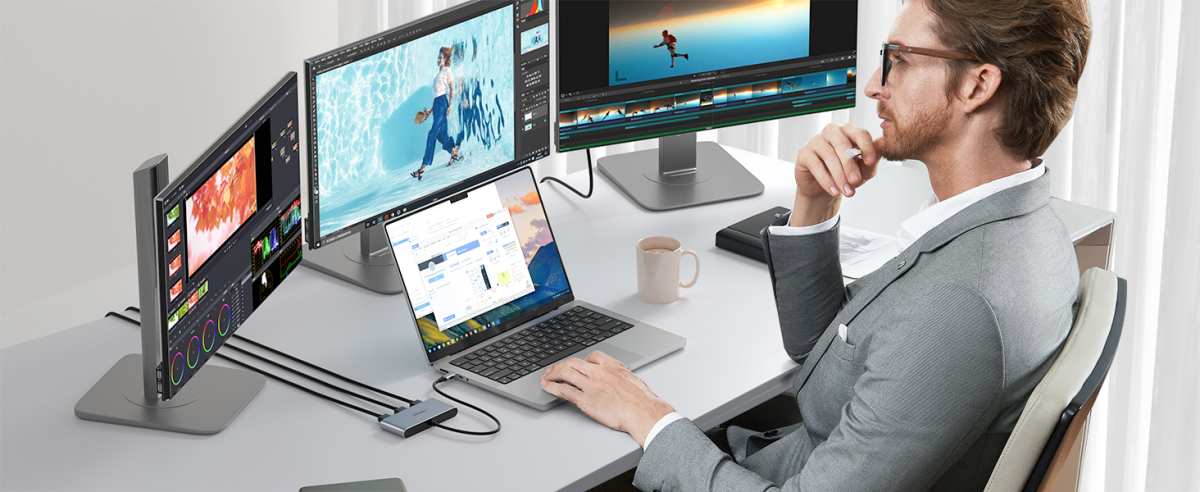
What Makes USB-C Monitors Different for Video Calls
USB-C monitors are not just displays with a different port. They handle video, audio, data charging simultaneously through one cable. That is a fundamentally different experience than plugging in HDMI plus a separate charger.
For video conferencing specifically, this matters more than you might think. You are not just displaying a slide deck. You are running camera feeds, screen sharing, real-time chat, and recording simultaneously.
Your connection setup directly affects how reliable and clean that workflow feels.
How DisplayPort Alt Mode Actually Works
USB-C uses something called Alt Mode (Alternate Mode) to carry video signals. Specifically, most USB-C monitors use DisplayPort Alt Mode. This pipes a full DisplayPort signal through the USB-C connector.
The important bit is that your laptop must support this. The USB-C port on a Dell Latitude or a MacBook Pro will carry video. The USB-C port on a budget Chromebook might only handle data and charging.
USB-C vs. Thunderbolt: Do Not Mix These Up
Thunderbolt 3 and 4 use the same physical connector as USB-C. They are not the same thing. Thunderbolt carries 40Gbps bandwidth.
Standard USB-C tops out at 10Gbps over USB 3.1 Gen 2.
A Thunderbolt monitor will work with a USB-C laptop, but only at USB-C speeds. Conversely, a USB-C monitor connected to a Thunderbolt laptop works fine. The compatibility flows one way gracefully.
Why Single-Cable Setup Changes Your Daily Experience
This is where USB-C monitors shine for conferencing. One cable from your laptop to the monitor gives you:
- Video output to the external display
- Audio routing to monitor speakers (if available)
- Charging so your laptop stays topped up
- Access to USB peripherals plugged into the monitor
No dock. No separate power brick. No fumbling under your desk.
You plug in one cable and you are on your call.
For people who join meetings all day, this convenience compounds. Over weeks and months, that friction reduction is real.
Built-In Camera and Microphone Considerations
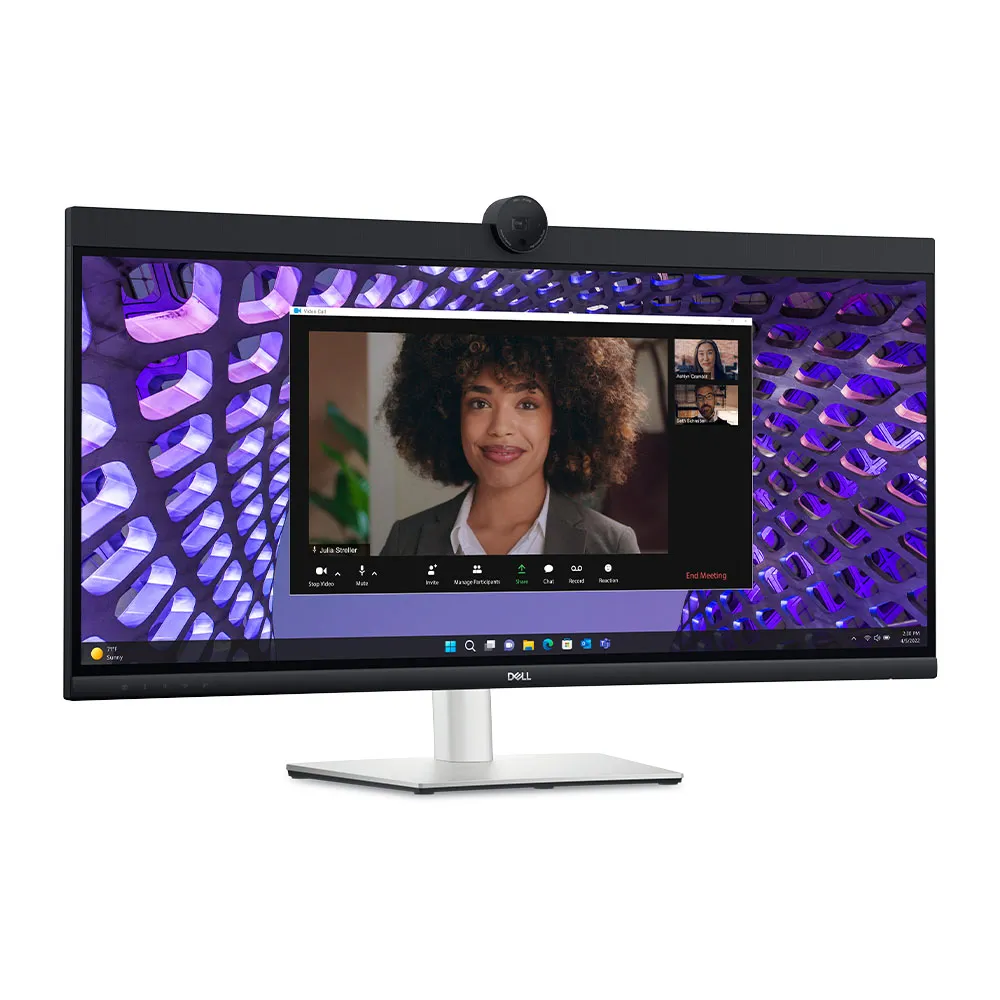
Many USB-C conferencing monitors ship with integrated webcams and microphones. Manufacturers like Dell and LG market these specifically for Zoom and Teams. The convenience factor is obvious.
One fewer peripheral on your desk.
The tradeoff is quality. Built-in camera sensors on even the best conferencing monitors are small. They struggle in low light.
They lack the detail of a standalone webcam like the Logitech Brio or an Elgato Facecam.
For casual calls this does not matter. For client presentations or recorded content, you will notice the difference.
Bandwidth and Refresh Rate Reality
Here is where manufacturer specs matter a lot. DisplayPort Alt Mode over USB-C supports 4K at 60Hz. But only if your cable and laptop port support HBR3 (High Bit Rate 3) signaling.
If your laptop only supports HBR2, you get 4K at 30Hz. That means your mouse cursor judders across the screen. Text looks slightly blurry when you scroll.
For video conferencing, 30Hz is usable but not pleasant. Streams and shared content will look fine though.
Most modern USB-C laptops from 2022 onward support HBR3. Check your laptop's spec sheet for "DisplayPort 1.4 over USB-C" to confirm.
Power Delivery: The Hidden Dealbreaker
Power Delivery over USB-C is measured in watts. Monitors offer anywhere from 15W to 100W. How much you need depends on your laptop.
Ultrabooks like the MacBook Air or Dell XPS 13 need 45W to 65W. Performance laptops need 90W to 100W. If your monitor only supplies 65W and your laptop needs 90W, your laptop will drain slowly during heavy use.
This is not a dealbreaker. It just means your battery drops 10 to 20 percent over a long call instead of staying topped up. But it surprises people who assumed "USB-C charging" meant full-speed charging always.
| User Type | Laptop Example | Minimum PD Wattage | Ideal PD Wattage |
|---|---|---|---|
| Ultrabook user | MacBook Air M2 | 30W | 65W |
| Business laptop | Dell Latitude 7440 | 45W | 65W |
| Performance laptop | MacBook Pro 16" | 96W | 100W |
| Mobile workstation | ThinkPad P16s | 65W | 100W |
USB-C Monitor vs. HDMI vs. DisplayPort: Which Connection Actually Matters for Conferencing
The short version: all three work for video conferencing. Each has tradeoffs in convenience, image quality, and compatibility. For most people picking a monitor today, USB-C wins on desk simplicity.
HDMI wins on universal compatibility. DisplayPort wins on raw performance for high-refresh or multi-monitor setups.
The long version depends on what you actually need.
USB-C Monitor Advantages
USB-C is the only option that combines video, data, and charging through one cable. For video conferencing, this is the killer feature. You plug in once.
Your laptop charges. Your display works. Your monitor's USB peripherals connect.
This matters most for people who set up and tear down their workspace daily. If you work from home on weekdays and use your laptop unplugged on weekends, that single-plug experience saves real time.
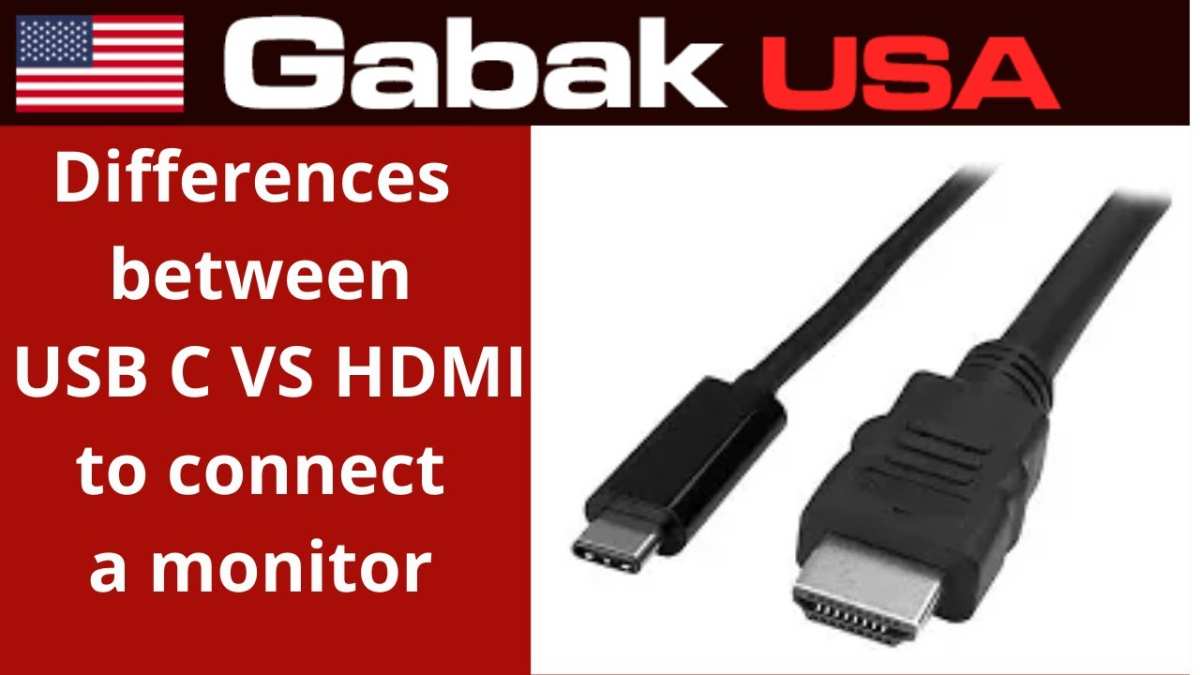
Most recent business laptops support USB-C Alt Mode. Dell Latitudes, HP EliteBooks, Lenovo ThinkPads, and Apple MacBooks from 2018 onward all support it. Consumer laptops are hit or miss.
HDMI Monitor Advantages
HDMI is the universal standard. Every laptop, tablet, and desktop supports it. You never have to wonder whether your device can output video over HDMI.
The answer is always yes.
HDMI 2.0 supports 4K at 60Hz. HDMI 2.1 supports 4K at 120Hz. For video conferencing, 4K at 60Hz is more than sufficient.
Most conferencing software caps video streams at 1080p anyway.
The problem with HDMI for conferencing is that it is video only. No charging. No data.
You need a separate power cable for your laptop and a separate USB connection if you want to use a webcam or speakers through your monitor.
People with a permanent desk setup often prefer HDMI. They plug everything in once and never touch it again. The extra cables become invisible.
DisplayPort Monitor Advantages
DisplayPort delivers the highest bandwidth and most reliable multi-monitor support. If you run two or three displays for conferencing, one showing slides, one showing attendees, one showing chat, DisplayPort handles this natively with daisy-chaining using Multi-Stream Transport (MST).
DisplayPort 1.4 supports 4K at 60Hz. DisplayPort 2.1 supports 4K at 240Hz or 8K at 65Hz. Overkill for meetings entirely, but useful if your monitor doubles as a gaming or creative work display.
Like HDMI, DisplayPort carries video and audio only. No charging. No data passthrough.
Which Connection Type Is Actually Best for Video Conferencing?
There is no single best answer. The right choice depends on your situation. Here is how the three compare across what matters for conferencing.
| Feature | USB-C | DisplayPort | HDMI 2.0 |
|---|---|---|---|
| Single-cable convenience | Yes | No | No |
| Laptop charging | Up to 100W | No | No |
| Max resolution | 4K @ 60Hz | 4K @ 60Hz | 4K @ 60Hz |
| USB hub passthrough | Yes | No | No |
| Universal compatibility | No | No | Yes |
| Multi-monitor daisy-chain | Limited (MST) | Yes (MST) | No |
| Cable length without signal loss | 2m typical | 3m typical | 5m typical |
| Backward compatibility | Thunderbolt laptops | DP Alt Mode on USB-C | All HDMI devices |
The Honest Recommendation
For a home office where your laptop stays docked, HDMI or DisplayPort works fine. Your laptop charges from its own wall adapter. You plug into the monitor once.
The setup does not change.
For a hot-desk or a workspace you connect and disconnect from multiple times per day, USB-C wins easily. The one-cable experience is not a gimmick. It genuinely removes friction.
For anyone running multiple external monitors, DisplayPort with MST is the most flexible option. USB-C daisy-chaining is possible but less reliable. HDMI does not support it at all.
Side-by-Side Comparison: USB-C Monitor vs. Alternatives
Below is a straightforward comparison of what each setup looks like in practice for a typical video conferencing workflow.
| Situation | USB-C Monitor | HDMI Monitor + Dock | DisplayPort + Hub |
|---|---|---|---|
| Number of cables to plug in | 1 | 3 to 4 | 3 to 4 |
| Desk clutter | Minimal | Moderate | Moderate |
| Laptop charges while connected | Yes | Depends on dock | Depends on hub |
| Works with any laptop | No (needs Alt Mode) | Yes (with adapter) | Yes (with adapter) |
| Easy to swap laptops | Yes | Somewhat | Somewhat |
| Multi-monitor support | Limited daisy-chain | Via dock | Native MST daisy-chain |
| Typical cost of monitor | $350 to $900 | $250 to $700 | $250 to $700 |
| Best for | Daily connect/disconnect | Permanent desk setup | Multi-display workflows |
Who Benefits Most from a USB-C Conferencing Setup
Not everyone needs USB-C. Here is who gets the most value from it and who is better off with traditional connections.
Remote Workers Who Value a Clean Desk
If you take calls from a dedicated home office, a USB-C monitor is appealing. The single cable means your desk stays clean. No rat's nest of HDMI, power, and USB cables behind your monitor stand.
Pair a USB-C monitor with a wireless keyboard and mouse. Your desk has exactly one visible cable. You unplug it when the workday ends and your laptop goes into your bag, fully charged.
Hybrid Employees Docking at Multiple Desks
This is arguably the best use case. If your company uses hot-desking or you rotate between desks, USB-C is a game-changer. You plug into one cable and your full workstation is ready.
No reaching behind a dock. No fumbling for the right HDMI port. No wondering whether this desk supports your resolution.
One plug, done. Many corporate IT departments are switching to USB-C monitors precisely for this reason.
Travelers and Portable Monitor Users
Portable USB-C monitors like the ASUS ZenScreen or Lenovo ThinkVision M14 are built for this audience. They draw power from your laptop over USB-C. They weigh under two pounds.
They fit in a laptop bag.
For workers who travel and join hotel-room video calls, a portable USB-C monitor gives you a second screen without carrying a dock. The tradeoff is smaller size (14 to 16 inches typically) and lower resolution (usually 1080p).
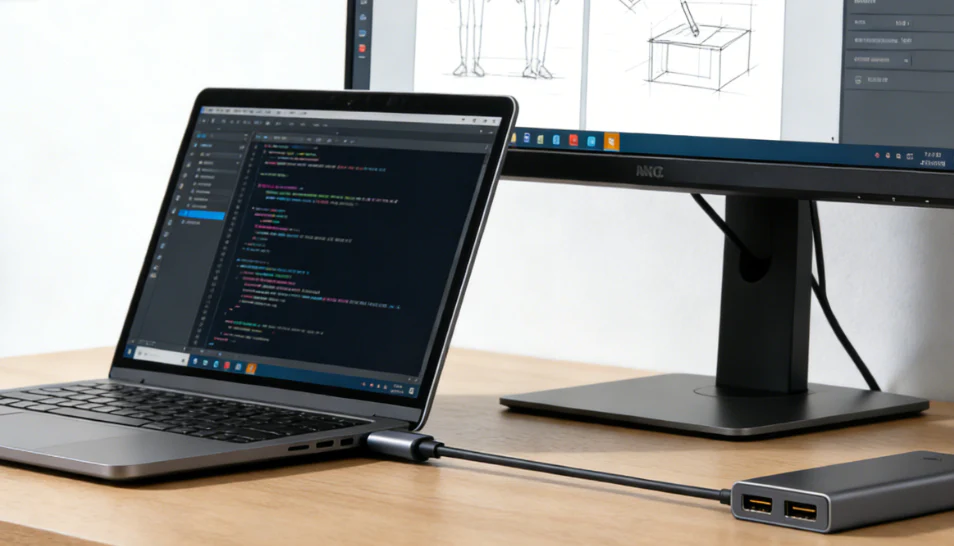
Multi-Monitor Power Users
People running two or three external displays face a different calculus. USB-C monitors can daisy-chain using MST. On macOS this is not supported.
On Windows it works but can be finicky with different monitor models.
If you run two large monitors plus your laptop screen, a dock is often simpler and more reliable than chaining USB-C monitors. The CalDigit TS4 or similar Thunderbolt docks handle dual displays over a single cable to your laptop.
Who Should Skip USB-C Altogether
Some users should pass on USB-C monitors entirely:
- MacBook users with M1 or M2 base models: These support only one external display natively. A USB-C monitor works fine but adds no benefit over HDMI for single-screen setups.
- Users with older laptops: If your laptop predates 2018 and has a USB-C port, it likely does not support Alt Mode for video.
- Gamers doubling monitors for work and play: DisplayPort delivers higher refresh rates. A 4K60 USB-C monitor cannot match a 4K144 DisplayPort panel.
- Dual-monitor setups without a dock: DisplayPort MST daisy-chaining is more mature and reliable than USB-C MST.
Common Mistakes People Make When Buying a USB-C Monitor for Calls
Assuming Every USB-C Port Supports Video
This is the number one mistake. USB-C is a connector shape, not a capability guarantee. A USB-C port on a Dell Inspiron might handle data and power but not video.
You need to look specifically for "DisplayPort Alt Mode" or "video output" in your laptop's specifications.
Before buying a USB-C monitor, check your laptop's manual or spec sheet for:
- "USB-C with DisplayPort Alt Mode"
- "Thunderbolt 3/4" (which always supports video)
- A small DP or lightning bolt icon next to the port on your laptop
If you cannot find any of these, your USB-C port almost certainly does not output video. You would need a USB-C dock with DisplayLink technology to get around this, which is a different setup entirely.
Ignoring Power Delivery Wattage
A monitor advertising "USB-C with PD" might only deliver 15 to 27 watts. That charges a phone fine. For a laptop during a video call, it is insufficient.
Your battery will drain slowly even though the cable is plugged in.
For sustained video conferencing, look for monitors delivering at least 65 watts. If your laptop needs 90 watts, only monitors with 90 watt or 100 watt PD will keep it charged during heavy calls.
Skipping Cable Quality Checks
Not all USB-C cables are created equal. A cable bundled with your phone charger probably supports USB 2.0 speeds only. It will not carry video at all.
For 4K video output over USB-C, you need a cable rated for:
- USB 3.1 Gen 2 (10Gbps) minimum
- HBR3 signaling for 4K at 60Hz
- Thunderbolt 3 or 4 certification (guarantees full bandwidth)
If you buy a premium USB-C monitor and your display flickers or caps at 30Hz, the cable is usually the culprit. Use the cable that came with the monitor, or buy a certified Thunderbolt 4 cable from the start.
Expecting Built-In Webcam to Rely on Universal Drivers
Most USB-C conferencing monitors work as standard UVC (USB Video Class) devices. Windows, macOS, and Linux recognize them without special drivers. However, advanced features like Windows Hello facial recognition or custom camera settings may require manufacturer-specific software.
Dell's conference monitors need the Dell Peripheral Manager app for full functionality. LG's CAMoN monitor has its own companion app. If you rely on a locked-down corporate laptop where you cannot install third-party software, check whether the monitor's key features work without it.
What to Check Before You Buy: A Practical Checklist
Use this checklist before committing to a USB-C monitor for conferencing:
- Laptop USB-C port supports Alt Mode: Check the spec sheet. Look for "DisplayPort over USB-C."
- Power Delivery wattage matches your laptop: 65W minimum for most laptops. 90W+ for workstations.
- Refresh rate at your target resolution: 4K at 60Hz is ideal. 4K at 30Hz works but feels sluggish.
- Included cable supports the full bandwidth: Use the cable in the box, or verify aftermarket cables are certified.
- Built-in mic and speaker quality meet your standards: For professional calls, test the mic or plan to use a separate one.
- Monitor firmware is updateable: Check whether the manufacturer provides firmware updates for compatibility fixes.
- Return window is adequate: Test everything in the first 14 to 30 days. USB-C compatibility issues often surface during real-world use.
Frequently Asked Questions
Do USB-C monitors work with all laptops?
No. Your laptop must support DisplayPort Alt Mode over USB-C. Most business-class laptops from 2020 onward support it.
Budget and older models may not. Check your laptop's spec sheet before buying.
Is a USB-C monitor better than a docking station for conferencing?
For single-monitor setups, a USB-C monitor is simpler. A docking station adds more ports and supports multiple displays better. Choose based on how many screens and peripherals you need.
Can I connect two USB-C monitors to my laptop?
Possibly, if your laptop supports MST over USB-C and both monitors have MST output. This works more reliably on Windows than macOS. A Thunderbolt dock is often the easier path for dual monitors.
Does USB-C affect video call quality?
No, not signal-quality wise. USB-C carries a digital signal, so the image quality is identical to HDMI or DisplayPort. The connection type does not add compression or artifacts to your video feed.
What cable should I use for a USB-C monitor?
Use the cable bundled with your monitor. If you need a replacement, buy a certified Thunderbolt 4 cable from a reputable brand. Cheap Amazon cables often lack the full bandwidth needed for 4K at 60Hz.
Final Verdict: Should You Go USB-C for Video Conferencing?
Go USB-C if you plug and unplug your laptop daily, you value a clean desk, and your laptop supports Alt Mode. The convenience is real and it compounds over time. For a permanent desk setup where your laptop stays docked, HDMI or DisplayPort works just fine.
The monitors are good for conferencing. Just verify compatibility before you spend the money.
Real-World Scenarios: What Works and What Does Not
Scenario 1: Single Laptop, Home Office, Daily Zoom Calls
This is the sweet spot. A Lenovo ThinkPad T14 connected to a Dell P2723DE over USB-C. One cable.
Laptop charges at 90 watts. Display runs at 4K 60Hz. Built-in webcam works fine for internal team calls.
Total setup time under 30 seconds.
An HDMI setup works identically here too. The USB-C advantage is purely about desk convenience and speed of connection. Nothing more.
Nothing less.
Scenario 2: Hot-Desking Across Multiple Rooms
This is where USB-C genuinely pulls ahead. An employee carries only their laptop. Every desk has the same USB-C monitor.
They plug in once, and their display, charging, peripheral hub all activate simultaneously.
With HDMI they would need to plug in display, power, and possibly a USB hub. Three connections versus one. Multiply that by hundreds of employees across a company and USB-C saves meaningful collective time.
Scenario 3: Dual Monitor Setup for Presentations
This scenario favors a Thunderbolt dock over a USB-C monitor. Running two 4K displays plus laptop screen requires significant bandwidth. USB-C MST daisy chaining can be finicky with mixed monitor models.
A dock like the CalDigit TS4 delivers dual DisplayPort outputs over one Thunderbolt cable to the laptop. Cleaner and more reliable than chaining two USB-C monitors independently.
Cost and Value: Are USB-C Monitors Worth the Premium?
USB-C monitors cost roughly 15 to 30% more than their non-USB-C equivalents. A 27-inch 4K IPS panel with HDMI and DisplayPort might run $350. The same panel with USB-C PD adds $80 to $150 to the price.
That premium buys you:
- A single cable to manage
- Laptop charging through the monitor
- Potential USB hub functionality
- Possibly an integrated webcam and mic
For a one-time home setup where you rarely unplug, the premium may not justify itself. For a professional connecting and disconnecting multiple times daily, the convenience alone is worth it.
Budget options have improved as of 2026. Models from LG, Dell, and Samsung now start around $250 to $300. The gap is narrowing and USB-C is becoming standard on mid-range monitors rather than a premium add-on.

Similar Posts





















