Is USB C Monitor Good for Netflix
So you're wondering, is USB-C monitor good for Netflix? The short answer is yes, but only if your specific laptop, monitor, and cable all support the right standards. It's not as simple as plugging in and hoping for the best.
Netflix requires HDCP 2.2 compliance across the entire playback chain for 4K content, and a surprising number of USB-C setups fail that check. Let's break down what actually matters before you buy or troubleshoot.
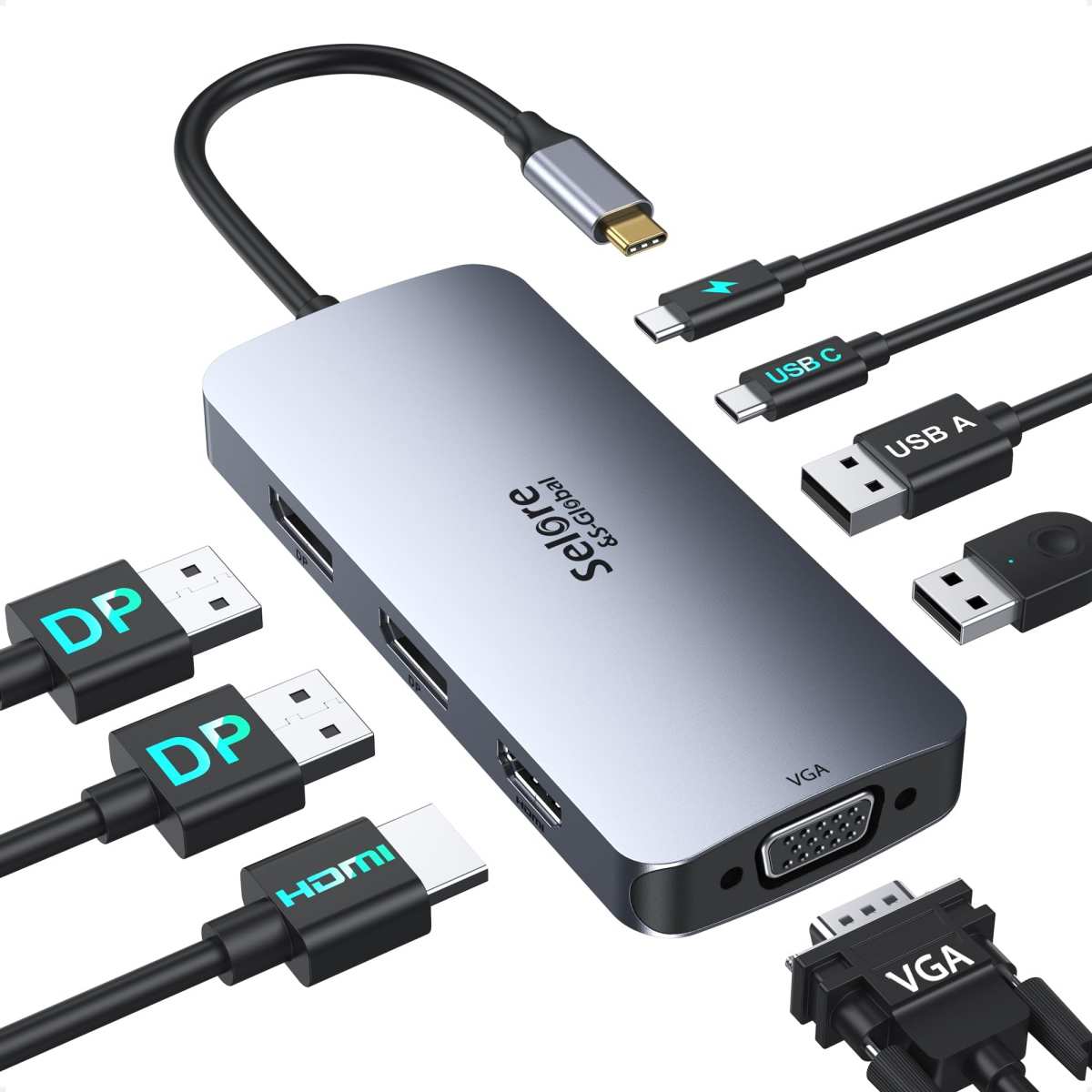
Quick Answer
A USB-C monitor works great for Netflix when your laptop supports DisplayPort Alt Mode and the monitor supports HDCP 2.2. You need a full-featured USB-C cable that carries video signal. Without all three pieces, you'll get a black screen, an error message, or downgraded 480p playback.
Check your gear before you buy anything.
Why USB-C Monitors and Netflix Can Be Complicated
Here's the thing most product listings won't tell you. USB-C is a connector shape, not a guarantee of video capability. Some USB-C ports on laptops only handle charging and data.
Others support video output through something called DisplayPort Alt Mode. You need that specific feature for Netflix to work on an external monitor.
Then there's the monitor side. Not every USB-C monitor handles protected content the same way. Some budget panels skip HDCP 2.2 support entirely, which means Netflix will either refuse to play or drop you down to standard definition.
That's frustrating when you paid for a 4K portable screen.
The cable matters too. A cheap USB-C cable that only charges your laptop won't carry a video signal. You need a full-featured cable rated for DisplayPort Alt Mode or Thunderbolt.
We'll cover how to check all of this in the sections below.
How USB-C Video Actually Works (And Why It Matters for Netflix)
USB-C can carry video through a few different methods. The most common is DisplayPort Alt Mode, which sends a DisplayPort signal through the USB-C connector. Thunderbolt 3 and 4 also carry DisplayPort video as part of their protocol.
HDMI Alt Mode exists but is rare on monitors.
When you plug your laptop into a USB-C monitor, the two devices perform a handshake. They negotiate resolution, refresh rate, and content protection. If any part of that chain fails, you get problems.
For Netflix specifically, the critical piece is HDCP. This is the copy protection system that Hollywood studios require. Netflix enforces it strictly.
If your laptop outputs HDCP 2.2 but the monitor only supports HDCP 1.4, you won't get 4K. If the monitor doesn't support HDCP at all, you might get nothing.
Manufacturer specifications for monitors like the ASUS ProArt series and LG UltraFine lines clearly state their HDCP support level. Always check this before buying.
The HDCP Problem Nobody Warns You About
What HDCP Is and Why Netflix Cares
HDCP stands for High-bandwidth Digital Content Protection. It's a system developed by Intel subsidiary DCP LLC to prevent people from recording protected content as it travels from a source to a display. Every link in the chain needs to support it.
Netflix uses HDCP to enforce its licensing agreements with studios. If you want 4K Ultra HD playback, every device between Netflix's servers and your screen must support HDCP 2.2. That includes your laptop's USB-C port, the cable, and the monitor.
Here's where it gets tricky. Many USB-C monitors, especially budget portable models, only support HDCP 1.4. That's fine for 1080p content but blocks 4K Netflix.
Some monitors don't mention HDCP support at all in their specs, which is a red flag.
| HDCP Version | Max Netflix Resolution | Common On |
|---|---|---|
| HDCP 1.4 | 1080p Full HD | Older monitors, budget USB-C panels |
| HDCP 2.2 | 4K Ultra HD | Mid-range and premium monitors as of 2026 |
| No HDCP support | 480p or error | Very cheap or unlicensed displays |
When HDCP Fails: Symptoms and Error Codes
You'll know HDCP is the problem when Netflix gives you one of a few specific symptoms. The most common is a black screen with audio still playing. The video signal is blocked but the audio gets through.
Netflix may also display error codes like S7361-1253 or UI3012. These indicate a content protection failure. Sometimes the app will downgrade you to 480p without explaining why.
You'll notice everything looks soft and compressed.
Another symptom is flickering or intermittent signal drops during playback. This can happen when the HDCP handshake is unstable, often due to a poor-quality cable or a monitor with borderline compliance.
The fix is straightforward in theory. Replace any weak link in the chain. That might mean a different cable, a different monitor, or updating your laptop's graphics drivers.
We'll walk through the full troubleshooting process later in this article.
What to Check Before You Buy a USB-C Monitor for Netflix
Does Your Laptop Actually Send Video Over USB-C?
This is the first thing to verify. Look up your laptop's specifications and search for "DisplayPort Alt Mode" or "video over USB-C." Not every USB-C port supports video. On many Windows laptops, only one of the two or three USB-C ports carries a video signal.
MacBooks with USB-C or Thunderbolt ports generally support video output across all ports. Chromebooks vary widely by model. Some budget Chromebooks only support USB-C charging with no video capability at all.
A quick way to test: plug your laptop into any USB-C display or adapter you have lying around. If you get a picture, your port supports video. If nothing happens, check the specs before assuming the monitor is broken.
Does the Monitor Support HDCP 2.2?
This is where most people get burned. Product pages for USB-C monitors often highlight resolution, panel type, and power delivery but bury or omit HDCP information. You need to dig into the full specifications or contact the manufacturer directly.
Look for phrases like "HDCP 2.2 compliant" or "HDCP 2.2 supported" in the spec sheet. If the page only mentions HDCP 1.4 or doesn't mention HDCP at all, assume it won't work for 4K Netflix. Some manufacturers list HDCP support in a separate compliance document rather than the main product page.
Reputable brands like Dell, LG, ASUS ProArt, and Lenovo ThinkVision lines tend to clearly document their HDCP support. Budget brands on marketplace sites often skip this detail entirely.
Are You Using the Right Cable?
Not all USB-C cables are created equal. Cables that only support USB 2.0 data and charging won't carry a video signal. You need a cable rated for at least USB 3.1 Gen 2 with DisplayPort Alt Mode support, or a Thunderbolt 3/4 cable.
Look for markings on the cable itself. Thunderbolt cables usually have a lightning bolt symbol. Cables rated for "SuperSpeed USB 10Gbps" or "DisplayPort Alt Mode" will work for video.
If your cable has no markings and came free with a phone charger, it's probably charge-only.
A safe bet is to use the cable that came with the monitor. If you need a replacement, buy from a reputable brand and verify the cable supports video, not just power delivery.
USB-C Monitor vs HDMI Monitor for Netflix: Real Differences
Both connections can deliver 4K Netflix when they support HDCP 2.2. The difference comes down to convenience and laptop compatibility.
USB-C wins on cable simplicity. One cord handles video, audio, and charging simultaneously. HDMI requires a separate power cable for your laptop.
If you value a clean desk or travel frequently, that single-cable advantage is significant.
HDMI wins on universal compatibility. Every TV and monitor with an HDMI port supports it. You never wonder whether the port carries video or just power.
For a permanent home setup where cable clutter doesn't matter, HDMI is the safer bet.
| Factor | USB-C | HDMI |
|---|---|---|
| Cable count | One (video + power) | Two (video + separate power) |
| HDCP 2.2 support | Varies by monitor | Common on most 4K displays |
| Laptop compatibility | Requires Alt Mode support | Works on any laptop with HDMI |
| Portability | Excellent for travel | Needs adapter on many modern laptops |
| Max resolution | 4K at 60Hz (typical) | 4K at 60Hz (HDMI 2.0) |
If your laptop lacks an HDMI port, a USB-C monitor is often your best option. Just verify the specs we covered earlier before purchasing.
USB-C Monitor vs TV vs Casting: What Actually Works Best
For Travel and Portability
A portable USB-C monitor is hard to beat for hotel rooms and co-working spaces. You pack one screen, one cable, and your laptop. Setup takes under a minute.
A TV isn't practical for travel. Chromecast or streaming sticks work but depend on hotel Wi-Fi and HDMI port availability. Many hotel TVs have HDMI ports tucked behind the panel, which is awkward to reach.
For a Clean Desk Setup
USB-C monitors shine here. The single-cable connection keeps your workspace tidy. Many models also function as a USB hub, so your keyboard and mouse plug into the monitor instead of your laptop.
A TV as a desk display works but looks oversized at typical monitor viewing distances. A 32-inch TV sitting two feet from your face is uncomfortable for long sessions.
For a Living Room or Bedroom Setup
A TV is the obvious winner. You already own one, it has built-in speakers, and the remote control experience is designed for couch viewing. A USB-C monitor in this scenario adds unnecessary complexity.
Casting from your phone or laptop to a TV via Chromecast or AirPlay is the simplest approach for occasional viewing. You don't need to buy any additional hardware beyond a streaming device.
Best USB-C Monitors for Netflix (Without the Fluff)
Portable Picks for Travelers
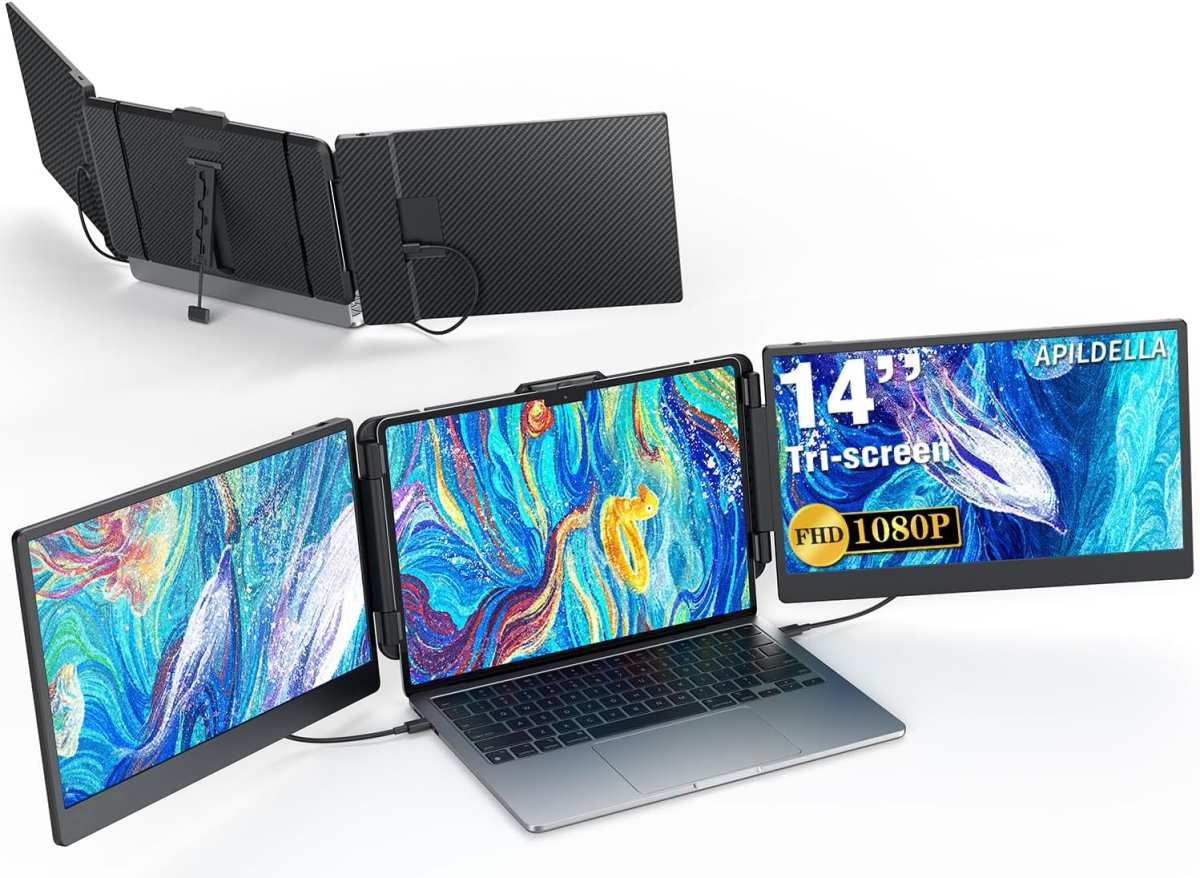
The ASUS ZenScreen MB16AMT is a popular 15.6-inch portable option. It supports USB-C DisplayPort Alt Mode and includes built-in speakers. Aggregate reviews indicate reliable Netflix playback at 1080p, though 4K isn't available at this screen size.
The LG Gram +View is another strong portable choice. It offers a 16-inch OLED panel with vivid colors that make Netflix content pop. Manufacturer specs confirm USB-C video input and power delivery passthrough.
Desktop Picks for Home Office
The Dell U2723QE is a 27-inch 4K USB-C monitor with confirmed HDCP 2.2 support. It delivers 60 watts of power delivery and has a built-in USB hub. This is a solid choice if you want one screen for work and entertainment.
The LG 27UK850-W is a more budget-friendly 4K option. It supports HDR10 and has USB-C input with HDCP 2.2 compliance. The built-in speakers are mediocre, but you can plug external audio through the headphone jack.
Common Mistakes That Kill Netflix Playback on USB-C
Buying a monitor without checking HDCP support is the biggest mistake we see. People assume 4K resolution means Netflix will play in 4K. It won't if the content protection chain is broken.
Using the wrong cable is another frequent issue. That thin USB-C cable bundled with your phone charger almost certainly doesn't carry video. You need a cable rated for DisplayPort Alt Mode or Thunderbolt.
Ignoring laptop port differences causes confusion too. On many Windows laptops, only one USB-C port supports video output. If you plug into the wrong port, nothing happens.
Check your laptop's manual for which port has the DisplayPort icon next to it.
Not updating drivers catches people off guard. An outdated GPU driver can cause HDCP handshake failures even when all your hardware supports it. Keep your graphics drivers current, especially after major operating system updates.
Setting It Up Right the First Time
Start by confirming your laptop's USB-C port supports video output. Look for a DisplayPort or lightning bolt icon next to the port. Check the laptop's spec sheet if you're unsure.
Use the cable that came with your monitor or a certified Thunderbolt 4 cable. Avoid cheap unbranded cables from marketplace sellers. They often don't support video even if the listing claims they do.
Plug in the cable and wait for the display to appear. Set the monitor to the correct input source if it has multiple options. Open Netflix and play a test video.
If you see a black screen or error code, the HDCP handshake likely failed.
Update your graphics drivers if playback doesn't work. Restart both devices and try again. If problems persist, test with a different cable or try the monitor with another laptop to isolate the issue.
Frequently Asked Questions
Does Netflix work on all USB-C monitors?
No. Netflix requires HDCP 2.2 support across the entire chain. Many budget USB-C monitors only support HDCP 1.4 or lack HDCP entirely.
Check the monitor's specs before buying.
Why is my Netflix screen black on a USB-C monitor?
This is almost always an HDCP handshake failure. Your laptop, cable, or monitor isn't passing the content protection check. Try updating your graphics drivers first.
If that doesn't help, test with a different cable or monitor.
Do I need a special cable for Netflix on USB-C?
You need a USB-C cable that supports DisplayPort Alt Mode or Thunderbolt. Charge-only cables won't carry video. Use the cable that came with your monitor or buy a certified Thunderbolt 4 cable.
Can I get 4K Netflix on a USB-C monitor?
Yes, if your laptop supports DisplayPort Alt Mode with HDCP 2.2, your monitor supports HDCP 2.2, and your cable is rated for video. All three pieces must be in place. Any weak link drops you to 1080p or lower.
Is a USB-C monitor better than HDMI for Netflix?
Neither is inherently better for picture quality. USB-C wins on convenience with single-cable connectivity. HDMI wins on universal compatibility.
Choose based on your laptop's available ports and your setup preferences.
Will a Chromebook work with a USB-C monitor for Netflix?
Some Chromebooks support USB-C video output, but not all do. Check your specific model's specs for DisplayPort Alt Mode support. If your Chromebook only has USB-C 2.0 ports, video output likely won't work.
The Bottom Line: Who Should Actually Buy a USB-C Monitor for Netflix
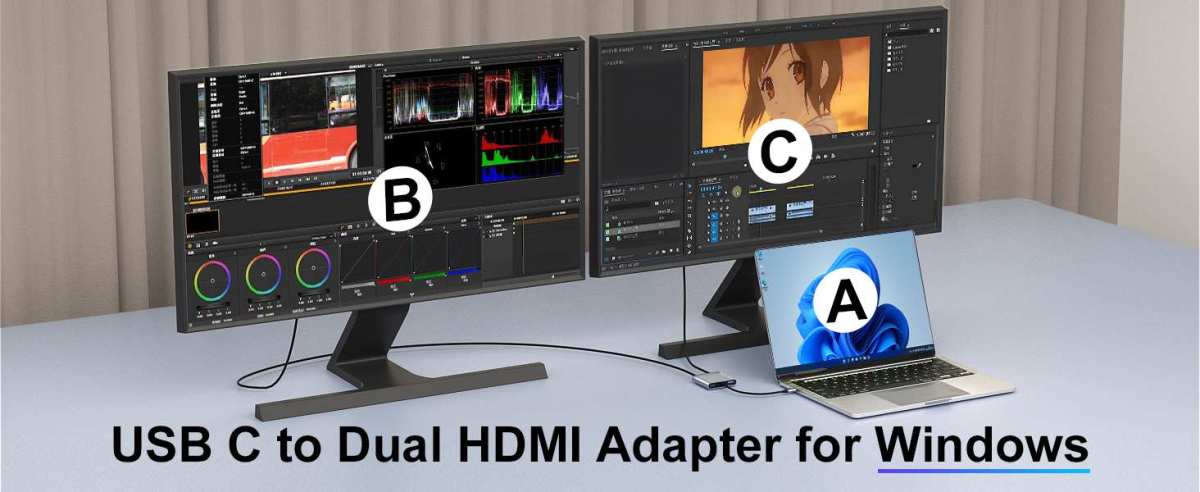
A USB-C monitor makes sense for you if your laptop supports DisplayPort Alt Mode and you value a clean, single-cable setup. Travelers, remote workers, and anyone tired of cable clutter will appreciate the simplicity. Just verify HDCP 2.2 support on whatever monitor you choose.
If your laptop lacks USB-C video output, you'll need a different solution. An HDMI monitor or a USB-C dock with HDMI output would be a simpler path. Don't force it if your hardware doesn't support it natively.
For a living room or bedroom setup where you sit far from the screen, a regular TV is the better choice. USB-C monitors shine at desk viewing distances and on the go, not as replacements for your television.
Do your homework on the specs, grab the right cable, and a USB-C monitor will serve you well for Netflix. Skip the research and you're gambling with black screens and error messages.

Similar Posts





















