How to Connect 4K Monitor to Graphics Card
Figuring out how to connect a 4K monitor to a graphics card can feel harder than it should be. You've got ports, cables, version numbers, and just enough conflicting information online to make your head spin. The truth is, it's actually pretty straightforward once you know what you're looking at.
The real trick is matching the right cable and port version to the resolution and refresh rate you want. You can't just grab any cable from the drawer and hope for the best. Let's walk through it step by step.
Quick Answer
Match the ports on your graphics card to the ports on your 4K monitor. Use a DisplayPort 1.2 or newer cable for 4K at 60Hz. For 4K at 120Hz or higher, use HDMI 2.1 or DisplayPort 1.4 with DSC.
Connect the cable, select the correct input, and set your resolution and refresh rate in your operating system's display settings.
Before we go further though, it'll help to understand why the ports and cable versions matter in the first place. That's what the next section covers.
Your Monitor or GPU: First, Let's Figure Out What You're Actually Working With
Before buying any cable or adapter, take thirty seconds to look at the actual ports on your hardware. This matters more than you'd think. Just because something says "DisplayPort" or "HDMI" doesn't mean it supports the same capabilities.
Grab a flashlight if you need to. Look at the back of your graphics card (or the side of your laptop) and your monitor's input panel. Write down what you see.
Specifically, note the port types and count.
Now do the same for your monitor. Some 4K monitors have a DisplayPort input and two HDMI ports. Others might offer USB-C with DisplayPort Alt Mode.
A few older models might even have a DVI-D port alongside HDMI. The exact combination depends heavily on the monitor and its release year.
Here's the thing most guides skip: not all ports on the same device are equal. On many graphics cards, for example, one DisplayPort output might be version 1.4 while another supports 2.1. On laptops, one USB-C port may carry a DisplayPort signal while the other is data-only.
Check your spec sheet. Don't guess.
If you're working with a prebuilt desktop and can't easily see the ports, pull up the exact model number on the manufacturer's website. For laptops, the same rule applies. A quick search for "[your GPU model] ports" or "[your monitor model] inputs" will give you the definitive answer in seconds.
Once you've got both sets of ports identified, you're ready to pick the right connection method. That's where the next section comes in.
Quick tip: If your GPU and monitor both support DisplayPort, that's usually your best bet for a desktop-to-monitor setup. HDMI is perfectly fine too, especially on newer hardware. But the "best" option always depends on what ports you actually have available.
Understanding Ports and Versions (Because "DisplayPort" and "HDMI" Aren't Enough)
Here's where most people get tripped up. You plug in a cable, your 4K monitor turns on, and you're convinced everything is working. But then your game caps at 30 frames, your mouse feels weirdly sluggish, and your desktop looks oddly blurry.
The problem isn't your hardware. It's the cable version or the port class you're using.
Think of it like water through a pipe. A 4K signal needs a certain amount of bandwidth to get from your GPU to your monitor. If your pipe is too narrow, something gets throttled.
Maybe the refresh rate drops. Maybe the color gets compressed. In the worst case, you get no signal at all.
The Port Types You'll Actually Encounter
Here are the port types you'll find on modern GPUs and 4K monitors right now:
- DisplayPort (DP): The standard for PC-to-monitor connections. Shaped like a rectangle with one corner notched. You'll find these on virtually every dedicated graphics card and many monitors. Comes in versions 1.2, 1.4, 2.0, and 2.1 as of 2026.
- HDMI: The universal standard. Found on GPUs, monitors, laptops, game consoles, streaming devices. Current versions you'll encounter are 2.0 and 2.1. HDMI 2.1 is the one you want for 4K at high refresh rates on a console or a newer GPU.
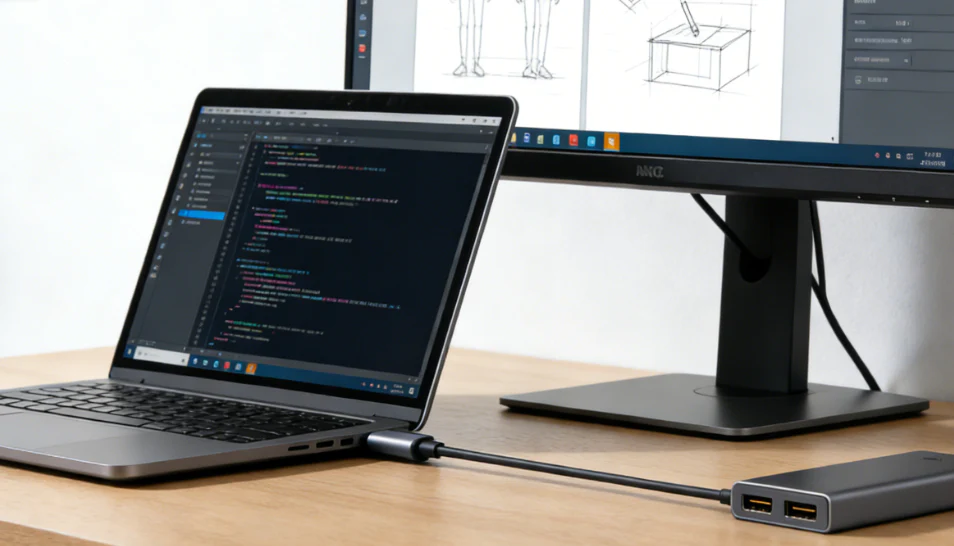
- USB-C (with DisplayPort Alt Mode): A single USB-C port that carries a video signal alongside data. Common on laptops and some modern monitors. The monitor often charges your laptop through the same cable. Only works if the USB-C port explicitly supports DisplayPort Alt Mode.
- Thunderbolt 3 / 4: Uses the same physical connector as USB-C. Carries DisplayPort video natively. Found on higher-end laptops and some monitors. Thunderbolt 4 guarantees DisplayPort 1.4 support.
There's also DVI-D and VGA, but those are effectively dead for 4K. If your monitor only has HDMI and your GPU only has DisplayPort, a simple passive adapter cable will handle the job without any fuss.
Why Cable Versions Matter More Than You Think
This is the single biggest source of confusion. "It's an HDMI cable" tells you nothing about its actual capability. An HDMI cable from 2012 and an HDMI 2.1 cable from 2025 look almost identical.
But one can push 4K at 120Hz with HDR while the other barely manages 4K at 30Hz.
Here's a quick breakdown:
| Cable Standard | Max Bandwidth | 4K 60Hz (Full Color) | 4K 120Hz (HDR) | Notes |
|---|---|---|---|---|
| DisplayPort 1.2 | 17.28 Gbps | Yes | No | Minimum for 4K 60Hz |
| HDMI 2.0 | 18 Gbps | Yes | No (chroma subsampled) | Very common in older cables |
| DisplayPort 1.4 | 25.92 Gbps | Yes | Yes (with DSC) | Most common on desktop GPUs |
| HDMI 2.1 | 48 Gbps | Yes | Yes | Required for PS5/Xbox 4K 120Hz |
| DisplayPort 2.1 | Up to 77.37 Gbps | Yes | Yes (240Hz+) | Newest standard, appearing on 2025+ GPUs |
VESA (the standards body behind DisplayPort) has also introduced certified cable ratings. You'll see labels like "DP80" for cables supporting 80 Gbps and "DP40" for 40 Gbps. If you see a DisplayPort cable with no rating printed on it, assume it's at least DP 1.2 capable.
For anything higher, buy a certified cable.
For HDMI, look for "Ultra High Speed HDMI" on the cable packaging. That's the certified label for HDMI 2.1 cables. "Premium High Speed HDMI" covers HDMI 2.0 stuff reliably.
Cheap no-name cables labeled just "HDMI" without any speed rating are a gamble.
The main rule: Your connection is only as fast as the lowest-version component in the chain. A DP 2.1 GPU connected to a DP 1.4 monitor with a DP 1.4 cable will negotiate down to DP 1.4 speeds. Remove any one weak link and the whole chain improves.
The Quick Version: Which Cable You Need Based on What You've Got
Let's cut through the noise. If you just want to know what to plug in right now, this section gives you the answer based on your exact hardware situation.
First, identify your ports. Then match them up using the guidance below:
- GPU has DisplayPort + Monitor has DisplayPort: Use a DisplayPort cable. For 4K at 60Hz, DisplayPort 1.2 or newer works fine. For 4K at 120Hz or higher, use DisplayPort 1.4 or 2.1 with a cable rated for that speed.
- GPU has HDMI + Monitor has HDMI: Use an HDMI cable. For 4K at 60Hz, HDMI 2.0 works. For 4K at 120Hz, you need HDMI 2.1 and an Ultra High Speed HDMI cable.
- GPU has DisplayPort + Monitor has HDMI only: Use a DisplayPort to HDMI cable or passive adapter. Make sure it's the right direction (DP on the GPU side, HDMI on the monitor side). Active adapters exist but you rarely need them for 4K 60Hz.
- GPU has HDMI + Monitor has DisplayPort only: This is trickier. A simple passive HDMI to DP cable won't work because HDMI and DP use different signaling. You'll need an active adapter that converts the signal, which costs more. If possible, just use a different output on your GPU instead.
- Laptop with USB-C only: Check that your USB-C port supports DisplayPort Alt Mode (look for a "D" or DP symbol near the port, or check your laptop's spec sheet). Then use a USB-C to DisplayPort cable or USB-C to HDMI 2.1 cable depending on your monitor's inputs.
If you're gaming at 4K and want a high refresh rate with adaptive sync, prioritize DisplayPort on a desktop GPU. DisplayPort handles adaptive sync more universally across monitors and GPUs. HDMI 2.1 VRR works great too, but it's more common on TVs and HDMI-native setups.
Bandwidth: The Hidden Factor That Determines Everything
Bandwidth is the invisible spec that governs what your setup can actually display. Every combination of resolution, refresh rate, color depth, chroma subsampling, and HDR requires a certain amount of data per second to travel from your GPU to your monitor.
The math isn't complicated once you see it.
How Much Bandwidth Your Setup Actually Need
A 4K signal at 3840×2160 resolution, with 60 refreshes per second, 8-bit color depth, full RGB chroma (4:4:4), and no HDR requires roughly 12.5 Gbps of data rate. That's before accounting for blanking intervals and protocol overhead, so the actual required bandwidth is higher, around 17.82 Gbps with overhead included.
| Resolution & Refresh | Color Depth | Chroma | HDR | Required Data Rate | Minimum Port |
|---|---|---|---|---|---|
| 4K 60Hz | 8-bit | 4:4:4 | No | ~17.8 Gbps | DP 1.2 / HDMI 2.0 |
| 4K 60Hz | 10-bit | 4:4:4 | Yes | ~22.3 Gbps | DP 1.4 / HDMI 2.1 |
| 4K 120Hz | 8-bit | 4:4:4 | No | ~35.6 Gbps | DP 1.4 (DSC) / HDMI 2.1 |
| 4K 120Hz | 10-bit | 4:4:4 | Yes | ~43.4 Gbps | DP 1.4 (DSC) / HDMI 2.1 |
| 4K 144Hz | 8-bit | 4:4:4 | No | ~42.6 Gbps | DP 1.4 (DSC) / HDMI 2.1 |
| 4K 240Hz | 8-bit | 4:4:4 | No | ~71.2 Gbps | DP 2.1 (with DSC) |
Manufacturer specifications confirm these numbers. If your required data rate exceeds what your connection supports, something has to give.
What Happens When You Don't Have Enough
When the bandwidth isn't there, the system has to make compromises. You don't necessarily lose the signal. You lose quality or features.
Here's what you'll actually notice:
- Refresh rate drops. Your monitor might be capable of 144Hz, but you're stuck at 60Hz because the cable can't push enough pixels per second at full color.
- Chroma subsampling kicks in. Instead of full 4:4:4 color, the signal compresses to 4:2:2 or even 4:2:0. Text looks fuzzy and colored edges look wrong. This is the most common hidden compromise on HDMI 2.0 at high resolutions.
- Color depth drops. You might lose 10-bit color and fall back to 8-bit, which matters for HDR content and color-graded work.
- No HDR. Even if your monitor supports it, the signal chain won't activate HDR if there's not enough bandwidth to carry the wider color and luminance data alongside everything else.
Display Stream Compression (DSC) changes the game here. DSC is a visually lossless compression standard built into DisplayPort 1.4 and later (and HDMI 2.1 in some implementations). It compresses the video signal at up to 3:1 ratio, letting you push 4K at 144Hz through a connection that technically doesn't have the raw bandwidth.
You won't see any difference in quality. Both your GPU and your monitor have to support DSC for it to kick in, but it's become standard on most 4K monitors released since 2021.
Bottom line: If you're running 4K at 60Hz, almost any modern cable will cover you. The moment you step above 60Hz (or add HDR into the mix), you need to pay attention to cable specs. Buy the right cable once and save yourself an evening of troubleshooting.
Step-by-Step: Connecting Your 4K Monitor the Right Way
Let's walk through the actual connection process from start to finish. This isn't complicated, but doing it in order saves you the headache of troubleshooting something that was never actually broken.
Step 1: Check What Ports Your Graphics Card Has
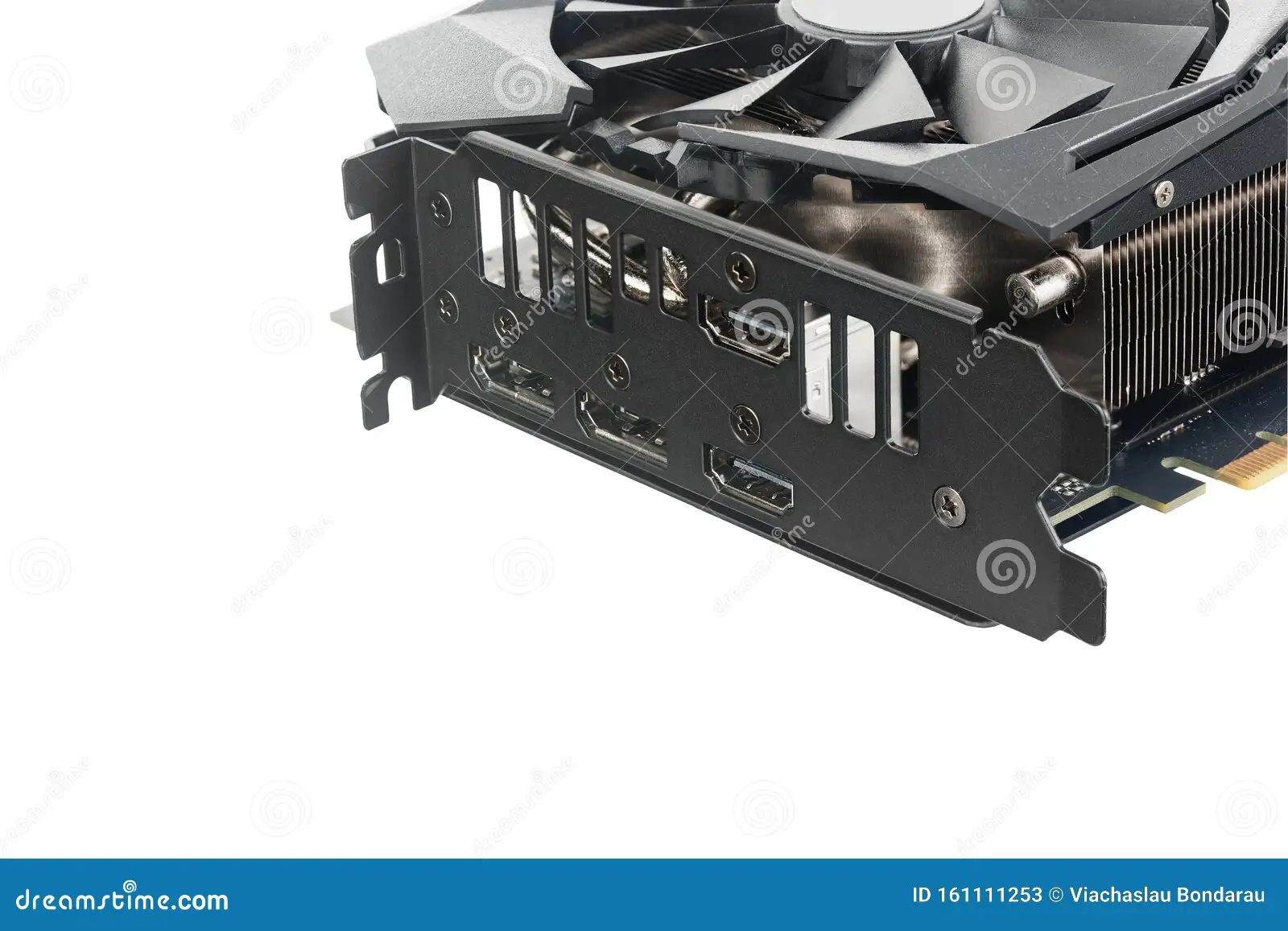
Look at the back of your PC where the graphics card brackets sit. You'll see a row of display outputs. Modern cards typically offer a mix of DisplayPort and HDMI ports.
Higher-end cards from 2024 onward may include a USB-C port as well.
Count them. Note the types. If you're looking at a card with three DisplayPorts and one HDMI, that gives you flexibility.
If you only have one HDMI and your monitor only has DisplayPort, you'll need to plan around that.
Step 2: Check What Ports Your Monitor Has
Now look at your monitor's input panel. It's usually on the back, sometimes on the bottom edge. Note every port available.
Some 4K monitors have two HDMI ports and one DisplayPort. Others add USB-C into the mix.
If your monitor came with a manual, the input diagram is usually on the first few pages. Otherwise, a quick search for your exact monitor model plus "specs" will list the inputs clearly.
Step 3: Match Your Cable to the Job
This is the step that actually determines your experience. Grab a cable that supports the highest version shared between your GPU and your monitor.
If both have DisplayPort and you want 4K at 60Hz, a basic DP 1.2 cable (or better) does the job. For 4K at 120Hz or higher, grab a DisplayPort 1.4 cable rated for HBR3. If you're going HDMI, make sure it's Ultra High Speed HDMI (HDMI 2.1 certified) for anything above 4K 60Hz.
Don't overpay. A reputable 6-foot DisplayPort 1.4 cable costs around 12 to 20 dollars. An Ultra High Speed HDMI cable runs similar pricing.
Expensive "audiophile" cables with gold plating and fancy braiding won't improve your picture. Buy certified. Buy the right speed tier.
That's it.
Step 4: Connect, Power On, and Select the Correct Input
With your PC powered off (or on, it doesn't matter), connect the cable firmly to your graphics card and then to your monitor. Both ends should click or seat securely.
Power on your PC and your monitor. The monitor should detect the signal automatically. If it shows "No Signal," use the monitor's physical buttons to manually select the correct input source.
This catches people constantly. You might be plugged into DisplayPort 1 while the monitor is set to HDMI 2. Cycle through the inputs.
Step 5: Configure Resolution, Refresh Rate, and Color Settings
Your operating system might default to a lower resolution or refresh rate than your monitor supports. That's normal. You need to tell it to use the full panel.
On Windows 11, right-click the desktop and select Display settings. Scroll down to Display resolution and make sure it's set to 3840×2160. Then click Advanced display and set your refresh rate to the highest available (60Hz, 120Hz, or whatever your panel supports).
If the resolution option isn't showing at all, your cable or driver is the problem. We'll get to that in troubleshooting.
For macOS, go to System Settings > Displays and hold the Option key while clicking "Scaled" to reveal the full list of available resolutions. On Linux, your desktop environment's display settings panel handles this, or you can use xrandr from the terminal for fine-grained control.
Step 6: Install or Update Your Graphics Drivers
Even with everything connected correctly, an outdated graphics driver can cap your resolution, limit refresh rates, or cause detection issues. Always make sure you're running the latest stable driver from your GPU manufacturer.
NVIDIA users can grab drivers from GeForce Experience or the NVIDIA driver download page. AMD users should use the AMD Adrenalin software. Intel Arc and integrated graphics users have their own driver utilities as well.
A clean driver install (most driver installers offer this as an advanced option) can resolve weird display behavior caused by leftover settings from a previous GPU. If you upgraded your graphics card recently, doing a clean install is one of the fastest ways to solve 4K output problems.
Troubleshooting: Why You're Getting No Signal, 30Hz, or a Black Screen
Something's not working? Don't panic. Most connection issues come down to a handful of common causes, and they're all fixable.
Monitor Says "No Signal"
Start with the cable. Make sure it's fully seated at both ends. A cable that's slightly loose at the GPU bracket port is incredibly common, especially in builds where the card is hard to reach.
Next, check your monitor's input selection. If your monitor has multiple inputs and you're not on the right one, it'll tell you there's no signal even when the cable is fine.
If those are good, try a different cable. Cables fail. Even new ones.
Try a different port on your graphics card too. If you have three DisplayPorts, test each one.
Still nothing? Boot into your PC with the old display still connected (or integrated graphics if your CPU has it). Update your graphics driver.
Shut down, reconnect the 4K monitor as the only display, and boot again. Sometimes the GPU needs a driver that can properly negotiate the display handshake.
Stuck at 30Hz When You Should Be at 60Hz
This almost always comes down to the cable version. If you're using an old HDMI cable (version 1.4 or older), it won't have enough bandwidth for 4K at 60Hz. HDMI 1.4 tops out at 4K but only at 30Hz.
Swap to an HDMI 2.0 or newer cable, or use DisplayPort instead.
Also check your monitor's on-screen display (OSD) settings. Some monitors have a setting that limits the input bandwidth for compatibility reasons. Look for something labeled "HDMI Version" or "DP Version" in the monitor menu and make sure it's set to the highest available option.
4K Works but HDR Won't Turn On
HDR requires a full chain of compatible components. Your GPU needs to support HDR output. Your cable needs enough bandwidth for the HDR signal (HDMI 2.0 can do HDR at 4K 60Hz with compressed color, but HDMI 2.1 is better).
Your monitor needs to actually support HDR.
In Windows, go to Settings > System > Display and toggle HDR on. If the toggle isn't there, your driver or display isn't reporting HDR capability. Some monitors require you to enable HDR in their on-screen menu first before Windows sees it.
Also worth noting: many budget 4K monitors advertise "HDR support" but only accept an HDR signal without actually having the brightness or color gamut to display it meaningfully. If your monitor's HDR looks worse than SDR, just leave it off.
Screen Flickers or Goes Black Intermittently
Flickering usually points to a cable issue. The connection is there but unstable. Replace the cable with one that's certified for your speed tier.
Cables that are too long (over 10 feet for high-bandwidth signals) can also cause this, especially with 4K HDR content.
If you're using an adapter (DisplayPort to HDMI or USB-C to HDMI), that adapter might be the weak link. Cheap passive adapters often struggle with high-bandwidth signals. Active adapters cost more but reliably handle the signal conversion.
Driver issues can also cause intermittent blackouts. This happens when the driver crashes and recovers the display. Update your drivers, and if the problem started after a recent update, roll back to the previous version to see if that resolves it.
Common Mistakes People Make (And How to Avoid Them)
Some of these catch experienced PC builders off guard, not just beginners.
- Using an old cable from a drawer. That HDMI cable from your 2015 TV box might physically fit, but it likely caps you at HDMI 1.4 speeds. Check the cable for any version labeling. If there's no label, assume it's old and replace it.
- Plugging into the motherboard instead of the graphics card. This one is incredibly common. If you have a dedicated GPU, your display cable must go to the GPU's ports, not the motherboard's rear I/O panel. The motherboard ports use integrated graphics, which often can't drive 4K properly or at all.
- Assuming all USB-C ports carry video. Many laptops have USB-C ports that are data-only. Only USB-C ports that explicitly support DisplayPort Alt Mode or Thunderbolt can output a video signal. Check your laptop's spec sheet. Look for a DP or lightning bolt icon near the port.
- Ignoring the monitor's OSD settings. Some monitors have input-specific settings that cap resolution or refresh rate. If one input works perfectly and another doesn't, check the monitor's menu for per-input configuration.
- Buying the wrong adapter direction. DisplayPort to HDMI adapters are directional. A DP-to-HDMI cable sends a DisplayPort signal from your PC to an HDMI input on your monitor. The reverse (HDMI from your PC to a DisplayPort input on your monitor) requires an active converter, not a passive cable. Most GPUs do not output HDMI signals that a passive DP input can read.
- Overlooking DSC support. If your monitor supports Display Stream Compression but your GPU doesn't (or the cable doesn't negotiate DSC), you might be forced into chroma subsampling at high refresh rates instead of getting a clean full-color image. This is more common than people realize with 4K 144Hz and above setups.
Comparison: DisplayPort vs. HDMI for 4K Setups
Both standards will give you a working 4K picture. But one is usually the better choice depending on your hardware and what you're trying to do.
When DisplayPort Wins
DisplayPort is the native PC monitor standard. It handles adaptive sync (both NVIDIA G-Sync and AMD FreeSync) more universally than HDMI. If you're a gamer running a desktop PC, DisplayPort is almost always the right choice.
DisplayPort 1.4 with DSC pushes 4K at 240Hz. HDMI 2.1 tops out at 4K 120Hz, which creates a lane bandwidth bottleneck for 240Hz monitors unless you use a DisplayPort 2.1 cable. Multi-monitor setups also benefit from DisplayPort's daisy-chaining capability through MST (Multi-Stream Transport), letting you run two 4K monitors off a single DisplayPort output on supported hardware.
For professional work, DisplayPort carries uncompressed 10-bit color natively without needing chroma subsampling. Color grading, photo editing, and design work all benefit from that clean signal path.
Personal preference matters here. If your monitor has a DisplayPort input and your GPU has a DisplayPort output, that's the cable to reach for first.
When HDMI Makes More Sense
HDMI 2.1 is the standard for game consoles. If you're connecting a PS5 or Xbox Series X to a 4K monitor, HDMI 2.1 is your only option for 4K at 120Hz. These consoles don't have DisplayPort outputs.
TV connections are naturally HDMI-only. If you're using a 4K TV as a large desktop display or a home theater PC output, HDMI is the way.
Some monitors, especially portable USB-C monitors and ultrawide panels, accept HDMI as their primary input because it's universally compatible with laptops. The MacBook and Dell XPS ecosystems especially favor USB-C that routes HDMI or DisplayPort through a hub, making HDMI a more straightforward physical connection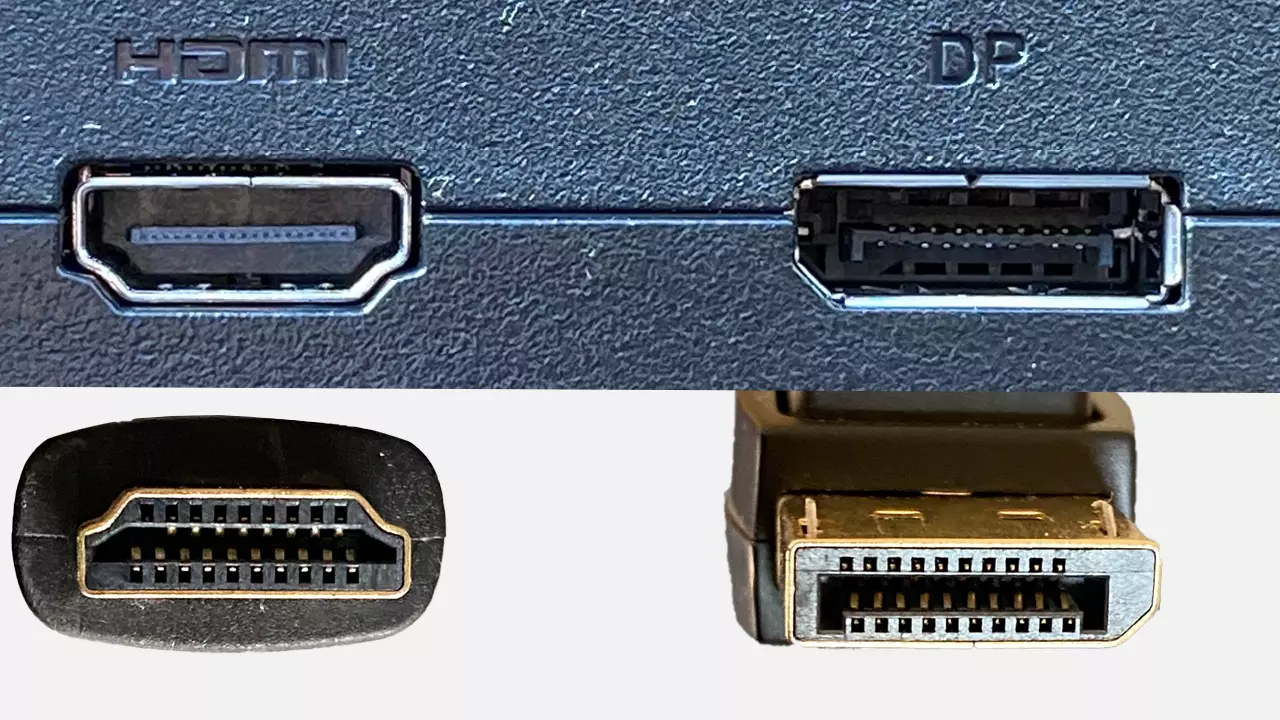
| Factor | DisplayPort 1.4 | HDMI 2.1 |
|---|---|---|
| Max 4K Refresh | 240Hz (with DSC) | 120Hz |
| Adaptive Sync Support | Universal | VRR supported (slightly less universal) |
| Daisy-Chaining | Yes (MST) | No |
| Console Compatibility | No | Yes (PS5, Xbox Series X) |
| Cable Length Limit (reliable) | Up to 6 feet at full bandwidth | Up to 10 feet at full bandwidth |
| USB-C Alt Mode Support | Yes | No native support |
| PC Monitor Standard | Yes | Secondary |
In 2026, DisplayPort 2.1 appears on newer GPUs and monitors, pushing total bandwidth up to 77.37 Gbps in its highest configuration (UHBR20). HDMI 2.1 remains at 48 Gbps. The practical gap widens significantly for 4K 240Hz and above, giving DisplayPort a clear technical edge for high-end PC gaming setups.
HDMI 2.1 is more than adequate for most people, and it's the only option for certain use cases like console gaming.
Best Setup for How You Actually Use It
There's no single "best" cable. There's the best cable for your specific situation.
For 4K Gaming at 120Hz+
Use a DisplayPort 1.4 (or 2.1) cable between your desktop GPU and monitor. It supports higher refresh rates, lower latency with adaptive sync, and uncompressed high-bitrate color. If your monitor is 4K 240Hz or above, DisplayPort becomes the only option that doesn't force chroma subsampling.
For Office Work and Productivity at 4K 60Hz
A DisplayPort 1.2 cable or an HDMI 2.0 cable does fine. Either delivers a sharp desktop, crisp text, and plenty of screen real estate for spreadsheets and browser tabs. Buy the cheapest certified cable that matches the lowest version supported by both your GPU and monitor.
For Creative Work (Photo, Video, Color Grading)
Prioritize DisplayPort 1.4 or higher. DisplayPort handles 10-bit color with full 4:4:4 chroma without forcing compromises. HDMI 2.0 at 4K 60Hz forces 4:2:2 chroma subsampling to fit within its bandwidth, which affects color accuracy.
DisplayPort 1.4 and HDMI 2.1 both support the full signal path. If your monitor has both, lean DisplayPort.“`json
[
{
"altKeyword": "how to connect 4k monitor to graphics card"
"searchQuery": "graphics card display ports close up"
"placementHint": "hero"
}
{
"altKeyword": "DisplayPort vs HDMI cable ends comparison"
"searchQuery": "DisplayPort HDMI cable connectors comparison"
"placementHint": "Comparison: DisplayPort vs. HDMI for 4K Setups"
}
{
"altKeyword": "Windows display settings 4K refresh rate"
"searchQuery": "Windows 11 display settings refresh rate"
"placementHint": "Step 5: Configure Resolution, Refresh Rate, and Color Settings"
}
{
"altKeyword": "laptop USB-C to 4K monitor connection"
"searchQuery": "laptop USB-C connected to external monitor"
"placementHint": "Best Setup for How You Actually Use It"
}
]
## Data & Specs Reference
Here's a condensed reference table for quick lookups when you're comparing cable standards and what they support at various resolutions:
| Standard | Max Bandwidth | Max 4K Refresh (4:4:4) | HDR Support | DSC Required? |
|---|---|---|---|---|
| DP 1.2 | 17.28 Gbps | 60Hz | No (bandwidth limited) | No |
| HDMI 2.0 | 18 Gbps | 60Hz | Yes (with 4:2:0) | No |
| DP 1.4 | 25.92 Gbps | 120Hz | Yes | Yes (above 4K 98Hz) |
| HDMI 2.1 | 48 Gbps | 120Hz | Yes | No (native bandwidth) |
| DP 2.1 (UHBR20) | 77.37 Gbps | 240Hz | Yes | No (native bandwidth) |
Cable pricing stays reasonable. Certified DP 1.4 cables typically range from 10 to 20 dollars. Ultra High Speed HDMI (2.1 certified) cables run about 12 to 25 dollars. DP 2.1 cables are newer and slightly more expensive, usually 20 to 40 dollars. Length matters though. Beyond 6 feet, signal integrity drops at high speeds, so active cables or fiber-optic hybrid cables become relevant for longer runs.
Refresh rates above 4K 120Hz with HDR require DisplayPort 1.4 with DSC, DisplayPort 2.1, or remain impossible over HDMI 2.1. Always check both your GPU and monitor specs before buying a high-refresh 4K display, since even a perfect cable won't help if one device in the chain lacks DSC support.
## Quick Decision Guide: What Cable to Buy in 60 Seconds
Answer these three questions and you'll know exactly what to buy:
1. **What refresh rate do you need?** 60Hz works with DP 1.2 or HDMI 2.0. 120Hz needs DP 1.4 or HDMI 2.1. 144Hz and above require DP 1.4 with DSC.
2. **Do you need HDR?** At 4K 60Hz, DP 1.4 and HDMI 2.1 both handle HDR comfortably. At higher refresh rates, bandwidth becomes the limiting factor.
3. **What ports do both devices have?** Match the best available port on both ends. If both have DisplayPort, use a DisplayPort cable. If one only has HDMI, use an HDMI cable rated for the highest supported version.
For most people connecting a desktop GPU to a 4K 60Hz monitor, any DisplayPort 1.2+ cable or HDMI 2.0+ cable will work perfectly. The extra cost of HDMI 2.1 or DP 1.4 becomes relevant above 60Hz, so if you're sure 60Hz is fine, don't overspend. For mobile setups, USB-C to DisplayPort or USB-C to HDMI 2.1 cables provide single-cable convenience with an external 4K monitor at full refresh rates.
## Frequently Asked Questions
### Can I use any HDMI cable for 4K?
You need at least an HDMI 2.0 cable for 4K at 60Hz. Older HDMI 1.4 cables cap out at 4K 30Hz. For 4K at 120Hz, you specifically need an Ultra High Speed HDMI (HDMI 2.1) cable. Check the cable packaging for certification labels.
### Is DisplayPort better than HDMI for PC gaming?
DisplayPort is generally preferred for desktop PC gaming due to broader adaptive sync support and higher maximum refresh rates at 4K. HDMI 2.1 is the only option for console gaming and works perfectly fine for most PC setups too.
### Why does my 4K monitor only show 30Hz?
Your cable is almost certainly HDMI 1.4 or an older DisplayPort cable. Replace it with a DisplayPort 1.2 or HDMI 2.0 cable at minimum. Also check your monitor's on-screen menu for any input bandwidth limiting settings.
### Do I need a special cable for 4K HDR?
A DisplayPort 1.4 or HDMI 2.1 certified cable handles 4K HDR without issues. For 4K HDR above 60Hz, make sure both your GPU and monitor support Display Stream Compression if you're using DisplayPort.
### Can I connect a 4K monitor to my laptop USB-C port?
Only if your laptop's USB-C port supports DisplayPort Alt Mode. Check for a DP icon next to the port or look up your laptop's specifications. Not all USB-C ports carry a video signal.

Image source: Wikimedia Commons / OS: Microsoft Corporation Screenshot: PantheraLeo1359531 😺 (talk)

Similar Posts





















