Is HDR Monitor Good for Productivity
Is an HDR monitor good for productivity? The honest answer is: it depends entirely on what you do for work, what operating system you run, and whether you're willing to tinker with settings. HDR on a desktop is not the same experience as HDR on a TV, and a lot of people buy these monitors expecting a dramatic visual upgrade only to end up with a washed-out desktop they can't figure out how to fix.
Our research into current HDR implementations shows that the technology has real benefits for specific professional workflows, but for most productivity tasks, a high-quality SDR (Standard Dynamic Range) monitor will serve you better and cost less. VESA's DisplayHDR certification program defines clear tiers, yet many monitors marketed as "HDR-ready" don't meet the minimum threshold for a meaningful HDR experience. Let's break down what actually matters.
Quick Answer
An HDR monitor is good for productivity only if your work involves color-critical tasks like photo or video editing. For general office work, coding, or writing, a high-end SDR monitor is the better choice. Windows HDR desktop support still has significant compatibility issues as of 2026.
Most productivity apps do not properly support HDR rendering. You will likely spend time toggling settings instead of working.
Why HDR on a Desktop Is More Complicated Than You Think
HDR on a TV works beautifully. You sit down, play a movie, and the picture looks stunning. Desktop HDR is a completely different animal.
You're dealing with static UI elements, tiny text, and apps that were never designed to render in a wide color gamut with high peak brightness.
The core problem is tone mapping. When you enable HDR mode on your desktop, the operating system has to map all that standard content (your browser, your file explorer, your spreadsheet) into an HDR signal. Some operating systems handle this well.
Others make everything look flat and desaturated. And many individual apps simply ignore HDR signals entirely, creating a jarring mix of oversaturated and washed-out windows on the same screen.
Manufacturer specifications often list HDR support as a feature without clarifying what tier of HDR the panel actually delivers. A monitor that says "HDR compatible" might only hit 350 nits of peak brightness with no local dimming. That's not HDR in any meaningful sense.
It's a marketing checkbox.
The Real Problem: Windows and macOS Handle HDR Differently Than TVs
Windows has historically been the weaker platform for HDR desktop use. Microsoft has improved things significantly with the Windows HDR Calibration app and better Auto HDR support, but the fundamental issue remains: when you flip on HDR in Windows Display Settings, the entire desktop runs in an HDR signal path. SDR content gets tone-mapped, and the results vary wildly depending on your monitor and GPU.
macOS takes a different approach. Apple uses what it calls EDR (Extended Dynamic Range), which dynamically adjusts on a per-content basis. SDR content looks normal.
HDR content gets the full treatment. It's a smoother experience out of the box, but it's also limited to Apple's own hardware and specific Mac models with capable displays.
Here's a quick comparison of how the two platforms handle HDR on the desktop:
| Aspect | Windows 11 | macOS (Apple Silicon) |
|---|---|---|
| HDR Toggle | System-level on/off | Dynamic EDR, automatic |
| SDR Content Handling | Manual brightness slider | Automatic tone mapping |
| App Compatibility | Inconsistent across apps | Better system-level support |
| Calibration Tool | Windows HDR Calibration app | Built-in display calibration |
| GPU Requirements | HDMI 2.0 / DP 1.4+ | Apple Silicon or specific GPUs |
If you're on Windows and you enable HDR, you'll immediately notice that your desktop background looks different. Whites might appear dimmer. Colors might shift.
This is normal, and it's the operating system trying to map SDR content into an HDR container. You can adjust the SDR content brightness slider to compensate, but it's a global setting that affects everything.
What Actually Makes an HDR Monitor "Good" (and What's Just Marketing)
Not all HDR monitors are created equal. The term "HDR" on a product listing tells you almost nothing about the actual experience. What matters are the underlying specifications: peak brightness, contrast ratio, color depth, and local dimming capability.
DisplayHDR Tiers Explained Simply
VESA's DisplayHDR certification is the most widely referenced standard for HDR monitors. It breaks panels into tiers based on peak brightness and other capabilities:
| Tier | Peak Brightness | Black Depth | Color Gamut | Bit Depth | Local Dimming |
|---|---|---|---|---|---|
| DisplayHDR 400 | 400 nits | ≤0.4 cd/m² | 95% sRGB | 8-bit | Not required |
| DisplayHDR 600 | 600 nits | ≤0.1 cd/m² | 95% DCI-P3 | 10-bit | Required |
| DisplayHDR 1000 | 1000 nits | ≤0.05 cd/m² | 95% DCI-P3 | 10-bit | Required |
| DisplayHDR 1400 | 1400 nits | ≤0.02 cd/m² | 95% DCI-P3 | 10-bit | Required |
DisplayHDR 400 is, frankly, not real HDR in any practical sense. It's a standard SDR panel that can accept an HDR signal. The jump from 400 to 600 nits is where things start to get genuinely useful.
At 1000 nits and above, you're getting a meaningful HDR experience with visible specular highlights and real contrast depth.
Peak Brightness vs. Sustained Brightness — Why Both Matter
A monitor might advertise 1000 nits peak brightness, but that's typically only achievable on a small portion of the screen for a brief moment. Sustained brightness, what the panel can maintain across the full screen during normal use, is often much lower. A monitor that hits 1000 nits in a 5% window might only sustain 600 nits at full-screen white.
For productivity, sustained brightness matters more than peak. You're not watching a two-hour movie with occasional bright scenes. You're staring at a mostly white document or IDE for eight hours.
If the panel can't sustain high brightness across the full screen, the HDR advantage largely disappears during actual work.
Local Dimming: The Feature That Makes or Breaks HDR for Desktop Use
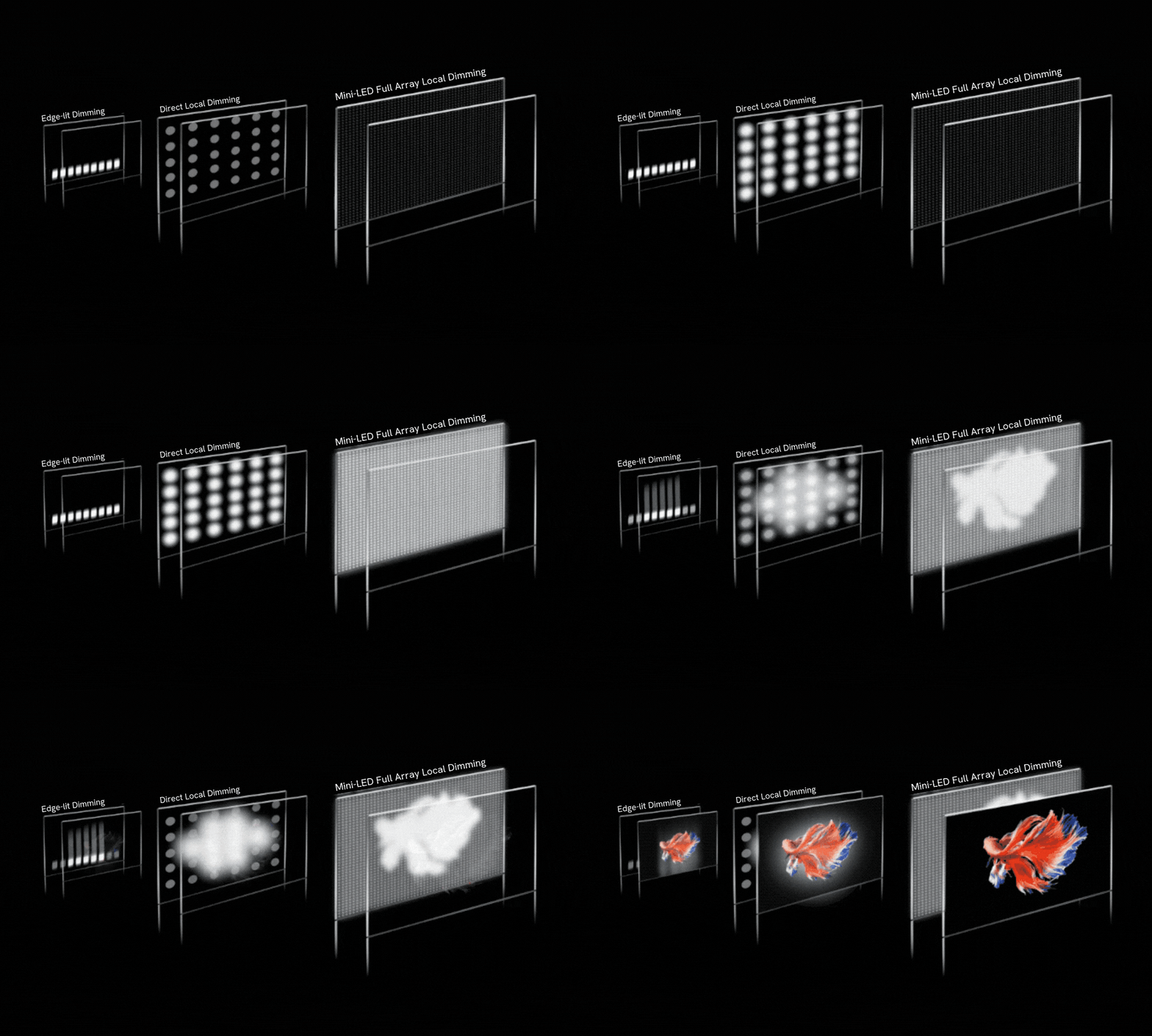
Local dimming is arguably the single most important feature for HDR on a desktop. Without it, an HDR monitor can't simultaneously display bright highlights and deep blacks. The entire panel is backlit uniformly, so bright areas bleed into dark areas and vice versa.
There are three main approaches to local dimming:
- Edge-lit dimming: A handful of zones along the edges of the panel. Minimal improvement. Often found in DisplayHDR 400 monitors.
- Mini-LED FALD (Full Array Local Dimming): Hundreds or thousands of small zones across the panel. Significant improvement in contrast. Found in DisplayHDR 1000 and above.
- OLED per-pixel dimming: Each pixel produces its own light. Perfect blacks, infinite contrast. The gold standard for HDR.
For productivity, Mini-LED with a high zone count (500+) is a solid middle ground. OLED is superior for HDR content but carries a risk of burn-in with static UI elements like taskbars and status bars. That's a real concern if you keep the same desktop layout for months.
Who Actually Benefits from an HDR Monitor for Productivity
This is where the decision tree really matters. Not every professional benefits from HDR on a desktop. Let's break it down by workflow.
Photo and Video Editors — Yes, But With Caveats
If your work involves color grading, photo retouching, or video editing, an HDR monitor with wide color gamut coverage (95%+ DCI-P3) is genuinely useful. You can preview HDR content natively, check highlight and shadow detail, and work in a color space that matches your delivery format.
The caveat is that you need a proper reference-grade panel. A DisplayHDR 600 monitor with mediocre factory calibration won't help you. You want a monitor with low Delta E values, 10-bit native color depth, and hardware calibration support.
Brands like Eizo and NEC make professional reference displays, but they command a significant premium.
Software Developers and Writers — Probably Not Worth It
If your primary tools are a code editor, a terminal, and a browser, HDR adds almost nothing to your workflow. Text rendering in HDR mode can actually look worse due to tone mapping artifacts and ClearType incompatibilities. You're better served by a high-PPI SDR display with excellent sharpness and comfortable brightness.
A 27-inch 4K IPS panel at 350 nits with good factory calibration will serve a developer far better than a flashy HDR monitor with mediocre text rendering.
Office Workers and Spreadsheet Jockeys — Stick With a Great SDR Display
For Microsoft Office, Google Workspace, email, and web-based tools, HDR is a net negative. These apps weren't designed for HDR rendering. You'll spend more time adjusting settings than you'll save in visual comfort.
A solid ultrawide SDR monitor with good ergonomics is a much better investment.
Content Creators Who Also Do Office Work — The Hybrid Case
This is the trickiest scenario. If you edit photos for two hours and then spend six hours in spreadsheets and email, an HDR monitor with good SDR fallback mode is worth considering. Many Mini-LED monitors handle SDR content well when you disable HDR in the OS, giving you the best of both worlds.
You switch to HDR mode only when you need it.
The key is finding a monitor where the SDR mode doesn't look terrible. Some HDR panels have noticeably worse SDR performance than dedicated SDR monitors at the same price point. Check reviews specifically for SDR mode quality before buying.
The Hidden Downsides Nobody Tells You About
HDR monitors look incredible in product photos and spec sheets. The reality of using one for eight hours of office work is a different story. Let's talk about the problems that don't show up in the marketing.
Washed-Out Desktop and App Compatibility
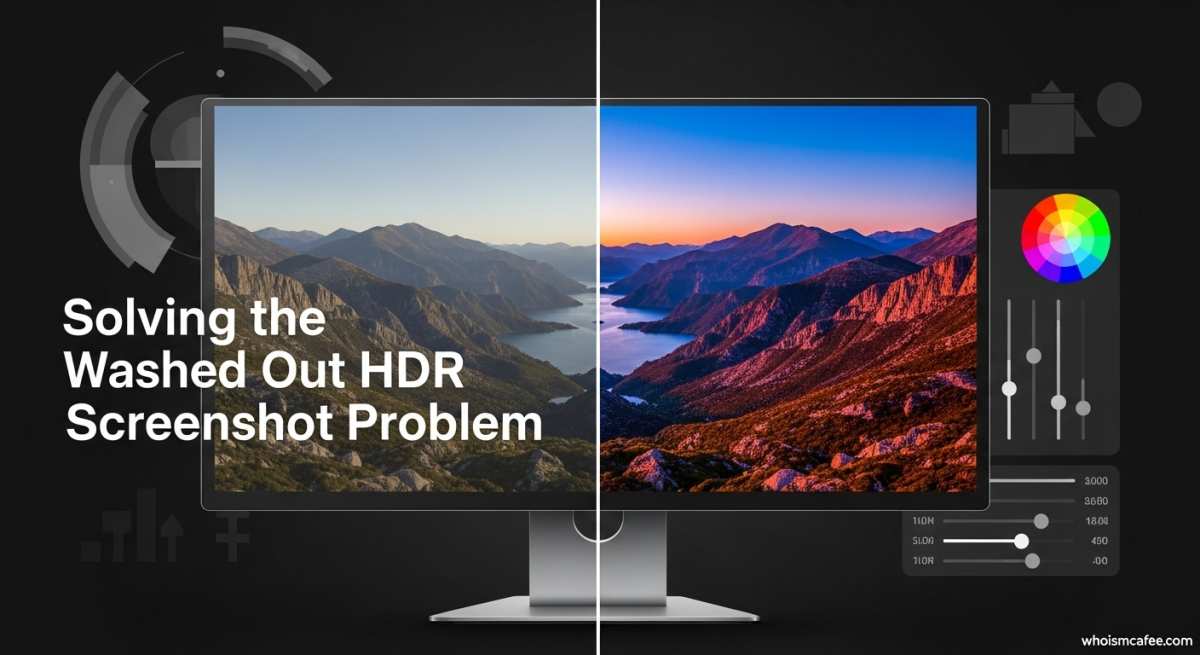
This is the number one complaint in user reviews of HDR monitors used for productivity. You enable HDR in Windows, and suddenly your desktop looks pale. Whites appear grayish.
Colors that popped in SDR mode look flat and lifeless.
The reason is simple. Your operating system is now sending an HDR signal, but most of your apps are SDR applications. The OS has to map that SDR content into the HDR signal space, and the tone mapping algorithm doesn't always get it right.
Browsers, office suites, and development tools are particularly problematic because they weren't built with HDR rendering in mind.
Some apps handle it fine. Others look terrible. You end up with a mix of correctly rendered and incorrectly rendered windows on the same screen, and it's visually distracting.
Text Rendering and ClearType Issues
If you spend your day reading code or writing documents, text clarity is everything. HDR can interfere with how ClearType, Windows' subpixel rendering engine, displays text on screen. Users report that text appears slightly fringed or less sharp when HDR is active, particularly on panels that don't handle the 10-bit color pipeline cleanly.
This isn't universal. Some monitors handle it well. But it's common enough that aggregate reviews consistently flag it as a concern for text-heavy workflows.
If you're a developer or writer, test HDR mode with your actual editor before committing to a monitor.
The Constant Toggling Problem
Here's the workflow nobody advertises. You turn on HDR to preview a photo you're editing. Then you turn it off to check how it looks in SDR.
Then you turn it back on to continue editing. Then you open your email and the colors look wrong, so you turn it off again.
Windows lets you toggle HDR from the quick settings panel, but it's not seamless. There's often a brief blackout as the display switches modes. Some monitors take a few seconds to adjust.
Over a full workday, this constant switching becomes genuinely annoying.
macOS handles this better with its dynamic EDR approach, but if you're on Windows or Linux, you're managing HDR state manually. That's a real productivity cost that spec sheets don't mention.
Price Premium You Might Not Need to Spend
True HDR capability, meaning a monitor with meaningful local dimming, high sustained brightness, and wide color gamut, adds a significant price premium. You're often paying $200 to $800 more than an equivalent SDR monitor with the same resolution and refresh rate.
That money might be better spent on other features that directly improve your productivity. A higher resolution panel, an ultrawide aspect ratio, better ergonomic adjustment, or a higher refresh rate for smoother scrolling. These benefits are consistent and immediate, unlike HDR which is situational and workflow-dependent.
HDR Monitor vs. High-End SDR Monitor: A Real Comparison
Let's put them side by side. This is what you're actually choosing between at similar price points.
| Factor | HDR Monitor (DisplayHDR 600+) | High-End SDR Monitor |
|---|---|---|
| Peak Brightness | 600-1000+ nits | 300-400 nits |
| Contrast Ratio | 1000:1 to infinite (OLED) | 1000:1 to 3000:1 (VA) |
| Color Gamut | 95%+ DCI-P3 | 99-100% sRGB, some DCI-P3 |
| Text Clarity in HDR Mode | Variable, sometimes degraded | Consistently sharp |
| SDR App Compatibility | Requires tone mapping | Native, no issues |
| Price Premium | $200-800+ | Baseline |
| Best For | Color-critical creative work | General productivity |
| Burn-In Risk (OLED) | Yes, with static UI | No |
The high-end SDR monitor wins on reliability and consistency. The HDR monitor wins on visual impact for specific content types. Neither is objectively better.
It depends entirely on what you do.
How to Decide: A Practical Decision Tree
This is the part that actually matters. Walk through these questions in order, and you'll land on the right answer for your specific situation.
Step 1: What's Your Primary Work Type?
If you do photo editing, video color grading, or graphic design as your main job, an HDR-capable monitor with wide color gamut is worth the investment. You need to see what your audience will see, and that includes HDR deliverables.
If you write code, write documents, manage spreadsheets, or do general office work, skip HDR. A high-PPI SDR monitor with good ergonomics will serve you better.
Step 2: What Operating System Are You Running?
If you're on macOS with Apple Silicon, HDR handling is smooth and dynamic. The system manages it well, and you won't fight with tone mapping. An HDR-capable display is a reasonable choice.
If you're on Windows, be prepared for some toggling and tweaking. HDR desktop support has improved, but it's not seamless. Factor in the time cost of managing HDR state throughout your day.
Step 3: Can You Actually See the Difference in Your Workflow?
This sounds obvious, but it's the most important question. HDR benefits are most visible in content consumption and creative preview. If your workflow doesn't involve evaluating HDR content, the visual improvement is minimal for your actual work.
A monitor that looks stunning playing a 4K HDR movie might look worse than a good SDR monitor when you're staring at a white Google Docs page for three hours.
Step 4: Budget Reality Check
If your budget is under $500, you're almost always better off with a high-quality SDR monitor. True HDR starts around $600 to $800 for a decent DisplayHDR 600 panel, and the really good ones cost $1,000 or more.
Spend on resolution, panel quality, and ergonomics first. Add HDR only if those bases are covered and your workflow genuinely benefits from it.
If You Buy One: Setup Steps That Actually Matter
So you've decided an HDR monitor makes sense for your workflow. Good. Now let's make sure you set it up correctly, because a bad HDR setup looks worse than no HDR at all.
Enable and Configure HDR Properly in Windows
Go to Settings > System > Display > HDR. Toggle on "Use HDR." Then immediately adjust the SDR content brightness slider. This controls how bright your SDR apps appear in the HDR signal path.
Most users find that setting it between 40 and 60 produces the most natural-looking desktop.
Download the Windows HDR Calibration app from the Microsoft Store. It walks you through setting the correct peak brightness, black point, and color saturation for your specific panel. This single step fixes the majority of "HDR looks washed out" complaints.
Calibrate SDR Content Brightness in HDR Mode
This deserves its own callout because it's the setting most people miss. The SDR content brightness slider in Windows HDR settings is the single biggest factor in whether your desktop looks good or terrible with HDR enabled.
Set it too low and everything looks dim. Set it too high and you lose the contrast advantage of HDR. Start at 50 and adjust in increments of 10 until white backgrounds in your browser and documents look natural, not gray and not blinding.
Check Your GPU and Cable Compatibility
HDR at high resolutions requires specific bandwidth. For 4K HDR at 60Hz with 10-bit color, you need either DisplayPort 1.4 with DSC (Display Stream Compression) or HDMI 2.1. Older cables or ports will either limit your resolution, drop you to 30Hz, or force 8-bit color.
Check your GPU's specifications. Not all GPUs support HDR output over all ports. Some only support HDR on DisplayPort, not HDMI.
Verify before you buy a cable or adapter.
Tune ClearType for Your Panel
Open the ClearType Text Tuner in Windows (search for it in the Start menu). Go through the tuning steps with HDR enabled. This adjusts subpixel rendering for your specific panel and can significantly improve text clarity in HDR mode.
If text still looks fringed or colored at the edges, try toggling between 8-bit and 10-bit color depth in your GPU control panel. Some panels render text better at 8-bit even when HDR is active.
Common Mistakes People Making with HDR Monitors
These are the errors we see most often in user feedback and support forums.
Buying a "HDR-ready" monitor without checking the DisplayHDR tier. HDR-ready often means the panel accepts an HDR signal but can't actually display it well. Look for DisplayHDR 600 or higher for a meaningful experience.
Leaving HDR on all the time when you don't need it. If you're not actively working with HDR content, turn it off. Your SDR apps will look better, and you'll avoid the washed-out desktop problem entirely.
Ignoring local dimming quality. A monitor with 32 local dimming zones will have visible halos around bright UI elements on dark backgrounds. Look for 100+ zones on a Mini-LED panel, or consider OLED if you can accept the burn-in risk.
Not calibrating after setup. Out-of-box HDR is almost always too bright and oversaturated for desktop use. Spend ten minutes with the Windows HDR Calibration app.
It makes a noticeable difference.
Expecting HDR to improve every aspect of the display. HDR improves contrast and color volume. It doesn't improve text sharpness, response times, or input lag.
Don't buy an HDR monitor expecting it to be better at everything.
Frequently Asked Questions
Does HDR affect eye strain during long work sessions?
HDR itself doesn't inherently increase or decrease eye strain. The determining factor is overall brightness and blue light output, which are independent of HDR capability. A high-quality SDR monitor at appropriate brightness is just as comfortable as an HDR monitor for extended use.
Can I use an HDR monitor in SDR mode for productivity?
Yes, and many users do exactly that. You can disable HDR in your operating system settings and use the monitor as a standard SDR display. On Mini-LED panels, the local dimming hardware may still provide improved contrast even in SDR mode, which is a genuine bonus.
Is DisplayHDR 400 good enough for productivity?
For general productivity work, DisplayHDR 400 offers no meaningful advantage over a good SDR monitor. The certification only guarantees the panel can accept an HDR signal. It doesn't guarantee the brightness, contrast, or color volume needed for real HDR content viewing.
You're paying for a feature that doesn't deliver visible benefits.
Do ultrawide monitors support HDR properly?
Many ultrawide monitors do support HDR, but implementation quality varies significantly. Some ultrawides use DisplayHDR 400 certification with edge-lit dimming, which provides minimal HDR benefit. Higher-end ultrawide models with Mini-LED backlighting and DisplayHDR 1000 certification deliver a much more convincing HDR experience.
Will HDR monitors become standard for productivity?
HDR monitor adoption is growing steadily as prices decrease and operating system support improves. Windows and macOS are both investing in better HDR desktop handling. As of 2026, HDR is still not essential for most productivity workflows, but it's becoming a more practical option each year.
Final Verdict: Should You Buy an HDR Monitor for Productivity?
Here's the bottom line. An HDR monitor is a good purchase if you do color-critical creative work, your operating system handles HDR well, and you're willing to calibrate and manage HDR state throughout your day. It's not a good purchase if you primarily do office work, coding, writing, or general computing on a Windows machine.
The decision isn't about whether HDR is good or bad. It's about whether the specific way you work benefits from what HDR actually delivers. For most productivity workflows, the answer in 2026 is still "not yet." A high-resolution SDR monitor with excellent panel quality, good ergonomics, and consistent performance will make you more productive than a flashy HDR monitor that requires constant management.
If you do decide to go HDR, prioritize local dimming quality, sustained brightness, and color accuracy over peak brightness numbers. Set a realistic budget, calibrate properly, and be honest about whether you'll actually use HDR mode regularly or if it'll sit disabled in your settings panel within two weeks.

Similar Posts





















