Is a Curved Monitor Good for Work
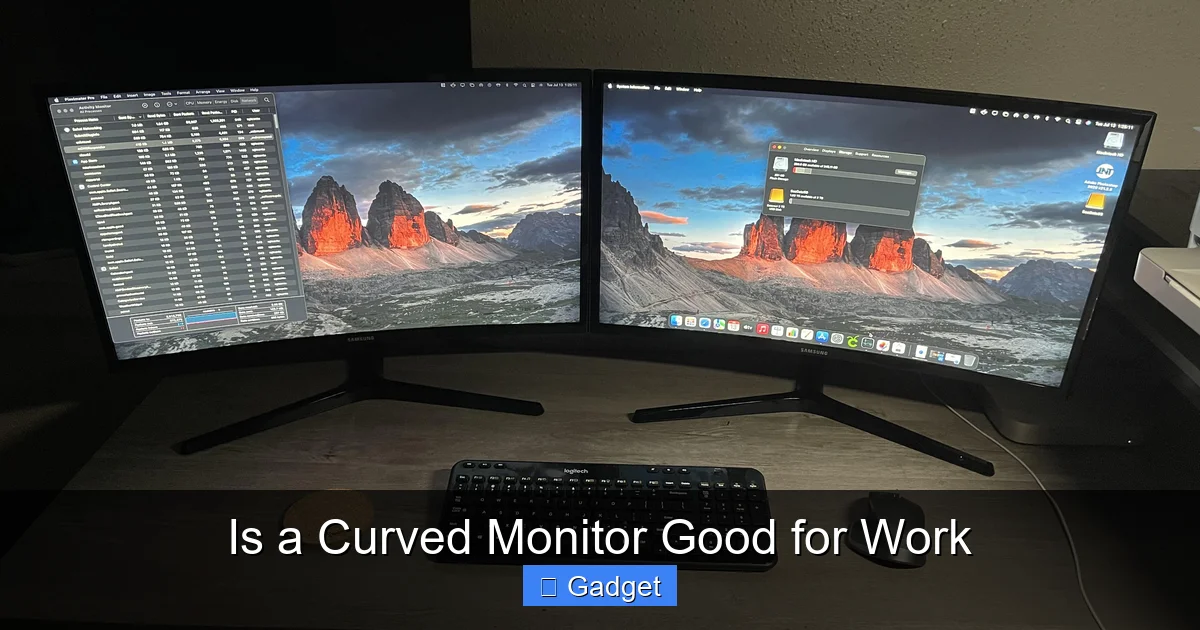
Is a Curved Monitor Good for Work?
In today’s evolving tech landscape, the monitor you choose can significantly impact your workday. You’ve probably seen them – sleek, modern displays with a noticeable bend. These are curved monitors, and their popularity is on the rise. But are they just a fancy gimmick, or do they offer genuine benefits for your professional life? This comprehensive guide will help you answer the question: “Is a curved monitor good for work?” We’ll explore everything from the science behind the curve to practical considerations that will help you decide if a curved display is the right upgrade for your desk.
Key Takeaways
- Enhanced Immersion and Reduced Eye Strain: Curved monitors can offer a more comfortable viewing experience by bringing the edges of the screen closer to your peripheral vision, potentially reducing eye fatigue.
- Improved Focus and Productivity: The wraparound effect can help users feel more engaged with their content, leading to better focus and potentially increased productivity for certain tasks.
- Consideration for Ultrawide vs. Standard Aspect Ratios: The degree of curve and aspect ratio (ultrawide vs. standard) significantly impacts usability for different work applications.
- Potential Drawbacks Exist: Issues like glare, color accuracy concerns for professional design work, and space requirements are important factors to weigh.
- Desk Setup and Ergonomics Matter: The optimal viewing distance and desk setup are crucial for maximizing the benefits of a curved monitor.
- Task-Specific Suitability: Curved monitors are often best suited for multitasking, gaming, and media consumption, but their benefit for highly precise graphic design or cad work can vary.
Understanding the Curve: The Science Behind It
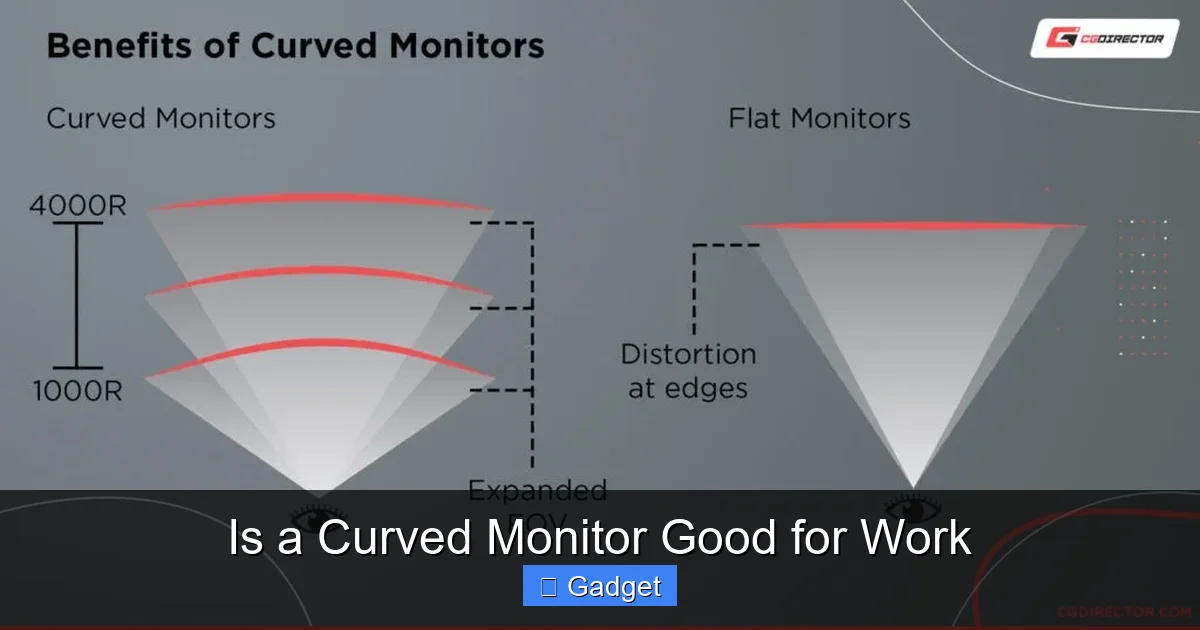
At its core, a curved monitor mimics the natural curvature of the human eye. Our eyes are not perfectly flat; they are spherical. This means that when we look at a flat surface, especially a large one, the edges are slightly further away from our eyes than the center. This difference in distance can lead to subtle distortions and require our eyes to refocus more often.
A curved monitor aims to correct this by bringing the edges of the screen closer to your field of vision. This creates a more uniform viewing distance across the entire display. The idea is to provide a more natural and immersive viewing experience. For work, this translates to potentially less eye strain and a more comfortable way to take in information.
Benefits of Using a Curved Monitor for Work
So, what are the tangible advantages you can expect when using a curved monitor for your daily tasks? Let’s break them down:
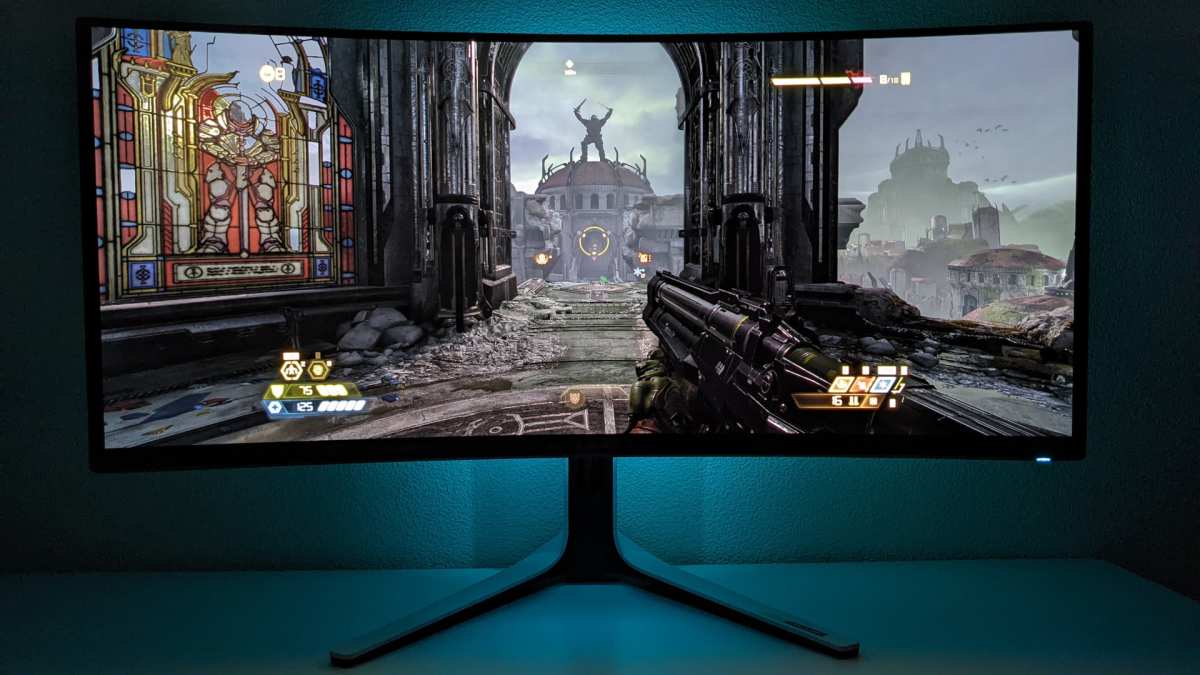
Visual guide about Is a Curved Monitor Good for Work
Image source: cgdirector.com
1. Reduced Eye Strain and Fatigue
This is perhaps the most cited benefit of curved monitors. When you’re staring at a large, flat screen for hours on end, your eyes have to work harder to maintain focus, especially on the peripheral areas. The slight outward curve of a traditional monitor means the edges are further away than the center.
A curved monitor, by its very design, reduces this variation in viewing distance. The screen essentially wraps around your field of vision. This can lead to a more relaxed viewing experience, reducing symptoms like dry eyes, headaches, and general eye fatigue that many office workers experience. Think of it like reading a book with slightly curved pages; it feels more natural to your eyes.
2. Enhanced Immersion and Focus
The wraparound effect of a curved monitor can create a sense of immersion. This can be particularly beneficial for tasks that require deep concentration. When the screen’s edges are closer to your peripheral vision, it can help block out external distractions and draw you further into your work. This can lead to improved focus and a feeling of being more “in the zone.”
For tasks like reviewing documents, analyzing data, or even coding, this increased immersion can help you process information more effectively. You’re less likely to be pulled away by something happening in the room because the monitor is subtly framing your visual field.
3. Improved Multitasking Capabilities
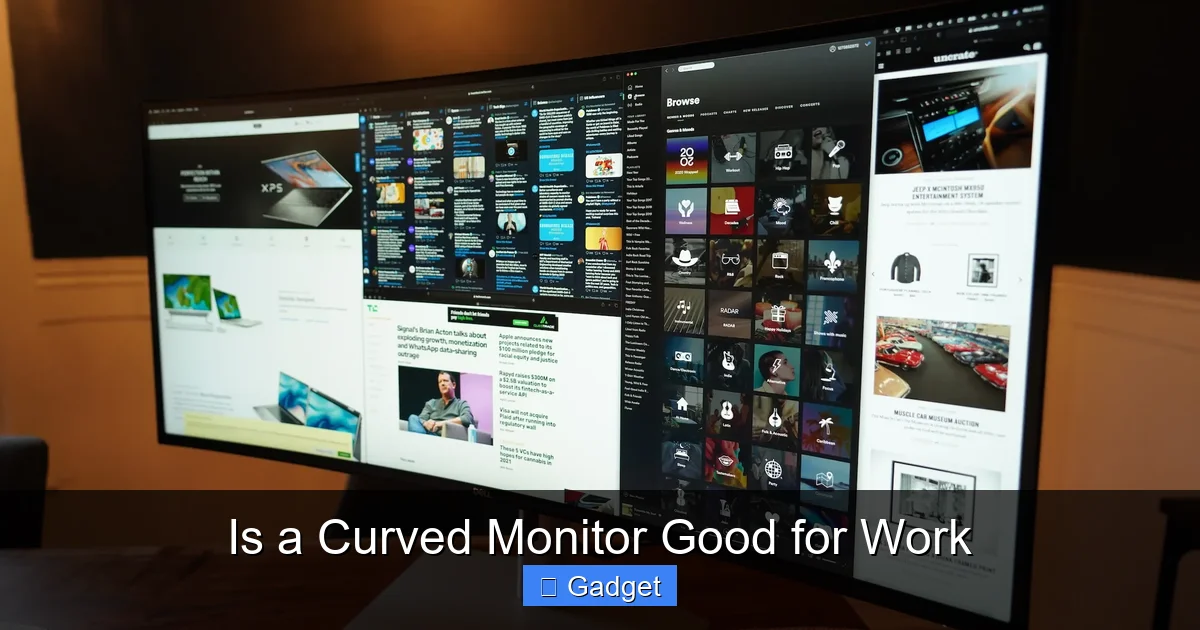
Many curved monitors come in ultrawide aspect ratios (like 21:9 or 32:9). These wider screens are excellent for multitasking. Imagine having multiple windows open side-by-side without them feeling cramped or overlapping awkwardly.
You can have your primary work document open in the center, a research tab on one side, and your email or communication app on the other. This setup eliminates the need to constantly switch between applications, saving you time and mental effort. The curve further enhances this by making all these windows more easily accessible to your peripheral vision.
4. Enhanced Depth Perception
Some users report that curved monitors offer a subtle improvement in depth perception. While not as dramatic as with virtual reality, the slight curvature can create a more three-dimensional feel to the content on screen. This might be beneficial for certain types of visual work or even just for a more engaging experience when reviewing detailed graphics.
5. Ergonomic Advantages
Beyond eye strain, a curved monitor can contribute to better overall ergonomics. By reducing the need for excessive head or eye movement to see the entire screen, it can promote a more natural posture. This can be a small but significant factor in preventing neck and shoulder strain over long work periods.
Potential Drawbacks of Curved Monitors for Work
While the benefits are compelling, it’s crucial to consider the potential downsides before making a decision. No technology is perfect for every user or every task.
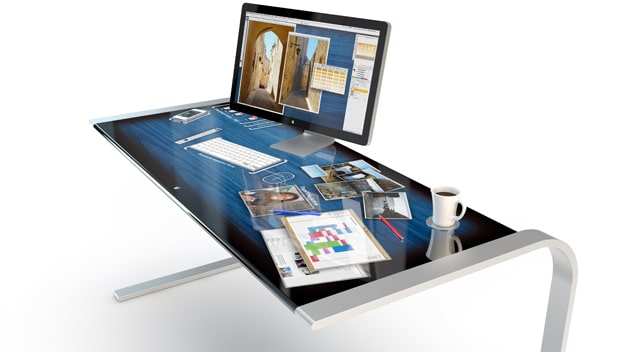
Visual guide about Is a Curved Monitor Good for Work
Image source: vssmonitoring.com
1. Glare and Reflections
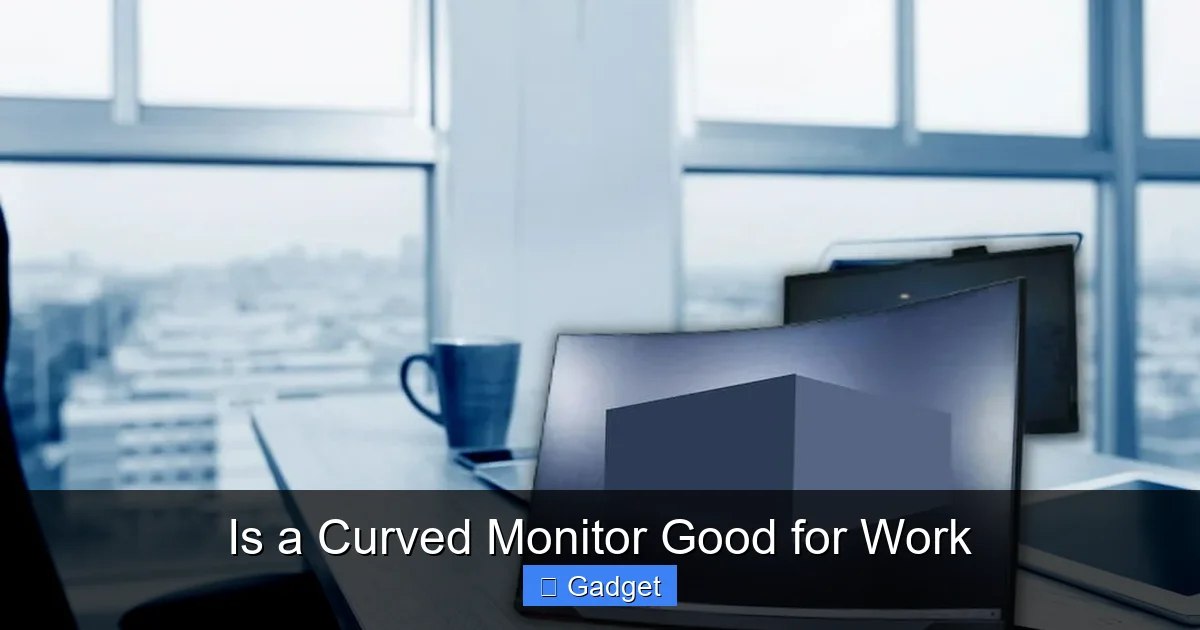
The curved surface of a monitor can sometimes be more susceptible to glare and reflections from ambient light sources, such as windows or overhead lights. While manufacturers have made strides in anti-glare coatings, this can still be an issue depending on your workspace lighting. If your office has a lot of bright, direct light, you might find yourself constantly adjusting your monitor or workspace to combat reflections.
2. Color Accuracy for Professional Design Work
For professions that demand extremely precise color accuracy, such as graphic design, photo editing, or video production, some users express concerns about curved monitors. The slight distortion introduced by the curve, however subtle, can potentially affect how colors and lines are perceived. While many high-end curved monitors are calibrated for professional use, it’s a factor to investigate if your work relies heavily on pixel-perfect color representation.
3. Space Requirements
Ultrawide curved monitors, in particular, can take up a significant amount of desk space. Their width means you need a deeper desk to maintain the optimal viewing distance. Before purchasing, measure your desk to ensure you have enough room for the monitor and comfortable seating.
4. Viewing Angles
While curved monitors offer excellent viewing angles directly in front of them, off-angle viewing can sometimes be less ideal. If you frequently have colleagues or clients looking at your screen from the side, they might not have the same clear and undistorted view as someone directly facing the monitor.
5. Learning Curve and Task Suitability
For some, the curved display can take a little getting used to. While most adapt quickly, certain software interfaces or specific layouts might initially feel slightly unusual. Furthermore, as mentioned, highly specialized tasks like CAD or precise architectural drawing might not always benefit from the curve as much as general productivity or creative tasks.
Choosing the Right Curved Monitor for Your Work
If you’ve weighed the pros and cons and think a curved monitor might be a good fit for your work, here’s how to choose one:
Visual guide about Is a Curved Monitor Good for Work
Image source: techcrunch.com
Step 1: Assess Your Primary Work Tasks
What do you spend most of your day doing on your computer?
- Multitasking & General Productivity: Ultrawide curved monitors are excellent.
- Coding & Data Analysis: The immersive screen can help with focus.
- Creative Work (Graphic Design, Video Editing): Research models known for color accuracy.
- Gaming/Entertainment alongside work: Most curved monitors excel here.
- Precise CAD/Architectural work: Consider if the curve is truly beneficial or potentially distracting.
Step 2: Consider the Curve Radius (R Rating)
Curved monitors are rated by their radius, usually in millimeters (e.g., 1800R, 1500R, 1000R). A lower number indicates a more pronounced curve.
- 1800R: A gentle curve, often preferred for general office use and less noticeable.
- 1500R: A moderate curve, offering a good balance of immersion and usability.
- 1000R: A deep curve, providing maximum immersion. This might be too intense for some and requires a closer viewing distance.
For most office environments, a 1800R or 1500R curve is a safe and comfortable choice.
Step 3: Determine the Ideal Screen Size and Resolution
Curved monitors come in various sizes and resolutions. Ultrawide monitors (29-inch, 34-inch, 38-inch, 49-inch) are common. Consider how much horizontal space you need. Resolution is also key – a higher resolution (like QHD or 4K) on a larger screen will provide sharper images.
Step 4: Check Connectivity and Features
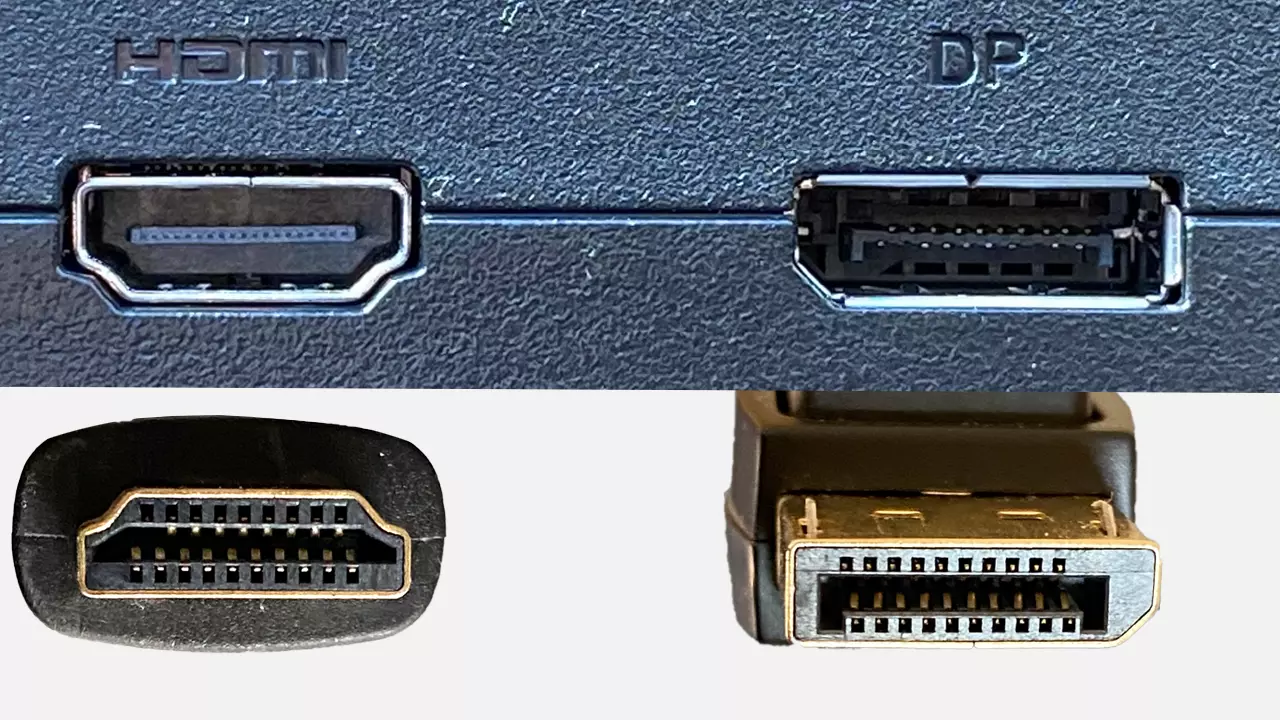
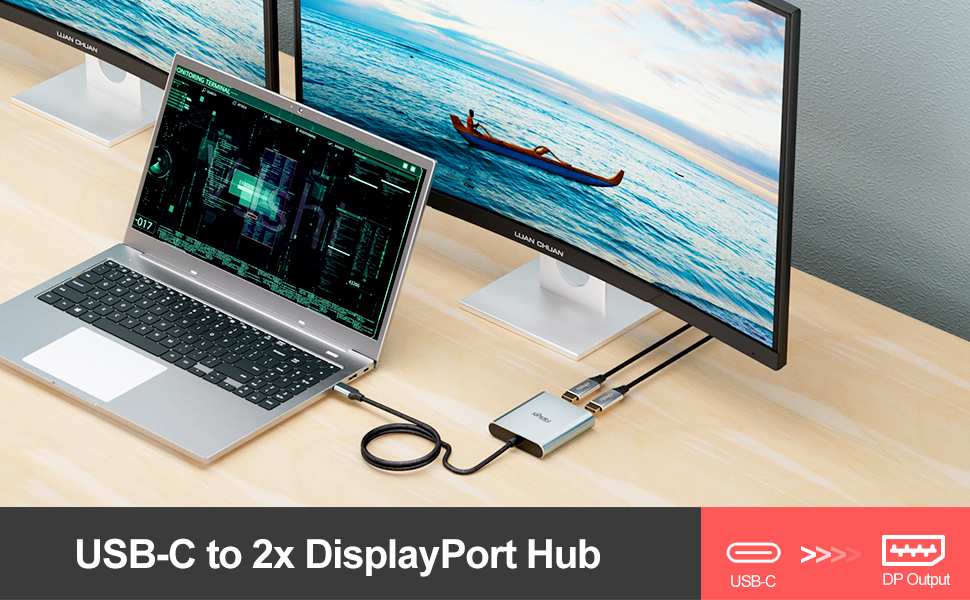
Ensure the monitor has the ports you need (HDMI, DisplayPort, USB-C). Features like adjustable stands, built-in speakers, or KVM switches (allowing you to control multiple computers with one keyboard and mouse) can add value.
Step 5: Read Reviews and Try in Person if Possible
Before buying, read professional reviews and user testimonials. If possible, visit a store to see a curved monitor in action. This can give you a real feel for the curve and how it impacts your perception.
Optimizing Your Curved Monitor Setup
Once you have your curved monitor, proper setup is crucial to maximize its benefits.
Optimal Viewing Distance
For most curved monitors, the ideal viewing distance is typically between 3-5 feet (0.9-1.5 meters). This ensures you can comfortably see the entire screen without excessive eye or head movement. Ultrawide monitors often benefit from being placed a bit further back to appreciate the entire panoramic view.
Desk Placement
Center the monitor directly in front of you. The curve should align with your natural field of vision. Avoid placing it too close, which can be overwhelming, or too far, which diminishes the immersive effect.
Adjusting Lighting
Minimize glare by positioning your desk so windows are to your side, not directly in front or behind your monitor. Use blinds or curtains to control direct sunlight. Consider adjusting the brightness and contrast settings on your monitor to match your ambient lighting.
Conclusion: Is a Curved Monitor Good for *Your* Work?
So, is a curved monitor good for work? The answer, like many things in technology, is: it depends.
For many professionals, especially those who spend long hours multitasking, reviewing documents, coding, or engaging in tasks that benefit from immersion and reduced eye strain, a curved monitor can be a significant upgrade. The enhanced comfort and focus can lead to increased productivity and a more pleasant workday.
However, if your work requires absolute pixel-perfect color accuracy for critical design tasks, or if you have a small workspace with challenging lighting conditions, a traditional flat-screen monitor might still be the better choice. Always consider your specific workflow, your workspace environment, and your personal preferences.
By understanding the benefits and drawbacks, and by carefully considering your individual needs, you can make an informed decision about whether a curved monitor is the right tool to enhance your work life.

Similar Posts