Is 27 Inch Monitor Enough for 4K
Is 27 inch monitor enough for 4k? That's the question that trips people up, because the math says yes but your eyes might disagree. The real answer depends on how far you sit from your screen, what you're doing on it, and whether your operating system handles scaling properly.
A 27-inch 4K monitor packs 3840 × 2160 pixels into a relatively compact panel, giving you 163 pixels per inch. That's a sharp image by any standard. But sharpness alone doesn't tell you whether the thing will feel comfortable to use eight hours a day.
Quick Answer
A 27-inch 4K monitor is enough for most people. It delivers 163 PPI, which produces crisp text and detailed images. You will likely need display scaling set to 125% or 150% for comfortable use.
Gamers and creative professionals benefit the most from this size. Casual users who sit farther back may prefer a 32-inch 4K panel instead.
Why This Question Doesn't Have a Simple Yes or No
Here's what makes this tricky. A 27-inch 4K monitor gives you the same number of pixels as a 32-inch 4K monitor. The difference is density.
Those pixels are squeezed into a smaller space, which means everything on screen looks sharper but also physically smaller.
Your experience comes down to a few variables:
- Viewing distance. Sit closer than 24 inches and 27 inches feels generous. Sit back at 36 inches and you might wish you'd gone bigger.
- Your eyesight. If you already wear glasses or struggle with small text, 163 PPI at 100% scaling will fight you.
- What you're doing. A video editor who needs to see fine detail benefits from the density. A gamer who wants immersive screen real estate might find 27 inches a bit tight.
- Your OS and scaling setup. Windows and macOS handle high-DPI scaling differently, and that changes the experience more than most people expect.
So the answer isn't about whether 27 inches is objectively enough. It's about whether it's enough for your specific setup and workflow.
The Pixel Density Reality: What 163 PPI Actually Means
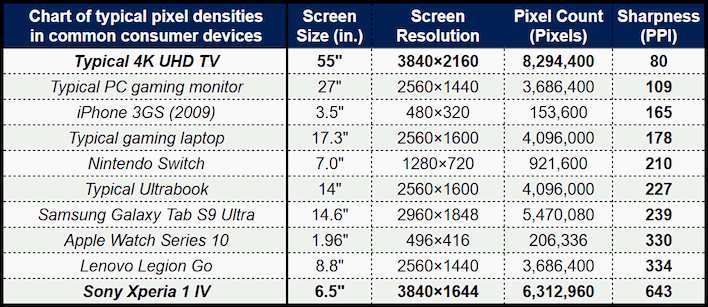
Pixel density is measured in pixels per inch, or PPI. At 27 inches with a 3840 × 2160 resolution, you get 163 PPI. That's nearly double the density of a standard 27-inch 1080p monitor, which sits around 81 PPI.
Here's how that compares to other common setups:
| Monitor Size | Resolution | PPI | Effective Workspace at 150% Scaling |
|---|---|---|---|
| 24" | 4K (3840 × 2160) | 184 | 2560 × 1440 |
| 27" | 1440p (2560 × 1440) | 109 | N/A (native) |
| 27" | 4K (3840 × 2160) | 163 | 2560 × 1440 |
| 32" | 4K (3840 × 2160) | 140 | 2560 × 1440 |
| 27" | 5K (5120 × 2880) | 218 | 3440 × 1920 |
The interesting thing jumps out right away. A 27-inch 4K monitor at 150% scaling gives you the same effective workspace as a native 27-inch 1440p monitor. The difference is that everything looks significantly sharper because the OS is rendering at 4K and then scaling up.
That's the real advantage. You get the screen real estate of 1440p with the text clarity and image sharpness of 4K. For anyone who stares at code, documents, or spreadsheets all day, that's a meaningful upgrade.
How Your Use Case Changes the Answer
This is where the decision tree really matters. The "right" answer shifts depending on what you're doing.
Coding and Productivity Work
If you're a developer, writer, or anyone who lives in text-heavy applications, a 27-inch 4K monitor at 150% scaling is excellent. You get sharp text, plenty of room for side-by-side windows, and a panel that fits comfortably on a standard desk. Most developers in aggregate reviews report being happy with this setup, especially when coming from 1440p.
The sweet spot is 150% scaling on Windows or the default "Looks like 2560 × 1440" setting on macOS. That gives you a comfortable reading size without wasting pixels.
Photo and Video Editing
For creative work, 27 inches at 4K is a strong choice. You get enough pixel density to judge fine detail in photos and enough timeline room for most video editing workflows. The 163 PPI means you can see individual pixels if you zoom in, which is useful for retouching.
That said, if you're doing professional color-critical work, you might want a factory-calibrated panel with wide gamut coverage. Size matters less than color accuracy here, but 27 inches is still a practical sweet spot for most editing desks.
PC and Console Gaming
Gaming is where opinions split. A 27-inch 4K monitor looks stunning for single-player, visually rich games. Textures are sharp, UI elements are clean, and the immersion factor is high if you're sitting at a typical desk distance.
The catch is performance. Running games at 4K demands significantly more GPU power than 1440p. You'll want at least an NVIDIA RTX 4070 or AMD RX 7800 XT for smooth 4K gaming at high settings as of 2026.
If your GPU can't push those frames, you're better off with a 27-inch 1440p high-refresh monitor.
For console gaming on PS5 or Xbox Series X, 27 inches at 4K works well. Console UIs are designed for TV-style viewing, so you'll want to sit a bit farther back or bump up the system's text size settings.
Casual Use and Media Consumption
For web browsing, streaming, and general use, 27 inches at 4K is more than enough. Text looks crisp, videos look great, and the panel size feels natural on a desk. If your primary use is watching content and browsing, you'll be happy with this setup at almost any reasonable viewing distance.
The Scaling Problem Nobody Warns You About
Here's the thing that catches people off guard. Out of the box, a 27-inch 4K monitor at 100% scaling makes everything tiny. Text becomes hard to read, UI buttons shrink to near-uselessness, and you'll find yourself leaning forward within minutes.
The fix is display scaling. Both Windows and macOS let you scale the interface up while keeping the native 4K resolution. At 150% scaling on a 27-inch 4K monitor, the interface elements appear at roughly the same physical size as they would on a 27-inch 1440p monitor, but rendered with 4K sharpness.
Windows scaling options for a 27-inch 4K monitor:
- 100% (not recommended). Everything is extremely small. Only useful if you have exceptional eyesight and sit very close.
- 125%. A reasonable compromise. Text is readable but you still get extra screen real estate.
- 150%. The sweet spot for most people. Comfortable reading with sharp rendering.
- 200%. Effectively turns your 4K monitor into a very sharp 1080p display. Too large for most desktop use.
The real issue is that not all applications handle scaling equally well. Modern apps built for Windows 10 or later generally scale fine. Older applications, especially legacy enterprise software or older games, can appear blurry or oddly sized. macOS handles this more consistently because Apple controls both the hardware and the scaling pipeline, but even there, some third-party apps don't play nice.

If you're on Windows and notice blurry apps after enabling scaling, check the application's compatibility settings. Right-click the executable, go to Properties, and look for the "Override high DPI scaling behavior" option. That fixes most legacy app issues.
Viewing Distance: The Factor Most People Ignore
How far you sit from your screen changes everything. At 24 inches away, a 27-inch 4K monitor fills a comfortable portion of your field of view and the 163 PPI looks razor-sharp. Push back to 36 inches and that same panel starts to feel smaller, and you might wonder if you should have gone with 32 inches.
ISO 9241-303 recommends a minimum viewing distance of around 50 to 70 cm (roughly 20 to 28 inches) for office work. Most people sit about 60 to 70 cm from their monitor. At that range, 27 inches is a natural fit for 4K.
Here's a rough guide:
- Under 20 inches from screen. 27 inches at 4K is excellent. You'll see the sharpness benefit clearly.
- 20 to 28 inches. The sweet spot. Text is readable at 150% scaling and the panel feels immersive without being overwhelming.
- 28 to 36 inches. Still workable, but some people find themselves wishing for a larger panel, especially for gaming or media.
- Over 36 inches. You're probably better served by a 32-inch 4K monitor or a 43-inch 4K display.
If your desk is deep and you sit far back, don't force a 27-inch panel to work. The resolution isn't the only variable. Physical screen size matters for comfort too.
27" 4K vs. the Alternatives That Might Fit You Better
Let's put the 27-inch 4K monitor next to the most common alternatives so you can see where each one wins.
27" 4K vs. 27" 1440p
This is the most common comparison. A 27-inch 1440p monitor gives you 109 PPI, which is comfortable at 100% scaling with no fuss. A 27-inch 4K monitor at 150% scaling gives you the same effective workspace but with noticeably sharper text and images.
The tradeoff is cost and GPU demand. A 4K monitor costs more, and if you're gaming, your GPU has to push 8.3 million pixels instead of 3.7 million. That's more than double the workload.
Choose 27" 4K if: you prioritize sharpness, you do creative work, or you want the option to drop scaling for extra workspace when needed.
Choose 27" 1440p if: you're on a budget, you want high refresh rates for gaming without a top-tier GPU, or you don't want to deal with scaling at all.
27" 4K vs. 32" 4K
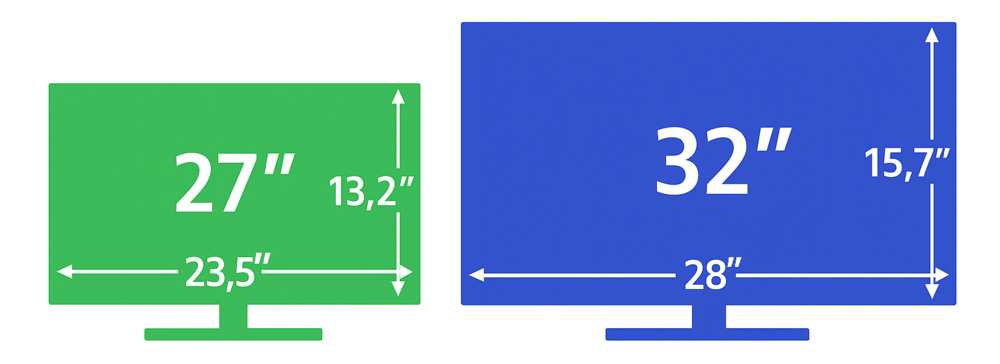
Same resolution, bigger panel. A 32-inch 4K monitor drops you to 140 PPI, which is still sharp but less dense. The physical screen is noticeably larger, which makes a real difference for gaming immersion and video editing timelines.
At 32 inches, you can run 125% scaling comfortably and still get a sharp image. Some people even run 100% scaling at this size because the larger panel makes UI elements physically bigger even at native resolution.
Choose 32" 4K if: you sit farther from your desk, you want more immersive gaming, or you need the extra physical screen space for creative timelines.
Choose 27" 4K if: you sit at a typical desk distance, you want maximum sharpness, or your desk space is limited.
27" 4K vs. 34" Ultrawide 1440p
A 34-inch ultrawide at 3440 × 1440 gives you extra horizontal space, which is great for multitasking and productivity. But the vertical resolution is the same as a standard 1440p monitor, and the pixel density drops to around 110 PPI.
You gain width but lose sharpness compared to 4K. For coding, spreadsheet work, and having three windows side by side, the ultrawide wins. For sharp text and detailed image work, the 27-inch 4K panel wins.
Choose the ultrawide if: horizontal space is your priority and you don't mind the lower pixel density.
Choose 27" 4K if: sharpness and vertical resolution matter more to you than extra width.
Who Should Actually Buy a 27-Inch 4K Monitor
Based on how people actually use their monitors, here's where a 27-inch 4K panel makes the most sense:
- Software developers who want sharp text and the ability to run multiple windows side by side.
- Photo editors who need to see fine detail without zooming in constantly.
- Video editors working on 4K timelines who want a 1:1 pixel preview without a massive screen dominating their desk.
- Office workers who read and write documents all day and want the crispest text possible.
- Console gamers with a PS5 or Xbox Series X who play at a desk and want 4K at 60Hz or 120Hz.
- Anyone upgrading from a 27-inch 1080p monitor who wants a dramatic jump in clarity without changing their desk setup.
Who Should Skip It and Go a Different Route
A 27-inch 4K monitor isn't for everyone. Here's where you should look elsewhere:
- Competitive gamers who need 240Hz or higher. Most 27-inch 4K monitors top out at 144Hz or 160Hz as of 2026. If high refresh rate is your priority, a 27-inch 1440p 240Hz monitor is the better pick.
- People with deep desks who sit more than 36 inches from their screen. Go 32 inches or larger.
- Budget-conscious buyers who don't want to spend on a powerful GPU. A 27-inch 1440p monitor paired with a mid-range GPU gives you a great experience for less money.
- Users who hate dealing with scaling settings. If you just want to plug in and go without tweaking anything, a 27-inch 1440p monitor at 100% scaling is the path of least resistance.
Common Mistakes People Making When Choosing
A few patterns show up repeatedly in user feedback and reviews.
Running at 100% scaling and suffering. People plug in a 27-inch 4K monitor, leave it at default scaling, and wonder why everything is so small. Set scaling to 150% right away. That's what the panel is designed for.
Ignoring GPU requirements. Buying a 4K monitor for gaming without checking whether your graphics card can actually drive it leads to disappointment. Check benchmarks for your specific GPU at 4K before committing.
Sitting too far back. If your desk is deep and you can't move the monitor closer, a 27-inch panel might feel small even though the resolution is high. Measure your actual viewing distance before buying.
Assuming all 4K monitors are the same. Panel type matters. An IPS panel gives you better viewing angles and color accuracy than a VA panel for most desktop use. OLED gives you perfect blacks but costs more and carries burn-in risk for static UI elements.
Forgetting about connectivity. Make sure your GPU has the right output. HDMI 2.0 can handle 4K at 60Hz. For 4K at 120Hz or higher, you need HDMI 2.1 or DisplayPort 1.4 with DSC.
Check your cable and port specs before setup day.
How to Set Up a 27" 4K Monitor So It Actually Works
Getting the most out of a 27-inch 4K monitor takes a few minutes of setup. Here's the order that works best:
- Set the native resolution. Make sure your operating system is outputting 3840 × 2160. This should be automatic, but check your display settings to confirm.
- Enable the correct refresh rate. If your monitor supports 120Hz or higher, make sure Windows or macOS is actually using it. It sometimes defaults to 60Hz.
- Set display scaling. On Windows, go to Settings > System > Display and set scaling to 150%. On macOS, go to System Settings > Displays and choose the "Looks like 2560 × 1440" option.
- Check your cable. Use a certified HDMI 2.1 or DisplayPort 1.4 cable to ensure you're getting full bandwidth. A cheap or old cable can limit your refresh rate or color depth.
- Calibrate if needed. For creative work, run a hardware calibration with a colorimeter. For general use, the factory calibration on most decent monitors is good enough.
- Adjust viewing distance. Pull the monitor to about 24 to 28 inches from your eyes. If your desk doesn't allow that, consider a monitor arm.
That's the full setup. Once scaling is dialed in and the monitor is at the right distance, a 27-inch 4K panel just works.
Real Scenarios: What Works and What Doesn't
Let's walk through a few common setups to see how this plays out in practice.
Scenario 1: Developer with a standard desk. You sit about 26 inches from your screen, run VS Code and a browser side by side, and have an RTX 4070. A 27-inch 4K monitor at 150% scaling is ideal. Text is sharp, you get plenty of room for two windows, and your GPU handles the resolution easily for desktop work.
Scenario 2: Console gamer at a desk. You play PS5 games about 30 inches from the screen. A 27-inch 4K monitor works, but you might want to bump the PS5's text size up in the system settings. The 4K output looks great, and 120Hz support in many titles makes it feel smooth.
Scenario 3: Video editor on a deep desk. You sit about 38 inches back because your desk is 40 inches deep. A 27-inch panel feels a bit small for judging detail in 4K footage. A 32-inch 4K monitor would serve you better here, giving you the same resolution in a larger physical frame.
Scenario 4: Budget gamer with a mid-range GPU. You have an RTX 4060 and want high frame rates. A 27-inch 4K monitor will bottleneck your gaming performance. A 27-inch 1440p 144Hz monitor is the smarter buy.
You'll get higher frame rates and a smoother experience.
The Final Decision Guide
Here's the simplest way to decide. Work through these questions in order.
How far do you sit from your monitor?
- Under 28 inches: 27" 4K is a great fit.
- 28 to 36 inches: Either works, but lean 32" if you want more immersion.
- Over 36 inches: Go 32" or larger.
What's your primary use?
- Productivity, coding, writing, photo editing: 27" 4K at 150% scaling.
- Competitive gaming: 27" 1440p high-refresh instead.
- Console gaming at a desk: 27" 4K with 120Hz support.
- Casual use and media: 27" 4K is more than enough.
What GPU do you have?
- RTX 4070 or better / RX 7800 XT or better: 4K gaming is viable.
- Below that tier: Stick with 1440p for gaming, or use 4K only for desktop work.
Do you want to deal with scaling settings?
- Yes, you don't mind tweaking: 27" 4K gives you the best sharpness.
- No, you want plug-and-play: 27" 1440p at 100% scaling is simpler.
If you answered in favor of 27" 4K across most of those questions, it's the right pick. If several answers pushed you toward alternatives, trust that instinct.
Frequently Asked Questions
Is 27 inches too small for 4K?
No, 27 inches is not too small for 4K. At typical desk viewing distances, 163 PPI produces a sharp, detailed image. The key is setting display scaling to 125% or 150% so UI elements remain comfortable to read.
Can you use a 27-inch 4K monitor without scaling?
Technically yes, but it's not recommended for most people. At 100% scaling, text and UI elements become very small at 163 PPI. Unless you have excellent eyesight and sit very close, you'll likely experience eye strain within a short time.
Is 27-inch 4K good for gaming?
It depends on your GPU and gaming preferences. A 27-inch 4K monitor looks stunning for single-player and cinematic games. For competitive gaming where high frame rates matter, a 27-inch 1440p high-refresh monitor is usually the better choice.
What's the best scaling for a 27-inch 4K monitor?
150% scaling on Windows is the sweet spot for most users. On macOS, the default "Looks like 2560 × 1440" setting achieves the same result. This gives you the workspace of a 1440p monitor with 4K sharpness.
Should I get a 27-inch 4K or a 32-inch 4K monitor?
If you sit within 28 inches of your screen and want maximum sharpness, go 27 inches. If you sit farther back or want a more immersive experience for gaming and media, 32 inches is the better fit. Both deliver 4K resolution, so it comes down to physical size and viewing distance.

Similar Posts





















