Is 144Hz Monitor Worth It
You’ve seen the ads. Smoother motion. Lightning-fast response.
A monitor that somehow makes your games feel completely different. But you’re also staring at the price tag wondering: is 144hz monitor worth it for me? It’s a fair question, because the answer depends on a lot more than just “gamers yes, everyone else no.”
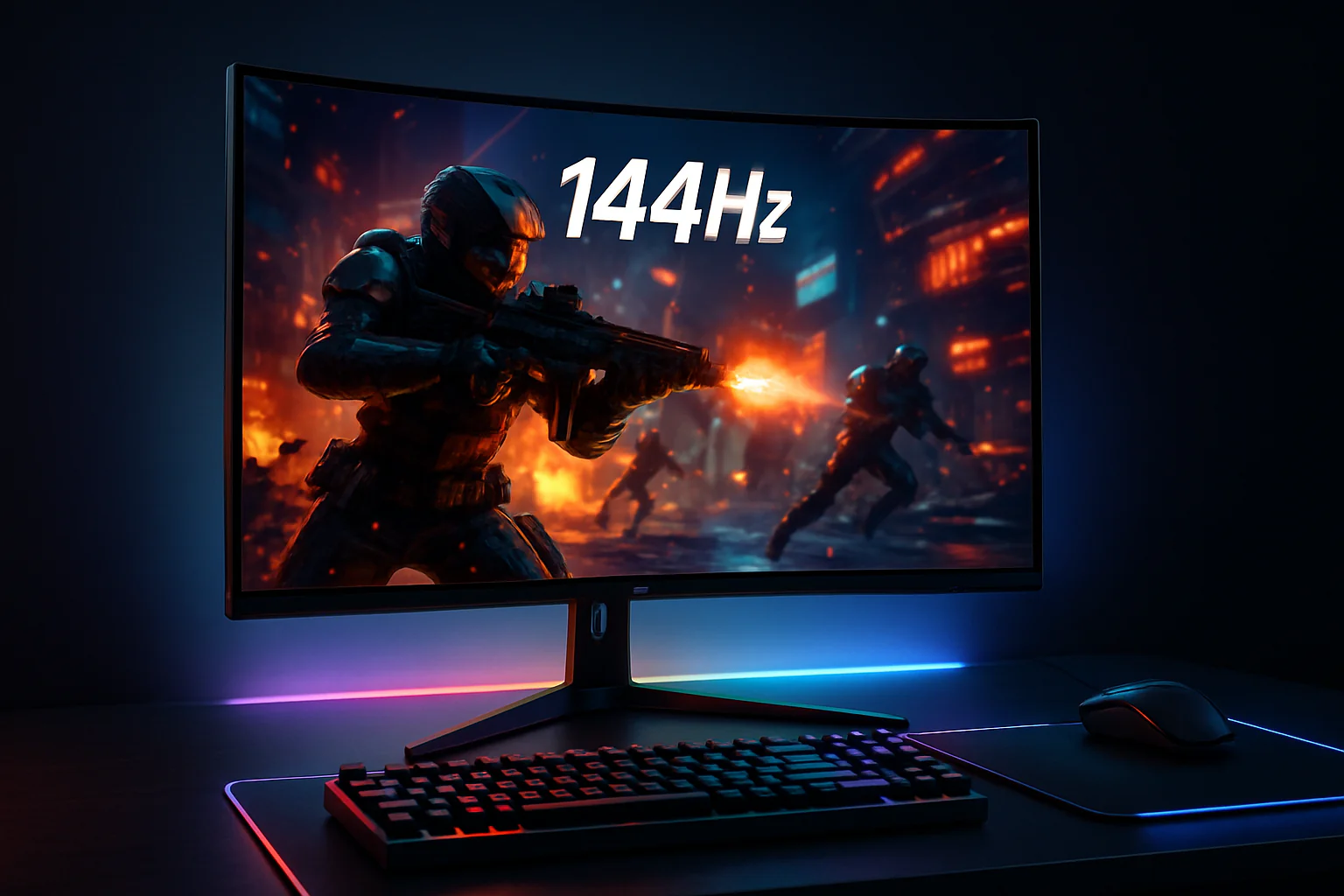
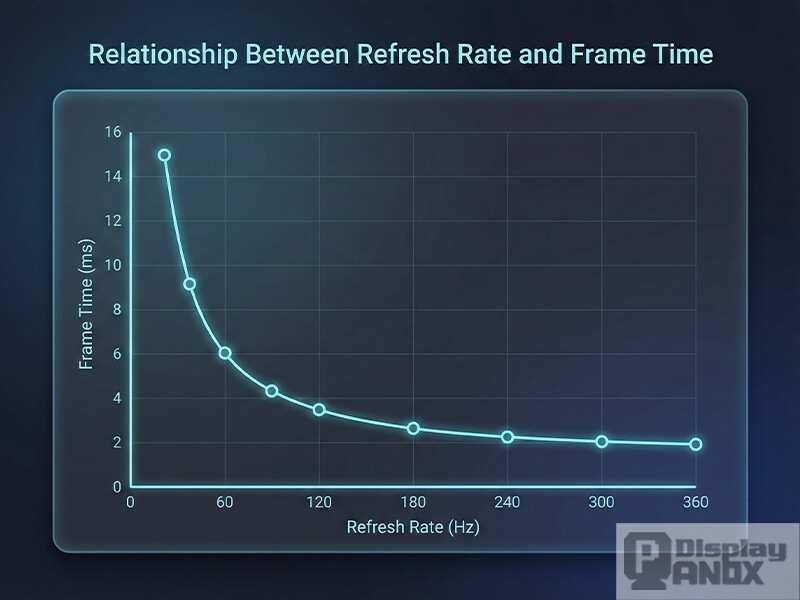
Manufacturer specifications show that a 144Hz monitor displays up to 144 frames per second, compared to 60 on a standard display. That cuts the time between frames from roughly 16.7 milliseconds to about 6.9 milliseconds. The difference is very real, but it’s not free.
Let’s walk through exactly where that money buys you something you’ll actually notice.
What’s Really at Stake Here
This isn’t about getting a “better” monitor in some abstract sense. It’s about whether the upgrade changes how you experience your computer day to day. A 144Hz monitor costs more than a standard 60Hz one.
It can demand a more powerful graphics card to actually drive those extra frames. And if you don’t really need it, that money could go toward a larger screen, a higher resolution, or just staying in your pocket.
The core trade-off is simple: smoothness versus everything else. You get noticeably smoother motion, lower perceived input lag, and less eye strain from flicker. But you often sacrifice resolution or panel quality at the same price point.
A $250 144Hz monitor will generally have worse color and contrast than a $250 60Hz monitor. So the real question is: how much do you value that smoothness?
The Quick Answer
A 144Hz monitor is worth it if you play competitive games and your PC can push 100+ frames per second. It’s less worth it for single-player games, office work, or content creation. The upgrade is most noticeable in fast-paced shooters and racing games.
Casual users and console gamers on older hardware won’t see a big difference.
How Refresh Rate & Frame Rate Work Together (Layman’s Terms)
Think of your monitor like a digital flipbook. The refresh rate (144Hz) is how many pages the monitor can flip per second. The frame rate (FPS) is how many new pictures your graphics card draws each second.
If your GPU only draws 60 pictures per second but the monitor can flip 144 pages, you still only see 60 frames. The monitor just shows the same picture multiple times per flip.
That’s the number‑one mistake people make: buying a 144Hz monitor without a GPU that can feed it. You need both sides of the equation. A mid‑range card like an RTX 3060 or RX 6600 can handle 100+ FPS in esports titles at 1080p, but not in demanding AAA games at higher settings.
Check your hardware before you open your wallet.
Three Big Condition Variables That Change the Answer
The “worth it” answer changes based on three things: your hardware, your games, and your budget.
Your GPU and CPU
If your graphics card can’t consistently push over 80 frames per second in the games you play, a 144Hz monitor won’t feel much different from a 60Hz one. You might see some benefit from reduced input lag, but the smoothness jump comes when your frame rate actually exceeds 60. Check your FPS in your most‑played games first. If you’re stuck at 45 FPS, save the monitor money and upgrade the GPU instead.
What Games You Play
Competitive shooters (Valorant, CS2, Overwatch 2) thrive on high frame rates. Racing sims and fast‑paced action games also benefit. But slow‑paced strategy games, RPGs with heavy dialogue, and most single‑player story games are perfectly fine at 60 FPS.
The extra refresh won’t hurt, but you won’t feel the “wow” factor either.
Your Budget and Monitor Use
If you only use your computer for web browsing, email, spreadsheets, and Netflix, you won’t notice 144Hz. The scrolling will look smoother, but it’s not a transformative experience. That $150, $300 could buy a better keyboard, a nicer mouse, or a larger monitor at 60Hz. Only spend on 144Hz if you’ll actually take advantage of it.
Decision Branch #1: You’re a Competitive Gamer
If you play ranked matches in Valorant, CS2, Apex Legends, Fortnite, or similar titles, a 144Hz monitor is one of the best upgrades you can make. Manufacturer specs and aggregate player feedback consistently report better accuracy and faster reaction times. The difference between 60Hz and 144Hz in a fast flick shot is night and day.
If/then: You play competitive shooters and your GPU can maintain 120+ FPS and you have the budget → buy a 144Hz monitor immediately. It’s your best bang‑for‑buck improvement after a decent mouse and keyboard.
If/then: You play competitively but your CPU or GPU can’t reach 100 FPS → upgrade your PC first. The monitor won’t help until your hardware catches up.
If/then: You play mostly casually but still want the edge → a 144Hz monitor is still worthwhile, but you can also consider a 120Hz model if you find a good deal. The difference between 120Hz and 144Hz is small.
We’ll keep going with the remaining sections next.
Decision Branch #2: You’re a Casual or Story‑Driven Gamer
If you mostly play single‑player games like The Witcher 3, Elden Ring, Red Dead Redemption 2, or Cyberpunk 2077, the 144Hz upgrade is less dramatic. These games cap out around 60 FPS on many GPUs, especially at higher graphics settings. You’ll still see smoother camera panning and scrolling, but the “wow factor” won’t be as strong.
If/then: You play story‑driven titles at high settings and your GPU can’t reach 90+ FPS → stick with a good 60Hz monitor. Put the savings toward a higher resolution or an IPS panel with better color.
If/then: You play a mix of competitive and casual games and you have a capable GPU → a 144Hz monitor still makes sense. You’ll get the benefit in multiplayer and still enjoy decent visuals in single‑player.
If/then: You’re on a tight budget and mostly play single‑player → skip 144Hz entirely. A 60Hz monitor with better contrast and color reproduction will serve you better.
Decision Branch #3: You Mostly Work or Browse (Office / Content Creation)
For office work, web browsing, spreadsheets, and content creation, a 144Hz monitor offers one real benefit: smoother scrolling. That’s it. The motion smoothness makes reading long documents and webpages feel more fluid, but it won’t make you more productive.
If/then: You spend 8+ hours daily reading text and scrolling → 144Hz can reduce eye fatigue for some users. Aggregate user feedback reports mixed results here, so it’s more of a comfort feature than a necessity.
If/then: You do photo editing, video editing, or graphic design → skip 144Hz unless you also game. A 60Hz or 75Hz monitor with accurate color (sRGB 99% or higher) and good contrast will serve you better for color‑critical work.
If/then: You want a single monitor for both work and light gaming → a 144Hz IPS panel gives you the best balance. You get smooth motion in games and solid color for office tasks. Just expect to pay a bit more for that combo.
Step‑by‑Step – How to Check If Your Current PC Can Run 144Hz
You don’t need to guess. Here’s the simple three‑step check.
Step 1: Check Your GPU’s Output
Look up your graphics card model on the manufacturer’s website. Any modern GPU from NVIDIA (GTX 10‑series or newer) or AMD (RX 500‑series or newer) supports 144Hz over DisplayPort. Most support it over HDMI 2.0 or later.
If your GPU is older than 2016, you may need to check the manual.
Step 2: Check Your Cable
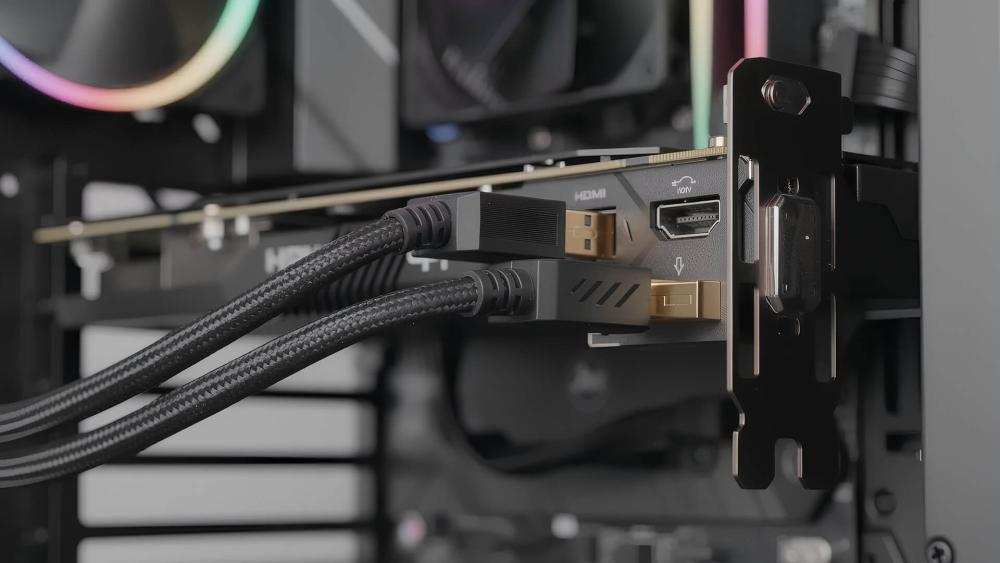
This is the most overlooked step. You need a DisplayPort cable (version 1.2 or higher) or an HDMI 2.0 cable to drive 144Hz at 1080p. HDMI 1.4 only supports 144Hz at lower resolutions like 720p. Many budget monitors ship with HDMI 1.4 cables, so check what came in the box.
Step 3: Test Your Frame Rates in Real Games
Don’t rely on synthetic benchmarks. Launch your most‑played game, turn on the built‑in FPS counter (or use a lightweight tool like MSI Afterburner), and play for 20 minutes. Note the average FPS.
If it stays above 80 consistently, a 144Hz monitor will benefit you. If it hovers in the 40s or 50s, save your money for a GPU upgrade first.
144Hz vs. 60Hz vs. 240Hz – Where Does It Fit?
Here’s the reality of the refresh rate ladder.
| Refresh Rate | Frame Time | Best For | Typical Price Range (1080p) |
|---|---|---|---|
| 60Hz | 16.7 ms | Office work, casual gaming, budget builds | $80 – $150 |
| 120Hz | 8.3 ms | Console gaming (PS5/Xbox), mid‑range PCs | $120 – $200 |
| 144Hz | 6.9 ms | Competitive PC gaming, best all‑around | $150 – $350 |
| 240Hz | 4.2 ms | Pro esports, extreme motion clarity | $300 – $600+ |
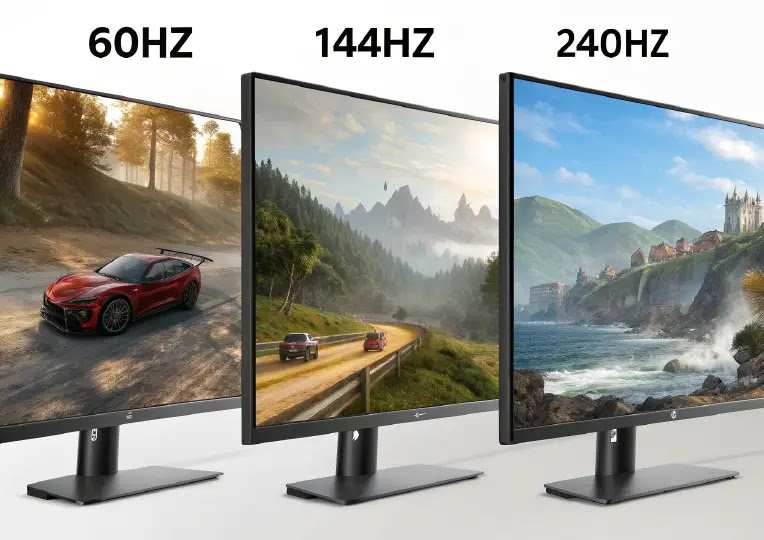
The sweet spot as of 2026 remains 144Hz. It offers a huge jump from 60Hz without the steep price premium of 240Hz. Unless you’re a professional esports player or have an unlimited budget, 144Hz gives you the best bang for your buck.
Common Mistakes That Waste Your Money (Or Leave You Frustrated)
Mistake 1: Buying 144Hz Without a GPU That Can Feed It
This is the biggest trap. You get the monitor, plug it in, and see the same 60 FPS you had before. The monitor is capable, but your hardware can’t keep up. Always check your average FPS before buying.
Mistake 2: Using the Wrong Cable or Port
Even with a good GPU, a cheap HDMI 1.4 cable can lock you at 60Hz. Use DisplayPort 1.2 or higher for 144Hz at 1080p. For 1440p 144Hz, you need DisplayPort 1.4.
Check your monitor’s manual for the correct port. Many monitors only support 144Hz on one specific HDMI or DP port.
Mistake 3: Forgetting to Enable 144Hz in Settings
Windows defaults to 60Hz. You have to go into Display Settings > Advanced Display > Refresh Rate and select 144Hz. Same on macOS.
If you don’t change it, you’re paying for a feature you’re not using.
Mistake 4: Sacrificing Panel Quality for Refresh Rate
A cheap 144Hz TN panel will look washed out and have poor viewing angles. For most people, a 60Hz IPS panel with good color is a better daily experience than a 144Hz TN panel. Look for an IPS or VA panel with a 144Hz refresh rate if you can stretch the budget.
Mistake 5: Ignoring Adaptive Sync (FreeSync / G‑Sync)
If your GPU supports FreeSync (AMD) or G‑Sync (NVIDIA), make sure your monitor supports it too. Adaptive sync eliminates screen tearing without the input lag of V‑Sync. This is a huge quality‑of‑life improvement for any gamer.
Check the monitor specs before you buy.
Real Cost vs. Real Benefit – When It’s a No‑Brainer and When It’s Not
Let’s put actual numbers on the table. A decent 144Hz 1080p IPS monitor runs $180 to $280 as of 2026. A comparable 60Hz IPS panel costs $100 to $150.
That’s about $80 to $130 extra for the high refresh rate.
When it’s a no‑brainer: You play competitive shooters, your GPU pushes 120+ FPS, and that $100 difference won’t hurt. You’ll feel the improvement every single session. The per‑hour cost of that upgrade drops fast if you game regularly.
When it’s questionable: You play mostly single‑player games at 60 FPS. You’re on a tight budget. Or you need accurate colors for photo editing.
In those cases, the $100 is better spent on a larger monitor, a higher resolution panel, or a better GPU.
When it’s a waste: You only use your computer for office work, Netflix, and casual browsing. The smoother scrolling is nice, but it’s not worth $100 to most people. Put that money toward a good chair or a mechanical keyboard instead.
Here’s a quick cost‑benefit breakdown:
| Situation | Extra Cost | Benefit You’ll Notice | Verdict |
|---|---|---|---|
| Competitive gamer, strong GPU | $80–$130 | Huge in fast games, decent elsewhere | Worth it |
| Casual gamer, mid‑range GPU | $80–$130 | Noticeable in some titles, not transformative | Maybe, if budget allows |
| Office / content creation | $80–$130 | Minimal (only smoother scrolling) | Not worth it |
| Budget build, older GPU | $80–$130 | None if frame rates stay below 80 | Not worth it |
The real sweet spot is the competitive gamer scenario. For everyone else, the value drops off quickly.
Your Personal Decision Guide (A Simple Flowchart in Words)
You don’t need a complex diagram. Just walk through these questions in order. Answer honestly, and you’ll land on the right call.
Question 1: Do you play competitive multiplayer games (Valorant, CS2, Overwatch 2, Apex) for at least 5 hours per week?
- Yes → Go to Question 2.
- No → Skip to Question 4.
Question 2: Does your GPU average 100+ FPS in those games at your preferred settings?
- Yes → Buy a 144Hz monitor. It’s one of the best upgrades you can make.
- No → Upgrade your GPU or CPU first. The monitor won’t help until your frame rate catches up.
Question 3: Can you afford the extra $100‑$130 without sacrificing panel quality (IPS or VA, not TN)?
- Yes → Go ahead. You’ll get the full benefit.
- No → Save a bit longer or look for a 120Hz model. The difference between 120Hz and 144Hz is small.
Question 4: Do you play any fast‑paced single‑player games (racing, action, FPS campaigns) and want smoother motion?
- Yes → A 144Hz monitor is a nice upgrade but not essential. Consider it if you have the budget.
- No → Stick with 60Hz. Use the savings for a better panel type, higher resolution, or other peripherals.
Question 5: Do you do any work that involves scrolling through long documents or spreadsheets for hours?
- Yes → 144Hz helps with eye comfort, but it’s a minor benefit. Only buy if you also game.
- No → Skip 144Hz entirely. You won’t miss it.
Follow these steps, and you’ll know exactly where you stand. No guesswork needed.
Frequently Asked Questions
Does 144Hz matter for console gaming on PS5 or Xbox Series X?
Yes, but only for games that support 120Hz output. Most PS5 and Xbox Series X titles run at 60 FPS or lower. For the ones that do support 120Hz (like Call of Duty or Fortnite), a 144Hz monitor will display them smoothly.
Just make sure your monitor supports HDMI 2.0 or higher and has a 120Hz mode.
Can you tell the difference between 60Hz and 144Hz?
Most people can, especially in motion. The difference is most obvious when moving the mouse quickly or panning the camera in a game. Side‑by‑side, 60Hz looks stuttery and slightly blurry compared to 144Hz.
Some people don’t notice it right away, but once you see it, it’s hard to go back.
Does a 144Hz monitor make you a better gamer?
It can help, but it won’t magically improve your skills. The smoother motion and lower input lag let you track targets more easily and react faster. Aggregate player feedback suggests most competitive gamers see a small but real improvement in accuracy and consistency.
It’s a tool, not a shortcut.
Do I need a special cable for 144Hz?
Yes. You need a DisplayPort 1.2 cable or an HDMI 2.0 cable for 144Hz at 1080p. For 1440p at 144Hz, you need DisplayPort 1.4.
The cable that comes with your monitor might not be capable, so check the version printed on the cable or buy a certified one separately.
Is 144Hz overkill for a 60FPS game?
If a game is locked at 60 FPS, a 144Hz monitor won’t make it look smoother in terms of motion fluidity. However, you still benefit from lower input lag and reduced screen tearing if you enable adaptive sync. The improvement is small but noticeable to some people.
For most, it’s not worth the extra cost if you never play above 60 FPS.
Should I get a 144Hz monitor if I have a laptop?
It depends on your laptop’s GPU. Gaming laptops with a dedicated GPU (RTX 3050 or better) can often push 100+ FPS in esports titles at 1080p. If your laptop can deliver those frames, an external 144Hz monitor is a solid upgrade.
If you have a laptop with integrated graphics only, stick with 60Hz.

Similar Posts





















