How to Use 4K Monitor for Netflix
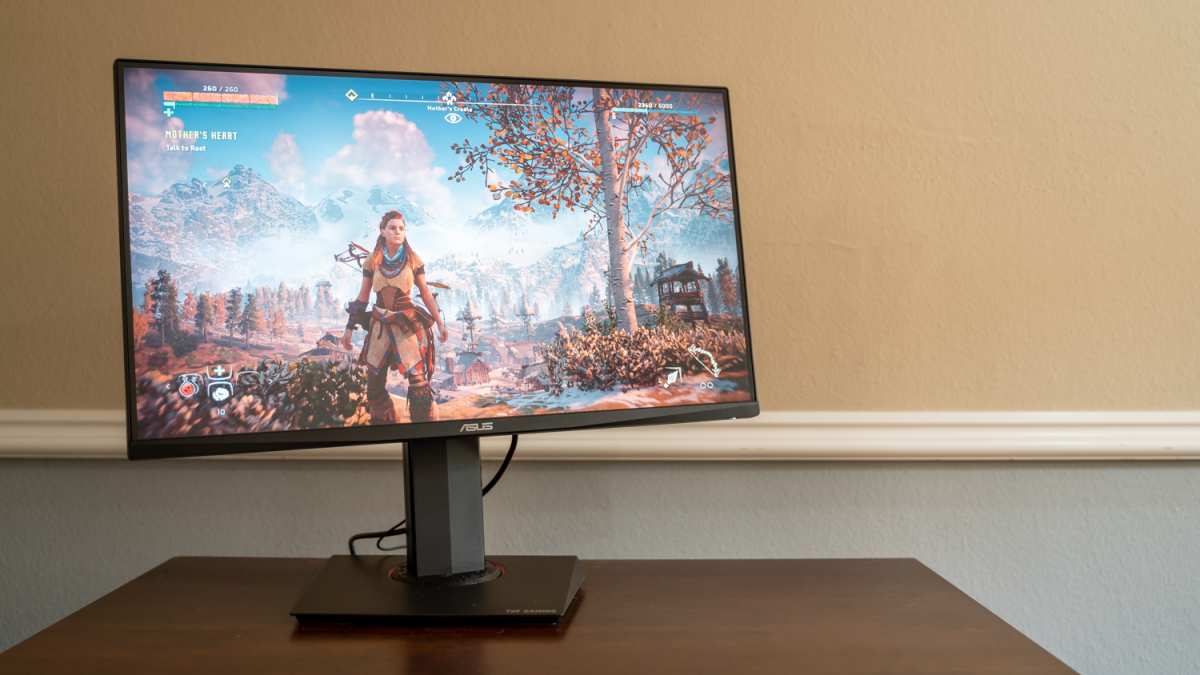
So you've got a 4K monitor and you're ready to enjoy Netflix in Ultra HD. But something's not working. Maybe the resolution looks soft.
Maybe you're seeing 1080p when you expected 3840 × 2160. Or maybe you're getting a black screen during playback and have no idea why. This directly compares with our findings on how to use hdr monitor for netflix.
Learning how to use a 4K monitor for Netflix isn't as simple as plugging in a cable. There's a chain of requirements that all need to line up. Miss one link and you won't get 4K, no matter how expensive your display is.
The good news is that once you know what to check, the fix is usually straightforward.
Netflix requires HDCP 2.2 compliance across your entire setup. That means your monitor, cable, graphics card, and playback method all need to support it. Let's walk through exactly what that looks like and how to get it working. You can also reference our testing on how to use your ipad as a second monitor for windows when configuring your display.
Quick Answer
To use a 4K monitor for Netflix, you need a Netflix Premium subscription. Your monitor must support HDCP 2.2. You need an HDMI 2.0 or DisplayPort 1.2 cable at minimum.
On Windows, use the Netflix app from the Microsoft Store or the Edge browser. Verify playback at 3840 × 2160 using the Netflix stats overlay.
Why Netflix Won't Show 4K on Your Monitor (And How to Fix It)
The most common reason is a mismatch somewhere in your setup chain. Netflix enforces strict copy protection for 4K content. If any part of your connection fails that check, the stream drops to 1080p or refuses to play entirely.
Here's what typically goes wrong:
- Your Netflix plan doesn't include 4K. Only the Premium tier streams in Ultra HD. Standard and Basic plans cap at 1080p and 720p respectively.
- Your monitor lacks HDCP 2.2 support. Many budget 4K monitors only support HDCP 1.4. That's fine for 1080p but blocks 4K protected content.
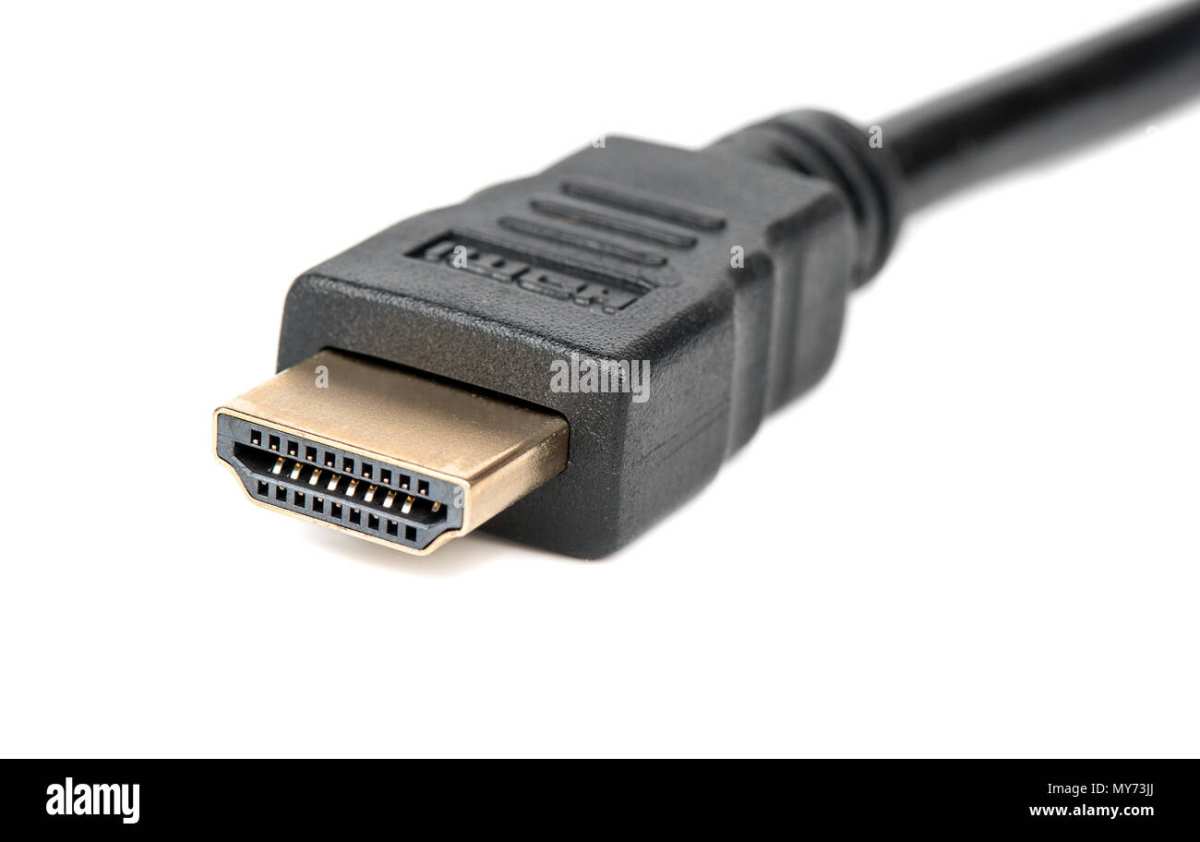
- Your HDMI cable is too old. Cables manufactured before 2013 often don't carry HDCP 2.2. You need at least HDMI 2.0.
- You're using the wrong browser. On Windows, only Microsoft Edge and the Netflix app support 4K playback. Chrome and Firefox don't.
- Your GPU doesn't support HDCP 2.2. Older or budget graphics cards may lack this capability.
The fix depends on which link is broken. We'll cover each one in the sections below.
The Real Requirements Most People Miss
Let's break down every component that needs to support 4K Netflix. Skip any one of these and you'll hit a wall.
Your Netflix Plan
Netflix only streams 4K on its Premium subscription. As of 2026, that runs $22.99 per month in the US. The Standard plan with ads and the ad-free Standard plan both max out at 1080p.
The Basic plan is even lower at 720p.
You can check your plan by logging into Netflix and going to Account > Plan Details. If you're not on Premium, that's your bottleneck right there.
Your Monitor's HDCP Support
HDCP stands for High-bandwidth Digital Content Protection. It's the copy protection system that Netflix uses to prevent 4K streams from being recorded. Version 2.2 is required for 4K content.
Not all 4K monitors support HDCP 2.2. Some only have HDCP 1.4, which works fine for 1080p protected content but blocks 4K. You'll need to check your monitor's manual or spec sheet.
Look specifically for "HDCP 2.2" in the technical specifications.
If your monitor has multiple HDMI ports, check whether all of them support HDCP 2.2. On some monitors, only one or two ports are compliant. Try different ports if 4K isn't working.
Your Cable and Port
The cable matters more than most people think. Here's what you need:
| Cable Type | Minimum Version | Supports 4K Netflix? |
|---|---|---|
| HDMI | 2.0 | Yes (with HDCP 2.2) |
| HDMI | 1.4 | No |
| DisplayPort | 1.2 | Yes (with HDCP 2.2) |
| DisplayPort | 1.1 | No |
| USB-C (with DP Alt Mode) | DP 1.2+ | Yes |
If you're using an adapter (like HDMI-to-DisplayPort), make sure it also supports HDCP 2.2. Many cheap adapters don't pass through the copy protection handshake.
Your GPU and Browser
Your graphics card needs to support HDCP 2.2. Most GPUs from 2016 onward do, but it's worth checking. NVIDIA, AMD, and Intel all list HDCP support in their product specifications.
For browser playback on Windows, only Microsoft Edge supports 4K Netflix. Google Chrome and Firefox are limited to 1080p due to DRM restrictions. On macOS, you can use the Netflix app from the Mac App Store or Safari with compatible hardware.
Is Your Setup Actually 4K-Capable? Let's Check
Before diving into fixes, let's verify what you're working with. This saves time troubleshooting the wrong thing.
Check Your Netflix Plan
Log into Netflix on any device. Go to Account > Plan Details. You need "Premium" listed.
Anything else won't give you 4K.
Check Your Monitor's HDCP Support
Look up your monitor model on the manufacturer's website. Find the full spec sheet. Search for "HDCP" in the document.
You need version 2.2 listed. If it only says HDCP 1.4 or just "HDCP" without a version number, assume it's 1.4.
Check Your Cable
Look at the cable itself. HDMI cables sometimes have version printed on the connector or cable jacket. If you can't find a version number, check when you bought it.
Cables manufactured after 2016 are more likely to be HDMI 2.0 or newer. When in doubt, replace it with a certified Premium High Speed HDMI cable.
Check Your GPU
On Windows, open Device Manager > Display Adapters. Note your GPU model. Then search for that model's specifications on the manufacturer's website.
Look for HDCP support in the specs.
For NVIDIA cards, most GeForce GTX 900 series and newer support HDCP 2.2. For AMD, most Radeon RX 200 series and newer. For Intel integrated graphics, HDCP 2.2 support starts with 6th generation Core processors (Skylake) and newer, though some configurations may still have limitations.
How to Get 4K Netflix Working on Windows
There are two reliable methods on Windows. Pick the one that works best for your setup.
Method 1: The Netflix App from Microsoft Store
This is the most reliable option. The Netflix app from the Microsoft Store supports 4K, HDR, and Dolby Vision when your hardware allows it.
Here's how to set it up:
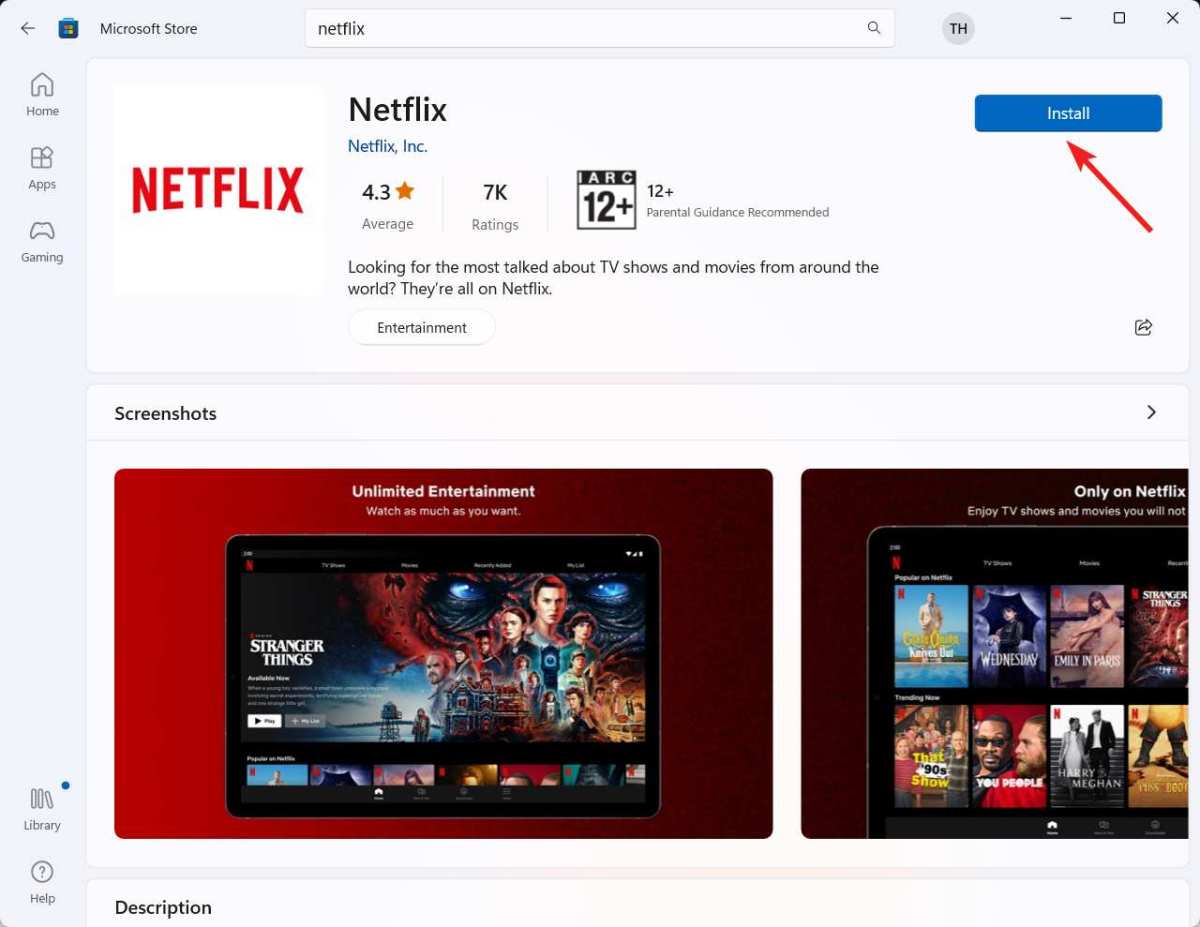
- Open the Microsoft Store on your Windows PC.
- Search for "Netflix" and install the official app.
- Launch the app and sign in with your Premium account.
- Search for a known 4K title like "Our Planet" or "Stranger Things."
- Start playing the title.
- Press Ctrl + Shift + Alt + D to open the playback stats overlay.
- Check that the resolution shows 3840 × 2160 and the codec shows HEVC or DV (Dolby Vision).
If the resolution shows 1920 × 1080, one of your requirements isn't met. Go back and check each link in the chain.
Method 2: Using Microsoft Edge Browser
If you prefer browser playback, Microsoft Edge is your only option for 4K on Windows. Chrome and Firefox don't support the necessary DRM level.
Here's the process:
- Make sure Edge is updated to the latest version.
- Go to netflix.com and sign in.
- Play a 4K title.
- Press Ctrl + Shift + Alt + D to view the stream information.
- Confirm the resolution is 3840 × 2160.
Edge uses PlayReady DRM, which Netflix trusts for 4K playback. Other browsers use Widevine, which Netflix only authorizes up to 1080p on Windows.
How to Get 4K Netflix Working on Mac
Mac users have a straightforward path, but there are some specifics to know.
On macOS, you can use the Netflix app from the Mac App Store or Safari with a compatible Mac. Apple's integration with Netflix is generally smoother because Apple controls both the hardware and software stack.
For the Netflix app method:
- Open the Mac App Store.
- Search for "Netflix" and download the app.
- Sign in with your Premium account.
- Play a 4K title.
- Verify resolution using the playback stats.
For Safari, make sure your Mac supports HDCP. Most Macs from 2015 onward with dedicated graphics or Apple Silicon handle this without issues. If you're using an external 4K monitor with your Mac, connect via Thunderbolt or USB-C to DisplayPort.
Make sure the cable and monitor both support HDCP 2.2.
How to Verify You're Actually Getting 4K
Don't assume it's working just because your monitor is 4K. The stream itself might be 1080p even though your desktop is set to 4K.
Netflix has a hidden stats overlay that shows exactly what you're getting. Press Ctrl + Shift + Alt + D on Windows or Ctrl + Shift + Option + D on Mac while a video is playing.
Here's what to look for:
| Stat | What You Want to See | What It Means |
|---|---|---|
| Playing bitrate | 15,000+ kbps | 4K streams run 15-25 Mbps |
| Resolution | 3840 × 2160 | Confirms 4K stream |
| Codec | HEVC or DV | 4K uses HEVC; Dolby Vision shows as DV |
| Color space | BT.2020 | Indicates HDR content |
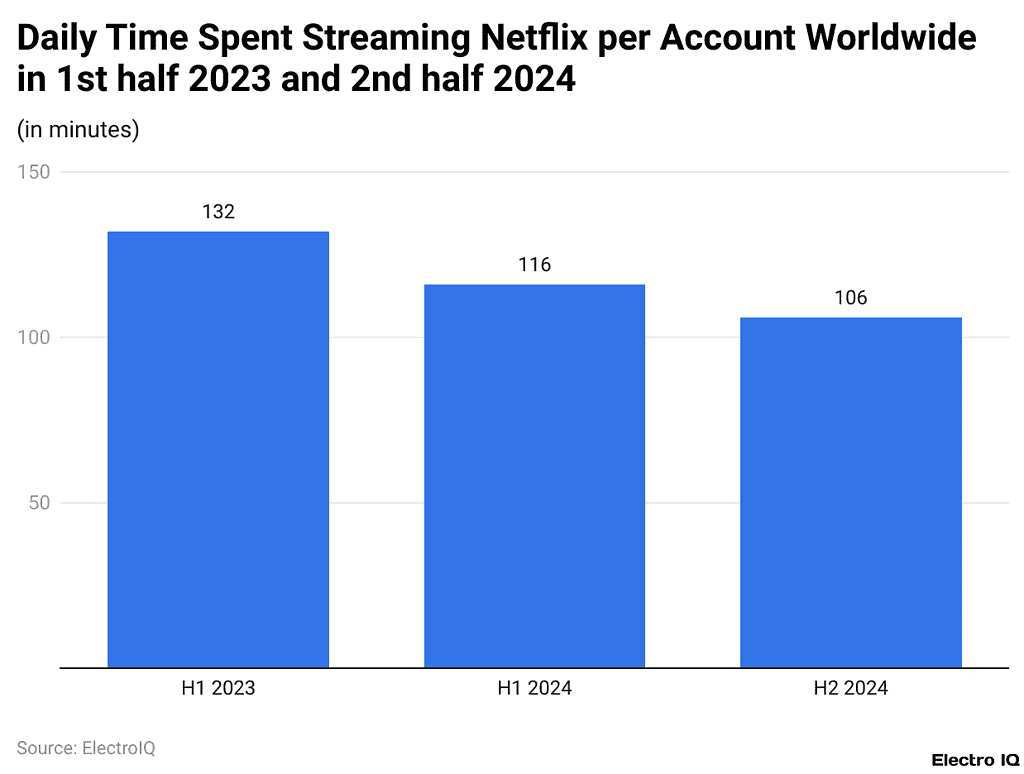
If the resolution shows 1920 × 1080, you're not getting 4K. If the bitrate is below 10,000 kbps, your internet connection might be the bottleneck. Netflix recommends 15 Mbps minimum for 4K streams.
The Most Common Problems (And Their Fixes)
Even when everything looks right on paper, things can still go wrong. Here are the issues we see most often and how to solve them.
Black Screen During Playback
This is almost always an HDCP handshake failure. Your PC and monitor aren't agreeing on copy protection. Try these steps:
- Unplug the HDMI or DisplayPort cable from both ends.
- Wait 10 seconds.
- Reconnect firmly.
- If that doesn't work, try a different port on your monitor.
- Try a different cable that you know supports HDCP 2.2.
- Update your GPU drivers to the latest version.
If you're using an adapter or dock, remove it and connect directly. Many USB-C docks and adapters don't pass through HDCP 2.2 properly.
Resolution Stuck at 1080p
If the Netflix stats show 1920 × 1080 despite having a 4K monitor, check these:
- Your Netflix plan. Premium is required.
- Your browser. Only Edge supports 4K on Windows.
- Your display settings. Right-click desktop > Display Settings. Make sure the resolution is set to 3840 × 2160 and the refresh rate is 60Hz. Netflix won't stream 4K to a 30Hz display.
- Your internet speed. Run a speed test. You need at least 15 Mbps sustained.
4K Works but Looks Washed Out
This usually means HDR is enabled but your monitor doesn't handle it well, or Windows is sending an HDR signal to an SDR display.
Try this:
- Go to Settings > System > Display.
- Turn off HDR if your monitor doesn't support it properly.
- If your monitor does support HDR, check its on-screen display settings for an HDR mode.
- Some monitors have separate picture modes for HDR content. Make sure you're using the right one.
Quick Reference: Everything You Need in One Place
Here's a checklist you can come back to. Every item needs to be satisfied for 4K Netflix to work.
| Requirement | What You Need | How to Check |
|---|---|---|
| Netflix plan | Premium ($22.99/month) | Account > Plan Details |
| Monitor resolution | 3840 × 2160 | Display settings |
| HDCP support | HDCP 2.2 | Monitor spec sheet |
| Cable | HDMI 2.0+ or DP 1.2+ | Cable markings or specs |
| GPU | HDCP 2.2 capable | GPU product specs |
| Refresh rate | 60Hz | Display settings > Advanced |
| Internet speed | 15+ Mbps | Speed test |
| Playback method | Netflix app or Edge (Windows) | Install from Microsoft Store |
| Codec support | HEVC or Dolby Vision | Netflix stats overlay |
When to Just Buy a Streaming Device Instead
If your PC setup has too many compatibility issues, a dedicated streaming device might be simpler. Devices like the Apple TV 4K, Chromecast with Google TV, or Roku Ultra handle all the DRM and HDCP requirements internally. They're designed specifically for streaming and avoid the PC-specific headaches.
This makes sense if:
- Your GPU doesn't support HDCP 2.2 and you don't want to upgrade.
- Your monitor only has HDCP 1.4 and you don't want to replace it.
- You want Dolby Vision support without troubleshooting.
- You'd rather not keep your PC running just to watch TV.
A streaming device connects directly to your monitor via HDMI and handles everything. Just make sure your monitor's HDMI port supports HDCP 2.2, or you'll run into the same issues.
Frequently Asked Questions
Can I watch Netflix 4K on Chrome or Firefox?
No. On Windows, only Microsoft Edge and the Netflix app from the Microsoft Store support 4K playback. Chrome and Firefox are limited to 1080p because Netflix requires PlayReady DRM for 4K, which those browsers don't support on Windows.
Does my monitor need HDR for 4K Netflix?
No. HDR is separate from 4K resolution. You can stream 4K SDR content without HDR.
However, many 4K Netflix titles also include HDR, so having an HDR-capable monitor lets you enjoy both.
Why does Netflix show 1080p on my 4K monitor?
The most common causes are a non-Premium Netflix plan, using Chrome or Firefox instead of Edge, an HDMI cable that doesn't support HDCP 2.2, or your monitor lacking HDCP 2.2 support. Check each link in the chain.
Can I use a USB-C cable for 4K Netflix?
Yes, if your USB-C cable and port support DisplayPort Alt Mode with DP 1.2 or higher, and HDCP 2.2 is supported through the connection. Many USB-C to HDMI adapters also work, but cheap ones may not pass through HDCP properly.
How do I know if my HDMI cable supports 4K?
Look for "Premium High Speed HDMI" or "Ultra High Speed HDMI" printed on the cable or packaging. If the cable is unmarked and old, replace it with a certified cable. They're inexpensive and eliminate cable issues from the troubleshooting list.
What About Dolby Vision and HDR?
Dolby Vision and HDR10 are both dynamic range formats that improve picture quality beyond standard 4K. Netflix supports both, but your monitor needs to specifically support them.
Dolby Vision is the more premium option. It uses dynamic metadata that adjusts scene by scene. HDR10 uses static metadata for the entire content.
Many 4K monitors support HDR10 but not Dolby Vision. Check your monitor's spec sheet for both.
If your monitor supports Dolby Vision, the Netflix app on Windows will automatically use it when available. Look for the Dolby Vision badge on titles. If you only see "HDR" without the Dolby Vision logo, your monitor is using HDR10.
How Does This Work With Laptops?
Laptops add another layer of complexity. Many laptops with 4K displays route video output through integrated graphics rather than the dedicated GPU. This can cause HDCP issues.
Here's what to check on a laptop:
- Does the HDMI or DisplayPort output connect to the dedicated GPU or integrated graphics?
- Does the integrated GPU support HDCP 2.2? Intel UHD 630 and newer generally do.
- If using USB-C, does the port support DisplayPort Alt Mode with HDCP?
Some laptops have multiple video outputs connected to different GPUs. Try both HDMI and USB-C if 4K isn't working on one.
When Should You Upgrade Your Setup?
If your monitor only supports HDCP 1.4, no amount of troubleshooting will enable 4K Netflix. You'll need a new monitor. If your GPU is too old, you'll need a graphics card upgrade.
If your cables are aging, a $10 replacement solves it.
The cheapest fix is usually the cable. A certified Premium High Speed HDMI cable costs under $15. A new monitor with HDCP 2.2 starts around $250 for a 27-inch 4K display.
GPU upgrades range from $150 to several hundred dollars depending on your needs.
Final Tips for a Smooth 4K Netflix Experience
Keep your GPU drivers updated. Both NVIDIA and AMD regularly update HDCP handling in driver releases. If you're on a laptop, check the manufacturer's support site for BIOS updates that might improve HDCP compatibility.
If you're getting intermittent dropouts where 4K works for a few minutes then drops to 1080p, try disabling any overlay software. Discord overlay, Steam overlay, and some screen recording tools can interfere with HDCP.
For the best overall experience, the Netflix app from the Microsoft Store tends to be more reliable than browser playback. It handles the DRM natively and doesn't depend on browser updates that might break compatibility.
With the right setup, 4K Netflix on a monitor looks fantastic. The higher pixel density of a desktop monitor compared to a TV means you'll notice the detail improvement more clearly. Once you've got it working, every other streaming resolution looks noticeably softer.

Similar Posts





















