How to Test If Monitor Is Really 4K
Figuring out how to test if monitor is really 4K capability sounds simple until you realize the answer depends on a chain of components. Your graphics card, your cable, your port, your OS settings, and the monitor's own panel all have to align. Miss one link and you won't get true 3840 × 2160 output, even if the box said "4K."
True 4K UHD means 8.3 million pixels on screen at 3840 × 2160, per the ITU-R BT.2087 standard. Most people never verify this after unboxing. Let's walk through exactly how to confirm your setup. Readers comparing various configurations should also examine monitor refresh rate & does it really matter.
Image source: Bing (Web (fair-use with source credit))
Quick Answer
Check your OS display settings first. If it shows 3840 × 2160 at 60Hz, you're close. Then confirm your cable and port actually support 4K at that refresh rate.
Finally, verify in the monitor's own on-screen display that the incoming signal matches. If all three match, you've got real 4K.
Why Your “4K Monitor” Might Not Actually Be 4K
Here's the uncomfortable truth. Your monitor can be a genuine 4K panel and still not display 4K. That happens when something in the signal chain bottlenecks the output. To see how this holds up against alternate models, explore how to test charging on usb c monitor.
Maybe you plugged into the motherboard's video port instead of the graphics card. Maybe the HDMI cable is an old 1.4 version that caps 4K at 30Hz. Maybe your GPU doesn't support the bandwidth needed.
We've seen all of these.
Some budget monitors also get creative with marketing. They accept a 4K signal internally and downscale it to a lower native panel resolution. Technically the input is "4K capable." The actual pixels on screen are not.
The fix is systematic verification. Check each link in the chain rather than trusting any single indicator.
The Quick Checks That Tell You Most of What You Need to Know
Before diving into menus and cables, run through these three sanity checks. They'll catch most problems in under two minutes.
1. Does your OS show 3840 × 2160 as the active resolution? If it shows anything lower like 2560 × 1440 or 1920 × 1080, something upstream is limiting you.
2. Is the refresh rate correct? 4K at 30Hz feels noticeably less smooth than 4K at 60Hz. If you're stuck at 30Hz, your cable or port almost certainly can't push enough bandwidth for 60Hz.
3. Is the monitor's built-in OSD reporting a 3840 × 2160 input signal? The OSD doesn't lie. If it says the incoming signal is 1080p, no amount of OS-level settings will fix that.
If any of these three checks fail, the detailed steps below will pinpoint exactly where the problem is.
Step 1: Check What Your Operating System Is Actually Sending
:max_bytes(150000):strip_icc()/Displayresolutionannotated-c6db92620fdb4eefac48bd59260470f5.jpg)
Your OS reports what resolution it's outputting to the display. This is the fastest place to start.
:max_bytes(150000):strip_icc()/Displayresolutionannotated-c6db92620fdb4eefac48bd59260470f5.jpg)
Image source: Bing (Web (fair-use with source credit))
Windows Display Settings
- Right-click on the desktop background.
- Select Display settings.
- Scroll to Display resolution.
- Check that it reads 3840 × 2160.
- Click Advanced display and verify the refresh rate listed (ideally 60Hz or higher).
If you only see resolutions up to 2560 × 1440 here, your GPU doesn't see a 4K-capable display connected. That points to a cable, port, or driver issue.
Also check Advanced display settings → Display adapter properties → List All Modes. This shows every resolution and refresh rate combination your GPU can output to the connected panel. If 3840 × 2160 at 60Hz isn't listed, the hardware handshake isn't agreeing on that mode.
macOS Display Preferences
- Open System Settings (or System Preferences on older macOS).
- Go to Displays.
- Hold the Option key and click Scaled to see all available resolutions.
- Look for 3840 × 2160 in the list.
macOS is picky about 4K. As of 2026, 4K output at 60Hz requires DisplayPort 1.2 or HDMI 2.0 minimum, and not all Mac models support HDMI 2.0 through adapters. If you're using a USB-C to HDMI adapter, verify the adapter's specs explicitly.
Linux Display Configuration
- Open Settings → Displays (GNOME) or use your desktop environment's display panel.
- Check the resolution dropdown for 3840 × 2160.
- For terminal verification, run:
xrandr | grep "*"
The xrandr output shows the active resolution and refresh rate on the current output. Example output: 3840x2160 60.00*+ means you're running at full 4K 60Hz.
If the output shows something like 1920x1080 60.00*+, your system is sending 1080p instead.
Step 2: Verify Your Hardware Can Actually Output 4K
Your OS settings might show 4K even if the hardware path can't sustain it properly. Let's verify the source.
GPU Output Capabilities
Not every GPU supports 4K. Even modern integrated graphics vary widely.
| GPU Example | Max Resolution | 4K Support | Notes |
|---|---|---|---|
| Intel UHD 770 (12th/13th Gen) | 7680 × 4320 | Yes, at 60Hz via DP 1.4 | HDMI 2.1 support varies by motherboard |
| AMD Radeon RX 6600 | 7680 × 4320 | Yes, 4K at 120Hz | Requires DP 1.4 or HDMI 2.1 |
| NVIDIA GTX 1050 Ti | 7680 × 4320 | Yes, 4K at 60Hz | HDMI 2.0b, DP 1.4 |
| Intel UHD 630 (8th/9th Gen) | 4096 × 2304 | Limited, often 4K at 30Hz via HDMI | Many laptops cap at 30Hz |
Check your specific GPU model's specs on the manufacturer's official product page. Don't rely on marketing names alone. A "GTX 1650" exists in multiple variants with different output capabilities.
The Port You're Using Matters More Than You Think
This catches more people than any other issue.
If you're plugged into the motherboard's video port, you're using the CPU's integrated graphics. Not the dedicated GPU. Even if you have a powerful graphics card installed, the motherboard ports route through the integratedGPU instead.
Look at the back of your desktop. The video ports near the top, clustered with USB ports and audio jacks, belong to the motherboard. The video ports lower down, on a separate bracket, belong to your graphics card.
Plug into the wrong one and your discrete GPU sits idle.
Laptops are trickier. Many laptops route HDMI through the integrated GPU while USB-C/DisplayPort connects directly to the discrete GPU. If your laptop has both, try the USB-C to DisplayPort path for 4K 60Hz.
Also, some desktop GPUs have multiple ports with different capabilities. One HDMI 2.1 port and one HDMI 1.4 port on the same card, for example. Check your specific card's manual to know which port supports what.
Step 3: Check Your Cable — This Is Where Most People Get Tripped Up
The cable is the single most common bottleneck in the chain. Every connector looks about the same from the outside. The version differences inside are enormous.
Image source: Wikimedia Commons / Bretwa (CC BY-SA)
HDMI Version Limitations
HDMI cables aren't labeled with their version on the connector. That's a long-standing frustration. You often can't tell a 1.4 cable from a 2.1 cable without checking the packaging or using a cable that has the version printed on it.
| HDMI Version | Max Bandwidth | 4K Support | Max Refresh at 4K |
|---|---|---|---|
| 1.4 | 10.2 Gbps | Yes | 30Hz |
| 2.0 | 18 Gbps | Yes | 60Hz at 8-bit color |
| 2.1 | 48 Gbps | Yes | 120Hz at 4K with DSC |
If you're running 4K at 30Hz and wondering why mouse movement feels sluggish, you're probably on HDMI 1.4. Bump to HDMI 2.0 minimum for a usable 4K desktop experience.
The cable itself must also support the required bandwidth. A "High Speed HDMI" cable covers HDMI 1.4 needs. For HDMI 2.0, look for "Premium High Speed HDMI." For HDMI 2.1, you need "Ultra High Speed HDMI." These labels are certified by HDMI Licensing Administrator, Inc.
DisplayPort Version Requirements
DisplayPort has its own version chain that matters just as much.
| DisplayPort Version | Max Bandwidth | 4K Support | Max Refresh at 4K |
|---|---|---|---|
| 1.2 | 17.28 Gbps | Yes | 60Hz at 8-bit color |
| 1.3/1.4 | 25.92 Gbps | Yes | 120Hz with DSC |
| 2.0/2.1 | 77.37 Gbps | Yes | 240Hz with DSC |
Most 4K 60Hz monitors only need DisplayPort 1.2. If you bought a 4K 144Hz gaming monitor, DP 1.4 with DSC (Display Stream Compression) becomes necessary.
Cable quality matters here too. A damaged or poorly made DP cable might fail to negotiate the full bandwidth, dropping you to a lower resolution or refresh rate without any obvious error message.
A quick rule of thumb. If your resolution or refresh rate options seem limited, swap the cable before assuming anything else is wrong. It's cheap to try and fixes the problem more often than you'd expect.
Step 4: Look at What the Monitor Itself Is Telling You
Your monitor knows exactly what signal it's receiving. You just have to look in the right place.
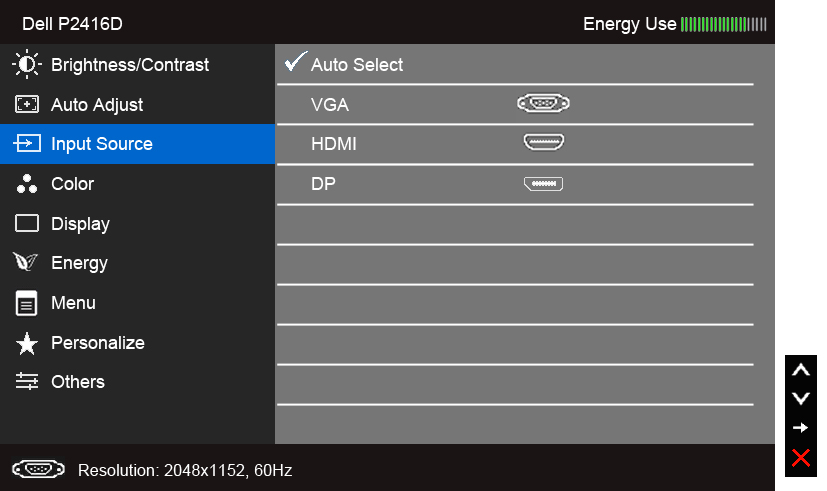
Image source: Bing (Web (fair-use with source credit))
Monitor On-Screen Display (OSD)
Every monitor has a built-in menu. Usually accessed through buttons on the bezel or a joystick on the back. Navigate to the Information or Input section.
Look for:
- Input Signal or Input Resolution
- Current Resolution
- Signal Format
A true 4K input shows as 3840 × 2160 (or sometimes displayed as 2160p). If it reads 1080p or 1920 × 1080, your source is sending 1080p and the monitor's internal scaler is stretching it to fill the panel.
This is how you catch a monitor that claims "4K compatible" or "4K input supported" but has a 1080p native panel. The OSD reveals the truth.
EDID Information
EDID (Extended Display Identification Data) is the data block your monitor sends to your GPU describing its capabilities. Your OS reads this during the handshake.
You can view EDID data through:
- Windows: GPU control panel (NVIDIA Control Panel → Change Resolution → see supported modes) or tools like Monitor Asset Manager
- macOS: System Information → Graphics/Displays
- Linux:
sudo get-edid | parse-edidorcat /sys/class/drm/*/edid | edid-decode
The EDID lists every native resolution and refresh rate the panel supports. If 3840 × 2160 at 60Hz isn't in the EDID, the panel isn't a true 4K display. No cable or settings change will override that.
Some monitors have different EDID data per input port. A monitor might report full 4K support on DisplayPort but only 1440p on an older HDMI port. Check the EDID for the specific port you're using.
Step 5: Run a Visual Test to Confirm Native 4K
Software settings can lie. A visual test doesn't.
Online Resolution Test Patterns
Open a browser and navigate to a resolution test pattern site. Display a test image designed to show individual pixel rows and columns. On a true 4K panel at native resolution, you should see:
- Distinct single-pixel-wide lines
- Clean, sharp text at the smallest sizes
- No blurring or color fringing on high-contrast edges
If the test pattern looks soft or you can't distinguish the finest lines, you're likely not at native resolution.
The Single-Pixel Test
Create a simple test in any image editor. Make a 3840 × 2160 canvas. Place a single white pixel on a black background.
Display it full screen.
On a true 4K monitor, that pixel should be exactly one physical pixel. If it appears blurry, doubled, or scaled, the display is interpolating from a lower resolution.
Text Clarity at Native Resolution
Open a text document. Set font size to 8-10pt. On a true 27-inch 4K panel, text should be razor sharp when scaling is set to 100% in Windows.
At 150% scaling (the typical recommendation for 27" 4K), text should still be noticeably sharper than 1080p at the same physical size.
If text looks identical to your old 1080p monitor, something is wrong. Either the resolution isn't actually 4K, or aggressive scaling is masking the difference.
Common Mistakes That Make a Real 4K Monitor Look Fake
Even with a genuine 4K panel, these issues can make the experience feel wrong.
- Using the motherboard video output instead of the GPU. The single most common mistake on desktops.
- HDMI cable is version 1.4. Caps 4K at 30Hz, making everything feel sluggish.
- Windows scaling set incorrectly. 100% on a 27" 4K panel makes everything tiny. 200% wastes the resolution advantage. 150% is the sweet spot.
- GPU drivers outdated. Old drivers may not expose all resolution and refresh rate options.
- Monitor's "enhancement" features enabled. Sharpness, dynamic contrast, and edge enhancement can make a clean 4K image look processed and soft.
- Using a KVM switch or dock that doesn't pass full bandwidth. Many USB-C docks and KVM switches cap at 4K 30Hz or even 1440p.
When the Monitor Accepts a 4K Signal but Isn't Actually a 4K Panel
This is the scenario that frustrates buyers the most. The monitor's spec sheet says "4K input supported." The OSD shows 3840 × 2160 as the input signal. But the native panel is 1440p or even 1080p.
The monitor's scaler chip downscales the 4K signal to fit the lower-resolution panel. From the outside, everything looks fine. The OS reports 4K.
The OSD confirms 4K input. But you're not seeing 4K detail.
How to catch this:
- Check the manufacturer's exact model number spec sheet. Not the product listing. Not the box art. The official spec sheet on the manufacturer's website lists "Native Resolution" separately from "Maximum Input Resolution."
- Look at the pixel density. A 27-inch 4K panel has ~163 PPI. A 27-inch 1440p panel has ~109 PPI. If a side-by-side comparison with a known 4K display shows visibly less sharpness, the panel isn't native 4K.
- Search for the exact panel model. Many monitors use panels from LG Display, AUO, or Innolux. Look up the panel model number on the manufacturer's spec sheet or through a teardown review. The panel's native resolution is definitive.
Quick Reference: Cable and Port Requirements for True 4K
Here's a consolidated reference for getting true 4K at 60Hz, which is the baseline most people want.
| Connection Type | Minimum Version | Cable Requirement | Supports 4K 60Hz? |
|---|---|---|---|
| HDMI | 2.0 | Premium High Speed HDMI | Yes |
| HDMI | 2.1 | Ultra High Speed HDMI | Yes, up to 120Hz |
| DisplayPort | 1.2 | Standard DP cable | Yes |
| DisplayPort | 1.4 | DP cable with DSC | Yes, up to 120Hz |
| USB-C (DP Alt Mode) | DP 1.2 over USB-C | USB-C 3.1 Gen 1+ cable | Yes, varies by host |
If your setup isn't hitting 4K 60Hz, check this table against your actual cable and port versions. The bottleneck is almost always one step below what you need.
Frequently Asked Questions
Can I check 4K resolution without a computer?
Yes. Many 4K monitors have a built-in test pattern accessible through the OSD menu. You can also connect a 4K streaming device or game console and check the output information in the monitor's information panel.
Does 4K at 30Hz count as real 4K?
Technically yes, the pixel count is still 3840 × 2160. But the experience is noticeably worse than 60Hz. Mouse movement feels laggy, scrolling is less smooth, and video playback at 24fps content can judder.
For desktop use, 60Hz is the practical minimum.
How do I know if my HDMI cable is 2.0 or higher?
Look for "Premium High Speed HDMI" printed on the cable jacket or packaging. If the cable has no markings, assume it's 1.4 unless the packaging explicitly states otherwise. When in doubt, buy a new certified cable.
They're inexpensive.
My monitor says 4K but text looks blurry. What's wrong?
First confirm the OS is outputting 3840 × 2160 at 60Hz. If it is, check your scaling settings. On Windows, try 150% for a 27" panel.
If text is still blurry, run the ClearType tuner (search "ClearType" in the Start menu). On macOS, ensure you're not using a non-native scaled resolution.
Can a USB-C hub limit my 4K output?
Absolutely. Many USB-C hubs and docks cap at 4K 30Hz or even 1440p depending on their chipset. Check the dock's specifications for maximum resolution and refresh rate.
For 4K 60Hz, you need a dock that explicitly supports DP 1.2 or HDMI 2.0 output.
Is UHD the same as 4K?
For consumer monitors and TVs, yes. UHD (Ultra High Definition) is 3840 × 2160, which is what the industry calls "4K" in the consumer space. True 4K DCI (4096 × 2160) is a cinema standard and essentially never appears in consumer monitors.
When a monitor says "4K UHD," it means 3840 × 2160.

Similar Posts





















