How to Test Charging on USB C Monitor
Figuring out how to test charging on a USB-C monitor sounds simple until you plug everything in and nothing happens. Or your laptop charges slowly while losing battery under load. Or it works perfectly with one cable and not at all with another that looks identical.
The frustration is real, and the reason is that USB-C charging isn't one thing. It's a negotiation between your monitor, your cable, and your source device. All three have to agree on a power contract before a single watt flows. This directly compares with our findings on how to connect usb c monitor to laptop.
When any piece of that chain is wrong, you get slow charging, intermittent charging, or nothing at all.
USB Power Delivery (USB PD), governed by the USB-IF specification, allows up to 240W over a single USB-C cable as of the PD 3.1 standard. But your monitor might only supply 15W. Your cable might only be rated for 60W.
Your laptop might demand 90W. Let's walk through exactly how to test each part of that chain and find out what's going on. For related troubleshooting and calibration steps, check our walkthrough on how to use usb c monitor with macbook.
Quick Answer
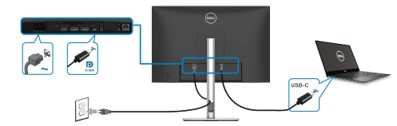
To test charging on a USB-C monitor, first check your monitor's power delivery wattage in its spec sheet. Then connect your source device using a USB-C cable rated for at least that wattage. Look for a charging indicator on your device.
For accurate results, use a USB-C PD power meter between the cable and the device to measure actual wattage delivered. Test both at idle and under load to confirm stable charging.
Why Your USB-C Monitor Might Not Be Charging (Even Though It Should)
Here's the thing about USB-C monitors. The port on the back doesn't automatically mean it can charge your device. Some monitors have a USB-C port that handles video and data but doesn't supply any power at all.
Others supply power but at a wattage so low it can't keep up with your laptop's power draw.
Manufacturer specifications indicate that many budget and mid-range USB-C monitors deliver only 15W to 45W through their USB-C port. That's enough to charge a phone or slowly top up a tablet. It's not enough to charge a MacBook Pro or a workstation laptop that pulls 65W or 90W under load.
Then there's the cable problem. USB-C cables all look the same from the outside. But inside, there's a huge difference between a basic USB 2.0 cable rated for 60W and a full-featured cable with an E-Marker chip rated for 100W or 240W.
Using the wrong cable silently prevents charging or caps the wattage at a level your device can't use effectively.
And even when the monitor and cable are both capable, your source device has to accept the power profile the monitor offers. If the monitor only negotiates a 15V/3A profile and your laptop needs 20V/3A, the contract fails. No charging happens.
No error appears. It just doesn't work.
The 3 Things That Have to Line Up for USB-C Charging to Work
Before you start testing, you need to understand the three independent variables that determine whether charging works. Think of them as a chain. Every link has to hold.
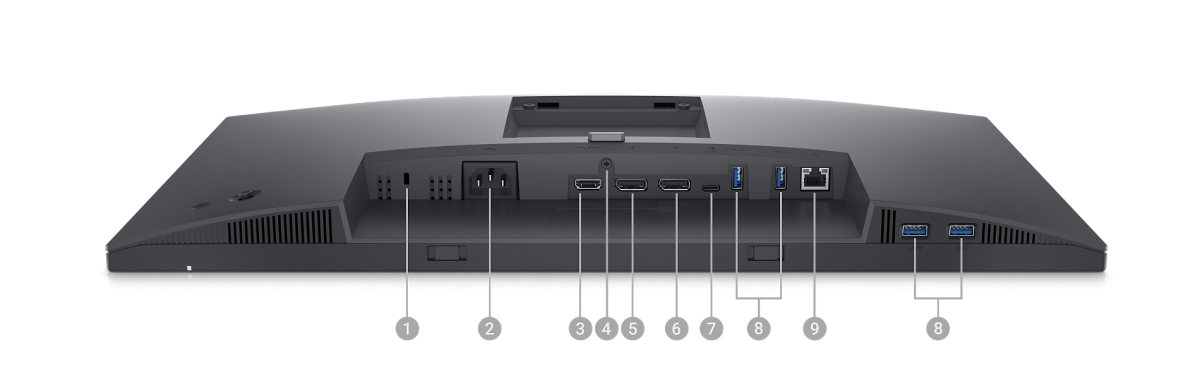
Your Monitor Has to Actually Supply Power (Not Just Receive It)
This catches people off guard. A USB-C port on a monitor can work in two completely different ways. It can be an input that receives power from an external charger to run the monitor itself.
Or it can be a power source that sends wattage to your connected laptop. Some monitors do both. Many don't.
Check your monitor's technical specifications for "USB-C power delivery" or "PD output." If the spec sheet doesn't list a wattage for power delivery output, assume the port does not charge your device. Common PD output levels on monitors as of 2026 include 15W, 27W, 45W, 60W, 65W, 90W, and 100W.
Dell's U-series monitors, for example, commonly offer 90W or 65W on their USB-C models. LG's UltraFine line varies by model. Portable monitors like the ASUS ZenScreen often supply much less.
Always verify the exact number for your specific model number.
Your Cable Has to Be Rated for Power Delivery
USB-C cables are not created equal. A cable that handles video and data perfectly might only support 60W of power delivery. Or worse, it might be a charge-only USB 2.0 cable with no data lines at all.
The key spec to look for is the cable's power rating. Standard USB-C cables without an E-Marker chip are typically rated for 60W. Cables with an E-Marker chip can support 100W or up to 240W under the Extended Power Range (EPR) specification introduced in USB PD 3.1.
Here's a quick reference:
| Cable Type | Max Power | E-Marker Chip | Typical Use |
|---|---|---|---|
| USB-C 2.0 standard | 60W | No | Basic charging and data |
| USB-C 3.x with E-Marker | 100W | Yes | Laptop charging, high-power devices |
| USB-C EPR cable | 240W | Yes | High-end laptops, workstations |
If you're trying to charge a laptop that needs 90W and your cable is only rated for 60W, the PD negotiation will either cap at 60W or fail entirely. You'll get slow charging or none at all.
Your Source Device Has to Accept What the Monitor Offers
Power Delivery is a two-way conversation. Your monitor offers specific voltage and current profiles. Your laptop accepts or rejects them based on what it needs.
If there's no overlap between what's offered and what's requested, no contract gets signed.
USB PD 3.0 supports standard voltage profiles at 5V, 9V, 15V, and 20V. USB PD 3.1 Extended Power Range adds 28V, 36V, and 48V profiles for higher wattage devices. Each profile has a maximum current, and the combination of voltage and current determines the total wattage.
For example, a monitor offering 20V at 3A delivers 60W. A laptop requesting 20V at 4.75A needs 95W. The monitor can't supply that, so the contract either drops to a lower wattage or fails.
This is why a 65W monitor won't charge a 100W workstation laptop, even though both use USB-C.
How to Test Charging on a USB-C Monitor: Step-by-Step Workflow
Now let's get into the actual testing. Follow these steps in order. Each one isolates a different part of the chain so you can pinpoint exactly where the problem is.
Step 1: Check Your Monitor's Actual PD Wattage Spec
Before you plug anything in, look up your monitor's exact model number and find the power delivery specification. This is usually listed under "Technical Specifications" or "Connectivity" on the manufacturer's product page.
Look for terms like "USB-C Power Delivery," "PD output," or "USB-C charging wattage." If you can't find a specific wattage number for power output, the port likely doesn't supply power to your device.
Write this number down. You'll compare it against what your device needs and what your meter reads later.
Step 2: Verify Your Cable Supports the Right Wattage
Check your cable's rating. This is usually printed on the cable itself or listed in the product listing where you bought it. Look for "60W," "100W," or "240W" on the packaging or connector housing.
If there's no wattage marking, assume it's a 60W cable. That's the baseline for most unmarked USB-C cables. If you need more than 60W, you need a cable explicitly rated for 100W or higher with an E-Marker chip.
Don't have the packaging anymore? A USB-C PD meter (next step) will also tell you the cable's negotiated wattage, which effectively reveals whether it's limiting power.
Step 3: Connect and Look for the Charging Indicator
Plug your source device into the monitor's USB-C port. Watch your device for a charging indicator. On a Mac, look for the battery icon with a lightning bolt in the menu bar.
On Windows, check the system tray battery icon for a plug symbol.
If you see a charging indicator, that's a good sign. But it doesn't tell you how much power is flowing. A device showing "charging" at 15W while running heavy workloads might still lose battery percentage.
That's why you need the next step.
If you don't see any charging indicator at all, the PD contract likely failed. Move to Step 4 to get hard numbers.
Step 4: Measure Real Wattage with a USB-C PD Meter
This is where you get actual data instead of guesswork. A USB-C PD power meter sits between your cable and your source device and displays the real-time voltage, current, and wattage being negotiated.
Plug the meter into the monitor's USB-C port. Then plug your cable into the meter. Then connect your cable to your source device.
The meter's screen will show you the live PD contract.
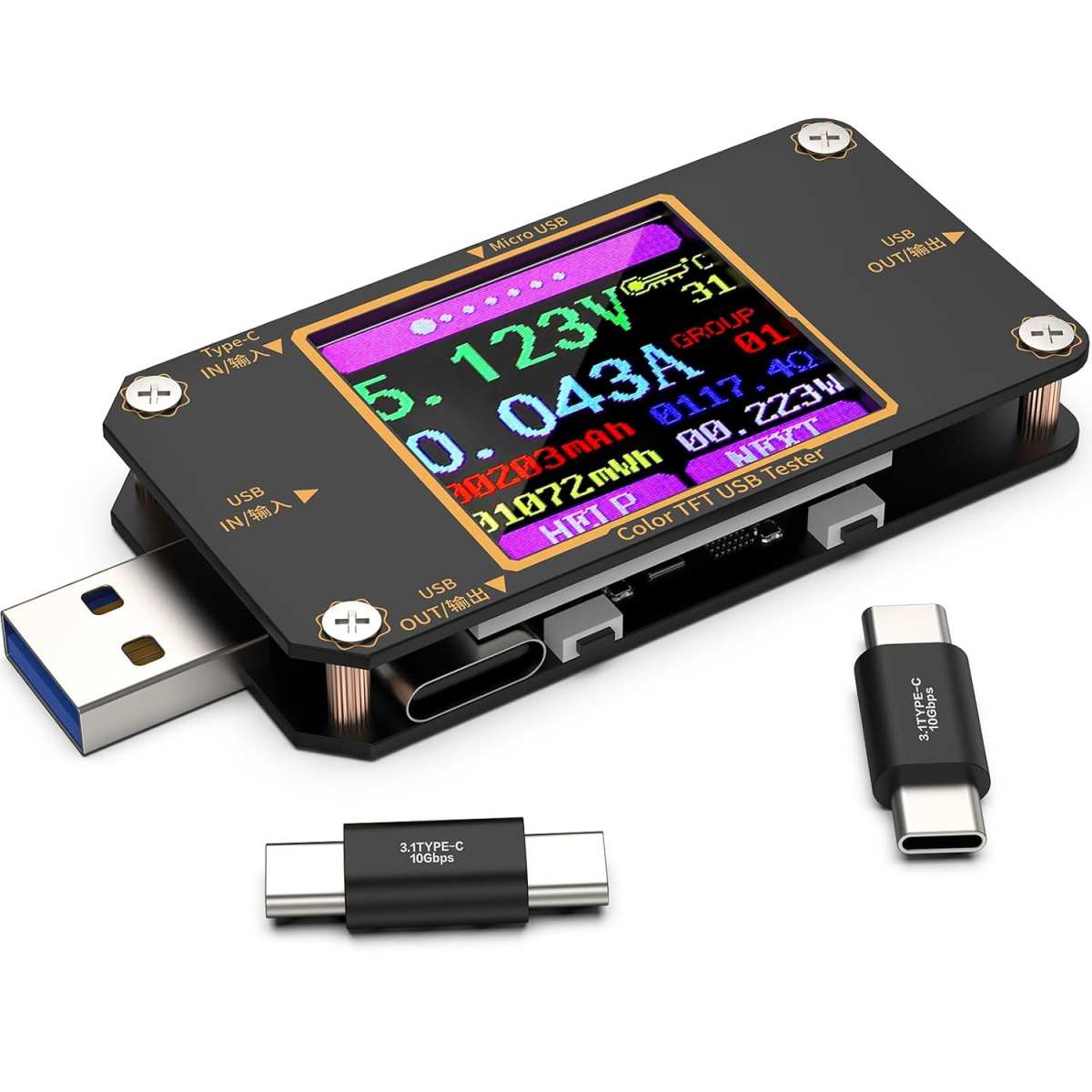
What you're looking for is the wattage reading. Compare it to your monitor's rated PD output and your device's power requirement. If the meter shows 0W, there's no power delivery happening at all.
If it shows 15W but your monitor is rated for 65W, something is limiting the negotiation.
Step 5: Test Under Load (Not Just Idle)
A device at idle draws less power than one running applications. Your monitor might supply enough wattage to charge a laptop that's asleep but not enough to charge one that's running a browser with 30 tabs and a video call.
After measuring idle wattage, open a few demanding applications. Run a video call. Open a code editor or design tool.
Watch the meter to see if the wattage holds steady or drops.
If the wattage drops significantly under load, your monitor's PD output is borderline. It can handle light use but not sustained workloads. That's useful information for deciding whether this setup works for you or if you need a higher-wattage solution.
Reading Your Results: What the Numbers Mean
You've got numbers on your meter. Now let's interpret them.
Device Charging Normally — Your Setup Is Working
If your meter shows wattage that matches or exceeds your device's power requirement, and your device shows a charging indicator, everything is working as it should. The PD contract negotiated successfully, your cable supports the wattage, and your monitor is delivering what it promises.
You're done. Enjoy the single-cable life.
Charging Slowly or Only When Off — PD Wattage Mismatch
This is the most common result. Your monitor supplies power, but not enough to charge your device while it's in use. A 45W monitor charging a 65W laptop will show the battery percentage climbing when the laptop is closed.
The percentage drops when you open it and start working.
This isn't a defect. It's a wattage mismatch. Your monitor's PD output is lower than your laptop's power draw.
You can still use this setup for light tasks, but you'll need a separate charger for heavy workloads.
Not Charging at All — Isolate the Problem
Zero watts on the meter means the PD contract failed entirely. Now you need to isolate which part of the chain is responsible.
Try this diagnostic sequence:
- Try a different cable. Swap in a known 100W-rated cable. If charging starts, your original cable was the problem.
- Try a different source device. Plug in a phone or tablet that accepts lower wattage. If it charges, your monitor works but can't supply enough for your primary device.
- Try a different port on the monitor. Some monitors have multiple USB-C ports with different capabilities. Check which one is designated for PD output.
- Check for firmware updates. Some monitors received firmware updates that fixed PD negotiation issues. Visit the manufacturer's support page for your model.
If none of these steps produce any charging, the monitor's USB-C port may not support power delivery output at all. Refer back to Step 1 and verify the specification.
The 4 Most Common Reasons USB-C Charging Fails
After working through hundreds of these scenarios in aggregate user reports and technical documentation, four culprits come up again and again.
1. The monitor's USB-C port doesn't supply power. It handles video and data but has no PD output. This is common on monitors that advertise "USB-C connectivity" without mentioning charging.
2. The cable is data-only or under-rated. The cable works fine for video but can't carry the power your device needs. No error appears.
It just doesn't charge.
3. The wattage is too low for the device. A 15W or 27W monitor output can't charge a laptop that needs 65W or 90W. The device may show "connected" but the battery keeps draining.
4. The PD negotiation fails silently. The monitor and device can't agree on a voltage or current profile. No charging happens.
No error message appears. This is more common with older devices or monitors that implement early USB PD revisions.
Choosing the Right USB-C Cable for Monitor Charging
Your cable is the weakest link in most setups. Here's how to make sure it's not holding you back.
For devices needing 60W or less: A standard USB-C cable without an E-Marker chip works fine. Most cables sold with phones and accessories fall into this category.
For devices needing 61W to 100W: You need a cable with an E-Marker chip. This chip identifies the cable's capabilities to both the source and the device. Without it, the PD negotiation caps at 60W regardless of what the monitor and device can handle.
For devices needing 101W to 240W: You need an Extended Power Range (EPR) cable. These are clearly marked as supporting 240W or "EPR." They're less common and more expensive, but necessary for high-power workstation laptops.
A good rule of thumb: buy a cable rated for more wattage than you think you'll need. A 100W cable costs only slightly more than a 60W cable and gives you headroom for future devices.
USB-C Monitor Charging Wattage: How Much Do You Actually Need?
Different devices have different power requirements. Here's a practical breakdown of what you need based on what you're charging.
| Device Type | Typical Power Draw | Minimum PD Wattage for Charging | Recommended PD Wattage |
|---|---|---|---|
| Smartphone | 10W to 18W | 18W | 27W |
| Tablet | 15W to 30W | 30W | 45W |
| Ultraportable laptop | 25W to 45W | 45W | 65W |
| Standard laptop | 45W to 65W | 65W | 90W |
| Performance laptop | 65W to 100W | 90W | 100W |
| Mobile workstation | 90W to 130W | 100W | 130W+ |
If your monitor supplies 65W and you're trying to charge a MacBook Pro that ships with a 96W charger, it'll charge slowly or only when the laptop is idle. That's not a defect. It's physics.
When to Use a USB-C PD Meter (And Which One to Get)
You don't need a PD meter for every setup. But if you're troubleshooting, deploying multiple workstations, or just want to know what's actually happening, it's an inexpensive tool that pays for itself in saved frustration.
A basic USB-C PD meter costs between $15 and $30. It sits inline between your cable and device and displays voltage, current, and wattage in real time. Some models also show the negotiated PD profile.
Look for a meter that supports USB PD 3.0 at minimum. PD 3.1-compatible meters are becoming available but cost more. For most monitor testing scenarios, a PD 3.0 meter is sufficient since most monitors as of 2026 still implement PD 3.0.
The meter is especially useful for verifying that a cable is actually rated for what it claims. Many budget cables marked "100W" on Amazon only negotiate 60W in practice. A meter exposes that immediately.
USB-C Monitor Charging vs. a Thunderbolt Dock: Which Setup Makes More Sense?
If you're trying to decide between relying on your monitor's USB-C charging or adding a Thunderbolt dock to your setup, here's how to think about it.
USB-C monitor charging is best when:
- Your monitor supplies enough wattage for your device
- You want the simplest possible desk setup
- You're using a single monitor
- Cable clutter is your primary concern
A Thunderbolt dock is better when:
- Your monitor's PD output is too low for your device
- You need to connect multiple peripherals through a single cable
- You're running a multi-monitor setup
- You need Ethernet, audio, or other ports your monitor doesn't have
A Thunderbolt dock typically delivers 60W to 100W to your laptop while also handling video output to the monitor. The monitor then connects to the dock rather than directly to the laptop. It's one more device on your desk, but it gives you more power and more flexibility.
Frequently Asked Questions
How do I know if my USB-C monitor supports charging?
Check the manufacturer's technical specifications for "USB-C Power Delivery" or "PD output" with a specific wattage number. If the spec sheet doesn't list a PD output wattage, the port likely doesn't charge connected devices.
Can any USB-C cable charge through a monitor?
No. USB-C cables vary widely in their power delivery capability. A cable rated for 60W won't support 100W charging.
You need a cable with an E-Marker chip for anything above 60W.
Why does my laptop charge slowly from the USB-C monitor?
Your monitor's PD output wattage is lower than your laptop's power draw. The laptop charges when idle or under light load but can't keep up during heavy use. This is a wattage limitation, not a defect.
Does USB-C charging work with all laptops?
Not necessarily. The laptop must support USB-C Power Delivery input. Most modern laptops do, but some older models and certain budget devices only charge through proprietary barrel connectors.
Can I use a USB-C monitor charger for a phone?
Yes. USB Power Delivery is backward compatible. A monitor supplying 90W will only deliver what your phone requests, typically 18W to 27W.
The negotiation handles this automatically.
What wattage USB-C monitor do I need for a MacBook Pro?
A 13-inch MacBook Pro needs at least 61W. A 14-inch or 16-inch model needs 96W or more. Choose a monitor that matches or exceeds these numbers for reliable charging under load.

Similar Posts





















