How to Connect USB C Monitor to Phone
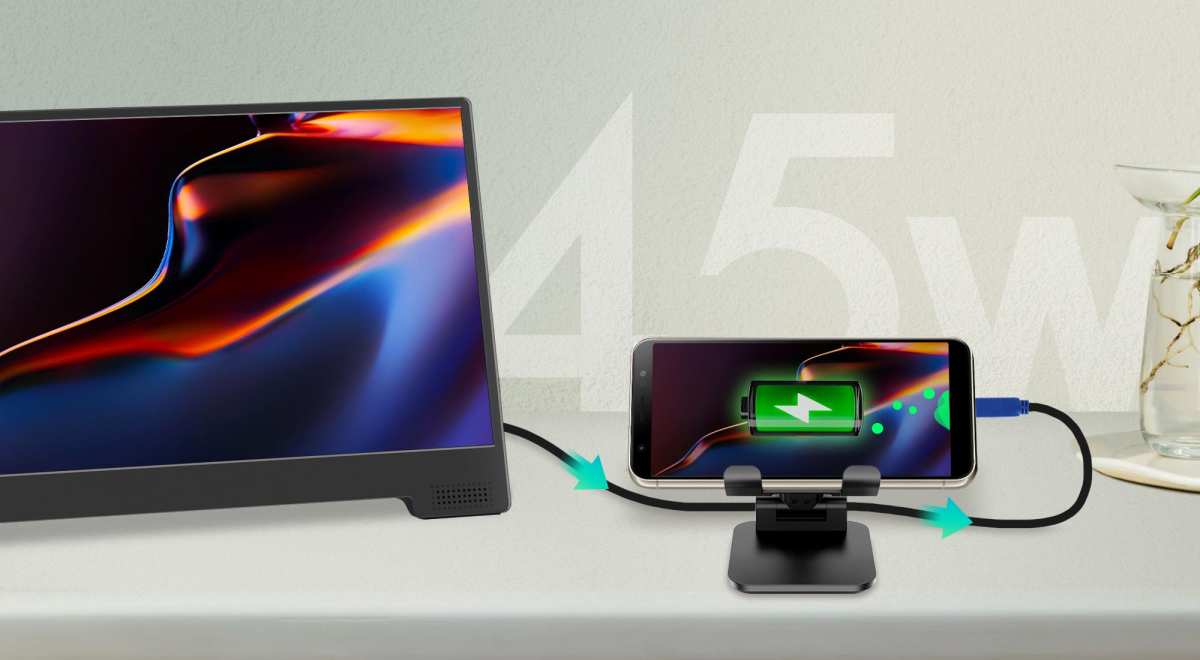
Figuring out how to connect a USB-C monitor to your phone seems like it should be simple. You've got a USB-C port on both devices. One cable, done, right?
Not quite. Whether it works, and what you get on screen when it does, depends entirely on what phone you own and what your phone's USB-C port is actually wired to do. If you are exploring similar hardware setups, see our detailed guide on how to connect usb c monitor to laptop.
Some phones give you a full desktop environment. Many just mirror what's already on your screen. And a surprising number can't output video at all, no matter what cable you buy.
Let's walk through each scenario so you know exactly which path you're on before you spend money on adapters you might not need.
Quick Answer
Connect your phone to a USB-C monitor using a USB-C to USB-C cable if both devices support DisplayPort Alt Mode. Samsung Galaxy phones can use Samsung DeX for a desktop experience. If your monitor lacks USB-C, use a USB-C to HDMI adapter. For related troubleshooting and calibration steps, check our walkthrough on how to connect usb c monitor with hdmi adapter.
Check your phone's specs first, since not all USB-C ports support video output.
Can Your Phone Actually Output Video Through USB-C? (Check This First)
Here's the thing most guides skip: the USB-C port on your phone doesn't automatically mean video output. USB-C is a connector shape, not a guarantee of what's happening inside. The port might handle charging and data transfer just fine while having zero ability to push a video signal.
The key spec to look for is DisplayPort Alt Mode (sometimes written as DP Alt Mode). That's the technical standard that lets a USB-C port carry a DisplayPort video signal. If your phone supports it, you can send video straight out through that port.
If it doesn't, no cable or adapter in the world is going to fix that.
How to check if your phone supports video output:
- Look up your exact phone model's specs on the manufacturer's website
- Search for "DisplayPort Alt Mode" or "video output" in the specifications
- Check for Samsung DeX support if you own a Samsung Galaxy device
- Search your phone model plus "USB-C video output" in user forums
Manufacturer specifications for phones like the Samsung Galaxy S24 Ultra, Google Pixel 8 Pro, and OnePlus 12 explicitly list DisplayPort Alt Mode or video output support. Budget and mid-range phones from brands like Xiaomi, Motorola, and some Samsung A-series models often omit this feature entirely.
If you've already bought a cable and nothing's happening when you plug in, this is almost always the reason. The phone simply can't send a video signal. There's no software update or setting that changes it.
It's a hardware limitation.
The Three Paths: What Happens When You Plug In
Once you've confirmed your phone supports video output, the experience splits into three distinct paths. Which one you get depends on your phone brand and model.
Path 1: Samsung DeX — Full Desktop Experience
Samsung DeX (short for "Desktop Experience") is the most polished phone-to-monitor setup available as of 2026. When you connect a supported Samsung Galaxy phone to a monitor, you don't just see a bigger version of your phone screen. You get a full desktop interface with a taskbar, resizable app windows, a file manager, and a right-click context menu.

Image source: Bing (Web (fair-use with source credit))
DeX works on the Galaxy S23 and S24 series, Galaxy Z Fold and Z Flip devices, and select Galaxy Note and Galaxy Tab models. Samsung maintains a full compatibility list on their official support site.
What makes DeX different:
- Apps open in resizable windows, not full-screen only
- You can run multiple apps side by side
- It supports keyboard and mouse input natively
- The interface looks and feels like a traditional computer desktop
- Some apps (like Microsoft Office) show desktop-style layouts
You can use DeX with a simple USB-C to USB-C cable if your monitor has a USB-C input, or through a USB-C hub connected to an HDMI monitor. Samsung also makes a dedicated DeX Station and DeX Pad, though any compatible hub works fine.
Path 2: Standard Screen Mirroring — What Most Android Phones Do
If you don't have a Samsung Galaxy phone, or you have a Samsung model that doesn't support DeX, you'll get standard screen mirroring. This means the monitor shows exactly what's on your phone screen, just bigger.
Some Android manufacturers offer their own take on this. Motorola has a basic desktop mode. Huawei has "Easy Projection." But most Android phones, including Google Pixel devices, OnePlus phones, and Xiaomi flagships, just mirror the phone display as-is.
What to expect with standard mirroring:
- The monitor duplicates your phone screen exactly
- Phone apps display in their mobile layout
- Aspect ratio may look odd (tall and narrow on a wide monitor)
- Some apps rotate to landscape mode when available
- You can use a Bluetooth keyboard and mouse for input
This works fine for watching videos, giving presentations, or browsing photos on a bigger screen. It's not a productivity powerhouse the way DeX is, but it gets the job done for media consumption and light tasks.
Path 3: iPhone — Lightning and USB-C Complications
iPhones add another layer of complexity. If you have an iPhone 14 or earlier, you're working with a Lightning port, not USB-C at all. You'll need Apple's Lightning Digital AV Adapter (the one with both a Lightning port and an HDMI port) to connect to any external display.
iPhone 15 and newer models finally switched to USB-C. But even then, Apple's implementation is more limited than most Android phones. You get screen mirroring through a USB-C to HDMI adapter or USB-C to USB-C cable, but there's no desktop mode.
What you see on the monitor is a mirrored version of your iPhone screen.
iPhone connection options:
- iPhone 14 and earlier: Lightning to HDMI adapter (Apple's official adapter recommended)
- iPhone 15 and newer: USB-C to HDMI adapter or USB-C to USB-C cable
- Wireless alternative: AirPlay to an Apple TV connected to your monitor
What You Actually Need: Cables, Adapters, and Hubs Explained
The gear you need depends on two things: what port your monitor has and whether you want to charge your phone at the same time.
Direct USB-C to USB-C Cable
If your monitor has a USB-C input that supports DisplayPort Alt Mode (check the monitor's specs, not all USB-C monitor ports handle video input), this is the simplest option. One cable carries video, audio, and power all at once.
What to look for in a USB-C cable for video:
- Must support DisplayPort Alt Mode (not all USB-C cables do)
- USB-IF certified is ideal
- Shorter cables (3 feet or less) are more reliable for video signals
- Avoid cheap charging-only cables; they lack the wiring for video
A good USB-C to USB-C cable that supports video and data typically runs $10 to $25. Brands like Anker, Cable Matters, and Uni make reliable options. If you're unsure whether a cable supports video, check the product listing for "DisplayPort Alt Mode" or "video support" explicitly.
USB-C to HDMI Adapter
This is the most common setup since the majority of monitors have HDMI inputs rather than USB-C. A USB-C to HDMI adapter plugs into your phone and gives you an HDMI port to connect to your monitor with a standard HDMI cable.

Image source: Wikimedia Commons / Thefreeencyclopedia1 (CC BY-SA)
Two types of adapters:
- Simple adapter: USB-C on one end, HDMI female port on the other. You supply the HDMI cable. Usually $10 to $20.
- Multiport adapter (hub): USB-C plus HDMI, USB-A ports, and sometimes an SD card slot. Gives you more flexibility. Usually $20 to $50.
The simple adapter works fine if you just need video. But here's the catch: a basic adapter uses your phone's USB-C port for video output and leaves no way to charge your phone at the same time. That's where hubs come in.
USB-C Hub with HDMI/DisplayPort Output
A USB-C hub with power delivery passthrough is the best all-in-one solution. It connects to your phone, sends video to your monitor through HDMI or DisplayPort, and simultaneously charges your phone through a USB-C power delivery port on the hub.
What a good hub provides:
- HDMI or DisplayPort video output
- USB-C Power Delivery input (so you plug your charger into the hub)
- USB-A ports for peripherals (keyboard, mouse, flash drive)
- Sometimes an SD or microSD card reader
Hub specs that matter:
| Feature | What to Look For |
|---|---|
| HDMI version | HDMI 2.0 minimum for 4K at 60Hz |
| Power Delivery | At least 25W input; 45W+ if you want fast charging while using video |
| USB data ports | USB 3.0 (5Gbps) preferred over USB 2.0 |
| Build quality | Aluminum housing dissipates heat better than plastic |
| Cable length | Shorter attached cables are more reliable for 4K signals |
Hubs range from about $20 for a basic model to $80 or more for premium options with 4K at 60Hz support and high-wattage power delivery. Anker, Satechi, and Plugable make well-reviewed options.
What to Buy (And What to Skip)
Worth buying:
- A USB-C to USB-C cable rated for video if your monitor supports USB-C input
- A USB-C hub with HDMI 2.0 and at least 25W power delivery for the most versatile setup
- Your phone manufacturer's official adapter if you're using an iPhone with Lightning
Skip these:
- The cheapest no-name USB-C cables from marketplace sellers (many are charging-only)
- Adapters that don't list HDMI version or resolution support
- Hubs without power delivery if you plan to use your phone for more than an hour
- "USB-C to HDMI" cables that are just a wire with no chipset (they need an active converter)
Step-by-Step: How to Connect Your Phone to a USB-C Monitor
Let's walk through the actual connection process. I'll cover both the direct USB-C method and the hub method.
Before You Plug Anything In
Confirm your phone supports video output. Check the manufacturer's specs for DisplayPort Alt Mode or video-out capability. If it's not listed, stop here. No adapter will help.
Check your monitor's inputs. Does it have a USB-C port? HDMI? DisplayPort? This determines what cable or adapter you need.
Update your phone's software. Some phones received video-out support or improvements through firmware updates. Make sure you're running the latest OS version.
Know your monitor's resolution. If it's 4K, make sure your adapter or hub supports 4K output. Many budget adapters cap at 1080p.
Making the Connection
If your monitor has a USB-C input with DP Alt Mode:
- Connect a USB-C to USB-C cable (one rated for video) from your phone to the monitor
- Switch the monitor to the USB-C input source
- Your phone screen should appear on the monitor within a few seconds
- If nothing appears, try a different cable or restart your phone
If your monitor only has HDMI or DisplayPort:
- Connect your USB-C hub to your phone
- Plug an HDMI cable from the hub to your monitor
- Connect your phone's charger to the hub's USB-C Power Delivery port
- Switch the monitor to the correct HDMI or DisplayPort input
- Your phone screen should appear on the monitor
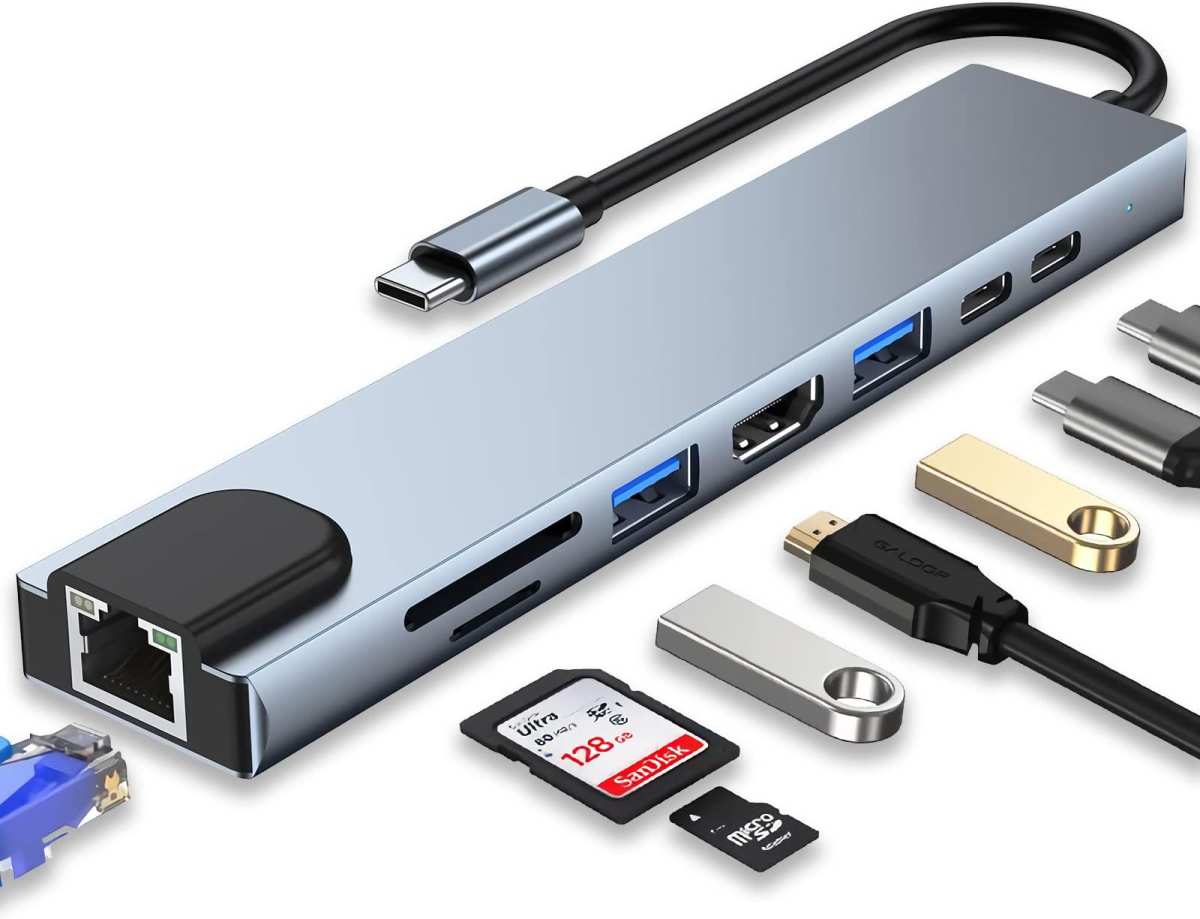
Image source: Bing (Web (fair-use with source credit))
Getting the Display Working
Once connected, you might need to adjust a few settings on your phone:
- Samsung phones: You should see a DeX prompt. Tap it to enter desktop mode, or dismiss it to use standard screen mirroring
- Other Android phones: Go to Settings > Connected Devices > USB (or Settings > Display) to check for display output options
- iPhones: The screen should mirror automatically. If not, swipe down to open Control Center and check Screen Mirroring settings
Setting Up Power Delivery So Your Phone Doesn't Die
Video output uses significant battery. If you're using a hub with power delivery, your phone should charge while connected. But the charging speed depends on the hub's power delivery wattage versus how much power your phone is using for video output.
Typical power scenarios:
- A hub with 25W power delivery will charge most phones slowly while outputting video
- A hub with 45W or higher will fast-charge most phones even during video use
- Samsung DeX recommends at least 20W power delivery for stable performance
- Without power delivery, a phone outputting video can drain 10% to 20% per hour depending on brightness and content
If your phone is draining even while plugged into a hub, the hub's power delivery wattage is too low for your phone's power draw. You'll need a hub with higher wattage or accept that the phone will charge slowly.
Why It's Not Working: Troubleshooting the Common Problems
Most connection issues come down to a handful of usual suspects. Let's run through them.
No Signal on the Monitor
This is the most common complaint. You've plugged everything in, switched to the right input, and the screen stays black.
Things to check in order:
Does your phone actually support video output? If you skipped the first section of this guide, go back and verify. This is the number one reason for a black screen.
Try a different cable. Many USB-C cables are charging-only. They physically fit the port but lack the wiring for video. Look for cables explicitly labeled as supporting video or DisplayPort Alt Mode.
Check the monitor input source. It sounds obvious, but make sure the monitor is set to the correct input. If you plugged into HDMI 2, don't leave it on HDMI 1.
Restart your phone with the cable connected. Some phones need a reboot to detect an external display.
Test with a different monitor or TV. This tells you whether the problem is the phone, the cable, or the monitor.
Picture Looks Wrong (Resolution, Scaling, Orientation)
The image shows up but it's stretched, tiny, letterboxed, or sideways.
Fixes to try:
- Go to your phone's Settings > Display and look for resolution or screen output options
- On Samsung DeX, right-click on the desktop display and select Display Settings to adjust resolution
- Some phones default to 1080p output even when the monitor is 4K. Check if your adapter supports the monitor's native resolution
- For orientation issues, check if rotation lock is enabled on your phone
No Audio Through Monitor Speakers
Video works but sound keeps coming from your phone speakers.
What to check:
- Make sure the monitor's volume isn't muted or turned down
- On your phone, go to Settings > Sound and check if the audio output device switched to the external display
- Some USB-C to HDMI adapters don't carry audio. This is rare with name-brand adapters but common with cheap ones
- Try playing a different app or video to rule out app-specific audio issues
Phone Won't Charge While Connected
Your phone is plugged into a hub with power delivery, but the battery keeps draining.
Likely causes:
- The hub's power delivery wattage is too low. A 15W PD input can't keep up with video output plus screen-on power draw on most phones
- You're using an adapter without a power delivery port at all. Simple USB-C to HDMI adapters don't pass power through
- The charger plugged into the hub is underpowered. Use the phone's original charger or one rated for at least 25W
- The hub itself may be faulty or poorly designed. Budget hubs sometimes advertise power delivery but don't deliver rated wattage
Wired vs Wireless: When to Use Each Approach
You don't always need a cable. Wireless casting works well for some situations, and it's worth knowing when each approach makes more sense.
Quick Comparison Table
| Factor | Wired (USB-C) | Wireless (Cast/AirPlay) |
|---|---|---|
| Latency | Near zero | 50-200ms typical |
| Video quality | Up to 4K at 60Hz | Up to 4K at 30Hz (varies) |
| Phone charging | Yes, with PD hub | No, drains battery faster |
| Setup complexity | Plug and play | Requires compatible receiver |
| Reliability | Very high | Can drop or stutter |
| Best for | Productivity, DeX, presentations | Casual video watching, quick sharing |
| Cost | $15-50 for cable/hub | $30-50 for Chromecast/Apple TV |
Go wired when:
- You're using Samsung DeX or any desktop mode
- You're giving a presentation and can't afford lag or dropped connections
- You need the highest resolution and smoothest video playback
- You want to charge your phone while using the monitor
Go wireless when:
- You're just watching a video on a bigger screen
- You don't want cables cluttering your desk
- You're sharing photos casually with a group
- Your phone and a compatible streaming device are already on the same network
Who This Setup Actually Makes Sense For
Great Fits
- Frequent travelers who want a full workstation from just their phone and a portable monitor
- Samsung Galaxy power users who can leave their laptop at home for short trips
- Students who want a bigger screen for studying without carrying a laptop
- Remote workers in industries where a phone handles most tasks (email, messaging, light document editing)
- Content creators who want to preview photos or videos on a calibrated monitor
Probably Not Worth It If
- Your phone doesn't support video output (no amount of adapters will help)
- You need to run desktop-class software like full Photoshop or coding IDEs
- You're on a tight budget and would need to buy a monitor, hub, and cable just to try it out
- You already have a laptop that meets your needs
Quick Decision Guide: What Should You Do?
Here's a fast way to figure out your next step based on your situation.
I have a Samsung Galaxy S-series or Note-series phone:
Get a USB-C hub with HDMI and power delivery. You'll get the full DeX desktop experience, which is the best phone-to-monitor setup available.
I have a non-Samsung Android phone that supports video output:
A USB-C to HDMI adapter or a basic USB-C hub will work. You'll get screen mirroring, which is fine for media, presentations, and light tasks.
I have an iPhone 14 or earlier:
You need Apple's Lightning Digital AV Adapter. Screen mirroring only, no desktop mode.
I have an iPhone 15 or newer:
A USB-C to HDMI adapter works. Same limitations as other non-Samsung Android phones.
I'm not sure if my phone supports video output:
Look up your exact model's specs on the manufacturer's website. Search for "DisplayPort Alt Mode" or "video output." If you can't find it listed, assume it doesn't support it.
Frequently Asked Questions
Can I use any USB-C cable to connect my phone to a monitor?
No. Many USB-C cables are charging-only and lack the wiring needed for video. You need a cable that explicitly supports DisplayPort Alt Mode or video output.
Check the product specifications before buying.
Does connecting to a monitor drain my phone battery fast?
Yes, if you're not using a hub with power delivery. Video output uses significant power. A phone can drain 10% to 20% per hour while outputting video.
Use a USB-C hub with power delivery passthrough to charge while connected.
Why won't my Samsung phone show DeX when I connect to a monitor?
Not all Samsung phones support DeX. It's available on Galaxy S-series, Note-series, and Z-series devices. Some A-series and M-series phones don't have it.
Also, make sure you're tapping the DeX notification that appears when you connect, or manually launch DeX from your phone's quick settings panel.
Can I connect my phone to a monitor that only has VGA input?
Yes, but you'll need an active USB-C to VGA adapter. These are less common than HDMI options. Check that the adapter specifically lists VGA output support and your phone's resolution range.
Is there any way to get a desktop mode on non-Samsung phones?
Some third-party apps like Sentio Desktop attempt to provide a desktop-like experience on Android phones. Results vary. Motorola and Huawei include basic desktop modes on select devices.
But nothing matches Samsung DeX in polish and app compatibility as of 2026.
Will a USB-C monitor charge my phone while displaying video?
It depends on the monitor. USB-C monitors that support power delivery can charge your phone through the same cable carrying video. Check the monitor's specs for power delivery wattage.
Many portable USB-C monitors offer 15W to 65W power delivery.

Similar Posts





















