Can Touchscreen Monitors Work with Chromebooks
You've got a Chromebook and you're eyeing a touchscreen monitor, or maybe you've already bought one and the touch isn't working. Either way, you want a straight answer. Can touchscreen monitors work with Chromebooks?
The short answer is yes, but only if your specific Chromebook, your specific monitor, and your specific cable all line up correctly. Miss one piece and you've got a very expensive display that ignores every finger tap. For more background on real-world performance, read our breakdown of whether mini led monitors work with chromebooks.
The reason this question trips people up is that ChromeOS handles external touch differently than Windows or macOS. There's no driver to install, but there are hardware requirements that aren't obvious. Let's walk through exactly what needs to happen for touch to pass through from your Chromebook to an external monitor, step by step, so you can figure out your situation.
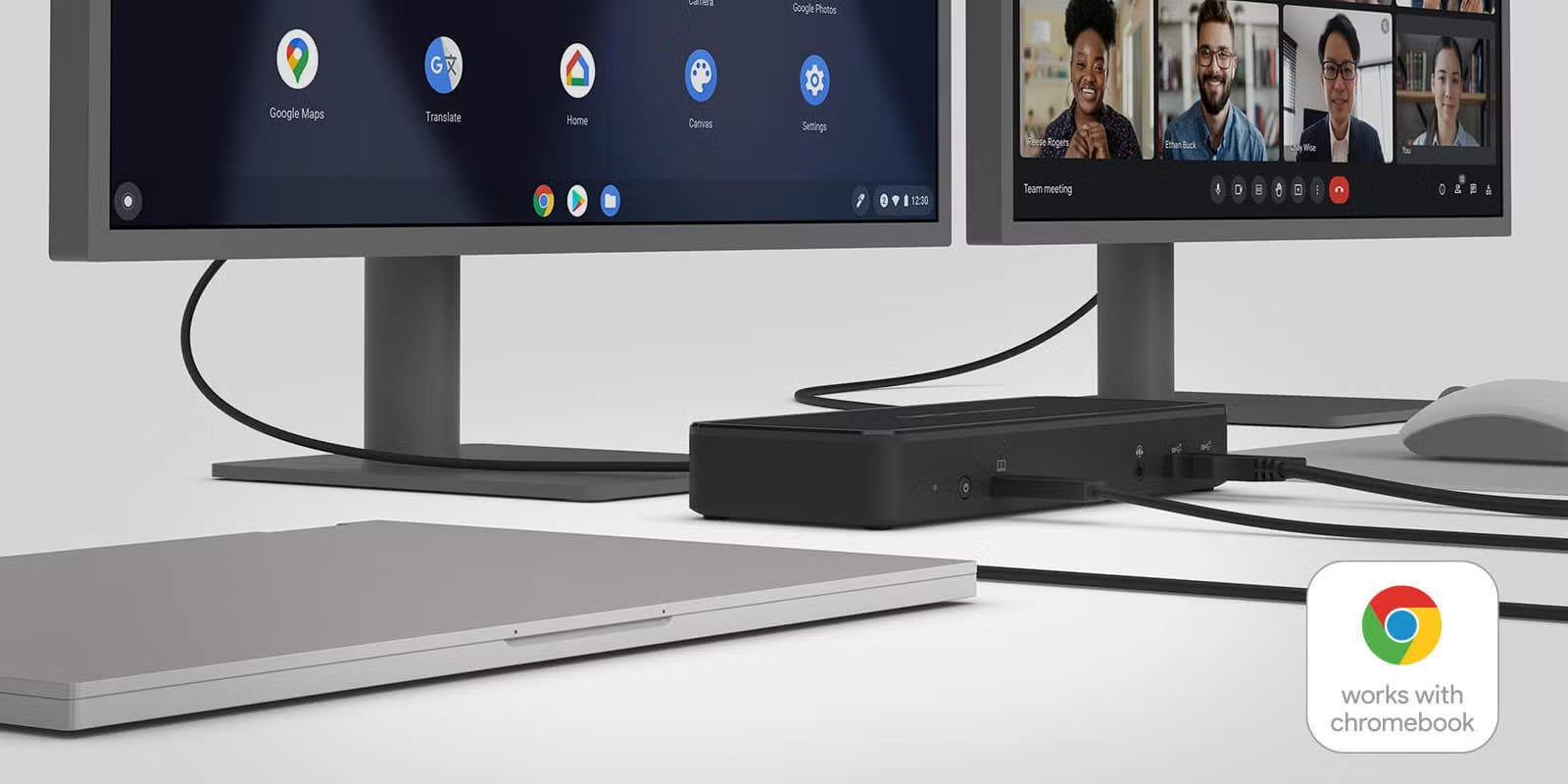
Quick Answer
Yes, touchscreen monitors can work with Chromebooks. ChromeOS supports external touch input through the HID protocol. Your Chromebook needs a USB-C port with DisplayPort Alt Mode, or you need a separate USB touch cable alongside HDMI.
Not every touch controller is ChromeOS-compatible, so check before you buy. Most modern USB-C touchscreen monitors work plug-and-play as of 2026. Readers evaluating this setup should also consider whether a touchscreen monitor work with any pc for comparative benchmarks.
Why It's Not a Simple Yes or No
Here's what nobody tells you when you're shopping. A touchscreen monitor isn't just one connection. It's actually two signals bundled into one device: the video signal and the touch data signal.
Your Chromebook has to handle both, and how that happens depends entirely on your hardware combination.
Whether Touch Input Passthrough Depends on Three Things
There are three variables that determine success or failure. If any one of these doesn't line up, touch won't work even though the display looks fine.
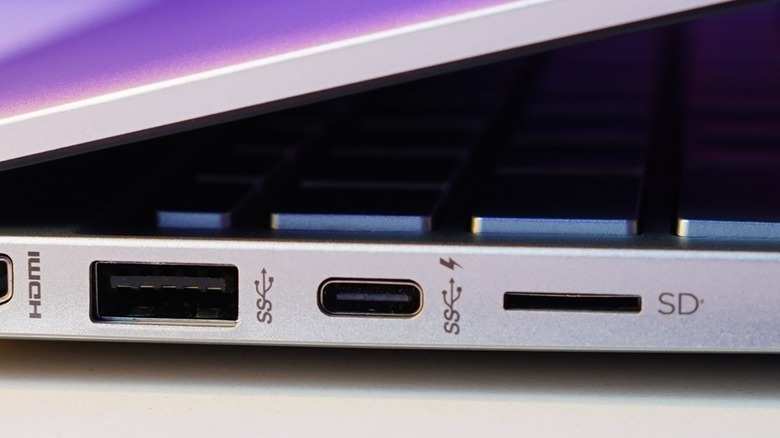
- Your Chromebook's USB-C port must support DisplayPort Alt Mode. Not every Chromebook USB-C port does. Some only handle charging and data. You need a port that can push video out through USB-C.
- Your monitor's touch controller must be ChromeOS-compatible. Most modern monitors use HID-compliant controllers that ChromeOS recognizes natively. But some older or budget monitors use controllers like eGalax or EETI that ChromeOS doesn't play well with.
- Your cable and connection type must carry both signals. A USB-C cable that supports Alt Mode can carry video and touch in one cable. An HDMI connection requires a separate USB-A cable just for touch data.
Get all three right and it works beautifully. Get any one wrong and you're troubleshooting a black hole.
How ChromeOS Handles External Touch Explained Simply
ChromeOS doesn't need drivers for touchscreens. It uses the USB HID (Human Interface Device) protocol, which is the universal standard for touch input. If your monitor's touch controller speaks HID, ChromeOS will recognize it the moment you plug it in.
That's the good news.
The bad news is that the video connection and the touch connection don't always travel the same path. This is where most people get stuck.
The USB-C Alt Mode Path (Clean Single-Cable Setup)
This is the ideal scenario. You connect your Chromebook to the monitor with a single USB-C cable, and that cable carries video, touch data, and sometimes even power to your Chromebook. For this to work, your Chromebook's USB-C port needs to support DisplayPort Alt Mode (sometimes written as DP Alt Mode).
Most Chromebooks manufactured after 2018 with USB-C support DP Alt Mode, but not all. Budget models and some older enterprise models only support charging and USB data. You'll need to check your specific model's specs.
The cable matters too. Not every USB-C cable supports Alt Mode. Many cheap USB-C cables are charge-only or USB 2.0 data cables.
You need a cable rated for DisplayPort Alt Mode, which most cables included with touchscreen monitors are. If you're buying a separate cable, look for one explicitly labeled as supporting DP Alt Mode or Thunderbolt 3/4.
The HDMI + USB Touch Cable Path (Two-Cable Setup)
If your Chromebook doesn't have a DP Alt Mode USB-C port, or if your monitor only has HDMI input, you'll need two cables. HDMI carries the video signal. But touch data can't travel over HDMI, so you'll also need to connect a USB-A to USB-B or USB-A to USB-A cable from the monitor to your Chromebook for the touch signal.
This is the setup that confuses people the most. They plug in HDMI, the display works perfectly, and they assume the monitor is broken because touch doesn't work. The touch data cable is still sitting in the box.
Once you connect it, touch starts working immediately in most cases.
The Compatibility Path (ChromeOS Recognizing Touch Controllers)
Even with the right connections, ChromeOS needs to recognize the touch controller inside the monitor. Most modern touchscreen monitors use HID-compliant controllers from companies like Elan or Ilitek. These work out of the box with ChromeOS.
Some monitors, especially older models or budget options, use eGalax or EETI controllers. These sometimes require firmware updates or simply won't work with ChromeOS at all. Before you buy a monitor, check the manufacturer's specs for the touch controller model, or look for explicit ChromeOS compatibility in the product documentation.
Step-by-Step: How to Verify Your Specific Chromebook and Monitor Will Work Together
Rather than guessing, let's run through a quick verification process. This takes about five minutes and saves you from buying the wrong setup.
Step 1: Check Your Chromebook's USB-C Port Capabilities
Look up your exact Chromebook model's specifications. You can find your model name on the bottom of the device or in Settings > About ChromeOS. Then search for "[your model] USB-C specifications" on the manufacturer's website.
What you're looking for is explicit mention of "DisplayPort Alt Mode" or "DP Alt Mode" over USB-C. If the specs only mention "USB-C charging" and "USB 3.1 data," that port likely doesn't support video output.
You can also check the ChromeOS diagnostics. Open your browser and go to chrome://system. Look under "usb" to see if your port's capabilities are listed.
Some Chromebooks show DP support status here.
Step 2: Identify Your Monitor's Touch Connection Type
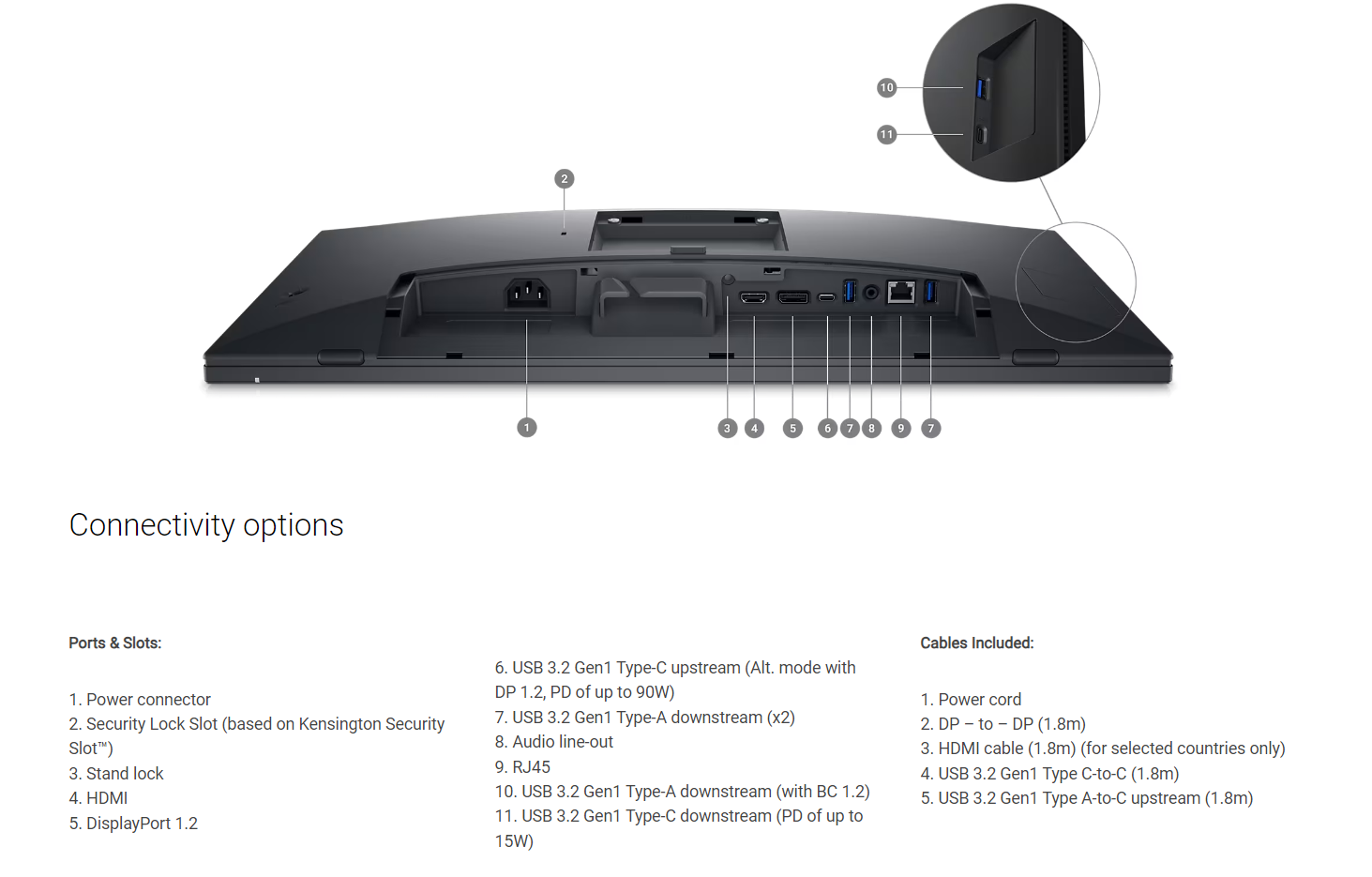
Check your monitor's input ports and included cables. There are three common configurations.
- USB-C with Alt Mode input: Single cable for video, touch, and power. This is the cleanest setup.
- HDMI + USB-B/USB-A upstream port: Two cables needed. HDMI for video, USB for touch.
- USB-C input without Alt Mode: Rare, but some monitors have USB-C for touch data only and require HDMI for video.
If your monitor came with a USB-A to USB-B cable (the square-ish connector), that's your touch data cable. Don't leave it in the box.
Step 3: Confirm Your Touch Controller Is ChromeOS-Friendly
This step is only needed if you're buying a monitor and haven't purchased yet. Check the monitor's technical specifications for the touch controller model. HID-compliant controllers from Elan, Ilitek, or Wacom (for stylus-capable monitors) generally work with ChromeOS.
If the specs list eGalax, EETI, or a proprietary controller, proceed with caution. Search for "[monitor model] ChromeOS touch" to see if other users have confirmed it works. Dell, ASUS, and HP touchscreen monitors tend to have the best ChromeOS compatibility because they use widely supported controllers.
Step 4: Connect and Test
Once you have your cables and monitor, connect everything and test. Here's the order that works best.
- Power on the monitor first.
- Connect the video cable (USB-C or HDMI).
- If using a separate USB touch cable, connect it now.
- Power on or wake your Chromebook.
- Go to Settings > Device > Displays to confirm the external monitor is detected.
- Tap the screen to test touch input.
If touch doesn't work immediately, try these quick fixes.
- Unplug and replug the USB touch cable.
- Try a different USB port on your Chromebook.
- Restart your Chromebook with everything connected.
- Check Settings > Device > Touchscreen to see if the external touchscreen appears as a separate input device.
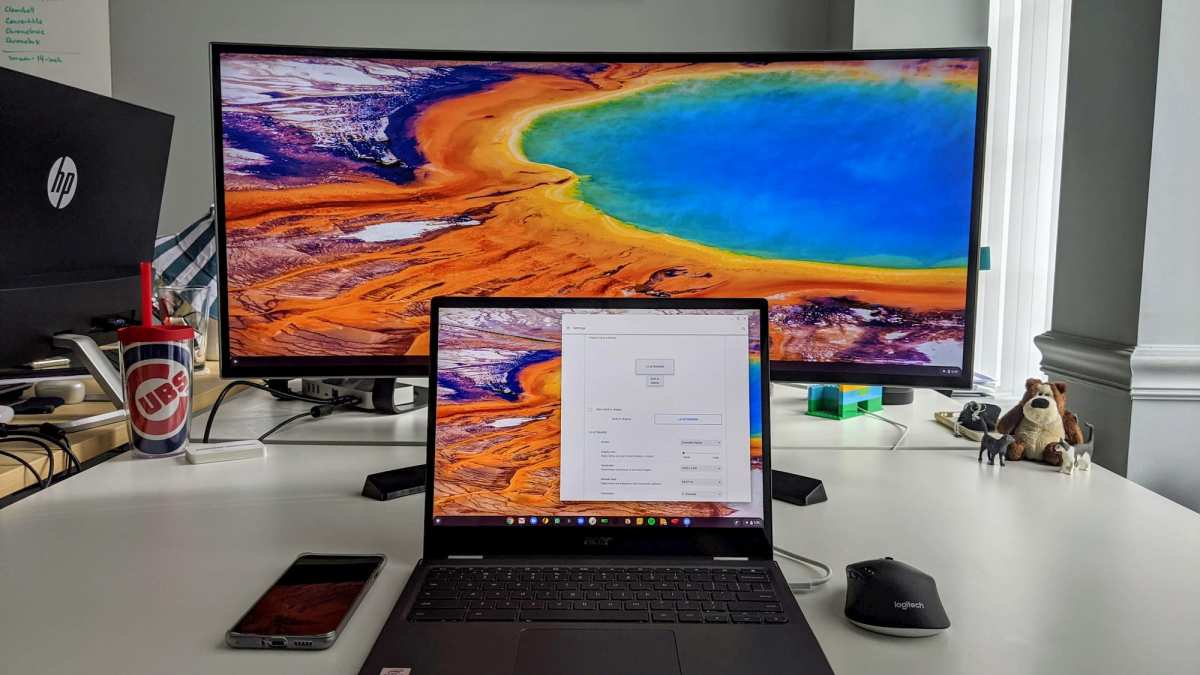
If the external touchscreen appears in settings but touch still doesn't work, the issue is likely the touch controller. If it doesn't appear at all, the issue is the cable connection or the Chromebook's port capabilities.
Touchscreen Monitor + Chromebook Compatibility Decision Tree
Here's the fastest way to get your answer. Start at the top and follow the path that matches your situation.
Does your Chromebook have a USB-C port with DisplayPort Alt Mode?
- Yes → Does your monitor have a USB-C input that supports Alt Mode?
, Yes → Use a single USB-C cable. Touch should work plug-and-play.
, No (monitor only has HDMI) → Connect HDMI for video, plus USB-A cable for touch. Touch should work.
- No (USB-C port is charge/data only) → Does your monitor have a USB-A upstream touch cable option?
, Yes → Connect HDMI for video, USB-A cable for touch. This may work, but verify your Chromebook recognizes the touch controller.
, No (monitor is USB-C Alt Mode only) → Touch will not work. You need a Chromebook with DP Alt Mode or a different monitor.
Does your monitor use an eGalax or EETI touch controller?
- Yes → ChromeOS may not recognize it. Check for firmware updates or consider a different monitor.
- No (HID-compliant Elan, Ilitek, or Wacom controller) → You're good. Proceed with connection.
Touchscreen Monitors That Work Well with Chromebooks
Based on aggregate user feedback and manufacturer specifications, these monitors have the best track record for ChromeOS touch compatibility as of 2026.
| Monitor | Screen Size | Connection | Touch Controller | ChromeOS Status | Price Range |
|---|---|---|---|---|---|
| Dell P2424HT | 23.8" | USB-C (Alt Mode) + HDMI | HID-compliant | Confirmed working | $350–$400 |
| ASUS VT249HGE | 23.8" | USB-C (Alt Mode) + HDMI | HID-compliant | Confirmed working | $280–$330 |
| Acer T243Y | 23.8" | USB-C + HDMI | HID-compliant | Confirmed working | $300–$350 |
| ViewSonic TD2430 | 23.8" | USB-C + HDMI | HID-compliant | Confirmed working | $320–$370 |
| HP E24t G5 | 23.8" | USB-C (Alt Mode) + HDMI | HID-compliant | Confirmed working | $330–$380 |
All five of these monitors support single-cable USB-C connections with power delivery up to 65 watts. They also include HDMI as a fallback with separate USB-A touch cables. The Dell and HP models tend to have the most consistent ChromeOS compatibility reports in education deployments.
Common Problems and How to Fix Them
Even with compatible hardware, things sometimes don't work on the first try. Here are the most common issues and what actually fixes them.
Touch Not Working After Connection
This is the number one complaint. The display works fine, but touch is completely dead. In most cases, the touch data cable isn't connected.
If you're using HDMI for video, you must also connect the USB-A upstream cable from the monitor to your Chromebook. HDMI doesn't carry touch data. The USB-A cable is the one that makes touch work.
If you're using USB-C and touch still doesn't work, try a different cable. Many USB-C cables bundled with chargers don't support Alt Mode. Use the cable that came with the monitor, or buy one explicitly rated for DisplayPort Alt Mode.
Touch Mapped to Wrong Display
If you're running an extended desktop and touch inputs are registering on the wrong screen, ChromeOS needs to remap the touch input. Go to Settings > Device > Touchscreen. Select the external monitor and choose "Map to this display." Restart if the option doesn't stick.
This happens more often than you'd think when using HDMI + USB-A touch cable setups. ChromeOS sometimes assigns touch to the built-in display by default.
Touch Works but Stylus Doesn't
If your monitor supports an active stylus (USI 2.0 or AES) but the stylus isn't responding, check two things. First, confirm your Chromebook supports the same stylus protocol as the monitor. USI 2.0 is more widely supported on ChromeOS than AES.
Second, some monitors require you to enable stylus input in the monitor's on-screen display menu.
Intermittent or Laggy Touch Response
This usually points to a cable quality issue or a USB bandwidth problem. Try connecting the monitor's USB touch cable directly to your Chromebook instead of through a hub. If you're using a USB-C dock or hub, it may not have enough bandwidth to carry video and touch data simultaneously.
When a Touchscreen Monitor Is Worth It for Chromebook Users
Not everyone needs this setup. Here's where it actually makes sense.
Classroom and Education Settings
Chromebooks dominate K-12 education. Teachers running Google Classroom or Chromecast-compatible apps benefit hugely from a large touch display. Students can interact with lessons directly on screen.
Most education-focused districts standardize on Dell or ASUS touch monitors for this reason.
Retail and Point-of-Sale
ChromeOS powers a growing number of POS systems. A touchscreen monitor turns a Chromebook into a compact register. The plug-and-play nature of ChromeOS means no driver headaches when replacing hardware.
Accessibility Needs
For users with motor difficulties, touch input can be easier than trackpad navigation. ChromeOS has built-in accessibility features like large cursor mode and tap-to-click that work on external touchscreens.
Creative Work with USI 2.0 Stylus
If your Chromebook supports USI 2.0 (most models from 2021 onward do), a touchscreen monitor with stylus support gives you a drawing and annotation surface. This works well for Google Keep, Squid, and other ChromeOS drawing apps.
When You Should Skip It
If your Chromebook's USB-C port doesn't support DisplayPort Alt Mode and you don't want to deal with a two-cable setup, save your money. You'll get frustrated.
If you're using a Chromebook purely as a productivity machine with a keyboard and trackpad, an external touchscreen adds cost without much benefit. Touch makes sense for interactive or presentation use cases, not for typing documents.
Budget touchscreen monitors under $200 often use cheaper touch controllers with spotty ChromeOS support. Spend a bit more for a known-compatible model.
Frequently Asked Questions
Do all touchscreen monitors work with Chromebooks?
No. Only monitors with HID-compliant touch controllers work reliably with ChromeOS. Monitors using eGalax or EETI controllers often fail to register touch input.
Always check the touch controller model before purchasing.
Can I use a USB hub for the touch connection?
It's possible but not recommended. USB hubs can introduce latency or fail to pass through the HID touch data properly. For the most reliable experience, connect the touch cable directly to your Chromebook.
Does ChromeOS support multi-touch on external monitors?
Yes. ChromeOS supports up to 10-point multi-touch on external HID-compliant touchscreen monitors. Pinch-to-zoom, two-finger scroll, and other gestures work the same as on a built-in Chromebook touchscreen.
Will a touchscreen monitor work if my Chromebook only has HDMI output?
Yes, but you'll need two cables. HDMI carries the video signal, and a separate USB-A cable carries the touch data. Both must be connected for the full setup to work.
Do I need to install drivers for touchscreen monitors on Chromebook?
No. ChromeOS uses the USB HID protocol natively. If your monitor's touch controller is HID-compliant, ChromeOS recognizes it immediately without any driver installation.
Can I use a USI stylus on an external touchscreen monitor with my Chromebook?
Yes, if both your Chromebook and the monitor support USI 2.0. Most Chromebooks from 2021 onward support USI 2.0. Monitors like the Dell P2424HT support USI stylus input alongside finger touch.
Final Verdict: Should You Connect a Touchscreen Monitor to Your Chromebook?
If your Chromebook has a USB-C port with DisplayPort Alt Mode, a touchscreen monitor is a great addition. The single-cable setup is clean, touch works reliably, and ChromeOS handles everything without drivers. This is the ideal scenario.
If your Chromebook lacks DP Alt Mode, you can still make it work with an HDMI plus USB-A touch cable setup. It's just less elegant. Make sure your monitor includes that USB touch cable and that the controller is HID-compliant.
If you're buying a monitor specifically for ChromeOS, stick with models from Dell, ASUS, Acer, ViewSonic, or HP that explicitly list HID-compliant touch controllers. Budget monitors with unknown touch controllers are a gamble that often doesn't pay off.
The bottom line: yes, touchscreen monitors work with Chromebooks, but only when the hardware chain is complete. Check your Chromebook's USB-C specs, verify the monitor's touch controller, and use the right cable. Get those three things right and it's plug-and-play.

Similar Posts





















