How to Run 4K Monitor at 144Hz
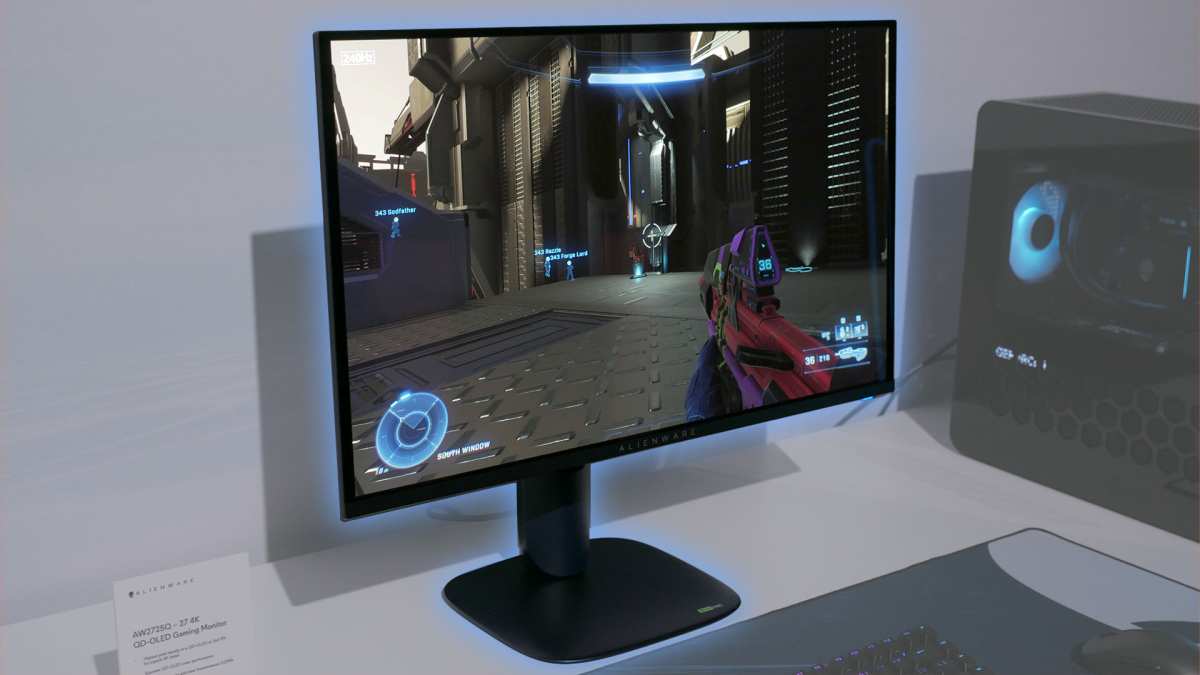
If you've just plugged in a 4K 144Hz monitor and Windows is stubbornly capping you at 60Hz, you're not alone. Figuring out how to run 4K monitor at 144Hz comes down to a chain of compatibility, and if any single link in that chain doesn't support enough bandwidth, the whole thing drops to 60Hz. The good news is this is almost always fixable without buying new hardware.
The core issue is simple math. Pushing 3840×2160 pixels at 144 frames per second with full color requires roughly 25.8 Gbps of uncompressed bandwidth. A single DisplayPort 1.4 lane only carries 8.1 Gbps, so even four lanes don't quite get you there without help. This directly compares with our findings on whether 144hz monitor run at 120hz.
That's where Display Stream Compression and the right cable choice come into play, and we'll walk through every possible path below.
Quick Answer
You can run 4K at 144Hz using three methods. Use DisplayPort 1.4 with Display Stream Compression enabled. Use HDMI 2.1 on both GPU and monitor.
Or use DisplayPort 2.0 or 2.1 if your hardware supports it. Each method requires compatible hardware on both ends and a certified cable. Readers evaluating this setup should also consider whether xbox run 144hz monitor for comparative benchmarks.
The Only Three Ways to Actually Run 4K at 144Hz
There's no magic setting that makes 4K 144Hz work on hardware that doesn't support it. You need enough bandwidth from your connection, and as of 2026, only three real paths deliver that bandwidth reliably. Here they are, ranked by how common they are for most setups.
Option 1: DisplayPort 1.4 with DSC
DisplayPort 1.4 is the most common path for 4K 144Hz on monitors built between 2018 and 2025. It gives you 32.4 Gbps across four lanes. That's not quite enough for 4K 144Hz at full 8-bit color without compression, but VESA Display Stream Compression 1.2a fills the gap cleanly.
DSC is visually lossless, meaning you won't see any artifacts, and it reduces the required bandwidth by roughly three to one.
Option 2: HDMI 2.1 (If Your GPU and Both Support It)
HDMI 2.1 offers 48 Gbps of total bandwidth through its Fixed Rate Link signaling. That's more than enough for 4K 144Hz with full 4:4:4 chroma and even headroom for HDR. The catch is that both your GPU and your monitor need HDMI 2.1 ports.
Many monitors advertise HDMI 2.1 but cap the actual data rate below the full spec, so it's worth checking your specific model's input bandwidth in its manual or spec sheet before relying on this path.
Option 3: DisplayPort 2.0 / 2.1 (The Newer, Cleaner Path)
DisplayPort 2.1, using UHBR20 link rates, delivers up to 80 Gbps of bandwidth. That's enough for 4K 144Hz uncompressed with 10-bit color and HDR, no DSC needed. This is found on newer GPUs like the AMD Radeon RX 7000 series and monitors released from late 2024 onward.
NVIDIA's RTX 40-series does not support DP 2.1 as of 2026, AMD currently stands alone on the GPU side.
| Connection Type | Max Bandwidth | DSC Required? | GPU Support | Monitor Support |
|---|---|---|---|---|
| DisplayPort 1.4 | 32.4 Gbps | Yes | Most GPUs since 2016 | Very common |
| HDMI 2.1 | 48 Gbps | No | RTX 20-series+, RX 6000+ | Common on 2021+ monitors |
| DisplayPort 2.1 (UHBR20) | 80 Gbps | No | RX 7000 series only | New late models |
| HDMI 2.0 | 18 Gbps | Not可行 | Universal | Universal |
How to Check What Your Setup Actually Supports
Before you change any settings, you need to know exactly what your hardware chain can do. Four things matter: your GPU output, your monitor input, your cable, and your settings. Check them in this order.
Step 1: Check Your GPU's Output Specs
Look up your exact GPU model on the manufacturer's spec page. You're looking for three things: the DisplayPort version, the HDMI version, and whether it supports DSC. For NVIDIA, check the GeForce specifications page.
For AMD, check the Radeon product page. A GTX 10-series card, for example, tops out at DP 1.4 but may lack DSC support, which means 4K 144Hz may not work at all through DisplayPort.
Step 2: Check Your Monitor's Input Bandwidth
Your monitor's manual or product page will list the maximum resolution and refresh rate per input. Many 4K 144Hz monitors only support 144Hz through DisplayPort, not through HDMI. Some support 120Hz through HDMI 2.1 and only hit 144Hz via DP.
Check the spec sheet per port, not just the monitor's overall capabilities.
Step 3: Check Your Cable (This Is Where Most People Get Stuck)
Here's the surprise. You can have a perfect GPU and a perfect monitor and still be stuck at 60Hz because of the cable. DisplayPort cables are not all the same.
A DP 1.2 cable will physically fit in a DP 1.4 port but won't carry enough bandwidth for 4K 144Hz. You need a cable rated for HBR3 (High Bit Rate 3), which corresponds to DP 1.4. For HDMI, you need an Ultra High Speed HDMI cable certified for 48 Gbps.
Step 4: Enable the Right Settings in Windows and Your GPU Control Panel
Once your hardware chain checks out, the final step is telling the software to use 144Hz. Right-click the desktop, open Display Settings, click Advanced Display, and select the highest refresh rate from the dropdown. If 144Hz doesn't appear, open your GPU's control panel.
NVIDIA users should check the NVIDIA Control Panel under Change Resolution. AMD users should look in AMD Software under Display settings.
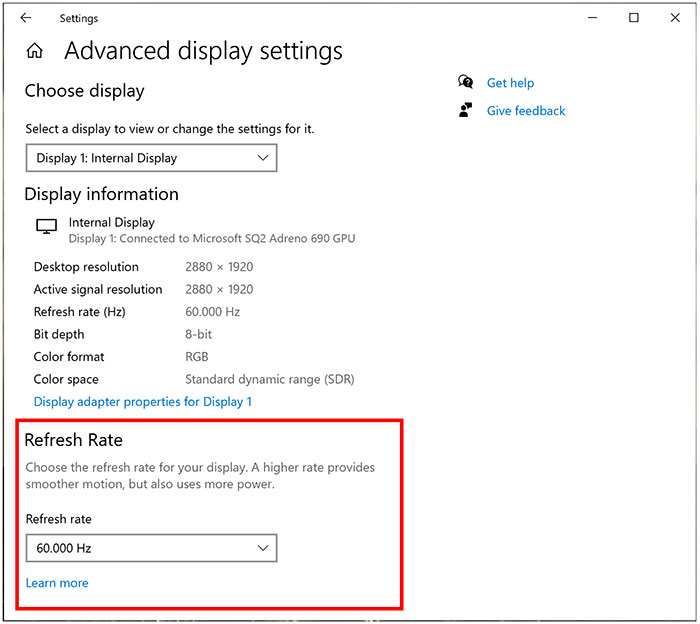
Some monitors also require you to enable DSC directly in the monitor's on-screen display menu. Look for a Display Stream Compression toggle or a DP version setting in the monitor's input or display options. If it's disabled by default, the monitor may negotiate a lower bandwidth mode and cap you at 60Hz or 120Hz.
The Cable Problem Nobody Talks About
The single most common reason 4K 144Hz doesn't work isn't the GPU or the monitor. It's the cable sitting between them. DisplayPort cables don't have version numbers printed on them in any standardized way that consumers can easily read.
Most people grab whatever cable came in the monitor box, and that cable is usually fine. But if you've swapped it out or are using a cable that's been sitting in a drawer for three years, it might not be rated for the bandwidth you need.
For DisplayPort 1.4, you want a cable rated for HBR3, which means it handles 8.1 Gbps per lane across four lanes. VESA maintains a certification database for DP cables. Look for cables labeled as DP8K certified or VESA-certified for HBR3.
Cheap, uncertified cables from Amazon or eBay often fail at exactly the moment you need the most bandwidth, causing flickering, signal drops, or the system simply refusing to offer the 144Hz mode.
For HDMI 2.1, the situation is similarly frustrating. The HDMI Forum certifies cables as Ultra High Speed, but many cables marketed as "48Gbps" or "8K ready" haven't actually gone through certification. If you're using a long HDMI cable, anything over about 3 meters may require an active cable to maintain signal integrity at full 48 Gbps.
Passive HDMI 2.1 cables longer than 3 meters often drop to lower link rates, which can cap your refresh rate without any explicit error message.
DSC: Why You Need It and When You Don't
Display Stream Compression is the tech that makes 4K 144Hz work over DisplayPort 1.4. Without DSC, DP 1.4 physically does not have enough bandwidth to carry an uncompressed 4K 144Hz signal at full color depth. The numbers don't lie.
Uncompressed 4K at 144Hz with 8-bit color and standard timings needs approximately 25.8 Gbps. DP 1.4 with four lanes at HBR3 gives you 25.92 Gbps of actual data payload after overhead. That razor-thin margin typically isn't enough, and it's why DSC is practically mandatory for most setups relying on DisplayPort 1.4.
DSC works by compressing the video stream before transport and decompressing it at the monitor. The compression ratio is typically three to one, and it's designed to be visually lossless. In practice, you cannot see the difference between DSC-compressed and uncompressed output in normal use, including gaming and video playback.
Both the GPU and the monitor must support DSC. NVIDIA added DSC support starting with the RTX 20-series. AMD included it from the RX 5700 series onward.
On the monitor side, check the spec sheet for DSC or DisplayStream compression. Not all DP 1.4 monitors implement it.
If your hardware supports DisplayPort 2.1 or HDMI 2.1, you may not need DP at all at full refresh rate. DP 2.1 at UHBR20 gives you enough headroom, while HDMI 2.1 delivers 48 Gbps natively, plenty for 4K 144Hz at 8-bit with full RGB chroma. High bit-depth HDR at 10-bit, though, still eats into that margin fast enough that DP 2.1 with extra bandwidth or DSC ends up the cleaner fallback.
What Happens When Something Doesn't Match
Real-world setups rarely have every piece aligned perfectly, so here's what you'll actually see when one link in the chain falls short.
GPU only supports DP 1.2. You'll max out at 4K 60Hz through DisplayPort, period. DP 1.2 doesn't have enough bandwidth and doesn't support DSC. Your only option is to use HDMI if your monitor supports HDMI 2.1, or upgrade your GPU.
Monitor supports 4K 144Hz but only through DisplayPort. HDMI inputs on many 4K high-refresh monitors are limited to HDMI 2.0 speeds. Check each port's specs individually. If you've plugged into HDMI and can't get above 60Hz, switch to DisplayPort.
Adapter or dock in the path. USB-C hubs andThunderbolt docks can bottleneck your signal. Many only support DP 1.2 over their DisplayPort output, even if the laptop GPU is capable of DP 1.4. If you're routing through a dock, verify it explicitly supports DP 1.4 HBR3 or DP 2.1 passthrough.
Otherwise, connect directly.
Common Mistakes That Keep You Stuck at 60Hz
Six repeats come up constantly when people see the same collection of issues:
- Using the HDMI cable that came in the monitor box. If that cable is HDMI 2.0, you're capped at 4K 60Hz. Swap to a certified Ultra High Speed HDMI 2.1 cable.
- Not checking the GPU control panel. Windows Settings sometimes doesn't show the highest available refresh rate. Always check the NVIDIA Control Panel or AMD Software as a second step.
- Ignoring a stale graphics driver. An outdated driver may just refuse the 144Hz mode outright or cap the monitor at an older EDID profile. Running the latest version often uncovers modes you didn't know were possible.
- Using a passive DisplayPort cable longer than 2 meters that isn't rated for HBR3. Signal integrity drops at longer lengths with passive cables, and the system may negotiate a lower link rate. For more than 2 meters, grab an active cable.
- Not checking the monitor OSD for a DSC toggle or a "DP version" setting. Some panels ship with DSC and high‑refresh modes switched off by default. You have to enable them in the monitor’s own menus.
- Assuming all USB-C to DisplayPort cables are equal. Many cheap USB-C to DP cables only carry DP 1.2. If you're connecting a laptop, check the cable specs and verify the laptop's USB-C port supports DP Alt Mode at DP 1.4 speeds.
Quick Troubleshooting Checklist
When everything should work but doesn't, run through these items in order:
- Confirm GPU supports DP 1.4 with DSC or HDMI 2.1 in official specs
- Confirm monitor supports 144Hz on the specific port you're using
- Verify the cable is rated for the correct standard, HBR3 for DP, Ultra High Speed for HDMI
- Update your GPU driver to the latest available version
- Check the monitor OSD for a DisplayStream Compression or DP version toggle
- Try the DisplayPort input if you've been using HDMI, or the other way around
- Swap to a shorter, certified cable, even just as a test
- Restart with the monitor powered on before the computer so it hands over the EDID early
4K 144Hz vs. 1440p 240Hz: Which Should You Actually Choose?
If you're weighing whether to push for 4K 144Hz or drop to a faster refresh rate, a lot depends on what you do. 4K 144Hz lands perfectly for most people who want sharpness and smoothness in equal measure, especially in single‑player titles, open‑world games, and creative work where 4K hits the productivity sweet spot.
1440p 240Hz, on the other hand, is built for competitive gamers who want the quickest pixel response and clearest motion clarity possible in fast‑paced shooters and esports titles. Dropping resolution also lowers GPU load enough to make high framerates easier to push. 4K 144Hz has matured quite a bit, though, and panel prices have come down. If you sit at a desk with a 27‑inch or 32‑inch display, the density trade‑offs are harder to see, and the experience feels genuinely next‑level in clarity.
Here's a quick way to think about it. Choose 4K 144Hz if you want high detail and smooth motion, and plan to turn down settings in competitive games above 144fps. Choose 1440p 240Hz if you live in Counter‑Strike or Valorant and you’re prepared to sacrifice visual richness for every frame and millisecond of motion clarity.
| Factor | 4K 144Hz | 1440p 240Hz |
|---|---|---|
| Resolution | 3840×2160 | 2560×1440 |
| Refresh Rate | 144Hz | 240Hz |
| Bandwidth Required | High | Moderate |
| Best For | Hybrid gaming, content creation | Competitive FPS |
| GPU Load | High | Moderate |
| Price Range (as of 2026) | $300 to $800+ | $200 to $500 |
| DSC Typically Required (DP 1.4) | Yes | No |
Frequently Asked Questions
Does HDMI 2.0 support 4K 144Hz?
No. HDMI 2.0 maxes out at 18 Gbps, which only handles 4K at 60Hz with full RGB color. To reach 4K 144Hz you need either HDMI 2.1, DisplayPort 1.4 with DSC, or DisplayPort 2.1.
My monitor says 144Hz but Windows only shows 60Hz. What gives?
First check that you're using the right port and cable for the monitor's highest‑bandwidth input. Then open your GPU control panel and look for the refresh rate override there. Also make sure you've got the latest graphics driver installed, because outdated firmware can hide available modes.
Do I need a special cable for 4K 144Hz over DisplayPort?
Yes. Use a VESA-certified DisplayPort 1.4 cable that's rated for HBR3 speeds, capable of 8.1 Gbps across four lanes. Cheap, uncertified cables may work for a moment and fail the moment you push high refresh rates or HDR.
Can I use a USB-C to DisplayPort adapter for 4K 144Hz?
Possible, but only if the laptop's USB-C port supports DisplayPort Alt Mode at DP 1.4 speeds and the adapter or cable itself is explicitly rated for HBR3 or DP 2.1. Most cheap USB-C to DP adapters cap out at DP 1.2, which limits you severely to 4K 60Hz.
Does DSC introduce any visible artifacts or input lag?
No. DSC is visually lossless and adds less than one millisecond of processing latency. You will not see any difference between DSC-compressed and uncompressed video in real-world use, including fast-paced gaming.
How to Enable 4K 144Hz in Your GPU Control Panel
If Windows Display Settings doesn't show the 144Hz option, your GPU control panel almost certainly will. This is the step most people skip, and it's the one that fixes the majority of stuck-at-60Hz problems.
For NVIDIA users, right-click the desktop and open NVIDIA Control Panel. Click Change Resolution in the left sidebar. You'll see a list of resolutions and refresh rates.
If 3840×2160 at 144Hz appears, select it and apply. If only 60Hz shows, click Customize, then Create Custom Resolution. Set the refresh rate to 144Hz and test it.
If the test succeeds and looks good, save it. If the screen goes black, wait 15 seconds, Windows will revert. That tells you the monitor or cable can't handle that timing.
For AMD users, open AMD Software, click the Display tab. The refresh rate dropdown should list all available rates supported by the monitor's EDID. If 144Hz is there, select it.
If it's not, create a custom resolution within the AMD Software and enter the exact timing parameters from your monitor's specification sheet. Both NVIDIA and AMD will read the monitor's EDID data first. If the monitor doesn't report its maximum refresh rate correctly through EDID, neither control panel will show it.
In that rare case, a monitor firmware update sometimes fixes the EDID table and unlocks the missing rate.
When Chroma Subsampling Becomes the Trade-Off
Here's something most guides gloss over. If your bandwidth is tight and you can't enable DSC, your GPU may offer 4K 144Hz only at reduced chroma. That means 4:2:2 or 4:2:0 chroma subsampling instead of full 4:4:4.
The refresh rate works, but color resolution gets cut. Text looks slightly fringed. Color gradients show banding.
Most people notice this immediately on desktop use, even if they can't identify why the image looks "off."
Full 4:4:4 chroma at 4K 144Hz with 8-bit color needs exactly the bandwidth budget we calculated earlier. With DP 1.4 and DSC, that works fine. With HDMI 2.1, it also fits.
The problem appears when neither DSC nor HDMI 2.1 is in play. In that situation, your GPU might show 4K 144Hz as an option only with compromised chroma, which is technically valid but visually degraded. The fix is straightforward.
Either use DSC-capable hardware or switch to HDMI 2.1. There is no setting that improves chroma subsampling if the physical connection lacks bandwidth.
How Monitor Firmware Updates Can Unlock Missing Refresh Rates
Occasionally the monitor is the bottleneck, not the cable or GPU. Manufacturers sometimes release firmware updates that fix EDID tables, add DSC support, or unlock higher refresh rates on specific inputs. Firmware updates have been confirmed to enable full 4K 144Hz on monitor models that shipped with EDID tables reporting lower maximum rates at launch.
The exact steps vary. Some monitors update via USB drive, others through a companion app over USB upstream. Check the manufacturer's support page using your exact model number.
Look at the changelog for any mention of refresh rate improvements, DSC, or timing fixes. If an update matches your issue, that's your cheapest fix and it costs nothing.
Does Running 4K 144Hz Hurt Gaming Performance?
This one's simple. Rendering games at 3840×2160 pushes four times the pixel count of 1080p. At a 144Hz refresh rate, you're asking the GPU to produce 144 frames per second at that resolution.
If your GPU can maintain that frame rate, you see it buttery smooth. If it can't, you get lower frame rates displayed on a high-refresh panel, which still feels smoother than 60Hz because of reduced stutter and lower input lag. Adaptive Sync definitely helps here.
It lets the monitor match its refresh rate to the GPU's output frame by frame, so you don't get tearing when your frame rate bounces between 90 and 144. G-Sync and FreeSync remain active at 4K 144Hz on supported hardware. Just ensure the feature is enabled in both the GPU control panel and the monitor's on‑screen display.
Final Recommendation: What to Buy and What to Avoid
After everything we've discussed, here's the practical summary that works for most people. If you're building or upgrading a setup for 4K 144Hz as of 2026, buy a monitor that explicitly supports DP 1.4 with DSC and also has HDMI 2.1. That gives you two paths to 4K 144Hz and covers nearly every GPU on the market.
If you're buying an AMD GPU, you can also consider a DP 2.1 monitor for uncompressed headroom. If NVIDIA, DP 1.4 with DSC remains the reliable standard. Buy a VESA‑certified DisplayPort 1.4 cable and a certified Ultra High Speed HDMI cable.
Don't cheap out on cables. Budget cables are the most common cause of 4K 144Hz issues across community forums. Skip monitors that list 4K 144Hz in the spec sheet but only implement it through a single input with no DSC.
You'll hit a bandwidth wall mid-setup. Also skip monitors with HDMI 1.4 or HDMI 2.0 as their highest HDMI version if you plan to use HDMI. Don't overthink it.
Match your GPU's strongest output to the monitor's strongest input, use the right cable, enable the setting. That's it.

Similar Posts





















