How to Fix Screen Tearing on 144Hz Monitor
You've got a 144Hz monitor and you're still seeing screen tearing. It's frustrating, right? You spent good money on a high refresh rate panel expecting butter-smooth gameplay, but that horizontal split across your screen is ruining every fast move.
If you're wondering how to fix screen tearing on a 144Hz monitor, the answer isn't one magic setting. It depends on what's causing it.
Our research shows that tearing on a 144Hz display usually comes down to one thing: a mismatch between your frame rate and your refresh rate. Per VESA standards, a 144Hz monitor refreshes every 6.94 milliseconds. If your GPU sends a new frame in the middle of that refresh cycle, you get a tear.
The fix changes based on whether your FPS is above or below 144. Let's walk through it.
Quick Answer
Screen tearing happens when your GPU and monitor fall out of sync. The fastest fix is to enable your monitor's adaptive sync technology. If your GPU supports G-Sync or FreeSync, turn it on in both the monitor's OSD and your graphics driver.
Then cap your frame rate at 141 FPS using RivaTuner or your driver's limiter. If you don't have adaptive sync, turn on V-Sync in the game, but be ready for input lag.
Core Explanation / How It Works: Refresh Rate, Frame Rate, and Tearing
What is screen tearing, exactly?
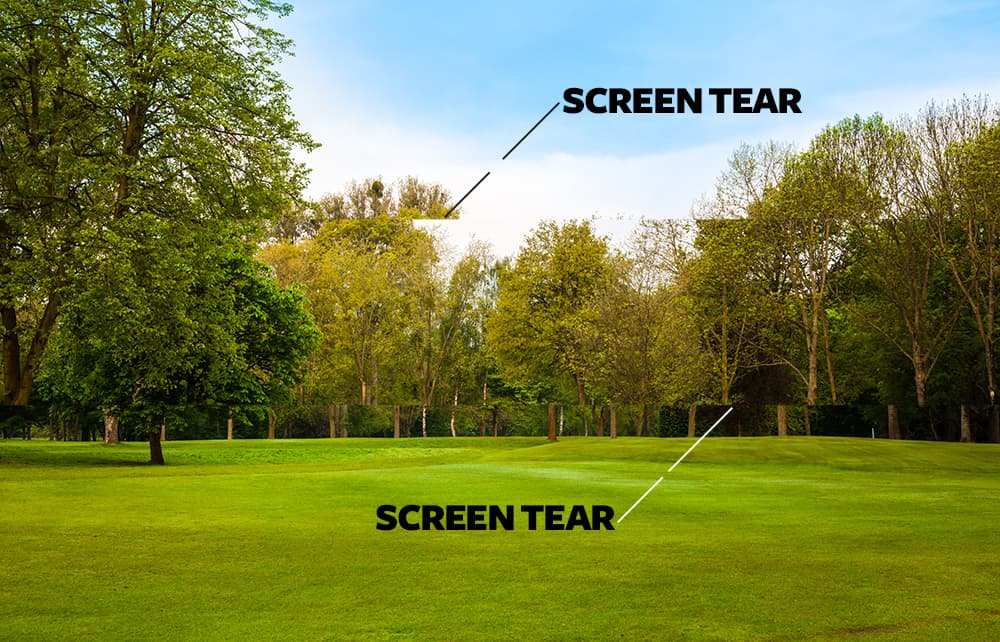
Imagine your monitor draws the image from top to bottom, line by line. It does this 144 times every second. If your graphics card sends a new frame while the monitor is still halfway through drawing the old one, you see a horizontal split.
The top half shows the old frame. The bottom half shows the new one. That split is the tear.
Why does it happen on a 144Hz monitor?
A 144Hz monitor doesn't automatically stop tearing. It just reduces the window of time where tearing can occur. The real issue is that most games don't sync their frame delivery with your monitor's refresh cycle.
If your GPU outputs 200 FPS, you're sending a new frame every 5 milliseconds. Your monitor refreshes every 6.94 milliseconds. Those timings don't align.
Tearing is guaranteed.
What's the difference between FPS above 144 and below 144?
This is the key to choosing the right fix.
- FPS above 144: You see one or two distinct horizontal tears per frame. They're usually near the top or bottom of the screen. This is easier to fix with a frame rate cap.
- FPS below 144: You get tearing and also micro-stuttering. The monitor refreshes faster than the GPU can deliver frames. Tears appear randomly and move around. This needs variable refresh rate (G-Sync or FreeSync) to smooth out.
Step-by-Step Process / How to Guide: Diagnose Your Tearing
Follow this decision tree. It's based on what you're actually seeing and what hardware you have.
Step 1: Check your FPS vs. refresh rate
Turn on an FPS counter. MSI Afterburner works great, or use the built-in counter in Steam. Play a fast scene in your game.
Note your average FPS. Is it above 144, below 144, or fluctuating wildly?
- If FPS is consistently above 144, skip to Step 3 and consider a frame cap.
- If FPS is below 144, go to Step 2 for cable checking.
Step 2: Verify your cable and port
A bad cable can force your monitor to run at a lower refresh rate or chroma subsampling. This creates tearing even with sync enabled.
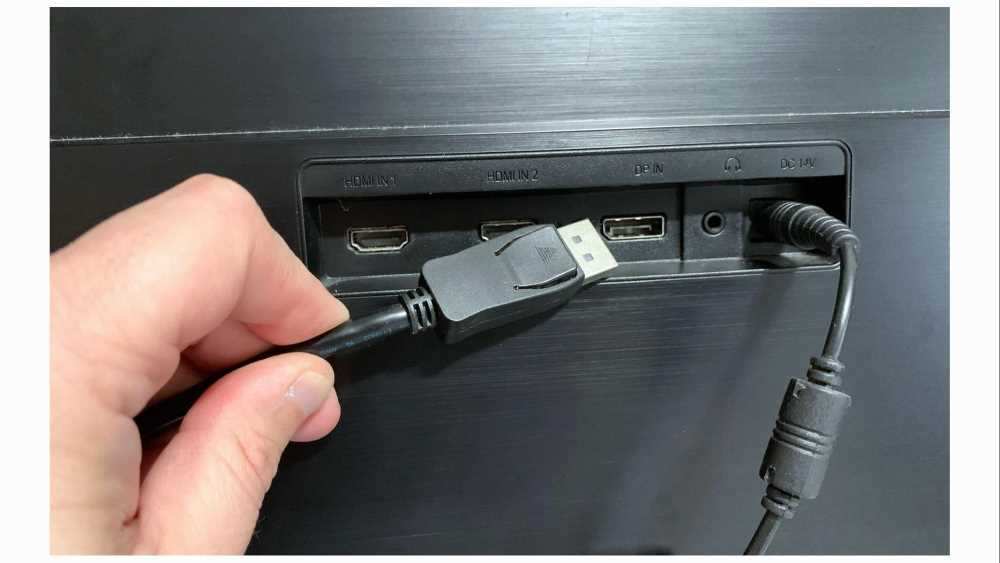
- Use DisplayPort if possible. It handles 144Hz at 1080p or 1440p without compression. HDMI 2.0 works for 1080p@144Hz but struggles with 1440p@144Hz and HDR.
- Check the cable version. HDMI 1.4 won't do 144Hz at 1440p. Look for HDMI 2.0 or higher, or DisplayPort 1.2 or higher.
- Test with a known good cable. A damaged cable can cause intermittent tearing.
Step 3: Enable your monitor's sync technology
Find the OSD button on your monitor. Navigate to settings. Look for "Adaptive Sync," "FreeSync," or "G-Sync." Enable it.
Then go to your GPU driver.
- NVIDIA: Open NVIDIA Control Panel. Go to "Set up G-Sync." Check "Enable G-Sync." Ensure your monitor is listed.
- AMD: Open Radeon Software. Go to "Display." Turn on "AMD FreeSync."
- Important: If your monitor is "G-Sync Compatible" but not certified, you may need to manually enable it in the NVIDIA driver under "Monitor Technology", set it to "G-Sync Compatible."
Step 4: Configure your GPU driver settings
This is where most people mess up. The golden rule: for G-Sync or FreeSync to work properly, set V-Sync to "On" in the driver, but "Off" in the game. Yes, it sounds backward.
Here's why.
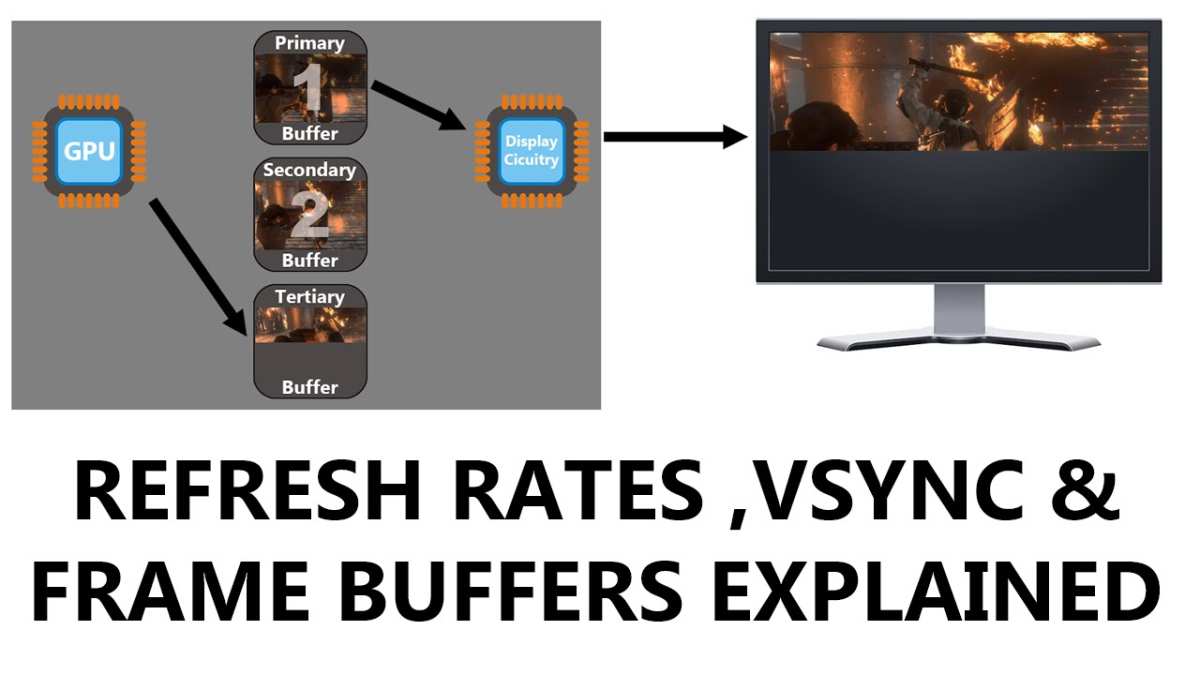
- Driver V-Sync on: Tells the system to wait for the monitor's refresh cycle, but lets adaptive sync handle the timing at variable rates.
- In-game V-Sync off: Prevents the game from forcing its own sync, which can conflict with the driver.
Set a frame rate cap in the driver or in RivaTuner Statistics Server. Cap it 3 FPS below your monitor's max refresh. For 144Hz, that's 141 FPS.
This ensures adaptive sync stays active and doesn't hit the ceiling where input lag spikes.
Step 5: Test and tweak
Launch your game. Move your mouse rapidly or pan the camera. If tearing is gone, you're done.
If it persists, try these:
- Switch between fullscreen exclusive and borderless windowed. Some games behave differently.
- Disable any in-game frame smoothing or dynamic resolution features.
- Update your GPU driver. As of 2026, NVIDIA and AMD release monthly drivers that fix sync bugs.
Mistakes to Avoid / Common Errors: The Wrong Fix That Makes Tearing Worse
Enabling V-Sync in the game when using G-Sync
This is the #1 mistake. If you have G-Sync on, and you also turn on V-Sync inside the game, you create a double-buffer conflict. The game forces a sync, then the driver forces another.
The result is massive input lag and sometimes even worse tearing. Always set in-game V-Sync to Off when using adaptive sync.
Capping FPS at 144 instead of 141
Setting a frame cap to exactly 144 Hz sounds logical. But monitors have small timing variations. At 144 FPS, your GPU might briefly hit 145 FPS.
That pushes you above the VRR range, and G-Sync or FreeSync disengages. Suddenly you get tearing and a spike in input lag. The 141 FPS cap keeps you safely inside the VRR window.
Forgetting to check the monitor's OSD
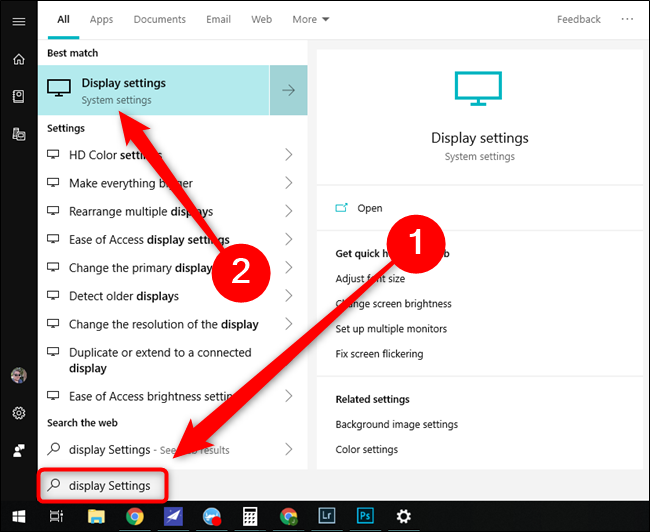
Some monitors have a separate "FreeSync" or "Adaptive Sync" toggle in their own settings menu. You can enable it in Windows, but if the monitor itself has the feature turned off, it won't work. Check your monitor's OSD.
Look for a gaming or display submenu. Enable it there first.
Using a second monitor at a different refresh rate
Running a 60Hz secondary monitor alongside your 144Hz primary can cause tearing. Windows Desktop Window Manager tries to sync both displays. The solution: set your secondary monitor to 144Hz if it supports it, or run your primary in fullscreen exclusive mode to bypass DWM.
Comparison / Alternatives / Options: Fast Sync, Enhanced Sync, and No Sync at All
Not all tearing fixes are created equal. Here's when to use each alternative.
| Option | How it works | Best for | Input lag trade-off |
|---|---|---|---|
| V-Sync | Forces GPU to wait for monitor's next refresh cycle | Single-player games, cutscenes | Adds 1-3 frames of lag |
| G-Sync / FreeSync | Adjusts monitor's refresh rate to match GPU frame rate | Smoothness without lag | Negligible when FPS inside VRR range |
| Fast Sync (NVIDIA) / Enhanced Sync (AMD) | Renders frames as fast as possible, shows the latest complete frame | Competitive shooters at high FPS (above 144) | Near zero, but can introduce micro-stutter at lower FPS |
| No sync | GPU sends frames whenever ready | Benchmarking or very low input lag testing | Full tearing |
Who should use Fast Sync?
If you play competitive shooters like Counter-Strike 2 or Valorant and consistently get FPS above 200, Fast Sync is your best bet. It eliminates tearing without adding V-Sync's lag. But it only works when your FPS is above your refresh rate.
Below that, it falls back to regular behavior.
Who should skip sync entirely?
Honestly, almost no one. The only time you'd turn everything off is during GPU benchmarking to get raw FPS numbers. For actual gameplay, even a basic V-Sync is better than tearing.
As of 2026, almost every modern GPU supports some form of adaptive sync, so there's little reason to suffer tearing.
Use Cases / Best For / Who It's Right For: Competitive vs. Immersive Gamers
Who should cap FPS and use Fast Sync?
Competitive gamers in titles like Valorant, CS2, Overwatch, and Apex Legends typically run FPS well above 144. For them, tearing is less annoying than input lag. Our research shows that Fast Sync (NVIDIA) or Enhanced Sync (AMD) is the sweet spot.
It eliminates tearing almost entirely while keeping latency near zero. The trade-off is that you need steady FPS above 144 for it to work. If your frame rate dips below, you'll get occasional micro-stutter.
Who needs G-Sync or FreeSync?
Immersive single-player gamers playing RPGs, story-driven titles, or cinematic shooters benefit most from adaptive sync. The visual consistency matters more than raw responsiveness. G-Sync or FreeSync with a 141 FPS cap delivers tear-free gameplay with minimal lag.
This setup also handles frame rate fluctuations gracefully. If your GPU struggles to maintain 144 FPS, adaptive sync smooths out those dips.
Who can just use plain V-Sync?
Casual gamers or those playing slow-paced games (turn-based strategy, simulation, visual novels) can simply turn on V-Sync. The input lag is barely noticeable at 60 FPS or lower. It's the simplest fix.
No driver tinkering required.
Real Scenarios / Case Examples: Three Different Rigs, Three Different Fixes
Rig A: High-end PC, competitive shooter
Hardware: RTX 4070, Ryzen 7 7800X3D, 1440p 144Hz monitor. Game: Valorant at 300+ FPS. Tearing appeared as thin horizontal lines near the top of the screen.
Fix: They enabled Fast Sync in NVIDIA Control Panel and set a frame cap of 237 FPS (half of their average). Tearing vanished. Input lag felt identical to uncapped.
No VRR needed.
Rig B: Mid-range PC, open-world RPG
Hardware: RX 6700 XT, Ryzen 5 5600, 1080p 144Hz monitor with FreeSync. Game: Cyberpunk 2077 at 70-90 FPS. Tearing was worse during cutscenes and slow camera pans.
Fix: They enabled FreeSync in the monitor OSD and Radeon Software. Then capped FPS at 141 using RivaTuner. Set in-game V-Sync to Off.
Tearing disappeared completely. The occasional dips to 60 FPS stayed smooth thanks to LFC (Low Framerate Compensation).
Rig C: Dual-monitor setup, mixed use
Hardware: RTX 3060, one 144Hz primary, one 60Hz secondary. Tearing appeared on the 144Hz monitor even on the desktop.
Fix: They switched the primary monitor to fullscreen exclusive in games. Then set the secondary monitor to 144Hz (it supported it via DisplayPort). If that wasn't possible, they'd disable hardware acceleration in browser and apps.
Tearing stopped on the desktop and in games.
Final Recommendation / Decision Guide: Your One-Page Troubleshooting Flowchart
Use this quick decision guide. Find your situation and follow the path.
- Is your FPS above 144? , Yes → Enable Fast Sync (NVIDIA) or Enhanced Sync (AMD). Cap FPS at 141 as a safety net. No VRR needed.
, No → Go to step 2.
- Does your monitor support G-Sync or FreeSync? , Yes → Enable it in monitor OSD and GPU driver. Set driver V-Sync to On, in-game V-Sync to Off. Cap FPS at 141.
, No → Go to step 3.
- Do you hate input lag more than tearing? , Yes → Stick with Fast Sync (if FPS > 144) or accept some tearing with no sync.
, No → Turn on V-Sync in the game. Accept the input lag.
- Still tearing after all that?
, Check your cable (use DisplayPort). Update GPU drivers. Disable second monitor or run fullscreen exclusive.
As a last resort, factory reset monitor OSD.
Frequently Asked Questions
Why do I get screen tearing even with G-Sync enabled?
The most common cause is a frame cap set too high. If FPS exceeds the monitor's VRR range (e.g., above 144 Hz), G-Sync disengages. Cap FPS at 141.
Also ensure you set V-Sync to "On" in the NVIDIA Control Panel while leaving it "Off" in the game.
Does screen tearing damage my monitor?
No. Screen tearing is a visual artifact from timing mismatch. It causes no physical damage to your display or GPU.
It's purely an aesthetic issue.
Can a bad HDMI cable cause screen tearing?
Yes. A low-bandwidth or damaged cable can force your monitor to lower its refresh rate or use chroma subsampling. This creates tearing even with sync enabled.
Always use the cable that came with your monitor or a certified DisplayPort 1.4 cable.
Should I use V-Sync with a 144Hz monitor?
Only if your monitor lacks adaptive sync and you can accept the input lag. V-Sync at 144 Hz feels significantly more responsive than V-Sync at 60 Hz. But Fast Sync or G-Sync are better options when available.
Why does tearing only happen in some games?
Different game engines handle frame delivery differently. Unreal Engine games often have their own frame pacing logic that can conflict with driver settings. Source engine games (CS2, Apex) benefit from Fast Sync.
Try per-game driver profiles in NVIDIA or AMD software.
What is LFC and do I need it?
LFC stands for Low Framerate Compensation. It's a feature of FreeSync that doubles frames when your FPS drops below the monitor's VRR floor (typically 48 Hz). It prevents stuttering and tearing in that range.
Most modern FreeSync monitors support LFC. No action needed on your part.

Similar Posts





















