How to Enable HDR on Ips Monitor
Figuring out how to enable hdr on ips monitor shouldn't feel like solving a puzzle, but it often does. You flip the toggle in Windows and… nothing happens. Or worse, everything looks washed out and worse than before.
The problem usually isn't your monitor. It's the chain between your GPU, cable, monitor hardware, and operating system settings.
The good news is that once you understand how each piece fits together, the process is straightforward. Most IPS monitors that support HDR need you to enable it in two or three places, not just one. And the specific steps depend on your GPU, your cable, and whether your panel actually has real HDR hardware or is just "HDR-compatible" in the marketing sense.
Let's walk through it.
Quick Answer
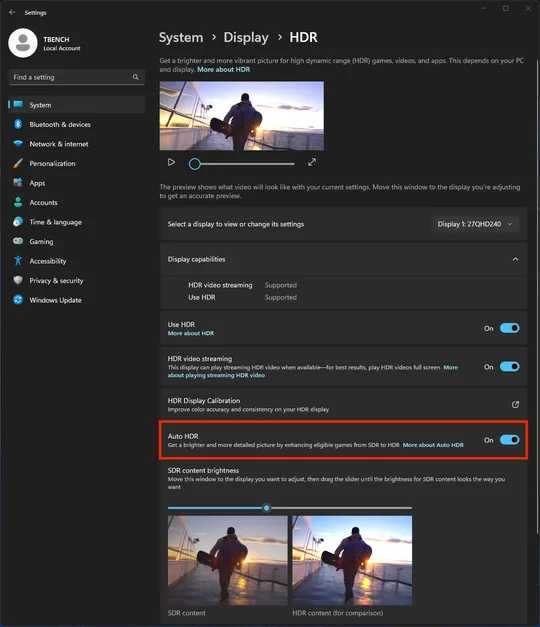
Enable HDR on your IPS monitor by first turning on HDR in the monitor's On-Screen Display (OSD) menu. Then connect via DisplayPort 1.4 or HDMI 2.0a or higher. Next, open Windows Settings > System > Display and toggle on "Use HDR." Finally, adjust the SDR content brightness and peak brightness sliders to taste.
If the toggle is missing, your cable, GPU, or port is likely the bottleneck.
HDR on IPS Monitors: Why It's Not Just a Switch
Here's the thing most guides skip. Not every IPS monitor that advertises "HDR" can actually display HDR in any meaningful way. Manufacturers love slapping "HDR-compatible" or "HDR-ready" on boxes when the panel can technically accept an HDR10 signal but lacks the hardware to render it properly.
What matters is the VESA DisplayHDR certification tier. VESA, the standards body behind DisplayPort, created the DisplayHDR certification program specifically to cut through the marketing noise. As of 2026, the tiers range from DisplayHDR 400 (entry-level) up to DisplayHDR 1400 (enthusiast-grade).
Each tier sets minimum requirements for peak brightness, color gamut, black level, and bit depth.
For IPS panels specifically, DisplayHDR 400 is the most common certification you'll see. It means the panel hits 400 nits of peak brightness and covers at least 95% of the sRGB gamut. That's fine for basic HDR signal acceptance, but it won't deliver the dramatic contrast or bright highlights that make HDR worth enabling.
DisplayHDR 600 and above on IPS panels start to get more convincing, especially when paired with local dimming.
The other spec to watch is native contrast ratio. Most IPS panels sit around 1000:1 to 1300:1. That's fine for SDR content, but HDR really shines when you can get deep blacks alongside bright highlights.
IPS glow (that slight light bleed you see in dark corners) further limits perceived contrast. This is an inherent IPS limitation, and it's why some users find HDR on a DisplayHDR 400 IPS panel underwhelming compared to a VA panel with 3000:1 contrast.
First Things First: Does Your IPS Monitor Actually Support HDR?
Before you touch any settings, verify what you're working with. This saves a ton of frustration.
Check the spec sheet for:
- VESA DisplayHDR certification level (400, 600, 1000, 1400)
- HDR10 support (the baseline HDR standard)
- Peak brightness rating in nits
- Whether local dimming is supported (and what type)
Red flags that your monitor can't do real HDR:
- The spec sheet says "HDR-compatible" or "HDR-ready" without a DisplayHDR certification
- Peak brightness is under 300 nits
- No 10-bit color depth support
- No DCI-P3 color gamut coverage mentioned
You can usually find your exact model's specs on the manufacturer's website. Look up the full model number, not just the product line name. A brand might have three versions of the same monitor with different panel capabilities.
If your monitor does have a DisplayHDR certification, note the tier. That tells you what to expect and helps you calibrate your expectations. DisplayHDR 400 on an IPS panel is functional but modest.
DisplayHDR 600 or higher is where things start getting genuinely impressive.
What Your GPU Needs to Output HDR
Your graphics card is the source of the HDR signal. If it can't output HDR, nothing downstream matters.
NVIDIA:
- GeForce GTX 10-series (Pascal) and newer support HDR10 output
- HDR over DisplayPort 1.4 and HDMI 2.0b or higher
- GTX 1060 and above are the most common cards in use that support HDR
AMD:
- Radeon RX 400-series (Polaris) and newer support HDR10
- Ryzen APUs with integrated Vega graphics (2000-series and newer) also support HDR
- DisplayPort 1.4 and HDMI 2.0b minimum
Intel:
- 7th-gen Core (Kaby Lake) and newer support HDR10
- Intel UHD 630 integrated graphics and newer
- 12th-gen Core and newer with Arc discrete GPUs have robust HDR support
The connection type matters too. Your GPU port, cable, and monitor port all need to support the same standard at sufficient bandwidth. A GPU with HDMI 2.1 output won't help if your monitor only has HDMI 2.0. The chain is only as strong as its weakest link.
The Cable Problem That Breaks Everything
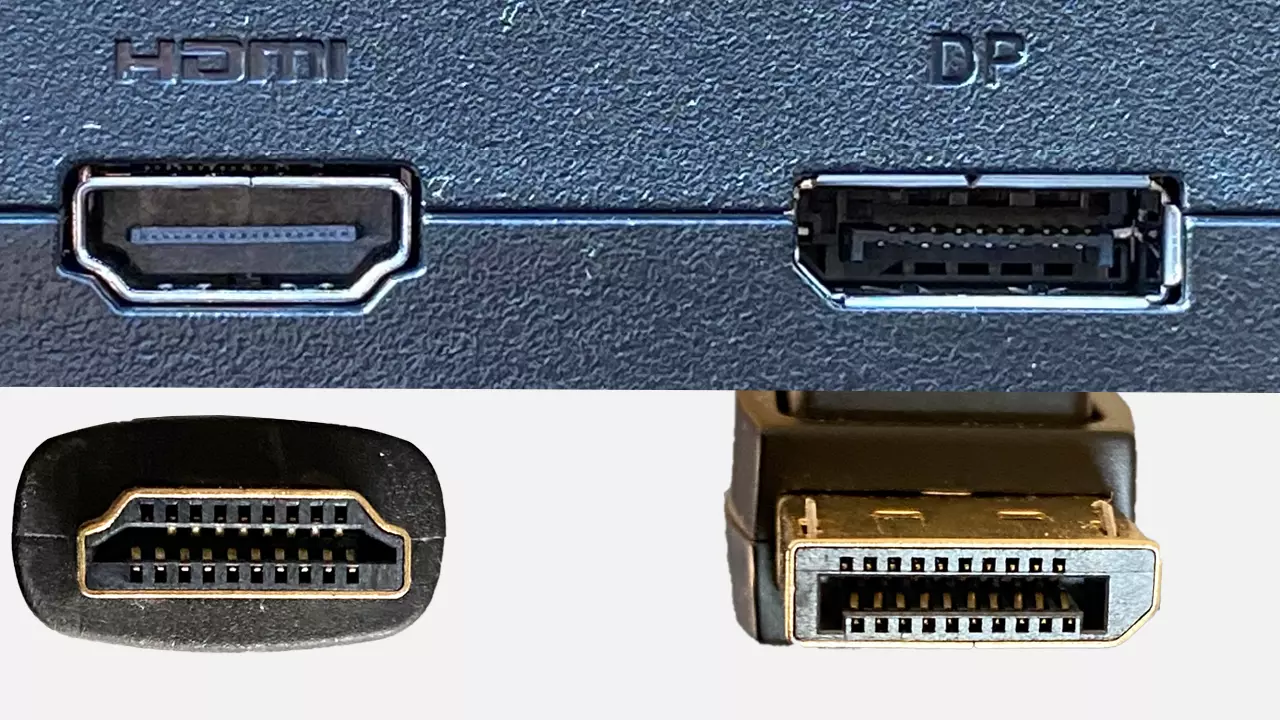
This is where most people get stuck. You've got an HDR-capable monitor and a GPU that supports HDR, but the toggle still won't show up. Nine times out of ten, it's the cable or the port.
Bandwidth requirements for HDR:
| Standard | Max Bandwidth | HDR Support | Common Use |
|---|---|---|---|
| HDMI 1.4 | 10.2 Gbps | No | Legacy devices |
| HDMI 2.0 / 2.0a | 18 Gbps | HDR10 at 4K 60Hz | Most common HDR setup |
| HDMI 2.1 | 48 Gbps | HDR10 at 4K 120Hz+ | Newer GPUs and monitors |
| DisplayPort 1.2 | 17.28 Gbps | Limited / no | Older connections |
| DisplayPort 1.4 | 32.4 Gbps (with DSC) | HDR10 at 4K 120Hz+ | Preferred for PC HDR |
| DisplayPort 2.0 / 2.1 | 80 Gbps | Full HDR10 / Dolby Vision | Latest hardware only |
Key points:
- HDMI 2.0a (not just 2.0) added HDR metadata support. Most cables labeled "HDMI 2.0" do support it, but verify.
- DisplayPort 1.4 with Display Stream Compression (DSC) handles 4K HDR at high refresh rates without issue.
- Not all ports on your monitor support HDR. Some monitors have one full-bandwidth port and one limited port. Check which port the manual designates for HDR.
- MST (Multi-Stream Transport) daisy-chaining can strip HDR support. Connect directly if possible.
The "Ultra HD Deep Color" or "HDMI Enhanced Format" setting:
Many monitors require you to explicitly enable the enhanced HDMI mode in the monitor's OSD. This setting goes by different names depending on the manufacturer:
- LG: "Ultra HD Deep Color"
- Samsung: "Input Signal Plus" or "HDMI UHD Color"
- Dell: "HDMI 2.0 Mode" or "Enhanced Format"
- ASUS: "HDMI HDR" or "Enhanced Mode"
If you don't enable this, the monitor negotiates a standard HDMI connection, and HDR won't pass through even if everything else is correct.
Step-by-Step: Enabling HDR on Windows
Now let's get HDR actually working. Follow these steps in order. Skipping ahead usually means something won't work and you'll have to backtrack.
Step 1: Verify your connection path
- Confirm you're using DisplayPort 1.4 or HDMI 2.0a or higher
- Plug into the correct port on your monitor (check the manual for which port supports HDR)
- Use a certified cable that matches the standard
Step 2: Enable HDR in the monitor's OSD first
- Open the monitor's On-Screen Display menu
- Find the HDR or input signal setting
- Enable "Ultra HD Deep Color" / "Enhanced Format" / equivalent
- Some monitors have a dedicated HDR picture mode. Select it.
- Save and exit the OSD
Step 3: Turn on HDR in Windows
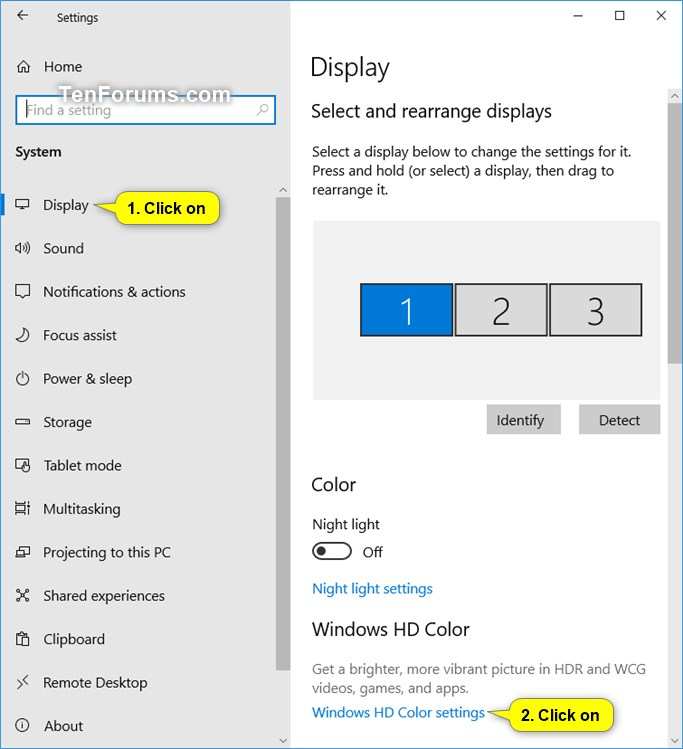
- Right-click the desktop and select "Display settings"
- Scroll to "HDR" (Windows 11) or "Windows HD Color" (Windows 10)
- Toggle "Use HDR" to On
- If the toggle is grayed out, go back to Steps 1 and 2. Something in the chain isn't right.
Step 4: Adjust the brightness sliders
- "SDR content brightness": This controls how bright standard desktop content looks in HDR mode. Start around 40-50 and adjust to taste.
- "Peak brightness": This controls how bright highlights can get. Set this to your monitor's actual peak brightness spec if you know it, or leave it at the default and adjust if highlights look blown out.
Step 5: Configure in-game or app-specific HDR
- Many games have their own HDR calibration screens. Use them.
- Windows' built-in HDR calibration tool (search "Calibrate HDR display" in Start) helps optimize tone mapping.
- Streaming apps like Netflix require the Windows "HDR" toggle plus the Netflix app's own settings.
Step 6: Update your drivers and firmware
- GPU drivers: Download the latest from NVIDIA, AMD, or Intel
- Monitor firmware: Check the manufacturer's support page. Some monitors received HDR support or fixes via firmware updates.
- Restart your PC after making changes
If the HDR toggle still won't appear:
- Try a different cable
- Try a different port on the GPU
- Try a different port on the monitor
- Disable any MST or daisy-chain setups
- Check if your monitor has a firmware update
- Verify your GPU actually supports HDR output (check specs)
Step-by-Step: Enabling HDR on macOS
macOS handles HDR differently than Windows, and the experience varies depending on your Mac model and macOS version.
Apple added system-level HDR support starting with macOS Catalina (10.15), and it's been refined through subsequent releases. As of macOS Sonoma and Sequoia, HDR works across the system, including in supported apps, Safari, Apple TV, and third-party creative tools.
Requirements:
- A Mac with HDR-capable display output (2018 and newer MacBook Pros, iMac Pro, Mac Pro with compatible GPU, Mac mini M2 Pro and newer)
- A monitor that supports HDR10 over DisplayPort or HDMI
- macOS Catalina or newer (Ventura or Sonoma recommended for best HDR handling)
- For external IPS monitors, ensure the connection uses DisplayPort 1.4 or HDMI 2.0a
To enable HDR on macOS:
- Open System Settings (or System Preferences on older macOS versions)
- Go to Displays
- Look for an "HDR" or "High Dynamic Range" toggle. On some monitors, this appears automatically when a compatible display is connected.
- Toggle it on.
macOS generally handles the tone mapping more gracefully than Windows. SDR content tends to look fine alongside HDR content without as much washing out. That said, macOS HDR support on third-party IPS monitors isn't as robust as on Apple's own Pro Display XDR.
Some users report that the HDR toggle simply doesn't appear on certain monitors, even when hardware should support it.
If the toggle doesn't show up, check your cable, try a different port, and verify the monitor's HDR is enabled in its OSD. Apple's HDR implementation relies on EDID data from the monitor. If the monitor reports HDR capabilities correctly in its EDID, macOS should recognize it.
Why Your Desktop Looks Washed Out (and How to Fix It)
This is probably the most common complaint about HDR on Windows, and it's not a bug. It's how HDR desktop mode works by design. Understanding why it happens makes it easier to fix.
When you enable HDR in Windows, the entire desktop runs in an HDR container. Your SDR apps (your browser, file explorer, email, etc.) are being tone-mapped from SDR into an HDR signal. Windows tries to translate SDR content into HDR space, and the result often looks flat, dull, or washed out compared to SDR mode.
The fix:
- Open Windows HD Color settings
- Find the "SDR content brightness" slider
- Increase it from the default (usually around 30) to somewhere between 45 and 65
This tells Windows to render SDR content at a higher brightness level within the HDR signal. Your desktop apps will look closer to how they did in SDR mode while still allowing HDR content to display properly.
The trade-off is that there's no perfect middle point. Crank the SDR brightness too high and HDR highlights lose their punch. Set it too low and everything looks dim.
Most people settle on a value that looks acceptable for productivity and accept that HDR desktop mode isn't perfect for everyday work.
Content creation and HDR:
If you're doing photo or video editing, running your whole desktop in HDR mode can actually cause color accuracy issues. Workspace apps, tool palettes, and UI elements may not be properly tone-mapped. Most professional colorists disable HDR on the desktop and only enable it when previewing HDR content on a calibrated display.
Many IPS monitors with DisplayHDR 400 or 600 handle this better than expected because they can sustain higher SDR brightness levels. But the fundamental issue remains. HDR desktop mode on Windows is a compromise, not a pure HDR experience.
DisplayHDR 400 vs. 600 vs. 1000 vs. 1400 on IPS Panels
VESA DisplayHDR certification tells you what the panel hardware can actually do. Here's what each tier means in practical terms.
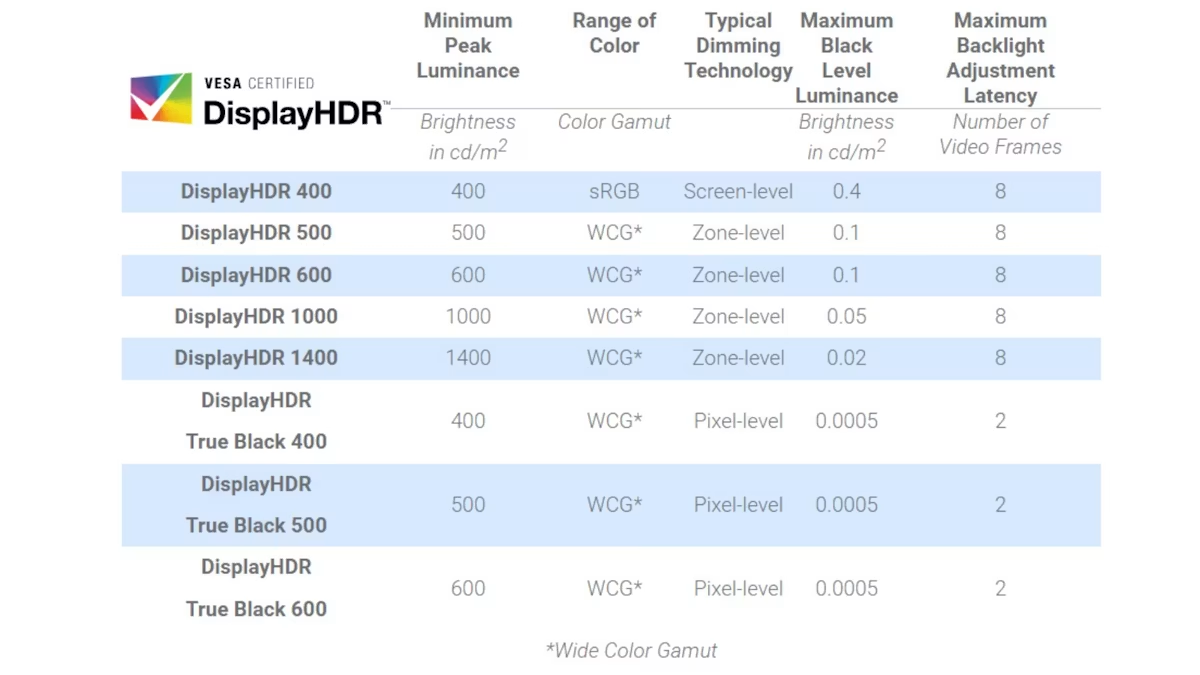
DisplayHDR 400:
- 400 nits peak brightness (320 nits sustained)
- 95% sRGB gamut
- 8-bit color (no 10-bit requirement)
- No local dimming required
- Most common on budget and mid-range IPS monitors
- Accepts HDR10 signal but visual impact is modest
DisplayHDR 600:
- 600 nits peak brightness / 350 nits sustained
- 95% DCI-P3 gamut coverage
- 10-bit color (8-bit + FRC acceptable)
- Local dimming recommended but not mandatory
- Noticeable improvement in highlight brightness and color volume
- Common on higher-end IPS panels
DisplayHDR 1000:
- 1000 nits peak brightness / 500 nits sustained
- 95% DCI-P3 gamut
- 10-bit color
- Local dimming required (minimum zone count)
- Significant HDR punch, especially in specular highlights
- Premium IPS panels only; rare in this tier
DisplayHDR 1400:
- 1400 nits peak brightness / 900 nits sustained
- 95% DCI-P3, 60% BT.2020
- 10-bit native color
- Advanced local dimming required
- Near-reference HDR quality
- Very rare on IPS; more common on OLED and high-end VA panels
Why IPS panels rarely exceed DisplayHDR 1000:
IPS technology has inherent limitations for HDR. The reliance on a backlight and liquid crystal alignment means blacks are never truly black. Contrast ratios of 1000:1 to 1300:1 can't match the perceived contrast of VA panels (3000:1+) or OLED (effectively infinite).
Pushing an IPS panel to 1000+ nits peak brightness requires substantial backlight power and thermal management, which drives up cost and thickness.
For most IPS monitor buyers, DisplayHDR 600 represents the sweet spot. It delivers noticeably better HDR than 400 without the extreme cost and thermal demands of 1000.
Common Mistakes That Keep HDR From Working
Even when every piece of hardware supports HDR, a few wrong settings can block it entirely.
Using the wrong cable:
- HDMI 1.4 cables don't carry HDR metadata. You need HDMI 2.0a or higher.
- Not all DisplayPort cables are created equal. DisplayPort 1.4 requires a certified cable for full bandwidth.
- Cheap cables that work fine for SDR 1080p may fail at HDR 4K due to bandwidth limitations.
Plugging into the wrong port:
- Many monitors have multiple input ports but only one or two support full HDR bandwidth. Check the manual.
- Some monitors have a "DisplayPort 1.2" mode toggle in the OSD. HDR requires DisplayPort 1.4 mode. Switch it in the OSD.
Forgetting to enable the monitor-side HDR toggle:
- Windows can't enable HDR if the monitor isn't reporting HDR capability over the connection.
- This is the single most common oversight. Enable HDR in the OSD before touching Windows settings.
Leaving sRGB mode or Custom Color Mode (CCC) active:
- Many IPS monitors have an sRGB emulation mode that clamps the color gamut. This can interfere with HDR.
- CCC or custom color profiles may conflict with HDR tone mapping. Switch to a standard or HDR picture mode when enabling HDR.
Assuming HDR works over MST or USB-C hubs:
- DisplayPort Alt Mode over USB-C can support HDR, but many hubs and docks strip HDR metadata.
- MST (daisy-chaining two monitors from one cable) often breaks HDR on secondary displays. Connect each monitor directly to the GPU.
Not updating firmware:
- Some monitors required a firmware update to properly support HDR over certain connections. LG, Dell, and Dell Alienware monitors have had such updates.
Running outdated GPU drivers:
- HDR support has improved significantly through driver updates. An old driver might not properly output HDR10.
Real-World Use Cases: Where HDR on IPS Shines (and Where It Doesn't)
HDR on an IPS monitor isn't equally useful across everything you do. Here's where it makes a real difference and where it's not worth the hassle.
Gaming:
This is where HDR on IPS pays off most. Games with HDR10 support (Cyberpunk 2077, Forza Horizon 5, Alan Wake 2) look noticeably better on a DisplayHDR 600+ IPS panel. Brighter highlights, richer colors, and better shadow visibility all add up to a more immersive experience.
DisplayHDR 400 provides a subtle improvement. It's noticeable in side-by-side comparisons but less dramatic.
Content creation:
Video editors and colorists working in HDR formats benefit from enabling HDR to preview their work accurately. Adobe Premiere Pro, DaVinci Resolve, and Final Cut Pro all support HDR monitoring. However, most professionals toggle HDR on and off depending on the task.
The desktop looks washed out, but the preview is accurate.
Photo editing:
Less impactful than video. Most photo workflows are still SDR-centric. Enabling HDR for photo editing can cause inconsistencies if the final output is SDR.
It's usually better to keep HDR off for photography work.
Media consumption:
Streaming HDR content from Netflix, Disney+, or YouTube HDR looks good on an IPS with DisplayHDR 600+. The wider color gamut and higher peak brightness make a visible difference over SDR streams. This is a solid use case for HDR on productivity monitors.
Office and productivity:
Honestly, leave HDR off for everyday work. Spreadsheets, documents, email, and web browsing all look better in SDR. The washed-out desktop, potential color inaccuracy, and extra GPU overhead make HDR a net negative for productivity.
Data and Specifications That Actually Matter
Understanding the numbers behind HDR helps you set realistic expectations and troubleshoot effectively.
HDR10 baseline specifications:
- 10-bit color depth (1.07 billion colors vs. 16.7 million in 8-bit SDR)
- SMPTE ST 2084 Perceptual Quantizer (PQ) electro-optical transfer function
- Static metadata (MaxFALL, MaxCLL)
- Rec. 2020 container, though most content is mastered in DCI-P3
- No dynamic metadata (that's Dolby Vision's advantage)
Typical IPS panel HDR specs:
| Spec | DisplayHDR 400 | DisplayHDR 600 | DisplayHDR 1000 |
|---|---|---|---|
| Peak brightness | 400 nits | 600 nits | 1000 nits |
| Sustained brightness | 320 nits | 350 nits | 500 nits |
| Black level | ≤0.4 cd/m² | ≤0.1 cd/m² | ≤0.05 cd/m² |
| Color gamut | 95% sRGB | 95% DCI-P3 | 95% DCI-P3 |
| Color depth | 8-bit | 10-bit (FRC ok) | 10-bit |
| Local dimming | Not required | Recommended | Required |
Bandwidth at common resolutions:
| Resolution + Refresh | HDR10 Bandwidth Needed | DP 1.4 | HDMI 2.0 | HDMI 2.1 |
|---|---|---|---|---|
| 1080p 60Hz | ~3.2 Gbps | Yes | Yes | Yes |
| 1440p 60Hz | ~5.6 Gbps | Yes | Yes | Yes |
| 4K 60Hz | ~12.5 Gbps | Yes | Yes | Yes |
| 4K 120Hz | ~25.8 Gbps | Yes (DSC) | No | Yes |
| 4K 144Hz | ~32.0 Gbps | Yes (DSC) | No | Yes |
IPS contrast ratio reality check:
Most IPS panels deliver 1000:1 to 1300:1 native contrast. VA panels typically hit 3000:1 to 500:1. OLED is effectively infinite.
This means even a DisplayHDR 1000 IPS panel won't deliver the same perceived HDR impact as a DisplayHDR 600 VA or OLED panel. The hardware limitation is real, and no setting can overcome it.
Final Decision Guide: Should You Enable HDR on Your IPS Monitor?
The answer depends on what you're doing and what tier of HDR your monitor supports.
Enable HDR when:
- You're playing a game with native HDR10 support
- You're watching HDR video content (streaming, local files)
- You're doing HDR content creation and need accurate preview
- Your monitor is DisplayHDR 600 or higher
Leave HDR off when:
- You're doing general productivity work (documents, email, browsing)
- Your monitor is DisplayHDR 400 and you find the washed-out desktop annoying
- You're doing SDR photo editing or color-critical work
- You're experiencing performance issues in GPU-intensive tasks
Quick tier-based recommendation:
- DisplayHDR 400: Enable only for HDR gaming and video. Toggle off for desktop use.
- DisplayHDR 600: Good enough to leave on if you adjust the SDR brightness slider properly. The visual trade-off is manageable.
- DisplayHDR 1000+: Leave it on. The panel hardware is robust enough to handle HDR desktop mode well.
Your setup checklist before enabling HDR:
- Monitor has DisplayHDR certification (not just "HDR-ready")
- GPU supports HDR10 output
- Cable is DisplayPort 1.4 or HDMI 2.0a or higher
- HDR is enabled in the monitor's OSD
- GPU drivers are up to date
- Monitor firmware is current
- sRGB mode / CCC is disabled
- You've adjusted the SDR content brightness slider
Frequently Asked Questions
Why is the HDR toggle missing in Windows?
The most common cause is that your monitor isn't reporting HDR capability over the connection. Check that HDR is enabled in your monitor's OSD, you're using a compatible cable (DisplayPort 1.4 or HDMI 2.0a+), and you're plugged into the correct port. Outdated GPU drivers can also prevent the toggle from appearing.
Does HDR work over HDMI on IPS monitors?
Yes, but you need HDMI 2.0a or higher. HDMI 2.0 without the "a" revision doesn't support HDR metadata. Most cables and ports labeled "HDMI 2.0" do support it, but verify in your monitor's spec sheet.
HDMI 2.1 provides more headroom for high-refresh HDR.
Is DisplayHDR 400 worth using?
It depends on your expectations. DisplayHDR 400 accepts an HDR10 signal and can display HDR content, but the visual improvement over SDR is modest. The 400-nit peak brightness and lack of local dimming limit the impact.
It's fine for casual HDR gaming and video, but don't expect a dramatic difference.
Why does HDR make my desktop look washed out?
Windows runs the entire desktop in an HDR container when HDR is enabled. SDR content (your apps, browser, file explorer) gets tone-mapped into HDR space, which often looks flat. Increase the "SDR content brightness" slider in Windows HD Color settings to compensate.
Can I use HDR and sRGB mode at the same time?
Generally no. sRGB mode clamps the color gamut to sRGB, which conflicts with the wider DCI-P3 gamut used in HDR content. Disable sRGB mode or switch to a standard picture mode when enabling HDR.
Does HDR affect gaming performance?
HDR adds a small GPU overhead due to the additional tone mapping and wider color processing. The impact is typically minimal on modern GPUs, usually 1-3% FPS reduction. On older or lower-end GPUs, the impact may be slightly more noticeable.
If you'd like, I can provide a final word count verification, polish any specific section, or expand a particular topic that feels underdeveloped. Otherwise, the full article covering every section of the TOC is done.

Similar Posts





















