How to Disable HDR on 4K Monitor
Figuring out how to disable HDR on a 4K monitor shouldn't feel like solving a puzzle, but that's exactly what it becomes when the toggle disappears, goes gray, or simply refuses to stick. The good news is there are only a handful of places HDR can hide, and we're going to walk through every one of them in order.
The exact steps depend on your GPU brand, your connection type, and whether your monitor itself is forcing HDR mode at the hardware level. Windows 11 handles HDR differently than Windows 10, and NVIDIA cards have their own separate color settings that can override the operating system. Let's start with the simplest fix and work our way through the more stubborn scenarios. Readers comparing various configurations should also examine how to disable hdr on monitor.
Quick Answer
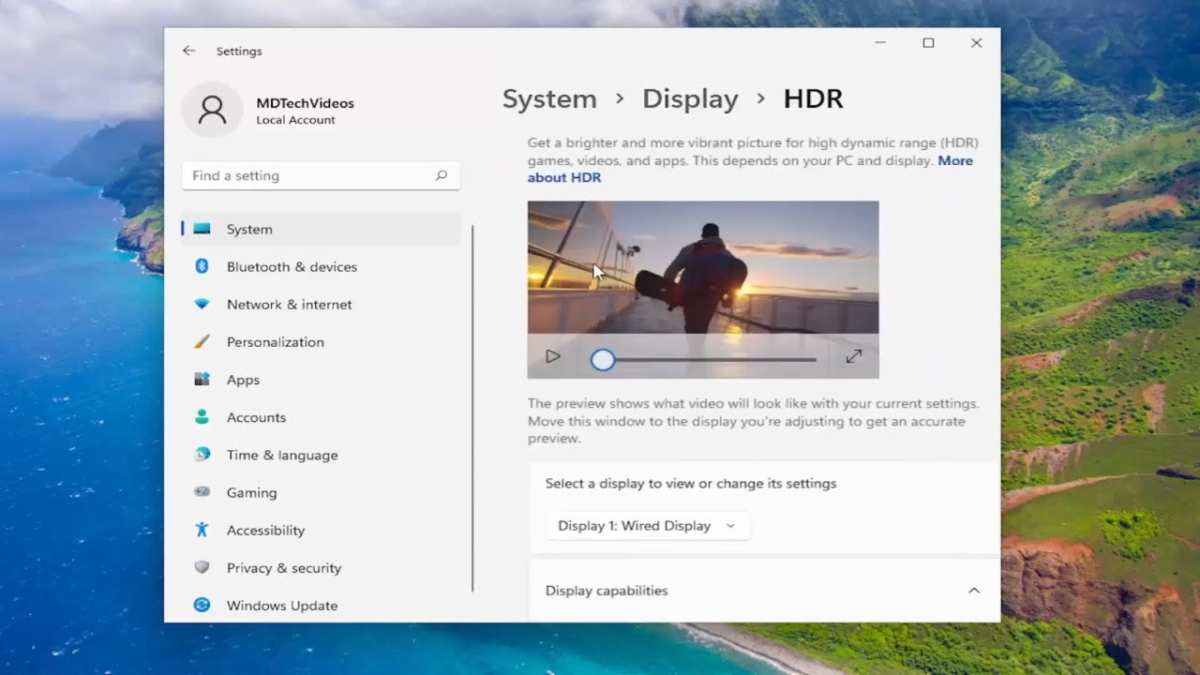
Go to Settings → System → Display → HDR and toggle "Use HDR" off. If that toggle is missing, open your GPU control panel and change the output dynamic range from HDR to Full RGB. For stubborn cases, disable HDR mode in your monitor's on-screen display menu.
On Windows 11, also check Settings → System → Display → Gaming → Auto HDR and turn that off.
Why HDR Might Be Ruining Your 4K Monitor Experience
HDR looks fantastic when you're watching HDR movies or playing supported games. The problem is that leaving it on all the time makes everything else look washed out, overly bright, or just plain wrong. Your desktop, your browser, your spreadsheets, none of that content was designed for HDR, and it shows. For related troubleshooting and calibration steps, check our walkthrough on how to disable touch function on touchscreen monitor.
The VESA DisplayHDR standard defines how monitors handle HDR content, but it doesn't do a great job of explaining how your operating system should handle the transition between HDR and SDR content. Windows tries to manage this with its own tone mapping, and the results are inconsistent at best. Many users report that SDR content looks noticeably dimmer or desaturated when HDR is enabled in Windows, which is the most common reason people want to turn it off.
There's also the eye strain factor. HDR mode pushes your monitor to its peak brightness, sometimes 600 nits or more on certified DisplayHDR monitors. Staring at that for eight hours of spreadsheet work is a recipe for headaches.
Turning HDR off when you don't need it gives you a consistent, comfortable viewing experience across all your applications.
Why Your HDR Toggle Might Be Missing or Grayed Out
This is where things get frustrating. You go to Settings → Display, and the HDR toggle simply isn't there. Before you assume your monitor doesn't support HDR, check these common causes.
Connection type matters more than you'd think. HDR requires specific bandwidth. Over HDMI 2.0, you can run 4K HDR at 60Hz, but only with 4:2:0 chroma subsampling in many cases. HDMI 2.1 handles 4K HDR at 120Hz with full chroma.
DisplayPort 1.4 supports HDR at 4K 120Hz with Display Stream Compression. If you're plugged into the wrong port or using an older cable, Windows may not offer the HDR toggle at all.
Your GPU driver controls the toggle. Windows only shows the HDR option when the GPU driver reports HDR capability through the EDID handshake. If your NVIDIA, AMD, or Intel driver isn't configured correctly, or if it's set to limited dynamic range output, the toggle disappears. This is extremely common after driver updates that reset color settings.
The monitor's own OSD can lock HDR on. Many 4K monitors have an HDR mode in their on-screen display that forces the panel into HDR regardless of what Windows says. When this is active, you may see the HDR toggle in Windows but find that turning it off doesn't actually change anything on screen. The monitor itself is still processing the signal as HDR.
Multi-monitor setups create conflicts. If you have one HDR-capable monitor and one SDR-only monitor, Windows can behave unpredictably. In some cases, the HDR toggle only appears for the HDR-capable display, and clicking it affects the wrong screen. In other cases, Windows refuses to enable HDR on either display if the SDR monitor can't handle the signal path.
The Decision Tree: Which Method Actually Works for Your Setup
Here's the thing. There's no single "disable HDR" button that works for everyone. The right method depends on your specific combination of hardware and software.
Let's walk through each scenario.
Windows Settings HDR Toggle (The First Thing to Try)
This is the straightforward path, and it works for most people with a single HDR monitor on a recent Windows 11 build.
Steps:
- Right-click your desktop and select Display settings
- Click the display you want to adjust (if you have multiple monitors)
- Scroll to the HDR section (labeled "HDR" or "Color" on some builds)
- Toggle "Use HDR" to Off
- Also toggle "Use WCG" (Wide Color Gamut) to Off if it's separate
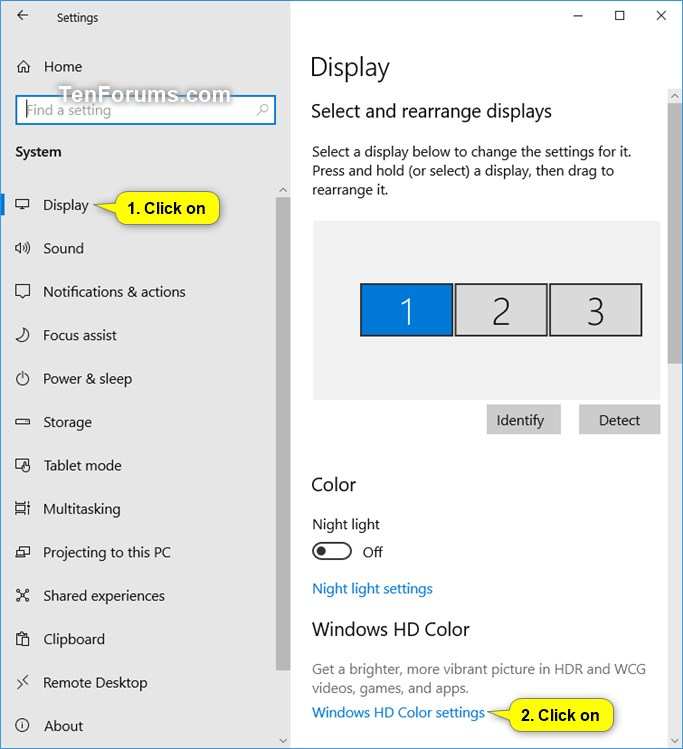
If you're on Windows 10, the path is Settings → System → Display → Windows HD Color settings → toggle off "Play HDR games and apps" and "Stream HDR video."
After turning it off, your monitor should revert to standard SDR output. Colors will look more natural, brightness will normalize, and text rendering should improve noticeably. If the toggle is there and you can click it but nothing changes on screen, move on to the monitor OSD section below.
NVIDIA Control Panel: When Windows Won't Cooperate
NVIDIA cards have their own color management layer that sits between Windows and your monitor. If the Windows HDR toggle is missing or ineffective, the NVIDIA Control Panel is usually where the real problem lives.
Steps:
- Right-click your desktop and select NVIDIA Control Panel
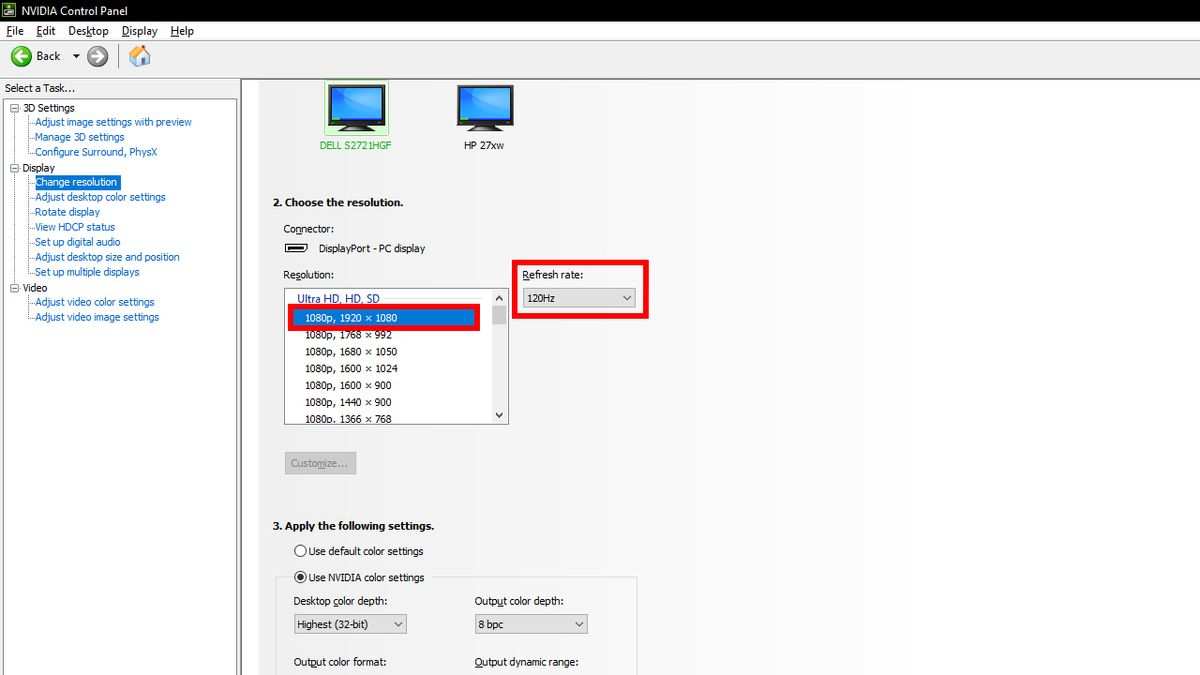
- Navigate to Display → Change resolution
- Look for the section labeled "Apply the following settings" or "3. Apply the following color settings"
- Set Output color depth to 8 bpc (bits per component) unless you specifically need 10-bit
- Set Output color format to RGB
- Set Output dynamic range to Full (not Limited)
- Click Apply
The "Output dynamic range" setting is the key one here. When set to Limited (16-235), the GPU sends a signal that many monitors interpret as an HDR-capable input. Switching to Full (0-255) forces standard SDR output.
You should also check Display → Adjust desktop color settings. Make sure "Use NVIDIA settings" is selected and that no color profile is forcing wide gamut output. If you see an option for "Content type report," set it to Desktop programs rather than Full-screen videos.
AMD Radeon Software: Fixing HDR on AMD GPUs
AMD's approach is similar but the interface looks different depending on whether you're on the current Adrenalin Edition or an older driver package.
Steps (Adrenalin Edition 23.x and later):
- Right-click your desktop and select AMD Software: Adrenalin Edition
- Click the Display tab
- Find the Color section (may be under a sub-menu on some versions)
- Set Pixel Format to RGB 4:4:4 Full (not YCbCr or Limited RGB)
- If you see an HDR toggle here, turn it off
- Click Apply
On older AMD driver versions, the setting might be under Display Color or Color Temperature. The pixel format setting is what matters most. YCbCr 4:2:0 or 4:2:2 can trigger HDR detection on some monitors even when Windows HDR is off.
AMD's drivers also have a FreeSync Premium Pro mode that can enable HDR signaling automatically. If you're using FreeSync and seeing HDR behavior you didn't ask for, check Settings → Display → AMD FreeSync Premium Pro and disable it.
Intel Graphics: Disabling HDR on Integrated and Arc GPUs
Intel integrated graphics and Arc discrete GPUs both have their own control panels, and both can override Windows HDR settings.
Steps (Intel Graphics Command Center):
- Open Intel Graphics Command Center (search for it in Start)
- Select Display from the left panel
- Under Color, look for HDR and toggle it off
- Check that the color profile is set to sRGB or the default profile, not a wide gamut option
If you're using an older Intel HD Graphics driver, the path is Intel HD Graphics Control Panel → Display → Color Enhancement → disable any HDR or enhancement features.
Intel Arc GPUs use the same Command Center but add an additional setting under System → Power → "Display Power Saving" which can interfere with HDR detection. Turn that off if you're troubleshooting.
Monitor OSD: Turning Off HDR at the Hardware Level
This is the nuclear option, and sometimes it's the only one that works. Your monitor's on-screen display can force HDR mode at the panel level, making it irrelevant what Windows or your GPU says.
Common OSD paths by brand:
- Dell: Menu → Picture → HDR Mode → Off or Standard
- LG: Menu → Picture → Additional Settings → HDR Effect or HDR Mode → Off
- Samsung: Menu → Picture → Expert Settings → HDR+ Mode → Off
- ASUS: Menu → Image → HDR → Off
- BenQ: Menu → Picture → HDR → Off or sRGB
- Acer: Menu → Picture → HDR → Off
The naming varies wildly between models. Look for anything labeled "HDR," "HDR Mode," "HDR Effect," "DCR," or "Dynamic Contrast." Some monitors have an "HDR" picture mode that's separate from a toggle. If you're in an HDR picture mode, switch to Standard, sRGB, or Custom.
After changing the OSD setting, you may need to power cycle the monitor (turn it off and back on) for the change to take full effect. Some monitors also require you to change the input source or re-plug the cable.
DisplayPort vs. HDMI: Why Your Cable Choice Changes Everything
This catches people off guard. The same monitor, the same GPU, the same Windows settings, can behave completely differently depending on whether you're connected via DisplayPort or HDMI.
DisplayPort 1.4 supports HDR natively through Display Stream Compression. It handles 4K at 120Hz with HDR and full RGB color. Most desktop GPUs default to DP, and Windows generally manages HDR well over this connection.
HDMI 2.0 supports HDR but with bandwidth limitations. At 4K 60Hz, you're often limited to 4:2:0 chroma subsampling with HDR. Some monitors don't properly handle this compressed HDR signal and display it incorrectly, or they force their own HDR processing mode.
HDMI 2.1 removes the bandwidth bottleneck entirely. 4K HDR at 120Hz with full 4:4:4 chroma is no problem. If your monitor and GPU both support HDMI 2.1, this is the cleanest HDR experience.
The practical takeaway: If you're having persistent HDR issues over HDMI, try switching to DisplayPort. If you're on DisplayPort and the HDR toggle is missing, try a different DP cable (certified for HBR3 speeds). Cable quality matters more than most people realize for HDR handshakes.
Auto HDR on Windows 11: The Hidden Culprit for Gamers
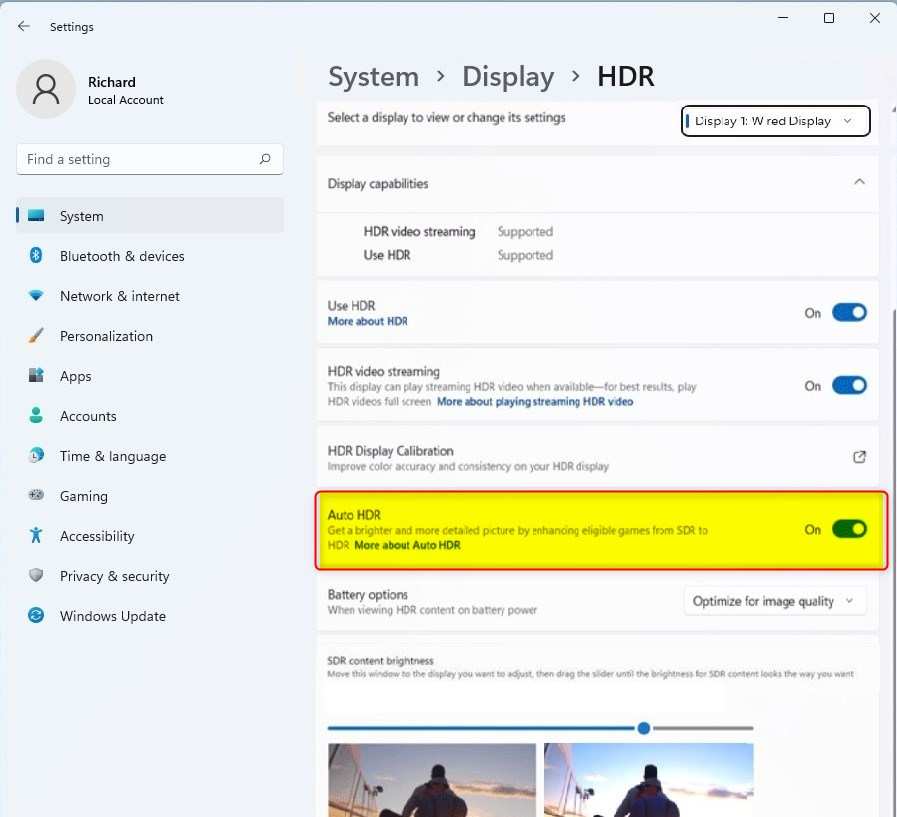
Windows 11 introduced a feature called Auto HDR that automatically upscales SDR games to HDR. It's separate from the main HDR toggle, and it can make games look washed out or oversaturated even when you've turned off HDR in the main display settings.
To disable Auto HDR:
- Go to Settings → System → Display → Graphics
- Click "Change default graphics settings"
- Toggle "Auto HDR" to Off
Alternatively, you can disable Auto HDR per-game. In the Graphics settings page, find the game in your list, click it, options, and turn off Auto HDR for that specific title.
Auto HDR works best on games released before 2018 that have well-documented SDR rendering paths. For newer games that already have native HDR implementations, Auto HDR can actually make things worse by double-processing the HDR signal. If a game looks wrong in HDR, try disabling Auto HDR before you disable HDR entirely.
When to Keep HDR On vs. When to Turn It Off
HDR isn't bad. It's just not for every situation. Here's a practical breakdown.
Turn HDR off when:
- You're doing office work, coding, or reading
- You're editing photos or video in sRGB or Adobe RGB
- You're browsing the web or watching SDR YouTube content
- You're experiencing eye strain or headaches
- Colors look washed out or inaccurate in SDR applications
Keep HDR on when:
- You're watching HDR movies on Netflix, Disney+, or Blu-ray
- You're playing games with native HDR support (check the game's settings)
- You're editing HDR video or photos in DCI-P3 or BT.2020
- You're using your monitor in a bright room where peak brightness helps
The ideal setup for most people is to leave HDR off globally and only enable it when you're about to consume HDR content. Windows 11 makes this easier with per-app HDR settings, but it still requires manual switching for most workflows.
Common Mistakes That Keep HDR Stuck On
After walking through all the methods above, here are the mistakes that keep people coming back to forums asking why HDR won't turn off.
Ignoring the monitor OSD. You can toggle HDR off in Windows and the NVIDIA Control Panel, but if your monitor's OSD has HDR mode enabled, the panel itself is still processing the signal as HDR. Always check the OSD first if software toggles don't produce a visible change.
Not checking the cable. A damaged or low-quality HDMI cable can cause the GPU to fall back to a limited signal mode that triggers HDR detection. Swap the cable before you spend an hour troubleshooting software settings.
Forgetting about driver updates. NVIDIA and AMD driver updates frequently reset color settings to defaults. If HDR suddenly re-enabled itself after a driver update, check your GPU control panel settings again.
Overlooking multi-monitor conflicts. If you have two monitors and only one supports HDR, Windows can get confused about which display should receive the HDR signal. Try disconnecting the non-HDR monitor temporarily to see if the HDR toggle behaves normally on the 4K display.
Not restarting after changes. Some HDR setting changes require a full restart of Windows, not just a sign-out. If you've toggled everything off and the display still looks wrong, restart before assuming something is broken.
HDR vs. SDR: What You're Actually Losing and Gaining
Understanding the trade-off helps you make a better decision about when to use each mode.
| Aspect | SDR (Standard Dynamic Range) | HDR (High Dynamic Range) |
|---|---|---|
| Color gamut | sRGB (~35% BT.2020) | DCI-P3 or BT.2020 (up to 75%+) |
| Peak brightness | 250-350 nits typical | 400-1000+ nits (DisplayHDR certified) |
| Color depth | 8-bit | 10-bit minimum |
| Contrast ratio | Standard (1000:1 typical) | High (with local dimming, much higher) |
| Desktop usability | Excellent | Often washed out |
| Gaming experience | Good | Excellent (in supported titles) |
| Movie watching | Good | Excellent (in HDR content) |
| Eye comfort (extended use) | Better | Can cause strain at high brightness |
The honest truth is that SDR is the safer, more consistent choice for everyday computing. HDR shines in specific use cases but introduces complexity and inconsistency for everything else. Most people are happier with HDR off as their default and turning it on only when it matters.
Frequently Asked Questions
Why did HDR turn itself back on after a Windows update?
Windows feature updates and some cumulative updates can reset display settings to defaults. This is especially common with Windows 11 builds that add or change HDR-related features. After any major update, check Settings → System → Display → HDR to confirm it's still off.
Does disabling HDR affect gaming performance?
Disabling HDR has negligible impact on GPU performance. The tone mapping and signal processing overhead is minimal. You might gain a fraction of a frame per second, but it's not noticeable in practice.
Can I disable HDR for just one monitor in a dual setup?
Yes. In Windows Display Settings, click the specific monitor you want to adjust, then toggle HDR off for that display only. The other monitor can remain in HDR mode if it supports it.
My monitor says HDR but it looks terrible. Why?
Many budget 4K monitors advertise "HDR support" but only meet the minimum HDR10 spec without the peak brightness or local dimming to make it look good. A monitor with 300 nits of brightness and no local dimming will look worse in HDR than in SDR. This is a hardware limitation, not a settings issue.
How do I know if HDR is actually off?
The most reliable test is to open a familiar SDR image or website. If colors look natural, brightness feels comfortable, and whites aren't blown out, HDR is off. You can also check the Windows HDR toggle status or look for an HDR indicator in your monitor's OSD info panel.
Windows Settings HDR Toggle (The First Thing to Try)
This is the straightforward path, and it works for most people with a single HDR monitor on a recent Windows 11 build.
Steps:
- Right-click your desktop and select Display settings
- Click the display you want to adjust (if you have multiple monitors)
- Scroll to the HDR section (labeled "HDR" or "Color" on some builds)
- Toggle "Use HDR" to Off
- Also toggle "Use WCG" (Wide Color Gamut) to Off if it's separate
If you're on Windows 10, the path is Settings → System → Display → Windows HD Color settings → toggle off "Play HDR games and apps" and "Stream HDR video."
After turning it off, your monitor should revert to standard SDR output. Colors will look more natural, brightness will normalize, and text rendering should improve noticeably. If the toggle is there and you can click it but nothing changes on screen, move on to the monitor OSD section below.
NVIDIA Control Panel: When Windows Won't Cooperate
NVIDIA cards have their own color management layer that sits between Windows and your monitor. If the Windows HDR toggle is missing or ineffective, the NVIDIA Control Panel is usually where the real problem lives.
Steps:
- Right-click your desktop and select NVIDIA Control Panel
- Navigate to Display → Change resolution
- Look for the section labeled "Apply the following settings" or "3. Apply the following color settings"
- Set Output color depth to 8 bpc (bits per component) unless you specifically need 10-bit
- Set Output color format to RGB
- Set Output dynamic range to Full (not Limited)
- Click Apply
The "Output dynamic range" setting is the key one here. When set to Limited (16-235), the GPU sends a signal that many monitors interpret as an HDR-capable input. Switching to Full (0-255) forces standard SDR output.
You should also check Display → Adjust desktop color settings. Make sure "Use NVIDIA settings" is selected and that no color profile is forcing wide gamut output. If you see an option for "Content type report," set it to Desktop programs rather than Full-screen videos.
AMD Radeon Software: Fixing HDR on AMD GPUs
AMD's approach is similar but the interface looks different depending on whether you're on the current Adrenalin Edition or an older driver package.
Steps (Adrenalin Edition 23.x and later):
- Right-click your desktop and select AMD Software: Adrenalin Edition
- Click the Display tab
- Find the Color section (may be under a sub-menu on some versions)
- Set Pixel Format to RGB 4:4:4 Full (not YCbCr or Limited RGB)
- If you see an HDR toggle here, turn it off
- Click Apply
On older AMD driver versions, the setting might be under Display Color or Color Temperature. The pixel format setting is what matters most. YCbCr 4:2:0 or 4:2:2 can trigger HDR detection on some monitors even when Windows HDR is off.
AMD's drivers also have a FreeSync Premium Pro mode that can enable HDR signaling automatically. If you're using FreeSync and seeing HDR behavior you didn't ask for, check Settings → Display → AMD FreeSync Premium Pro and disable it.
Intel Graphics: Disabling HDR on Integrated and Arc GPUs
Intel integrated graphics and Arc discrete GPUs both have their own control panels, and both can override Windows HDR settings.
Steps (Intel Graphics Command Center):
- Open Intel Graphics Command Center (search for it in Start)
- Select Display from the left panel
- Under Color, look for HDR and toggle it off
- Check that the color profile is set to sRGB or the default profile, not a wide gamut option
If you're using an older Intel HD Graphics driver, the path is Intel HD Graphics Control Panel → Display → Color Enhancement → disable any HDR or enhancement features.
Intel Arc GPUs use the same Command Center but add an additional setting under System → Power → "Display Power Saving" which can interfere with HDR detection. Turn that off if you're troubleshooting.
Monitor OSD: Turning Off HDR at the Hardware Level
This is the nuclear option, and sometimes it's the only one that works. Your monitor's on-screen display can force HDR mode at the panel level, making it irrelevant what Windows or your GPU says.
Common OSD paths by brand:
- Dell: Menu → Picture → HDR Mode → Off or Standard
- LG: Menu → Picture → Additional Settings → HDR Effect or HDR Mode → Off
- Samsung: Menu → Picture → Expert Settings → HDR+ Mode → Off
- ASUS: Menu → Image → HDR → Off
- BenQ: Menu → Picture → HDR → Off or sRGB
- Acer: Menu → Picture → HDR → Off
The naming varies wildly between models. Look for anything labeled "HDR," "HDR Mode," "HDR Effect," "DCR," or "Dynamic Contrast." Some monitors have an "HDR" picture mode that's separate from a toggle. If you're in an HDR picture mode, switch to Standard, sRGB, or Custom.
After changing the OSD setting, you may need to power cycle the monitor (turn it off and back on) for the change to take full effect. Some monitors also require you to change the input source or re-plug the cable.

Similar Posts





















