How to Connect USB C Monitor to Desktop PC
Figuring out how to connect a USB-C monitor to a desktop PC isn't as straightforward as grabbing any cable and plugging it in. The right approach depends entirely on what ports your graphics card has, what your monitor actually supports, and whether you're using a cable that can carry a video signal. Get any of those wrong and you'll be staring at a blank screen wondering what happened.
The good news is that once you know what you're working with, the solution is usually simple. Most setups need either a direct USB-C cable, a USB-C to DisplayPort adapter, or a small docking station. Let's walk through exactly how to figure out which path is yours. This directly compares with our findings on how to connect usb c monitor to laptop.
Quick Answer
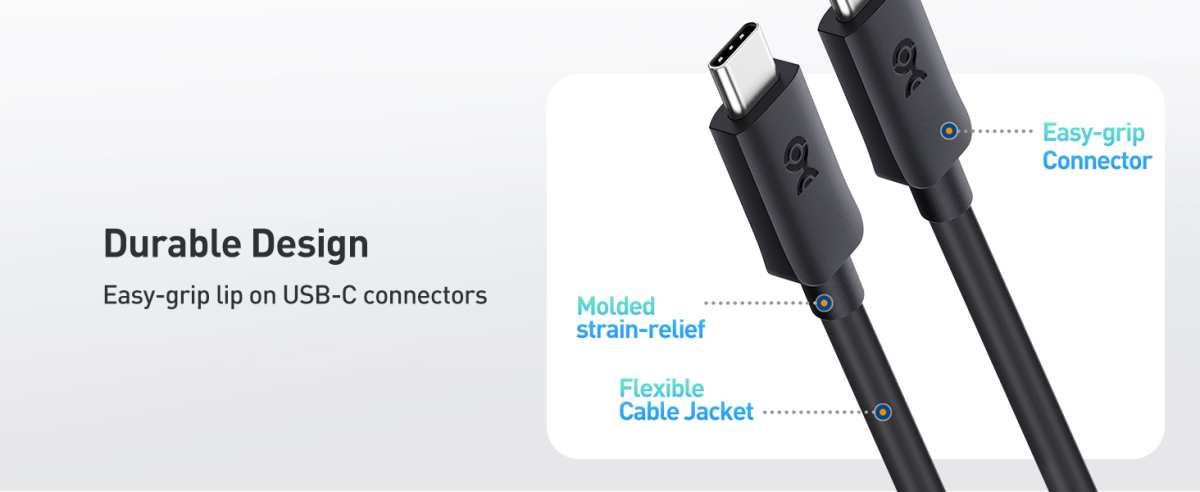
Check your GPU ports first. If your graphics card has a USB-C port with DisplayPort Alt Mode, use a full-featured USB-C cable directly. If it doesn't, get a USB-C to DisplayPort or USB-C to HDMI adapter that matches your monitor's input.
Not all USB-C cables carry video, so verify yours supports DisplayPort Alt Mode before troubleshooting anything else.
The 30-Second Check: What Ports Does Your GPU Actually Have?
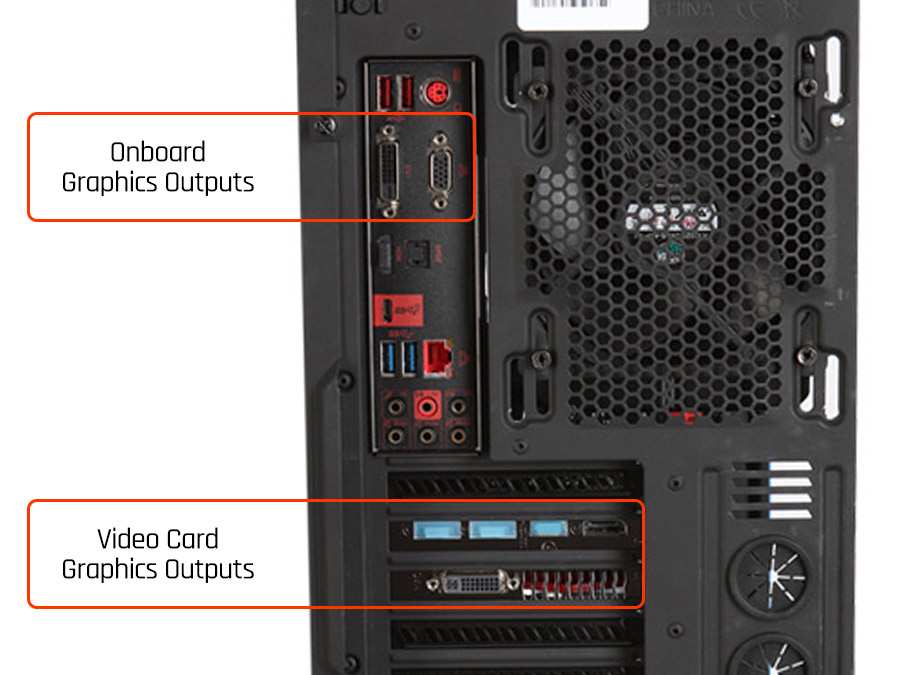
Before you buy any cable or adapter, flip around to the back of your PC and look at the actual ports on your graphics card. This is the single most important step because it determines everything else. For related troubleshooting and calibration steps, check our walkthrough on how to connect usb c monitor with hdmi adapter.
Most desktop GPUs as of 2026 still rely on DisplayPort and HDMI outputs. USB-C video output on a desktop graphics card is uncommon. It exists on some specific models, but it's far from standard.
Here's what you're likely to see:
- DisplayPort (usually 1 to 3 ports): The most common output on desktop GPUs. Rectangular with one corner notched.
- HDMI (usually 1 port): Wider, trapezoid-shaped. Found alongside DisplayPort on nearly every modern card.
- USB-C (rare on desktop cards): Small, oval, reversible. Only present on select models like certain NVIDIA RTX cards or AMD cards with USB-C support.
If you spot a USB-C port on your GPU, you're in luck. That port almost certainly supports DisplayPort Alt Mode, which means it can send a video signal directly to your USB-C monitor with a single cable.
If you don't see USB-C, don't worry. That's the more common scenario and it's easily solved with an adapter.
Understanding USB-C Video: DP Alt Mode, Thunderbolt, and Why They're Not the Same Thing
This is where most of the confusion starts. USB-C is just a connector shape. What matters is what's actually running through it.
DisplayPort Alt Mode is the feature that lets a USB-C port carry a video signal. Without it, a USB-C port can only handle data and charging. Not every USB-C port has DP Alt Mode, and not every USB-C cable supports it either.
Thunderbolt 3 and Thunderbolt 4 also use the USB-C connector and can carry video, but they're a different standard entirely. Thunderbolt ports are backward-compatible with DP Alt Mode monitors, but a regular USB-C port without Thunderbolt won't work with a Thunderbolt-only monitor.
USB4 is the newest standard, merging Thunderbolt's capabilities into the USB-C ecosystem. It supports video output, but both the source (your PC) and the display need to support it.
The practical takeaway is simple. When someone says "just use USB-C," they're assuming your port, your cable, and your monitor all speak the same language. In reality, you need to verify all three.
Decision Path 1: Your GPU Already Has a USB-C Port With Video Output
This is the easiest path. If your graphics card has a USB-C port, it almost certainly supports DisplayPort Alt Mode output.
Here's what to do:
- Get a full-featured USB-C cable. Look for one rated for "DisplayPort Alt Mode" or "USB 3.1 Gen 2" or higher. Avoid cheap charge-only cables.
- Connect one end to your GPU's USB-C port and the other to your monitor's USB-C input.
- Set your monitor's input source to USB-C using the monitor's on-screen display menu.
- Configure your display settings in Windows or macOS to set resolution and refresh rate.
Many USB-C monitors with DP Alt Mode also support Power Delivery and data passthrough over the same cable. That means your monitor can act as a hub for peripherals while receiving video. Check your monitor's specs to see if it supports this.
If the screen stays black after connecting, try these steps:
- Confirm the monitor input is set to USB-C, not HDMI or DisplayPort.
- Try a different USB-C cable that you know supports video.
- Update your GPU drivers to the latest version.
- Restart the PC with the monitor connected and powered on.
Decision Path 2: No USB-C on Your GPU — Choosing the Right Adapter
This is the most common situation. Your GPU has DisplayPort and HDMI outputs but no USB-C. You need an adapter or a different cable.
Option A: DisplayPort to USB-C cable
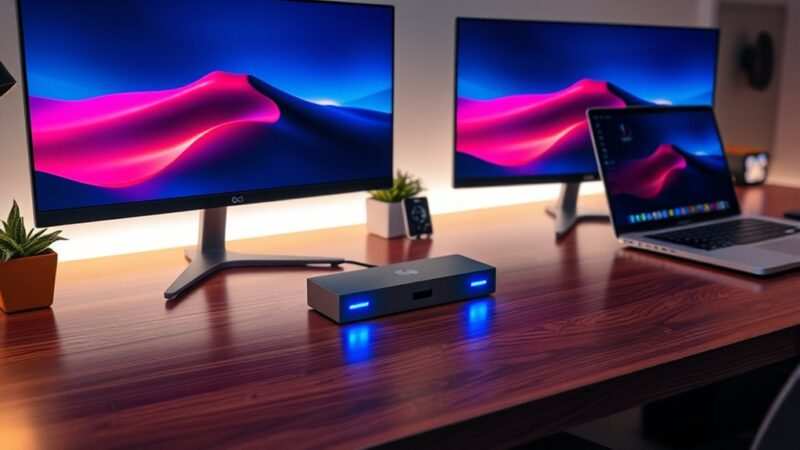
If your monitor only has a USB-C input, get a cable with a DisplayPort connector on one end and USB-C on the other. Make sure it's specifically rated for DisplayPort Alt Mode. These cables have the wiring to convert the DP signal into something the USB-C monitor can accept.
Option B: USB-C to DisplayPort adapter + standard DP cable
If your monitor also has a DisplayPort input, this is often the cleaner solution. Use a standard DisplayPort cable from your GPU to the monitor's DisplayPort input. Skip USB-C entirely.
This avoids any adapter headaches.
Option C: USB-C to HDMI adapter
If your monitor has HDMI but only accepts USB-C input, a USB-C to HDMI adapter works. But honestly, if your monitor has both HDMI and USB-C, just use HDMI directly with a standard HDMI cable. It's simpler and more reliable.
Here's a quick comparison:
| Solution | Best When | Typical Cost | Notes |
|---|---|---|---|
| DP to USB-C cable | Monitor has USB-C only, GPU has DP | $15–$30 | Must be DP Alt Mode rated |
| Standard DP cable | Monitor has DP input | $8–$20 | Simplest, most reliable option |
| USB-C to HDMI adapter | Monitor needs USB-C, GPU has HDMI | $15–$25 | Less common use case |
| USB-C docking station | You need extra ports plus video | $80–$300 | Overkill for single monitor |
Decision Path 3: When a USB-C Dock or Hub Makes More Sense Than a Simple Adapter
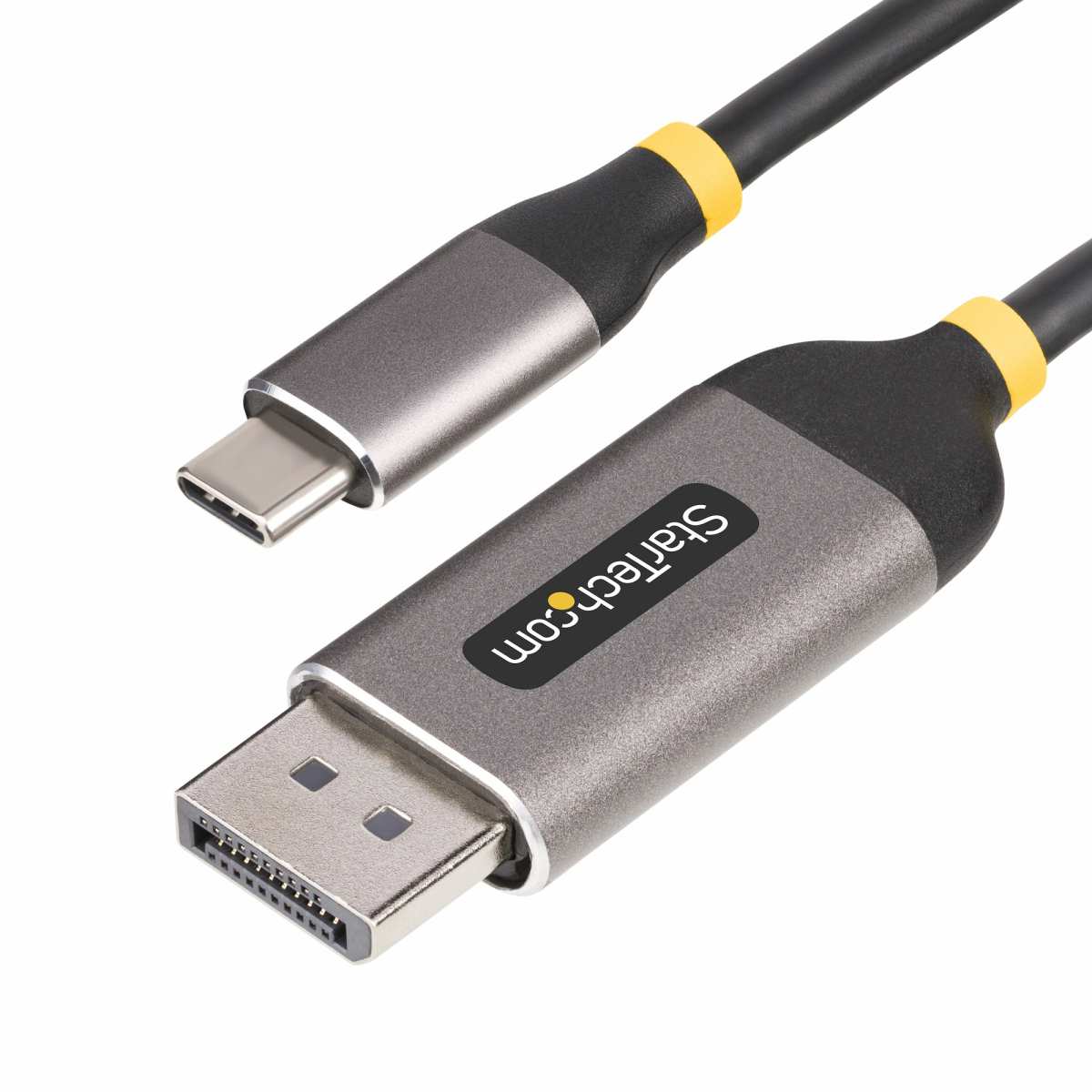
Sometimes a simple adapter isn't enough. If you're trying to connect multiple monitors, need extra USB ports, or want a single-cable docking experience, a USB-C docking station is worth considering.
A docking station connects to your PC via USB-C (or Thunderbolt) and provides multiple video outputs, USB ports, Ethernet, and sometimes even charging passthrough. It's essentially an external hub that expands your connectivity.
When a dock makes sense:
- You want to connect two USB-C monitors to a PC that only has one video-capable USB-C port
- You need additional USB-A ports, Ethernet, or audio connections alongside video
- You're sharing a monitor between a laptop and a desktop and want a seamless switch
- Your workspace benefits from a single cable connection point
What to look for in a dock:
- DP Alt Mode support: The dock must explicitly state it supports video output over USB-C.
- MST (Multi-Stream Transport): If you want to daisy-chain two monitors, the dock needs MST support.
- Power delivery: Some docks can pass power to your monitor or charge a connected laptop.
- Thunderbolt 4 vs. USB-C: Thunderbolt 4 docks offer more bandwidth and are more reliable for dual 4K setups. Standard USB-C docks work fine for single monitor connections.
The catch: Your PC's USB-C port needs to support video output for the dock to work. If your desktop GPU doesn't have a USB-C port, you'll need a dock that connects via DisplayPort or HDMI instead, or you'll need to add a USB-C PCIe card with DP Alt Mode support.
Docks range from around $80 for basic single-monitor models to $300 or more for Thunderbolt 4 stations with dual 4K output. For a single USB-C monitor connection, a $15 adapter is almost always the better choice.
USB-C Cables That Actually Carry Video vs. Charge-Only Cables (This Trips Everyone Up)
This is the number one reason people think their setup is broken when it isn't. They grabbed a USB-C cable, plugged it in, and got nothing. The cable was never going to work.
USB-C cables look identical from the outside, but internally they can be wired very differently.
Charge-only cables only have wires for power and basic USB 2.0 data. They cannot carry a video signal. These are the thin, cheap cables that come with phone chargers and power banks.
Full-featured USB-C cables include the additional wiring needed for DisplayPort Alt Mode or Thunderbolt video signals. They're usually thicker and often have a "SS" (SuperSpeed) or lightning bolt marking on the connectors.
How to tell the difference:
- Check the packaging or product listing for "DisplayPort Alt Mode," "Thunderbolt," or "video support" in the specs.
- Look for "USB 3.1 Gen 2" or "USB 3.2" in the cable description. These standards include video capability.
- If the cable only mentions "USB 2.0" and "charging," it won't carry video.
- Thunderbolt cables have a lightning bolt symbol on the connector.
A good rule of thumb: if you bought the cable for under $5 and it came in plain packaging, it probably doesn't support video. Spend $12 to $20 on a cable from a reputable brand that explicitly lists DP Alt Mode support.
Common Reasons Your USB-C Monitor Isn't Working (And How to Fix Them)
You've connected everything and the screen is still black. Here are the most likely culprits, in order of how often they cause problems.
Wrong input source on the monitor. Most USB-C monitors have multiple inputs. Use the monitor's physical buttons or on-screen menu to switch to the USB-C input. This is the most common fix and the one people overlook first.
Charge-only cable. Swap in a cable you know supports DisplayPort Alt Mode. If the screen comes alive, the old cable was the problem.
GPU driver issue. Outdated or corrupted GPU drivers can prevent display detection. Download the latest drivers directly from NVIDIA or AMD and do a clean installation.
USB-C port doesn't support video. Not every USB-C port on a PC can output video. Front-panel USB-C ports on some cases are data-only. Rear motherboard USB-C ports may also lack DP Alt Mode.
Always use the port on your graphics card if available.
Adapter incompatibility. Some cheap adapters don't properly handle the signal conversion. If you're using an adapter, try a different one or switch to a direct cable connection.
Resolution or refresh rate mismatch. If the monitor detects a signal but shows an error, your PC might be outputting a resolution or refresh rate the monitor doesn't support over USB-C. Boot into safe mode and reset the display settings.
Firmware update needed. Some USB-C monitors and docks require firmware updates to work properly with certain GPUs. Check the manufacturer's support page.
USB-C vs. DisplayPort vs. HDMI: Which Connection Should You Actually Use?
If your monitor has multiple input options, you might be wondering whether USB-C is even the best choice. Here's the honest breakdown.
DisplayPort is still the gold standard for PC-to-monitor connections. It supports the highest refresh rates, handles adaptive sync (G-Sync and FreeSync) natively, and is the most reliable option for gaming and professional work. If your monitor has a DisplayPort input, use it.
HDMI is perfectly fine for most users. HDMI 2.1 supports 4K at 120Hz, which covers the vast majority of monitors on the market. It's widely compatible and cables are cheap.
The only real downside is that it doesn't support adaptive sync as universally as DisplayPort.
USB-C is convenient but not inherently better in terms of image quality or performance. Its main advantage is that it can carry video, data, and power over a single cable. That's genuinely useful for clean desk setups and docking scenarios.
But if you don't need that consolidation, a direct DisplayPort connection is simpler and less prone to compatibility headaches.
| Feature | DisplayPort 1.4 | HDMI 2.1 | USB-C (DP Alt Mode) |
|---|---|---|---|
| Max resolution | 8K at 60Hz | 8K at 60Hz / 4K at 120Hz | Same as DP 1.4 |
| Adaptive sync | Native support | Supported (VRR) | Passes through DP support |
| Cable length reliability | Up to 3m for full bandwidth | Up to 3m for full bandwidth | Varies by cable quality |
| Multi-monitor daisy chain | Yes (MST) | No | Yes (if MST supported) |
| Power delivery | No | No | Yes (up to PD spec) |
| Best for | Gaming, professional work | General use, consoles | Clean setups, docking |
The bottom line: use whatever native input your monitor has that matches your GPU's output. USB-C is a great bonus feature, not necessarily the best primary connection method.
Real Scenarios: Matching the Right Setup to Your Situation
Let's put this all together with some common real-world situations.
Scenario 1: Single USB-C monitor, GPU has DisplayPort only
You bought a nice USB-C monitor for your desk. Your GPU has three DisplayPort outputs and one HDMI. Grab a DisplayPort to USB-C cable rated for DP Alt Mode.
Connect it from your GPU's DisplayPort to the monitor's USB-C input. Done. Total cost: about $20.
Scenario 2: USB-C monitor with USB-C input only, GPU has no USB-C
Same as above, but your monitor only has a USB-C input. A DP to USB-C cable is still your best bet. If you need the DisplayPort output for another monitor, use a USB-C to DisplayPort adapter on your GPU's DP output instead.
Scenario 3: Dual USB-C monitors, single GPU with one USB-C port
This is where a docking station earns its keep. A Thunderbolt 4 or USB4 dock with MST support can drive two USB-C monitors from a single port on your PC. Make sure your GPU's USB-C port supports the necessary bandwidth for dual displays.
Scenario 4: Sharing a USB-C monitor between a laptop and a desktop
A USB-C monitor with multiple inputs makes this easy. Connect your laptop via USB-C for video and charging. Connect your desktop via DisplayPort to USB-C cable.
Switch the monitor's input source depending on which machine you're using. No dock needed.
Scenario 5: Gaming setup with high refresh rate USB-C monitor
For gaming, prioritize DisplayPort if your monitor supports it. USB-C with DP Alt Mode can work, but DisplayPort has more consistent support for adaptive sync and high refresh rates. Check your monitor's manual to confirm which input supports your desired refresh rate.
Quick-Reference Comparison: Adapters, Cables, and Docks at a Glance
Here's a side-by-side look at your main options for connecting a USB-C monitor to a desktop PC.
| Solution | Connection Path | Best For | Price Range | Watch Out For |
|---|---|---|---|---|
| Direct USB-C cable | GPU USB-C to monitor USB-C | GPUs with USB-C DP Alt Mode | $12–$30 | Cable must support video |
| DP to USB-C cable | GPU DP to monitor USB-C | Most common desktop setup | $15–$30 | Must be DP Alt Mode rated |
| USB-C to DP adapter | GPU USB-C to monitor DP | GPU has USB-C, monitor has DP | $15–$25 | Adapter quality varies |
| USB-C to HDMI adapter | GPU USB-C to monitor HDMI | Less common scenario | $15–$25 | Limited use case |
| USB-C dock (basic) | GPU USB-C to dock to monitor | Need extra ports + video | $50–$120 | Port must support video |
| Thunderbolt 4 dock | TB4 port to dock to monitors | Dual 4K, pro workstation | $180–$300 | Requires TB4 on PC |
| USB-C PCIe card | Add USB-C video to desktop | No USB-C on GPU at all | $40–$100 | Opens case, needs installation |
Frequently Asked Questions
Can I use any USB-C cable to connect my monitor?
No. Many USB-C cables are charge-only or USB 2.0 data cables that can't carry a video signal. You need a cable specifically rated for DisplayPort Alt Mode or Thunderbolt to transmit video.
Check the cable specs before buying.
Does my GPU need a USB-C port to connect a USB-C monitor?
Not necessarily. If your GPU has a DisplayPort output, a DisplayPort to USB-C cable works perfectly. If your GPU only has HDMI, a USB-C to HDMI adapter can work, though using a native HDMI connection is usually simpler.
Why is my USB-C monitor showing no signal?
The most common causes are a charge-only cable, the monitor set to the wrong input source, or a GPU that doesn't support video output over its USB-C port. Start by checking the input source and swapping the cable.
Can I daisy-chain two USB-C monitors?
Yes, if both monitors support MST (Multi-Stream Transport) and your GPU's USB-C port supports DisplayPort Alt Mode with MST. Not all monitors support this, so check the specs on both displays.
Is USB-C better than DisplayPort for gaming?
Not inherently. USB-C with DP Alt Mode passes through the same DisplayPort signal, so performance is identical. However, a direct DisplayPort connection is more reliable for adaptive sync and high refresh rates because there's less that can go wrong in the signal chain.
Do I need a docking station for a single USB-C monitor?
Almost never. A simple cable or adapter is cheaper, simpler, and more reliable for a single monitor. Docks make sense when you need to connect multiple displays, extra peripherals, or want a centralized connection point.
Common Mistakes to Avoid
Assuming all USB-C ports output video. Front-panel case ports and motherboard USB-C headers often lack DP Alt Mode. Always use the port on your graphics card when possible.
Buying the cheapest cable on the listing. Cables under $5 rarely support video. Spend $15 to $30 on a cable that explicitly lists DisplayPort Alt Mode in its specs.
Forgetting to switch the monitor input. The monitor won't auto-detect USB-C on most models. Manually select the USB-C input from the monitor's on-screen display menu.
Using a Thunderbolt-only monitor with a plain USB-C port. Thunderbolt monitors require a Thunderbolt source. A standard USB-C port with DP Alt Mode won't drive them. Check your monitor's actual requirements before buying.
Costs and Pricing Overview
A basic USB-C to DisplayPort cable runs $15 to $30. Adapters sit in the same range. Budget USB-C docks start around $50 to $80 for single-monitor models.
Thunderbolt 4 docks with dual 4K support run $180 to $300. Adding a USB-C PCIe card to a desktop that lacks one costs $40 to $100. For most single-monitor setups, a $20 cable is all you need.
Expert Tips
Check your monitor's manual for which input supports your target resolution and refresh rate. Some USB-C monitors only offer full bandwidth on specific ports. Update your GPU drivers before troubleshooting hardware.
If you're running a high-refresh gaming monitor, DisplayPort is still the safest bet over USB-C. Label your cables once you find one that works. Future you will thank present you.
Final Decision Guide
If your GPU has USB-C with DP Alt Mode, use a full-featured USB-C cable directly. If your GPU has DisplayPort only, use a DP to USB-C cable. If you need extra ports or dual monitors, get a USB-C dock that matches your GPU's capabilities.
If your monitor has DisplayPort or HDMI inputs, just use those with standard cables. Keep it simple. The fewer adapters in the chain, the fewer things that can go wrong.
Common Mistakes to Avoid
Assuming all USB-C ports output video. Front-panel case ports and motherboard USB-C headers often lack DP Alt Mode. Always use the port on your graphics card when possible.
Buying the cheapest cable on the listing. Cables under $5 rarely support video. Spend $15 to $30 on a cable that explicitly lists DisplayPort Alt Mode in its specs.
Forgetting to switch the monitor input. The monitor won't auto-detect USB-C on most models. Manually select the USB-C input from the monitor's on-screen display menu.
Using a Thunderbolt-only monitor with a plain USB-C port. Thunderbolt monitors require a Thunderbolt source. A standard USB-C port with DP Alt Mode won't drive them. Check your monitor's actual requirements before buying.
Costs and Pricing Overview
A basic USB-C to DisplayPort cable runs $15 to $30. Adapters sit in the same range. Budget USB-C docks start around $50 to $80 for single-monitor models.
Thunderbolt 4 docks with dual 4K support run $180 to $300. Adding a USB-C PCIe card to a desktop that lacks one costs $40 to $100. For most single-monitor setups, a $20 cable is all you need.
Expert Tips
Check your monitor's manual for which input supports your target resolution and refresh rate. Some USB-C monitors only offer full bandwidth on specific ports. Update your GPU drivers before troubleshooting hardware.
If you're running a high-refresh gaming monitor, DisplayPort is still the safest bet over USB-C. Label your cables once you find one that works. Future you will thank present you.
Final Decision Guide
If your GPU has USB-C with DP Alt Mode, use a full-featured USB-C cable directly. If your GPU has DisplayPort only, use a DP to USB-C cable. If you need extra ports or dual monitors, get a USB-C dock that matches your GPU's capabilities.
If your monitor has DisplayPort or HDMI inputs, just use those with standard cables. Keep it simple. The fewer adapters in the chain, the fewer things that can go wrong.

Similar Posts





















