How to Clean Office Monitor Safely
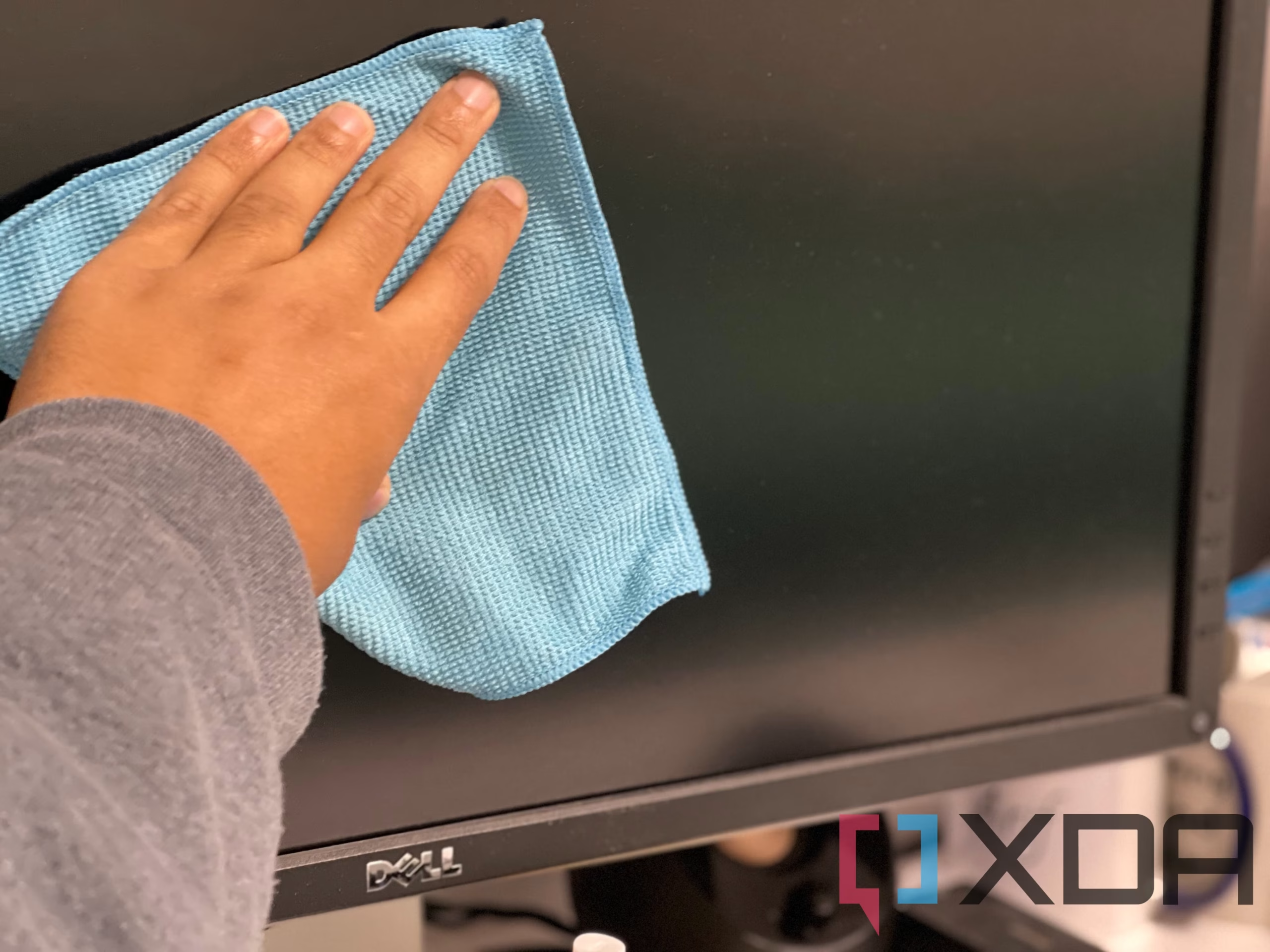
Learning how to clean office monitor safely isn't just about wiping away fingerprints. The real risk is silently destroying the screen's protective coatings, the ones you can't see and can't replace. Most people grab whatever cloth is nearby and spray something generic.
That's exactly how monitors get permanently hazed, scratched, or streaked beyond repair. The good news? Doing it right takes about five minutes and almost zero budget.
Manufacturer guidelines from major monitor manufacturers like Dell and LG consistently specify the same core technique: power down, dry dust first, then use a barely dampened microfiber cloth with distilled water. Following those simple principles protects your display and keeps your warranty intact. Let's break it down step by step so you never have to worry about ruining a screen again.
Quick Answer
Power off your monitor and unplug it first. Dry dust the screen with a clean microfiber cloth. If smudges remain, dampen the cloth slightly with distilled water or a 50/50 isopropyl alcohol mix.
Wipe gently in one direction. Never spray liquid directly on the screen. Never use paper towels, tissues, or household glass cleaners.
Why Getting This Wrong Can Ruin Your Monitor
Modern monitors aren't just flat pieces of glass sitting on your desk. They're layered with incredibly thin coatings that affect how you see everything displayed on them. When those coatings get compromised, the damage is usually permanent.
You can't buy a replacement anti-glare layer at the store. Your only real option at that point is a new monitor.
The most common cause of coating damage isn't some exotic chemical. It's ordinary household products people spray on screens without thinking twice. Glass cleaners, multi-surface sprays, and even paper towels are responsible for thousands of ruined displays every year.
The frustrating part is that the damage builds up slowly. You might not notice the clouding until weeks later, and by then there's no reversing it.
What makes this worse is the price of replacement. A decent office monitor in 2026 runs anywhere from $150 to over $800, depending on size and features. High-end displays for design or programming work easily cross the $1,000 mark.
Protecting that investment takes almost no effort once you know the rules.
What Your Monitor Screen Is Actually Coated With (And Why It Matters)
Every modern monitor screen has at least one, sometimes multiple, microsc coatings applied during manufacturing. Understanding what these coatings do, and how fragile they are, explains why the cleaning process matters so much. You're not just cleaning glass.
You're maintaining a precision optical surface.
Anti-glare coating is the most common layer found on office monitors. It's a matte finish that diffuses ambient light reflections so you aren't fighting overhead fluorescents or window glare all day. This coating is extremely delicate.
Ammonia-based cleaners like standard Windex dissolve it on contact. Even rubbing too firmly with a rough cloth can wear it away over time, leaving behind cloudy patches that catch the light differently than the rest of the screen.
Oleophobic coating is less common on standalone monitors but appears on glossy displays and touchscreens. This layer repels skin oils so fingerprints wipe away easily. It's the same type of coating found on smartphone screens.
The downside is that it degrades with alcohol exposure and abrasive contact. Repeated cleaning with the wrong solution literally polishes this coating away, leaving a surface that holds onto every smudge permanently.
The panel underneath those coatings also varies. Standard LCD panels with IPS, TN, or VA technology have a softer surface than you'd expect. OLED panels, found in some premium office displays, are even more sensitive to pressure and chemicals.
Touchscreen monitors add yet another layer to the stack, often with a slightly different texture that collects oils faster than non-touch screens.
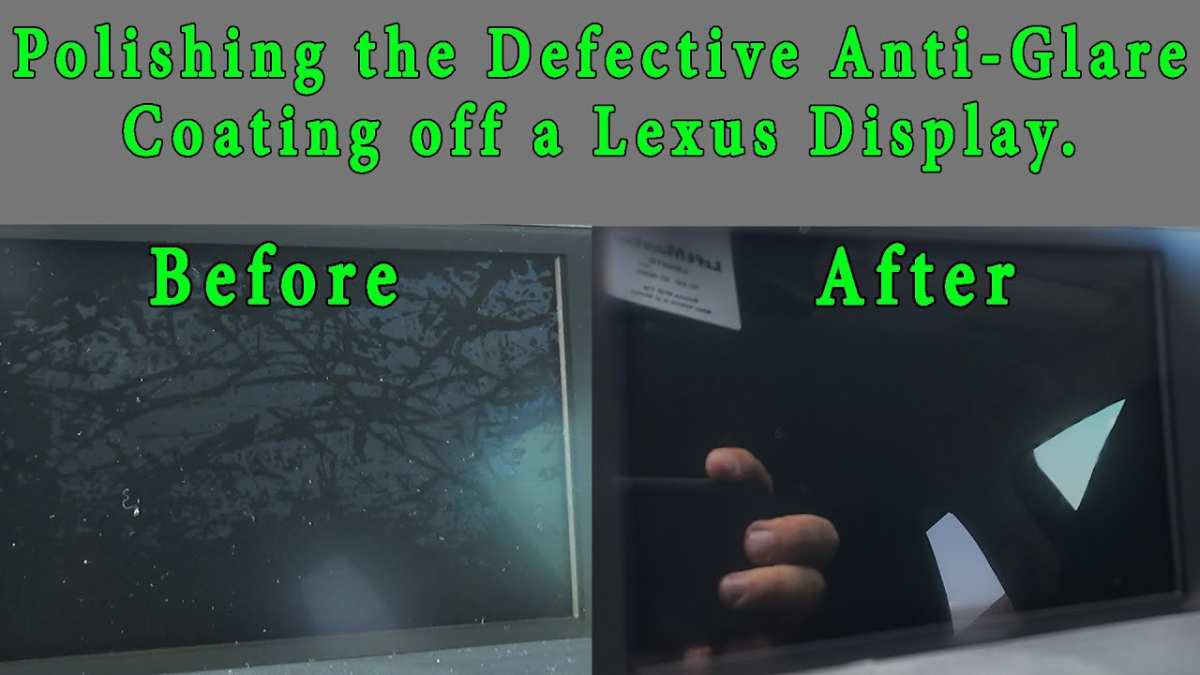
Here's a quick breakdown of what you're dealing with:
ating Type | What It Does | What Destroys It |
|—|—|—| | Anti-glare | Diffuses reflections for comfortable viewing | Ammonia cleaners, abrasive cloths, excessive pressure | | Oleophobic | Repels skin oils and fingerprints | High-concentration alcohol, rough wiping, acidic solutions | | Hard coat (some premium screens) | Adds scratch resistance | Sand-based dust particles, aggressive buffing |
The key takeaway is simple. Anything abrasive, alkaline, or solvent-based is a threat to at least one of these layers. That's why the approved cleaning toolkit is so minimal.
Fewer ingredients mean fewer ways to cause irreversible damage.
Step-by-Step: How to Clean Your Office Monitor Safely
Now let's walk through the actual process. It's straightforward, but the details matter. Each step exists for a specific reason, and skipping one can make the difference between a clean screen and a damaged one.
Power Down and Prep Properly First
Turn off the monitor using its power button, then unplug it from the wall or power strip. This isn't just about electrical safety, though that matters too. A powered-off screen lets you see dust, smudges, and cleaning streaks clearly against a completely black surface.
You'll miss spots on a glowing display.
Let the screen cool down if the monitor has been running for several hours. Warm surfaces cause liquid to evaporate too quickly, which leaves behind residue and streaking. Three to five minutes is usually enough for a standard office display.
Lay the monitor flat or angle it slightly if possible. This prevents your cloth from dragging across the surface under gravity's pull, which creates micro-scratches you won't notice immediately. If your monitor stand doesn't allow tilting, just work gently and keep your strokes horizontal rather than vertical to reduce visible streaking.
Set out your materials before you start. You need a clean microfiber cloth, ideally one rated at 200 GSM or higher. You also need distilled water in a small spray bottle or a dampened cloth prepared in advance.
If you're using isopropyl alcohol, it should be diluted to no more than 50% concentration with distilled water. Have a second dry microfiber cloth ready for the finishing pass.
The Dry Pass: Dusting Without Scratching
Start with the dry cloth. Hold it flat against the screen surface, no fingers pressing through the fabric. Wipe in one direction, moving from the top of the display toward the bottom, or in gentle side-to-side strokes.
Do not use circular motions. Circular wiping distributes dust in irregular patterns and creates visible swirls under certain lighting.
Use almost zero pressure. Let the cloth's fibers do the work. Dust particles on a monitor screen often include microscopic debris that's harder than you'd think.
Silica-based dust particles, common in most office environments, will scratch a delicate coating if pressed and dragged. The dry pass lifts loose particles off the surface without grinding them in.
Pay attention to the edges of the screen where the bezel meets the panel. Dust accumulates in that crevice and can migrate inward over time. A quick pass around the perimeter with the same dry cloth handles it without needing any liquid.
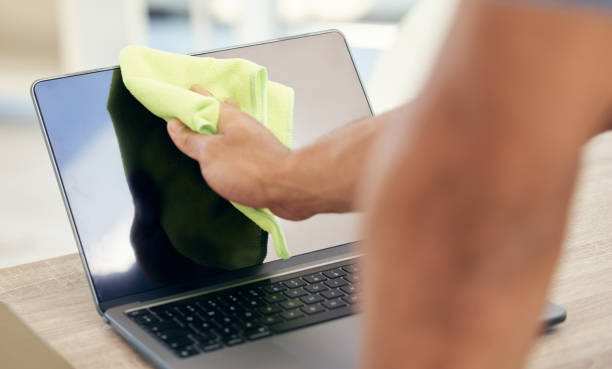
If the screen looks clean after this dry pass and you don't see fingerprints or oily residue, you're done. Overcleaning is just as risky as undercleaning. Every pass with a damp cloth introduces a small amount of friction and moisture.
If you don't need it, skip it.
The Damp Pass: When and How to Add Liquid
If the dry pass didn't handle everything, move to the damp method. Here's the cardinal rule that prevents most monitor damage. Never spray any liquid directly onto the screen.
Always apply the cleaning solution to the cloth, not the display. Liquid sprayed onto a monitor can seep through the tiny gaps around the bezel edges and reach internal components. That's a fast track to dead pixels, backlight failure, or electrical shorts.
Dampen one corner of your microfiber cloth with distilled water or your diluted isopropyl alcohol solution. The cloth should be moist, not wet. If you can see water marks on the cloth when you press it, it's too saturated.
Wring it out completely. At most, you want the cloth to feel cool and slightly damp to the touch.
Wipe the screen using the same one-direction technique from the dry pass. Top to bottom, light pressure, no circular motions. If you encounter a stubborn fingerprint spot, apply gentle pressure to that specific area only, don't scrub back and forth.
One or two passes with adequate moisture should lift any oily residue.
Work in sections if you have a large display. A 32-inch ultrawide or a pair of 27-inch monitors means you're covering a lot of surface area. Cleaning in sections prevents the solution from drying before you can buff it away.
Drying and Final Buff
Immediately follow your damp pass with the second dry microfiber cloth. Don't let the moisture air-dry on the screen. Tap water, even distilled water, can leave faint marks if it evaporates naturally, especially in hard water regions where trace minerals remain visible.
Use the same gentle, one-direction strokes with the dry cloth. This removes any residual moisture and buffs out light streaks left by the cleaning pass. The result should be a uniform, clear surface with no visible wiping marks or smudges.
Step back and inspect the screen from different angles under your normal room lighting. Streaks and spots are easier to catch when the monitor is still off. If you see any remaining marks, a quick second pass with the dry cloth usually resolves them.
Avoid the temptation to reapply liquid unless absolutely necessary.
Once you're satisfied, reconnect the power cable and turn the monitor back on. Check for uniform display quality across the entire screen. If any areas appear cloudy, hazy, or differently textured than the rest, the coating may have been damaged in a previous cleaning session.
We'll cover what can be done about that later.
What You Should Never Use on a Monitor Screen
This section might be the most important one in the entire guide. The list of things that can damage a monitor screen is surprisingly long, and most of those products sit in the average office supply closet right now.
Paper towels and tissues are the single biggest offender. They're made from wood pulp fibers that are relatively coarse at the microscopic level. Those fibers act like fine sandpaper on a delicate anti-glare coating.
The same goes for napkins and toilet paper. Anything not specifically designed as a microfiber cloth introduces unnecessary abrasion risk.
Household glass cleaners contain ammonia as a primary ingredient. Ammonia is excellent at cutting through grime on window glass. It's catastrophic on monitor coatings.
Even a single use with Windex or a similar product can begin dissolving an anti-glare layer. The damage might not be obvious immediately, but the affected area will gradually appear cloudier than the surrounding screen.
Bleach-based cleaners and disinfectant wipes present a double threat. They contain harsh chemicals that attack coatings, and they're often overly saturated with liquid. Hospital-grade disinfectant wipes, common in shared office environments, are specifically problematic.
They're designed to stay wet on surfaces for extended periods for sanitization purposes. That extended moisture exposure is exactly what monitor manufacturers warn against.
Vinegar-based DIY solutions are borderline. Undiluted white vinegar is acidic enough to affect some oleophobic coatings over time. If a vinegar solution is used, it should be heavily diluted, roughly one part vinegar to ten parts distilled water, and only if the manufacturer explicitly approves it.
Most don't.
Compressed air cans can be useful for initial dust removal from bezels and vents, but they're not a primary screen cleaning tool. The propellant inside some compressed air products can leave a residue if held at the wrong angle or too close to the surface. Use compressed air to clear dust from edges and ports, not as a substitute for the dry cloth pass.
Here's a quick-reference table for what to keep away from your screen:
| Product | Why It Damages Screens |
|---|---|
| Paper towels, tissues | Coarse fibers scratch coatings |
| Glass cleaner (ammonia-based) | Dissolves anti-glare coating on contact |
| Disinfectant wipes | Harsh chemicals plus excessive moisture |
| Undiluted vinegar | Acidic enough to degrade oleophobic layers |
| Acetone or nail polish remover | Strips all coatings instantly |
| Tap water alone | Mineral deposits leave visible spots |
| Spray bottles aimed at screen | Liquid seeps into internal components |
The kitchen has no place near your monitor. Kitchen sponges, dish soap, and multi-surface sprays are all formulated for durability, not optical precision. Stick with microfiber and plain distilled water.
That combination handles 95% of every cleaning scenario you'll encounter.
Household Cleaners vs. Screen-Safe Options: A Clear Comparison
Not all cleaning solutions are created equal, and the gap between what works and what destroys a monitor comes down to a few specific chemical properties. Here's how the most common options stack up:
| Solution | Safe for Monitor? | Notes |
|---|---|---|
| Distilled water | Yes | The gold standard for damp cleaning |
| 50/50 IPA + distilled water | Yes | Handles light oil and fingerprints |
| 70% isopropyl alcohol (undiluted) | No | Too concentrated, risks coating damage |
| White vinegar (undiluted) | No | Acidic, attacks oleophobic layers |
| Windex / ammonia cleaner | No | Dissolves anti-glare coating instantly |
| Bottled spring water | No | Mineral content leaves residue |
| Tap water | Not recommended | Minerals cause spotting on panels |
Plain distilled water handles the vast majority of office screen cleaning needs. It's cheap,available everywhere, and chemically inert. It won't react with any coating type found on consumer or professional monitors.
A one-gallon jug costs about a dollar at any grocery store.
Isopropyl alcohol earns its place in the toolkit for stubborn oily residue. The key is concentration. At 50% or lower, diluted with distilled water, it evaporates quickly enough to avoid prolonged moisture contact while still cutting through skin oils.
Push the concentration above 70%, and the solvent properties become aggressive enough to soften some coating materials.
Commercial screen cleaning sprays exist and generally work as advertised. Look for products explicitly labeled as ammonia-free and alcohol-free, or ones specifying safe use on LCD, LED, and OLED displays. Read the label carefully.
Many generic "electronics cleaners" still contain concentrations of alcohol that sit in the risky zone.
How Different Panel Types Change the Rules
Not every monitor responds to cleaning the same way. The underlying display technology and surface finish determine how much margin for error you actually have.
Standard Matte LCD (IPS/TN/VA)
These represent the vast majority of office monitors in use today. They have a textured anti-glare surface that's effective but fragile. Stick to the dry pass for routine maintenance.
Reserve damp cleaning for visible smudges only. Apply minimal pressure, the coating wears fastest under friction.
Glossy Glass Displays (iMac, Studio Display, OLED)
Premium displays with glass surfaces look stunning but show every fingerprint and cleaning swirl. Glass itself is more scratch-resistant than matte plastic coatings, but the oleophobic layer on top is still vulnerable. Never use alcohol on glossy glass displays unless the manufacturer explicitly approves it.
Distilled water alone is almost always the safest choice here.
Touchscreen Monitors
These accumulate fingerprints at an accelerated rate because of constant physical contact. The oleophobic coating takes the biggest hit. Clean more frequently but gentler.
A barely damp microfiber cloth used daily is better than an aggressive cleaning session once a month. Some touchscreen manufacturers recommend specific cleaning products. Check their support pages before experimenting.
How Often Should You Actually Clean Your Office Monitor?
For a typical office environment, once every one to two weeks is sufficient for a full cleaning. Quick dry-pass dusting can happen weekly. Overcleaning introduces unnecessary wear to the coatings.
Undercleaning lets oils build up, which requires more aggressive removal later.
High-touch environments like shared workstations, medical offices, or classrooms may need more frequent attention. In those cases, reduce the intensity of each session rather than increasing it. Light damp wipes twice a week do less damage than one heavy cleaning per week.
Homes with pets, smokers, near open windows accumulate dust and film faster. Adjust your schedule based on what you actually see, not a fixed calendar.
Common Mistakes That Cause Permanent Damage
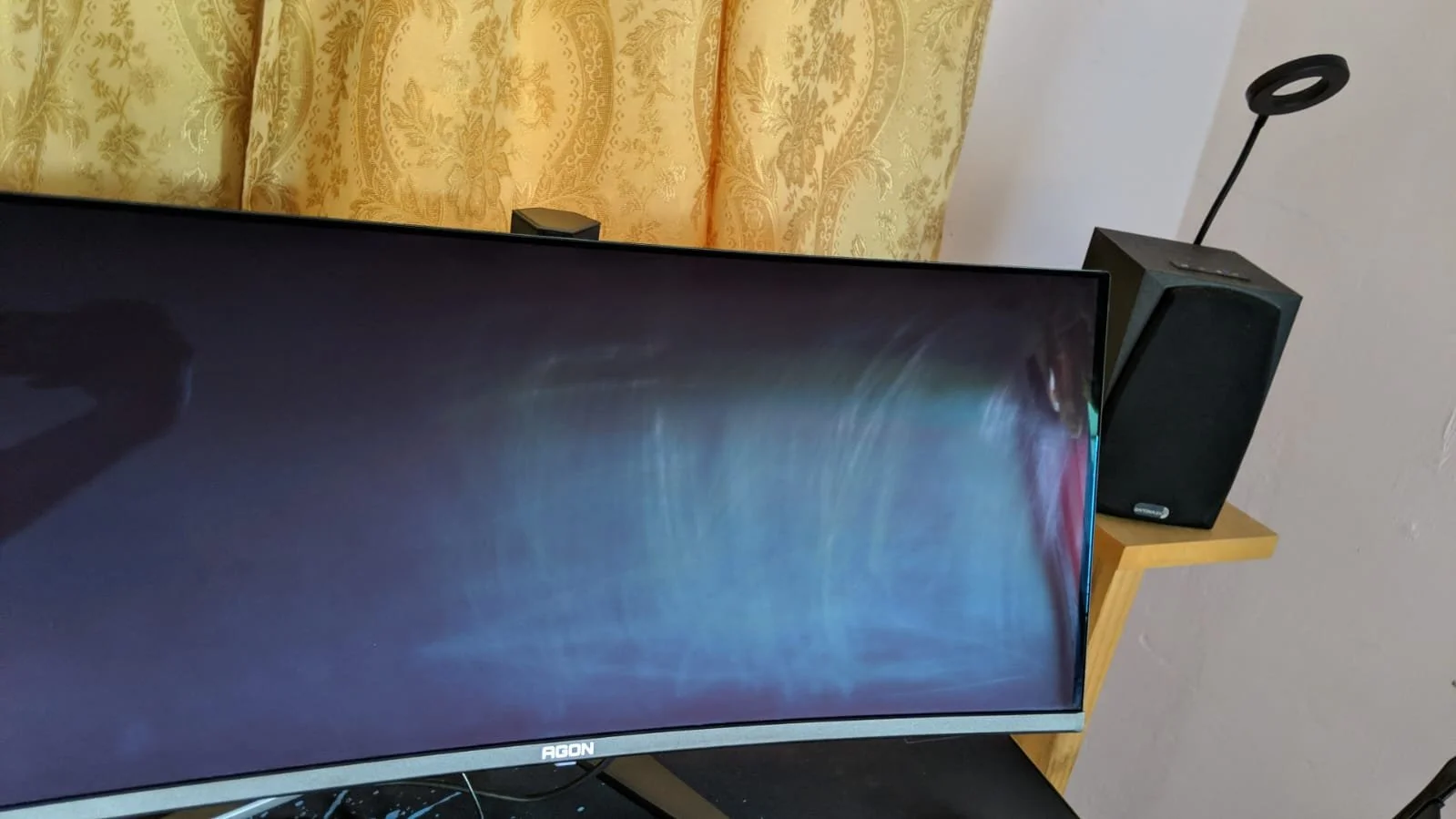
The most damaging mistake is using paper towels or rough cloths. The fibers are too stiff for delicate coatings and create micro-scratches that accumulate over time. Another frequent error is spraying cleaner directly onto the screen.
Liquid seeps through bezel gaps and reaches internal electronics.
Applying too much pressure ranks as another top error. People press hard thinking they're removing stubborn grime. They're actually grinding debris into the coating and physically abrading the surface.
Let the cloth do the work.
Using household glass cleaners, even once, causes chemical damage that compounds with every subsequent cleaning. The affected area permanently looks different from the rest of the screen.
What to Do If You've Already Damaged Your Screen
If your monitor shows cloudy patches, uneven texture, or visible coating loss, the damage is permanent. Anti-glare and oleophobic coatings cannot be reapplied at home with any reliable result. Aftermarket coating kits exist but produce inconsistent results, often worsening the original problem.
Minor haze from early-stage coating wear may appear less noticeable after a thorough cleaning with distilled water. Sometimes what looks like coating damage is actually residue from previous cleaners. A gentle pass with a damp microfiber cloth removes that residue and reveals the actual condition underneath.
For significant damage, your options are living with it, replacing the monitor, or seeking professional panel replacement. Professional re-coating services are rare and often cost more than a new display. Most users in this situation end up planning for eventual replacement.
Manufacturer Guidelines Worth Checking
Major display manufacturers publish specific cleaning instructions for their products. Dell, LG, Samsung, HP, ASUS, and Apple all maintain support pages with approved methods. These guidelines sometimes vary slightly between product lines, so checking yours takes less than a minute and eliminates guesswork.
Dell's support documentation recommends microfiber cloths with water only for most monitors. Their Alienware gaming line permits diluted isopropyl alcohol for stubborn residue. LG's guidelines mirror standard advice.
Dry first, dampen the cloth not the screen, avoid ammonia and alcohol-heavy solutions. Apple explicitly warns against aerosol sprays and compressed air on their Studio Display and Pro Display XDR panels.
If you can't locate your specific model's guidance, the universal safe method applies. Power off, dry wipe, distilled water on cloth if needed. That combination remains compatible with every major manufacturer's recommendations as of 2026.
Quick-Reference Cleaning Checklist
Print this or bookmark it. Having a physical checklist near your desk prevents those automatic grabs for a paper towel or tissue.
- Power off and unplug the monitor
- Let the screen cool for three to five minutes
- Prepare two clean microfiber cloths (one dry, one optional damp)
- Dry dust first using light pressure, one direction only
- If needed, dampen the second cloth with distilled water, not the screen
- Wipe gently, top to bottom, no circular motions
- Buff immediately with the dry cloth
- Inspect from multiple angles before powering back on
- Wash microfiber cloths after every three to four uses
Frequently Asked Questions
Can I use hand sanitizer to clean my monitor?
No. Hand sanitizer contains high concentrations of ethanol or isopropyl alcohol, often above 70%. It also includes thickeners and fragrances that leave residue.
These ingredients can damage oleophobic and anti-glare coatings quickly.
Is it okay to clean my monitor with just a dry cloth?
Yes, and it should be your first step every time. A dry microfiber cloth removes dust and light debris without introducing moisture or chemical risk. Many routine cleanings end right there.
How do I clean the monitor bezel and stand?
The plastic bezel and stand tolerate more aggressive cleaning than the screen itself. A damp cloth with mild dish soap works fine for these parts. Just avoid dripping liquid toward the screen edges or ventilation openings.
My screen has a permanent cloudy streak. Can I fix it?
Probably not. Cloudy streaks that persist after a proper damp cleaning usually indicate coating damage from previous chemical or abrasive contact. The coating has been physically altered or removed.
No home remedy restores it.
Can I use baby wipes on my monitor?
Standard baby wipes contain moisturizers, preservatives, and fragrances that leave a film on screen coatings. They're also more wet than necessary. Stick with plain distilled water on microfiber for safe results.
What about UV sanitizers or screen protectors?
UV sanitizers designed for electronics can be used cautiously, but they don't remove smudges or dust. Screen protectors add a replaceable barrier but can affect clarity and touch sensitivity. If you use one, follow the protector manufacturer's cleaning guidelines instead of the monitor's.

Similar Posts































