How To Clean Your Macbook Safely And Properly For Best?

How to clean your MacBook safely and properly
Understanding the importance of cleaning your MacBook
Cleaning your MacBook regularly helps keep it looking new and functioning well. Dirt, dust, and fingerprints can accumulate over time, affecting performance and appearance. Proper cleaning also prevents the buildup of debris that might cause overheating or damage internal components.Gathering the right cleaning supplies
Before starting, gather essential supplies. Use soft, lint-free cloths such as microfiber for wiping the surface. Avoid abrasive materials that can scratch your MacBook. You will also need mild cleaning solutions, possibly a small bowl of water, and cotton swabs or compressed air for hard-to-reach areas.Preparing your MacBook for cleaning
Power off your MacBook completely and unplug all cables. Place it on a clean, flat surface. Wait for it to cool down if it’s warm, and ensure no liquids are near the device to prevent accidental spills. Removing the external case or keyboard covers can make cleaning easier.Cleaning the exterior surface
Start by wiping the exterior with a microfiber cloth slightly dampened with water or a 70% isopropyl alcohol solution. Gently wipe the lid, bottom case, and sides in a circular motion. Do not apply excessive pressure, and avoid getting moisture into any openings or ports.Cleaning the screen safely
Use a soft, lint-free cloth to clean the display. Slightly dampen the cloth with water or a screen-safe cleaner. Wipe the screen gently, avoiding pressing too hard to prevent damage. Never spray liquids directly onto the screen.Special tips for cleaning the Retina display
For Retina displays, use only cleaners made specifically for screens. Avoid alcohol-based cleaners that may damage the coating. Regular gentle wiping keeps the display clear and bright.Cleaning keyboard and trackpad
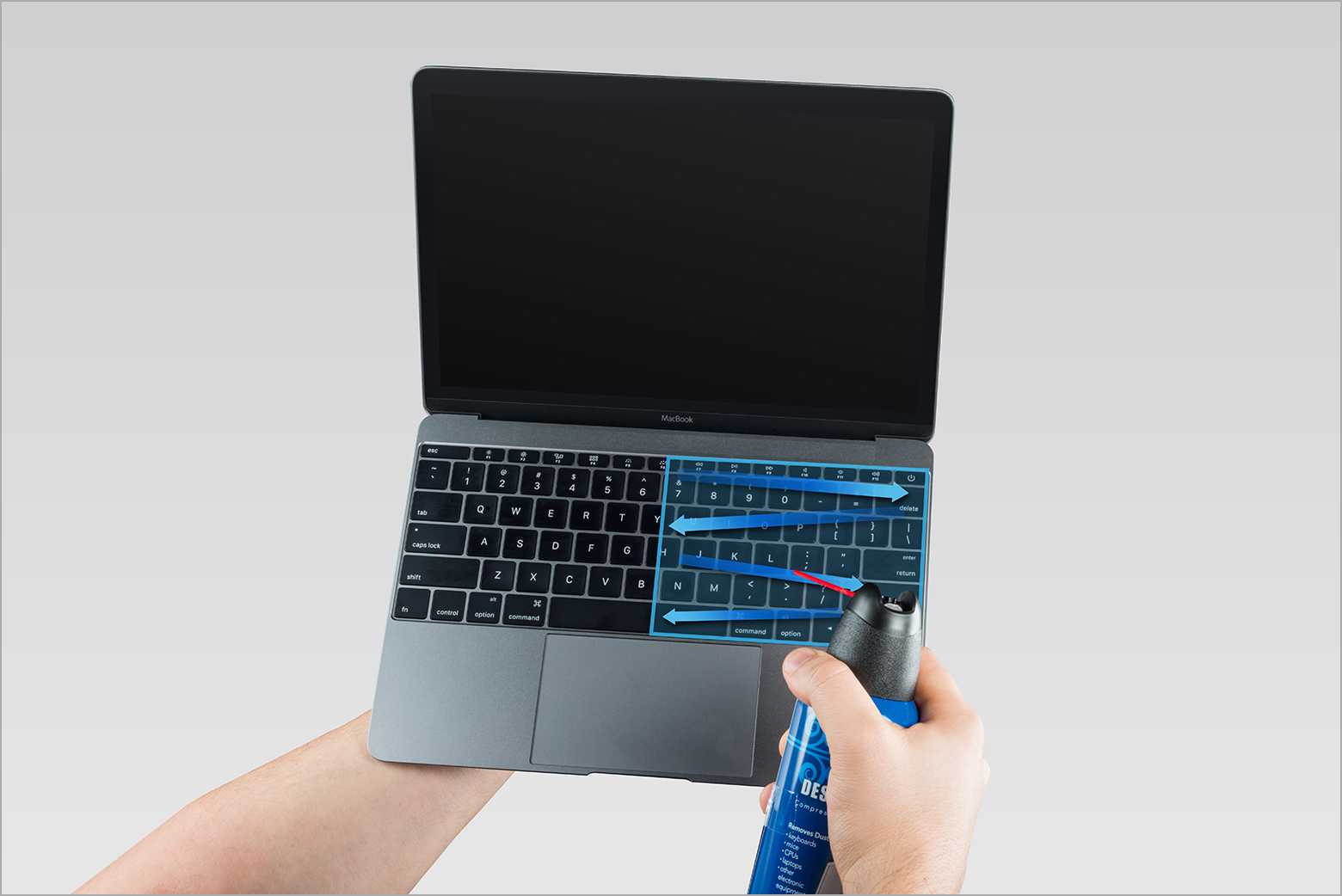
Turn the MacBook upside down or open it fully. Use compressed air to blow out dust and debris from between keys. Dampen a cloth with a small amount of isopropyl alcohol to wipe the keys and trackpad gently. Pay attention to sticky or dirty areas.Removing stubborn stains or dirt from keys
For stubborn dirt, dip a cotton swab in alcohol and gently scrub around the keys. Do not pour liquids directly onto the keyboard. This method helps remove grime while preventing damage.Cleaning ports and vents
Use compressed air to blow out dust from ports and vents. Hold the MacBook steady and spray short bursts of air into each port, keeping the can upright. Be cautious not to force dust deeper inside.Cleaning the speakers and fans
Dust buildup in speakers and fans can cause overheating. Use compressed air carefully to blow out dust from speaker grilles and fan vents. Avoid touching internal components, as opening the device can void the warranty.Maintaining your MacBook’s hygiene
Regularly wiping your MacBook keeps dirt from accumulating. Avoid eating or drinking near your device to prevent spills. Clean your MacBook every few months or as needed based on usage.Tips for avoiding damage during cleaning
Always power off your MacBook before cleaning. Use only gentle cleaning solutions and soft cloths. Never spray liquids directly onto the device, especially around ports and keyboard. Keep liquids away and work in a clean, dust-free environment.Additional cleaning and maintenance tips
Use a screen protector to reduce fingerprints and scratches. Keep your MacBook in a clean, safe space when not in use. Regularly check for dust buildup and clean vents periodically.When to seek professional cleaning help
If your MacBook has severe dirt, liquid damage, or internal issues, consult an Apple authorized service provider. Professional cleaning prevents further damage and ensures a thorough job. Do not attempt to open the device yourself unless qualified.Additional resources for MacBook maintenance
Refer to Apple’s official cleaning guidelines for detailed instructions. You can also find tutorials and videos online for specific cleaning techniques. Keep up-to-date with software updates and hardware care tips from trusted sources. Proper cleaning ensures your MacBook stays in good condition and performs optimally. Take your time, use the right tools, and follow safety guidelines to keep your device looking and functioning like new.Cleaning a DIRTY MacBook! (How To Safely Clean Your Laptop)
Frequently Asked Questions
What cleaning supplies are safe to use on my MacBook’s screen and exterior?
Use a soft, lint-free cloth slightly dampened with water or a mixture of water and a small amount of isopropyl alcohol (70% or less). Avoid using harsh chemicals, ammonia, or abrasive cleaners, as they can damage the screen and casing. Never apply liquids directly to your MacBook; instead, apply them to the cloth before wiping.
How can I prevent moisture from damaging internal components during cleaning?
Ensure the MacBook is turned off and unplugged before cleaning. Use only a lightly damp cloth, avoiding excessive moisture. Keep liquids away from all openings, vents, and ports. Carefully wipe the surface without pressing too hard, and allow the device to dry completely before turning it back on.
What are the best techniques for cleaning the keyboard without causing damage?
Turn off your MacBook and disconnect all cables. Use compressed air to blow away dust and debris from between the keys. Dampen a microfiber cloth with a small amount of isopropyl alcohol or water and gently wipe the keys and surrounding areas. Avoid letting moisture seep underneath the keys to prevent internal damage.
How often should I clean my MacBook to keep it in optimal condition?
Clean your MacBook once a month to maintain its appearance and functionality. More frequent cleaning may be necessary if you use it in dusty environments or handle it with dirty hands. Regular maintenance helps prevent buildup of grime and dirt that could affect performance.
Are there any specific precautions I should take when cleaning the ports and vents?
Yes, make sure the MacBook is powered off and unplugged. Use a dry, soft brush or compressed air to gently remove dust from ports and vents. Avoid inserting objects or liquids into these openings, as it can damage internal components. Cleaning vents regularly improves airflow and prevents overheating.
Final Thoughts
To clean your MacBook safely and properly, start by turning off the device and unplugging all cables. Use a soft, lint-free cloth slightly dampened with water or a gentle cleaner specifically for electronics. Avoid spraying liquids directly onto the device to prevent damage. Gently wipe the surface, keyboard, and screen. Be cautious not to get moisture in any openings, including ports and vents. Regular cleaning helps maintain your MacBook’s appearance and functionality. Following these steps ensures cleaning your MacBook safely and properly keeps it in top condition without risking damage.
Similar Posts































