How To Use Trackpad Gestures For Faster Navigation Tips
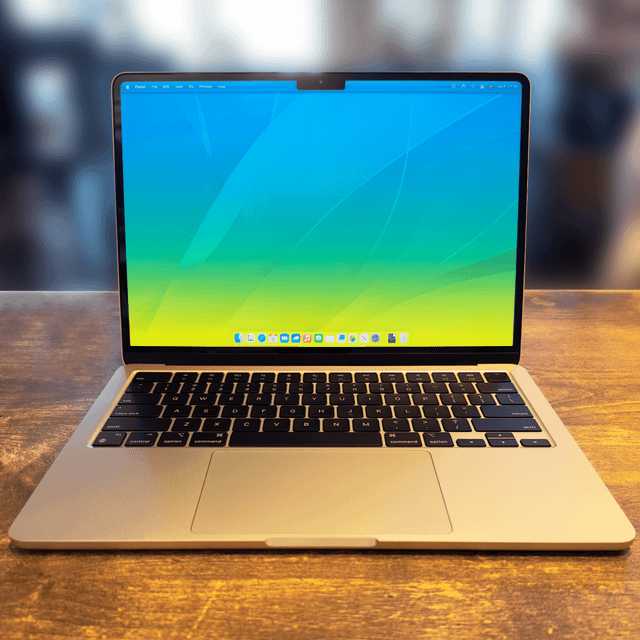

How to use trackpad gestures for faster navigation
Trackpad gestures are a great way to move around your computer quickly without touching the keyboard or mouse. They help you open apps, switch between screens, zoom in, and more, all with simple finger movements. Learning these gestures can make your work faster and more comfortable.
Understanding Basic Trackpad Gestures
Before diving into advanced tricks, it’s important to understand the fundamental gestures. These are usually supported by most modern laptops and operate smoothly with minimal effort. They include tapping, clicking, and two-finger movements.
Tap and Click
- Tap with one finger to select an item or open a link.
- Click with one finger to perform a right-click or open context menus.
- Tap two fingers simultaneously to emulate right-clicking, which is useful for quick options.
Pinch to Zoom
Use two fingers to pinch in or out on the trackpad. This gesture zooms in on images, documents, and web pages. It’s especially handy for viewing details or shrinking content to see more.
Two-Finger Scroll
Place two fingers on the trackpad and slide up or down. This scrolls through documents, webpages, and lists. It feels natural and saves time compared to using scrollbars.
Multi-Finger Gestures for Enhanced Navigation
Many laptops support multi-finger gestures that allow you to switch between applications, desktops, or screens quickly. These gestures can boost productivity and make navigation seamless.
Three-Finger Swipes
- Three-finger swipe up: Opens Mission Control or Exposé view, showing all open windows. Easy to find the app you’re working on.
- Three-finger swipe down: Minimizes all windows and shows the desktop. Handy for quick access to files or shortcuts.
- Three-finger swipe left or right: Switches between full-screen apps or desktops. Useful for multitasking.
Four-Finger Gestures
- Four-finger swipe up: Opens all virtual desktops or Mission Control, giving you an overview of your workspace.
- Four-finger swipe down: Shows the App Exposé, displaying all open windows of the current app.
- Four-finger swipe left or right: Moves between different desktops or spaces, allowing quick multitasking.
Customizing Trackpad Gestures
Most modern laptops offer options to customize gestures for better user experience. You can assign actions based on your workflow, making navigation even faster.
How to Adjust Settings
- Open your device’s system preferences or settings menu.
- Navigate to the trackpad or mouse section.
- Look for gesture customization options or gesture settings.
- Enable or disable gestures according to your preference.
- Assign specific actions to gestures if available.
Tips for Customizing Gestures
- Focus on gestures you use most often, like switching apps or desktops.
- Practice new gestures to build muscle memory.
- Adjust sensitivity to avoid accidental triggers.
Using Trackpad Gestures with Specific Operating Systems
macOS
Apple’s macOS offers extensive gesture support with intuitive controls. Features like Mission Control, App Exposé, and App Switcher are activated with simple swipe gestures. Customization is available in System Preferences under Trackpad.
Windows
Windows laptops with touchpads often support multi-finger gestures using Precision Touchpad drivers. Windows 10 and 11 support gestures like task view, switching desktops, and app snapping. Settings can be accessed through Settings > Devices > Touchpad.
Linux
Linux distributions vary in gesture support depending on the desktop environment. Tools like libinput or third-party apps can enable gestures. Check your distribution’s documentation for specific instructions.
Tips to Maximize Trackpad Gesture Efficiency
Practicing and integrating these gestures into your routine helps save time. Combine gestures with keyboard shortcuts for even faster navigation. Keep your trackpad clean and calibrated to ensure responsive performance.
Additional Tips
- Maintain proper finger placement for accurate gestures.
- Use a light touch to avoid accidental gestures.
- Experiment with different gesture combinations to find what works best for you.
Common Mistakes and How to Avoid Them
Sometimes, gestures may not respond as expected due to settings or hardware issues. Updating drivers and software ensures compatibility and smooth functioning. Also, avoid overusing complex gestures during quick tasks to prevent errors.
Related Topics for Better Navigation
Keyboard Shortcuts
Combine trackpad gestures with keyboard shortcuts for maximum efficiency. For example, use Command + Tab on macOS or Alt + Tab on Windows to switch applications quickly.
Using Gesture Extensions and Software
Third-party apps can extend gesture capabilities, offering custom commands and additional options. Popular tools include BetterTouchTool for macOS and AutoHotkey for Windows.
Maintaining Your Trackpad
Keep your trackpad clean and free of dirt or oil. Regularly calibrate your device if options are available in settings. Proper maintenance ensures accurate gesture recognition over time.
Mastering trackpad gestures can significantly improve your navigation speed. By understanding and customizing these gestures, you can work more efficiently and enjoy a smoother computing experience.
How To REALLY Use Your Mac Trackpad – All The Tips, Tricks and Features!
Frequently Asked Questions
How can I customize trackpad gestures to suit my navigation preferences?
You can personalize trackpad gestures by accessing your device’s system preferences or settings menu. Navigate to the trackpad or gestures section, where you can assign specific actions to different gestures like three-finger swipes or pinch-to-zoom. Adjust the sensitivity and try out different combinations to find what feels most intuitive for your workflow.
What are some common multi-finger gestures that improve browsing speed?
Using multi-finger gestures such as three-finger swipes allows you to quickly switch between open applications or move backward and forward within a browser. Pinch gestures help zoom in or out of content seamlessly, while spreading three fingers apart can open the notification center or app switcher. Incorporating these gestures into your routine speeds up navigation across applications.
How do I troubleshoot issues with trackpad gestures not responding properly?
If your trackpad gestures do not work as expected, start by checking your device’s settings to ensure gestures are enabled. Update your device’s drivers or firmware to the latest version. Restart your system and test the gestures again. If problems persist, consider resetting the trackpad settings to default or connecting external devices to rule out hardware issues.
Are there specific gestures that help in multitasking on a Mac or Windows laptop?
Yes, on Mac, you can use four-finger swipes to switch between desktops or full-screen apps, and pinch with three fingers to open Mission Control. Windows laptops often support three-finger gestures for switching between virtual desktops, opening task view, or managing notifications. Using these gestures can make multitasking more fluid and efficient.
Final Thoughts
Using trackpad gestures for faster navigation enhances productivity significantly. Practice swiping, pinching, and three-finger gestures to switch between apps, zoom in, or scroll smoothly. Customizing your gesture settings allows for a more personalized and efficient workflow. In summary, how to use trackpad gestures for faster navigation helps save time and effort. Incorporate these gestures into your daily tasks, and you’ll navigate your device more intuitively and swiftly.
Similar Posts































