How To Update Macos And Keep Your Macbook Secure Effectively

How to update macOS and keep your MacBook secure
Understanding the importance of updating macOS regularly
Keeping your MacBook’s operating system up to date is vital for security and performance. Updates often fix bugs, close security gaps, and add new features. Missing these updates can leave your device vulnerable to malware and hackers.How updates enhance your MacBook’s security
macOS updates include patches for known security vulnerabilities. They also improve privacy controls, making it harder for unauthorized users to access your data. Regular updates ensure your MacBook stays protected against the latest threats.Identifying when a macOS update is available
Your MacBook can notify you automatically when updates are ready. You can also check manually by opening the “System Preferences” and clicking on “Software Update.” It’s good practice to look for updates at least once a week to stay current.Step-by-step guide to updating macOS
Updating your macOS involves a few simple steps:- Open the Apple menu at the top left of your screen.
- Select “System Preferences.”
- Click on “Software Update.”
- If an update is available, click “Update Now.”
Preparing your MacBook for an update
Before updating, back up your data using Time Machine or iCloud. This ensures your files are safe if anything goes wrong during the update process. Close all apps and save your work to prevent data loss.Choosing the right time to update
Update your MacBook when you’re not actively working on important tasks. This prevents potential data loss and allows the update to install smoothly. Avoid updating during high-traffic internet hours to ensure a faster process.How to verify your macOS version after updating
After the update, check your macOS version by clicking the Apple menu, selecting “About This Mac,” and reviewing the version number displayed. Confirm it matches the latest release to ensure the update was successful.Common issues during macOS updates and how to solve them
Sometimes updates fail or get stuck. If this happens, restart your Mac in Safe Mode by holding the Shift key during startup. Then, try updating again. If problems persist, visit Apple Support for assistance.Enabling automatic updates for convenience and security
Turn on automatic updates to keep your MacBook current without manual intervention. Go to “System Preferences,” click “Software Update,” then select “Automatically keep my Mac up to date.” This way, your device updates overnight with minimal hassle.Additional security features in macOS updates
macOS updates often include enhancements like improved firewall settings and tighter app permissions. These features help prevent unauthorized access and reduce the risk of malware infections.Managing software updates for third-party applications
Besides macOS, update your third-party apps regularly. Many apps have built-in update options, or you can use the App Store for automatic updates. Staying current with all software layers maximizes your MacBook’s security.Understanding the role of System Integrity Protection (SIP)
SIP is a security feature that helps prevent malicious software from modifying protected system files. Keep SIP enabled after updates, as it adds an extra layer of defense for your MacBook.Keeping your MacBook secure post-update
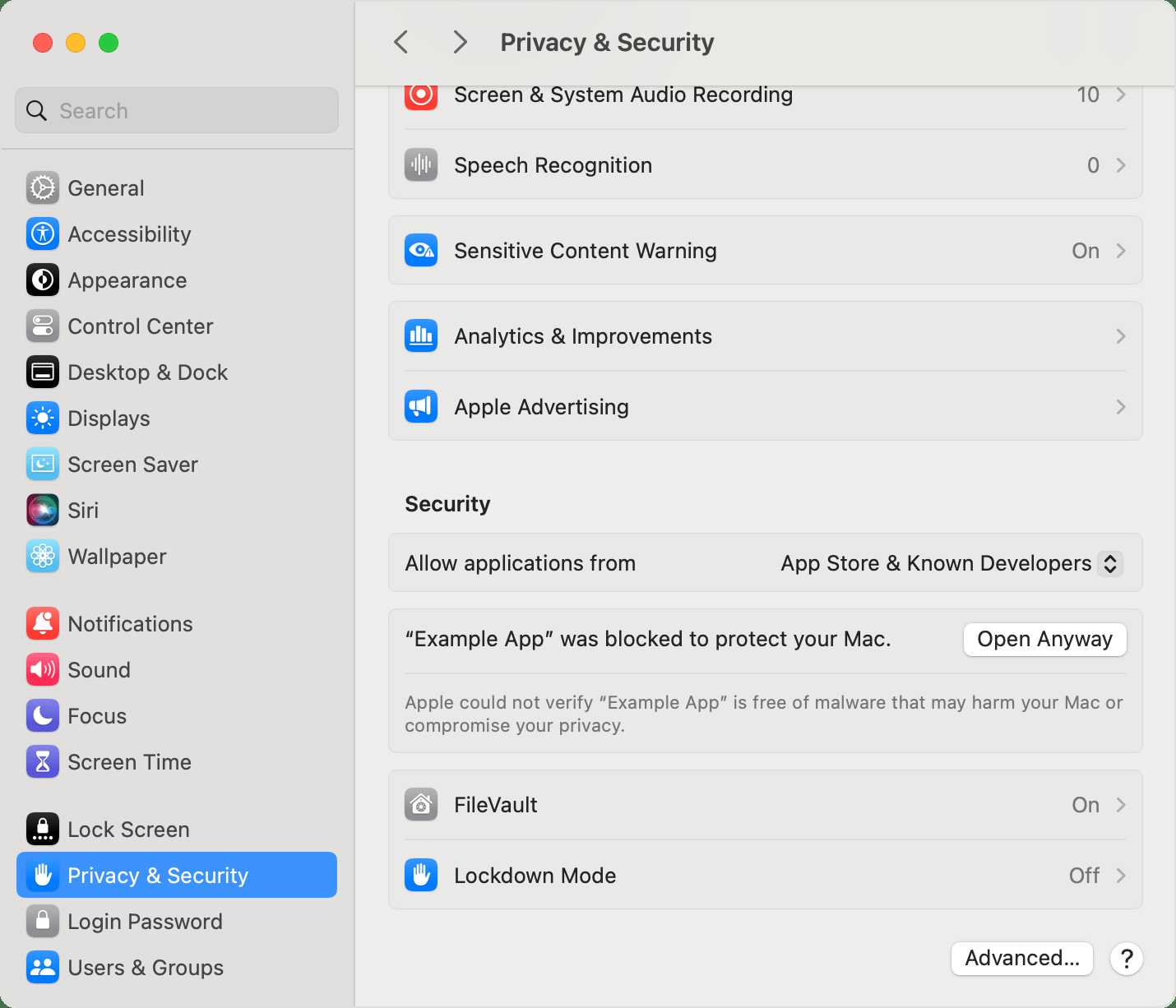
After updating, ensure your security settings are active. Enable FileVault encryption, turn on the firewall, and set strong, unique passwords for your accounts. Regularly review privacy settings to control app access to your data.Best practices for maintaining MacBook security
– Use two-factor authentication for your Apple ID. – Avoid clicking on suspicious links or downloading unknown files. – Install reputable security software if needed. – Regularly review app permissions and privacy settings. – Disable unnecessary sharing services like AirDrop or Bluetooth when not in use.Additional tips for keeping your MacBook safe
Stay vigilant by checking for security alerts and updates frequently. Be cautious when connecting to unfamiliar Wi-Fi networks. Consider setting up a guest account for visitors to prevent access to your personal data.Using a VPN for added protection while updating
A virtual private network (VPN) encrypts your internet traffic, providing an extra layer of security during updates. Use a trusted VPN service, especially when connected to public Wi-Fi, to safeguard your data. Regularly updating macOS plays a critical role in safeguarding your MacBook. By following this guide, you ensure your device runs smoothly and stays protected against emerging threats. Make updates a routine part of your MacBook maintenance for peace of mind and optimal performance.15 Mac Settings To Make Your Mac More Secure (Updated for 2024)
Frequently Asked Questions
What steps should I follow to ensure my MacBook remains secure after updating macOS?
After updating macOS, restart your MacBook to complete the installation. Verify that all security patches are applied correctly. Enable automatic updates to receive future updates seamlessly. Additionally, review your security settings, such as enabling FileVault encryption and activating the firewall, to protect your data and device effectively.
How can I verify that my macOS update has successfully addressed security vulnerabilities?
Check the update history in System Preferences under Software Update. Apple lists security improvements included in each release. You can also visit Apple’s official support pages to confirm that specific security patches have been applied. Regularly monitor for any security advisories issued by Apple to stay informed about ongoing updates.
Are there any precautions I should take before installing a macOS update to keep my MacBook safe?
Yes, back up your important data using Time Machine or other backup solutions before initiating the update. Ensure your MacBook is connected to a reliable power source to prevent interruptions during installation. Read the release notes to understand any known issues or considerations, and consider delaying the update if you rely on critical applications that may temporarily be affected.
How often should I check for macOS updates to maintain my MacBook’s security?
Check for updates weekly to ensure you stay current with the latest security patches and features. Enable automatic updates so your MacBook can download and install updates without manual intervention. Staying proactive helps protect your device from emerging threats and vulnerabilities.
What security features should I enable after updating macOS to enhance my MacBook’s protection?
Activate FileVault to encrypt your disk data, enable the firewall to block unauthorized connections, and turn on Gatekeeper to restrict app installations from untrusted sources. Additionally, consider enabling two-factor authentication for your Apple ID, and review app permissions regularly to prevent unnecessary data access. These steps strengthen your overall security posture.
Final Thoughts
Updating macOS regularly is essential for security and performance. Check for updates in System Preferences and install them promptly. Enable automatic updates to stay protected without manual effort. Keeping your MacBook secure involves more than just software updates. Use strong passwords, enable two-factor authentication, and regularly back up your data. How to update macOS and keep your MacBook secure remains straightforward by following these simple steps. Staying current with the latest software protects your device and personal information effectively.
Similar Posts































