How To Install And Manage Apps On Your Macbook Efficiently

How to Install and Manage Apps on Your MacBook
Getting Started with Installing Apps on Your MacBook
Installing apps on your MacBook is straightforward once you understand the different methods available. You can choose to download apps from the Mac App Store or from third-party websites, depending on your needs. Always ensure you’re downloading from trusted sources to keep your device safe.Using the Mac App Store for App Installation
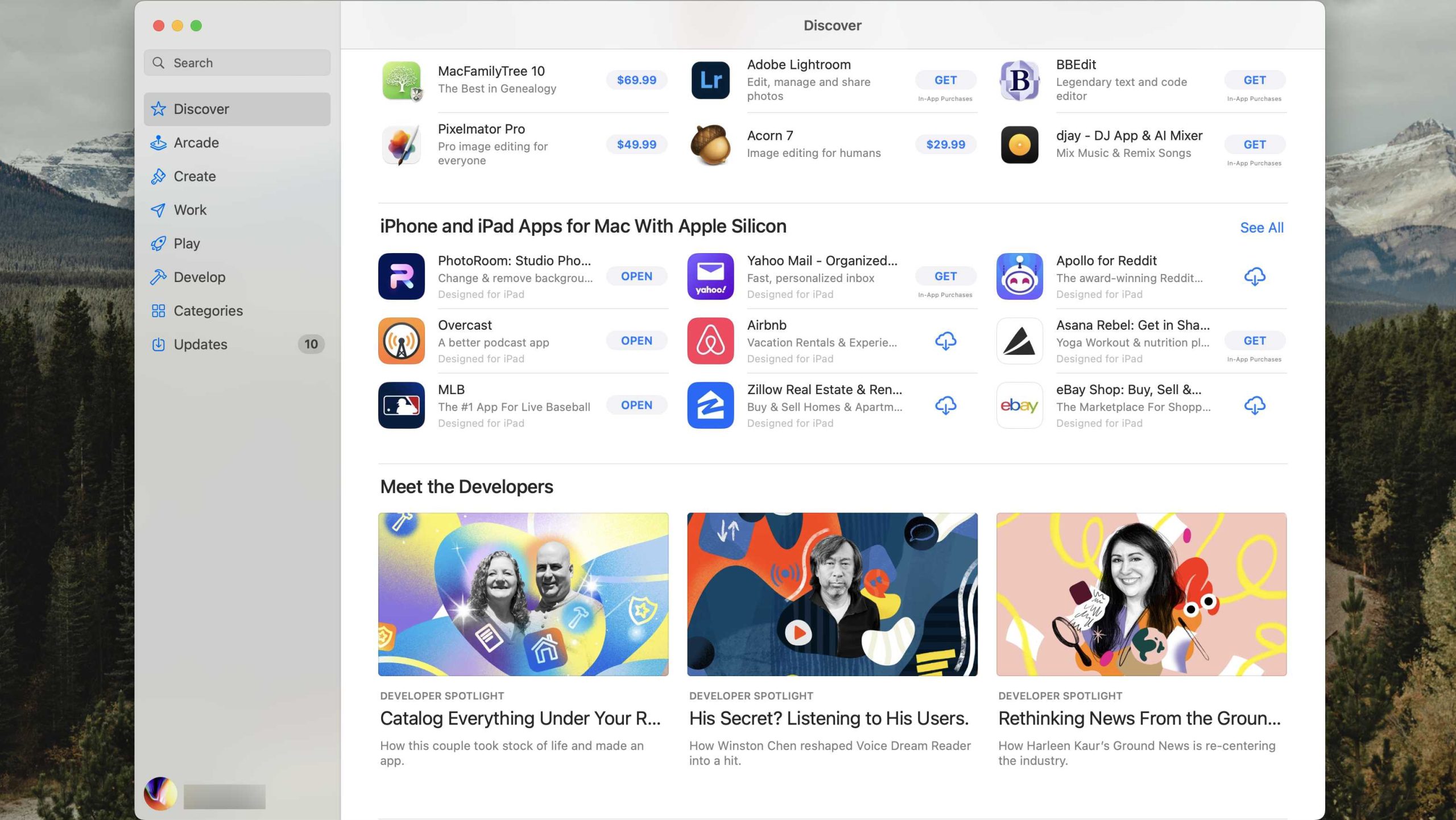
The Mac App Store is the safest and most convenient place to find applications. To install an app from the App Store, open the App Store app from your Dock or Applications folder. Use the search bar to find the app you want. Click on the app, then hit the “Get” button, followed by “Install.” You might need to enter your Apple ID credentials to complete the download.Advantages of Using the Mac App Store
- Apps are reviewed for safety and quality.
- Automatic updates keep your apps current.
- Integration with your Apple ID simplifies purchases.
Installing Apps from Third-Party Sources
Sometimes, you may need an app not available on the Mac App Store. In those cases, you can download apps directly from developers’ websites or third-party app stores. Be cautious and only download from trusted sources to prevent malware or security issues.Steps to Install Apps from Third-Party Websites
- Download the app installer, usually a .dmg or .pkg file.
- Open the downloaded file by double-clicking it.
- Follow the on-screen instructions to complete installation.
- Drag the app into your Applications folder if required.
Security Tips When Installing from External Sources
- Check for digital signatures or developer certificates.
- Read user reviews and ratings.
- Keep your macOS security settings enabled to block unverified apps.
Managing Downloaded Applications
Once installed, you can view all your apps in the Applications folder. From here, you can open, move, or delete applications as needed. Regularly reviewing your applications helps keep your Mac organized and secure.Adding Apps to the Dock for Easy Access
To pin an app to your Dock, simply drag its icon from the Applications folder to the Dock. This allows quick access for frequently used apps. To remove an app from the Dock, drag its icon out until it disappears.Updating Your Applications
Keeping your apps up to date is essential for security and functionality. You can update apps manually or enable automatic updates for convenience.Manual Updates via the Mac App Store
Open the App Store, then click on the “Updates” tab. If updates are available, click “Update” next to each app or “Update All” to refresh all applications at once.Automatic Updates for a Seamless Experience
Navigate to System Preferences, select “Software Update,” then click “Advanced” and enable “Install app updates.” Your Mac will then keep your apps current without manual intervention.Managing Applications with Launchpad
Launchpad offers a visual way to see all installed apps on your MacBook. You can open it from the Dock or with a pinch gesture on your trackpad. Here, you can organize apps, delete unwanted ones, or open apps quickly.Organizing Apps in Launchpad
Click and hold on an app icon until it jiggles. Drag icons to create folders or move them to different pages. To delete an app, click the “X” button that appears on the icon during jiggle mode.Uninstalling and Removing Apps
Sometimes, you may want to delete an app to free up space or remove unwanted software. The easiest way is through the Applications folder or Launchpad.Uninstalling Apps from the Applications Folder
Locate the app you wish to remove, then right-click and select “Move to Trash.” Empty the Trash to permanently delete the app from your Mac.Using Dedicated Uninstaller Tools
Some applications come with uninstallers. Check the app’s folder for a dedicated uninstaller and run it for a complete removal. For stubborn apps, third-party apps like AppCleaner can help remove residual files.Managing App Permissions and Settings
Your MacBook allows you to control app permissions to protect your privacy. Access these settings in System Preferences under “Security & Privacy.” Here, you can manage access to your camera, microphone, location, and more.Adjusting Permissions for Individual Apps
Select the “Privacy” tab within “Security & Privacy.” From the list on the left, choose the category you want to change, then check or uncheck apps’ permissions accordingly.Restricting App Access for Parental Control
Use Screen Time to set restrictions for specific apps or content. This helps manage how younger users access apps and features on your MacBook.Backing Up Your Apps and Data
Regular backups ensure you don’t lose important applications or files. Use Time Machine or other backup solutions to keep your data safe.Using Time Machine for App Backup
Connect an external drive, then enable Time Machine in System Preferences. It will automatically back up your entire system, including apps and data.Restoring Apps and Data from Backup
If you need to recover a deleted app or data, open Time Machine, find the version you want, and click “Restore.”Additional Tips for Smooth App Management
Stay organized by periodically reviewing installed apps and removing those you no longer use. Keep your software updated to enjoy new features and improved security.Utilizing Third-Party App Managers
Apps like CleanMyMac or AppCleaner can help uninstall applications completely and optimize your system performance.Monitoring Storage Space
Manage your disk space by checking storage in “About This Mac” under the “Storage” tab. Delete unused apps or large files to free up space for new applications.Related Topics for Better App Management
- How to troubleshoot app installation issues on MacBook
- Best apps for MacBook productivity
- Security tips to prevent malware on Mac
- Using virtual desktops and spaces for better organization
How to Install Apps on MacBook? Native & Third Party Software Installation on Mac
Frequently Asked Questions
How can I find and install apps from the Mac App Store?
To find and install apps from the Mac App Store, open the App Store app on your Mac. Use the search bar to browse for the app you want or explore categories to discover new applications. Once you find an app, click on it for more details, then press the “Get” button followed by “Install” to download and install the app on your Mac. Make sure you’re signed in with your Apple ID to complete the process.
What is the best way to manage app updates on my MacBook?
You can manage app updates through the App Store or by enabling automatic updates. To update manually, open the App Store, click on the “Updates” tab, and review available updates. Click the “Update” button next to each app you want to update. To enable automatic updates, go to System Preferences > Software Update > Advanced, and check the option to install app updates automatically. This ensures your applications stay current without manual effort.
How do I install apps that are not from the App Store?
To install apps outside the Mac App Store, download the application package from a trusted source. Once downloaded, locate the file in your Downloads folder, double-click it, and follow the on-screen instructions to complete installation. If your Mac prevents the app from opening due to security settings, go to System Preferences > Security & Privacy > General, then click “Open Anyway” next to the message about the app. This allows you to run apps from unidentified developers safely.
How can I organize and remove apps from my MacBook effectively?
You can organize your apps by creating folders in Launchpad or the Applications folder. To remove an app, open Launchpad, click and hold the app icon until it jiggles, then click the “X” button if available. Alternatively, drag the app icon to the Trash in Dock. For apps installed outside the App Store, you may need to delete their associated files manually from the Applications folder or use a third-party uninstaller for thorough removal.
What should I do if an app isn’t opening or functioning properly?
If an app doesn’t open or behaves unexpectedly, start by restarting your Mac. Make sure the app is up to date by checking for updates in the App Store or within the app itself. If issues persist, delete and reinstall the app, ensuring you download the latest version. You can also verify your system meets the app’s requirements and check for any macOS updates that could resolve compatibility problems. If problems continue, contact the app developer for further assistance.
Final Thoughts
In conclusion, how to install and manage apps on your MacBook is straightforward with the right approach. Use the App Store for safe downloads or trusted websites for specialized programs. Keep your apps updated regularly to ensure smooth performance. Organizing your applications helps you find what you need quickly. By following these steps, you maintain an efficient and organized MacBook experience.
Similar Posts































