How To Use Icloud To Sync Data Across Apple Devices?
To seamlessly keep your data updated across all your Apple devices, iCloud is your best friend. Unlocking the power of iCloud allows you to sync photos, contacts, calendars, and more, so everything stays current no matter which device you’re using. Want to set it up effortlessly? Just turn on iCloud on your devices, select what you want to sync, and enjoy the magic of wireless synchronization. In just a few simple steps, you can ensure your data is always synchronized across your iPhone, iPad, Mac, and other Apple gadgets. Using iCloud makes managing your digital life easier, more organized, and always up-to-date, freeing you from manual transfers. Whether you’re switching devices or working remotely, iCloud keeps everything connected seamlessly. iCloud allows you to sync data effortlessly across all your Apple devices. By enabling iCloud and selecting your preferred data types, your information updates automatically wherever you go, keeping your digital world in perfect harmony. If you want to use iCloud to sync data across your Apple devices, start by making sure you’re signed in with your Apple ID on all devices. Then, enable iCloud in your device settings, choose the types of data you want to sync, and ensure your devices are connected to Wi-Fi. That’s all it takes to keep everything in sync! 
How to use iCloud to sync data across Apple devices
Understanding the Basics of iCloud
iCloud is a cloud storage service from Apple that helps you keep your data synchronized across your devices. It automatically uploads your photos, contacts, calendars, and documents so you can access them anytime. Knowing what iCloud can do helps you make the most of its features.Setting Up iCloud on Your Apple Devices
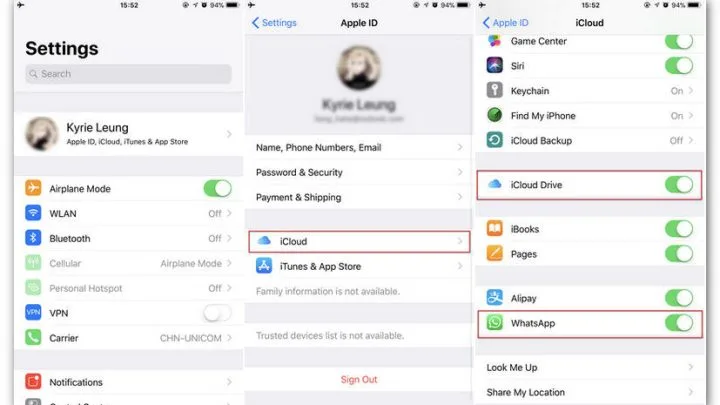
To start syncing, you first need to sign in to iCloud on each device. On your iPhone or iPad, go to Settings and tap your Apple ID at the top. Then select iCloud and enter your Apple ID credentials. On Mac, open System Preferences, click Apple ID, and sign in. Make sure you’re using the same Apple ID on all devices you want to sync.Choosing Which Data to Sync
You don’t have to sync everything. iCloud allows you to pick the data types to synchronize. You can toggle options such as Photos, Contacts, Calendars, Reminders, Notes, Safari, and more. This selective syncing helps save storage and keeps your data organized.Managing Your iCloud Storage
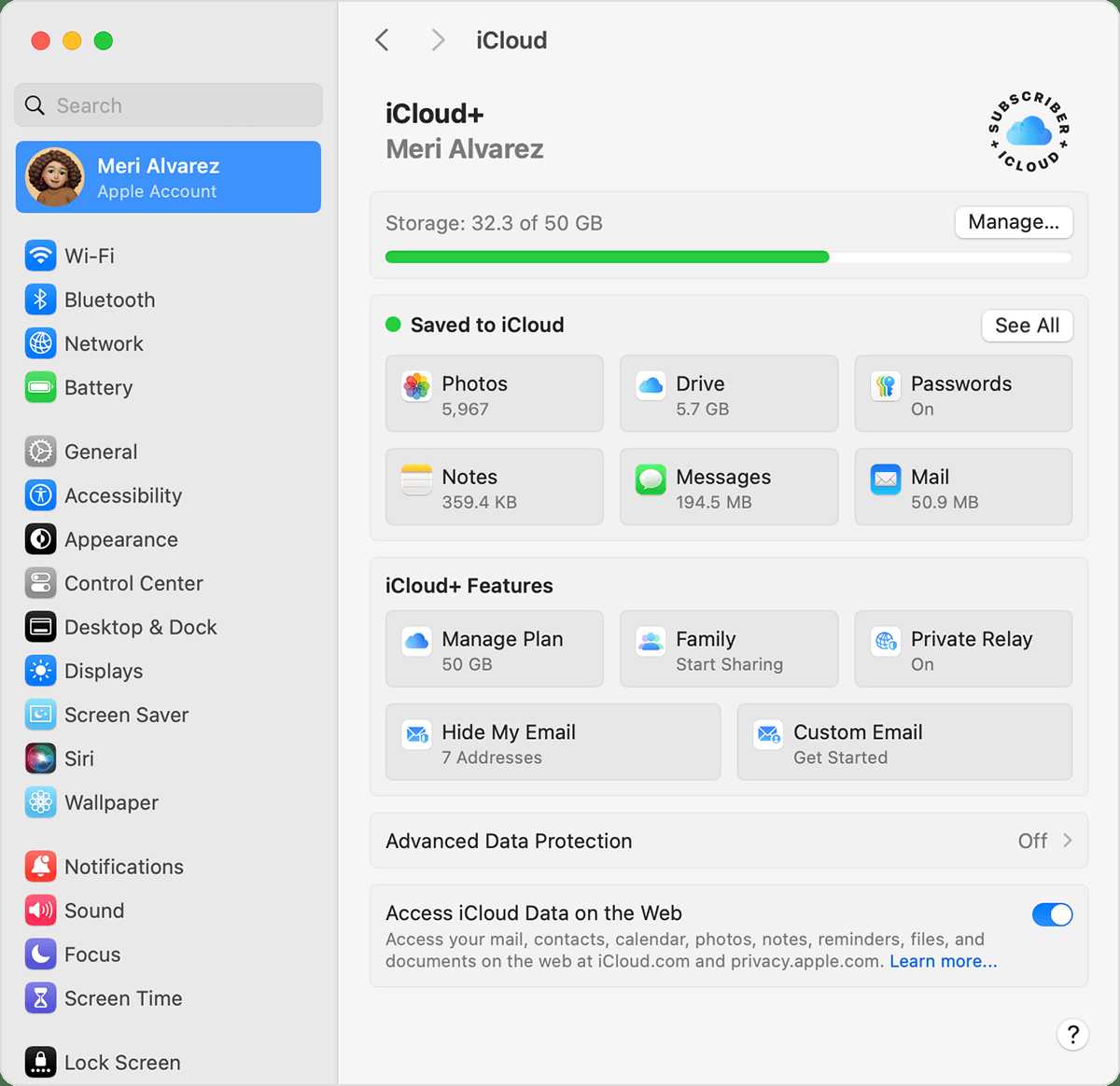
iCloud offers 5GB of free storage, but heavy users might need more. To check your storage, go to Settings > [Your Name] > iCloud on iOS or System Preferences > Apple ID > iCloud on Mac. If needed, upgrade your plan or manage storage by deleting unnecessary backups or files.Using iCloud for Photos and Videos
iCloud Photos keeps your entire photo library synchronized. Enable it in Settings > Photos on iOS or in Photos preferences on Mac. When activated, any photo or video you take on one device appears on all others. You can choose between “Optimize iPhone Storage” to save space or “Download and Keep Originals” for full resolution.Syncing Contacts, Calendars, and Reminders
These essential data types keep your schedule and contacts consistent across devices. Turn on Contacts, Calendars, and Reminders in iCloud settings. Any change made on one device updates everywhere else instantly, making it easier to stay organized.Syncing Safari Data and Bookmarks
Safari data such as bookmarks, history, and tabs can be synchronized with iCloud. Enable Safari in iCloud settings. This way, your browsing experience remains seamless whether on iPhone, iPad, or Mac. Your open tabs and history are available everywhere.Using iCloud Drive for Files and Documents
iCloud Drive acts like a personal cloud-based folder where you can store files. Enable iCloud Drive in Settings or System Preferences. Save documents directly to iCloud Drive, and they’ll be accessible on all your devices. You can organize files into folders for easy access.Sharing and Collaborating with iCloud
iCloud allows you to share files and folders with others. Use the Share Options within Files or Photos to send links or invite others to collaborate. Changes made by anyone are automatically updated for all participants.Accessing Your Data on Non-Apple Devices
While iCloud is designed for Apple devices, you can access your data on Windows or via iCloud.com. Sign in with your Apple ID on a web browser to view photos, contacts, or files. This expands your access to your data whenever needed.Managing iCloud Settings for Better Performance
Regularly review your iCloud settings to ensure everything runs smoothly. Turn off syncing for data you no longer need. Keep your software updated to avoid compatibility issues, and monitor your storage usage to prevent disruptions.Maintaining Privacy and Security with iCloud
Apple emphasizes privacy. Enable two-factor authentication for your Apple ID to protect your data. Regularly review your account activity and trusted devices. Use strong passwords and avoid sharing your Apple ID credentials.Troubleshooting Common iCloud Sync Issues
Sometimes sync problems happen. Restart your device, check your internet connection, or sign out and back into iCloud. Make sure your device’s software is up to date. If problems persist, contact Apple Support for assistance.Tips for Optimizing iCloud Usage
To get the most from iCloud, keep your devices connected to Wi-Fi during backups. Regularly back up your data manually, especially before major updates. Use iCloud selectively to save space and keep your setup organized. Consider deleting old backups or files to free storage.Related Topics to Enhance Your iCloud Experience
- Managing Apple ID privacy settings: Keep your account safe and control what information you share.
- Using Family Sharing with iCloud: Share your storage plan and purchased content with family members.
- Securing your iCloud account: Enable two-factor authentication and review security settings regularly.
- Optimizing device storage with iCloud: Use iCloud to free up space on your device by storing less-used data in the cloud.
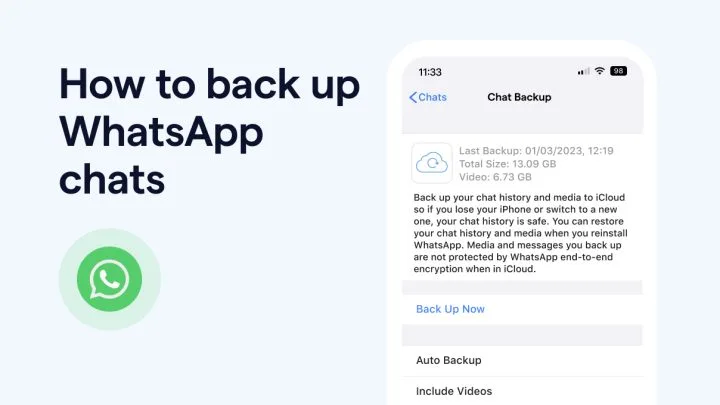
- Backing up data to iCloud: Regular backups prevent data loss during device issues or upgrades.
Syncing with iCloud on Mac and devices
Frequently Asked Questions
What steps should I follow to enable iCloud synchronization on my Apple devices?
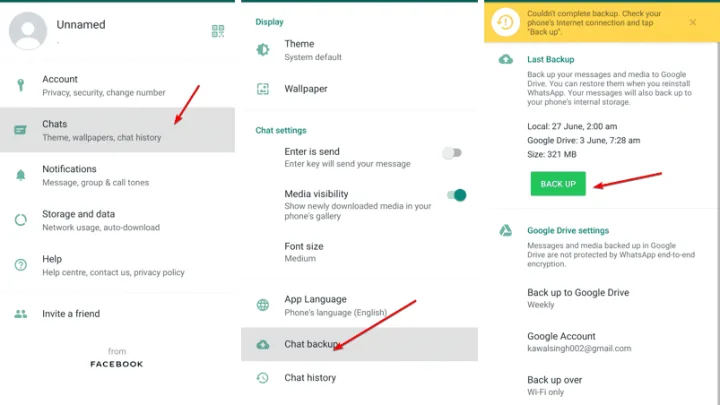
To enable iCloud synchronization, open the Settings app on your device. Tap on your Apple ID at the top, then select iCloud. From there, toggle on the specific services or data types you want to sync, such as Contacts, Photos, or Notes. Ensure your device is connected to the internet to activate the sync process.How can I ensure my data stays updated across multiple devices using iCloud?
To keep your data current, make sure iCloud is enabled for each device you want to sync. Use the same Apple ID across all devices. Regularly check that the relevant iCloud toggles are active in Settings. Additionally, keep your devices connected to Wi-Fi and power so they can sync automatically and efficiently.What should I do if my data doesn’t sync correctly with iCloud?
If your data isn’t syncing properly, verify your internet connection is stable. Restart your device and ensure iCloud is enabled for the affected data types. Sign out of iCloud and sign back in, or update your device to the latest iOS version. You can also check iCloud storage to confirm you have enough space for new data.Can I selectively choose what data to sync with iCloud on my device?
Yes, iCloud allows you to pick specific data to sync. Navigate to Settings, tap on your Apple ID, then select iCloud. Turn off the toggles next to data types you prefer not to sync, such as Calendars or Reminders. This way, you can manage your data sharing preferences on each device.How does iCloud handle conflicts when data changes on multiple devices?
When data updates occur simultaneously on different devices, iCloud attempts to merge changes seamlessly. If conflicts arise, your device may create duplicate entries or alert you to review the conflicting data. You can manually resolve conflicts by choosing the correct version or merging information as needed.Final Thoughts
How to use iCloud to sync data across Apple devices is straightforward. First, ensure iCloud is enabled on your device and sign in with your Apple ID. Select the types of data you want to sync, such as photos, contacts, or documents. Keep your devices connected to Wi-Fi and power to allow seamless synchronization. Regularly check your iCloud storage to avoid any interruptions. Following these steps helps you keep your data consistent across all your Apple devices effectively.
Similar Posts