How To Use Stage Manager To Manage Open Apps Efficiently

How to use Stage Manager to manage open apps
Understanding what Stage Manager is
Stage Manager is a feature that helps organize your open apps and windows. It groups your apps into a clean, manageable workspace on your Mac. By using Stage Manager, you can switch between tasks faster and keep your desktop clutter-free. It is designed to improve your workflow and make multitasking easier.Enabling Stage Manager on your Mac
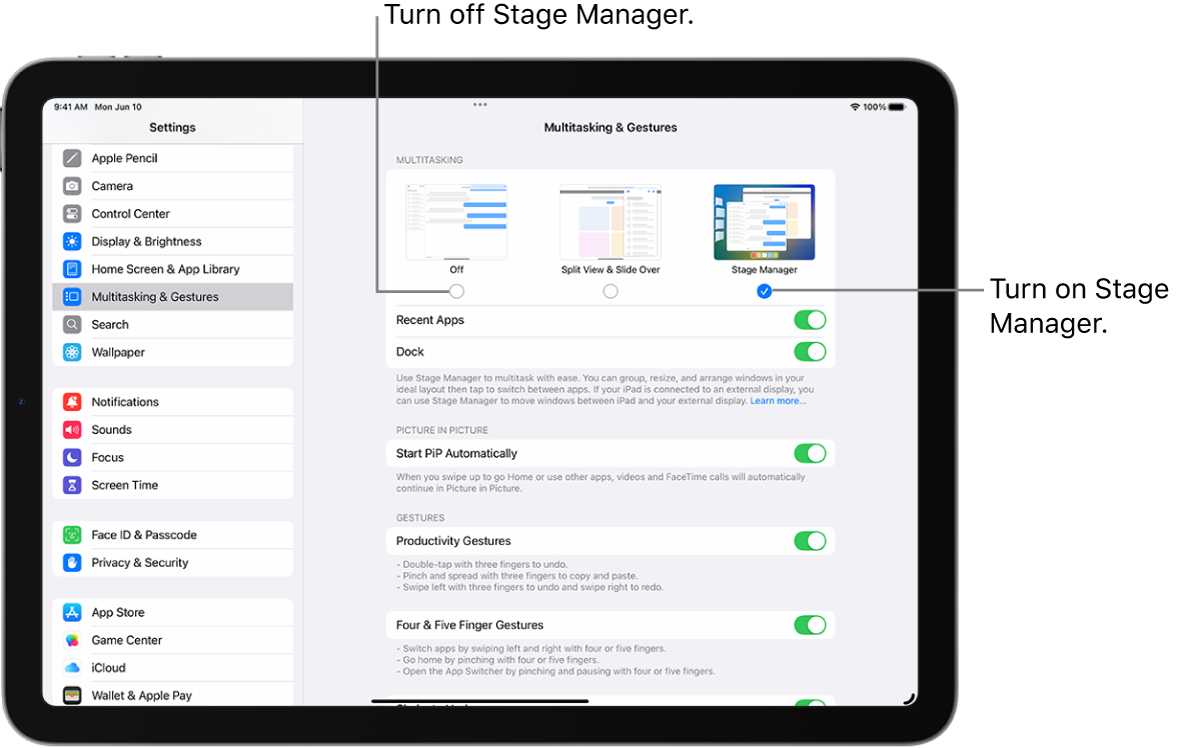
To start using Stage Manager, you first need to turn it on. Open the System Settings menu on your Mac. Scroll down to find the option labeled Stage Manager. Click on the toggle switch next to it to enable the feature. You may see options to customize its behavior, such as showing recent apps or hiding minimized windows.How to access and activate Stage Manager
Once enabled, Stage Manager appears as a button in the Control Center. Click the Control Center icon in your menu bar and select Stage Manager. Alternatively, you can use a designated keyboard shortcut if you have set one up. Clicking this will bring up your app groups and allow you to start organizing your workspace.Using Stage Manager to organize your open apps
Stage Manager automatically groups your open apps into thumbnails on the side of your screen. You can click on any app thumbnail to bring that app into focus. Drag and drop apps to create custom groups or rearrange existing ones. This allows you to keep related apps together for easy access, such as your email, calendar, and note-taking apps.Managing app groups with Stage Manager
You can create multiple groups of apps based on your tasks or projects. For example, one group could include your browsing windows and email, while another might contain your design tools. To add apps to a group, simply drag their thumbnails into the desired area. To remove an app from a group, drag it back to the main screen or close it.Switching between app groups quickly
Switching between groups is simple with Stage Manager. Click on the thumbnail of the group you want to access, and it will expand, bringing all apps within that group into view. This enables you to seamlessly move from one task to another without losing focus. It is especially useful during multitasking sessions or when managing multiple projects.Using keyboard shortcuts for faster switching
You can assign keyboard shortcuts to cycle through your app groups if preferred. Check your Mac’s system preferences to see if this option is available or look for third-party tools that enhance this functionality. Using shortcuts can save time and improve your workflow efficiency.Customizing how Stage Manager displays your apps
Stage Manager offers several customization options to suit your preferences. You can choose to show or hide recent apps, adjust the size of app thumbnails, or decide whether to display minimized windows. To access these settings, open System Settings and select Stage Manager. Make adjustments based on how you like your workspace to look.Using Stage Manager with full-screen apps
Stage Manager works well with full-screen apps, helping you manage multiple full-screen windows at once. When you activate a full-screen app, Stage Manager automatically organizes other open apps into groups, keeping your workspace tidy. You can switch between full-screen apps and grouped apps effortlessly.Integrating Stage Manager with Mission Control
While Stage Manager manages open apps, Mission Control provides an overview of all your desktops and windows. You can use both features together for better multitasking. Access Mission Control from the Dock or with a keyboard shortcut to see your open spaces and switch between them smoothly.Tips for using Stage Manager effectively
- Regularly review your app groups to keep your workspace organized.
- Use naming conventions for groups if you create many to find them faster.
- Combine Stage Manager with other tools like Spaces for even better multitasking.
- Practice switching between groups to make your workflow smoother.
Potential issues and troubleshooting
If Stage Manager doesn’t work as expected, check your system updates and ensure you’re running macOS that supports the feature. Restart your Mac if needed, or toggle the feature off and on again. For persistent problems, consult Apple Support or community forums for additional help.Related topics: Enhancing your workspace with Stage Manager
Besides managing apps, consider customizing your desktop wallpaper, setting up multiple desktops, or using external displays. These additions can make your multitasking setup even more functional. Also, explore third-party apps that enhance window management for further flexibility.Summary of key points
Stage Manager simplifies how you handle open applications. It groups apps into manageable sections, helping you focus and work efficiently. Customizing and mastering its features can significantly improve your daily tasks on Mac. Using Stage Manager effectively makes managing open apps easier and faster. It allows you to keep your desktop organized, switch between tasks smoothly, and maintain a clean workspace. Incorporate this tool into your workflow for a more productive and less cluttered computer experience.How to use Stage Manager on your Mac | Apple Support
Frequently Asked Questions
How can I customize the way apps are grouped in Stage Manager?
To customize app grouping in Stage Manager, simply drag one app window over another to create a group. You can also rearrange these groups by dragging them to different positions on your screen. This flexibility allows you to organize your workspace based on your workflow preferences, making it easier to switch between related tasks.
What steps should I follow to switch between different app groups in Stage Manager?
Switching between app groups is straightforward. Move your cursor to the left side of the screen where the group thumbnails appear, then click on the desired group. Alternatively, swipe left or right on the trackpad to navigate through your groups quickly, enabling seamless movement between different sets of open applications.
Can I add or remove individual apps from a group in Stage Manager?
Yes, you can manage individual app inclusion within a group. To add an app, drag its window into an existing group thumbnail. To remove an app, open the group, click and hold the app window, then drag it out of the group area. This flexibility helps keep your workspace organized according to your needs.
How do I minimize or close app windows while using Stage Manager?
Minimize or close apps by clicking the standard window controls at the top-left corner of each window. Minimized apps stay in the Dock, while closing an app removes it from your workspace entirely. These options help you manage your open applications efficiently without cluttering your workspace.
What are some tips for effectively managing multiple apps with Stage Manager?
Use grouping to organize related applications, and leverage the thumbnail navigation to switch between sets quickly. Keep frequently used apps grouped together for faster access. Also, utilize keyboard shortcuts where possible to perform actions swiftly, helping you streamline your tasks and maintain focus.
Final Thoughts
To use Stage Manager to manage open apps effectively, start by opening the Control Center and clicking on the Stage Manager icon. This feature arranges your apps into organized groups, making switching between tasks seamless. You can also drag apps into different groups or isolate certain apps for focused work. Experiment with grouping related apps to keep your workspace tidy. Use the full-screen or split-view options to customize how apps appear, enhancing your productivity. In conclusion, how to use Stage Manager to manage open apps simplifies multitasking and improves focus, making your workflow more efficient and enjoyable.
Similar Posts































