How To Split Screen And Multitask Efficiently On Macbook
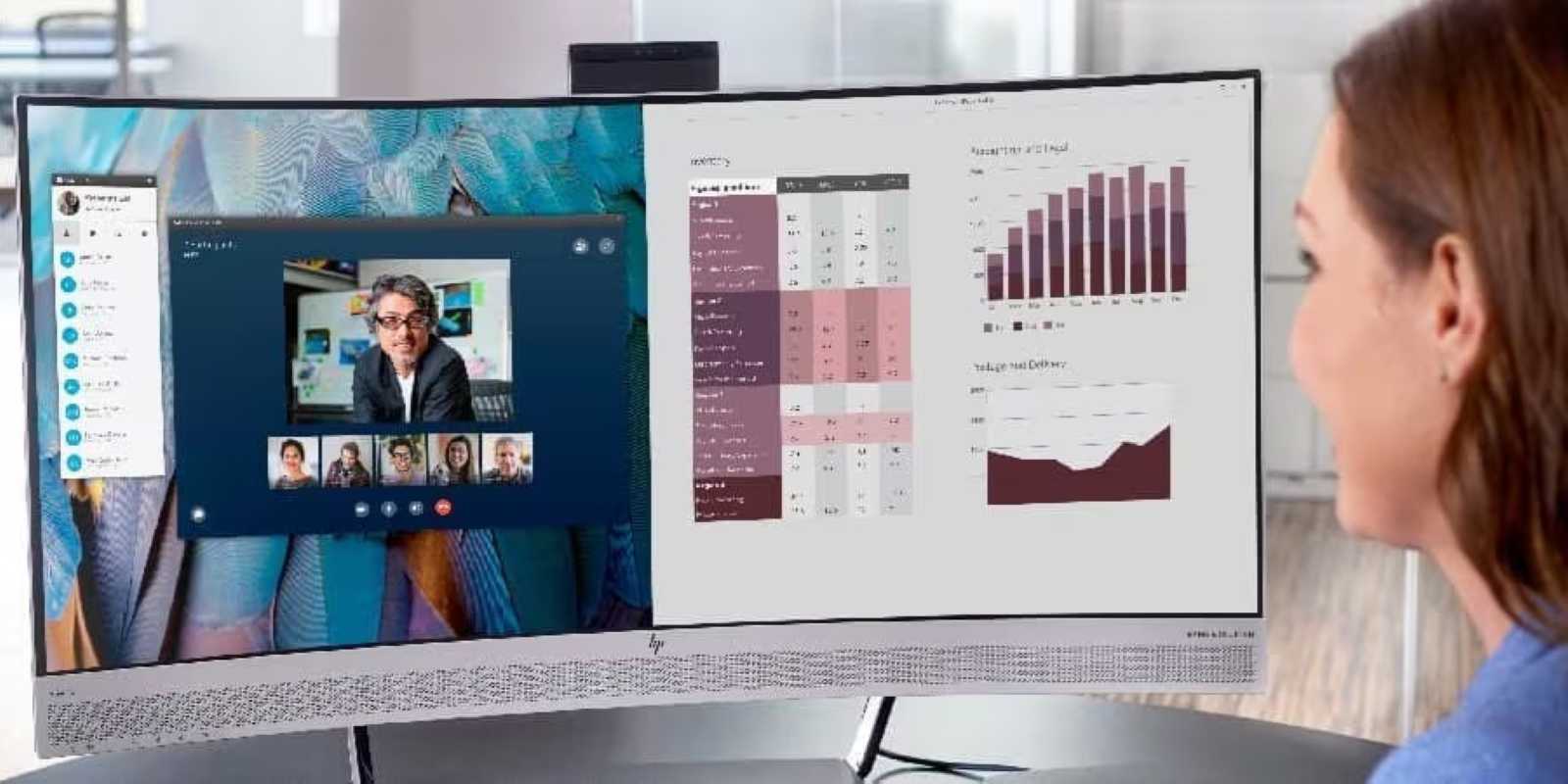

How to split screen and multitask efficiently on MacBook
Understanding the Split Screen Feature on MacBook
Splitting your screen on a MacBook allows you to work with two apps side by side. This feature is perfect for multitasking and improving productivity. It helps you compare information easily without switching back and forth between windows.What is Split View?
Split View is a built-in Mac feature that automatically arranges two apps to fill your screen evenly. It hides unnecessary menus, giving you more space for your work. To activate it, simply click and hold the green full-screen button on an app window.Advantages of Using Split View
Using Split View helps you:- Work on two applications simultaneously
- Compare data between apps effortlessly
- Reduce clutter and improve focus
- Save time by avoiding switching between windows
How to Enter Split Screen Mode on MacBook
Entering Split View is straightforward. Follow these steps for quick access:- Open the two applications you want to use side by side.
- Hover over the green full-screen button at the top left of one window.
- Click and hold the green button until the window shrinks.
- Drag the window to the left or right side of your screen.
- Release the button to snap the window into place.
- Choose the second app to fill the remaining space.
Using Mission Control for Split Screen
You can also use Mission Control to manage split screens:- Swipe up with three fingers on your trackpad or press the F3 key.
- Drag one app window to a separate desktop space.
- Enter Split View by clicking the green button on each window.
Managing Multiple Windows and Multi-Tasking
Beyond just split screen, learning how to handle multiple windows enhances your MacBook experience. It helps in juggling several tasks smoothly.Using Multiple Desktops (Spaces)
Create separate desktops for different tasks:- Open Mission Control.
- Click the “+” icon at the top right to add a new desktop.
- Switch between desktops using trackpad gestures or Mission Control.
Switching Between Apps Quickly
Use keyboard shortcuts:- Press Command + Tab to switch between open applications.
- Hold Command and tap Tab repeatedly to navigate through your apps.
- Release Command to open the selected app immediately.
Customizing Split Screen for Better Efficiency
Adjusting split screen settings can optimize your multitasking:- Use the divider line to resize windows freely.
- Double-click the divider to make windows equal in size automatically.
- Utilize corner gestures for quick access to specific apps or desktops.
Resizing Split Screen Windows
To resize windows:- Hover over the dividing line between apps.
- Click and drag to make one window larger or smaller.
- This flexibility allows you to prioritize important tasks.
Using Virtual Desktops for Organized Multitasking
Virtual desktops or Spaces let you organize work contexts:- Create multiple desktops for different projects or activities.
- Switch between desktops seamlessly with trackpad gestures or keyboard shortcuts (Control + Arrow keys).
- This method keeps your workspace clutter-free and focused.
Keyboard Shortcuts for Efficient Multitasking
Maximize your productivity with essential shortcuts:| Shortcut | Function |
|---|---|
| Command + Tab | Switch between open applications |
| Control + Left/Right Arrow | Switch between different desktops or Spaces |
| F3 (Mission Control) | Open Mission Control |
| Green Full-Screen Button | Enter Split View or maximize window |
| Command + M | Minimize the active window |
Utilizing Third-Party Apps for Enhanced Multitasking
Some apps provide additional features:- Magnet: Easily snap windows to sides or corners.
- Moom: Customize window arrangements with shortcuts.
- BetterSnap Tool: More advanced window management options.
Tips for Staying Productive While Multitasking
Keep these tips in mind:- Limit the number of open windows to avoid clutter.
- Use keyboard shortcuts for faster navigation.
- Arrange apps based on your workflow priority.
- Take regular breaks to maintain focus.
Troubleshooting Common Split Screen Issues
Sometimes split screen might not work as expected:- Ensure your macOS is updated to the latest version.
- Restart your Mac if split view options are unavailable.
- Check if the apps support split view – some older apps may not.
- Try using Mission Control to manually manage windows.
Additional Features to Boost Multitasking Skills
Explore these features:- Hot Corners: Assign actions when moving your cursor to a corner.
- Notification Center: Keeps alerts accessible without cluttering windows.
- Auto-Arrange Windows: Use third-party apps for automatic window positioning.
Best Practices for Multitasking on MacBook
Finally, adopt good habits:- Plan your workspace before starting tasks.
- Keep only necessary windows open.
- Use split screen for related tasks to minimize switching.
- Regularly close unneeded apps to keep system performance optimal.
Stage Manager: Master Multi-Tasking on you Mac | Productivity
Frequently Asked Questions
What are the steps to quickly activate Split View on a MacBook?
To activate Split View quickly on your MacBook, click and hold the green maximize button of a window. Drag the window to the left or right side of the screen until it fills that half. Then, select another open window to fill the remaining space. This allows you to work on two apps side by side seamlessly.
How can I resize and adjust windows when multitasking on my MacBook?
Click and drag the divider between two split-screen windows to resize them according to your preference. You can also hover over the green maximize button and choose either “Tile Window to Left of Screen” or “Tile Window to Right of Screen” to automatically adjust window sizes. Adjust the divider as needed to allocate more space to the app you are actively working on.
Are there keyboard shortcuts that assist with managing split screens effectively?
Yes, you can use keyboard shortcuts to manage split screens efficiently. Press Control + Command + F to make the current window go into full screen, then exit full screen mode to restore it. While macOS doesn’t have dedicated shortcuts for split view, using Mission Control (Control + Up Arrow) helps you see all open windows and move between them quickly for better multitasking.
What should I do if I want to exit Split View and return to regular window mode?
Hover over the top of the split view to reveal the window controls. Click the green maximize button on either window to exit Split View. This will revert the windows to their previous sizes, allowing you to interact with individual apps normally.
Can I have more than two applications displayed simultaneously on my MacBook screen?
While Split View supports two apps side by side, you can use Mission Control to organize multiple windows in a tiled layout. By entering Mission Control (Control + Up Arrow), you can drag windows to different desktops or spaces, allowing a broader multitasking setup. Alternatively, use third-party apps to create more customized multi-window arrangements beyond built-in capabilities.
Final Thoughts
How to split screen and multitask efficiently on MacBook simplifies multitasking significantly. Use the green full-screen button or drag windows to the sides of your screen to activate Split View. You can also resize windows to fit your workflow better. Organize your workspace by quickly switching between apps and windows, enhancing productivity. This approach helps you manage multiple tasks without clutter. In conclusion, understanding how to split screen and multitask efficiently on MacBook ensures a smoother experience. Applying these tips allows you to work faster and stay organized.
Similar Posts































