How To Create And Manage User Accounts On Your Macbook

How to create and manage user accounts on your MacBook
Understanding User Accounts on Your MacBook
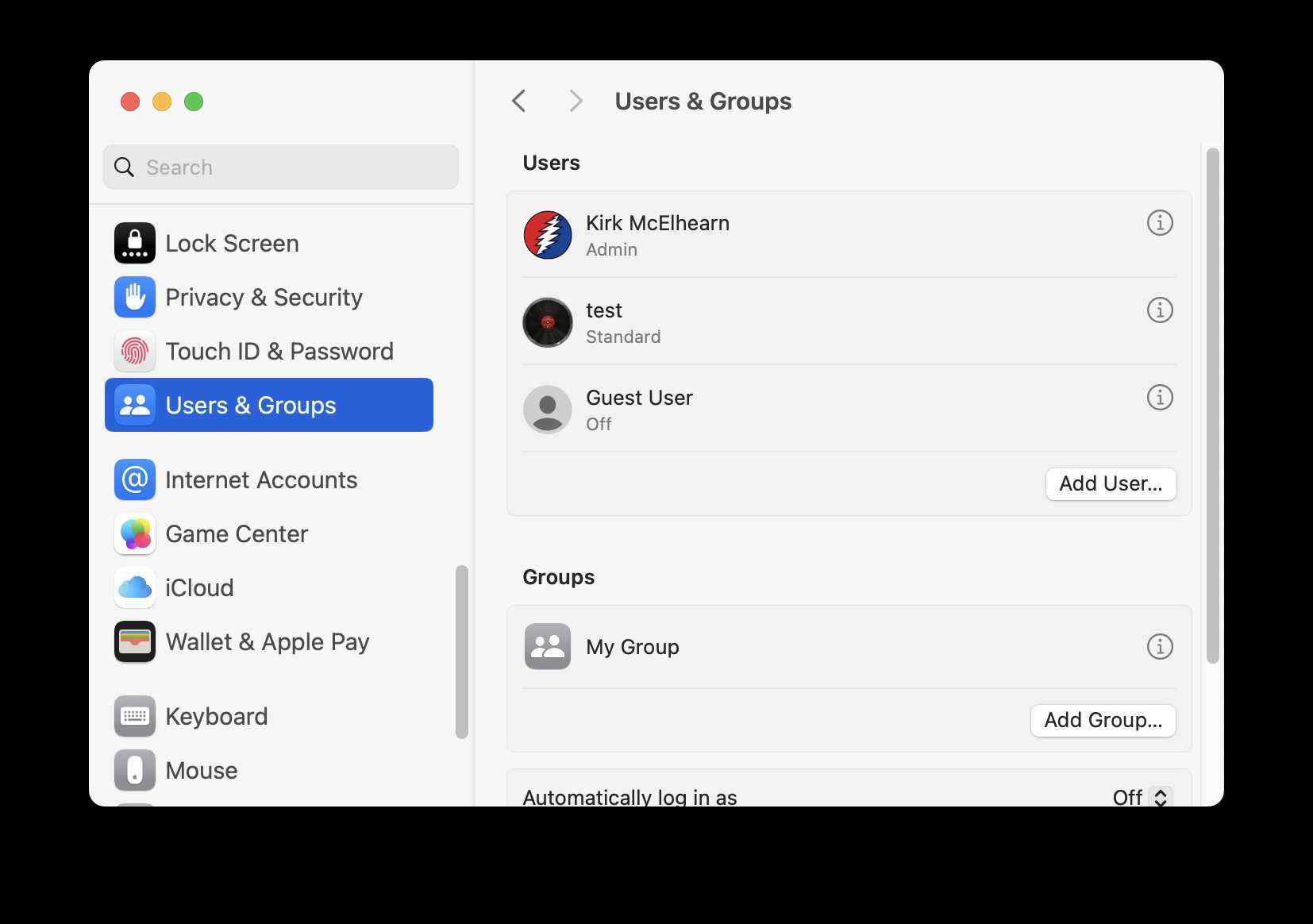
User accounts on your MacBook help keep your data safe and organized. Each account has its own space for files, settings, and preferences. This setup allows multiple users to access the same device without sharing personal information. There are several types of user accounts on a MacBook. The **Administrator** account manages the system and can add or delete users. **Standard** accounts allow users to install apps and change their settings but cannot make system-wide changes. Lastly, **Guest** accounts let visitors use your Mac temporarily without accessing your files. Knowing the differences helps you decide how to set up each account. Proper management ensures your Mac remains secure and easy for everyone to use.How to Create a New User Account
Creating a new user account on your MacBook is straightforward. First, you need to log in as an administrator. Then, follow these steps:- Click the Apple menu in the top-left corner of your screen.
- Select System Preferences from the dropdown menu.
- Click on Users & Groups.
- Unlock the settings by clicking the padlock icon and entering your administrator password.
- Click the plus (+) button below the user list to add a new account.
- Select the type of account you want to create: Admin, Standard, or Managed with Parental Controls.
- Enter the new user’s full name, account name, and password.
- Optionally, add a password hint to help you remember it later.
- Click Create User to finalize the process.
Managing Existing User Accounts
Managing user accounts involves editing, removing, or changing permissions. To do this:- Open System Preferences and go to Users & Groups.
- Click the padlock icon and authenticate with your admin password.
- Select the account you want to manage from the list.
- Change the account type: switch between Standard and Admin.
- Edit the user’s full name or password by clicking Change Password.
- Enable or disable parental controls if needed.
- Remove the user account by clicking the minus (-) button.
Switching Between User Accounts
You can switch between user accounts without shutting down your MacBook. Here’s how:- Click the Apple menu and select Log Out to see the login screen.
- Or, enable fast user switching in System Preferences for quicker access.
- To turn on fast user switching, go to Users & Groups, click the padlock, and then select Login Options.
- Check the box for Show fast user switching menu.
- Now, you can click your user name from the menu bar and select another user.
Setting Up Parental Controls for Managed Accounts
Parental controls help you manage what children can access on your MacBook. To set these up:- Open System Preferences and select Users & Groups.
- Click the lock icon and enter your admin password.
- Choose the user account you want to limit.
- Click Parental Controls.
- Check the box next to Enable Parental Controls.
- Configure restrictions for apps, web browsing, and time limits.
Best Practices for Managing User Accounts
Keeping user accounts organized and secure is vital. Here are some tips:- Use strong, unique passwords for each account.
- Regularly review account permissions and remove unused accounts.
- Enable automatic login only if needed for convenience and security.
- Set up parental controls if children use the MacBook.
- Keep the system updated to patch security vulnerabilities.
Troubleshooting Common Account Issues
Sometimes, user accounts face problems. Here are solutions to common issues:Password Problems
If a user forgets their password, reset it through your admin account. Enter System Preferences, go to Users & Groups, select the account, and click Reset Password.Account Not Showing Up
If an account doesn’t appear on the login screen, check the account settings in Users & Groups. Ensure it is enabled and not hidden.Can’t Log In
Verify the password and check for caps lock errors. Restart your Mac and try again. If issues persist, use recovery mode to reset the password.Additional Tips for Managing User Data
Keeping user data safe is important. Consider creating backups of user files regularly. Use Time Machine or cloud services to store important information securely. Limit access to shared folders and files by setting permissions properly. This prevents unauthorized users from viewing or modifying sensitive data.Quick Summary:
- Always use strong passwords for all accounts.
- Manage account types based on user needs and permission levels.
- Enable fast user switching for convenience.
- Set parental controls when needed for younger users.
- Regularly review and update account permissions and settings.
How to Add A New User Login on MacBook Pro/ Air / Mac (2025)
Frequently Asked Questions
How can I add a new user account on my MacBook?
To add a new user account, open System Preferences and select Users & Groups. Click the lock icon and enter your administrator password. Then, click the plus (+) button below the user list. Choose the account type, fill in the required details like full name and password, and click Create User. The new account will now appear in the list, ready to be customized.
What steps should I follow to change the privileges of an existing user account?
First, access System Preferences and navigate to Users & Groups. Unlock the settings by clicking the lock icon and entering your administrator password. Select the user account you want to modify from the list. Use the options available to grant or restrict permissions, such as setting the account to Standard, Admin, or Managed. Confirm the changes, and they will take effect immediately.
How do I delete a user account from my MacBook safely?
Open System Preferences and go to Users & Groups. Click the lock and authenticate with your administrator credentials. Select the user account you wish to remove. Click the minus (-) button beneath the user list. Choose whether to save the user’s home folder as a disk image or delete it completely. Confirm the deletion, and the account will be removed from your MacBook.
Can I set up multiple user accounts with different access restrictions?
Yes, you can create multiple user accounts with customized access levels. When setting up a new account, choose the appropriate type—such as Standard or Managed—to control what features and files the user can access. You can further customize restrictions through parental controls and account permissions, ensuring each user has suitable access based on their needs.
How do I switch between different user accounts on my MacBook?
To switch accounts, click the Apple menu and select Log Out or Sleep. At the login screen, choose the user account you want to access. Enter the password, and you’ll be directed to that user’s desktop. If you have fast user switching enabled, you can switch accounts without logging out completely, by clicking your user name in the menu bar and selecting the other account.
Final Thoughts
Creating and managing user accounts on your MacBook ensures a personalized and secure experience. Start by opening System Preferences and selecting Users & Groups. Click the lock to authenticate, then add or modify accounts as needed. Manage account types such as Administrator, Standard, or Guest to control access levels. Adjust settings like password requirements and parental controls to enhance security. In summary, understanding how to create and manage user accounts on your MacBook helps keep your device organized and safe. Use these steps to easily manage multiple users and customize their access for smooth operation.
Similar Posts































