How To Keep Your Macbook Software Up To Date For Optimal?
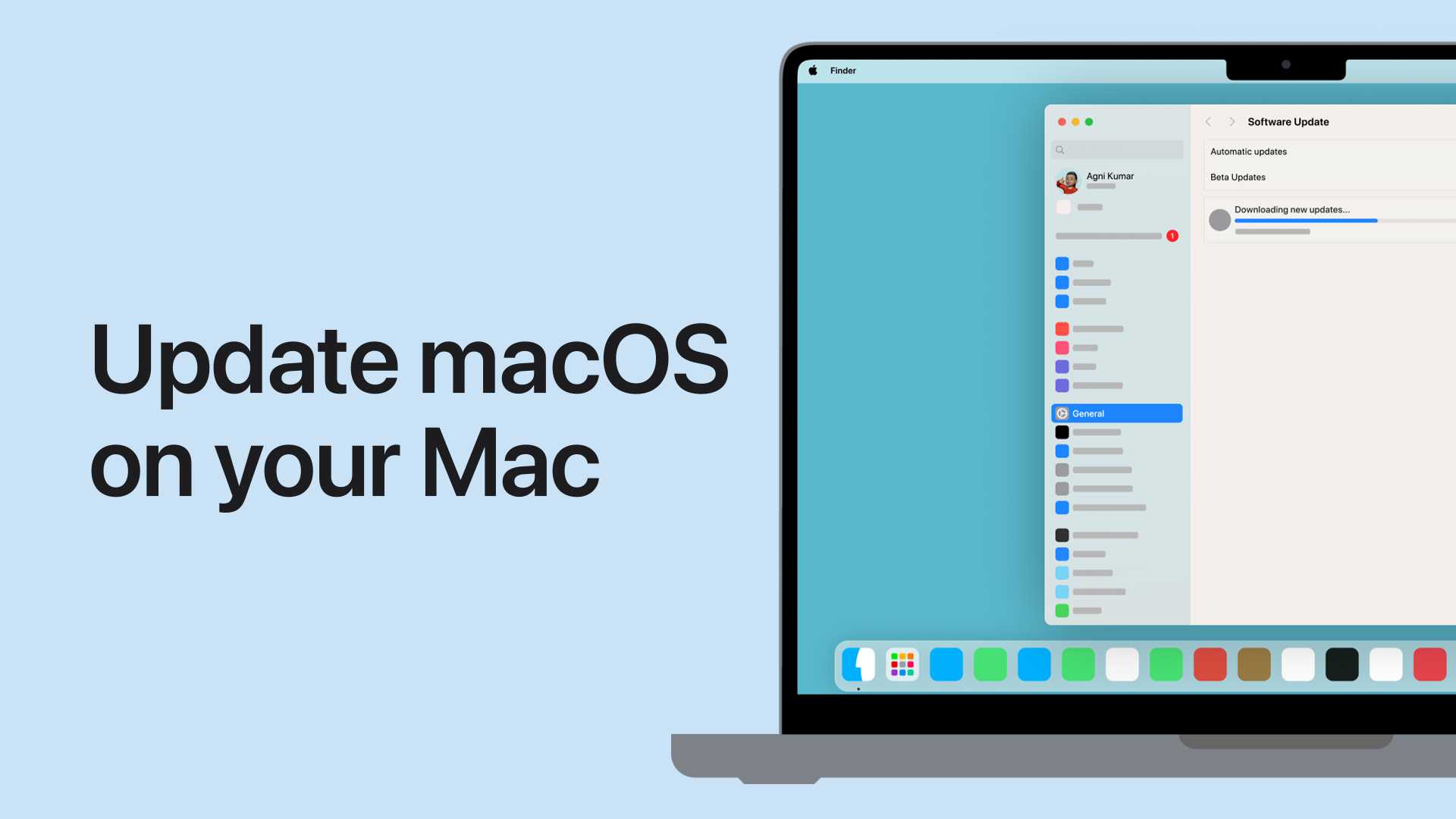

How to keep your MacBook software up to date
Why Updating Your MacBook Software Is Important
Keeping your MacBook software current helps improve security and performance. Updates often fix bugs and close security gaps that could put your data at risk. Additionally, software updates bring new features and make your device run smoothly.Understanding macOS Updates
macOS updates typically include system improvements, security patches, and new features. Apple releases major updates once a year and smaller updates more frequently. These updates help keep your MacBook compatible with the latest apps and technologies.How to Check for Software Updates
It is simple to check if your MacBook has updates available. Click on the Apple menu located at the top left of your screen. Select “System Preferences,” then click on “Software Update.” If an update is available, it will appear here with an option to install.Automatic Updates
Enabling automatic updates ensures your MacBook stays current without manual checks. In the “Software Update” window, check the box that reads “Automatically keep my Mac up to date.” This feature downloads and installs updates in the background.Steps to Manually Update Your MacBook
If you prefer to control when updates install, follow these steps:- Open the Apple menu and select “System Preferences.”
- Click on “Software Update.”
- If an update shows, click “Update Now” to begin the process.
- Follow on-screen instructions to complete the installation.
Preparing Your MacBook for Updates
Before updating, save all important documents to avoid data loss. Connect your MacBook to a reliable Wi-Fi network for a smooth download. Ensure your device has enough storage space; usually, updates require several gigabytes.Backing Up Your Data
Use Time Machine or another backup method to save your data before updating. This process helps recover important files if something goes wrong during installation. Regular backups are good practice for all your devices.Dealing with Update Failures
Sometimes updates may fail or get stuck. If this happens, restart your MacBook and try again. Check your internet connection and ensure enough storage space. If problems persist, visit Apple Support for assistance.Keeping Your Apps Up to Date
Software updates are not just for your macOS but also for installed apps. Open the App Store and click “Updates” in the sidebar. Update all apps to improve functionality and security.Using the App Store for App Updates
The App Store notifies you of available app updates automatically. You can also manually check for updates here. Keep your apps updated to ensure compatibility with your latest macOS version.Security Considerations When Updating
Always update to the latest version to protect against malware and other security threats. Hackers often target outdated software with known vulnerabilities. Regular updates keep your MacBook safer.Troubleshooting Common Update Issues
If your update process stalls, check your internet connection. Restart your MacBook and try again. For persistent issues, boot into Safe Mode or use Disk Utility to repair disk permissions. Contact Apple if needed.Using Terminal to Check for Updates
Advanced users can run commands in Terminal to check for updates manually. This method requires some technical knowledge but can be useful for troubleshooting. Use commands like “softwareupdate -l” to list available updates.Best Practices for Maintaining Up-to-Date Software
Set reminders to check for updates regularly. Avoid delaying updates, especially security patches. Keep your backup routine current to protect your data. Regular updates enhance your MacBook’s performance and safety.Related Topics
- How to optimize your MacBook’s performance after updates
- Tips for managing storage space on your MacBook
- Understanding macOS security features and settings
How to Software Update on MacBook, iMac, Apple Computer)
Frequently Asked Questions
How can I check if my MacBook software has the latest updates installed?
Open the Apple menu and select “System Preferences.” Click on “Software Update,” which will automatically scan for available updates. If updates are found, follow the on-screen instructions to download and install them. This process ensures your MacBook runs the newest software version securely and efficiently.
What is the best way to schedule automatic software updates on my MacBook?
Navigate to “System Preferences” and click on “Software Update.” Check the box labeled “Automatically keep my Mac up to date.” You can also click “Advanced” to customize options such as installing updates automatically, including system files and security updates. Setting this feature ensures your Mac maintains the latest software without manual intervention.
How do I troubleshoot if my MacBook is not installing updates correctly?
First, ensure your internet connection is stable. Restart your Mac and attempt to update again. If issues persist, check for enough free storage space, as insufficient space can prevent updates. You can also try resetting the Software Update preferences by deleting the relevant files in the Library. If problems continue, consult Apple Support for further assistance.
Can I manually download updates from the Apple website instead of using System Preferences?
Yes, you can visit the Apple Support website to find standalone installer files for specific macOS updates. Download and open these files to manually install updates. However, using “System Preferences” generally offers a more straightforward and integrated way to keep your software current, especially for regular updates.
Is it necessary to back up my data before installing software updates?
It is highly recommended to back up your data before installing major updates. Use Time Machine or any reliable backup method to save your important files. Although updates usually go smoothly, backing up ensures you can restore your data if something unexpected occurs during the update process.
Final Thoughts
Keeping your MacBook software up to date ensures optimal performance and security. Regularly check for updates in System Preferences or the App Store. Enable automatic updates to simplify this process and receive the latest features instantly. Staying current with updates helps you protect your device and enjoy new functionalities. How to keep your MacBook software up to date remains straightforward with these simple steps, ensuring your Mac runs smoothly and securely over time.
Similar Posts































