How To Clean Your Macbook Screen And Keyboard Safely For?
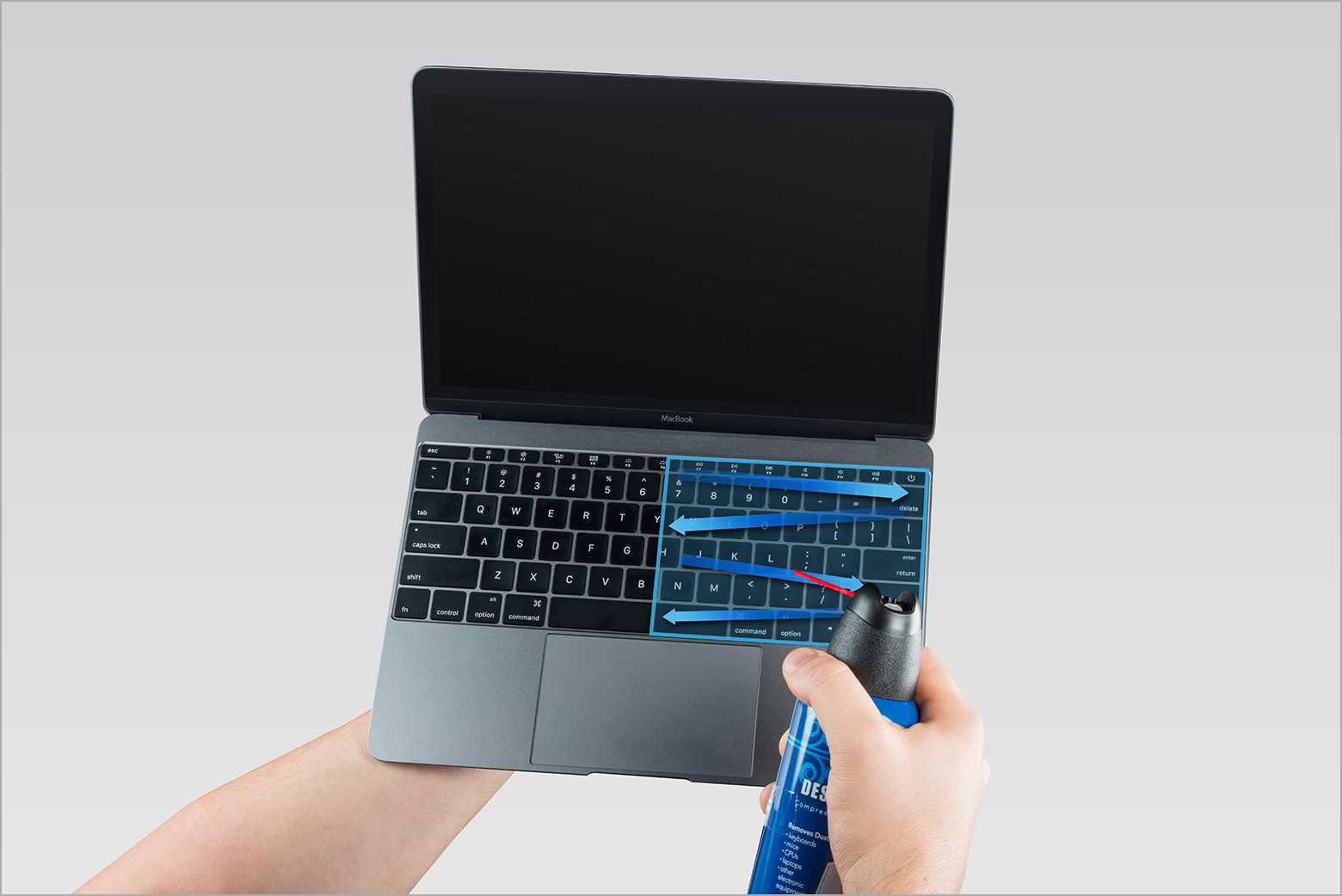

How to clean your MacBook screen and keyboard safely
Understanding Why Proper Cleaning Matters
Cleaning your MacBook screen and keyboard regularly helps keep them looking new and functioning properly. Dust, fingerprints, and oils from your skin can build up quickly, impacting visibility and responsiveness. Using the wrong cleaning methods or products might cause damage, so it’s important to do it carefully and correctly.Selecting the Right Cleaning Tools
Using the proper tools makes cleaning safer and more effective. Soft, lint-free microfiber cloths are best for screens and keyboard surfaces. Avoid rough materials like paper towels or harsh cloths that can scratch the delicate surfaces. For cleaning solution, opt for gentle options such as distilled water or specialized electronic cleaning wipes.What to Avoid When Cleaning Your MacBook
Certain substances can damage your MacBook. Never use bleach, ammonia, or any harsh chemical cleaners. Steer clear of abrasive pads or scrub brushes. Also, avoid excessive moisture, which can seep into your device and cause internal damage. Using sprays directly on your device can also be risky.Preparing Your MacBook for Cleaning
Before cleaning, turn off your MacBook and disconnect it from any power source. Wait until the device cools down if it has been in use. Close the lid to keep dust from entering inside. It’s helpful to have all your cleaning tools ready and within reach.Cleaning the Screen Safely
Begin by gently wiping the screen with a dry microfiber cloth to remove dust. For smudges or fingerprints, lightly dampen the cloth with distilled water or a screen-safe cleaner. Never spray liquids directly onto the screen. Wipe in gentle, circular motions, avoiding pressing too hard.Using Specialized Screen Cleaners
If needed, use screen cleaning solutions specifically designed for electronic displays. These usually come in spray bottles with fine mist. Apply the cleaner to your cloth first, then wipe the screen carefully. Check that the cleaner is alcohol-free and safe for Retina displays.Cleaning the Keyboard Carefully
Start by turning off your MacBook and disconnecting all cables. Use a soft, dry brush or compressed air to dislodge dust particles from between keys. Hold your MacBook at a slight angle and blow air in short bursts to remove debris without pushing dirt further in.Removing Stubborn Dirt and Grime
Lightly dampen a microfiber cloth with a mixture of 70% isopropyl alcohol and water. Gently wipe each key surface, paying attention to areas with visible dirt or oils. Do not pour liquids directly onto the keyboard to prevent damage.Dealing with Sticky or Greasy Keys
For sticky keys, use a soft cloth dampened with the alcohol mixture to clean around the affected areas. For tougher grime, a cotton swab dipped in the same solution can help reach into tight spaces. Always wipe away excess moisture immediately to avoid seepage.Paying Attention to Touchpads and Other Surfaces
Touchpads should be cleaned in the same way as the screen, with a damp microfiber cloth. Avoid excessive moisture, and do not press hard. For other surfaces like the MacBook’s body, a slightly damp cloth with a mild cleaner works well to remove fingerprints and smudges.Maintaining Your MacBook After Cleaning
Once cleaning is complete, allow your device to air dry for a few minutes. Reconnect power and turn it back on. Regular cleaning helps maintain the device’s appearance and can improve overall functionality.Additional Tips for Safe Cleaning
Avoid using household cleaning products like window cleaners or aerosol sprays. Use only products recommended by Apple or designed for electronic devices. Gentle, consistent cleaning reduces the risk of damage over time.Frequency of Cleaning
Clean your MacBook at least once a month or more often if you notice buildup. Frequent cleaning prevents dirt from becoming deeply embedded. Keep your workspace tidy to minimize the amount of dust and debris settling on your device.Protecting Your MacBook During Cleaning
Always unplug and power down your device before cleaning. Use as little liquid as possible and ensure it does not enter any openings. Handle your MacBook carefully to avoid accidental drops or scratches during cleaning.Related Topics: Protecting Your MacBook Long-Term
Consider investing in keyboard covers or screen protectors for added protection. Use a case when transporting your MacBook. Regularly check and clean the vents to prevent overheating caused by dust buildup.Summary
Cleaning your MacBook screen and keyboard should be done with gentle, appropriate tools and cleaning solutions. Always turn off your device and avoid excess moisture. Regular maintenance keeps your MacBook looking great and working well for years to come.How To Clean A Macbook Screen Without Streaks | Safely Clean Your Macbook Pro Screen in 2 Minutes!
Frequently Asked Questions
What is the best way to prevent damage while cleaning your MacBook screen and keyboard?
Use gentle cleaning tools like microfiber cloths to avoid scratching surfaces. Turn off your MacBook and unplug it before cleaning. Avoid using harsh chemicals or excessive moisture, and never spray cleaning solutions directly onto the screen or keyboard. Instead, slightly dampen the cloth with a mixture of water and a small amount of isopropyl alcohol if needed.
How often should you clean your MacBook screen and keyboard for optimal maintenance?
Clean your MacBook screen and keyboard once a month or more frequently if you notice dust, fingerprints, or stains. Regular cleaning prevents buildup of dirt and bacteria, keeping your device looking good and functioning properly. Pay special attention to areas prone to sweat or grime, especially if you use your MacBook intensively.
Are there specific cleaning solutions recommended for MacBook screens and keyboards?
Yes. Use a soft, lint-free microfiber cloth for wiping the screen and keyboard. If necessary, lightly dampen the cloth with a mixture of 70% isopropyl alcohol and water, or use a cleaning solution specifically made for electronics. Avoid using bleach, ammonia-based cleaners, or abrasive substances, as they can damage your device’s delicate surfaces.
Can I use wipes or sprays designed for electronics to clean my MacBook?
Yes, but ensure that the wipes or sprays are alcohol-based and specifically labeled for electronic screens and devices. Check the ingredients and instructions carefully. Avoid using wipes that contain bleach, acetone, or other harsh chemicals, as they can strip coatings or cause damage to the display or keyboard.
What safety precautions should I follow during the cleaning process?
Always turn off your MacBook and disconnect it from power sources before cleaning. Use minimal moisture on your cleaning cloth to prevent liquid from seeping into vents or openings. Avoid applying excessive pressure on the screen or keyboard. Follow the manufacturer’s guidelines to protect your device’s warranty and ensure safe cleaning practices.
Final Thoughts
To clean your MacBook screen and keyboard safely, start by turning off your device and unplugging it. Use a soft, lint-free cloth slightly dampened with water or a gentle screen cleaner. Avoid spraying liquids directly onto the surface. Gently wipe the screen and keys, ensuring no moisture seeps into the device. Regular cleaning keeps your MacBook looking new and functioning properly. Remember, the key to safe cleaning is using minimal liquids and gentle motions. How to clean your MacBook screen and keyboard safely involves patience and care, protecting your device while maintaining its cleanliness.
Similar Posts































