How to Clean 4K Monitor Screen Properly
You want to know how to clean 4K monitor screen properly, and the good news is it's simpler than you think. The bad news? Most people are doing it wrong, and they're slowly damaging their display without realizing it.
The right method depends entirely on what type of screen coating you have. Get it wrong, and you could strip the anti-glare layer, leave permanent streaks, or create micro-scratches that only show up on solid colors. Let's walk through this step by step so you don't learn the hard way. For more background on real-world performance, read our breakdown of how to clean a monitor screen safely without damaging it.
Quick Answer
Power off your monitor and unplug it. Use a clean, dry microfiber cloth to remove loose dust first. For smudges, lightly dampen the cloth with distilled water or a 50/50 distilled water and white vinegar mix.
Wipe gently in circular motions. Never spray liquid directly on the screen.
The Only 3 Things You Need to Clean a 4K Monitor
You don't need fancy kits or expensive sprays. Three items handle everything safely.
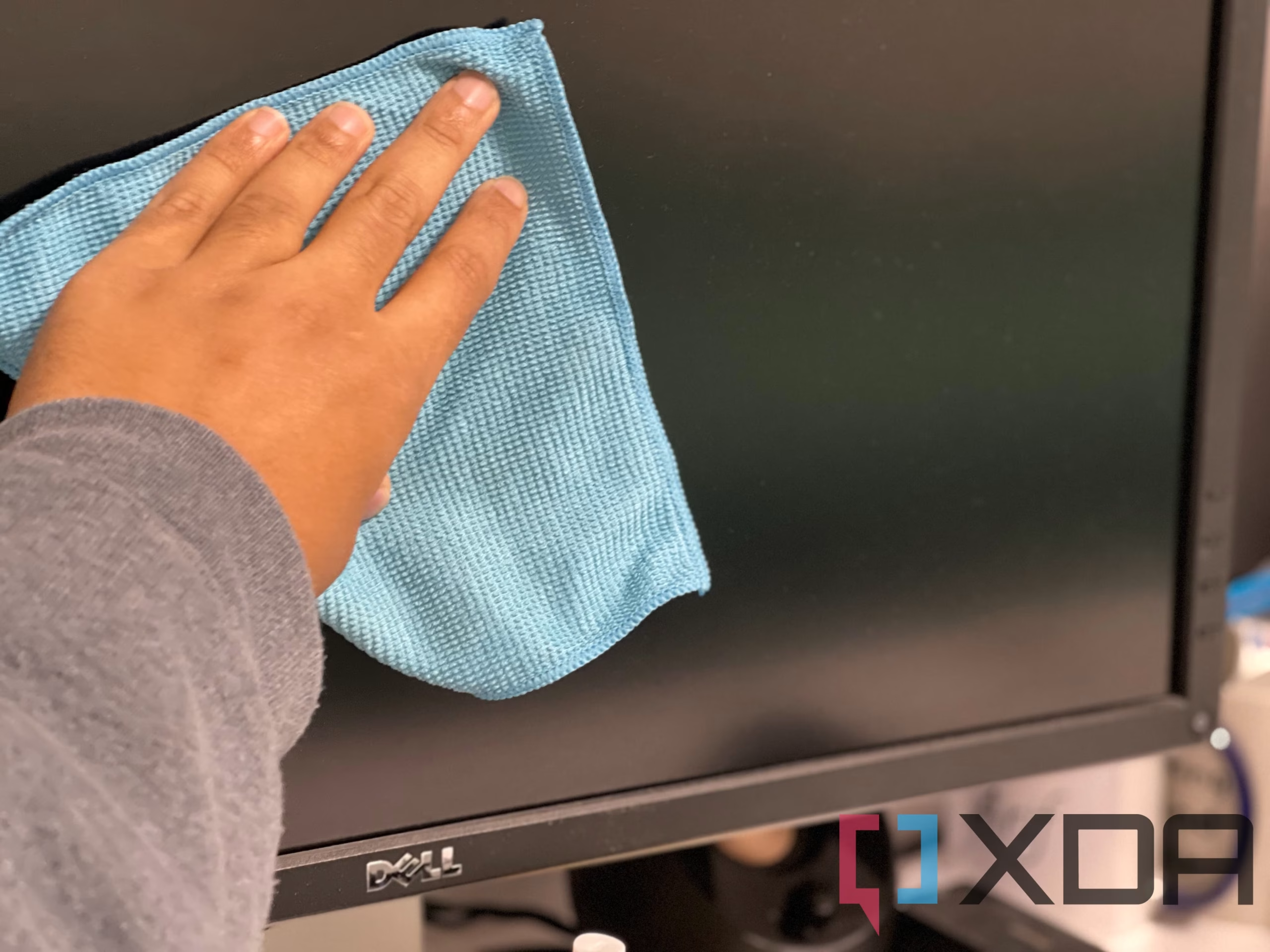
Here's your complete toolkit:
| Item | What to Buy | What to Avoid |
|---|---|---|
| Microfiber cloth | Tight-weave, lint-free, labeled "optical grade" or "electronics safe" | Paper towels, tissues, old t-shirts, kitchen rags |
| Liquid | Distilled water, or 50/50 mix of distilled water and white vinegar | Tap water, Windex, alcohol-based cleaners, ammonia solutions |
| Backup cloth | A second microfiber for dry-buffing after damp cleaning | Anything with fabric softener residue (reduces effectiveness) |
That's it. No screen-specific sprays needed. No lens cleaner.
No "electronics wipes" from big-box stores.
A few things worth knowing. Wash your microfiber cloths after three or four uses. Fabric softener coats the fibers and leaves streaks. You can also reference our testing on how to clean touchscreen monitor safely when configuring your display.
Use regular detergent, no softener, and air dry.
Keep two cloths in rotation. One for dry dusting, one for damp cleaning. Label them if you need to.
This prevents cross-contamination.
First, Identify Your Screen Type (This Changes Everything)
This is where most generic advice falls apart. Your cleaning method depends entirely on what's on the surface of your panel.
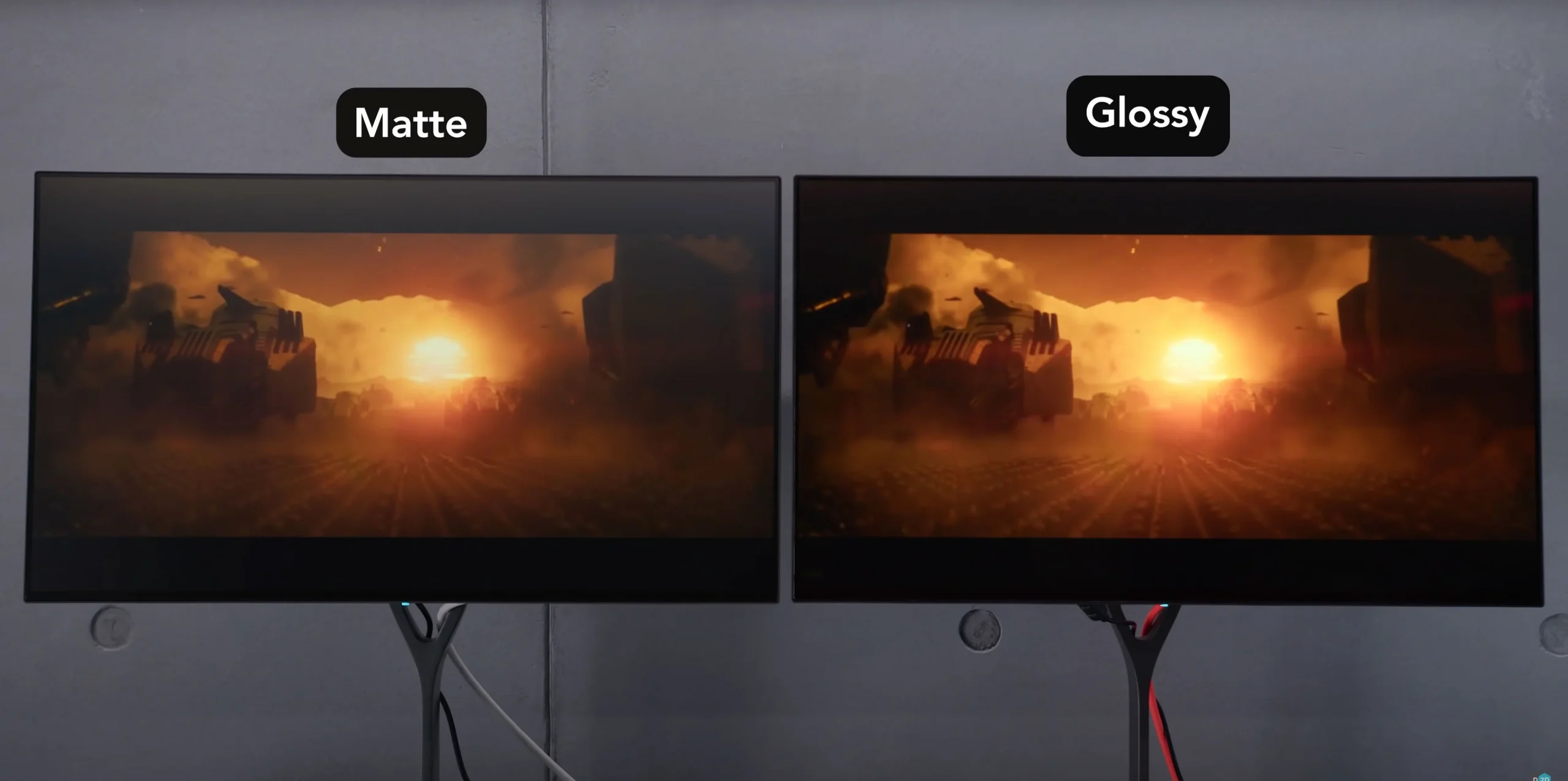
Glossy vs. Matte vs. OLED: Why It Matters
Glossy screens have a smooth, reflective surface. They show fingerprints and smudges badly, but they're the easiest to clean safely. Standard microfiber and distilled water work perfectly.
Matte screens have an anti-glare coating that diffuses light. This coating is delicate. Rub too hard or use the wrong chemical, and you'll rub it off.
Once it's gone, that patch of screen will look permanently different.
OLED panels are the most fragile. Many OLED monitors have a thin polarizer layer on top that's sensitive to pressure and solvents. Aggressive cleaning can cause discoloration or uneven patches that can't be fixed.
How to Check What You Have Without Guessing
Here's a quick way to identify your screen type:
- Look at a black screen in a lit room. If you see a clear reflection, it's glossy. If the reflection is soft and diffused, it's matte.
- Check your monitor's spec sheet. Search your model number on the manufacturer's website. Look for terms like "matte," "anti-glare," "glossy," or "hard coat."
- When in doubt, assume it's matte. Gentle methods work on everything. Harsh methods only work on glossy.
If you have an OLED monitor, check the manual for specific cleaning instructions. LG, Samsung, and Dell all publish guidelines for their OLED displays. Follow those over anything else.
The Step-by-Step Cleaning Process
Now let's put it all together. This process works for all screen types, with notes where OLED or matte panels need extra care.
Step 1: Power Down and Prep
Turn off the monitor and unplug it. A powered-on screen generates static, which attracts dust mid-cleaning. A dark screen also makes smudges and streaks much easier to see.
Let the screen cool down if you've been using it. Warm surfaces cause liquid to evaporate too fast, which leaves residue behind.
Set up in a room with decent light. You need to see what you're doing. Natural light works best, but any bright, indirect light will do.
Step 2: Dry Dust First (Always)
Take your dry microfiber cloth and gently wipe the screen from top to bottom. Use light pressure. Let the cloth pick up dust, don't push it around.
This step matters more than people think. If you skip it and go straight to a damp wipe, you'll grind dust particles into the surface. On matte screens, this creates micro-scratches you can't undo.
For stubborn dust in the corners, use a can of compressed air. Hold it at least six inches away. Don't tilt the can or you'll spray liquid onto the screen.
Step 3: Damp Wipe the Right Way
Here's the rule that prevents most damage: spray the cloth, never the screen.
Lightly dampen your second microfiber cloth with distilled water or your water-vinegar mix. The cloth should be slightly damp, not wet. If you can squeeze liquid out, it's too wet.
Wipe the screen in gentle circular motions. Start from the top and work your way down. Cover the whole surface with light, even pressure.
For matte screens, use even less pressure. Think of it as barely touching the surface. The anti-glare coating is thin and can wear off with repeated friction.
For OLED panels, use distilled water only. Skip the vinegar. Some manufacturers advise against even mild acids on their polarizer layers.
Step 4: Dry and Inspect
Take your dry microfiber cloth and buff the screen gently. This removes any remaining moisture and eliminates streaks.
Turn the screen on and inspect it under normal lighting. Look at solid white and solid black images. Streaks and residue show up clearly on these.
If you see spots you missed, repeat the damp-dry process on just that area. Don't re-wet the whole screen unnecessarily.
What to Use and What Will Destroy Your Screen
Let's get specific about solutions and materials. This is where people get into trouble.
Safe Cleaning Solutions (With Recipes)
| Solution | Recipe | Best For |
|---|---|---|
| Distilled water | Straight from the bottle | All screen types, light cleaning |
| Water + vinegar mix | 50/50 distilled water and white vinegar | Glossy screens, fingerprints, oily smudges |
| Distilled water + isopropyl alcohol | 70% distilled water, 30% isopropyl alcohol (99% grade) | Glossy screens only, heavy grime |
The vinegar mix works well on glossy screens because the mild acid cuts through oils from fingerprints. Don't use it on matte or OLED panels.
The alcohol solution is stronger and evaporates fast. It's safe for glossy screens but can damage matte coatings and OLED polarizers. Use it sparingly and only when water alone doesn't work.
Cloths That Work vs. Cloths That Scratch
Good options:
- Optical-grade microfiber (the kind sold for camera lenses or glasses)
- Electronics-specific microfiber (check packaging for "safe for coated screens")
- Clean, unwashed microfiber (no fabric softener residue)
Bad options:
- Paper towels (wood fibers create micro-scratches)
- Tissues (too abrasive, leave lint)
- Old cotton t-shirts (rough weave, often carry detergent residue)
- Kitchen towels (too coarse, may have food oils)
If you wouldn't clean a camera lens with it, don't use it on your monitor.
Products That Void Your Warranty
Most monitor warranties don't cover damage from improper cleaning. Using the wrong products can leave visible damage that's impossible to claim as a defect.
Avoid these entirely:
- Windex or any ammonia-based glass cleaner
- Bleach or bleach-based cleaners
- Acetone or nail polish remover
- Abrasive scrubbing pads
- Any cleaner not labeled safe for electronics
Ammonia is the biggest offender. It dissolves anti-glare coatings on contact. One wipe with Windex on a matte screen can leave a permanent shiny patch.
If you want a ready-made product, look for ones specifically labeled "safe for anti-glare coatings" or "electronics screen cleaner." Brands like Whoosh! and Eveo make options that are widely recommended by monitor manufacturers.
Common Mistakes That Cause Permanent Damage
Most people learn these lessons after the damage is done. Let's make sure you don't.

The Paper Towel Problem
Paper towels feel soft. They seem harmless. They're not.
Paper towels are made from wood pulp fibers. Those fibers are surprisingly abrasive on a microscopic level. On a glossy screen, they create fine scratches you won't notice immediately.
On a matte screen, they start wearing down the anti-glare coating right away.
The same goes for tissues, napkins, and toilet paper. All wood pulp. All too rough for coated glass surfaces.
People also make the mistake of using a dry paper towel with no liquid. Dry friction is worse than damp friction. You're essentially sanding the surface with wood fibers.
Why Windex Is the Wrong Answer
Windex and other ammonia-based glass cleaners are the number one cause of anti-glare coating damage. The ammonia dissolves the coating. Sometimes it happens in one wipe.
Sometimes it builds up over weeks of use.
The damage looks like shiny patches that don't match the rest of the screen. Once it's there, it's permanent. You can't reapply an anti-glare coating at home with any reliable result.
If you've been using Windex on a matte screen, stop now. Check your screen under a light. If you see uneven patches or spots that look glossier than the surrounding area, the coating is already compromised.
Pressure, Spray, and Other Coating Killers
Pressing too hard while cleaning is a common mistake. The screen isn't a countertop. You're not scrubbing a stain.
You're lifting dust and oils off a delicate surface.
Excessive pressure pushes particles into the coating and creates scratches. On OLED panels, it can damage the pixels themselves. Light, gentle strokes are all you need.
Spraying liquid directly on the screen is another frequent error. Liquid can seep into the bezel and reach the panel edges. This causes clouding, discoloration, or electrical issues over time.
Always spray the cloth. Always. Even a fine mist aimed at the screen can cause problems if it pools at the edges.
Special Rules for OLED and Touchscreen Monitors
These two types need extra caution. Standard LCD cleaning rules don't always apply.
OLED Panel Care
OLED monitors have a thinner stack of layers than LCDs. The polarizer on top is sensitive to both pressure and chemical exposure.
Rules for OLED:
- Use distilled water only, no vinegar or alcohol
- Barely touch the surface with the cloth
- Never buff or polish, even with microfiber
- If distilled water doesn't remove a smudge, leave it alone
Some OLED monitors have a "pixel cleaning" or "panel care" function in their settings menu. Run this periodically according to the manufacturer's schedule. It helps maintain uniformity but doesn't replace physical cleaning.
Touchscreen Monitor Care
Touchscreens have an oleophobic or hydrophobic coating that resists fingerprints. This coating wears down over time, and harsh cleaning accelerates that wear.
Use only distilled water or manufacturer-approved cleaners. Avoid vinegar on touchscreens, as the acid can degrade the oleophobic layer faster than on standard displays.
Clean touchscreens more frequently but with less effort. Light, frequent wipes are better than occasional deep scrubs.
How Often Should You Actually Clean Your Screen?
There's no universal answer, but here's a practical schedule based on typical use:
| Frequency | Task | Best For |
|---|---|---|
| Weekly | Dry dust with microfiber | All screen types, low-dust environments |
| Every 2 weeks | Damp clean with distilled water | Homes with pets, high-dust areas |
| Monthly | Deep clean with vinegar mix (glossy only) | Heavy fingerprint use, shared screens |
| As needed | Spot clean visible smudges | Touchscreens, kitchen-adjacent setups |
If you work in a dry climate or near a window, you'll dust more often. Home offices with pets need weekly damp cleaning because pet hair and dander cling to screens.
Don't over-clean. Every damp wipe causes a tiny amount of friction. Weekly dry dusting and monthly deep cleaning is enough for most setups.
Quick Reference: Your Monitor Cleaning Decision Chart
Use this chart to match your situation to the right method.
If you see light dust only:
Dry microfiber cloth, top-to-bottom wipes, no liquid needed.
If you see fingerprints or smudges on a glossy screen:
Dampen microfiber with distilled water or vinegar mix, wipe gently, dry immediately.
If you see fingerprints or smudges on a matte screen:
Dampen microfiber with distilled water only, very light pressure, dry immediately.
If you see fingerprints or smudges on an OLED screen:
Dampen microfiber with distilled water only, barely any pressure, consider leaving minor smudges alone.
If you've been using Windex or paper towels:
Stop immediately. Inspect screen under light for uneven patches. Switch to safe methods going forward.
If you see cloudy patches or discoloration:
The coating may already be damaged. Check your warranty. Some manufacturers cover coating defects for the first year.
Frequently Asked Questions
Can I use tap water instead of distilled water?
You can in a pinch, but tap water contains minerals that leave spots and residue. Hard water areas are worse. Distilled water costs less than a dollar a gallon and eliminates the problem entirely.
Can I use baby wipes on my monitor?
No. Most baby wipes contain alcohol, fragrance, or moisturizing oils. All of these can damage screen coatings.
Stick with microfiber and distilled water.
How do I remove stubborn fingerprints that won't wipe off?
On a glossy screen, try the distilled water and white vinegar mix. Dampen the cloth well, let it sit on the spot for a few seconds, then wipe gently. On matte or OLED screens, stubborn prints may not come off without risking damage.
Leave them.
Is it safe to clean my monitor while it's on?
No. A powered screen generates static that attracts dust. You also can't see smudges accurately on a bright display.
Always power off and unplug first.
Can I use compressed air to clean my monitor?
Yes, for dust in vents and bezels. Hold the can upright and at least six inches away. Never tilt the can, as liquid propellant can spray out and damage the screen.
How do I know if I've damaged my anti-glare coating?
Look at the screen under a bright light with it turned off. Damaged areas will appear shinier or glossier than the surrounding surface. On a powered screen, damaged patches may look like uneven spots on solid white or black images.

Similar Posts





















