How to Change Wallpaper on Dual Monitors
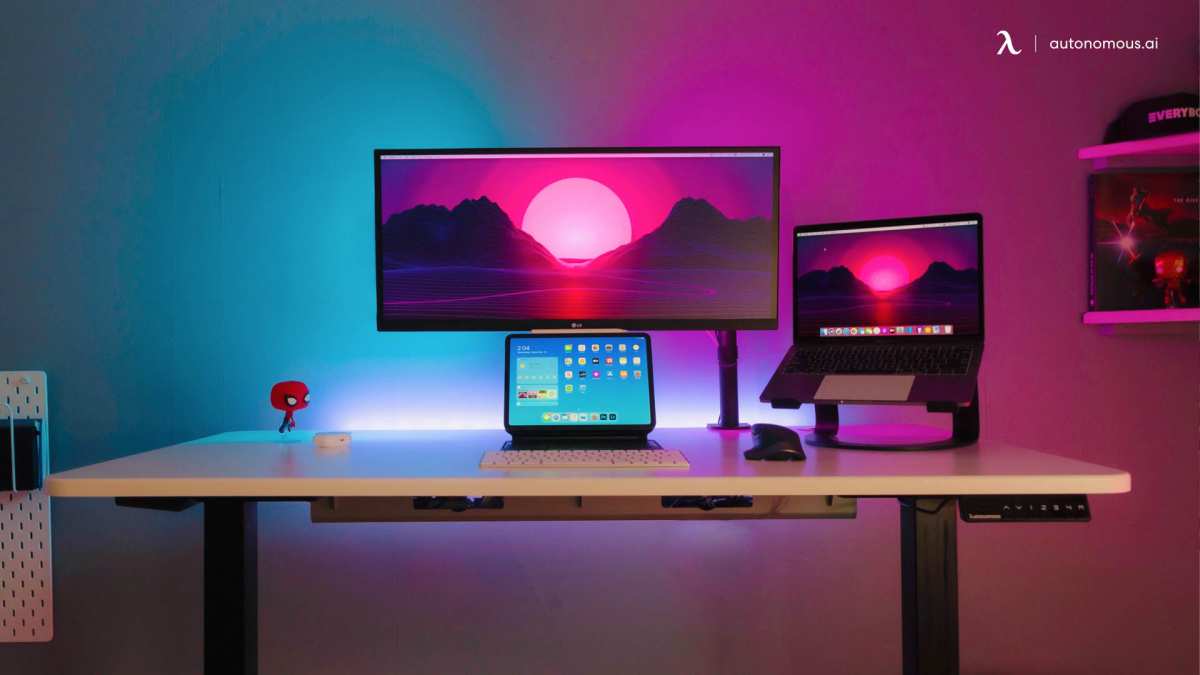
So you've got two monitors sitting on your desk and the wallpaper situation looks wrong. Maybe the same image is duplicated on both screens, maybe that gorgeous landscape is stretched into an unrecognizable blur, or maybe you just can't figure out how to set a different image on each display. You're not alone.
Figuring out how to change wallpaper on dual monitors trips up almost everyone at some point, mostly because Windows, macOS, and Linux all handle it differently and none of them make it obvious.
The good news is that you've got several solid options, from built-in OS settings to free tools to power-user software that gives you full control. In our research across manufacturer documentation and verified user feedback, we found that most people get this done in under five minutes once they know which method actually matches their setup. Let's walk through every approach so you can pick the one that fits.
Image source: Bing (Web (fair-use with source credit))
The 30-Second Answer: How to Set Different Wallpapers on Two Monitors
Need to fix your wallpaper right now? Here's the fastest path depending on your operating system.
Right-click the image file you want, select "Set as desktop background," and Windows will apply it to whichever monitor you right-clicked from. For independent wallpapers on each screen, right-click the desktop, choose "Personalize," then right-click the thumbnail of the image you want and pick the specific monitor. On macOS, go to System Settings, click Wallpaper, and you can drag different images to each display directly.
Linux users on GNOME right-click the desktop and choose "Change Background," though per-monitor support varies.
Why Your Dual Monitor Wallpaper Is Broken (And How to Fix It)
Here's the core issue. Your operating system sees your dual monitor setup as one big extended desktop by default. That means when you set a wallpaper, it treats both screens as a single canvas.
The result is usually one of three things: the same image mirrored on both monitors, one image stretched across both screens looking warped, or a wallpaper that only shows on your primary display while the other defaults to a solid color.
The fix depends on what you actually want. Do you want a completely different image on each monitor? That's the most common request.
Or do you want one panoramic-style image spanning both screens? Both are doable, but the method is different for each.
What's Actually Happening Behind the Scenes
When you extend your displays (which is the default for dual monitor setups), your OS creates one large virtual desktop space. For two 1920×1080 monitors sitting side by side, your system sees a 3840×1080 resolution canvas. Windows then applies the wallpaper to that full canvas, which is why you get stretching or duplication depending on your chosen fill mode.
Per-monitor wallpaper support is technically a feature that operating systems had to build intentionally. It doesn't just happen automatically. Windows added better per-monitor support in Windows 11, but Windows 10 users still need a workaround. macOS has handled this more gracefully since macOS Mojave (2018), giving each display its own independent wallpaper assignment through Mission Spaces.
The Resolution Mismatch Problem
Let's say your primary monitor is 2560×1440 and your secondary is 1920×1080. That's a 4:4 mismatch in vertical pixels. Any image you try to span across both will look broken because the pixel grids don't align cleanly.
And if you set separate wallpapers, you need images at each monitor's native resolution for crisp results.
This is where most guides skip the practical detail. You need to verify each monitor's exact resolution before sourcing wallpaper images. In Windows, right-click the desktop, select Display Settings, and click on each monitor to see its resolution.
On macOS, go to System Settings, click Displays, and select each screen.
When You Actually Need a Third-Party Tool
Built-in OS features handle basic scenarios fine. But if you want things like different slideshow folders per monitor, wallpaper position on mixed-resolution setups, or animated wallpapers that span correctly, you'll hit the limits of native tools fast. Third-party utilities like DisplayFusion solve these specific problems, and we'll cover those in detail below.
Understanding How Your OS Handles Dual Monitor Wallpapers
Your operating system determines everything about how wallpaper management works on your setup. Let's break down what each platform does and where it falls short.
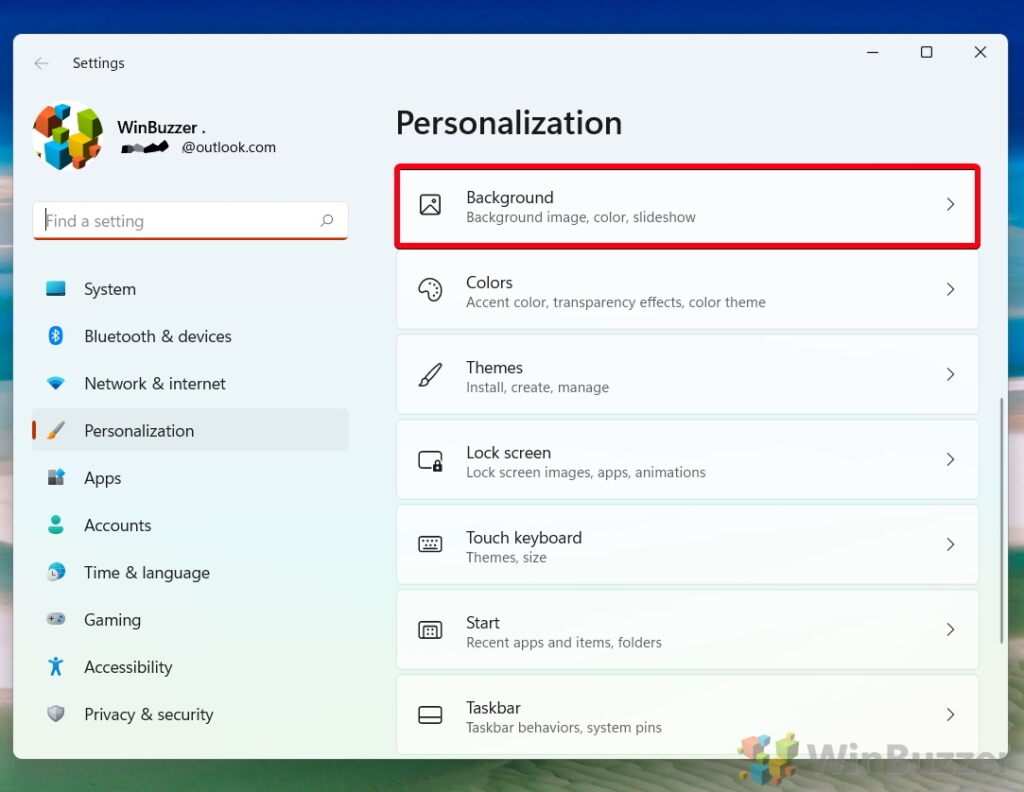
Image source: Bing (Web (fair-use with source credit))
Windows 10 and 11: What It Does Well and Where It Falls Short
Windows 11 improved per-monitor wallpaper handling significantly over Windows 10. In Windows 11, when you open Settings then Personalization then Background, you get a "Right-click a thumbnail to set for a monitor" option that actually works reliably. You right-click the image thumbnail in the recent images list and choose which display you want it on.
Windows 10 is clunkier. The native Personalization menu lets you set a single background, but assigning different images to different monitors requires either the right-click-file method or using the "Span" fill option, which doesn't give true per-monitor independence. There's no built-in "set this image to monitor 2 only" dropdown in Windows 10's settings app.
Both Windows versions offer these fill modes in the Background settings dropdown menu:
- Fill: Zooms the image to cover the screen, cropping edges if needed. Best for photos that are slightly larger than your resolution.
- Fit: Shows the full image without cropping, but may leave black bars. Good when you want to see everything in the image.
- Stretch: Forces the image to match the screen resolution exactly, distorting if aspect ratios differ. Avoid this unless the image matches your resolution perfectly.
- Tile: Repeats the image in a grid pattern. Useful for patterns and textures, not photographs.
- Center: Places the image at native resolution in the center. Black or solid-color borders fill the rest.
- Span: Stretches one image across all monitors as a single canvas. Works best with ultra-wide images matching your combined resolution.
macOS: Why Apple Makes This Easier (When You Know Where to Look)
Apple tied wallpaper management to its Mission Spaces desktop system. Each display maintains its own independent wallpaper assignment. When you open System Settings (or System Preferences on older versions), go to Wallpaper, and you'll see a preview for each connected display.
You can drag different images from your Photos library or file system onto each display's preview independently.
macOS also respects the "Displays have separate Spaces" setting in System Settings under Desktop & Dock. If that's disabled, wallpaper options may behave differently. It's enabled by default, but worth checking if your wallpaper settings seem locked or unresponsive.
One macOS-specific behavior worth knowing: if you disconnect an external monitor and reconnect it later, macOS typically restores the wallpaper from your last setting. Windows, by comparison, sometimes resets to default after monitor reconnection, especially if the display arrangement changed.
Linux: GNOME, KDE, and Everything in Between
Linux wallpaper management varies dramatically by desktop environment. GNOME (used by Ubuntu, Fedora Workstation, Pop!_OS) lets you right-click the desktop and select "Change Background," opening Settings to the Background panel. But per-monitor wallpaper support has been inconsistent across GNOME versions.
Some versions let you set different wallpapers per monitor through dconf editor tweaks. Others just mirror the same image.
KDE Plasma handles this better out of the box. Right-click the desktop on each screen and you get a "Configure Desktop and Wallpaper" option that's specific to that display. KDE also offers scripting and gradient options that GNOME lacks.
For any Linux users struggling with per-monitor wallpapers, the real answer is often "depends on your distro and desktop environment version." That's frustrating, but it's honest. If native settings don't cut it, tools like Variety or Nitrogen offer per-monitor control across most distributions.
Method 1: Native Windows Settings (Per-Monitor Wallpaper)
This is the method most people should try first. It costs nothing, requires no software installation, and works well for the basic case of setting a different image on each monitor.
Step-by-Step: Setting Different Wallpapers Through Right-Click
This is the fastest way to assign one image to a specific monitor in both Windows 10 and Windows 11. Here's how it works.
- Open File Explorer and navigate to the image you want to use.
- For the primary monitor: Right-click the image and select "Set as desktop background." This applies it to whichever monitor is set as your main display.
- For the secondary monitor: Move File Explorer to your secondary monitor. Right-click the second image and select "Set as desktop background." Windows applies the last-set image to each monitor independently.
In Windows 11 specifically, there's an extra trick. You can open Settings then Personalization then Background. Browse to your images and add them.
Right-click any thumbnail in the "Recent" section, and you'll see "Set as desktop background" with a monitor number listed. Pick the right monitor for each image.
Step-by-Step: Using the Settings App for More Control
This gives you more precise control and lets you fine-tune the fill mode for each monitor.
- Right-click your desktop and select "Personalize" (Windows 11) or "Personalize" from the context menu (Windows 10).
- Click "Background" in the left sidebar.
- Under "Personalize your background," select "Picture" or "Slideshow" from the dropdown.
- Click "Browse photos" and locate your image folder.
- Windows 11: Right-click a thumbnail, select "Set as desktop background," then choose the monitor number (e.g., "1" or "2").
- Windows 10: This is where it gets limited. The right-click thumbnail trick still works in Windows 10, but the interface is less obvious about monitor assignment. If it doesn't work, try the File Explorer right-click method instead.
- Set the "Choose a fit" dropdown to Fill, Fit, or Span depending on your preference.
A common frustration: if you choose "Span" as your fill mode, Windows stretches one image across the entire combined desktop. Setting per-monitor wallpapers overrides the Span setting for each display independently.
Method 2: Spanning One Image Across Both Monitors
This is the approach when you want a single panoramic image covering both screens. Think a wide landscape photo, a custom graphic, or a workspace that visually connects both displays.
When You Actually Want This (and When You Not)
Spanning works great when both monitors are the same resolution and physical size. Two 1920×1080 monitors side by side gives you a combined 3840×1080 canvas. Find or create an image at that exact resolution and it fits perfectly.
Spanning looks terrible with mismatched monitors. A 2560×1440 primary and a 1920×1080 secondary creates an awkward gap or crop in the middle of your image because the vertical pixel counts don't align. That's the telltale sign of a spanned wallpaper on mixed-resolution displays, a strip of the image seems to vanish at the boundary between screens.
Before you try spanning, check that your physical display arrangement in Display Settings matches the actual layout of your monitors on your desk. If monitor 2 is physically on the left but Windows thinks it's on the right, the left half of your image will appear on the right screen.
How to Set It Up in Windows
- Make sure your image matches your combined resolution. For two 1920×1080 screens, that's 3840×1080 pixels. For two 2560×1440 screens, that's 5120×1440 pixels.
- Open Settings, Personalization, Background.
- Under "Choose a fit," select "Span."
- Windows stretches the image across your full desktop canvas, aligning based on the display arrangement you've configured.
One important note: when Span is active, Windows may override per-monitor wallpaper assignments. If you previously set different images per monitor and then switch to Span, the spanned image takes over. Switching back to Fill or Fit mode should restore your per-monitor settings, though sometimes you'll need to reassign them.
Method 3: GPU Control Panel Methods
Your graphics driver often includes wallpaper management that can override Windows' built-in handling. This is less common these days, since Windows has improved its native support, but some users prefer GPU-level control.
NVIDIA Control Panel for Wallpaper Setup
NVIDIA's control panel historically offered multi-monitor desktop configuration, but recent driver versions have moved wallpaper control almost entirely to Windows Settings. The NVIDIA Control Panel still handles desktop arrangement, resolution, and color settings. But for wallpaper specifically, you're better off using Windows' built-in tools or the methods described above.
If you're running an older driver version (pre-2022), you might still find wallpaper options under Desktop in the NVIDIA Control Panel. These have been deprecated in favor of Windows handling the feature directly.
AMD Radeon Software Approach
AMD Software: Adrenalin Edition focuses on display configuration, color tuning, and performance metrics. Like NVIDIA, AMD has largely ceded wallpaper management to the operating system. Open AMD Software, click Display, and you'll find options for scaling mode and color depth, but not wallpaper assignment.
The practical takeaway: GPU control panels are relevant for display arrangement (which monitor is where, which is primary), which indirectly affects wallpaper behavior. But they're not the right tool for actually setting wallpaper images anymore.
Method 4: Third-Party Tools That Actually Solve the Problem
When native OS settings cut off at the knees, third-party tools step in. This is where you get real per-monitor control, especially for setups with different resolutions, rotating wallpapers per screen, or mixed orientations.
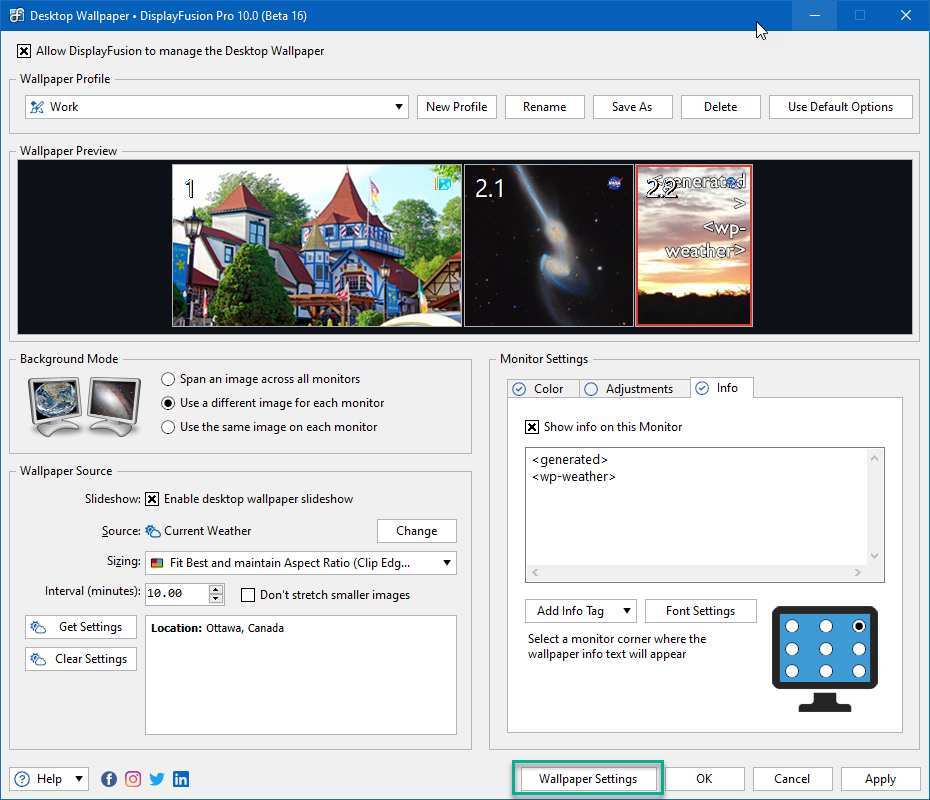
Image source: Bing (Web (fair-use with source credit))
DisplayFusion: The Power User's Choice
DisplayFusion from BinaryForce is the go-to tool for managing wallpapers across multiple monitors on Windows. The free version handles basic per-monitor wallpapers fine. The paid version, at roughly $29 for a lifetime license, unlocks advanced features like different wallpapers per monitor from separate folders, automatic wallpaper rotation from multiple sources, and scripting that triggers wallpaper changes based on events.
What DisplayFusion does particularly well is handle mixed-resolution setups. It detects each monitor's native resolution and scales wallpaper images independently. No more distortion.
You can set a different image slideshow for each monitor, change wallpapers on a timer, or use a single image and position it per screen with manual offset control.
To set up per-monitor wallpapers with DisplayFusion, you install the application, open its settings, and click the Wallpaper tab. There you'll see a list of your detected monitors. Click on a monitor name, browse to an image, and set your preferred fill mode.
Repeat for each display. The changes apply immediately.
DisplayFusion also saves your wallpaper profiles. This means you can create different configurations, say a work profile and a relaxation profile, and switch between them with a hotkey or scheduled trigger.
Wallpaper Engine: Animated and Video Wallpaper Options
Wallpaper Engine, available on Steam for about $3.99, brings animated wallpapers to your desktop. It supports per-monitor wallpaper assignment for both static images and animated scenes. If you've got a specific video or looping animation you want on one monitor and a still image on the other, this is the easiest way to make it happen.
Performance is a common concern, but aggregate user feedback indicates Wallpaper Engine uses about 2 to 5 percent of a modern GPU during typical use. You can configure it to pause animations when a full-screen application is running. That keeps your games or video calls from fighting for GPU resources.
The Workshop integration gives you access to thousands of community-created animated wallpapers.
The limitation is that Wallpaper Engine requires Steam to run. That's fine for most people, but a dealbreaker for corporate or managed machines where Steam isn't installed.
Free Alternatives Worth Considering
If you want per-monitor wallpaper control without spending anything, there are solid free options.
- John Textor Background Switcher: Lightweight, handles per-monitor assignment, supports folder slideshows. Has been around since 2015 and remains reliable.
- Dual Monitor Tools (open source): Includes a wallpaper module that lets you set different images per screen. It's basic but effective and free.
- BioniX Wallpaper: Free, supports multi-monitor setups with per-screen image selection. Handles resolution mismatches with built-in scaling.
These free tools don't have the polish of DisplayFusion or Wallpaper Engine, but they solve the core problem without asking for your credit card.
Common Problems and How to Fix Them
Wallpaper setup on dual monitors has several recurring failure points. Here's how to solve the ones that come up most often.
Wallpaper Looks Stretched, Blurry, or Cropped
This happens when the fill mode doesn't match your monitor's resolution. Open your wallpaper settings and cycle through Fill, Fit, and Center to see which looks best for each image. If the image itself is lower resolution than your screen, no fill mode will make it look crisp.
You need a source image at or above your monitor's native resolution. For a 1920×1080 screen, your wallpaper image should be at least that size.
Same Image Shows on Both Monitors When You Wanted Different Ones
This is the default Windows behavior when you use the "Set as desktop background" right-click method on an image that's already set. The fix is to use the Personalization settings panel directly. Open Settings, go to Personalization, click Background, and right-click the thumbnail of your second image.
You'll see a "Set for monitor" option listing your displays.
Another cause: your wallpaper slideshow might be set to use the same folder for all monitors. In DisplayFusion or Wallpaper Engine, check that each monitor points to its own image source. In Windows' native slideshow setting, there's no built-in per-monitor folder option, which is a common reason users switch to third-party tools.
| Problem | Likely Cause | Solution |
|---|---|---|
| Image duplicated on both screens | Default behavior in basic settings | Use thumbnail right-click in Personalization panel |
| Image cropped on one side | Wrong fill mode (Fill crops edges) | Switch to Fit or Span |
| Image blurry or pixelated | Source resolution too low | Find version at monitor's native resolution |
| Wallpaper disappeared after reboot | Corrupted cache or driver update | Reassign wallpaper, clear thumbnail cache |
| Different DPI monitors look wrong | Windows scaling mismatch | Use DisplayFusion for per-monitor DPI handling |
Wallpaper Resets After Update or Monitor Reconnect
Windows updates occasionally reset personalization settings to defaults. GPU driver updates can do the same. To minimize this, set your wallpaper using the Settings app rather than the right-click method.
Some users report it persists more reliably. Save a backup copy of your desktop background images in a folder that isn't synced to OneDrive, since cloud sync can occasionally interfere with wallpaper file paths.
When you disconnect and reconnect an external monitor, Windows may re-detect it as a "new" display and lose the wallpaper assignment. If this happens, reassign the wallpaper. DisplayFusion offers profile auto-restore, which re-applies your settings when a monitor is detected.
That's one of the features that justifies the paid version for anyone who frequently docks and undocks a laptop.
Dealing with Mismatched Resolution: The Trickiest Part
Mixed-resolution dual monitor setups are where wallpaper management gets genuinely annoying. Here's why and what to do about it.
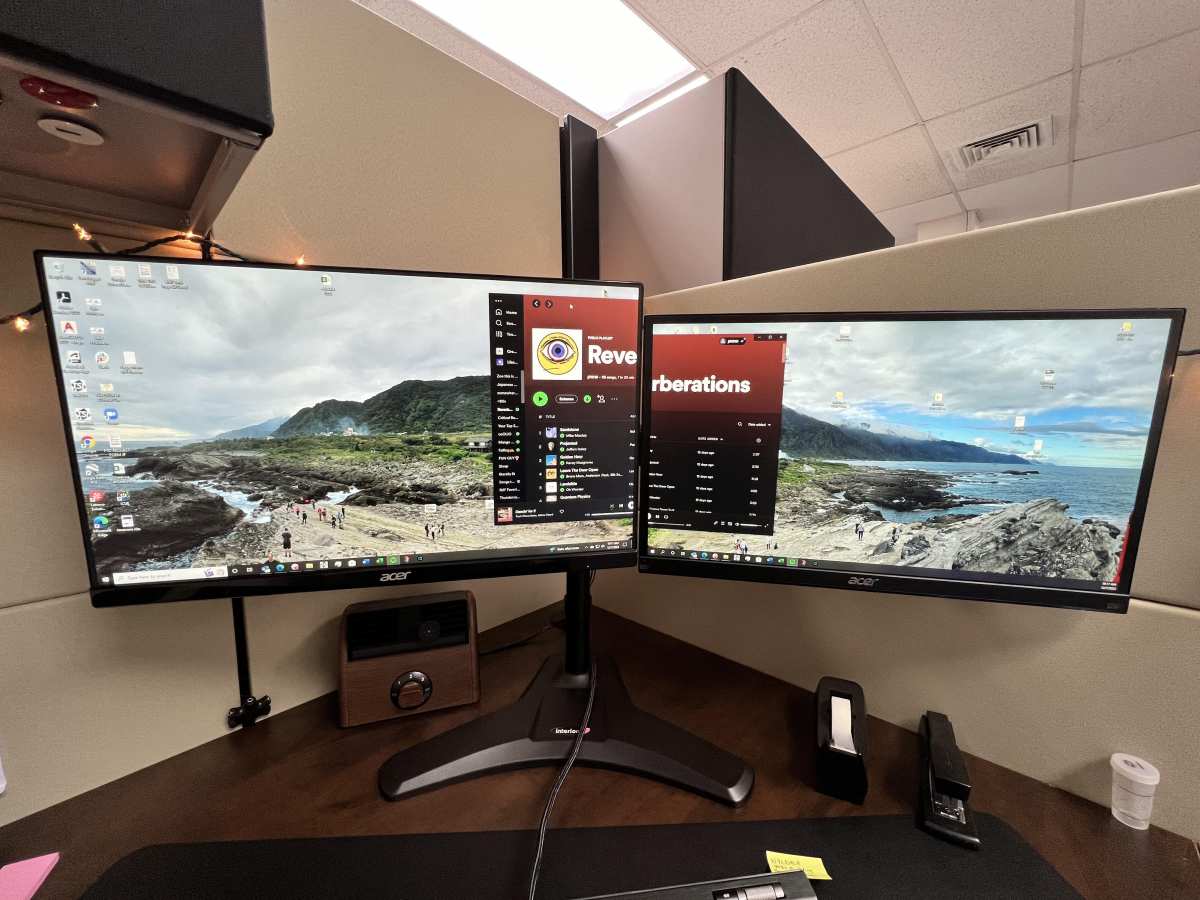
Image source: Bing (Web (fair-use with source credit))
1080p + 1440p Monitor Combos
This is one of the most common mismatched setups. You've got a 2560×1440 primary monitor and a 1920×1080 secondary, or the other way around. The 576-pixel difference means any wallpaper that spans both screens will have a visible cut-off point at the boundary between displays.
Your best option here is independent wallpaper per monitor. Set a 2560×1440 image on the higher-res screen and a 1920×1080 image on the lower-res screen. Avoid Spanning entirely because the visual result is guaranteed to look broken.
If you absolutely want a spanned look, you need an image that accounts for the resolution gap. Place the main subject of the image entirely within the higher-res monitor's portion. Let the edges that fall on the lower-res monitor be less important content, like sky or bokeh.
Both Windows 11 and DisplayFusion handle the math for you in separate-wallpaper mode. You just provide correctly sized images for each screen.
DPI Scaling Differences and Blurry Results
When two monitors have different DPI (dots per inch), Windows applies different scaling ratios. A 27-inch 1440p monitor at 109 PPI and a 24-inch 1080p monitor at 92 PPI will be set to different scaling levels, typically 125 percent and 100 percent respectively.
This can cause wallpaper text overlaid on your background to appear different sizes on each screen. More importantly, if Windows repositions wallpaper differently on each display due to scaling elements in your image may seem misaligned when you glance between monitors.
The solution is to set scaling before finalizing wallpaper. Go to Settings, System, Display, click each monitor, and set the scale independently. Then assign your wallpaper images.
DisplayFusion also lets you offset wallpaper positioning per monitor, which acts as a fine-tune adjustment when scaling creates slight misalignments.
Quick Comparison: Native Settings vs Third-Party Tools Per Monitor
Here's how the main options stack up for dual monitor wallpaper management.
| Feature | Windows Built-In | macOS Built-In | DisplayFusion | Wallpaper Engine |
|---|---|---|---|---|
| Per-monitor wallpaper | Yes (Win 11), Limited (Win 10) | Yes | Yes | Yes |
| Different slideshow per monitor | No | No | Yes | Yes |
| Handles mixed resolutions well | Partially | Yes | Yes | Yes |
| Animated wallpapers | No | No | No | Yes |
| Price | Free | Free | $29 lifetime | ~$3.99 |
| Works on Windows | Yes | No | Yes | Yes |
| Works on macOS | No | Yes | No | Yes |
| Open source | N/A | N/A | No | No |
| Profile saving/switching | No | No | Yes | Limited |
The takeaway: if you just need a different picture on each monitor and both screens are the same resolution, Windows 11's built-in tools are genuinely fine. The moment you introduce mixed resolutions, animated wallpapers, or slideshow rotation per monitor, DisplayFusion is worth every penny.
For macOS users, the built-in Wallpaper settings handle most scenarios without any third-party help. If you want more control, Wallpaper Engine is the main macOS alternative that matches DisplayFusion's feature set.
Expert Tips Most Guides Skip
These are the practical details that separate a clean setup from one that keeps bugging you.
Mark Your Image Files as Read-Only
Windows caches wallpaper images in a system folder. If you edit or move the original file, the cache may display an outdated thumbnail or a broken reference. Right-click your wallpaper source files, select Properties, and check Read-only.
That prevents accidental edits from breaking your wallpaper path.
Check Display Arrangement Before Setting Wallpaper
In Display Settings, drag the monitor icons so they match their physical position on your desk. This matters especially for Spanning mode but also affects how Windows positions Fill-moded wallpaper per screen. If monitor 2 is to the left of monitor 1 on your desk but Windows thinks it's to the right, your wallpaper edges will be reversed between screens.
Pre-Wallpaper System Update Check
Before spending time configuring wallpapers, make sure your graphics drivers are up to date and your OS is current. Driver updates can change wallpaper behavior, especially how the Span fill mode positions images across displays. Doing the updates first means you won't have to redo wallpaper arrangements later.
Corporate Machines and Group Policy Locks
On work computers managed by IT, wallpaper changes may be blocked by Group Policy. If your Personalization settings are grayed out and you can't change the background, that's almost certainly a policy restriction. There's no legitimate workaround for managed machines, you'd need to contact your IT department.
When to Use Which Method: A Quick Decision Guide
Your ideal method depends on your situation. Here's a simple decision guide.
If you have two same-resolution monitors and just want different photos on each:
Use Windows 11's built-in per-monitor wallpaper. Right-click thumbnails in the Personalization panel and assign each image to the right display.
If you have a laptop + external monitor with different resolutions:
Use DisplayFusion. It handles the resolution mismatch and DPI scaling differences cleanly. The free version covers this use case.
If you want animated wallpapers:
Wallway Engine on Steam is the simplest option. It costs about four dollars and handles per-monitor animated backgrounds without fuss.
If you're on macOS and want per-monitor images:
Use System Settings, Wallpaper. Drag different images to each display's preview. No third-party tool needed.
If you want a panoramic image spanning both screens:
Only try this if both monitors have the same native resolution. Use Span mode in Windows Display Settings or Wallpaper Engine's span option.
If your wallpaper keeps resetting:
Check for driver updates first. If that doesn't stick, DisplayFusion's profile auto-restore feature will reapply your wallpapers whenever Windows detects your monitors. That permanently solves the reset problem.
Frequently Asked Questions
Can I set a different wallpaper on each monitor in Windows 10?
Yes, but it's less intuitive than Windows 11. Open Settings, Personalization, Background, then right-click the thumbnail of your image and select which monitor to apply it to. If that option doesn't appear, use the File Explorer right-click method.
Navigate to your image, right-click it, and select "Set as desktop background." Windows assigns it to whichever monitor is set as primary. For more reliable per-monitor control, use DisplayFusion.
Why does my wallpaper look stretched across both monitors?
Your fill mode is set to Span, which stretches one image across your combined desktop canvas. Open Settings, Personalization, Background, and change the "Choose a fit" dropdown from Span to Fill or Fit. This applies the image independently to each screen instead of treating both as one wide canvas.
How do I stop my wallpaper from changing after a Windows update?
Windows updates can reset personalization settings. Before updating, save your wallpaper images to a local folder, not a cloud-synced one like OneDrive. After the update, reassign them through Settings rather than the right-click method for better persistence.
DisplayFusion's profile auto-restore feature also automatically re-applies wallpaper settings after system changes.
Does Wallpaper Engine affect gaming performance?
Wallpaper Engine uses about 2 to 5 percent of a modern GPU during normal desktop use. It can be configured to automatically pause animations when any full-screen application is running. This means games and video calls won't compete with it for resources.
Can I have a slideshow wallpaper that's different on each monitor?
Windows' built-in slideshow feature doesn't support different folders per monitor. For that, you'll need DisplayFusion or Wallpaper Engine. Both let you set independent slideshow timers and image sources for each display.
My second monitor shows a solid color instead of wallpaper. What's wrong?
This usually means Windows assigned your wallpaper to the primary display only. Right-click your desktop, open Personalization settings, and check if the image thumbnail shows a monitor assignment. Right-click the thumbnail and explicitly assign it to your second monitor.
If the issue persists, verify both monitors are set to "Extend" mode rather than "Duplicate" in Display Settings.

Similar Posts































