How to Calibrate Touchscreen Monitor
If you've landed here, your touchscreen is probably driving you crazy. Maybe you tap "Save" and your monitor registers the click two inches to the left. Maybe the edges don't respond at all.
Learning how to calibrate touchscreen monitor hardware properly fixes most of these alignment headaches, and it takes about five minutes once you know which method actually applies to your setup. If you are exploring similar hardware setups, see our detailed guide on whether a touchscreen monitor work with any pc.
The catch is that not all touchscreens calibrate the same way. The process differs depending on your operating system, your touch technology, and whether you're running one monitor or three. Let's walk through it step by step so you can get your touch input back where it belongs.
Quick Answer
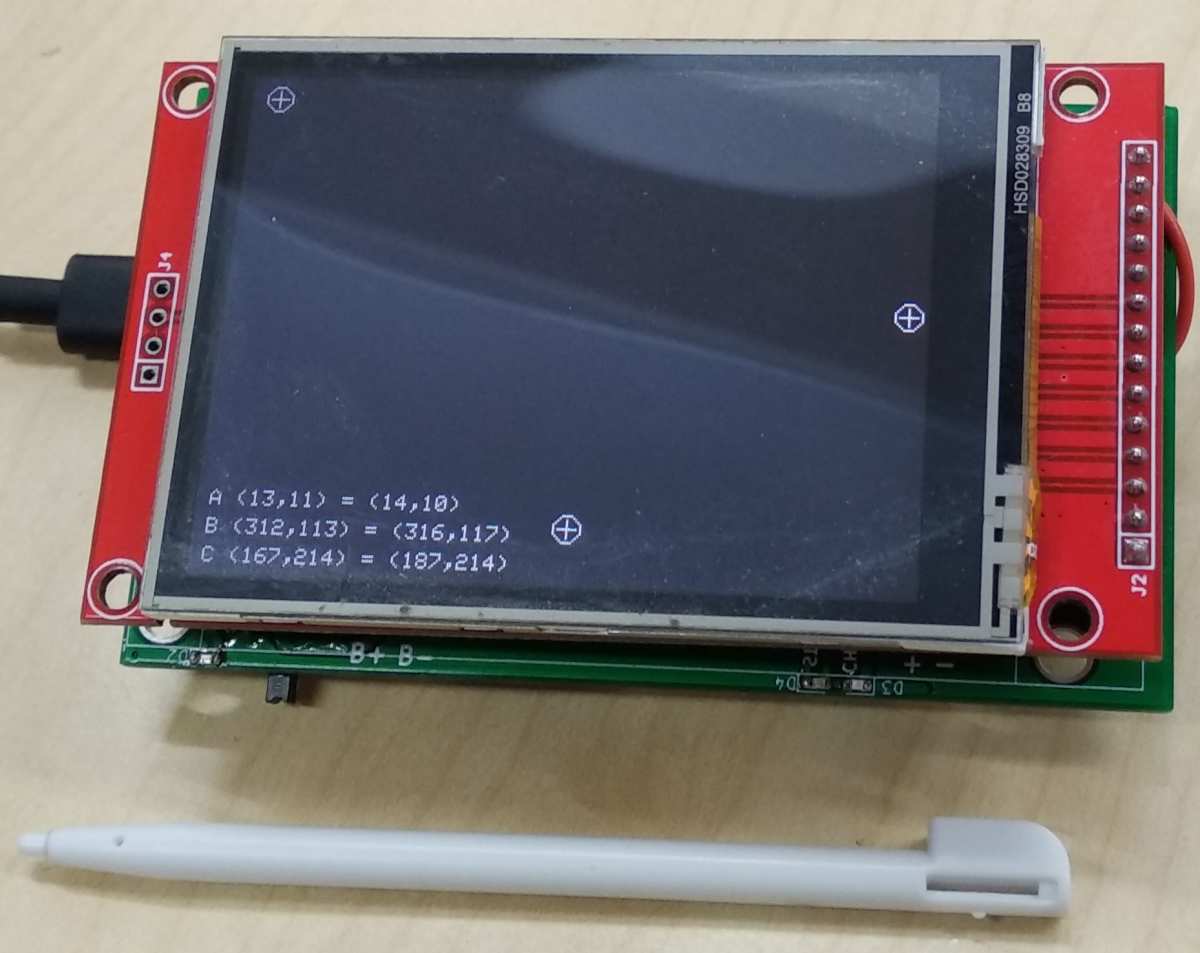
Calibrating a touchscreen monitor aligns touch input with what you see on screen. Open your OS calibration tool, tap the on-screen targets when prompted, and save the results. Windows users access this through Tablet PC Settings.
Linux users typically use tslib or evconfig tools. Most calibration processes take under five minutes. You can also reference our testing on a touchscreen monitor when configuring your display.
Why Your Touchscreen Is Misaligned (And When Calibration Actually Fixes It)
Touchscreen drift happens more often than you'd think. The most common cause is a software or driver issue. Your touch controller loses its mapping coordinates relative to the display.
This often occurs after a Windows update, a driver change, or a resolution switch.
But here's the thing. Calibration is a software fix for a software problem. It won't help if your hardware is actually failing.
Calibration WILL fix:
- Touch input registering in the wrong spot (offset)
- Gradual drift over time
- Misalignment after a driver or OS update
- Touch working on the wrong monitor in a multi-display setup
Calibration will NOT fix:
- Dead zones where touch doesn't register at all
- Ghost touches (screen tapping itself)
- A touchscreen that stopped responding entirely
- Physical damage to the touch sensor or digitizer
If you're dealing with dead zones or phantom inputs, you're likely looking at a failing touch controller, a loose cable, or EMI interference. Those need hardware troubleshooting, not calibration.
How Touchscreen Calibration Actually Works
At its core, calibration teaches your touch controller where the display boundaries are. The software shows you known points on screen, usually crosshairs. You tap them.
The system compares where you tapped versus where it expected you to tap. It then builds a correction matrix that maps future touch input accurately.
This correction matrix gets stored either in the Windows registry, a configuration file, or the touch controller's onboard memory. That's why calibration sometimes survives a reboot and sometimes doesn't. It depends on where that data lives.
The Three Main Touch Technologies — And Why It Matters for Calibration
Not all touchscreens work the same way, and the technology type affects how calibration behaves.
| Technology | How It Calibrates | Common In |
|---|---|---|
| Capacitive (PCAP) | Uses electrical charge; calibration maps touch coordinates to display pixels | Most modern touchscreen monitors, smartphones, tablets |
| Resistive | Pressure-based; calibration adjusts voltage threshold mapping | Older kiosks, industrial panels, some POS systems |
| Infrared (IR) | Light beam interruption; calibration realigns the IR grid to the display | Large-format displays, interactive whiteboards |
Capacitive screens are what most people have on their desks right now. They're more accurate out of the box but can drift after firmware changes. Resistive screens need recalibration more often because the pressure-sensitive layers wear down over time.
IR screens are common in commercial settings and sometimes require a physical grid alignment in addition to software calibration.
What Calibration Fixes vs. What It Doesn't
Let's be clear about the scope. Calibration corrects the spatial relationship between your touch input and the display output. That's it.
It does not improve touch sensitivity. It does not fix palm rejection. It does not reduce touch latency.
Those are driver-level or firmware-level issues.
Think of it like this. Your touchscreen is a translator between your finger and the computer. Calibration makes sure the translator is speaking the right language.
It doesn't make the translator faster or more attentive.
Step-by-Step: How to Calibrate Your Touchscreen Monitor
Here's where we get practical. The exact steps depend on your setup, so follow the path that matches your situation.
Step 1: Identify Your Touch Technology and Connection Type
Before you touch any settings, figure out what you're working with.
Check your connection type first. Look at how your touchscreen connects to your computer.
- USB touch interface, Most common. The touch data travels over a standard USB cable. Windows sees it as an HID (Human Interface Device).
- Serial (RS-232) touch interface, Found on older industrial and POS monitors. Requires a serial port or USB-to-serial adapter.
- I²C interface, Common in embedded systems and some all-in-one PCs. Appears as a device on the I²C bus.
Then identify the touch technology. Check your monitor's spec sheet or model number. If you can't find it, here's a quick test. Capacitive screens respond to a bare finger.
Resistive screens respond to anything, including a stylus or gloved hand. IR screens sometimes show a faint grid of red LEDs when you look at the bezel closely.
Step 2: Find the Right Calibration Tool for Your Setup
This is where most people get stuck. Windows has a built-in tool, but it's not always the best one. Your monitor manufacturer may have a proprietary utility that works better.
Priority order for calibration tools:
- OEM manufacturer utility, Check your monitor brand's support page first. Elo, Wacom, 3M, and Dell all offer dedicated calibration software.
- Windows built-in tool, Available on Windows 10 and 11. Works for most HID-compliant touchscreens.
- Linux tools, tslib for embedded systems, evdev for desktop environments, or the GNOME/KDE touchscreen settings panel.
- Third-party utilities, Only use these if the above options aren't available. They rarely outperform OEM tools.
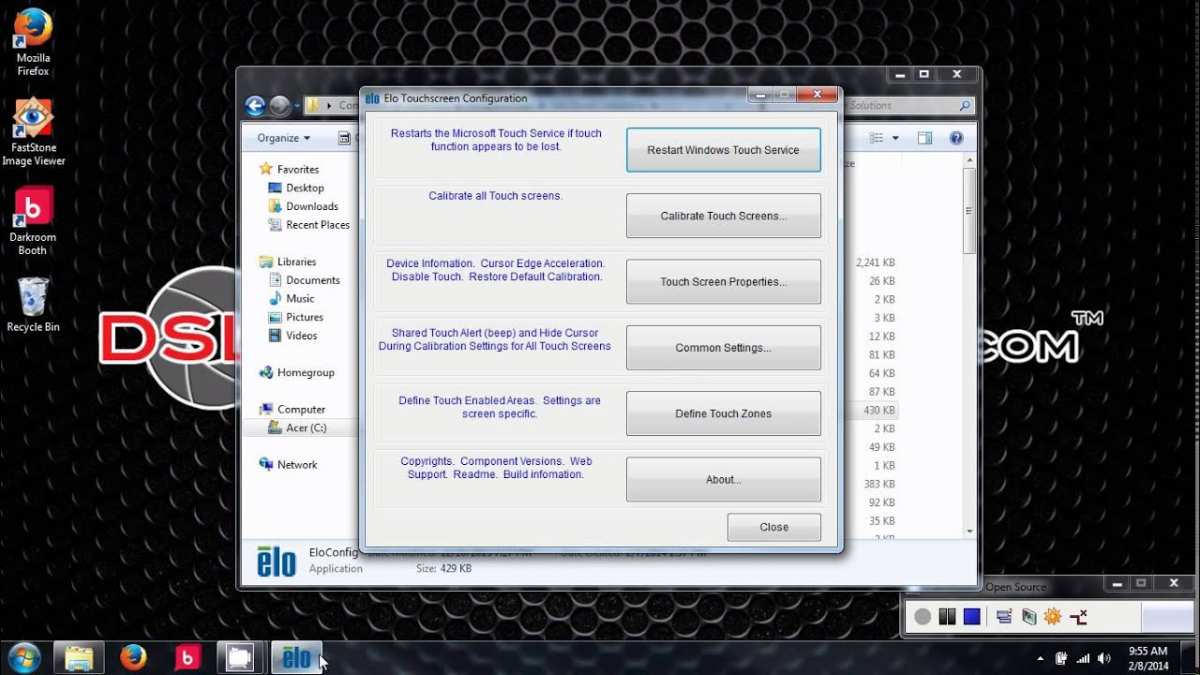
If you're running a Wacom display, use Wacom Tablet Properties. If you have an Elo monitor, download Elo's Touchscreen Driver and Calibration Tool from their support site. These utilities access the touch controller at a lower level than the Windows built-in tool, which often produces more accurate results.
Step 3: Run the Calibration Process (Windows Built-In Method)
This is the most common path. Here's exactly how to do it on Windows 10 and 11.
Accessing the calibration tool:
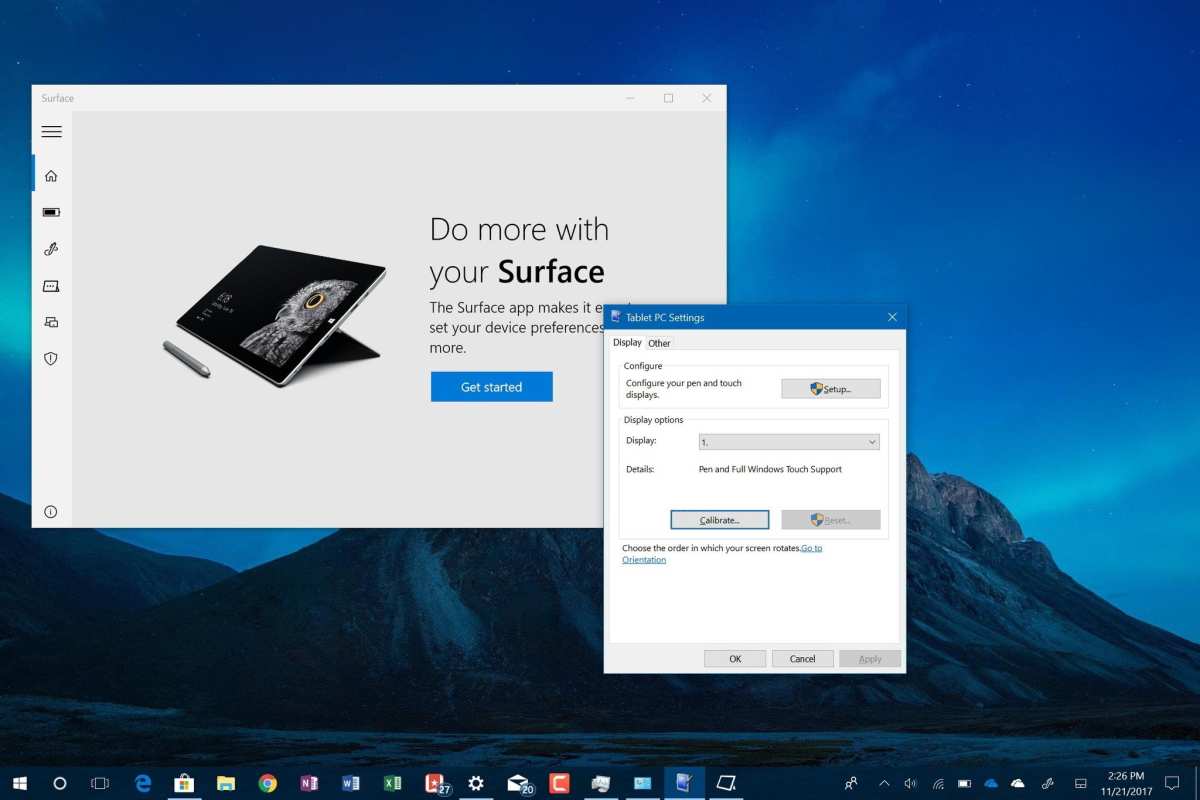
- Open the Control Panel (search for it in the Start menu).
- Navigate to Hardware and Sound > Tablet PC Settings.
- Click Calibrate the screen for pen or touch input.
Alternatively, you can search "Calibrate" in the Start menu and select "Calibrate the screen for pen or touch input" directly.
Running the calibration:
- In the Tablet PC Settings window, select your touchscreen display from the dropdown.
- Click Calibrate.
- Choose Touch input (not Pen input, unless you're calibrating a stylus).
- Crosshairs will appear on screen. Tap the center of each crosshair as accurately as possible.
- The tool typically shows 4 points (corners) or up to 16 points depending on your driver.
- After completing all points, click Yes to save the calibration data.
Important notes for this step:
- Use your finger, not a mouse. The tool expects touch input.
- Tap lightly but precisely. Don't press hard on capacitive screens.
- If the crosshairs appear on the wrong monitor, you've selected the wrong display in the dropdown. Go back and choose the correct one.
- After saving, test by tapping around the screen. If it's still off, run the calibration again. Sometimes two passes produce better results.
Step 4: Use OEM Calibration Utilities When Available
If your monitor came with dedicated software, use it. These tools often offer more calibration points and better edge accuracy than the Windows built-in utility.
Elo Touch Solutions:
Download the Elo Touchscreen Driver from elotouch.com. The utility includes a 9-point or 25-point calibration mode. It also lets you save calibration profiles, which is useful if you move the monitor between computers.
Wacom displays:
Open Wacom Tablet Properties from your system tray or Start menu. Navigate to the Calibrate tab. Wacom's tool lets you calibrate for specific screen areas and accounts for parallax on their Cintiq and Wacom One lines.
Dell touchscreen monitors:
Dell provides calibration through their Dell Peripheral Manager or the Windows built-in tool. Some Dell models also support calibration through the on-screen display (OSD) menu.
3M / MicroTouch displays:
3M's touch drivers include a calibration module that supports both USB and serial connections. Their tool is particularly useful for older resistive touchscreens that need frequent recalibration.
Step 5: Linux Calibration with tslib and evdev
Linux touchscreen calibration is less straightforward because there's no single universal tool. Your options depend on your desktop environment and touch controller.
For GNOME/KDE desktops:
Most modern Linux desktop environments include touchscreen settings in their system settings panel. Look for "Wacom Tablet" or "Touchscreen" in your settings app. Some distributions also expose calibration through the Wacom driver GUI.
For tslib (embedded systems):
tslib is the standard touchscreen abstraction layer for embedded Linux. To calibrate:
- Install tslib:
sudo apt install tslib libts-bin - Set the environment variable:
export TSLIB_TSDEVICE=/dev/input/event0(adjust the device path) - Run the calibration tool:
TSLIB_TSDEVICE=/dev/input/event0 ts_calibrate - Tap the five crosshairs when prompted
- The tool writes the calibration matrix to
/etc/pointercal
For evdev-based systems:
Use xinput to list your touch device properties and xinput set-prop to adjust the coordinate transformation matrix. This is more manual but gives you precise control.
A word of caution on Linux: Touch support varies significantly by distribution and kernel version. If calibration tools aren't working, check that your kernel has the correct input driver loaded. Run dmesg | grep -i touch to see if your touch controller is being detected properly.
Step 6: Verify and Test Your Calibration
Don't assume it worked just because the tool said "Calibration successful." Test it.
Quick verification steps:
- Open a web browser or any app with small buttons.
- Tap near the edges of the screen, especially the corners.
- Tap near the center.
- Try tapping small UI elements like close buttons, checkboxes, and text cursors.
- If you have a multi-monitor setup, test that touch registers on the correct display.
If calibration is still off:
- Run the calibration tool again. A second pass often improves accuracy.
- Check that your display resolution hasn't changed since you calibrated. Resolution changes invalidate calibration data.
- Restart your computer and test again. Some drivers only apply calibration after a reboot.
- If the problem persists, your touchscreen may have a hardware issue. See the troubleshooting section below.
Multi-Monitor Touchscreen Calibration: The Tricky One
This is where things get genuinely frustrating. If you have two or more monitors and only one is touchscreen, Windows sometimes maps touch input across all displays. You tap your touchscreen and the click lands on the monitor to its left.
How to fix multi-monitor touch mapping:
- Open Control Panel > Hardware and Sound > Tablet PC Settings.
- Click Setup (not Calibrate).
- Windows will ask you to tap the touchscreen. Tap it.
- Windows will then ask you to tap the non-touchscreen(s). Tap them to confirm they are NOT touch displays.
- The system will then map touch input to the correct monitor.
If the Setup option doesn't appear, your driver may not support multi-monitor touch detection. In that case:
- Check your monitor manufacturer's utility. Elo and Wacom tools handle multi-monitor mapping better than the Windows built-in tool.
- On Linux, use
xinput map-to-outputto bind a specific touch device to a specific display. - As a last resort, you can disable the non-touch monitors temporarily, calibrate, then re-enable them.
A common gotcha: If you rearrange your monitors in Windows Display Settings, you may need to re-run the touch mapping setup. The system ties touch input to monitor position, not monitor identity.
Common Mistakes That Waste Your Time
People run into the same pitfalls over and over with touchscreen calibration. Here's what to avoid.
- Calibrating with a mouse instead of your finger. The tool expects touch input. Using a mouse defeats the purpose.
- Calibrating at the wrong resolution. If you change your display resolution after calibrating, the mapping breaks. Always calibrate at your working resolution.
- Running calibration while other apps are open. Some apps interfere with the calibration process. Close everything first.
- Tapping too quickly. The tool needs a deliberate, precise tap. Rushing through the crosshairs produces sloppy results.
- Ignoring the edges. Most people focus on the center and tap the corner points carelessly. Edge accuracy matters most for taskbars and window controls.
- Calibrating a failing touchscreen. If your touchscreen has dead zones or ghost touches, calibration won't save it. You're wasting time.
- Forgetting to save. On some systems, you need to explicitly click "Yes" or "Save" when prompted. Closing the window without saving discards everything.
When Calibration Won't Help — Hardware Issues vs. Software Drift
This is the part most guides skip. Sometimes calibration isn't the answer.
Signs you have a hardware problem:
- Touch doesn't work in specific areas of the screen (dead zones)
- The screen registers touches you didn't make (ghost touches)
- Touch works in BIOS but not in the operating system (driver issue, not calibration)
- Touch works intermittently or only at certain angles
- The problem gets worse over time despite repeated calibration
What to try before replacing hardware:
- Re-seat the touch controller's USB cable
- Try a different USB port
- Update or reinstall the touch controller firmware
- Check for electromagnetic interference from nearby devices (speakers, monitors, power supplies)
- Test the touchscreen on a different computer to isolate the issue
If the touchscreen fails on a second computer, it's a hardware problem. If it works fine on another machine, the issue is with your original computer's drivers or configuration.
How Often Should You Recalibrate?
There's no universal answer, but here are some general guidelines based on usage patterns.
- Light home use: Every 6 to 12 months, or whenever you notice drift
- Heavy daily use (POS, kiosk): Every 1 to 3 months
- Industrial environments: Monthly, or as part of scheduled maintenance
- After any OS update or driver change: Recalibrate immediately
- After changing display resolution: Recalibrate immediately
Capacitive touchscreens hold calibration well because there's no physical wear on the sensing surface. Resistive screens drift more often because the flexible layers degrade with use. IR screens are somewhere in between.
Expert Tips From the Field
A few things that aren't obvious from the documentation.
- Calibrate at your normal working angle. If you adjust your monitor stand height or tilt, the touch alignment can shift slightly on some screens.
- Keep your screen clean. Oil and grime on a capacitive screen can cause minor touch inaccuracy that feels like a calibration problem.
- Document your calibration. If you manage multiple touchscreen monitors, keep a log of calibration dates and settings. It helps identify units that drift faster than others.
- Check for firmware updates. Some touch controller manufacturers release firmware that improves accuracy without requiring user calibration.
- On Windows, the calibration data lives in the registry. If calibration resets after every reboot, your system policy or a third-party tool may be overwriting it. Check Group Policy settings if you're in a managed environment.
Frequently Asked Questions
How long does touchscreen calibration take?
Most calibration processes take 2 to 5 minutes. The actual tapping sequence is usually under a minute. Setup and verification add a few more minutes.
Does touchscreen calibration affect display color accuracy?
No. Touch calibration maps touch input coordinates to display pixels. It has nothing to do with color, brightness, or contrast settings.
Those are separate calibration processes.
Why does my touchscreen calibration keep resetting?
This usually happens because your display resolution changed, a driver updated, or a system policy is overwriting the calibration data. On managed corporate systems, Group Policy can force calibration resets.
Can I calibrate a touchscreen without manufacturer software?
Yes. The Windows built-in tool works for most HID-compliant touchscreens. Linux users can use tslib or evdev tools.
OEM utilities offer better accuracy but aren't strictly required.
Do touchscreen monitors come pre-calibrated?
Most consumer touchscreen monitors ship with factory calibration. However, factory calibration can drift during shipping, after driver updates, or when used at non-native resolutions. Recalibrating at home is normal and expected.
Is there a way to calibrate touchscreen on a Mac?
Apple doesn't currently offer touchscreen monitors. If you're using a third-party touchscreen with macOS, check the manufacturer's driver package for calibration tools. macOS has no built-in touchscreen calibration utility.
Common Mistakes That Waste Your Time
Most calibration failures come down to a handful of avoidable errors. People rush through the process or skip basic preparation.
The biggest mistakes:
- Calibrating with a mouse. The tool needs touch input. A mouse introduces different pointer behavior and defeats the entire point.
- Working at the wrong resolution. If you plan to use your monitor at 2560×1440, calibrate at 2560×1440. Switching resolutions afterward invalidates the mapping.
- Leaving apps open. Background utilities can steal focus mid-calibration. Close everything before you start.
- Tapping carelessly at the edges. Corner accuracy matters most for window controls and taskbars. Treat every crosshair equally.
- Forgetting to save. On some systems, closing the window dumps your work. Look for the explicit "Save" or "Yes" prompt.
- Calibrating a dying touchscreen. Dead zones and ghost touches won't respond to software fixes. You're throwing away five minutes you could spend on real troubleshooting.
- Running calibration twice in a row without testing. Two wrong passes don't make a right. Test after each attempt.
One more thing. If you're in a corporate environment, check whether Group Policy manages your touch settings. Some organizations push calibration defaults that overwrite your changes on reboot.
You'll need your IT department to adjust the policy before your calibration sticks.
When Calibration Won't Help: Hardware Issues vs. Software Drift
This is the part most guides skip entirely. Calibration corrects a software-level coordinate mismatch. It cannot fix physical problems.
Hardware problems that mimic calibration issues:
- Dead zones. Specific areas of the screen stop responding. Usually a sign of touch sensor degradation or a cracked digitizer layer.
- Ghost touches. The screen registers taps nobody made. Often caused by EMI interference, a failing controller, or moisture trapped under the bezel.
- Intermittent response. Touch works sometimes and fails other times. Typically a loose cable or a failing USB connection.
- Everything works in BIOS but not in the OS. This points to a driver issue, not a calibration problem. Reinstall or update your touch controller driver.
- Gradual worsening over weeks. If you're recalibrating more and more frequently to get the same accuracy, the touchscreen hardware is wearing out.
Quick diagnostic steps before assuming hardware failure:
- Try a different USB port on your computer
- Swap the USB cable if your touch controller uses a detachable cable
- Reinstall the touch controller driver from the manufacturer's website
- Test the touchscreen on a completely different computer
- Check
dmesgon Linux or Device Manager on Windows for HID errors
If the problem follows the monitor to a second computer, it's hardware. If it stays behind, the issue is your original machine's driver configuration.
How Often Should You Recalibrate?
There's no fixed rule, but usage patterns give us solid guidelines based on aggregate field reports from IT administrators and kiosk operators.
| Usage Scenario | Recommended Frequency |
|---|---|
| Light home/office use | Every 6 to 12 months |
| Daily POS or kiosk operation | Every 1 to 3 months |
| Industrial or manufacturing floor | Monthly |
| After any OS or driver update | Immediately |
| After changing display resolution | Immediately |
Capacitive screens hold calibration well because nothing physically wears down. Resistive screens need more frequent attention. The flexible layers degrade with every touch, gradually shifting the voltage thresholds the controller reads.
IR touchscreens sit in between. The sensors themselves don't wear, but dust accumulation on the bezel LEDs can cause drift over time. A quarterly cleaning of the bezel plus recalibration covers most scenarios.
One practical tip. If you manage a fleet of touchscreen displays, log each calibration date. Patterns emerge quickly.
Some units hold calibration for years. Others drift every few weeks. Those outliers are your early warning for hardware that's about to fail.
Expert Tips From the Field
These are the insights that don't make it into user manuals but matter in real-world conditions.
Calibrate at your normal working posture. If you adjust your monitor height or tilt often, touch alignment can shift slightly on some capacitive panels. Pick your typical working angle and calibrate there.
Clean your screen before calibrating. Finger oils and dust on a capacitive screen can scatter the electrical field. This causes minor inaccuracy that feels exactly like a calibration problem. A quick wipe with a microfiber cloth solves it.
Watch for driver conflicts. Some monitors present themselves as multiple HID devices. Windows may pick the wrong one as the primary touch input. Check Device Manager for duplicate HID-compliant touchscreen entries.
Disable the phantom device and recalibrate.
Document your settings in managed environments. If you deploy kiosks or POS terminals across locations, save calibration profiles per unit. Manufacturer utilities from Elo and Wacom support profile export. This saves enormous time during maintenance cycles.
Firmware updates can reset calibration. Some touch controller firmware flashes clear the stored coordinate map. Always recalibrate after a firmware update, even if the manufacturer's release notes don't mention it.
Consider the environment. High humidity affects capacitive sensitivity. Extreme cold makes resistive screens stiffer and less responsive. If your touchscreen lives in a harsh environment, build recalibration into your routine maintenance schedule.
Final Decision Guide: What to Do Based on Your Situation
Let's boil this all down to a clear action plan based on what you're actually dealing with.
Scenario 1: Touch is slightly off everywhere.
Run your OS calibration tool. One or two passes usually fixes this. Test after each pass.
Scenario 2: Touch is off only at the edges.
Recalibrate, paying extra attention to corner crosshairs. If edge accuracy still fails after two passes, check for bezel pressure or a misaligned touch overlay.
Scenario 3: Touch works on the wrong monitor.
Go through the Tablet PC Setup process, not just calibration. Tap the touchscreen when prompted. Tap the non-touchscreen(s) when prompted.
This re-maps touch to the correct display.
Scenario 4: Touch drifts after every reboot.
Check for Group Policy overrides or manufacturer software that resets calibration. On Linux, verify that your tslib pointercal file isn't being overwritten by a startup script.
Scenario 5: Touch has dead zones or ghost touches.
Skip calibration entirely. Re-seat cables, reinstall drivers, and test on another computer. If the problem follows the monitor, it's time for professional repair or replacement.
Scenario 6: You just updated drivers or changed resolution.
Calibrate. Seriously, just recalibrate. This fixes the vast majority of post-update and post-resolution-change touch issues.
The bottom line is straightforward. Most touchscreen misalignment is a software problem with a software fix. Calibration takes minutes.
Knowing when to stop calibrating and start troubleshooting hardware, that's the skill that actually saves you time.

Similar Posts





















