How to Adjust Brightness on Portable Monitor
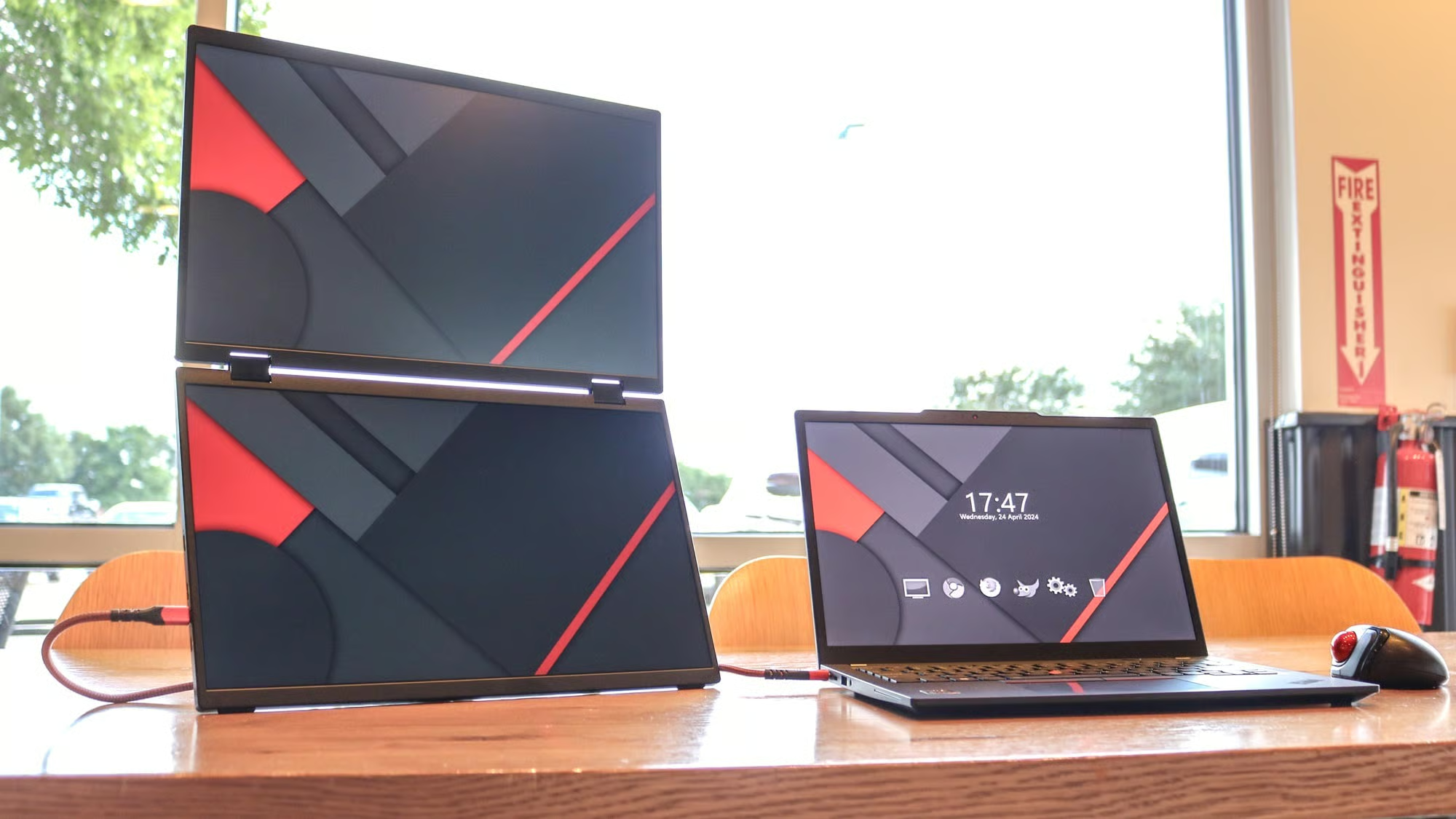
Figuring out how to adjust brightness on portable monitor setups shouldn't feel like a scavenger hunt. Yet here you are, staring at a blindingly loud screen in a dark room or squinting at a dim panel in sunlight, unable to find a single button. You're not alone.
Most portable monitors bury their controls in places nobody thinks to look.
Manufacturer specifications indicate that typical portable monitors range from 250 to 550 nits of brightness. Some high-visibility models hit 1000 nits or more. The control method varies wildly between brands and even between product lines.
That's exactly why a one-size-fits-all answer never works here. Let's walk through each method based on what your specific monitor actually offers.
Quick Answer
You can adjust brightness on a portable monitor three ways. Use the monitor's built-in buttons or joystick to access the OSD menu. Adjust it through your computer's display settings if the OS detects the monitor.
Use third-party software like MonitorControl or ClickMonitorDDC for slider control without touching the monitor. Your available options depend entirely on your connection type and monitor model.
Why Brightness Control on Portable Monitors Is Confusing
The core problem is design inconsistency. Some portable monitors ship with clearly labeled buttons along the bottom edge. Others use a tiny joystick hidden on the back or side.
Many modern ultra-slim models ditch physical controls entirely and expect you to use software. There's no industry standard, so ASUS, LG, Lenovo, ARZOPA, and ViewSonic all approach this differently.
Then there's the connection variable. A USB-C connection using DisplayPort Alt Mode may unlock full DDC/CI communication between your computer and the monitor. An HDMI connection might block that same communication, leaving you with zero software control.
Your operating system matters too. Windows handles external monitor brightness differently than macOS, and ChromeOS has its own quirks.
Here's the kicker. Many users buy a portable monitor expecting a brightness slider to just appear in their system settings. When it doesn't, they assume the monitor is defective.
It's not. It's just a hand-off between hardware protocols that don't always talk to each other.
The 3 Real Ways to Adjust Brightness (Pick Your Method)
Before we dive into steps, you need to know which path applies to your situation. Most portable monitors fall into one of three categories based on how they accept brightness input.
Method 1: The Monitor's Own Controls (OSD Menu)
The On-Screen Display menu is the hardware-level fallback. It always works regardless of your connection, OS, or cable. If your monitor has any buttons at all, this is your primary method.
Best for: Every situation, especially when software control fails or isn't available.
How it works: You press a physical button (or joystick) on the monitor itself to pull up a menu overlay on the screen. From there you navigate to a brightness setting and adjust it using the same controls.
Method 2: Your Computer's Operating System Settings
This is the convenient method you probably hoped would be the default. Windows, macOS, ChromeOS, and Linux all offer display brightness controls. Whether those controls actually reach your portable monitor depends on the DDC/CI protocol being enabled and your connection supporting it.
Best for: Users who want quick adjustments without reaching for the monitor.
The catch: macOS in particular has historically excluded external monitors from its brightness slider. Windows is more cooperative but still requires DDC/CI to be active. We'll cover workarounds below.
Method 3: Third-Party Software Control
When your operating system won't cooperate, dedicated software can often fill the gap. These apps communicate directly with the monitor through DDC/CI or I2C protocols.
Best for: macOS users with external monitors, power users who want keyboard shortcuts, and multi-monitor setups.
Popular options:
- MonitorControl (macOS, free) Adds brightness and volume sliders for external displays via DDC/CI.
- ClickMonitorDDC (Windows, free) Provides a system tray interface for monitor controls.
- Lunar (macOS, freemium) Offers adaptive brightness and location-based adjustments.
- Twinkle Tray (Windows, free) Adds per-monitor brightness sliders to the system tray.
| Method Works When… | Physical OSD | OS Settings | Third-Party App |
|---|---|---|---|
| You have buttons/joystick | Yes | Not needed | Not needed |
| No buttons, DDC/CI enabled | No | Maybe | Yes |
| No buttons, DDC/CI disabled | No | No | No |
| macOS external display | Not needed | Rarely works | Yes |
| Travel, no software install | Yes | Limited | No |
Step-by-Step: How to Adjust Brightness Based on Your Setup
Now let's get specific. Find your situation below and follow the steps.
If Your Monitor Has Buttons or a Joystick
This is the most straightforward path. Nearly every portable monitor with physical controls uses a variation of this workflow.
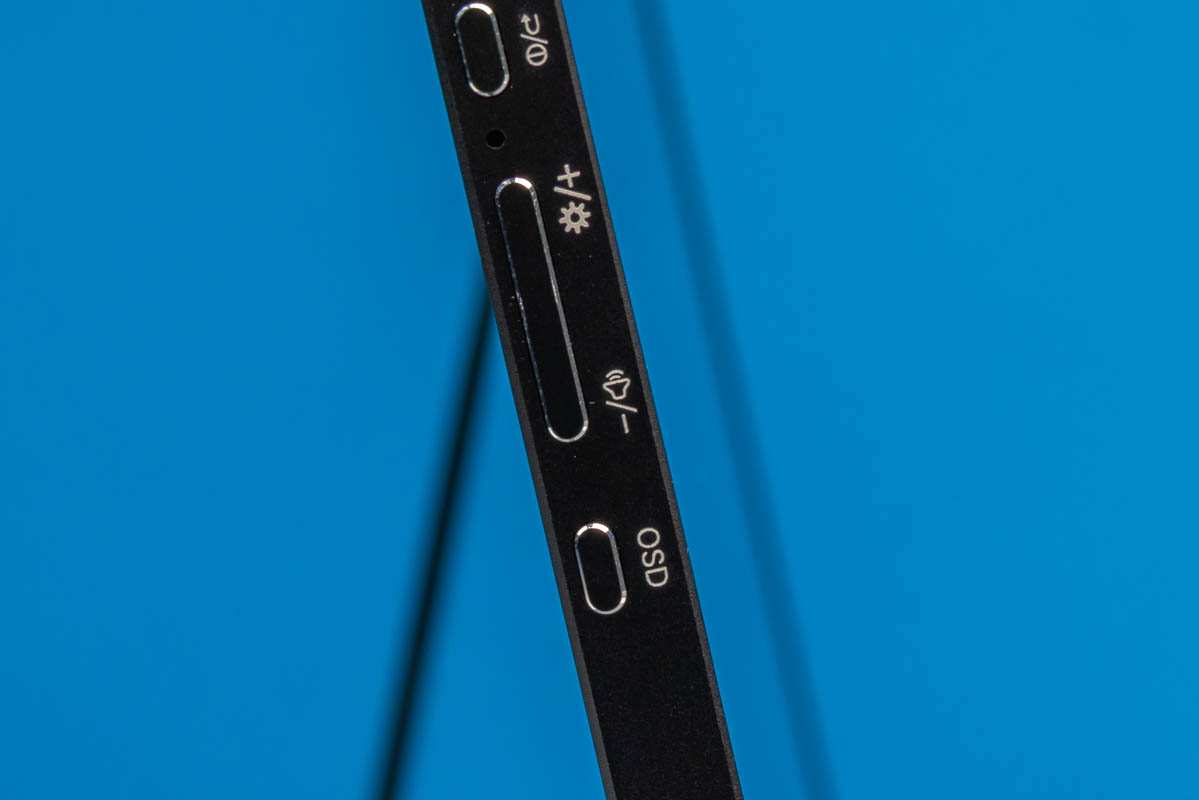
Locate the controls. Check the bottom edge, right side, or back panel. Some monitors use two buttons (Menu and Power/Navigate). Others use a single joystick that you push in to click and tilt to navigate.
Press the Menu button or click the joystick. An OSD overlay should appear on screen showing options like Brightness, Contrast, Input Source, and Volume.
Navigate to Brightness. If you have two buttons, press the navigation button to highlight "Brightness." With a joystick, tilt toward the Brightness option.
Adjust the value. Press the appropriate button or tilt the joystick to increase or decrease. Most monitors use a 0 to 100 scale. A setting around 40 to 60 works well for indoor use.
Wait for the OSD to auto-dismiss. Most menus disappear after three to five seconds of inactivity. Some monitors require you to press a button to exit.
Verify the change. The screen should visibly brighten or dim. If nothing happens, confirm DDC/CI isn't conflicting with the OSD setting.
Pro tip for joystick monitors: If you're pushing the joystick in the wrong direction and can't find brightness, you may be in a submenu. Push the joystick toward "Back" or "Exit" and start over. The menu structure varies by brand.
If Your Monitor Has No Visible Controls
Some modern portable monitors (especially thin-bezel models) have no buttons or joystick at all. This design looks clean but creates a real problem for brightness adjustment.
Here's what to check first:
Look for a capacitive touch button. Some monitors use a touch-sensitive strip rather than a physical button. Run your finger along the edges of the monitor frame and look for a response on screen.
Check for a rocker switch. A few models use a small rocker switch on the back that's nearly invisible. Feel along the rear panel carefully.
Look for a USB-based control option. Some button-less monitors ship with a downloadable utility that adjusts brightness through the USB connection.
If you've confirmed there are absolutely no physical controls, your options narrow:
- Connect via USB-C with DDC/CI enabled and use third-party software
- Check if your monitor's mobile app offers brightness control (a few brands like LG do)
- On Windows, check Display Settings for a brightness slider
If none of those work, you're stuck at whatever factory default brightness the monitor ships with. That default is typically around 70 to 80 percent, which is fine indoors but rough in bright sunlight or dark rooms. We'll cover fixes in the troubleshooting section.
If You're Using Windows
Windows gives you a few different paths to adjust brightness on an external portable monitor. Availability depends on whether your monitor exposes DDC/CI to the operating system.
Method A: Quick Settings (Fastest)
- Click the notification area icons in the bottom-right corner of your taskbar (Wi-Fi, Volume, Battery area).
- Look for a brightness slider in the Quick Settings panel.
- Drag it left or right.
If the slider is greyed out or missing for the external monitor, move to Method B.
Method B: Display Settings
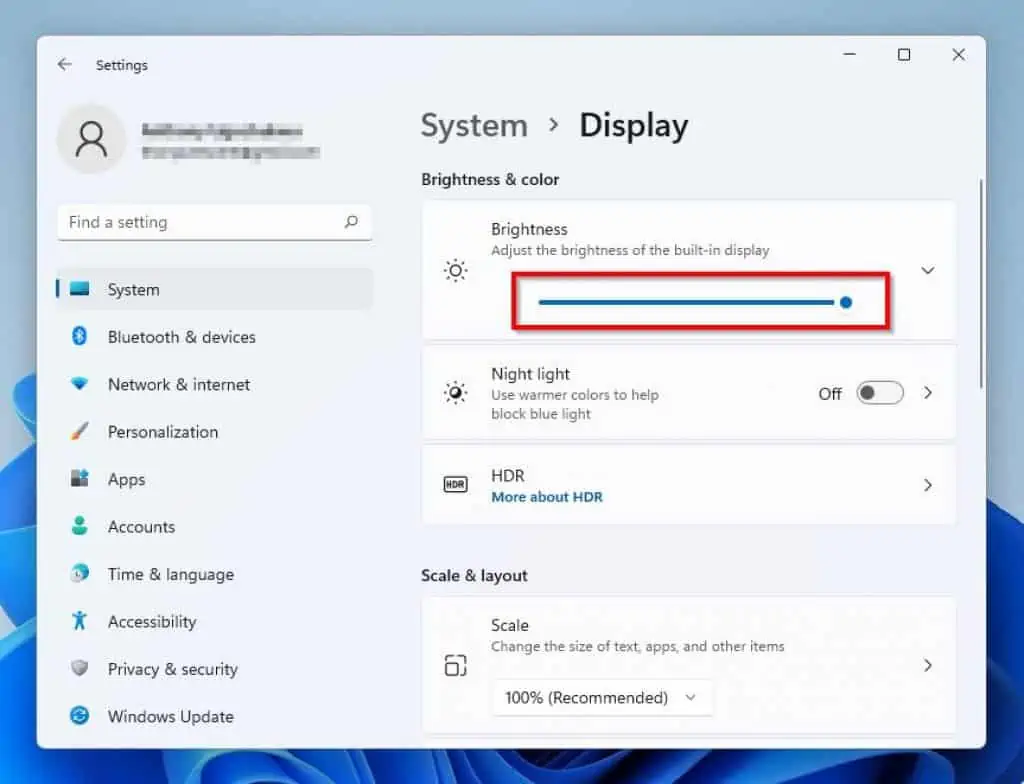
- Right-click the desktop background and select "Display settings."
- Identify which display is your portable monitor (click "Identify" if unsure).
- Under the selected display, look for the "Brightness and color" or "Brightness and color" section.
- Use the slider to adjust.
If the slider is still missing, your monitor likely isn't communicating brightness controls through DDC/CI. This is common with HDMI connections on some portable monitors.
Method C: Use the Intel/NVIDIA/AMD Control Panel
If your laptop uses integrated Intel graphics, the Intel Graphics Command Center sometimes exposes brightness controls for external displays that Windows Settings does not. NVIDIA and AMD control panels offer similar options on their respective hardware.
If You're Using macOS
This is where most people hit a wall. Apple restricts its native brightness slider to built-in displays and Apple-branded external displays (like Studio Display and Pro Display XDR). Third-party portable monitors rarely get a brightness slider in System Settings.
However, you have solid workarounds:
- Open System Settings > Displays.
- Check whether a brightness slider appears next to your portable monitor name.
- If it does (rare, requires DDC/CI support), use it.
- If it doesn't (expected), download MonitorControl from GitHub (free, open source).
- Install and grant Accessibility permissions when prompted.
- The app adds a brightness slider to your menu bar and lets you adjust with keyboard shortcuts.
MonitorControl is the go-to solution in 2026. It's actively maintained, supports most DDC/CI-capable monitors, and lets you assign custom keyboard shortcuts for brightness up/down.
Note: If you're on an Apple Silicon Mac with a USB-C monitor, some users report partial native slider support in newer macOS versions. It's inconsistent across monitor models, so third-party software remains the reliable fix.
If You're Using ChromeOS
ChromeOS handles external monitor brightness surprisingly well on modern Chromebooks.
- Click the status area (bottom-right corner, near the clock).
- In the Quick Settings panel, look for a brightness slider.
- If your portable monitor supports DDC/CI over USB-C, the slider should control it directly.
If the slider doesn't affect the external display:
- Open Settings > Device > Displays.
- Select your external monitor from the display arrangement.
- Look for brightness controls within that menu.
ChromeOS support for external monitor brightness over HDMI is spotty. USB-C is your best bet for software control on a Chromebook.
If You're Connecting a Phone or Tablet
When you connect a portable monitor to an Android phone or iPad for gaming or productivity, brightness control gets tricky.
For Android:
- Most Android phones don't expose external monitor brightness controls in the OS.
- Use the monitor's physical OSD controls instead.
- Some Samsung DeX modes offer limited external display settings, but brightness isn't typically one of them.
For iPad:
- iPadOS doesn't provide a brightness slider for external displays.
- Use the monitor's built-in controls.
- If you're using Stage Manager with an external display, brightness management is entirely on the monitor side.
Bottom line for mobile: Plan on using the monitor's physical controls. Software-based brightness adjustment over a phone or tablet connection is almost never available as of 2026.
Common Problems and How to Fix Them
This is where most guides stop. We're not stopping here. These are the issues that actually frustrate people in real setups.
The Brightness Slider Is Greyed Out or Missing
On Windows: If the brightness slider is greyed out for your external portable monitor, DDC/CI communication isn't active. Open the monitor's OSD menu and look for a setting called "DDC/CI" or "Monitor Control." Enable it. Then restart your computer.
If the monitor doesn't have DDC/CI in its OSD, you're limited to physical controls only.
On macOS: A missing slider is the norm, not the bug. Install MonitorControl. That's the fix.
On all systems: HDMI connections sometimes don't carry DDC/CI signals. If you're connected via HDMI, try switching to USB-C if your monitor supports it.
Brightness Resets After Power Cycle
Some portable monitors don't save brightness settings across power cycles. You adjust it to a comfortable level, turn the monitor off and on, and it jumps back to default. This is a firmware issue on certain budget models.
What helps:
- Check the manufacturer's website for a firmware update. Some brands (ASUS, ARZOPA, ViewSonic) release firmware that fixes brightness retention.
- If no firmware exists, you'll need to readjust each time. This is a known limitation on some sub-$150 models.
- A few monitors save settings only when adjusted through the OSD, not through software. Try adjusting via the physical menu if software adjustments aren't sticking.
The OSD Menu Won't Stay Open Long Enough
Three to five seconds sounds like enough time until you're fumbling through a nested menu at 1 AM. Some monitors have an absurdly short OSD timeout.
Workarounds:
- Open the OSD menu only after you've identified exactly which setting you want to change.
- On some monitors, pressing and holding the Menu button keeps the OSD open longer.
- If your monitor has a joystick, rapid navigation sometimes resets the timeout timer, giving you more time.
DDC/CI Is Disabled and Software Control Won't Work
DDC/CI (Display Data Channel Command Interface) is the protocol that lets software talk to your monitor. Many portable monitors ship with it disabled by default.
To enable it:
- Open the monitor's OSD menu using physical controls.
- Navigate to System or Setup settings.
- Find "DDC/CI" and toggle it On.
- Restart your computer.
Once enabled, Windows should show a brightness slider, and third-party apps like MonitorControl or ClickMonitorDDC should detect the monitor.
Warning: On a few monitors, enabling DDC/CI can cause minor flickering or color shifts. If that happens, disable it and stick with physical controls.
macOS Won't Show a Brightness Slider for Your External Monitor
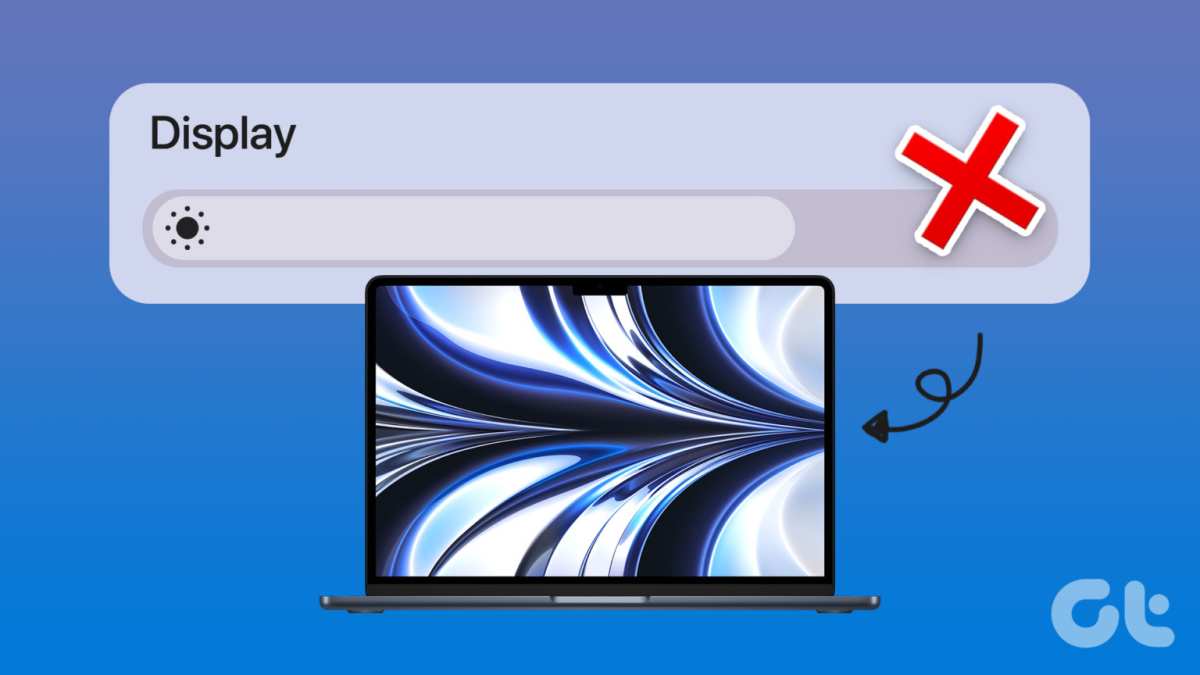
This is the single most common complaint we see. Apple doesn't expose brightness controls for third-party external displays through its native settings. It's not a bug.
It's how macOS works.
The fix is MonitorControl. Here's the quick setup:
- Download MonitorControl from its GitHub releases page.
- Install it and open the app.
- Go to System Settings > Privacy & Security > Accessibility.
- Add MonitorControl to the allowed apps list.
- Restart MonitorControl.
- You'll now see a brightness slider in your menu bar that controls the external display.
The app also lets you assign keyboard shortcuts. Most people map brightness up/down to function keys they don't normally use. It's a clean, lightweight solution that's been the standard recommendation since 2020 and remains so in 2026.
Alternative: Lunar offers more features (adaptive brightness, location-based curves) but has a freemium model. MonitorControl is free and sufficient for most people.
Quick Comparison: Which Method Works for Your Situation?
| Your Setup | Best Method | Backup Plan |
|---|---|---|
| Monitor has buttons/joystick | OSD menu | Third-party software |
| Monitor has no buttons, USB-C | Third-party software | Check OSD via capacitive touch |
| Monitor has no buttons, HDMI | OSD if available, otherwise stuck | Upgrade to USB-C cable |
| macOS laptop + any monitor | MonitorControl | OSD menu |
| Windows laptop + DDC/CI enabled | OS brightness slider | OSD menu |
| Windows laptop + DDC/CI disabled | OSD menu | Enable DDC/CI in OSD |
| Phone or tablet connection | OSD menu | Nothing else works |
| Gaming console (Switch, Steam Deck) | OSD menu only | Console system settings rarely reach monitor |
Pro Tips for Better Brightness Management
Match brightness to your ambient light. A monitor at 100 percent brightness in a dark room causes eye strain fast. A monitor at 30 percent in a sunlit café is unreadable. A good rule that aggregate reviews suggest: your monitor brightness should roughly match the brightness of your surrounding environment.
If your desk surface looks well-lit to your eyes, your screen should feel similarly bright.
Enable adaptive brightness carefully. Some portable monitors with ambient light sensors auto-adjust brightness based on room conditions. This feature works well on a few higher-end models. On budget monitors, the sensor tends to overcorrect or lag.
If your screen keeps dimming and brightening at random, turn adaptive brightness off and adjust manually.
Use DDC/CI to unlock hidden software controls. Many people don't realize their portable monitor supports DDC/CI until they check the OSD. Enabling it opens up brightness control through Windows Settings and third-party apps. This is the single most impactful setting change you can make for convenience.
Update firmware when brightness acts buggy. Several portable monitor models from ASUS, ARZOPA, and ViewSonic have had firmware updates that fixed brightness retention issues, flickering at low brightness levels, and DDC/CI detection problems. Check the manufacturer's support page for your specific model.
Save preset modes if available. Higher-end portable monitors let you save display profiles like "Reading," "Movie," or "sRGB." These presets often include brightness configuration. If your monitor supports presets, set one for daytime use and one for nighttime. Switching between them is faster than manually adjusting every time.
Frequently Asked Questions
Can I adjust brightness on a portable monitor without buttons?
Yes, if your monitor connects via USB-C and supports DDC/CI. Use third-party software like MonitorControl on macOS or ClickMonitorDDC on Windows. If DDC/CI is disabled, you'll need to enable it through any available control, or you have no software option.
Why is there no brightness slider for my external monitor on Mac?
Apple restricts native brightness controls to its own displays and built-in screens. Third-party portable monitors don't get a slider in System Settings. Install MonitorControl to add full brightness and volume control for your external monitor.
Does lowering brightness save battery on a portable monitor?
Yes. Lowering brightness from 100 to 50 percent typically reduces power draw by 15 to 30 percent based on manufacturer power specs. This extends battery life on portable monitors with built-in batteries and reduces power consumption on USB-C powered models.
Why does my monitor brightness keep resetting?
Budget portable monitors sometimes lose brightness settings after a power cycle due to firmware limitations. Check the manufacturer's website for a firmware update. If none exists, this is a hardware limitation you'll need to live with or work around by adjusting each session.
Can I control portable monitor brightness from my phone?
Almost never. Android and iPadOS don't expose external monitor brightness controls through their system settings. Some Samsung DeX modes offer limited display controls, but brightness adjustment specifically is rarely available.
Plan on using the monitor's physical OSD controls when connected to mobile devices.
Does HDMI support brightness control over software?
Usually not. HDMI connections on portable monitors often don't carry DDC/CI signals reliably. USB-C with DisplayPort Alt Mode is the recommended connection for software-based brightness control.
Switch to USB-C if you want OS-level slider access.

Similar Posts





















