How Do I Know If My Monitor Is Mini LED
Figuring out how do I know if my monitor is mini led comes down to three things: the spec sheet, the backlight behavior, and what you can actually see on screen. The problem is that manufacturers love slapping "Mini-LED" on boxes even when the hardware doesn't back it up. Some of these are edge-lit panels with a marketing sticker, not true Mini-LED at all.
In our research, we've found that a genuine Mini-LED monitor uses thousands of tiny LEDs divided into hundreds of dimming zones, typically 384 zones at minimum and up to 2,304 on premium models as of 2026. That zone count is the single most reliable number to check before you trust any claim on the box. Let's walk through exactly what to look for, step by step. This directly compares with our findings on whether mini led monitor good for gaming.
Quick Answer
Check your monitor's model number on the manufacturer's website. Look for the dimming zone count in the specs. A true Mini-LED monitor has at least 384 dimming zones.
If the specs don't list zone count, it's probably not Mini-LED.
Why You Can't Tell Mini-LED From a Spec Sheet Alone
Here's the frustrating part. A spec sheet might say "LED backlight" or "HDR compatible" and leave you guessing. Those terms don't tell you anything about the backlight type.
Edge-lit, direct-lit, and full-array can all technically be called "LED-backlit" on a product page. Readers evaluating this setup should also consider a mini led monitor for comparative benchmarks.
Manufacturers know this confusion works in their favor. They'll highlight peak brightness and HDR support because those numbers look impressive. What they often bury, or skip entirely, is the dimming zone count.
That's the number that actually separates Mini-LED from everything else.
The visual difference is dramatic once you know what to look for. A true Mini-LED panel can dim specific areas of the screen independently. An edge-lit panel can only dim entire strips, left and right or top and bottom.
You can see the difference in a dark room with bright content on screen. The Mini-LED holds deeper blacks around the bright areas. The edge-lit panel glows gray around them.
So we need to go beyond the spec sheet. We need to look at what the monitor actually does.
What Mini-LED Actually Means (Beyond the Marketing)
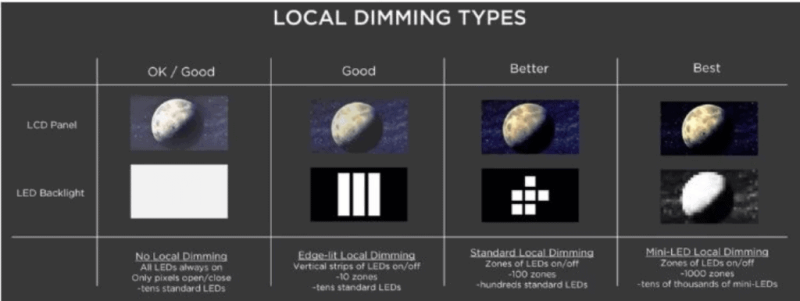
Mini-LED is a backlight technology, not a panel technology. Your monitor still uses an LCD panel, either VA or IPS, sitting on top of the Mini-LED backlight. The "mini" part refers to the physical size of the LEDs used.
They're smaller than traditional LEDs, roughly 0.2mm or less, which lets manufacturers pack thousands of them behind a single panel.
Those LEDs are grouped into zones. Each zone can dim or brighten independently based on what's being displayed. A white cursor on a black screen?
The zone with the cursor stays bright while everything else goes dark. That's local dimming, and it's what gives Mini-LED its contrast advantage over standard LED monitors.
Real Mini-LED vs. Marketing Stickers on Edge-Lit Panels
This is where most people get tripped up. A monitor can be labeled "Mini-LED" in marketing materials and still use an edge-lit design. Some manufacturers use the term loosely to describe any monitor with local dimming, even if there are only 8 or 16 zones along the edges.
True Mini-LED means full-array placement. The LEDs cover the entire back of the panel, not just the edges. And the zone count matters enormously.
A 32-zone full-array backlight is better than edge-lit, but it's not what most people picture when they think Mini-LED. The blooming around bright objects will still be visible and distracting.
Here's a practical rule we use. If the product page doesn't explicitly state the number of dimming zones, assume it's not a serious Mini-LED implementation. Manufacturers that invest in 576 or 1,152 zones want you to know about it.
The ones hiding that number usually have something to hide.
Dimming Zones: The Number That Actually Matters
Zone count is the backbone of Mini-LED performance. More zones mean finer control over brightness across the screen. Here's how the numbers typically break down in the current market as of 2026:
- Budget Mini-LED: 384 zones (common in 27-inch models around $300-$400)
- Mid-range Mini-LED: 576 to 1,152 zones (the sweet spot for most buyers)
- Premium Mini-LED: 1,152 to 2,304 zones (high-end 32-inch and 42-inch models)
- Flagship Mini-LED: 2,304+ zones (professional and enthusiast tier)
The jump from 384 to 1,152 zones is noticeable in everyday use. The jump from 1,152 to 2,304 is subtler, mostly visible in specific test patterns and very dark movie scenes. For gaming and general productivity, 576 zones is a solid baseline.
LED Density and Why One LED Per Zone Still Counts
You might see reviews mention that some Mini-LED monitors use only one LED per zone. That sounds cheap compared to "thousands of LEDs," but it's actually normal. Each zone is a cluster of LEDs wired together as one dimming unit.
A monitor with 1,152 zones might have 1,152 to 4,608 physical LEDs depending on the design.
What matters for image quality is the zone count, not the raw LED count. Two monitors with 1,152 zones will perform similarly in blooming tests, even if one uses twice as many physical LEDs. The extra LEDs improve uniformity and peak brightness, not dimming precision.
The Visual Inspection: What to Look for With Your Own Eyes
This is where things get hands-on. You can learn a lot about your monitor's backlight just by looking at it in the right conditions. You don't need special equipment.
A dark room and a few test patterns will reveal everything.
Step 1: Check the Box or Product Page for Zone Count
Before you even power on the monitor, find the exact model number. It's usually on a sticker on the back or on the box. Search for that model number on the manufacturer's official product page, not a retailer listing.
Retailer specs are often copied, pasted, and wrong.
Look for terms like "dimming zones," "local dimming zones," "FALD zones," or "Mini-LED zones." If you find a specific number, great. If the page mentions local dimming but doesn't give a zone count, that's a yellow flag. Call customer support or check the manual PDF on the manufacturer's site.
Step 2: Open the OSD and Find the Local Dimming Setting
Most Mini-LED monitors ship with local dimming turned off by default. You need to enable it through the on-screen display menu. The setting is usually under "Picture" or "Display" settings and might be called "Local Dimming," "LED Backlight," or "HDR Mode."
If you can't find any local dimming option in the OSD, the monitor either doesn't have it or it's handled automatically with no user control. Neither scenario screams "true Mini-LED." Genuine implementations give you at least an on/off toggle, and premium models offer multiple intensity levels.
Step 3: Run a White Cross on Black Background Test
This is the classic blooming test. Display a white cross or white square on a completely black background. You can find test patterns on YouTube or dedicated display calibration sites.
In a dark room, look at the area immediately surrounding the white shape.
A true Mini-LED monitor with good zone control will show minimal glow around the cross. The black areas away from the cross will stay genuinely black. An edge-lit or low-zone monitor will show visible blooming, a hazy glow extending well beyond the white shape, sometimes across the entire half of the screen.

Step 4: Watch Dark HDR Content in a Dim Room
Static tests are useful, but real content tells the full story. Play a dark movie scene or an HDR game sequence with bright highlights against dark backgrounds. Credits over a black screen are perfect for this.
So are space scenes and horror games.
Watch for how the bright areas interact with the surrounding darkness. On a quality Mini-LED panel, the bright credits stay sharp and the black background stays deep. On a fake or low-zone Mini-LED, you'll see a gray haze around the text, and the black areas will look washed out.
Compare side by side with a known OLED if you can. OLED sets the benchmark here, per pixel-level control with zero blooming.
Side-by-Side Reference: Mini-LED vs. Edge-Lit vs. OLED
Here's how the main backlight technologies compare in practice. This table summarizes what matters most when you're trying to identify what's actually behind your screen.
| What You're Testing | Mini-LED | Edge-Lit LED | Full-Array LED (Non-Mini) | OLED |
|---|---|---|---|---|
| Zone count | 384 to 2,304+ | 4 to 32 | 96 to 512 | Per-pixel (millions) |
| Blooming | Present but controlled | Severe | Moderate | None |
| Black uniformity | Good with dimming on | Poor | Decent | Perfect |
| Peak HDR brightness | 1,000+ nits typical | 400 to 600 nits | 600 to 1,000 nits | 600 to 1,000 nits |
| Burn-in risk | None | None | None | Yes |
| Price range (2024) | $300 to $1,200+ | $150 to $400 | $250 to $600 | $400 to $2,500+ |
| Best for | HDR gaming, HDR content creation | Budget gaming, office use | General media use | Dark room movies, professional color work |
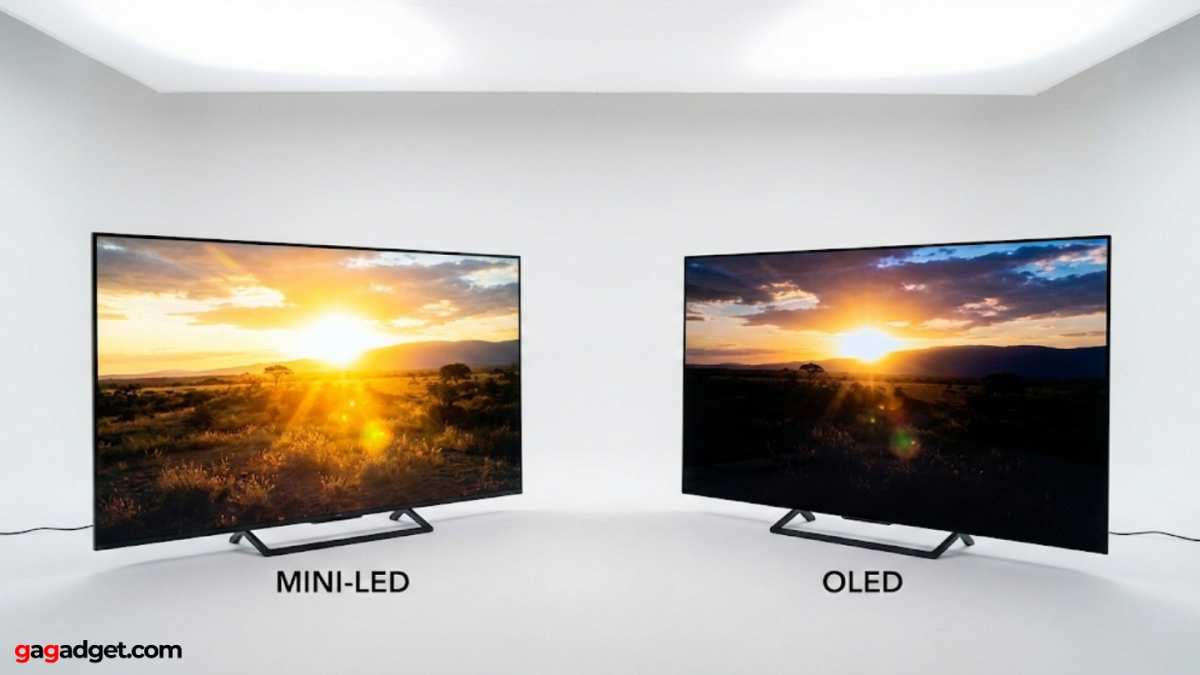
The key takeaway here is that Mini-LED and traditional full-array LED occupy similar territory. The difference comes down to zone count and LED density. A 512-zone full-array monitor performs closer to a 384-zone Mini-LED than to a 1,152-zone Mini-LED.
The technology label matters less than the actual zone specification.
Common Mistakes When Identifying Mini-LED
People get tripped up by marketing language and assumptions more than by technical complexity. Here are the most frequent missteps we've documented in buyer forums and return reviews.
Assuming "HDR Compatible" Means Mini-LED
HDR and Mini-LED are not the same thing. HDR describes a signal standard, a range of brightness and color the content can contain. Mini-LED describes a hardware backlight.
You can have an HDR-compatible edge-lit monitor. You can also have a Mini-LED monitor with mediocre HDR performance because its peak brightness tops out at 400 nits. VESA DisplayHDR 400 certification is particularly misleading.
It doesn't require local dimming at all.
DisplayHDR 600 is where local dimming becomes mandatory. DisplayHDR 1000 and 1400 require good local dimming with meaningful zone counts. If your monitor carries DisplayHDR 1000 or higher, there's a strong chance it uses Mini-LED.
DisplayHDR 400 and 600 tell you almost nothing about the backlight type. Check the actual HDR certification tier on the VESA website, not just the badge slapped on the box.
Trusting "Mini-LED" on the Box Without Checking Zone Count
This one stings. A growing number of monitors advertise "Mini-LED" prominently while offering 32 or 64 dimming zones. Technically, those are mini LEDs powering a basic full-array backlight.
Practically, they don't deliver the contrast improvement people expect from Mini-LED. Compare 64 zones to a genuine 1,152-zone Mini-LED. The blooming difference is night and day.
Our recommendation is straightforward. Verify the zone count through the manufacturer's official documentation. If you can't find a specific number, treat the "Mini-LED" claim as unverified.
Retail product pages may use copied specifications from older prototypes. The manufacturer's own spec sheet PDF is more reliable. Community forums can also help confirm real-world zone counts when official sources fall short.
Confusing IPS Glow With Blooming
IPS glow is a property of IPS-type panels. It's a silvery or golden sheen visible in dark scenes, usually near the corners. It changes when you shift your viewing angle.
Blooming, on the other hand, appears as a soft halo around bright objects against dark backgrounds. It stays in place regardless of viewing angle.
If you see a bright white patch around the YouTube logo on a black background, that's blooming. If you see a silvery sheen in the bottom-right corner of the screen when the whole image is dark, that's IPS glow. Both exist on many IPS + Mini-LED monitors.
Neither one tells you the monitor isn't Mini-LED. They're just artifacts of different origins.
Testing in a Bright Room Where Everything Looks the Same
Ambient light washes out contrast differences between backlight technologies. A Mini-LED monitor in a well-lit office looks remarkably similar to a standard LED monitor. The advantage of local dimming only becomes apparent when the surrounding environment is dim.
Move to a darker room. Close the blinds. You'll be able to notice blooming behavior and black depth within a few minutes.
This single step resolves more identification questions than any spec sheet comparison.
Ignoring Firmware Updates That Enable Local Dimming
Some monitors ship with local dimming disabled or limited by default. A firmware update may unlock the full zone count or improve dimming algorithms. Manufacturers occasionally add local dimming features after launch for models where the hardware supports it but the software wasn't ready.
This means your "non-Mini-LED" monitor might actually have the hardware. It just needed a firmware push.
Check your monitor's support page for recent firmware releases. Look for changelogs mentioning "local dimming," "HDR improvements," or "backlight control." If you see those terms, download the update and then redo the white cross test. Combine this with the OSD check to make sure the new features are actually enabled.
Who Should Care About Mini-LED vs. Alternatives
Not everyone needs to worry about backlight technology. Here's who benefits most from each option.
HDR Gamers Who Want Contrast Without Burn-In Risk
Mini-LED is currently the best balance of HDR performance and long-term reliability for gamers. You get strong peak brightness for specular highlights in games. You get deep blacks in dark scenes.
And you don't have to stress about HUD elements burning into the screen over time. OLED Gamers may notice slightly deeper blacks in dark rooms, but Mini-LED handles varied lighting conditions and long gaming sessions without burn-in worries. For anyone playing four or more hours daily with a static interface on screen, Mini-LED carries less risk than OLED.
Content Creators Grading on a Budget
If you're doing HDR grading or color-critical work but can't justify a $2,000+ OLED reference monitor, Mini-LED fills the gap nicely. The high peak brightness helps evaluate HDR content accurately. The local dimming gives you better shadow detail than edge-lit alternatives.
Just make sure you're comparing your display against a calibrated reference when color accuracy is critical. Many Mini-LED monitors can be hardware-calibrated for sRGB or DCI-P3. Check reviews that measure out-of-the-box calibration accuracy on models like the ASUS ProArt or Acer Pro series.
Office and Productivity Users
If your workflow is spreadsheets, documents, and web browsing, Mini-LED adds little value over a good standard LED. These tasks don't benefit from local dimming or high peak brightness. A quality edge-lit IPS with good uniformity will serve you just fine and cost less.
Mini-LED shines brightest in mixed-brightness scenarios. Those situations rarely come up during general office work. Spend the savings on ergonomics, a better-standing desk, or a higher-resolution panel instead.
Movie Watchers in Dark Rooms
This is where the decision gets interesting. If you watch mostly movies in a dedicated dark room, OLED still holds the crown. Those perfect blacks from pixel-level dimming are unbeatable for cinematic content.
Mini-LED with improved algorithms in newer 2026 models has narrowed the gap considerably. But viewed side by side, OLED often still wins in starfield scenes and letterboxed films. If you watch in a room with some ambient light, the higher sustained brightness of Mini-LED can actually make it look better than OLED in those conditions.
The Verdict Checklist: Is Your Monitor Actually Mini-LED?
Here's a consolidated checklist you can run through right now.
- Check the model number. Find it on the back sticker or in the OSD information menu.
- Search the official product page. Not a retailer listing. The manufacturer's own page.
- Find the dimming zone count. It must be a specific number, not a vague mention of "local dimming."
- Verify against the thresholds.
, 1 to 32 zones: Not Mini-LED, likely edge-lit or basic FALD
, 33 to 384 zones: Bare-minimum Mini-LED, heavy blooming expected
, 384 to 1,152 zones: Legitimate Mini-LED with meaningful contrast improvement
, 1,152+ zones: Premium Mini-LED with fine-grained dimming
- Check the OSD for local dimming settings. No toggle means no real local dimming control.
- Run the white cross test. Display a white cross or white square on pure black. Look for blooming.
- Test in a dark room. Ambient light hides the visual differences between backlight types.
- Verify firmware is current. Some monitors need an update to unlock full local dimming features.
- Check VESA HDR certification level. DisplayHDR 1000+ strongly suggests hardware local dimming. DisplayHDR 400 and 600 do not guarantee it.
- Compare against known Mini-LED and OLED references. If you've never seen OLED-perfect blacks or true Mini-LED contrast, it's harder to judge what you're looking at in a store demo.
If your monitor passes the zone count check, shows minimal blooming on the white cross test in a dark room, and has local dimming controls in the OSD, you have a genuine Mini-LED display. If it fails on any of those points, the "Mini-LED" claim on the box may not reflect what's inside. Rely on the specific number, not the marketing badge, and you'll know exactly what you have.

Similar Posts





















