does 144hz monitor increase fps
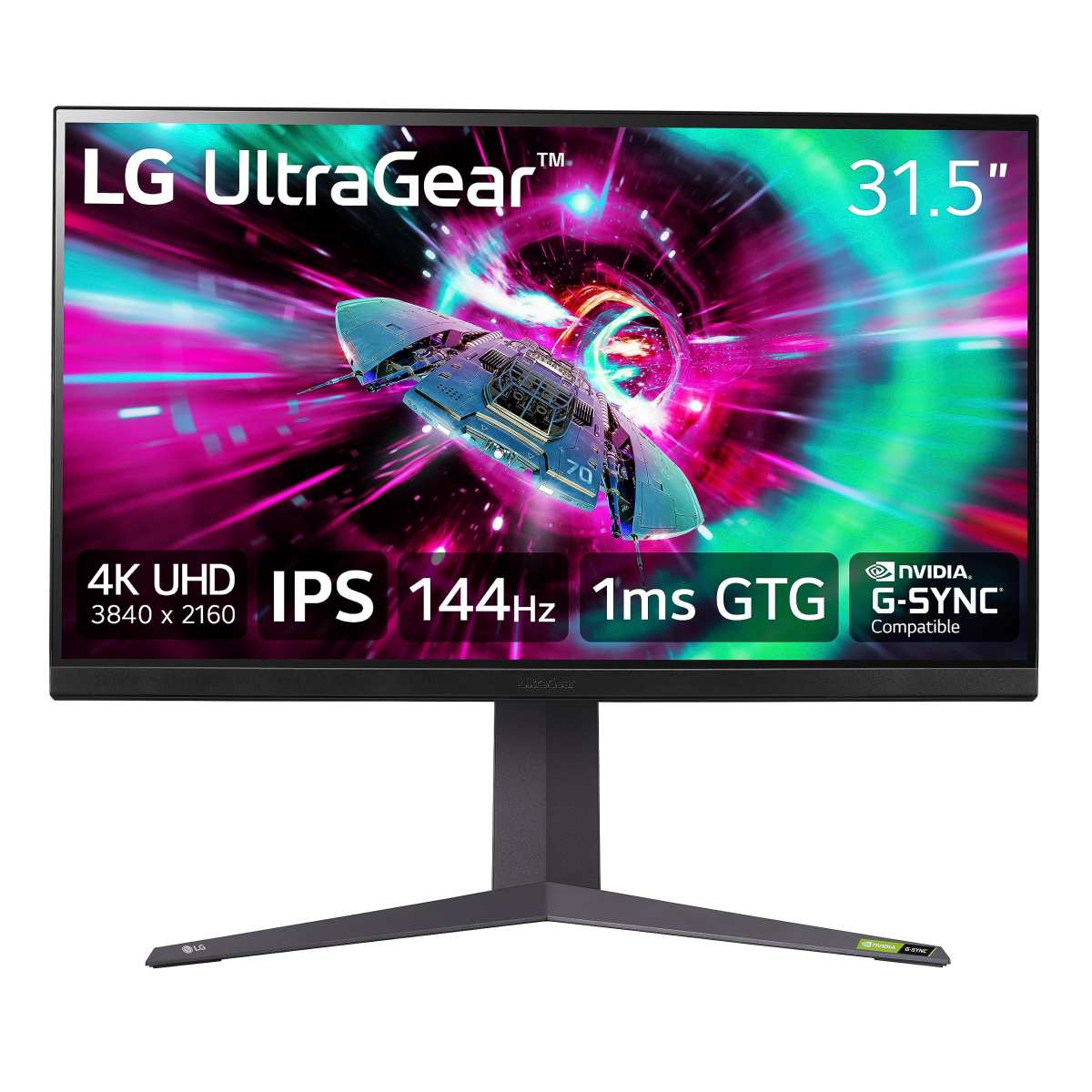
You’re sitting there, wondering if swapping your old 60Hz screen for a 144Hz monitor will actually make your games run faster. The short answer? It depends.
The question “does 144hz monitor increase fps” is one of the most misunderstood topics in PC gaming. Let’s clear it up right now.
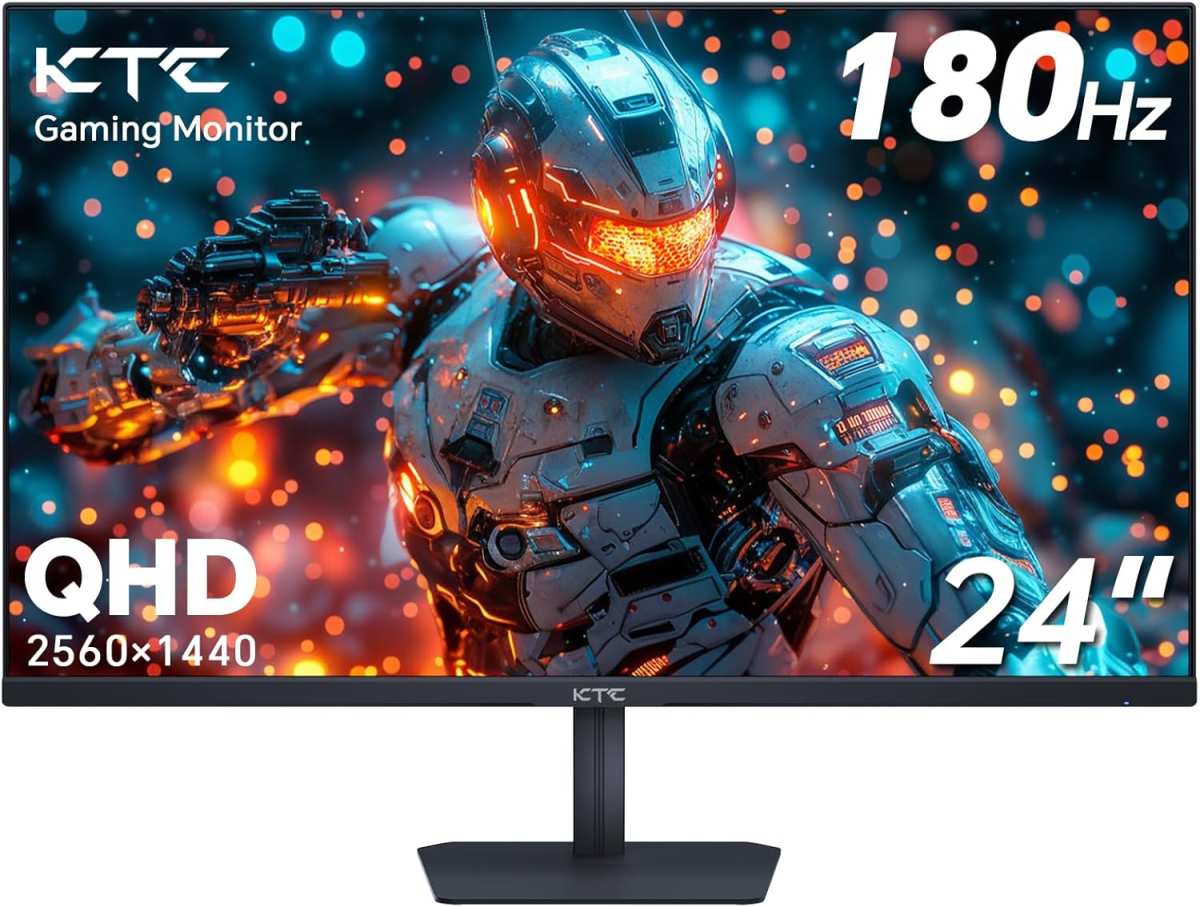
Refresh rate (Hz) and frames per second (FPS) are two different numbers. A 144Hz display can show up to 144 frames every second, but your GPU still decides how many frames it actually renders. If your graphics card can’t push past 60 FPS, the monitor doesn’t magically create more.
As of 2026, the most common bottleneck is still the graphics card, not the screen. Here’s how to figure out where you stand.
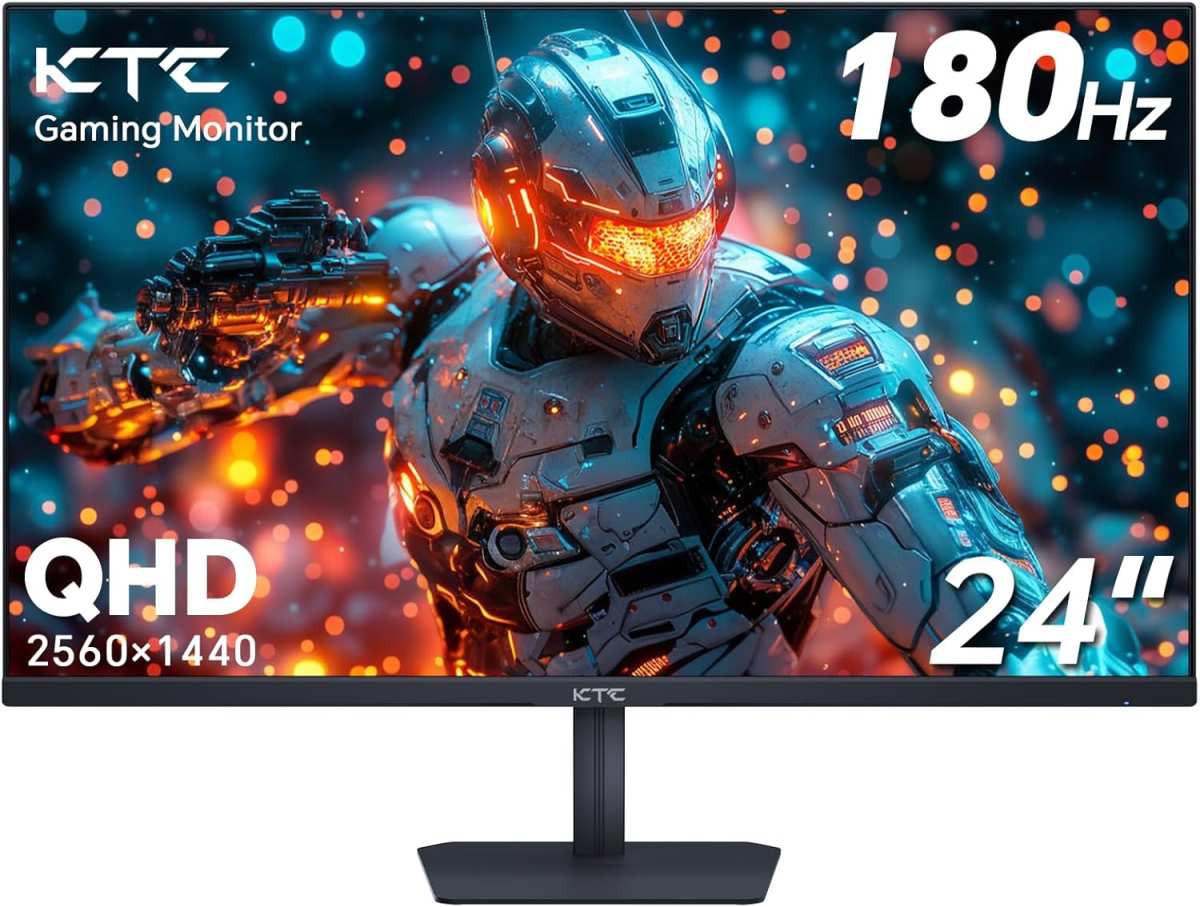
Image source: Bing (Web (fair-use with source credit))
Quick Answer
No, a 144Hz monitor does not increase the raw FPS your GPU produces. It can, however, let you see more frames and reduce input lag. If your GPU already runs above 60 FPS, you will notice smoother motion.
If it runs below 60 FPS, you get no FPS boost but less screen tearing.
How Refresh Rate and Frame Rate Are Different (But Connected)
Think of refresh rate as how many times your monitor refreshes the image per second. That’s the 144Hz number. Frame rate is how many new images your GPU creates each second, your FPS.
These two numbers work together. If your GPU sends 100 FPS to a 60Hz monitor, the monitor can only show 60 of them. The other 40 frames are either discarded or cause tearing.
With a 144Hz monitor, that same 100 FPS gets displayed almost entirely, because the screen can keep up.
Here’s the key difference: the monitor doesn’t speed up your graphics card. It just removes a ceiling. If your GPU was already capable of 120 FPS but your old 60Hz monitor with V-Sync was locking you to 60, switching to 144Hz lets those extra frames through.
That’s the only real “increase” you’ll see, an increase in what’s shown, not in the raw render rate.
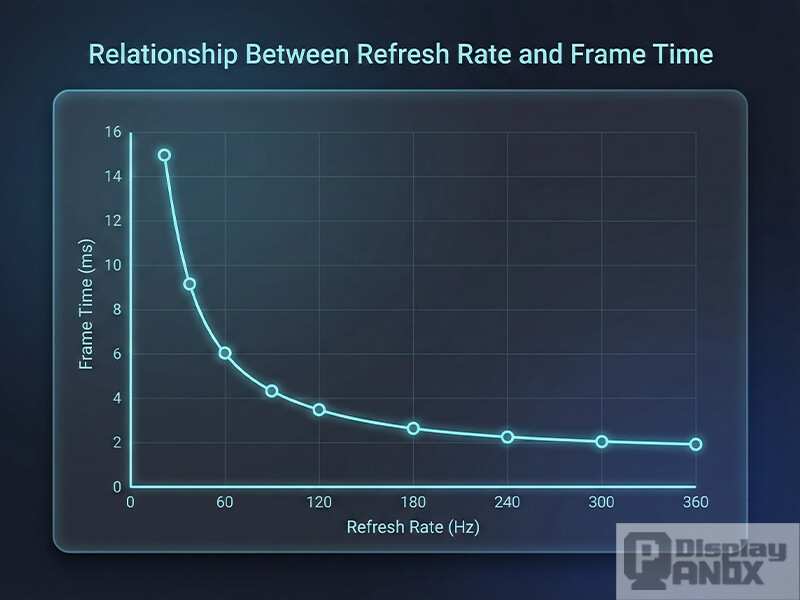
Image source: Bing (Web (fair-use with source credit))
Your GPU still does all the heavy lifting. If it’s already maxed out at 50 FPS in Cyberpunk 2077, a 144Hz monitor won’t give you one extra frame. But if you’re hitting 80 FPS in Valorant and stuck on 60Hz, you’re missing out on 20 frames per second that the monitor simply can’t show.
That’s where the upgrade pays off.
The Three Critical Variables That Decide Your Answer
Not all setups are the same. Your personal answer depends on three things. Let’s walk through each one.
Your GPU’s actual performance (average FPS and 1% lows)
Average FPS tells you the typical output, but 1% lows reveal the dips. If your average is 90 FPS but 1% lows drop to 45, you might still feel stutter. A 144Hz monitor doesn’t fix that, you need a stronger GPU or lower settings.
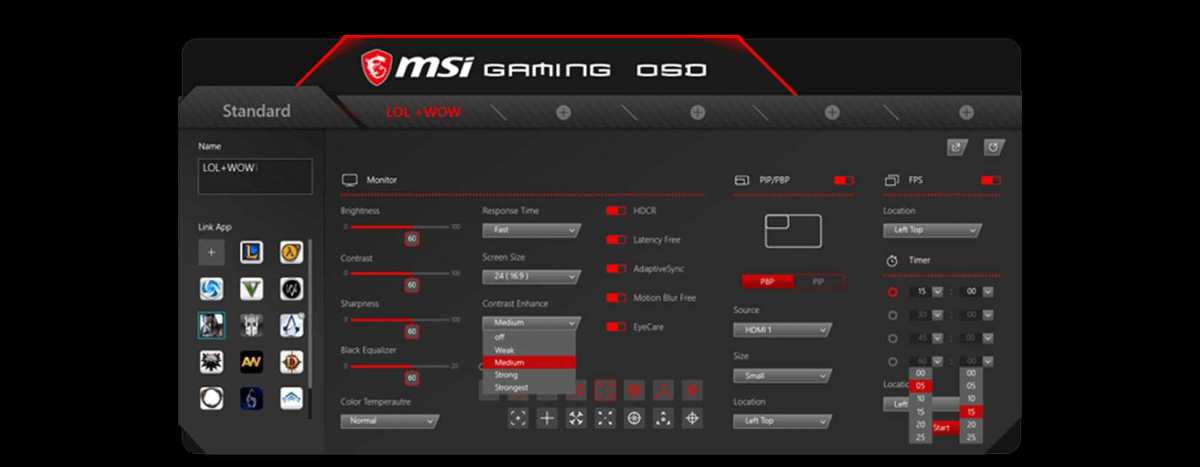
If your average is consistently above 60 FPS, the monitor helps. Check your actual frame rates using an in-game overlay or a tool like MSI Afterburner.
Whether V-Sync is on or off
V-Sync synchronizes your frame output to the monitor’s refresh rate. On a 60Hz screen, V-Sync caps FPS at 60. Turn it on, and your GPU stops at 60 even if it can do more.
Switch to a 144Hz monitor, and that cap jumps to 144, so your FPS “increases” from 60 to whatever your GPU can push. That’s not a real boost to GPU power, but it removes the artificial limit. If you run with V-Sync off, the monitor change has no effect on FPS at all.
The game type and your frame cap
Some games cap FPS internally (like Dark Souls at 60). A 144Hz monitor won’t break that cap unless you mod it. Competitive shooters like CS2 or Overwatch often run uncapped, so a 144Hz screen lets you see every frame your GPU delivers.
Slower titles like Civilization or RPGs benefit less from high refresh rates. Your frame cap, whether set in-game, in the driver, or by V-Sync, determines how much difference the monitor makes.
Decision Tree Branch 1 – When a 144Hz Monitor Can Increase Effective FPS
Here’s the scenario where you actually see a higher number on your FPS counter after plugging in the new monitor. It happens when your GPU was being held back by your old screen.
Scenario: V-Sync is locked to 60Hz and your GPU can push more. You had V-Sync enabled on your 60Hz monitor. Your GPU can easily run 100 FPS, but V-Sync forces it to output only 60. Switch to a 144Hz monitor, disable V-Sync or let it sync at 144Hz, and your FPS jumps to 100.
The monitor didn’t make the GPU faster; it removed the handcuffs.
Scenario: You cap FPS to 60 even though your GPU has headroom. Maybe you set a frame limiter to avoid screen tearing. With a 144Hz monitor, you can raise that cap to 144 or remove it entirely. Your FPS rises to match what the GPU can actually do.
What actually happens: you remove an artificial ceiling. The raw rendering power stays identical. But the number you see on screen goes up. That feels like an increase to the player, and in any practical sense, it is.
Your GPU’s utilization might even increase because it’s no longer idling while waiting for the display.
Decision Tree Branch 2 – When a 144Hz Monitor Won’t Change Your FPS Number
Now the flip side. Most people fall here, and it’s where the confusion lives.
Scenario: Your GPU can’t reach 144 FPS in your games. If you have an older graphics card and you’re getting 45 FPS in Battlefield, a 144Hz monitor doesn’t change that. The GPU is the bottleneck. The monitor just shows the same 45 frames, but now on a screen that refreshes faster than the frames arrive.
You won’t see any FPS increase. In fact, some users report no visible improvement at all because the frame rate is so far below the refresh rate.
Scenario: You keep V-Sync on without adjusting the cap. If V-Sync is still set to 60Hz in your game settings, the monitor’s 144Hz capability is wasted. You’re still locking yourself to 60 FPS. You need to either disable V-Sync, use a variable refresh rate (G-Sync or FreeSync), or change the V-Sync target to 144Hz in the driver.
The truth: FPS stays the same, but smoothness can still improve. Even without an FPS increase, a 144Hz monitor reduces screen tearing when V-Sync is off. It also lowers input lag because the monitor polls for new frames more often. Your average FPS counter won’t budge, but your gameplay might feel smoother.
That’s not a frame rate increase, it’s a perception improvement. We’ll cover this in the next branch.
Decision Tree Branch 3 – When the Monitor Helps Even Though FPS Stays the Same
Your FPS counter shows the same number. But the game feels completely different. That’s the hidden value of a 144Hz monitor.
Reduced screen tearing without V-Sync lag. At 60Hz, running uncapped FPS often tears the image horizontally. A 144Hz screen refreshes so quickly that tears are smaller and less noticeable. Combine that with variable refresh rate (G-Sync or FreeSync), and tearing disappears entirely.
Your FPS doesn’t change. Your visual quality does.
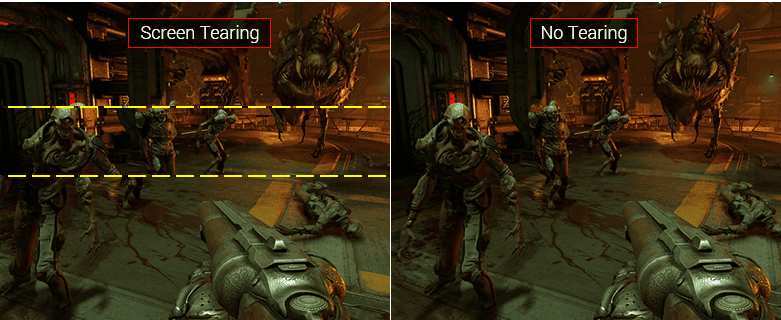
Image source: Bing (Web (fair-use with source credit))
Lower input lag. A 60Hz monitor updates every 16.7 milliseconds. A 144Hz monitor updates every 6.9 milliseconds. That means your mouse movement and keystrokes appear on screen faster.
Competitive players notice this difference instantly. Even at the same FPS, the response feels snappier.
Better motion clarity. Fast-moving objects blur less on a 144Hz display. Each frame stays on screen for a shorter time, so your eyes track motion more smoothly. This matters in shooters where tracking a target is critical.
Your FPS didn’t go up. Your ability to see what’s happening did.
Common Mistakes People Make When Buying a 144Hz Monitor
Most people buy a 144Hz monitor expecting a free FPS boost. Then they plug it in, see no change, and blame the hardware. Here are the real errors.
Buying a 144Hz monitor without checking GPU benchmarks. You need to know what your graphics card can deliver in your games. If it averages 50 FPS, the monitor adds nothing to your frame rate. Check benchmarks for your specific GPU and resolution before spending money.
Leaving V-Sync on and wondering why nothing changed. V-Sync caps your output to the monitor’s refresh rate. If V-Sync is still set to 60Hz in your game or driver, the monitor runs at 144Hz but the GPU still locks to 60. You must disable V-Sync or change the cap.
This is the single most common mistake in our research.
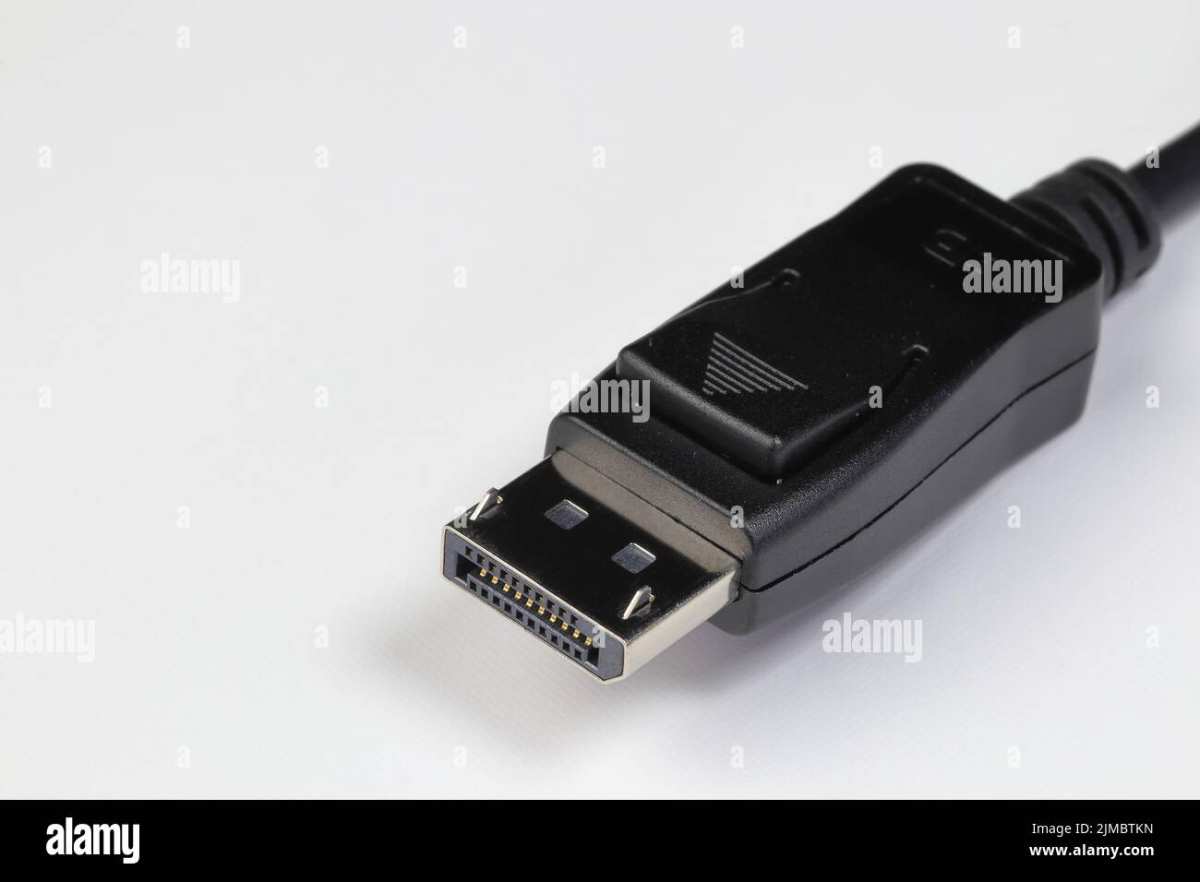
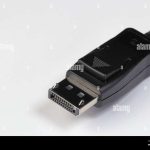
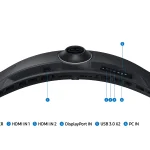
Using the wrong cable. HDMI 1.4 cannot support 144Hz at 1080p. You need DisplayPort 1.2 or higher, or HDMI 2.0 for 1440p and above. Many buyers use the included HDMI cable and wonder why the monitor maxes out at 60Hz.
Check your cable standard.
Image source: Bing (Web (fair-use with source credit))
Confusing “FPS increase” with “perceived smoothness.” Some reviewers claim the monitor boosts FPS. What they mean is that the game feels smoother or input lag drops. Don’t expect your frame counter to jump.
Set realistic expectations.
How to Test Your Own Setup: A Simple 3-Step Workflow
Before you buy anything, find out exactly where your system stands. This takes 10 minutes.
Step 1: Measure your current FPS in your most-played game. Use the in-game overlay or a free tool like MSI Afterburner. Play a typical match or session. Note your average FPS and your 1% low FPS.
The 1% low is more important for smoothness than the average.
Step 2: Identify your bottleneck. If your GPU usage is near 100% while FPS is below 144, the graphics card is the limit. If GPU usage is below 90% and CPU usage is high, your processor is holding things back. A 144Hz monitor won’t fix either bottleneck.
It only helps when the GPU has headroom.
Step 3: Decide if a monitor upgrade or a GPU upgrade comes first. If your average FPS is above 60 but below 144, a 144Hz monitor will help. You’ll see smoother motion and lower lag. If your average FPS is below 60, save the money for a better GPU or lower your game settings.
The monitor alone won’t raise that number.
Real-World Scenario Examples (No Benchmarks Needed)
Let’s apply the logic to two common setups. These examples show how the same monitor gives different results.
Example A: You play CS2 at 200 FPS on a 60Hz monitor. Your GPU is clearly capable. But you see screen tearing and feel input lag. You upgrade to 144Hz.
Now the monitor displays all 200 frames (or as many as it can within its refresh rate). Your FPS counter still shows 200. The game feels dramatically smoother.
This is the ideal upgrade scenario.
Example B: You play Cyberpunk 2077 at 50 FPS on a 60Hz monitor. Your GPU is maxed out. You buy a 144Hz monitor. Your FPS stays at 50.
The game still feels the same. You might notice slightly less tearing if V-Sync is off, but the experience is fundamentally unchanged. You need a GPU upgrade, not a monitor.
These two examples cover most people. If you’re in Example A, buy the monitor. If you’re in Example B, upgrade your graphics card first.
A 144Hz monitor only unlocks potential that already exists.
Quick Decision Guide – Should You Buy a 144Hz Monitor?
Use this table to see where you fit. It’s based on your current FPS average and your main game type.
| Your Average FPS | Game Type | Recommendation |
|---|---|---|
| Above 120 | Competitive shooters (CS2, Valorant, Overwatch) | Buy a 144Hz monitor. You’ll see a major improvement. |
| 80 to 120 | Any fast-paced game | Buy a 144Hz monitor. You’ll notice smoother motion and lower input lag. |
| 60 to 80 | Any game | Consider it. You’ll see some benefit, especially if you play shooters. |
| Below 60 | Any game | Wait. Upgrade your GPU first. The monitor won’t help your FPS. |
| Any FPS | Slow-paced games (RPGs, strategy) | Only buy if you also play faster games. The benefit is minimal for slow titles. |
If your FPS fluctuates heavily, focus on your 1% lows. If your dips stay above 60, the monitor still helps. If dips fall below 40, the stutter will remain regardless of screen.
Frequently Asked Questions About Refresh Rate and FPS
Will a 144Hz monitor make my game run faster?
No. The game’s actual performance depends on your GPU and CPU. A 144Hz monitor does not increase the number of frames your hardware renders.
It removes the display ceiling so you can see frames your GPU already produces. If your GPU was limited by V-Sync or a 60Hz cap, the monitor can show a higher number, but the rendering speed stays the same.
Do I need DisplayPort or HDMI for 144Hz?
For 1080p at 144Hz, DisplayPort 1.2 or higher works. HDMI 2.0 also supports 1080p at 144Hz. For 1440p at 144Hz, you need DisplayPort 1.2 or HDMI 2.0.
For 4K at 144Hz, you need DisplayPort 1.4 or HDMI 2.1. Using an older HDMI 1.4 cable limits you to 60Hz at 1080p. Always check the cable standard that comes with your monitor.
Is 144Hz worth it if I mainly play single-player games?
It depends on the games. Single-player titles at 60 FPS with slow camera movement don’t benefit much from 144Hz. But if you play fast single-player games like Doom Eternal or Spider-Man, the smoother motion and lower input lag still feel great.
For story-driven RPGs at 30 to 60 FPS, a 144Hz monitor offers minimal improvement. Save your money for a better GPU instead.
Can a 144Hz monitor cause stutter or ghosting?
If your GPU cannot maintain a steady frame rate, a 144Hz monitor can expose stutter that was less noticeable at 60Hz. This happens when FPS drops below the refresh rate inconsistently. Ghosting is caused by slow pixel response times, not the refresh rate itself.
Check the monitor’s response time rating. A 1ms to 4ms panel paired with variable refresh rate minimizes both issues.
Should I get a 144Hz monitor or a 240Hz monitor?
Stick with 144Hz if your average FPS is between 100 and 200. The jump from 60Hz to 144Hz is massive. The jump from 144Hz to 240Hz is smaller and only noticeable in competitive esports.
You also need a powerful GPU to push 240 FPS consistently. For most gamers, 144Hz is the sweet spot between cost and improvement.
Final Verdict – The Real Answer in One Paragraph
Does a 144Hz monitor increase FPS? In the strictest sense, no. The monitor does not change what your graphics card renders.
But if your GPU was previously capped by a 60Hz display, switching to 144Hz removes that limit, letting you see and feel every frame your hardware can produce. You also get lower input lag, reduced tearing, and smoother motion even at the same frame rate. The real question is whether your system has headroom.
If it does, buy the monitor. If it doesn’t, upgrade your GPU first. That’s the decision tree, and now you know which branch you’re on.

Similar Posts