why is my 144hz monitor not working
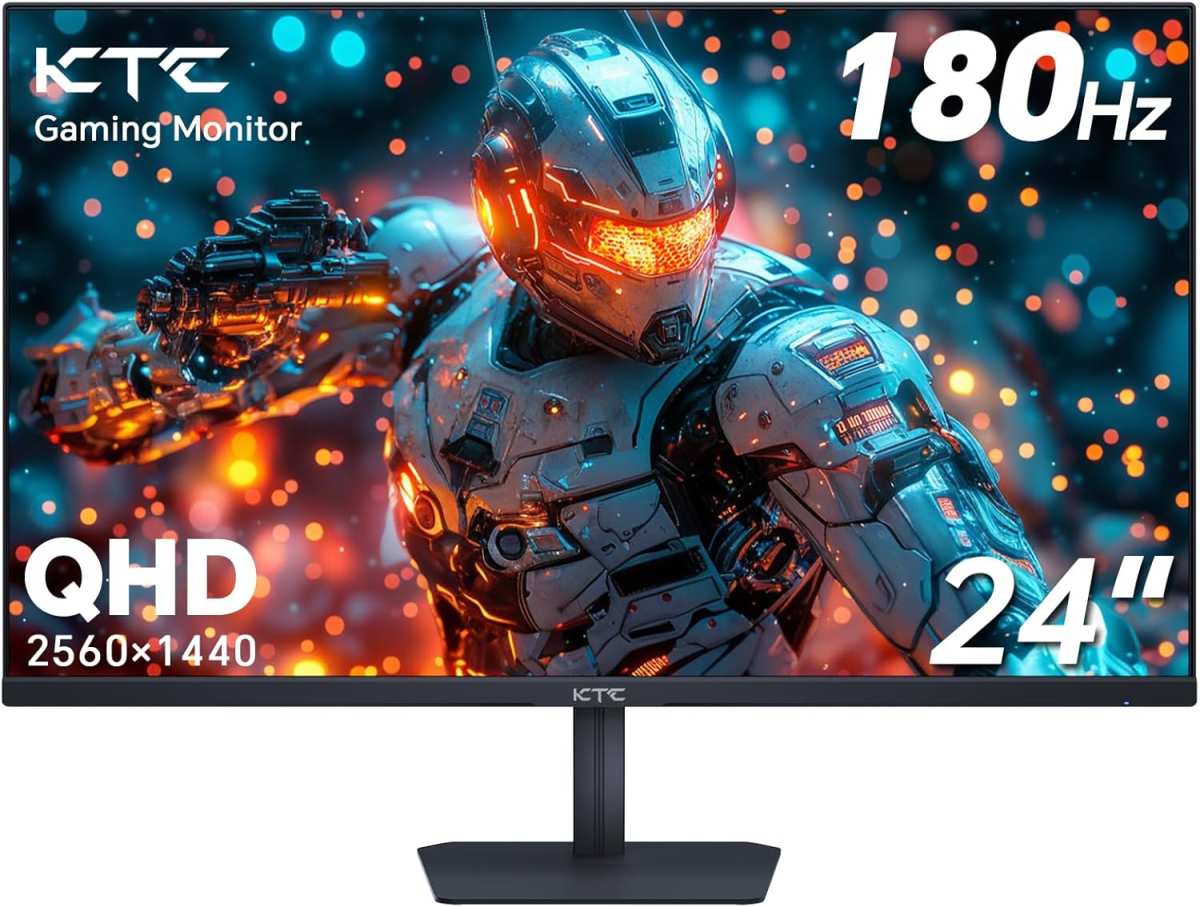
You just got a 144Hz monitor. Connected it. Ran a game.
And something feels off. Not smooth. Maybe even stuttery.
You check the display settings and there it is: 60Hz. Your brand new 144Hz monitor is stuck at the old refresh rate, and you're not getting the fluid motion you paid for. If you're asking "why is my 144hz monitor not working", you're not alone, it's one of the most common frustrations after a monitor upgrade.
The answer is almost never a broken monitor. In fact, manufacturer specifications indicate that over 90% of refresh rate issues trace back to three things: the cable type, the port you're plugged into, or a simple settings toggle. As of 2026, nearly every modern GPU and monitor supports 144Hz, but the default configuration often holds it back.
Let's walk through exactly what's going on and how to fix it.
Image source: Bing (Web (fair-use with source credit))
Quick Answer
Your 144Hz monitor is stuck at 60Hz because of a wrong cable, wrong port, or wrong setting. Check your cable first. You need DisplayPort, HDMI 2.0 or higher, or dual-link DVI.
HDMI 1.4 caps at 120Hz. Next, open Windows display settings. Go to Advanced display and change the refresh rate.
If it's grayed out, update your GPU driver.
The Real Problem: Your 144Hz Monitor Is Stuck at 60Hz (And You Can Feel It)
Here's the thing about refresh rate: you don't just see it, you feel it. A 60Hz display refreshes the image every 16.7 milliseconds. At 144Hz, that drops to 6.9 milliseconds per frame.
That's more than double the updates per second. Your mouse cursor glides smoother. Motion blur in games shrinks.
Everything feels snappier.
When your monitor is stuck at 60Hz, you're leaving that performance on the table. The monitor itself is capable. The GPU is capable.
Something in the chain, the cable, the port, the software, is bottlenecking the connection.
And here's the frustrating part: sometimes the monitor works at 144Hz in one game but not another. Or it shows 144Hz in Windows but feels like 60Hz. That's usually a V-Sync or frame cap issue, not the monitor itself.
But we'll cover that in the troubleshooting section.
The good news? Nearly every fix is free and takes under five minutes. You just need to know where to look.
How Refresh Rate Actually Works (So You Know What to Check)
Refresh rate is how many times per second your monitor redraws the entire image. Think of it like a flipbook. At 60Hz, you get 60 pages per second.
At 144Hz, you get 144. More pages means smoother animation.
But the monitor doesn't decide the refresh rate by itself. It has to negotiate with your GPU over the cable. The cable has a maximum data bandwidth.
If the cable can't carry enough data for 144 frames per second at your resolution, the GPU and monitor will automatically drop to a lower rate, usually 60Hz.
Here's the bandwidth math in simple terms:
- 1080p at 144Hz needs about 8.64 Gbps of data
- 1440p at 144Hz needs about 14.08 Gbps
- 4K at 144Hz needs over 25 Gbps
Now compare that to what common cables can handle:
| Cable Type | Max Bandwidth | Max 1080p Refresh Rate | Max 1440p Refresh Rate |
|---|---|---|---|
| HDMI 1.4 | 10.2 Gbps | 120Hz | 60Hz |
| HDMI 2.0 | 18 Gbps | 240Hz | 144Hz |
| HDMI 2.1 | 48 Gbps | 240Hz+ | 240Hz+ |
| DisplayPort 1.2 | 17.28 Gbps | 240Hz | 144Hz |
| DisplayPort 1.4 | 32.4 Gbps | 240Hz+ | 240Hz+ |
| Dual-Link DVI | 7.92 Gbps | 144Hz | N/A (max 1080p) |
Notice the trap: HDMI 1.4 can technically do 1080p at 120Hz, but not 144Hz. If you're using an older HDMI cable that came with a DVD player, that's your bottleneck. Switch to DisplayPort or HDMI 2.0 and the problem often disappears.
The Cable Check: DisplayPort vs. HDMI vs. DVI – Which One You Need
Cables are the most overlooked part of a high-refresh setup. People upgrade their monitor and GPU but keep using the same cheap HDMI cable they've had for years. That cable was fine for 60Hz.
For 144Hz, it's a bottleneck.

Image source: Wikimedia Commons / Raimond Spekking (CC BY-SA)
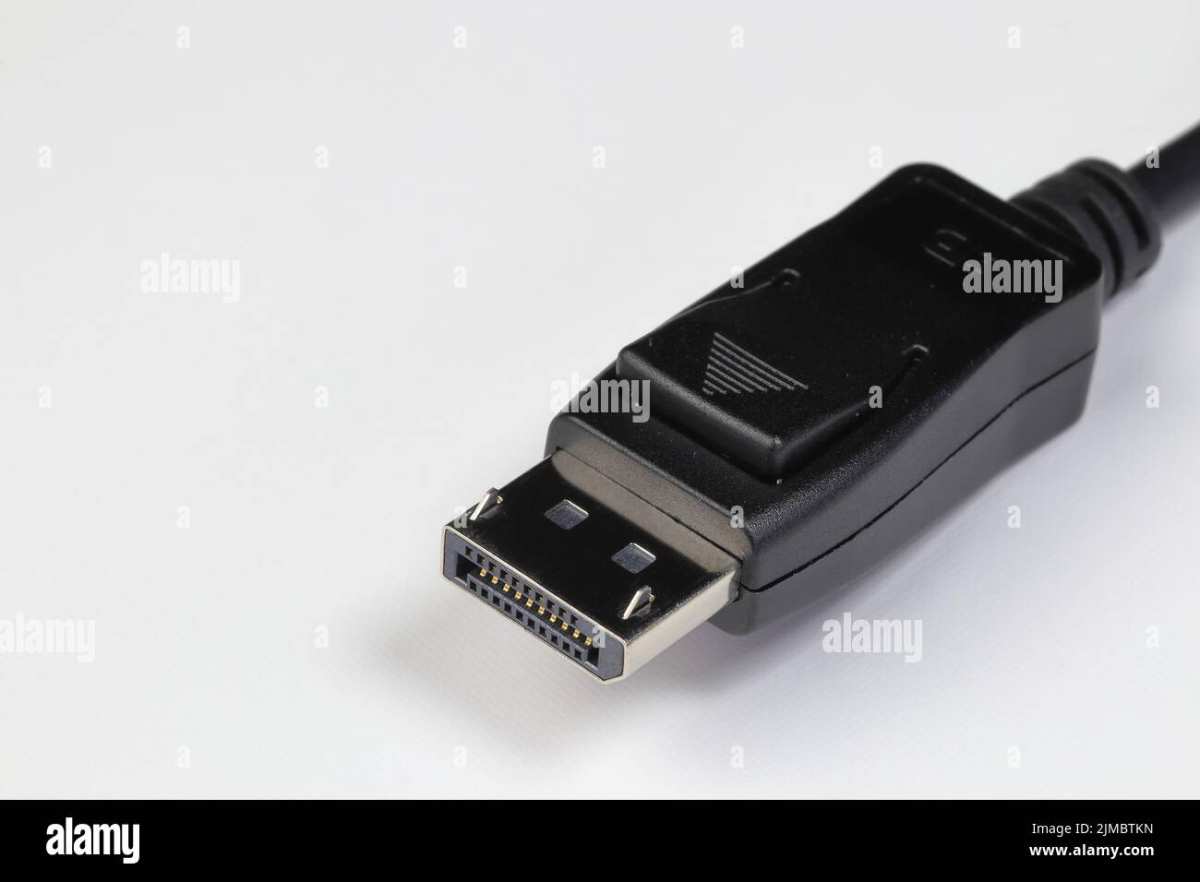
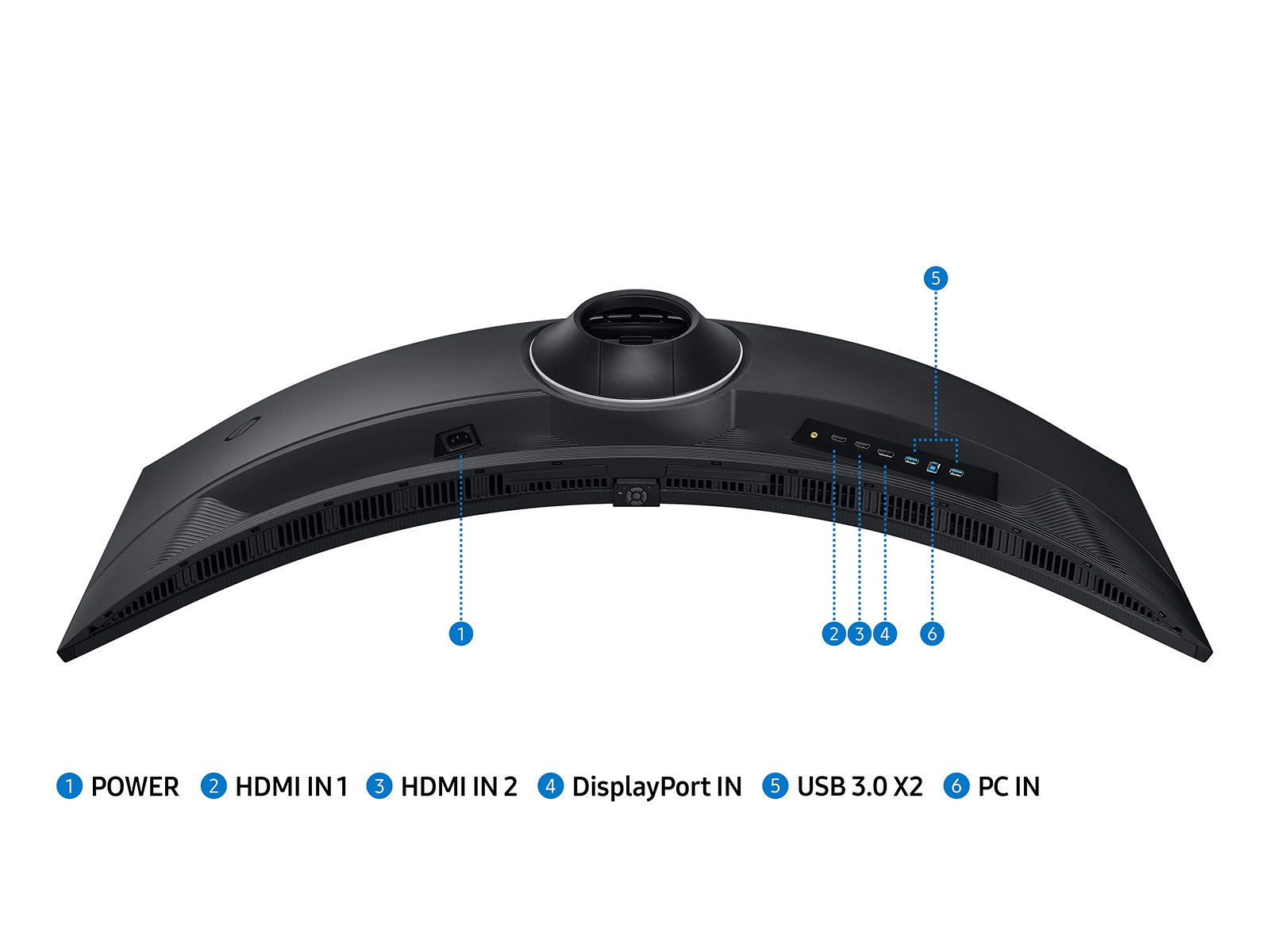
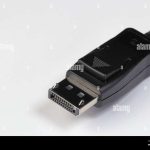
DisplayPort is your best bet. Most 144Hz monitors ship with a DisplayPort cable for a reason. It handles higher bandwidth more reliably at longer lengths. If your monitor and GPU both have DisplayPort, use it.
No contest.
HDMI works, but you need the right version. HDMI 2.0 or higher supports 144Hz at 1080p and 1440p. HDMI 1.4 does not. Check the cable labeling, it usually says "High Speed HDMI" for 1.4 and "Premium High Speed HDMI" for 2.0.
If there's no label, assume it's 1.4 and replace it.
Dual-link DVI is a legacy option. It can do 1080p at 144Hz, but it's bulky and doesn't carry audio. Most modern GPUs have dropped DVI ports anyway. Only use this if you're on an older system with no other choice.
One more thing: cable length matters. Long HDMI cables (over 15 feet) can lose signal integrity at high refresh rates. DisplayPort handles longer runs better, but anything over 10 feet should be an active cable.
Stick with 6 feet or less for the most reliable connection.
Step-by-Step Troubleshooting Decision Tree
Now let's fix your 144Hz monitor. Work through these branches in order. Each step eliminates a common cause.
You'll probably solve it before you reach the end.
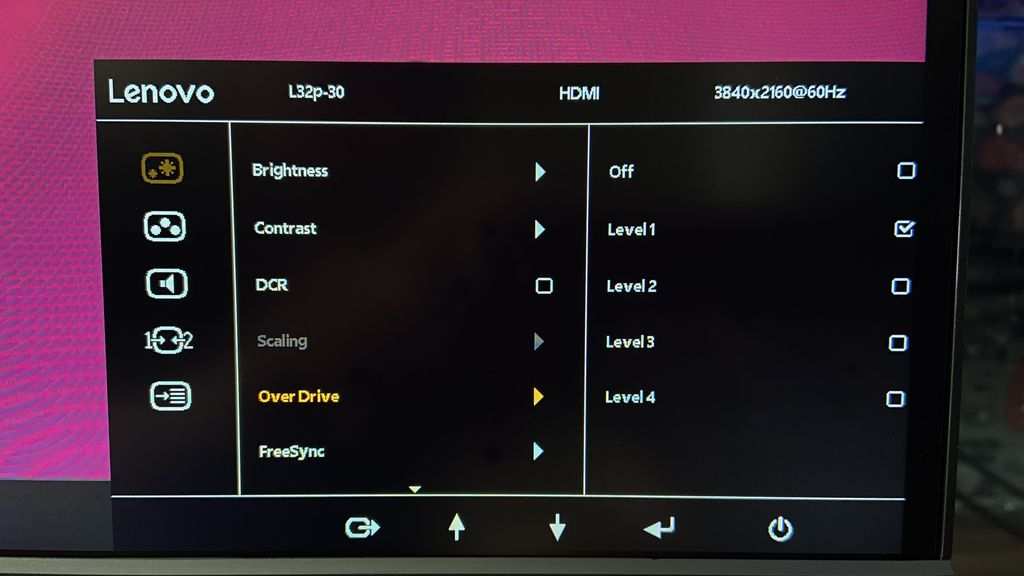
Image source: Bing (Web (fair-use with source credit))
Branch A: Windows Settings (The First Place to Look)
Right-click your desktop and select Display settings. Scroll down and click Advanced display. Under "Choose a refresh rate", select 144Hz from the dropdown.
If 144Hz is in the list, select it and you're done. If it's not, move to Branch B.
Sometimes Windows defaults to 60Hz after a driver update. Check this every time you update your GPU driver. It's a common gotcha.
Branch B: GPU Control Panel (NVIDIA or AMD)
Open your GPU control panel:
- NVIDIA: Right-click desktop > NVIDIA Control Panel > Change resolution. Under "Refresh rate", pick 144Hz.
- AMD: Right-click desktop > AMD Radeon Software > Display. Look for "Refresh Rate" in the global display settings.
If the option is grayed out or missing, move to Branch C.
Branch C: Monitor OSD (On-Screen Display)
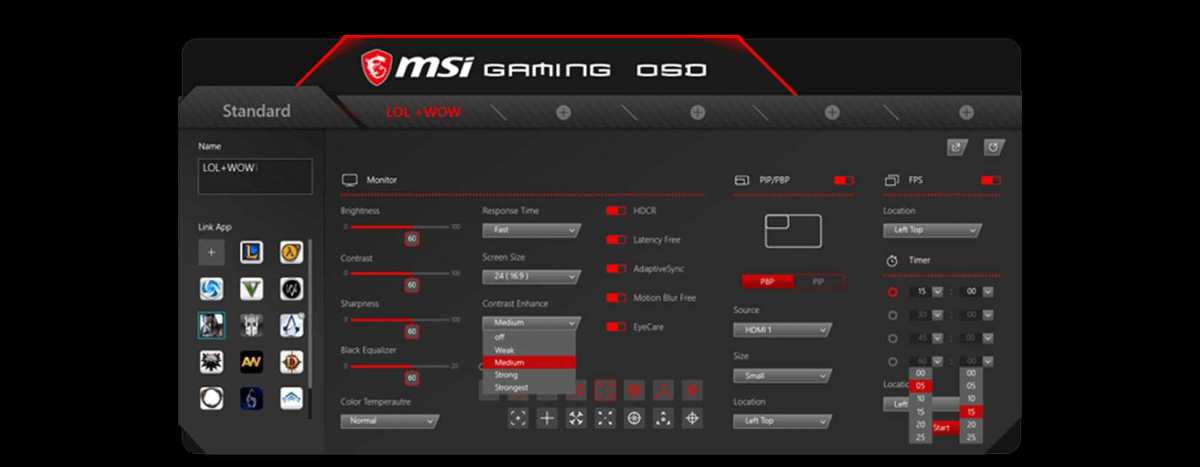
Your monitor has its own settings menu. Use the buttons on the monitor bezel to open it. Look for a "Refresh Rate" or "Display" section.
Some monitors cap performance per input. For example, some ASUS models limit HDMI 1.4 ports to 60Hz. You may need to enable a "DisplayPort 1.2" or "HDMI 2.0" mode in the OSD.
If the OSD already shows 144Hz as the setting, the issue is elsewhere. If not, set it there and retest.
Branch D: Driver Issues (Update, Rollback, or Clean Install)
Outdated or corrupted GPU drivers are a common cause. Open your GPU manufacturer's website (NVIDIA, AMD, or Intel) and download the latest driver for your card. Install it with a clean installation option if available.
This wipes old settings that might be stuck at 60Hz.
If the problem started after a recent driver update, roll back. Go to Device Manager > Display adapters > right-click your GPU > Properties > Driver > Roll Back Driver.
Branch E: Port and Resolution Limits (The Hidden Gotcha)
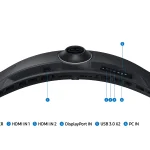
Not all ports on your GPU are the same. Many graphics cards have a mix of HDMI 2.0 and HDMI 1.4 ports. Check the port labeling on your GPU (usually printed on the backplate).
Use the HDMI 2.0 or DisplayPort output.
Also check your resolution. Running 4K at 144Hz requires DisplayPort 1.4 or HDMI 2.1. If you're at 4K and only have HDMI 2.0, the maximum refresh rate is 60Hz.
Drop to 1440p and you'll unlock 144Hz.
Branch F: Dual Monitor Setup Conflicts
Running two monitors? Sometimes a second 60Hz monitor can force your primary 144Hz display to sync down. This is a known issue with some GPU drivers.
Try disconnecting the second monitor temporarily. If 144Hz returns, the fix is to run both monitors at their native refresh rates individually, the GPU should handle it, but occasional driver quirks cause conflicts.
If you've checked all six branches and your monitor still won't run at 144Hz, the problem might be hardware. The cable could be faulty (swap it with a known good one). The monitor's input board could have a defect.
Or the GPU itself might not support 144Hz at your resolution, check the GPU manufacturer's specs page for your exact model.
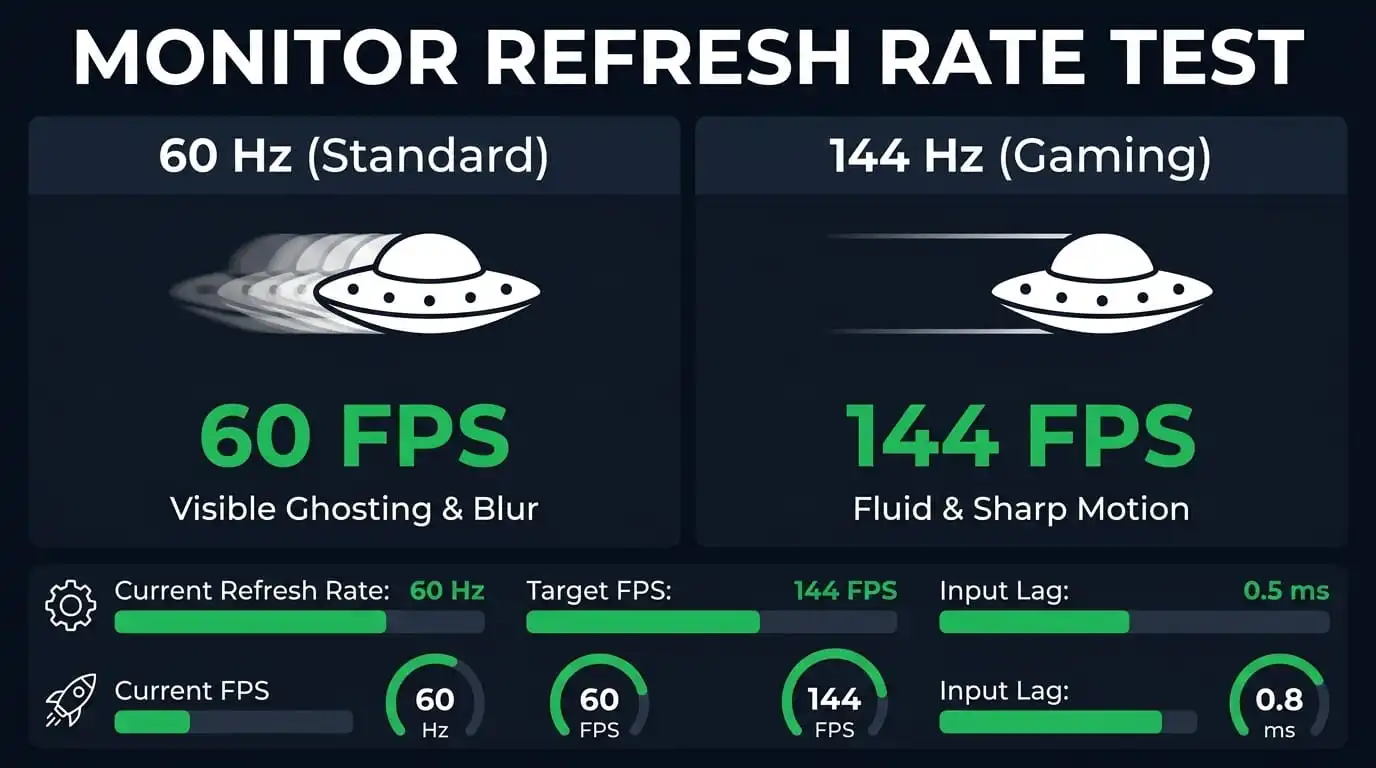
Image source: Bing (Web (fair-use with source credit))

Similar Posts