Do USB C Monitors Work with Linux
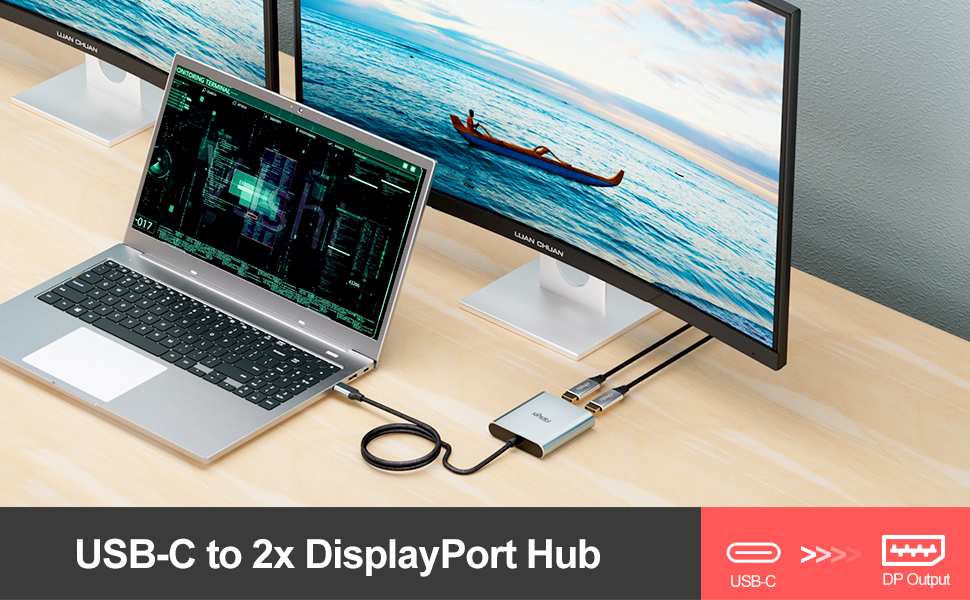
So you've got a USB-C monitor and a Linux machine, and you're wondering if they'll play nice together. The short answer is yes, most of the time, but the real answer depends on what's actually inside your laptop and what you're plugging into. Let's walk through it step by step so you know exactly where you stand.
Do USB-C monitors work with Linux? They absolutely can, and most modern distributions handle them without any fuss. The catch is that your laptop's USB-C port needs to support DisplayPort Alt Mode, a feature that's been natively supported in the Linux kernel since version 4.15.
If your port does, you're probably looking at a plug-and-play experience. If it doesn't, no amount of software tweaking will save you.
Quick Answer
Yes, USB-C monitors work with Linux. Your laptop's USB-C port must support DisplayPort Alt Mode. Most Linux distributions handle this natively with kernel 4.15 or newer.
You may need extra drivers for DisplayLink-based docks.
The One Thing Most People Get Wrong: Not All USB-C Ports Carry Video
Here's where most of the confusion starts. People see a USB-C port, grab a cable, plug in their monitor, and get nothing. Then they blame Linux.
But the problem is almost never the operating system. It's the port itself.
Not every USB-C port on a laptop can output video. Some are data-only. Some handle charging only.
The connector shape tells you nothing about what the port actually does. Manufacturers don't always make this obvious, either.
You need a USB-C port that specifically supports DisplayPort Alt Mode (or Thunderbolt 3/4, which carries DisplayPort signals as part of its tunneling protocol). This is a hardware capability baked into your laptop's motherboard and controller. No Linux magic can add it after the fact.
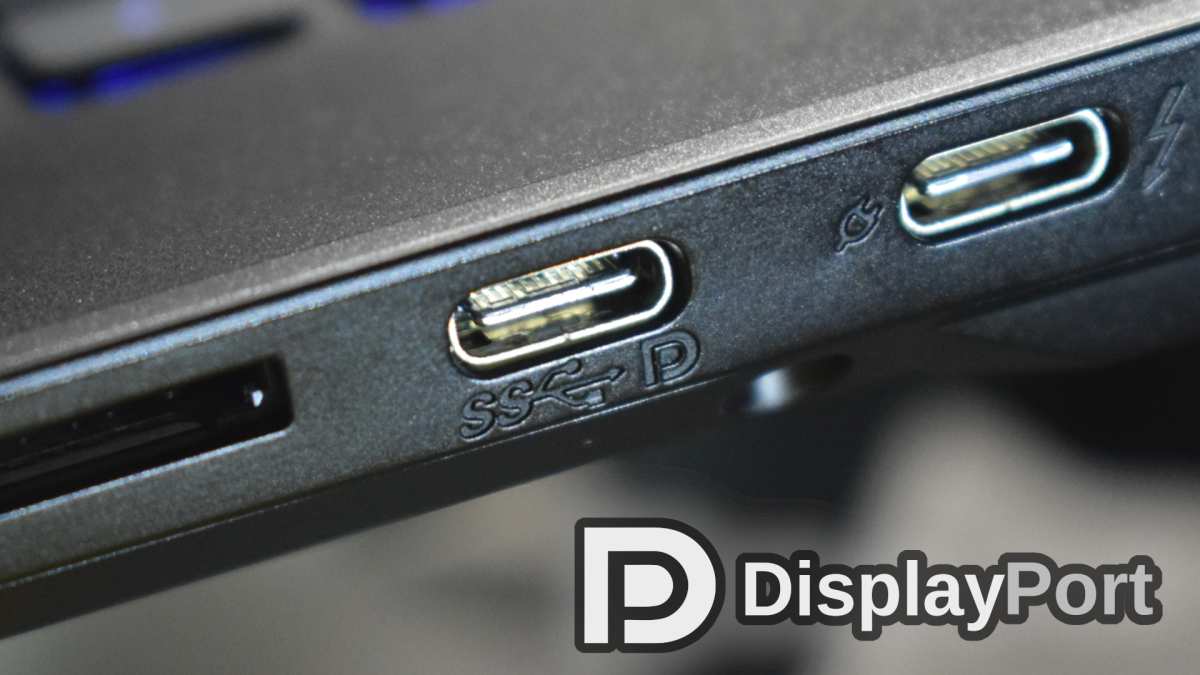
How to tell if your port supports video
Check your laptop's spec sheet. Look for any of these symbols or labels next to the port:
- A "D" shaped icon (DisplayPort symbol)
- A lightning bolt (Thunderbolt)
- "DP" printed near the port
If you see none of these, dig up the official product specifications from the manufacturer's website. Search for your exact laptop model plus "USB-C DisplayPort" or "USB-C video output." Lenovo, Dell, and Framework are usually good about listing this clearly. Some cheaper laptops, especially Chromebooks and budget models, ship USB-C ports that handle charging and data but skip video entirely.
What about USB4?
USB4, which started appearing on laptops around 2021, is based on the Thunderbolt 3 protocol specification that Intel contributed to the USB Implementers Forum. It natively tunnels DisplayPort video. If your laptop has a USB4 port, you're covered.
Linux kernel 5.13 and newer has solid USB4 support, and it's improved with every release since.
How USB-C Video Output Actually Works (DP Alt Mode, Thunderbolt, and USB4)
Understanding what's happening under the hood helps you troubleshoot faster. USB-C is just a connector shape. What matters is the protocol running over those pins.
DisplayPort Alt Mode is the most common method. When a laptop supports it, the USB-C controller reconfigures some of the physical pins in the connector to carry native DisplayPort signals. It's not emulation or software trickery.
It's actual DisplayPort video traveling over a USB-C cable. This means your Linux system sees it as a normal display connection, handled by the same GPU driver that would drive your HDMI or DisplayPort output.
Thunderbolt 3 and 4 go further. They tunnel DisplayPort, PCIe, and USB data through a single connection at up to 40 Gbps. The video component is still DisplayPort at its core, just packaged differently.
Linux kernel 5.3 introduced native Thunderbolt support, and it's been solid since kernel 5.6 or so.
USB4 follows the same tunneling approach as Thunderbolt. It's the standardized, royalty-free version of the same idea. Linux support landed in kernel 5.13 and has matured significantly.
The DisplayLink exception
DisplayLink is a completely different animal. It's a proprietary technology from Synaptics that compresses video frames and sends them as regular USB data. The monitor or dock has a dedicated chip that decompresses the signal.
This means it works over any USB port, even USB-A 3.0.
The downside? Linux support requires a proprietary driver that you have to install manually. It's gotten much better in recent years, with DisplayLink releasing a native Linux installer for Ubuntu and Debian-based distributions.
But it's still not the seamless, out-of-the-box experience you get with native DisplayPort Alt Mode.
Step 1: Check If Your Laptop's USB-C Port Supports DisplayPort Alt Mode
Before you touch any software settings, verify your hardware. This is the step most people skip, and it's the one that causes the most frustration.
What to look for
Grab your laptop's official spec sheet. Every manufacturer publishes one. Here's what you're searching for:
| What to Check | What It Means |
|---|---|
| "USB-C with DisplayPort Alt Mode" | Native video support, works with Linux out of the box |
| "Thunderbolt 3" or "Thunderbolt 4" | Includes DisplayPort tunneling, works with Linux kernel 5.3+ |
| "USB4" | Includes DisplayPort tunneling, works with Linux kernel 5.13+ |
| "USB-C 3.2 Gen 2" (no video mention) | Data and charging only, no video output |
| "USB-C (charging)" | Charging only, definitely no video |
If the spec sheet is vague or doesn't mention video at all, assume it doesn't support it until you can confirm otherwise. Some manufacturers list all USB-C ports together without distinguishing their capabilities. In that case, look for a port diagram in the manual or on the product page.
Often only one of two USB-C ports on a laptop carries video support.
Real-world examples
- Lenovo ThinkPad T14s (AMD): Both USB-C ports support DisplayPort Alt Mode. Works great on Linux.
- Dell XPS 13 Plus: Thunderbolt 4 ports. Full Linux support.
- Framework Laptop 13: The USB-C expansion cards support DP Alt Mode. Excellent Linux compatibility.
- Some HP Pavilion models: One USB-C port is data-only. The other supports DP Alt Mode. Check the manual.
Step 2: Verify Your Kernel and GPU Driver Are Ready
Once you've confirmed your hardware supports video over USB-C, it's time to check your software stack. This is where Linux-specific issues can pop up.
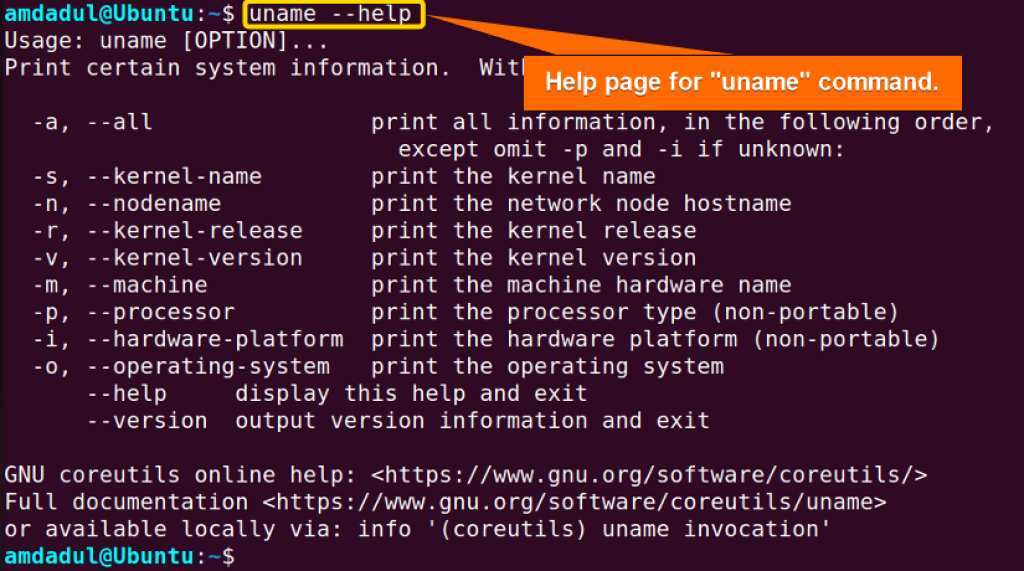
Check your kernel version
Open a terminal and run:
uname -r
You want to see 4.15 or higher for basic DisplayPort Alt Mode support. Ideally, you're running 5.6 or newer for the smoothest experience. If you're on a current distribution like Ubuntu 22.04 LTS, Fedora 38, or Arch, your kernel is almost certainly new enough.
Identify your GPU and driver
Run this command to see what graphics hardware you have and which driver is loaded:
lspci -k | grep -A 3 VGA
The output tells you which GPU you're using and which kernel driver is in control. Here's what you'll typically see:
| GPU | Linux Driver | USB-C Video Notes |
|---|---|---|
| Intel integrated (Iris Xe, UHD) | i915 | Excellent support, works out of the box |
| AMD Radeon (integrated or discrete) | amdgpu | Excellent support, works out of the box |
| NVIDIA (discrete) | nouveau or nvidia (proprietary) | Mixed results; proprietary driver recommended for USB-C |
The NVIDIA situation
NVIDIA is where things get tricky. The open-source nouveau driver can handle basic display output, but it often struggles with external display detection over USB-C, especially on newer GPUs. The proprietary NVIDIA driver (nvidia) generally works better, but it can conflict with Wayland compositors.
If you're running GNOME or KDE on Wayland and your USB-C monitor isn't being detected, try switching to an X11 session at the login screen. This resolves a surprising number of NVIDIA + USB-C issues. It's not a perfect fix, but it works often enough to be your first troubleshooting step.
Update if needed
If your kernel is old, update it. On Ubuntu:
sudo apt update && sudo apt upgrade
On Fedora:
sudo dnf upgrade
A kernel update can add support for your specific laptop's USB-C controller. This is especially true for hardware released in the last two or three years.
Step 3: Connect and Troubleshoot — What to Do When the Screen Stays Black
You've confirmed your port supports video. Your kernel is current. You plug in the cable and… nothing.
The monitor stays dark. Now what?
First, check if Linux sees the connection at all
Open a terminal and run:
xrandr --query
If you're on Wayland (default on modern GNOME and KDE), use:
gnome-randr
or check your display settings panel directly. Look for a second display listed. Sometimes the monitor is detected but not enabled.
In that case, you just need to configure it in your display settings.
Check the kernel log for clues
dmesg | tail -30
Look for messages mentioning "Type-C", "displayport", "DP", or "drm". If you see something like DisplayPort Alt Mode enabled or USB-C display detected, the hardware handshake worked and the problem is somewhere in the display configuration. If you see nothing related, the connection isn't being established at all.
Common fixes that actually work
- Try a different cable. This solves more problems than you'd expect. Not all USB-C cables support video. More on this in the cable section below.
- Unplug and replug. Some USB-C controllers need a fresh negotiation. This is especially true with docks and hubs.
- Restart the display manager. On Ubuntu with GNOME:
sudo systemctl restart gdm3. This forces the desktop to re-detect displays. - Switch GPU modes. If your laptop has hybrid graphics (Intel + NVIDIA), try switching between integrated and discrete in your BIOS or using a tool like
prime-selecton Ubuntu. - Force a resolution. If the monitor is detected but shows a black screen, try forcing a standard resolution like 1920×1080@60Hz through your display settings.
When it's a dock or hub issue
USB-C docks add another layer of complexity. The dock itself needs to support DP Alt Mode passthrough. Not all docks do.
Cheaper USB-C hubs often only expose USB-A ports and charging, with no video signal getting through.
If you're going through a dock and getting no video, try connecting the monitor directly to your laptop first. If that works, the dock is the bottleneck. Check the dock's specifications for explicit DisplayPort or Thunderbolt passthrough support.
When You Need DisplayLink (And Why It's a Different Beast)
Some USB-C monitors and docks use DisplayLink technology instead of native DisplayPort Alt Mode. This matters because the Linux experience is completely different.
How to tell if you're using DisplayLink
Check the monitor or dock's specifications. If it mentions "DisplayLink", "DL-3xxx", "DL-5xxx", or "DL-6xxx", you're dealing with DisplayLink. Some popular examples include certain Dell, Lenovo, and Plugable docking stations.
Another clue: if the device works fine over a regular USB-A connection (not USB-C), it's almost certainly DisplayLink. Native DP Alt Mode requires the specific USB-C controller reconfiguration that data-only USB-A ports can't provide.
Installing the DisplayLink driver on Linux
DisplayLink provides an official Linux driver through Synaptics. As of 2026, the installation process looks like this:
- Download the installer from the official DisplayLink website (synaptics.com).
- Run the
.runfile withsudo. - Reboot.
The driver works on Ubuntu, Debian, Fedora, and most major distributions. Arch Linux users can find it in the AUR. It's not open source, which bothers some people in the Linux community, but it's the only option for these devices.
What to expect
DisplayLink on Linux works, but it's not as smooth as native DP Alt Mode. You may notice:
- Slightly higher CPU usage
- Occasional screen tearing
- Limited support for high refresh rates
- Potential issues with screen recording or remote desktop software
For office work and general productivity, it's perfectly fine. For gaming or color-critical creative work, native DP Alt Mode is a much better experience.
X11 vs. Wayland: Why Your Desktop Environment Changes Everything
Your choice of display server affects how USB-C monitors behave on Linux. This catches a lot of people off guard.
X11: The reliable old standard
X11 has been around forever. It handles external displays in a straightforward way. When you plug in a USB-C monitor, X11 detects it through the kernel's DRM subsystem and makes it available to your window manager.
The downside? X11's display model is dated. It doesn't handle mixed-DPI setups well.
If your laptop screen is 4K and your USB-C monitor is 1080p, you'll either get tiny UI on one screen or blurry scaling on the other. It works, but it's not elegant.
Wayland: Modern but picky
Wayland was designed to fix X11's shortcomings. It handles per-monitor scaling natively. Mixed-DPI setups look great.
The overall experience is smoother.
But Wayland has its own quirks with external displays:
- NVIDIA support is still catching up. The proprietary NVIDIA driver has improved its Wayland compatibility significantly, but edge cases remain. If your USB-C monitor works on X11 but not Wayland, this is likely why.
- Hot-plug detection can be inconsistent. Some Wayland compositors don't always pick up a newly connected display as reliably as X11 does.
- Screen sharing and recording apps may not see all displays depending on the compositor and portal implementation.
Which should you use?
If everything works on Wayland, stick with it. The experience is better overall. If you're hitting USB-C display issues, try logging into an "X11 session" or "GNOME on X11" session from your login manager.
This is a legitimate troubleshooting step, not a step backward.
KDE Plasma on Wayland has made huge strides in external display handling as of Plasma 6.x. GNOME has been solid on Wayland for external displays since around version 40. If you're on a recent distribution, Wayland should work fine for most USB-C monitor setups.
USB-C Monitor Setup on Linux — Real Scenarios That Work (And Ones That Don't)
Let's look at some common real-world combinations and what you can expect.
Scenario 1: ThinkPad + native DP Alt Mode monitor
This is the gold standard. A ThinkPad with DP Alt Mode on its USB-C port, connected directly to a monitor like the Dell U2723QE or LG 27UK850. Works out of the box on Ubuntu 22.04+, Fedora 36+, and Arch.
Plug in the cable, the display appears, you configure it in settings. Done.
Scenario 2: Dell XPS + Thunderbolt dock + dual monitors
A Dell XPS 13 Plus connected to a CalDigit TS4 Thunderbolt dock, running two 4K monitors. This works well on Linux with kernel 5.10+. Both displays are detected.
MST daisy-chaining through the dock works on X11. On Wayland, you may need to arrange the displays manually in settings after the first connection.
Scenario 3: Budget laptop + USB-C to HDMI adapter
A laptop with a data-only USB-C port, using a USB-C to HDMI adapter. This won't work. The port doesn't carry video.
No adapter can add that capability. You'll need to use the laptop's HDMI port instead, or upgrade to a laptop with proper DP Alt Mode support.
Scenario 4: Any laptop + DisplayLink dock
A Framework Laptop 13 connected to a Plugable UD-6950PDZ dock using DisplayLink. Requires the proprietary driver. Works on Ubuntu and Fedora after driver installation.
Performance is good for office work. Not ideal for video playback or gaming.
Scenario 5: Hybrid graphics laptop + USB-C monitor
A laptop with both Intel integrated and NVIDIA discrete graphics, where the USB-C port is wired to the Intel GPU. This is common. The monitor works fine through the Intel GPU.
If you need the NVIDIA GPU to render to that display, you'll need to configure PRIME offloading. On Ubuntu, sudo prime-select query tells you which GPU is active.
Common Mistakes That Waste Hours of Troubleshooting
Assuming all USB-C cables are the same
This is the single biggest time sink. A USB-C cable that came with a phone charger is almost certainly charge-only. It physically cannot carry video.
You need a cable rated for "full-featured" USB-C or explicitly labeled as supporting DisplayPort Alt Mode or Thunderbolt.
Not checking the port specs before buying a monitor
People buy a $400 USB-C monitor, bring it home, and discover their laptop's USB-C port is data-only. Always verify your laptop's port capabilities first. Five minutes on the manufacturer's website saves a lot of frustration.
Using a dock that doesn't support video passthrough
Not all USB-C hubs pass through video. Many cheaper hubs only expose USB-A ports and power delivery. If you're connecting through a dock, make sure the product explicitly lists DisplayPort or Thunderbolt passthrough in its specifications.
Blaming Linux when it's a hardware issue
In our research, the majority of "USB-C monitor not working on Linux" complaints trace back to hardware limitations, bad cables, or incorrect ports. The operating system is rarely the actual culprit. Check your hardware first.
USB-C vs. HDMI vs. DisplayPort: Which Connection Should You Actually Use on Linux?
If your laptop has both USB-C (with DP Alt Mode) and a full-size HDMI or DisplayPort, which should you use?
| Connection | Max Resolution (Typical) | Linux Support | Best For |
|---|---|---|---|
| USB-C (DP Alt Mode) | 4K@60Hz or 5K@60Hz | Excellent (kernel 4.15+) | Single-cable setups, laptop docking |
| HDMI 2.0 | 4K@60Hz | Excellent | TVs, monitors with HDMI only |
| DisplayPort 1.4 | 4K@120Hz or 8K@60Hz | Excellent | High refresh rate monitors, multi-monitor |
| Thunderbolt 4 | Up to 5K@60Hz or dual 4K@60Hz | Good (kernel 5.3+) | Docks, high-bandwidth setups |
For most people, USB-C is the cleanest option because it handles video, power, and data over one cable. If you need high refresh rates for gaming or your monitor is 4K@120Hz, a direct DisplayPort connection might give you better results. HDMI is perfectly fine for general use and avoids any USB-C compatibility questions entirely.
The Cable Problem Nobody Talks About
USB-C cables are not created equal. The connector is standardized, but what's inside varies wildly.
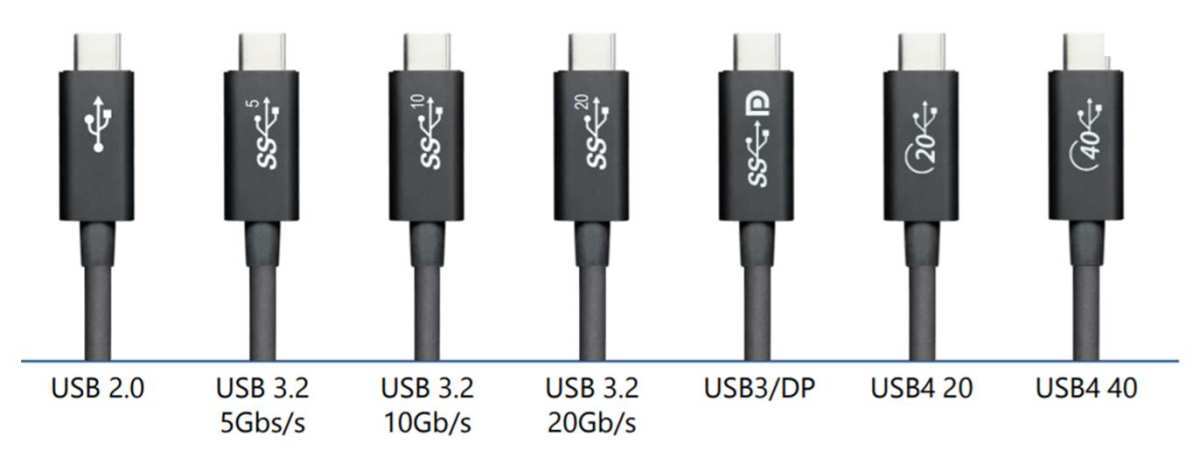
What to look for
- Charge-only cables: Only have wires for power (VBUS and GND). No video, often no data. Common with phone chargers.
- USB 2.0 data cables: Has data lines but lacks the SuperSpeed pairs needed for DP Alt Mode. Can do data and charging, no video.
- Full-featured USB-C cables: Has all 24 pins connected. Supports data, power, and DisplayPort Alt Mode.
- Thunderbolt 4 cables: Active cables with a controller chip. Guaranteed to support video. More expensive.
How to tell them apart
Look for markings on the cable itself. Cables supporting Thunderbolt 4 often have a "40" or lightning bolt logo printed on the connector. Cables rated for "SuperSpeed" (10 Gbps) or higher are more likely to be full-featured.
If the cable has no markings at all, assume it's the cheapest option.
When in doubt, use the cable that came with your monitor. Monitor manufacturers typically include a cable that supports the connection their product requires. Third-party cables from brands like Anker, Cable Matters, or CalDigit that explicitly list DP Alt Mode or Thunderbolt support are safe bets.
Frequently Asked Questions
Do all Linux distributions support USB-C monitors?
Most modern distributions do. Ubuntu 20.04 and newer, Fedora 34 and newer, Debian 11, Arch, and openSUSE Tumbleweed all have the necessary kernel support. Older distributions may need a kernel update.
Can I daisy-chain two USB-C monitors on Linux?
Yes, if your monitors support DisplayPort MST (Multi-Stream Transport) and your GPU driver supports it. Intel and AMD GPUs handle MST well on Linux. NVIDIA support for MST on Linux is more limited and driver-dependent.
Why does my USB-C monitor work on Windows but not Linux?
This usually points to a driver issue, most commonly with NVIDIA GPUs. The proprietary NVIDIA driver often handles USB-C displays better than the open-source nouveau driver. Install the NVIDIA proprietary driver and try again.
Do USB-C monitors charge my laptop at the same time?
If both the monitor and your laptop support USB Power Delivery over USB-C, yes. Most USB-C monitors deliver between 60W and 96W, which is enough for most ultrabooks. Check the monitor's power delivery rating against your laptop's power requirements.
Will a USB-C to HDMI adapter work for video output?
Only if your laptop's USB-C port supports DisplayPort Alt Mode. The adapter converts the DP signal to HDMI. If your port doesn't carry video, the adapter won't help.
These adapters do not add DisplayPort Alt Mode to a port that lacks it.

Similar Posts





















