Can USB C Monitors Be Vertical
Can USB-C monitors be vertical? Yes, absolutely, but whether your specific setup actually pulls it off depends on three things: your monitor's physical rotation options, your source device's ability to output a portrait-resolution signal over USB-C, and whether your cable supports DisplayPort Alt Mode. Miss any one of those and you'll hit a wall.
The good news is that as of 2026, most mid-range and high-end USB-C monitors support portrait orientation just fine. The USB-C standard itself carries video via DisplayPort Alt Mode, which has no orientation preference at all. The signal doesn't care if the pixels are arranged landscape or portrait.
What matters is everything around that signal path.

Quick Answer
Yes, USB-C monitors can display in portrait orientation. The USB-C connection using DisplayPort Alt Mode carries video regardless of screen orientation. Your monitor needs physical rotation support through a pivot stand or VESA mount.
Your source device must also support portrait-resolution output through its USB-C port.
The Three Things That Actually Determine If It Works
Before you start rotating anything, you need to check three specific things. Skip this and you'll either waste time troubleshooting or buy the wrong gear.
Does Your Monitor Physically Rotate?
This sounds obvious, but plenty of USB-C monitors ship with fixed stands. No tilt, no swivel, no pivot. You can't just lean the monitor sideways and hope for the best.
What to look for:
- Built-in pivot stand. Higher-end monitors (Dell UltraSharp U-series, LG UltraFine, ASUS ProArt) often include a stand that rotates 90 degrees. Check the product specs for "pivot" specifically. Tilt and swivel are not the same thing.
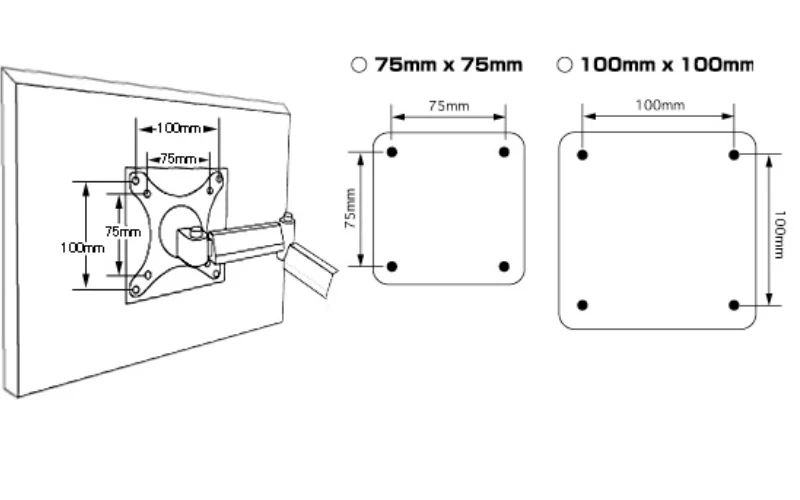
- VESA mount compatibility. If the stand doesn't rotate, a VESA 75x75mm or 100x100mm mount on the back means you can attach a third-party monitor arm that does. This is the most common workaround.
- Fixed stand, no VESA. Budget USB-C monitors sometimes skip both. In that case, portrait mode is off the table without a DIY solution.
Does Your Source Device Support Portrait Output Over USB-C?
Here's where it gets tricky. Not every device that outputs video over USB-C supports portrait resolution. The USB-C port needs to support DisplayPort Alt Mode and the device's graphics driver needs to allow a rotated output.
General rules by device type:
| Device Type | Portrait Support Over USB-C | Notes |
|---|---|---|
| Windows laptops | Usually yes | Depends on GPU driver; Intel, AMD, and NVIDIA all support rotation |
| MacBooks | Yes (macOS) | System Settings > Displays > Rotation; works on most models with USB-C/Thunderbolt |
| iPads (USB-C models) | Limited | Stage Manager supports external display but rotation behavior varies by iPadOS version |
| Android phones | Varies | Samsung DeX supports portrait on some models; most phones only output landscape |
| Chromebooks | Usually yes | Display settings include rotation option for external monitors |
| Mini PCs (Intel NUC, etc.) | Yes | Standard GPU drivers support rotation |
Does Your Cable and Port Carry Enough Bandwidth?
A USB-C cable is not just a USB-C cable. Some only handle USB 2.0 data and charging. Others carry full DisplayPort Alt Mode video.
You need the latter.
How to tell what your cable supports:
- Look for "DisplayPort Alt Mode" or "DP Alt Mode" on the cable packaging or specs.
- Thunderbolt 3 and Thunderbolt 4 cables always support DisplayPort Alt Mode.
- USB-IF certified cables are more likely to support the full feature set.
- If your monitor displays an image at the correct resolution and refresh rate, your cable is fine. If you get a blank screen or limited resolution, the cable is likely the bottleneck.
How to Check Your Monitor's Rotation Options
Grab your monitor's model number and look up the specs on the manufacturer's website. You're searching for two things: "pivot" in the stand description and "VESA mount" in the mounting section.
Built-In Pivot Stand
If your monitor lists pivot as a feature, you're in the best position. The stand is designed to handle the weight distribution in portrait mode. You simply rotate the screen 90 degrees and then tell your operating system to rotate the display signal to match.
Monitors that commonly include pivot stands:
- Dell UltraSharp U2723QE, U3223QE
- LG 27UK850, 32UN880
- ASUS ProArt PA278QV
- BenQ PD2705U
Not every model in these lines includes pivot. Always verify for the exact SKU you're looking at.
VESA Mount as a Workaround
If your monitor lacks a pivot stand but has a VESA 75x75mm or 100x100mm mounting pattern on the back, you can buy a monitor arm with rotation capability. This is actually the preferred setup for many people because it gives you full articulation: height adjustment, tilt, swivel, and rotation all in one.
What to look for in a VESA arm:
- Supports your monitor's weight (check the monitor's weight without the stand)
- Supports your VESA pattern (75×75 or 100×100)
- Gas spring or spring-assisted arm for easy adjustment
- Cable management channels to keep the USB-C cable tidy
A decent VESA arm runs $30 to $80 as of 2026. It's a solid investment if your monitor supports it.
Monitors With Fixed Stands (No Rotation Possible)
Some USB-C monitors, especially portable ones and budget models, have no rotation options at all. The stand is fixed and there's no VESA pattern. Examples include many ASUS ZenScreen and AOC portable USB-C monitors.
For these, portrait mode isn't practical. You could theoretically buy a third-party stand or case that holds the monitor vertically, but it's a hack, not a solution. If portrait matters to you, buy a monitor that supports it natively.
How to Verify Your Source Device Supports Portrait Output
This is the step most people skip. They rotate the monitor, go to display settings, and find that the rotation option is grayed out or missing entirely. That usually means the source device or its USB-C port doesn't support it.
Laptops (Windows, macOS, ChromeOS, Linux)
Windows: Right-click the desktop and select Display Settings. Under the external monitor's display box, scroll to Display Orientation. If it's set to Portrait and the option isn't grayed out, your setup supports it.
If it's missing, check your GPU driver. Intel, AMD, and NVIDIA all support external display rotation, but outdated drivers can hide the option.
macOS: Open System Settings, go to Displays, select the external monitor, and look for the Rotation dropdown. Most MacBooks with Thunderbolt 3/4 or Thunderbolt 4 ports support this. Older MacBooks with USB-C but no Thunderbolt may have limitations.
ChromeOS: Open Settings, go to Device > Displays, select the external monitor, and change the Orientation dropdown. Most Chromebooks with USB-C video output handle this without issues.
Linux: Depends on the desktop environment. GNOME and KDE Plasma both support display rotation in their display settings. X11 and Wayland both handle it, though Wayland has better per-display rotation support.
Tablets (iPad, Android)
iPad (USB-C models): iPadOS supports external displays via USB-C. With Stage Manager (iPadOS 16 and later), you can use an external display at its native resolution. However, rotation behavior on the external display is limited.
Some users report that the external display mirrors the iPad's orientation rather than acting independently. Check your specific iPad model and iPadOS version.
Android tablets: Support varies wildly. Samsung tablets with DeX mode can output to external monitors, but portrait output isn't always supported. Most Android tablets default to mirroring mode, which locks the external display to the tablet's current orientation.
Smartphones (Samsung DeX and Similar)
Samsung DeX is the most common phone-to-monitor scenario. DeX supports external displays, but portrait mode on the external monitor is hit-or-miss. Some Samsung phones output DeX in a phone-like portrait layout on the external display.
Others force landscape only. Check your specific phone model's DeX capabilities.
Other manufacturers with desktop modes (Motorola Ready For, Huawei EMUI desktop) have similar limitations. Portrait output over USB-C from a phone is the exception, not the rule.
Step-by-Step: Setting Up a USB-C Monitor in Portrait Mode
Once you've confirmed your monitor, source device, and cable all support portrait mode, here's the actual setup process.
Step 1: Confirm Your Cable Supports DisplayPort Alt Mode
Before you connect anything, verify your USB-C cable supports video. If you're using the cable that came with the monitor, it almost certainly does. If you're using a random cable from a drawer, check the specs.
Quick test: Connect the cable. If the monitor displays an image at its native resolution, the cable supports DisplayPort Alt Mode. If you get no signal or a low-resolution fallback, swap the cable.
Step 2: Connect and Verify Video Signal
Plug the USB-C cable into your source device and the monitor. Confirm you get a proper image at the monitor's native resolution. For a 4K monitor, that should be 3840×2160 in landscape.
For a 1440p monitor, 2560×1440.
If the resolution looks wrong or the refresh rate is stuck at 30Hz, your cable or port may not have enough bandwidth. Try a different cable or a different USB-C port on your device.
Step 3: Rotate the Monitor Physically
Power off the monitor first. This isn't strictly necessary, but it reduces stress on the stand mechanism. Rotate the screen 90 degrees clockwise or counterclockwise until it locks into the portrait position.
If you're using a VESA arm, loosen the arm, rotate the monitor, and re-tighten. Make sure the arm can support the monitor's weight in the new orientation.
Step 4: Rotate the Display in Your Operating System
Now tell your OS to match the physical rotation.
Windows:
- Right-click desktop > Display Settings
- Click the external monitor's display box
- Under Display Orientation, select Portrait
- Click Keep Changes when prompted
macOS:
- System Settings > Displays
- Select the external monitor
- Open the Rotation dropdown
- Select 90° (or 270° depending on direction)
ChromeOS:
- Settings > Device > Displays
- Select the external monitor
- Change Orientation to 90° or 270°
Step 5: Adjust Scaling and Resolution
Portrait mode changes how you perceive text and UI elements. A 27-inch 4K monitor in portrait gives you 2160 pixels wide and 3840 pixels tall. That's a lot of vertical space, but text may look tiny at 100% scaling.
Recommended scaling adjustments:
| Monitor Size | Native Resolution | Suggested Scaling in Portrait |
|---|---|---|
| 24" | 1920×1080 (Full HD) | 100% |
| 27" | 2560×1440 (QHD) | 100-125% |
| 27" | 3840×2160 (4K) | 125-150% |
| 32" | 3840×2160 (4K) | 150% |
Adjust scaling in your OS display settings until text is comfortable. You may also want to increase line spacing in your code editor or word processor to take advantage of the extra vertical pixels.
Common Problems and How to Fix Them
Image Stays Sideways After Physical Rotation
You rotated the monitor but didn't change the OS display setting. Go to your display settings and change the orientation to Portrait. If the option is grayed out, your source device or GPU driver may not support it.
Monitor Won't Display at Native Portrait Resolution
This usually means your USB-C cable or port doesn't have enough bandwidth. Try a certified DisplayPort Alt Mode cable or a Thunderbolt cable. Also check that your source device's USB-C port actually supports video output.
Not all USB-C ports do.
USB-C Cable Carries Power but Not Video
Some USB-C cables handle power delivery and USB data but lack DisplayPort Alt Mode support. These are common with charging-only cables. You need a full-featured USB-C cable that explicitly supports video output.
Power Delivery Too Weak to Charge Your Device
Many USB-C monitors offer 60W to 100W of power delivery back to the source device. If your laptop needs 100W and the monitor only delivers 65W, the laptop will charge slowly or drain under heavy load. Check the monitor's PD wattage rating and compare it to your laptop's power requirement.
USB-C vs HDMI vs DisplayPort for Portrait Setups
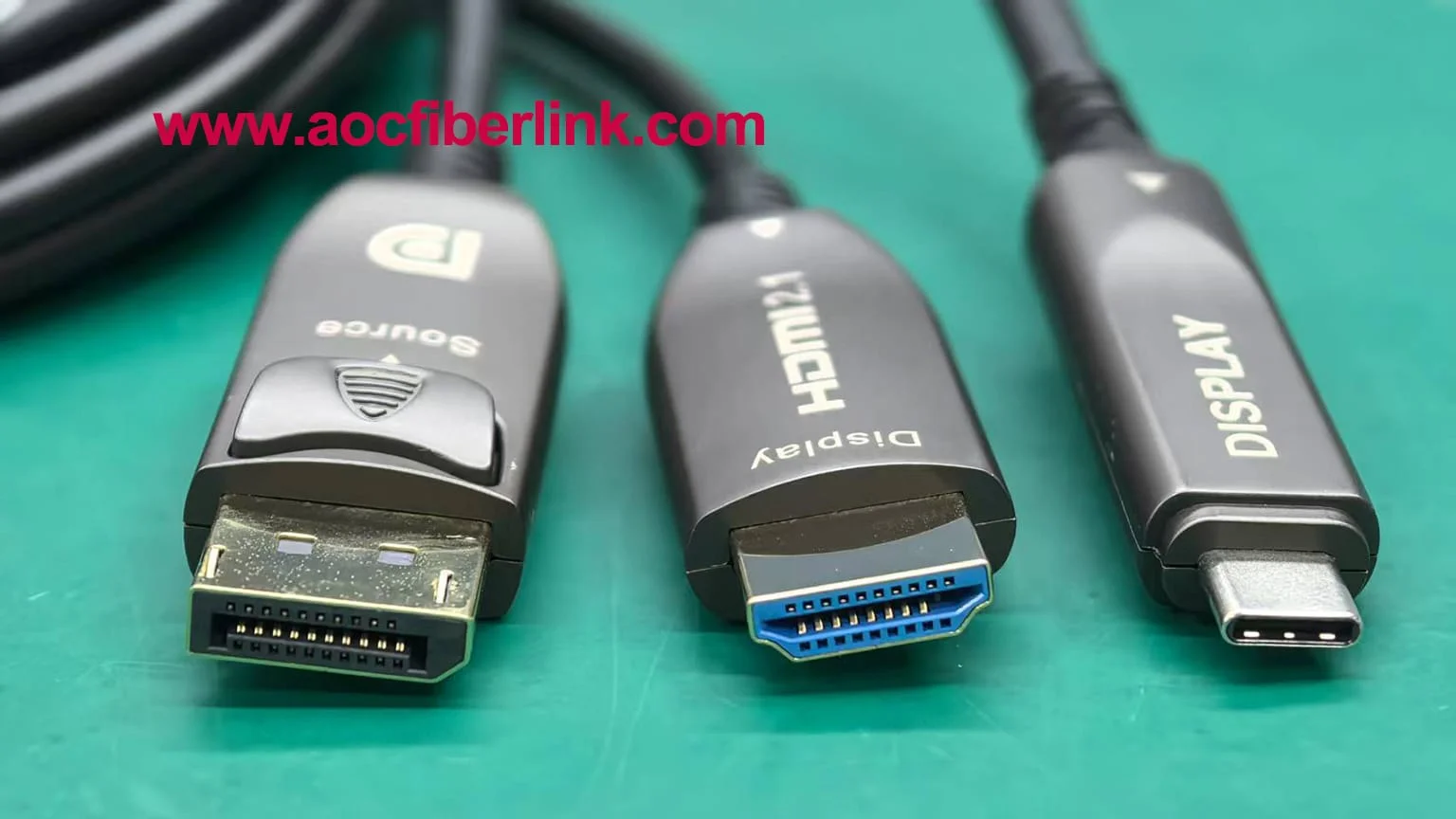
If your monitor and source device have multiple input options, does the connection type matter for portrait mode? Not really for the rotation itself, but it matters for everything around it.
| Feature | USB-C (DP Alt Mode) | HDMI 2.0 | DisplayPort 1.4 |
|---|---|---|---|
| Portrait support | Yes | Yes | Yes |
| Max resolution at 60Hz | 4K (with DP 1.4) | 4K | 4K |
| Power delivery to source | Up to 100W | None | None |
| Cable simplicity | Single cable | Separate power needed | Separate power needed |
| Daisy-chaining | Via MST | No | Yes (MST) |
| Common on USB-C monitors | Native | Rare | Rare |
USB-C wins on convenience. One cable handles video, power, and data. HDMI and DisplayPort require separate power for your source device.
For portrait mode specifically, all three work equally well once the signal reaches the monitor.
Who Benefits Most From a Vertical USB-C Monitor
Portrait mode isn't for everyone. But for certain workflows, it's a genuine productivity upgrade.
Developers and Coders
More vertical lines on screen means less scrolling through code. A 27-inch 4K monitor in portrait shows roughly 80 to 100 lines of code at a comfortable font size, depending on your editor. That's a significant improvement over landscape.
Writers, Editors, and Researchers
If you work with long documents, PDFs, or research papers, portrait mode mimics the aspect ratio of a printed page. Less horizontal scrolling, more natural reading flow.
Content Creators Working With Vertical Video
Short-form video (TikTok, Instagram Reels, YouTube Shorts) is shot vertically. A portrait monitor lets you preview and edit at full resolution without letterboxing.
Anyone Running a Clean Single-Cable Desk Setup
USB-C's main appeal is simplicity. One cable from laptop to monitor handles video, charging, and data. Adding portrait mode to that setup doesn't complicate anything.
It just gives you more flexibility in how you use the screen.
Expert Tips Most People Miss
Check your monitor's OSD for rotation settings. Some monitors, especially digital signage models, have a built-in rotation option in the on-screen display. This rotates the monitor's internal scaler output, which can be useful if your source device doesn't support rotation.
Use a VESA arm even if your monitor has a pivot stand. A pivot stand only rotates. A VESA arm gives you height adjustment, tilt, swivel, and rotation. It's more ergonomic and more flexible for switching between portrait and landscape on the fly.
Test with your specific cable before committing. USB-C cable quality varies enormously. A cable that works perfectly for landscape 4K 60Hz might struggle with portrait if it's a lower-quality DP Alt Mode implementation. If you see flickering or resolution drops in portrait, swap the cable first.
Consider a monitor with auto-rotate if available. A few niche monitors include an accelerometer that detects physical orientation and auto-rotates the display signal. These are rare as of 2026, but they exist in the digital signage space.
Don't forget about taskbar placement. In Windows, the taskbar defaults to the bottom of the display. In portrait mode, that's the short edge. You may want to move it to the long edge (left or right) for easier access.
Frequently Asked Questions
Can any USB-C monitor work in portrait mode?
No. The monitor needs physical rotation support (pivot stand or VESA mount) and your source device needs to support portrait output. The USB-C connection itself doesn't prevent it, but the hardware around it might.
Does USB-C power delivery work in portrait mode?
Yes. Power delivery over USB-C is independent of display orientation. If your monitor delivers 90W to your laptop in landscape, it delivers 90W in portrait.
Can I use a USB-C hub or dock with a portrait monitor?
Yes, as long as the hub or dock supports DisplayPort Alt Mode video passthrough and your source device supports portrait output. Some cheaper docks limit resolution or refresh rate, which can affect the experience.
Will portrait mode work with a USB-C phone?
Usually not. Most phones that output video over USB-C (Samsung DeX, Motorola Ready For) default to landscape mirroring. Portrait output from phones is rare and model-specific.
Is a VESA arm better than a built-in pivot stand?
For flexibility, yes. A VESA arm gives you full articulation including height adjustment and easy switching between orientations. A pivot stand only rotates.
But a built-in pivot stand requires no extra purchase or installation.
Does portrait mode affect monitor lifespan?
No. There's no technical difference in panel wear between portrait and landscape use. The monitor doesn't care about orientation.
Just make sure the stand or arm is rated for the monitor's weight.
Common Problems and How to Fix Them
Image Stays Sideways After Physical Rotation
You rotated the monitor but didn't change the OS display setting. Go to your display settings and change the orientation to Portrait. If the option is grayed out, your source device or GPU driver may not support it.
Monitor Won't Display at Native Portrait Resolution
This usually means your USB-C cable or port doesn't have enough bandwidth. Try a certified DisplayPort Alt Mode cable or a Thunderbolt cable. Also check that your source device's USB-C port actually supports video output.
Not all USB-C ports do.
USB-C Cable Carries Power but Not Video
Some USB-C cables handle power delivery and USB data but lack DisplayPort Alt Mode support. These are common with charging-only cables. You need a full-featured USB-C cable that explicitly supports video output.
Power Delivery Too Weak to Charge Your Device
Many USB-C monitors offer 60W to 100W of power delivery back to the source device. If your laptop needs 100W and the monitor only delivers 65W, the laptop will charge slowly or drain under heavy load. Check the monitor's PD wattage rating and compare it to your laptop's power requirement.
USB-C vs HDMI vs DisplayPort for Portrait Setups
If your monitor and source device have multiple input options, does the connection type matter for portrait mode? Not really for the rotation itself, but it matters for everything around it.
| Feature | USB-C (DP Alt Mode) | HDMI 2.0 | DisplayPort 1.4 |
|---|---|---|---|
| Portrait support | Yes | Yes | Yes |
| Max resolution at 60Hz | 4K (with DP 1.4) | 4K | 4K |
| Power delivery to source | Up to 100W | None | None |
| Cable simplicity | Single cable | Separate power needed | Separate power needed |
| Daisy-chaining | Via MST | No | Yes (MST) |
| Common on USB-C monitors | Native | Rare | Rare |
USB-C wins on convenience. One cable handles video, power, and data. HDMI and DisplayPort require separate power for your source device.
For portrait mode specifically, all three work equally well once the signal reaches the monitor.
Who Benefits Most From a Vertical USB-C Monitor
Portrait mode isn't for everyone. But for certain workflows, it's a genuine productivity upgrade.
Developers and Coders
More vertical lines on screen means less scrolling through code. A 27-inch 4K monitor in portrait shows roughly 80 to 100 lines of code at a comfortable font size, depending on your editor. That's a significant improvement over landscape.
Writers, Editors, and Researchers
If you work with long documents, PDFs, or research papers, portrait mode mimics the aspect ratio of a printed page. Less horizontal scrolling, more natural reading flow.
Content Creators Working With Vertical Video
Short-form video (TikTok, Instagram Reels, YouTube Shorts) is shot vertically. A portrait monitor lets you preview and edit at full resolution without letterboxing.
Anyone Running a Clean Single-Cable Desk Setup
USB-C's main appeal is simplicity. One cable from laptop to monitor handles video, charging, and data. Adding portrait mode to that setup doesn't complicate anything.
It just gives you more flexibility in how you use the screen.
Expert Tips Most People Miss
Check your monitor's OSD for rotation settings. Some monitors, especially digital signage models, have a built-in rotation option in the on-screen display. This rotates the monitor's internal scaler output, which can be useful if your source device doesn't support rotation.
Use a VESA arm even if your monitor has a pivot stand. A pivot stand only rotates. A VESA arm gives you height adjustment, tilt, swivel, and rotation. It's more ergonomic and more flexible for switching between portrait and landscape on the fly.
Test with your specific cable before committing. USB-C cable quality varies enormously. A cable that works perfectly for landscape 4K 60Hz might struggle with portrait if it's a lower-quality DP Alt Mode implementation. If you see flickering or resolution drops in portrait, swap the cable first.
Consider a monitor with auto-rotate if available. A few niche monitors include an accelerometer that detects physical orientation and auto-rotates the display signal. These are rare as of 2026, but they exist in the digital signage space.
Don't forget about taskbar placement. In Windows, the taskbar defaults to the bottom of the display. In portrait mode, that's the short edge. You may want to move it to the long edge (left or right) for easier access.
Frequently Asked Questions
Can any USB-C monitor work in portrait mode?
No. The monitor needs physical rotation support (pivot stand or VESA mount) and your source device needs to support portrait output. The USB-C connection itself doesn't prevent it, but the hardware around it might.
Does USB-C power delivery work in portrait mode?
Yes. Power delivery over USB-C is independent of display orientation. If your monitor delivers 90W to your laptop in landscape, it delivers 90W in portrait.
Can I use a USB-C hub or dock with a portrait monitor?
Yes, as long as the hub or dock supports DisplayPort Alt Mode video passthrough and your source device supports portrait output. Some cheaper docks limit resolution or refresh rate, which can affect the experience.
Will portrait mode work with a USB-C phone?
Usually not. Most phones that output video over USB-C (Samsung DeX, Motorola Ready For) default to landscape mirroring. Portrait output from phones is rare and model-specific.
Is a VESA arm better than a built-in pivot stand?
For flexibility, yes. A VESA arm gives you full articulation including height adjustment and easy switching between orientations. A pivot stand only rotates.
But a built-in pivot stand requires no extra purchase or installation.
Does portrait mode affect monitor lifespan?
No. There's no technical difference in panel wear between portrait and landscape use. The monitor doesn't care about orientation.
Just make sure the stand or arm is rated for the monitor's weight.

Similar Posts





















