Do OLED Monitors Support Freesync
If you've picked up an OLED monitor or you're eyeing one, the first thing you probably want to know is whether it'll play nice with your graphics card's variable refresh rate tech. The short version: yes, most modern OLED monitors do support FreeSync, but whether it actually works in your setup depends on a few specific things. Your GPU brand, the cable you're using, and the exact monitor model all play a role.
As of 2026, the vast majority of OLED gaming monitors ship with some form of AMD FreeSync support, and many are also validated as NVIDIA G-SYNC Compatible. The underlying standard is VESA Adaptive-Sync, which both AMD and NVIDIA have built on. But the details matter more than the marketing badge, so let's walk through exactly how this works and what you need to check.

Quick Answer
OLED monitors do support FreeSync. Most current models carry AMD FreeSync Premium or FreeSync Premium Pro certification. NVIDIA GPU users can use most FreeSync OLED monitors through G-SYNC Compatible mode.
Your specific monitor model, GPU brand, and cable connection determine whether it works in your setup.
How FreeSync Actually Works on OLED Monitors
FreeSync is AMD's adaptive sync technology. It lets your monitor's refresh rate change on the fly to match the frame rate your GPU is outputting. No more screen tearing when your FPS dips below the max refresh rate.
No more stuttering when V-Sync forces frames to wait.
On OLED monitors, this works the same fundamental way it does on LCD panels. The monitor receives a signal from the GPU and adjusts its refresh cycle to match. Where OLED differs is in pixel response time.
Most OLED panels hit 0.03ms gray-to-gray, which is roughly 100 times faster than a typical gaming LCD. That means when the refresh rate shifts, the pixels keep up instantly. You get tear-free motion with virtually no ghosting or smearing during refresh transitions.
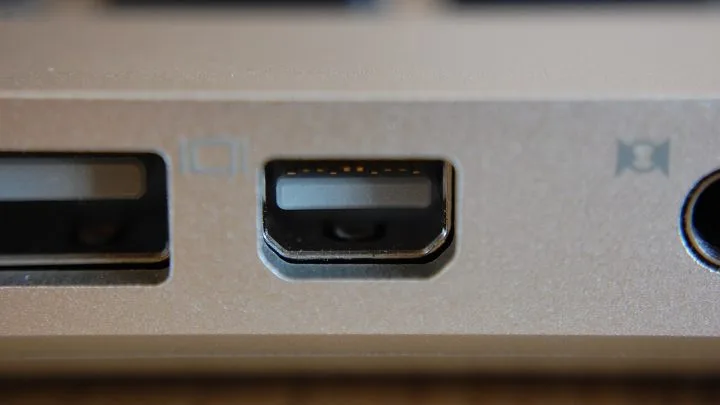
The FreeSync signal travels over either DisplayPort (using VESA Adaptive-Sync) or HDMI 2.1 (using the HDMI Forum's VRR specification). Both paths accomplish the same thing. Your monitor's scaler chip handles the timing adjustments regardless of panel type.
One thing worth noting: OLED panels use sample-and-hold display just like LCDs. So at lower refresh rates, you'll still perceive the same motion blur from eye tracking that any sample-and-hold display produces. FreeSync fixes tearing and stuttering, but it doesn't change the fundamental motion clarity characteristics of the panel technology itself.
The Three Things That Determine Whether FreeSync Works for You
This is where most people get tripped up. FreeSync support on paper doesn't guarantee it'll work in your specific setup. Three variables decide the outcome.
Your GPU Brand (AMD vs. NVIDIA vs. Intel)
If you're running an AMD Radeon GPU (RX 6000 or 7000 series), FreeSync works natively. You plug in, toggle it on in AMD Software, and you're done. AMD validates monitors through its own certification program, and any monitor carrying the FreeSync badge has passed AMD's testing.
NVIDIA is where it gets more nuanced. NVIDIA GPUs don't use the FreeSync brand name. Instead, they use a feature called G-SYNC Compatible, which lets NVIDIA cards send adaptive sync signals over the same VESA Adaptive-Sync protocol that FreeSync uses.
Most FreeSync OLED monitors work fine in G-SYNC Compatible mode, but NVIDIA maintains a specific list of validated monitors. If your OLED monitor isn't on that list, it may still work, but NVIDIA hasn't officially tested and approved it.
Intel Arc GPUs also support Adaptive-Sync over both DisplayPort and HDMI. If you're running an Intel GPU, FreeSync OLED monitors generally work without issue, though Intel's driver maturity for VRR has historically trailed AMD and NVIDIA.
Your Connection Type (DisplayPort vs. HDMI 2.1)
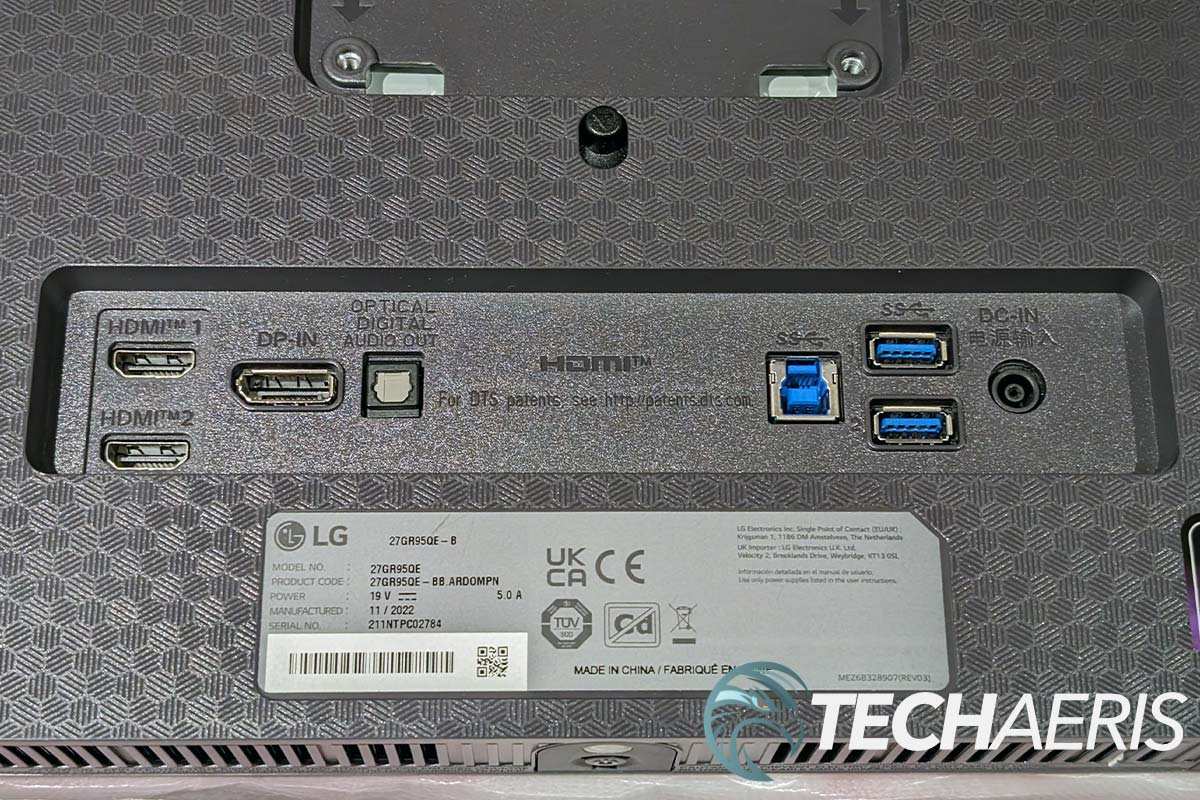
This catches a lot of people off guard. Some OLED monitors only support FreeSync over DisplayPort, not HDMI. Others support it on both.
A few early models only enabled VRR on one specific HDMI port out of two or three available.
DisplayPort 1.4 with DSC (Display Stream Compression) is the most common path for PC gaming on OLED monitors. It carries enough bandwidth for 4K at 240Hz or 1440p at 360Hz with VRR active. HDMI 2.1 offers 48Gbps of bandwidth and is the standard for console gaming on OLED monitors.
Always check your monitor's spec sheet for which ports support VRR. Don't assume all ports are equal.
Your Specific Monitor Model and Firmware
Not all OLED monitors are created equal. Some budget-oriented models carry a basic FreeSync certification with a narrow VRR range, like 48 to 60Hz. Others offer a wide range from 1Hz all the way up to the panel's maximum refresh rate.
The difference matters a lot for real-world performance.
Firmware also plays a role. Several OLED monitors launched with VRR issues that were later resolved through firmware updates. Samsung's early QD-OLED monitors, for example, had flickering problems in VRR mode that were largely fixed through firmware patches in 2023 and 2024.
If you're buying an OLED monitor, check whether the manufacturer has released firmware updates that address VRR behavior.
FreeSync Tiers Explained: What Each One Means on OLED
AMD has three main FreeSync tiers, and the differences matter more than most people realize.
| Tier | Requirements | What It Means on OLED |
|---|---|---|
| FreeSync | VRR over DisplayPort, ≥90Hz at FHD | Basic adaptive sync. May have narrow VRR range. No LFC guaranteed. |
| FreeSync Premium | Adds LFC, ≥120Hz at FHD, low latency | LFC kicks in when FPS drops below the VRR minimum. Smoother experience at low frame rates. |
| FreeSync Premium Pro | Adds HDR support, wider color, low latency in HDR | HDR tone mapping stays active during VRR. Best experience for HDR gaming on OLED. |
LFC (Low Framerate Compensation) is the big one. If your game drops to 40fps but your monitor's VRR range starts at 48Hz, LFC doubles the frames to 80Hz so the monitor stays in its adaptive sync window. Without LFC, you'd fall out of VRR range and get tearing or stuttering.
On OLED monitors, FreeSync Premium Pro is the tier to look for if you care about HDR gaming. OLED's per-pixel dimming already gives it a massive contrast advantage in HDR, and FreeSync Premium Pro ensures the HDR metadata and tone mapping stay consistent while the refresh rate varies. Without it, you might get HDR content with VRR, but the tone mapping can shift or break during refresh transitions.
Most current OLED gaming monitors from major brands carry at least FreeSync Premium. The entry-level and older models may only have base FreeSync. Always verify the tier on the manufacturer's spec sheet, not just the retailer listing.
Which OLED Monitors Support FreeSync (and How Well)
Here's a practical breakdown of popular OLED gaming monitors and their FreeSync support as of early 2026.
| Monitor | Panel Type | FreeSync Tier | VRR Range | G-SYNC Compatible | VRR Inputs |
|---|---|---|---|---|---|
| LG 27GR95QE | WOLED | FreeSync Premium | 48–240Hz | Yes (validated) | DP + HDMI |
| LG 32GS95UE | WOLED (dual-mode) | FreeSync Premium Pro | 48–240Hz (FHD: 48–480Hz) | Yes (validated) | DP + HDMI |
| Samsung Odyssey OLED G8 (G80SD) | QD-OLED | FreeSync Premium Pro | 48–240Hz | Yes (validated) | DP + HDMI |
| Samsung Odyssey OLED G6 (G60SD) | QD-OLED | FreeSync Premium | 48–360Hz | Yes (validated) | DP + HDMI |
| ASUS ROG Swift PG27AQDM | WOLED | FreeSync Premium | 48–240Hz | Yes (validated) | DP + HDMI |
| ASUS ROG Swift PG32UCDM | QD-OLED | FreeSync Premium Pro | 48–240Hz | Yes (validated) | DP + HDMI |
| Alienware AW3225QF | QD-OLED | FreeSync Premium Pro | 48–240Hz | Yes (validated) | DP + HDMI |
| Corsair Xeneon 27QHD240 | WOLED | FreeSync Premium | 48–240Hz | Yes (validated) | DP + HDMI |
| MSI MPG 271QRX | QD-OLED | FreeSync Premium | 48–240Hz | Yes (validated) | DP + HDMI |
| Gigabyte AORUS FO32U2P | QD-OLED | FreeSync Premium Pro | 1–240Hz | Yes (validated) | DP + HDMI |
A few things stand out from this list. First, virtually every current OLED gaming monitor is validated as G-SYNC Compatible by NVIDIA. That's a big change from the early days of OLED monitors, where NVIDIA compatibility was hit or miss.
Second, the VRR ranges are generally wide enough for practical gaming, with most starting at 48Hz and including LFC for anything below that.
The Gigabyte AORUS FO32U2P is notable for its 1, 240Hz VRR range, which means LFC never needs to kick in. The monitor can adapt to any frame rate natively. That's the ideal scenario, though in practice the difference between a 1Hz floor and a 48Hz floor with LFC is hard to notice.
If you're buying a used or older OLED monitor, check the specific model's firmware history. Some first-generation QD-OLED monitors had VRR ranges that started at 60Hz or higher, which meant LFC was essential for any game running below 60fps. Firmware updates on several of these models lowered the minimum to 48Hz or below.
How to Enable FreeSync on Your OLED Monitor Step by Step
Getting FreeSync running on your OLED monitor is straightforward, but the steps differ depending on your GPU. Here's the process for each platform.
AMD GPU Setup
- Connect your OLED monitor using DisplayPort 1.4 or HDMI 2.1. DisplayPort is generally the safer bet for full feature support.
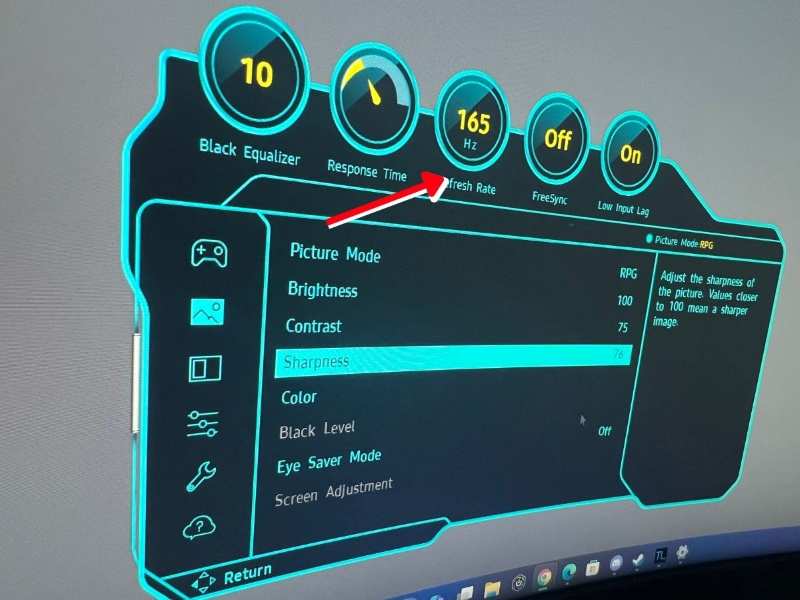
- Open the monitor's on-screen display (OSD) menu. Navigate to the gaming or display settings. Look for "Adaptive-Sync," "FreeSync," or "VRR" and make sure it's turned on.
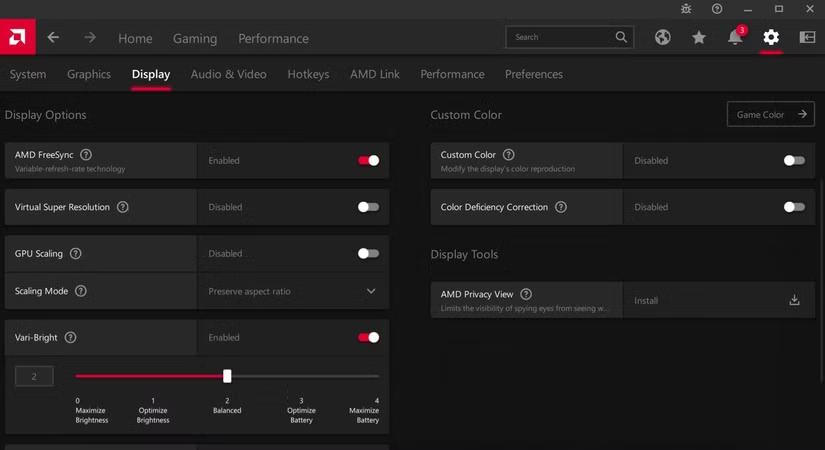
- Open AMD Software (Adrenalin Edition). Go to Settings > Display. Toggle "AMD FreeSync" to Enabled.
- Launch a game and check the monitor's OSD refresh rate readout. If it's changing dynamically with your frame rate, FreeSync is active.
Some OLED monitors require you to disable certain OSD features for FreeSync to work. Black frame insertion (BFI) and adaptive sync are mutually exclusive on most panels. If you have BFI enabled, turn it off first.
NVIDIA GPU Setup (G-SYNC Compatible)
- Use a DisplayPort 1.4 cable for the best compatibility. NVIDIA's G-SYNC Compatible mode works over DisplayPort on virtually all validated OLED monitors.
- Enable Adaptive-Sync in your monitor's OSD, just like the AMD process.
- Open the NVIDIA Control Panel. Navigate to Display > Set up G-SYNC. Check "Enable G-SYNC, G-SYNC Compatible" and select your OLED monitor.
- Choose whether to enable it for fullscreen mode only or for both windowed and fullscreen modes. Windowed mode support is useful if you alt-tab frequently.
- Under "Manage 3D Settings," set "Monitor Technology" to "G-SYNC Compatible" if it isn't already selected.
If your OLED monitor doesn't show up in the G-SYNC setup panel, try a different DisplayPort cable or update your GPU driver. Some older DisplayPort cables lack the bandwidth for adaptive sync signaling at high refresh rates.
Console Setup (PS5 and Xbox Series X)
- Connect your console to the OLED monitor using an Ultra High Speed HDMI 2.1 cable. Not all HDMI cables are rated for 2.1 bandwidth, so check the packaging.
- Enable VRR in your monitor's OSD. On some monitors, this is labeled "HDMI VRR" or "FreeSync over HDMI" rather than just "FreeSync."
- On PS5, go to Settings > Screen and Video > Video Output > VRR. Set it to "Automatic." The PS5 will only output VRR over HDMI 2.1, so make sure your monitor's HDMI port supports it.
- On Xbox Series X, go to Settings > General > TV & Display Options > Video Modes. Check "Allow variable refresh rate."
Console VRR on OLED monitors works well in practice, but the VRR range is typically narrower than on PC. Most consoles target a 40, 120Hz VRR window, which covers the vast majority of console games.
Common FreeSync Problems on OLED Monitors and How to Fix Them
Even when everything is set up correctly, FreeSync on OLED can throw a few curveballs. Here are the most common issues and what actually fixes them.
Flickering in VRR Mode
This was a widespread problem on early QD-OLED monitors, particularly Samsung's first-generation panels. The screen would flicker noticeably when frame rates fluctuated within a certain range, often between 48 and 90fps. The cause was related to how the panel's pixel voltage shifted during variable refresh cycles.
Firmware updates from Samsung, Dell/Alienware, and Corsair have largely resolved this for current models. If you're experiencing flickering, check your monitor manufacturer's support page for the latest firmware. Updating usually requires a USB drive and following the manufacturer's specific flashing procedure.
If firmware doesn't fix it, try capping your frame rate slightly below the monitor's maximum refresh rate. A cap at 237fps on a 240Hz panel, for example, can reduce the frequency of refresh transitions that trigger flicker.
FreeSync Not Detected by Your GPU
If your AMD or NVIDIA control panel doesn't show FreeSync as an available option, run through this checklist first.
- Confirm Adaptive-Sync is enabled in the monitor's OSD. This is the number one cause.
- Try a different cable. A faulty or low-quality DisplayPort cable can fail to carry the adaptive sync signal even if the image displays fine.
- Update your GPU driver. Both AMD and NVIDIA have improved G-SYNC Compatible and FreeSync detection through driver updates over the past two years.
- Check that you're plugged into the correct port. Some monitors only support VRR on DisplayPort 1 or HDMI 1, not all inputs.
VRR Only Works on One Input
This is a hardware limitation on some OLED monitors. The scaler board may only route the adaptive sync signal through one DisplayPort and one HDMI port. Check your monitor's manual or spec sheet for which specific ports support VRR.
It's usually noted in a footnote or technical specifications table, not on the product's main marketing page.
HDR + FreeSync Causing Brightness Drops
Some OLED monitors exhibit brightness fluctuations when HDR and VRR are both active. The panel's ABL (Automatic Brightness Limiter) can interact poorly with variable refresh, causing visible brightness shifts during scene transitions.
If this happens, try disabling HDR in Windows and enabling it per-game instead. Some games handle HDR + VRR better than others. Alternatively, look for a firmware update.
Several manufacturers have addressed ABL behavior in recent firmware revisions specifically for this issue.
FreeSync vs. G-SYNC Compatible on OLED: Does It Matter?
For most people, no. The practical difference between running a FreeSync OLED monitor with an AMD GPU versus an NVIDIA GPU in G-SYNC Compatible mode is negligible in actual gameplay.
Both use the same underlying VESA Adaptive-Sync protocol. Both eliminate tearing and minimize stuttering within the VRR range. Both support LFC when frame rates drop below the minimum refresh rate.
Where you might notice a difference is in edge cases. NVIDIA's G-SYNC Compatible validation process tests for flickering, blanking, and frame duplication across the entire VRR range. Monitors that pass get added to NVIDIA's official list.
If your OLED monitor isn't on that list, it doesn't mean FreeSync won't work with your NVIDIA card. It just means NVIDIA hasn't tested it.
AMD's certification process is similar but slightly less restrictive. A monitor can carry the FreeSync badge without the same depth of per-panel validation that NVIDIA requires for G-SYNC Compatible.
The one area where native G-SYNC (with the hardware module) still holds an advantage is in VRR performance at very low frame rates. G-SYNC module monitors can maintain smooth adaptive sync down to 1Hz. FreeSync monitors rely on LFC below their minimum VRR range, which works well but introduces frame doubling that some sensitive users can perceive.
That said, no current OLED gaming monitor uses a hardware G-SYNC module. They all rely on VESA Adaptive-Sync, which means the FreeSync versus G-SYNC Compatible distinction is really just a software toggle on the GPU side.
Who Should Prioritize FreeSync on an OLED Monitor
If you're buying an OLED monitor primarily for PC gaming, FreeSync support should be near the top of your checklist. Here's who benefits most.
AMD GPU owners get the most straightforward experience. FreeSync is native, detection is automatic, and the full feature set including LFC and HDR works without extra steps.
NVIDIA GPU owners should still prioritize FreeSync OLED monitors, but verify G-SYNC Compatible validation on NVIDIA's website before buying. The experience is functionally identical once enabled, but validated monitors have been tested for edge-case issues.
Console gamers need HDMI 2.1 VRR support specifically. Most current OLED monitors include this, but always confirm in the spec sheet. Console VRR is a separate feature from DisplayPort FreeSync, even though they accomplish the same thing.
HDR gaming enthusiasts should look for FreeSync Premium Pro specifically. The "Pro" tier ensures HDR metadata stays intact during variable refresh, which matters a lot on OLED where HDR performance is a primary selling point.
Competitive gamers running frame rates well above 120fps may not notice FreeSync as much, since tearing is less perceptible at very high frame rates. But the near-zero response time of OLED combined with VRR still produces the smoothest motion you can get on a consumer display.
If you're coming from a high-refresh LCD with FreeSync already enabled, the transition to OLED with FreeSync is seamless. Same feature, same toggle, dramatically better picture quality.

Similar Posts