do 144hz monitors support hdr
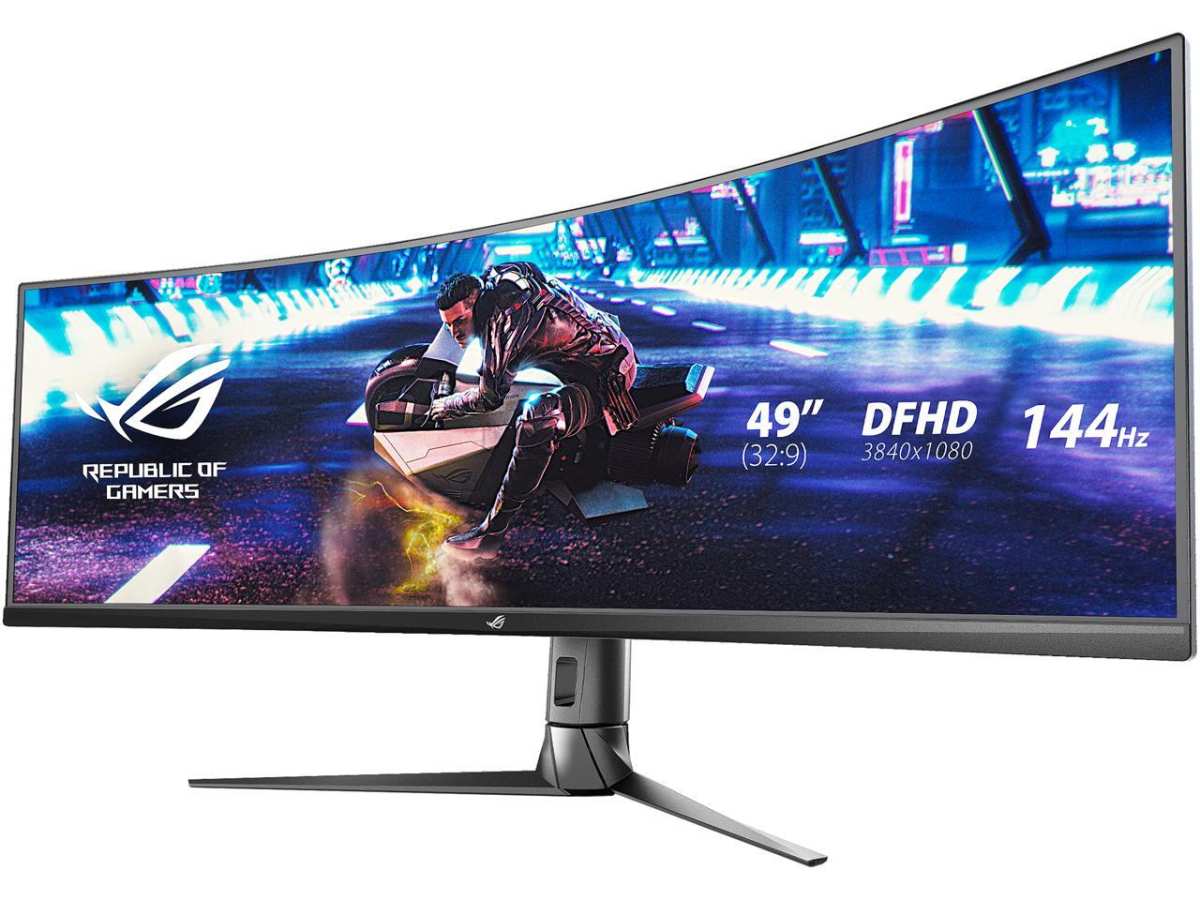
If you've ever typed "do 144hz monitors support hdr" into a search bar, you've probably seen conflicting answers. Some say yes, others say no, and a few just leave you more confused than before. Here's the short version: many 144Hz monitors can accept an HDR signal, but very few can actually display HDR the way your eyes expect it.
Manufacturer specifications confirm that true HDR requires at least 600 nits of peak brightness, proper local dimming, and wide color coverage. Most monitors under $500 simply don't deliver that. The answer really depends on the specific model you're looking at, not the refresh rate itself.
Quick Answer
Not all 144Hz monitors support HDR. Most accept the HDR10 signal but lack the hardware to show it properly. You need at least a DisplayHDR 600 certification for decent HDR.
Below that, the image often looks dim or washed out. Check the VESA certification badge before buying.
Image source: Bing (Web (fair-use with source credit))
What "HDR Support" Actually Means for a Monitor
When a monitor says it supports HDR, it usually means two different things. First, it can accept an HDR10 signal from your PC or console. Second, it has the brightness and color to make that signal look good.
Most budget monitors only do the first part.
Here's the key distinction: HDR10 is a metadata format, not a performance guarantee. Think of it like a recipe. Your monitor can "read" the recipe, but if its oven only goes to 300 degrees, you're not getting a crispy roast.
Peak brightness is measured in nits. For real HDR, you want at least 400 nits with decent local dimming, and ideally 600 nits or more.
Per VESA's DisplayHDR standard, monitors are graded from 400 to 1400. A DisplayHDR 400 monitor can hit 400 nits peak, but it usually lacks local dimming. That means bright highlights will bloom into dark areas, ruining the contrast HDR depends on.
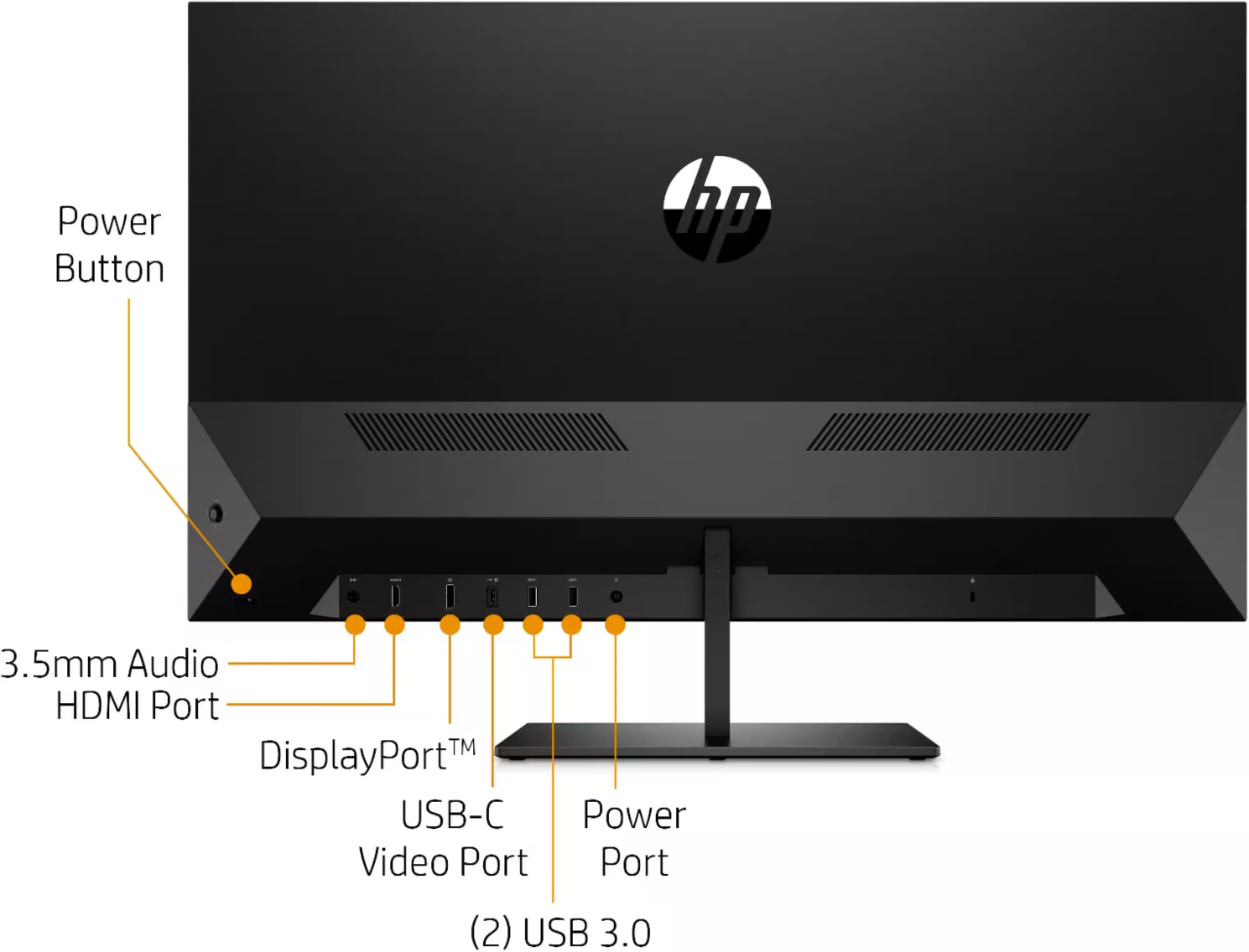
Image source: Bing (Web (fair-use with source credit))
The ports and cables matter too. HDMI 2.0 can handle 144Hz at 1080p with HDR, but for 1440p or 4K at 144Hz plus HDR, you need DisplayPort 1.4 or HDMI 2.1. Many users plug into an older cable and wonder why HDR looks broken.
The Three Conditions That Decide Your Answer
So, do 144Hz monitors support HDR? Let's break it down into three checkboxes.
Condition 1: Does the monitor have VESA DisplayHDR certification?
If it has a DisplayHDR 400, 600, or 1000 badge, it's been tested by an independent standard. No badge usually means the manufacturer just slapped an "HDR" sticker on the box without proving anything. That's your first red flag.
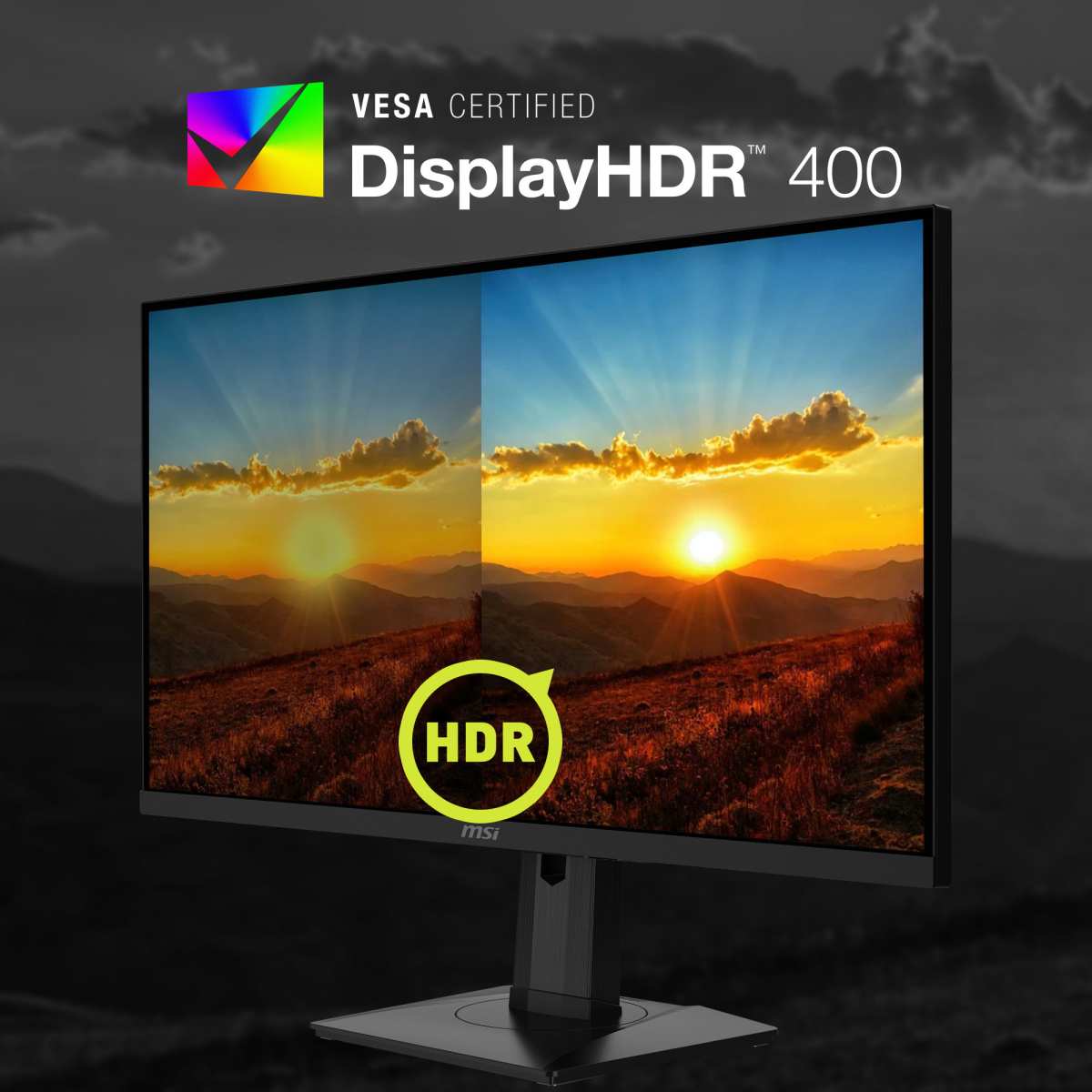
Image source: Bing (Web (fair-use with source credit))
Condition 2: What's the peak brightness?
Even if the monitor has an HDR sticker, check the spec sheet for peak brightness. Anything under 400 nits is essentially fake HDR. At 300 nits, HDR will look flat and lifeless.
At 250 nits (common on entry-level 144Hz panels), it's actively worse than a good SDR mode.
Condition 3: What panel type and backlight tech does it use?
VA panels have better native contrast than IPS, so they handle HDR slightly better even without local dimming. But true HDR needs local dimming zones. Full-array local dimming (FALD) or Mini-LED backlighting can deliver real contrast.
Edge-lit monitors (most cheap ones) just can't do it.
If your monitor fails any of these conditions, it doesn't really support HDR. It accepts the signal, but you'll get a disappointing experience.
Decision Tree: How to Check Your Specific Monitor
You don't need to guess. Here's a simple step-by-step you can follow right now.
Step 1: Find the exact model number.
Look on the back of your monitor. You'll see a sticker with a model number like "LG 27GN800-B" or "Dell S2721DGF". Write it down.
Step 2: Look up the specs on the manufacturer's site.
Go to the official product page. Don't trust Amazon listings or reseller blurbs. Find the "Specifications" section and look for "HDR", "DisplayHDR", or "Peak Brightness".
Step 3: Check for the DisplayHDR badge.
If you see "VESA DisplayHDR 400" or higher, you're in decent shape. If you only see "HDR10 compatible" with no certification, be suspicious.
Step 4: Verify your cable and port.
Make sure you're using a cable that supports the bandwidth. For 1440p 144Hz HDR, you need DisplayPort 1.4 or HDMI 2.1. For 1080p 144Hz HDR, HDMI 2.0 is fine.
Check your GPU ports too.
Step 5: Test with real HDR content.
Don't just toggle HDR on in Windows. Play a known HDR game like Cyberpunk 2077 or watch an HDR video on YouTube. If the image looks dim, washed out, or flickery, your monitor isn't delivering what it claims.
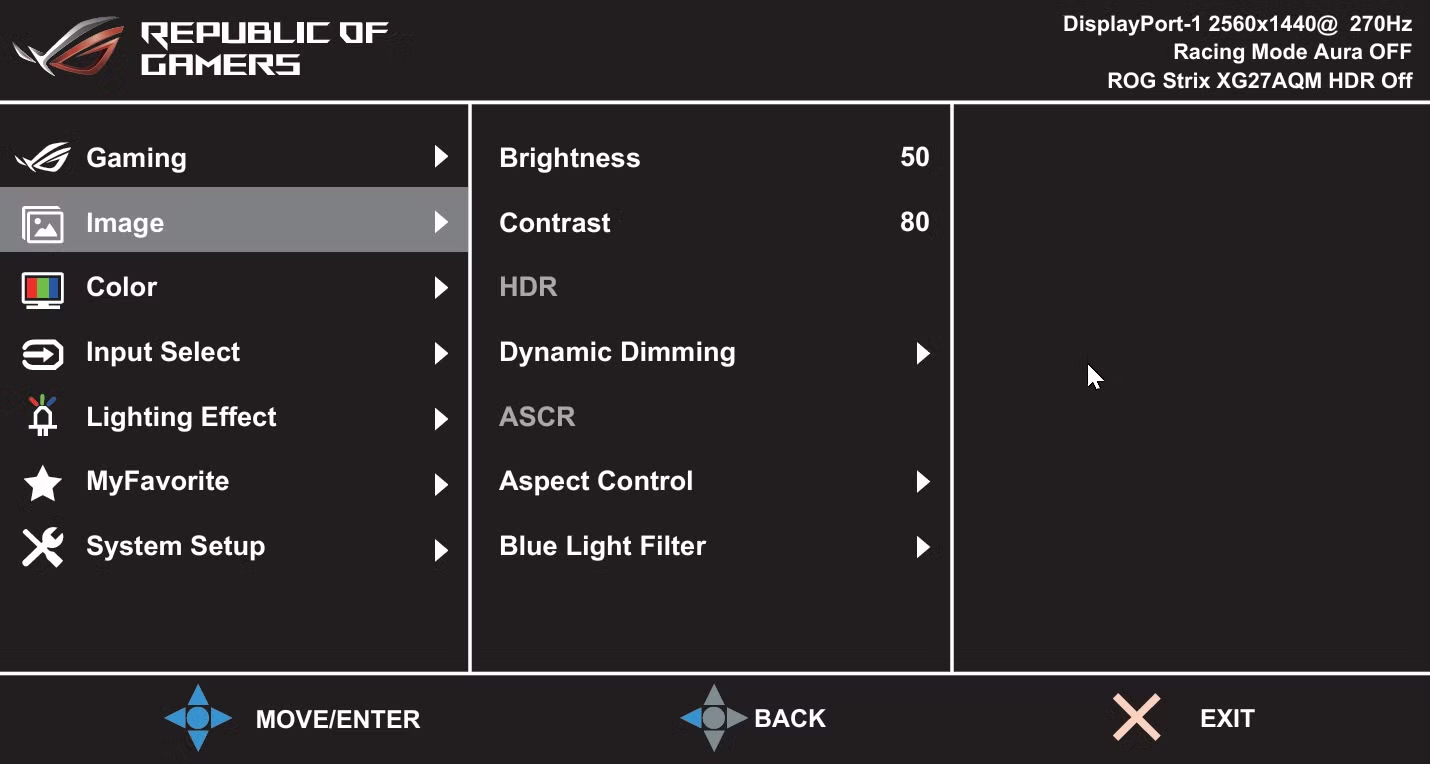
Image source: Bing (Web (fair-use with source credit))
You can also check the on-screen display (OSD). Many monitors have a "HDR" toggle in their menu. If you enable it and see no change in brightness or color, that's another sign of fake HDR.
Real-World HDR Performance at Different Price Tiers
Not all HDR experiences are equal. Here's what you can actually expect depending on your budget.
| Price Range | Typical Brightness | HDR Quality | Example Traits |
|---|---|---|---|
| $150–$300 | 250–350 nits | Poor – HDR makes it worse | No local dimming, 8-bit panel, no VESA cert |
| $300–$600 | 350–450 nits | Moderate – passable for games | DisplayHDR 400 often, edge-lit, 8-bit+FRC |
| $600–$1000 | 450–800 nits | Good – enjoyable HDR | DisplayHDR 600, Mini-LED, local dimming |
| $1000+ | 800+ nits | Excellent – true HDR | DisplayHDR 1000, OLED or FALD, native 10-bit |
In the budget tier, you're better off keeping HDR off. Aggregate reviews report that turning on HDR on a 300-nit panel often makes games look milky. You lose the punch you paid for.
In the mid-range, monitors like the Dell S2722QC or Gigabyte M27Q offer DisplayHDR 400. They'll give you a mild HDR effect. Fine for atmospheric single-player games, but don't expect jaw-dropping contrast.
At the high end, Mini-LED monitors like the Samsung Odyssey Neo G7 deliver proper HDR with 1000+ nits peak and 500+ dimming zones. That's where HDR finally feels worth it.
For competitive gamers, there's a trade-off. HDR can add 2 to 5 milliseconds of input lag. Most pros leave it off anyway.
They prefer stable SDR brightness and the lowest latency.
So if you're on a tight budget and want HDR, save your money. Upgrade to a true HDR display later. For now, enjoy the high refresh rate in SDR.
It's still a great experience.
Common Mistakes That Lead to Bad HDR
Most people who complain about HDR on a 144Hz monitor aren't actually seeing real HDR. They're seeing one of these common pitfalls instead.
Mistake 1: Confusing "HDR10 compatible" with "good HDR."
HDR10 is just the signal format. Your monitor can accept it and still only hit 250 nits peak brightness. Per manufacturer specs, that's not enough to produce the 1000-nit highlights HDR content was mastered for.
The result is a flat, greyish image that looks worse than SDR.
Mistake 2: Toggling HDR on in Windows without adjusting settings.
Windows HDR mode applies a system-wide gamma curve. If your monitor lacks proper tone mapping, everything looks washed out. You need to calibrate the HDR/SDR brightness balance in Display Settings.
Many users skip this step and blame the monitor.
Mistake 3: Using the wrong cable or port.
HDMI 1.4 cannot handle 144Hz HDR at any resolution above 1080p. Even HDMI 2.0 caps out at 1440p 144Hz without HDR. For 1440p 144Hz with 10-bit color, you need DisplayPort 1.4 or HDMI 2.1.
Aggregate user reports show this is the single most overlooked issue.
Mistake 4: Expecting HDR to look like an OLED TV on a budget IPS panel.
OLED panels have per-pixel lighting and infinite contrast. A $300 IPS monitor with edge-lit backlighting cannot reproduce that. You're fighting physics.
Know what your hardware can actually deliver.
Mistake 5: Not testing with proper HDR content.
Some YouTube videos labeled "HDR" are just SDR clips with boosted saturation. Use genuine HDR games or streaming services like Netflix with verified HDR streams. Otherwise you're evaluating fake content on a fake HDR display.
When Should You Actually Use HDR on a 144Hz Monitor?
The honest answer: only when the content and the monitor align.
Good candidates for HDR on a mid-range 144Hz panel:
- Single-player story games with native HDR support (e.g., Red Dead Redemption 2, Horizon Zero Dawn, Cyberpunk 2077). These titles have dynamic range that benefits even modest HDR.
- HDR movies or TV shows on streaming platforms. Film content is mastered to lower peak brightness, so a 400-nit monitor can look decent.
- Games with well-implemented HDR calibration menus. If the game asks you to adjust a brightness slider until a logo is barely visible, that means the developer optimized for varied displays.
Avoid HDR in these situations:
- Competitive shooters like Valorant, CS2, or Overwatch 2. HDR adds input lag (2-5ms) and inconsistent brightness. Pros leave it off.
- Desktop use, web browsing, or productivity. HDR mode often blows out white backgrounds and makes text look fuzzy. Stick to SDR for general use.
- Any game that doesn't natively support HDR. Forced HDR via Windows can introduce banding and crushed blacks.
The rule of thumb: if your monitor only has DisplayHDR 400 or no certification, use HDR selectively for single-player games and movies. Turn it off for everything else.
Expert Tips: Getting the Best HDR Experience at 144Hz
You can squeeze more out of your monitor with a few tweaks. These tips apply whether you have a DisplayHDR 400 or 600 panel.
Tip 1: Use DisplayPort 1.4 for 1440p 144Hz HDR.
DisplayPort 1.4 supports up to 32.4 Gbps bandwidth. That's enough for 1440p at 144Hz with 10-bit color. HDMI 2.0 caps at 18 Gbps, which forces chroma subsampling or lower refresh.
Check your GPU's ports before buying a cable.
Tip 2: Calibrate HDR in Windows and in-game.
Go to Settings > System > Display > Windows HD Color Settings. Drag the HDR/SDR brightness balance slider until the SDR content (like your desktop) looks normal. Then open your game's HDR calibration and follow the on-screen instructions.
This fixes the washed-out look most people hate.
Tip 3: Lower refresh rate if bandwidth is tight.
If you're stuck with HDMI 2.0, drop to 120Hz. You'll keep 10-bit HDR without chroma subsampling. The difference between 120Hz and 144Hz is barely noticeable in single-player games.
The image quality gain from full color is worth it.
Tip 4: Enable local dimming in the OSD.
Many monitors have local dimming settings buried in the on-screen display. Even basic edge-lit dimming helps a little. Set it to "High" or "Auto" for HDR content.
Leave it off for desktop use (it causes blooming on mouse cursors).
Tip 5: Keep firmware updated.
Monitor manufacturers sometimes release firmware updates that improve HDR tone mapping. Check the support page for your model. Some updates fix HDR flicker, raised black levels, or color accuracy issues.
Alternatives: What to Buy If You Want True HDR and High Refresh
If you've decided that the HDR on your current 144Hz monitor isn't cutting it, you have options. Here's what to look for.
OLED 144Hz monitors are the gold standard for HDR gaming. They have per-pixel lighting, infinite contrast, and instant response times. Models like the LG 27GR95QE or Alienware AW2725DF deliver real HDR with 144Hz refresh.
The catch is price (around $800-$1000) and burn-in risk for desktop use.
Mini-LED 144Hz monitors offer a cheaper path to true HDR. They use hundreds or thousands of tiny LED zones for local dimming. The Samsung Odyssey Neo G7 (32-inch, 165Hz) hits 1000+ nits peak and costs $600-$800.
It's the best balance of HDR and refresh for most gamers.
60Hz OLED TVs are an alternative if you don't need 144Hz. A 42-inch LG C4 OLED supports 120Hz and has perfect HDR. It's better for cinematic games but bigger and less desk-friendly.
What to avoid: monitors labeled "HDR ready" with no VESA certification. Also avoid "HDR10" only without DisplayHDR 400 at minimum. You'll repeat the same disappointment.
If you're on a strict budget, don't buy a new monitor for HDR. Save until you can afford at least a DisplayHDR 600 model. The difference between 400 and 600 is bigger than the price jump suggests.
Frequently Asked Questions
Can a 144Hz 1080p monitor support HDR?
Yes, but most 1080p 144Hz monitors lack the brightness and local dimming for real HDR. You'll typically find DisplayHDR 400 at best. At that level, HDR is mild.
Check the VESA certification before buying.
Do all 144Hz monitors have HDR?
No. Many budget 144Hz monitors skip HDR entirely to keep costs down. Always check the spec sheet.
If it doesn't mention DisplayHDR or at least HDR10, you're getting SDR only.
Is HDR worth it on a 144Hz monitor under 0?
Rarely. At that price, you're looking at 250-350 nits peak brightness. HDR will look flat or washed out.
You're better off using SDR and enjoying the high refresh rate. Save up for a better model later.
Does HDR affect input lag at 144Hz?
Sometimes. HDR processing adds 2 to 5 milliseconds of input lag on average. That's noticeable in competitive shooters but fine for single-player games.
Check independent testing for your specific monitor model.
Can I use HDR and G-Sync or FreeSync at the same time?
Yes, most modern monitors support VRR alongside HDR. But some implementations have flicker issues, especially with Mini-LED backlighting. If you see flicker, try disabling one feature to isolate the problem.
What cable do I need for 144Hz HDR?
For 1080p 144Hz HDR, HDMI 2.0 works. For 1440p 144Hz HDR, use DisplayPort 1.4. For 4K 144Hz HDR, you need HDMI 2.1 or DisplayPort 2.0.
Check your GPU's output ports.
Final Decision Guide: Should You Buy a 144Hz Monitor for HDR?
Let's pull everything together into a simple decision framework. You don't need to memorize specs. Just answer these three questions.
Question 1: What do you play?
If you mostly play competitive shooters like Valorant, CS2, or Apex Legends, skip HDR. You won't use it. Invest that money in a faster panel with lower response times.
A 144Hz IPS monitor without HDR will serve you better than a budget HDR model with mediocre brightness.
If you play single-player story games or watch movies, HDR adds real value. But only if the monitor can actually deliver it. That means DisplayHDR 600 or higher, or an OLED panel.
Question 2: What's your budget?
Under $400, forget true HDR. Buy a solid SDR 144Hz monitor and save for later. Between $400 and $700, look for DisplayHDR 600 or Mini-LED models.
Over $700, OLED 144Hz monitors deliver the best HDR experience you can get at a desk.
Question 3: Are you willing to tweak settings?
If you want plug-and-play HDR, you need an OLED or high-end Mini-LED monitor. Budget HDR requires calibration, cable upgrades, and selective use. If that sounds like a hassle, stick with SDR and skip the frustration.
Our bottom line: Most 144Hz monitors under $500 do not support true HDR. They accept the signal but cannot display it properly. If HDR matters to you, budget at least $600 and look for VESA DisplayHDR 600 or OLED.
If high refresh rate matters more, spend your money on a fast SDR panel and enjoy smooth gameplay. You can always upgrade to a real HDR monitor later when prices drop.
As of 2026, the gap between budget HDR claims and real performance is still wide. Armed with what you've learned here, you can spot the difference before you buy. That's the win.

Similar Posts