do 144hz monitors need displayport
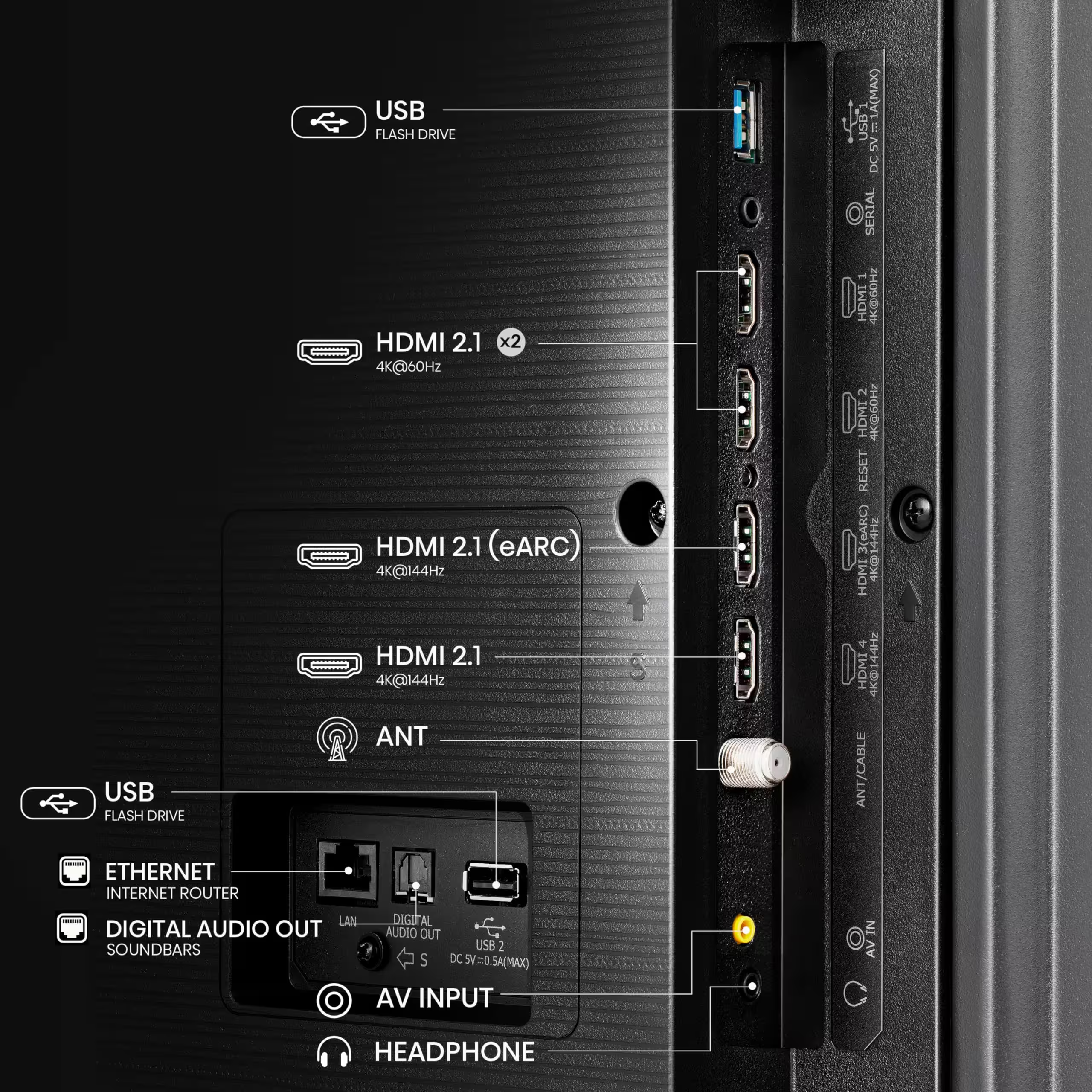
You’ll unbox a shiny 144Hz monitor, plug in the HDMI cable that came with it, fire up a game, and something feels off. The motion isn’t buttery. It stutters.
You check the display settings and see 60Hz, not 144Hz. That’s the moment you start asking “do 144hz monitors need displayport”, and the answer isn’t a simple yes or no.
In our research across monitor spec sheets and GPU manuals, one truth kept surfacing: the cable is the bottleneck. As of 2026, DisplayPort remains the safest bet for hitting 144Hz at higher resolutions, but HDMI can work depending on the version. Let’s walk through exactly when each cable works, so you don’t waste money on the wrong one.
Image source: Bing (Web (fair-use with source credit))
The Real Problem: Why Your 144Hz Monitor Might Be Stuck at 60Hz
Your monitor can display 144 frames per second. Your graphics card can pump out 144 frames per second. But if the cable between them can’t carry that much data fast enough, the system falls back to a lower refresh rate automatically.
That’s when you’re stuck at 60Hz without knowing why.
The culprit is bandwidth. Every cable standard, HDMI, DisplayPort, DVI, has a maximum data rate. Sending a 1080p image at 144Hz requires roughly 8 Gbps.
At 1440p, that jumps to about 14 Gbps. At 4K 144Hz, you need over 32 Gbps. Older cable versions simply can’t keep up.
Most monitors ship with a cheap HDMI 1.4 cable in the box. That version maxes out at 10.2 Gbps. It can handle 1080p but only up to 120Hz.
At 1440p or 4K, it drops to 60Hz. So the factory cable is often the reason you aren’t getting your money’s worth from the monitor.
The fix is either a better cable or a different port. But which one? That depends on three factors we’ll break down below.
Quick Answer: When You Need DisplayPort and When HDMI Works
DisplayPort is needed for 1440p at 144Hz and for 4K at 144Hz without compression. HDMI works for 1080p at 144Hz if you have HDMI 2.0 or newer.
That’s the short version. Here is the breakdown per resolution:
| Resolution | Refresh Rate | Works with HDMI? | Works with DisplayPort? |
|---|---|---|---|
| 1080p | 144Hz | Yes, HDMI 2.0+ (HDMI 1.4 only does 120Hz) | Yes, DP 1.2+ |
| 1440p | 144Hz | No — HDMI 2.0 maxes at 120Hz at 1440p | Yes, DP 1.2+ |
| 4K | 144Hz | Only HDMI 2.1 (rare on GPUs and monitors) | Yes, DP 1.4 with DSC or DP 2.0 |
If you own a 1440p 144Hz monitor, you pretty much always need DisplayPort. If you own a 1080p 144Hz monitor, HDMI 2.0 works fine, as long as both your GPU and monitor support that version.
How Refresh Rate and Bandwidth Actually Work (In Plain English)
Imagine a pipe carrying water. The water is the video data, color, brightness, position of every pixel, updated 144 times per second. Refresh rate is how many times per second that pipe dumps a full load.
Bandwidth is how wide the pipe is.
A 1080p image at 60Hz is a small pipe. Cram it up to 144Hz and you need a wider pipe because you’re sending 2.4 times more data each second. Now add resolution: 1440p has 78% more pixels than 1080p.
So at the same refresh rate, you need 78% more bandwidth.
Here is a cheat sheet of what each cable version can handle at 144Hz:
| Cable Standard | Max Bandwidth | 1080p 144Hz | 1440p 144Hz | 4K 144Hz |
|---|---|---|---|---|
| HDMI 1.4 | 10.2 Gbps | 120Hz max | 60Hz | 30Hz |
| HDMI 2.0 | 18 Gbps | Yes | 120Hz max | 60Hz |
| HDMI 2.1 | 48 Gbps | Yes | Yes | Yes (with DSC) |
| DP 1.2 | 21.6 Gbps | Yes | Yes | 60Hz |
| DP 1.4 | 32.4 Gbps | Yes | Yes | Yes (with DSC) |
| DP 2.0 | 80 Gbps | Yes | Yes | Yes |
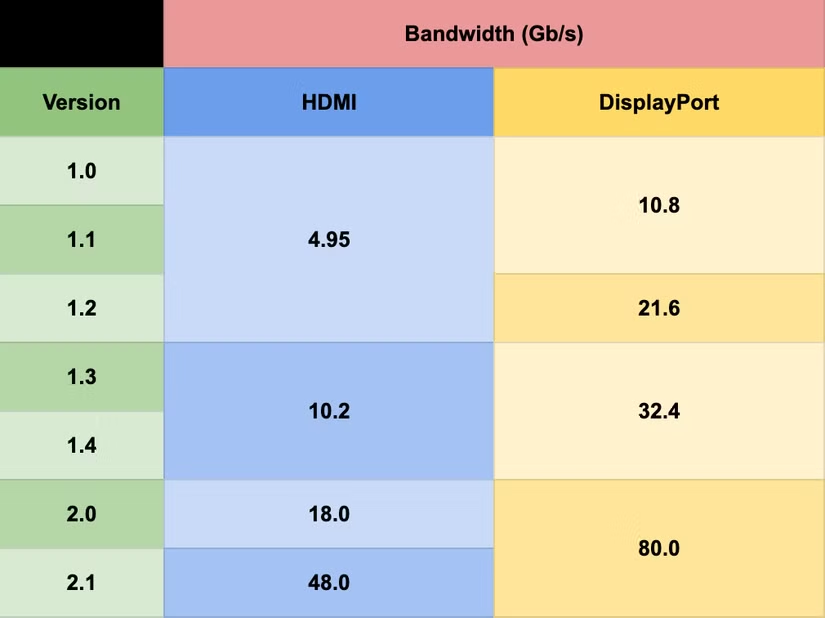
Image source: Bing (Web (fair-use with source credit))
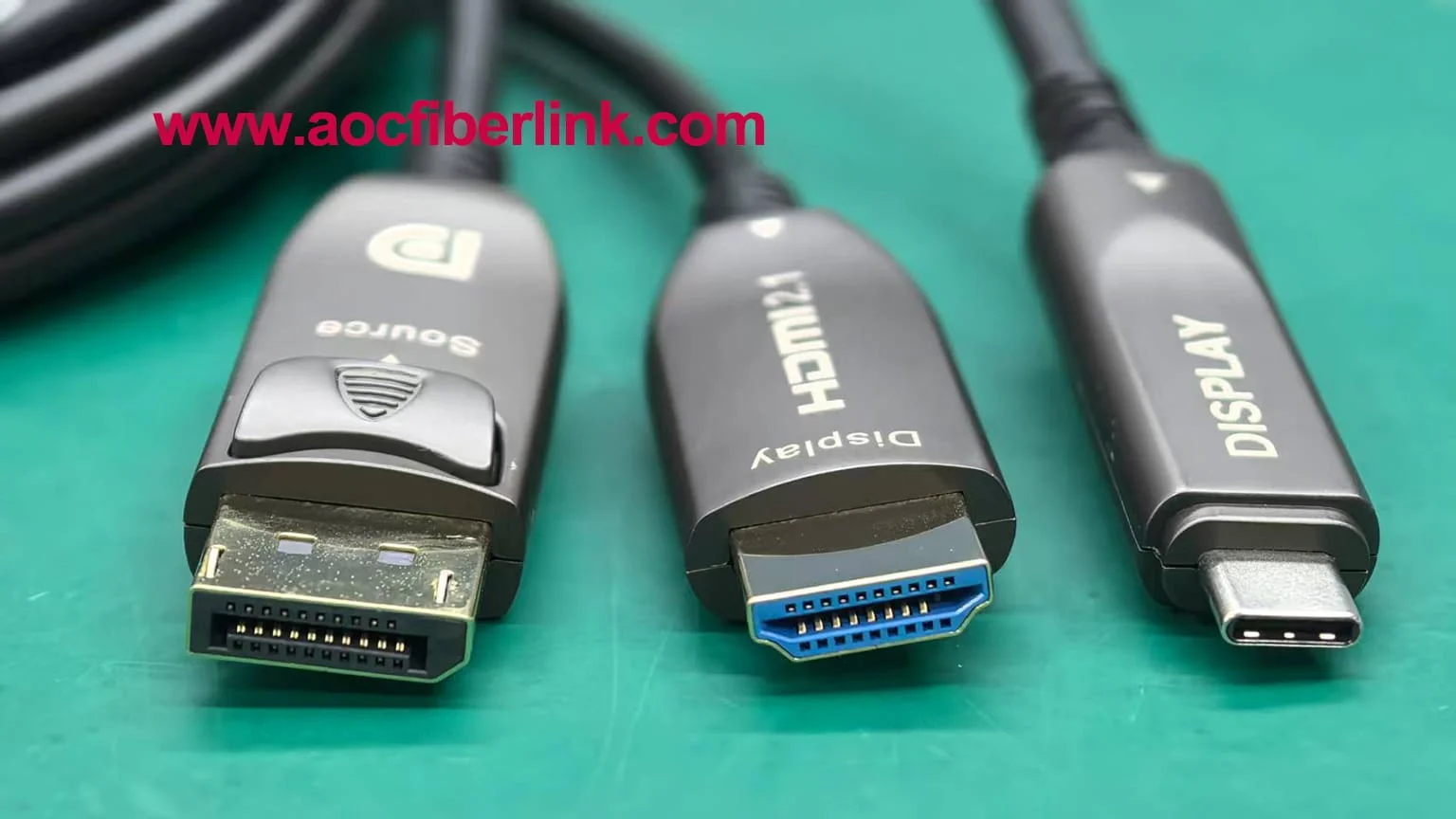
Notice the gap: HDMI 2.0 can do 1440p but only up to 120Hz. To hit the full 144Hz at that resolution, you need the extra headroom of DisplayPort 1.2 or higher. That’s why most 1440p 144Hz monitors ship with a DisplayPort cable, not HDMI.
The Three Big Variables That Decide Your Cable Choice
Three things control whether you can use HDMI or need DisplayPort. Check these before you buy anything.
Your Monitor’s Resolution
Higher resolution demands more bandwidth. 1080p is forgiving. 1440p and 4K are not. If you have a 1440p or 4K monitor, start with DisplayPort as your default. HDMI 2.0 can’t deliver full 144Hz at those resolutions, period.
Your GPU’s HDMI Version
Not all HDMI ports are equal. A GPU from 2016 might have HDMI 1.4. A 2020 card likely has HDMI 2.0.
A 2023 card might have HDMI 2.1. You can find the exact version in your GPU’s spec sheet or by looking up the model number online. If your GPU only has HDMI 1.4, you cannot hit 144Hz at any resolution above 1080p, even at 120Hz at 1080p.
You’ll need DisplayPort.
Your Monitor’s Port Support
Many 144Hz monitors advertise “HDMI” but don’t list which version. Some budget monitors have HDMI 1.4 ports only. Others have HDMI 2.0.
Check the monitor’s manual or the manufacturer’s product page. Look for “HDMI 2.0” or “HDMI 2.1” in the specs. If it just says “HDMI,” assume it’s 1.4 and plan on using DisplayPort for 144Hz.
Decision Tree: Walk Through Your Situation
Let’s make this practical. Answer the questions below in order. Each branch tells you exactly which cable you need.
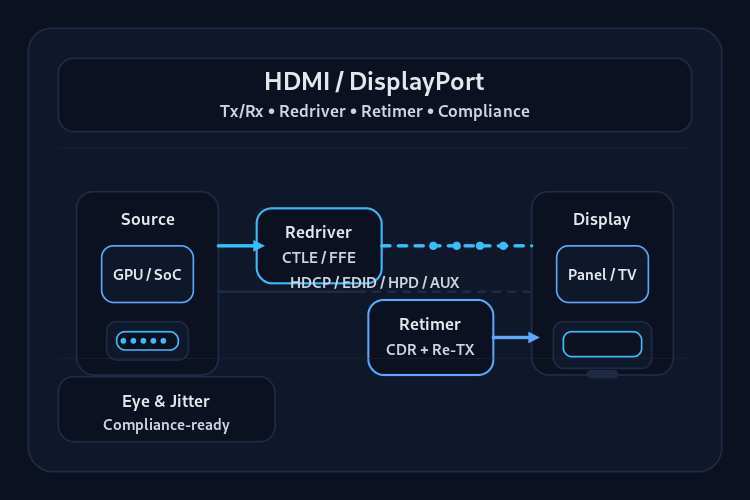
Image source: Bing (Web (fair-use with source credit))
Branch 1: 1080p 144Hz
First question: Does your GPU have HDMI 2.0 or newer?
- Yes, You can use HDMI. Plug it into an HDMI 2.0 port on both ends. Make sure the cable is “High Speed HDMI” (labeled on the cable). You’ll get full 144Hz.
- No (GPU has HDMI 1.4), You’ll need DisplayPort. HDMI 1.4 only supports 1080p at 120Hz. Use DP 1.2 or higher.
- Not sure, Check your GPU model on the manufacturer’s website. Look for “HDMI version” in the specs.
Branch 2: 1440p 144Hz
Second question: Does your GPU have HDMI 2.1?
- Yes, HDMI 2.1 can handle 1440p 144Hz. But your monitor also needs an HDMI 2.1 port. Many 1440p monitors don’t have HDMI 2.1, they cap HDMI at 2.0. Verify both ends. If either lacks HDMI 2.1, use DisplayPort.
- No, You need DisplayPort. HDMI 2.0 maxes at 1440p 120Hz. DP 1.2 or higher gives you the full 144Hz.
- Unsure about monitor HDMI version, Check the monitor’s manual. If it doesn’t mention HDMI 2.1, assume it’s 2.0. Use DisplayPort.
Branch 3: 4K 144Hz
Third question: Does your GPU have DisplayPort 1.4 or HDMI 2.1?
- DisplayPort 1.4, Yes, with DSC (Display Stream Compression). Your monitor also needs DP 1.4. Most 4K 144Hz monitors support this.
- HDMI 2.1, Yes, but only if your monitor has HDMI 2.1. Rare for monitors under $600 as of 2026.
- Neither, You cannot reach 4K 144Hz. You’ll be stuck at 4K 60Hz or 1440p 144Hz. Upgrade your GPU or lower your expectations.
What If You Have Both HDMI and DisplayPort?
Use DisplayPort. It’s simpler, has fewer version-matching headaches, and supports adaptive sync (G-Sync or FreeSync) more reliably across brands. HDMI 2.0 works for 1080p 144Hz, but DP is the safer choice for any resolution above that.
Pro tip: Always use the cable that came with your monitor for 144Hz if it’s a DP cable. Monitor manufacturers know which cable works. If they included an HDMI cable, verify it’s High Speed HDMI and check your GPU’s HDMI version before assuming it will work.
Now you know exactly which cable your setup needs. Next we’ll cover common mistakes that trip people up even after they choose the right cable.
What About HDMI 2.1? (The Exception to the Rule)
HDMI 2.1 changes everything. It bumps the bandwidth from 18 Gbps (HDMI 2.0) to 48 Gbps. That’s enough for 4K at 144Hz without any compression trickery.
It also handles 1440p at 144Hz with room to spare.
But here is the catch. HDMI 2.1 is not everywhere yet. As of 2026, it’s common on high-end GPUs like the NVIDIA RTX 30-series and newer, and AMD RX 6000-series and newer.
On the monitor side, it’s still rare on 1440p models. Most 1440p 144Hz monitors cap their HDMI ports at 2.0. You’ll find HDMI 2.1 mostly on 4K high-refresh monitors and some premium 1440p gaming screens.
So if you have a GPU with HDMI 2.1 and a monitor with HDMI 2.1, you can use HDMI for 144Hz at any resolution up to 4K. That includes 1440p 144Hz. But you still need to verify both ends.
One missing piece kills the handshake.
Here’s a quick checklist:
- GPU side, Check your GPU model. If it’s RTX 3060 or newer (NVIDIA) or RX 6600 or newer (AMD), it likely has HDMI 2.1.
- Monitor side, Look for “HDMI 2.1” in the monitor’s specs. If it just says “HDMI 2.0” or “HDMI,” assume it’s not.
- Cable, You need an Ultra High Speed HDMI cable (certified for 48 Gbps). The cheap cable in the box probably isn’t.
If both ends have HDMI 2.1, go ahead and use it. It works just as well as DisplayPort. If either end lacks it, you’re back to DisplayPort for resolutions above 1080p at full 144Hz.
Common Mistakes That Kill Your 144Hz Setup
Even after you choose the right cable, things can go wrong. We’ve seen these slip-ups repeatedly in user forums and tech support threads.
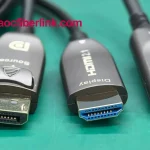
Using the wrong cable version. You bought an HDMI cable labeled “High Speed.” That’s HDMI 1.4 or 2.0, not 2.1. If your monitor and GPU support HDMI 2.1, you need a cable certified for 48 Gbps. The same goes for DisplayPort.
Many cheap DP cables are only rated for DP 1.2, not 1.4. Check the cable markings. If it doesn’t say “DP 1.4” or “8K capable,” it might not handle 4K at 144Hz.
Assuming the monitor’s HDMI port supports 144Hz. Many 144Hz monitors have only one HDMI port that can do 144Hz. The other HDMI port might be capped at 60Hz. Check the manual.
It’s usually labeled on the back of the monitor next to the port. If not, cycle through the inputs in the OSD and see which one lets you set 144Hz.
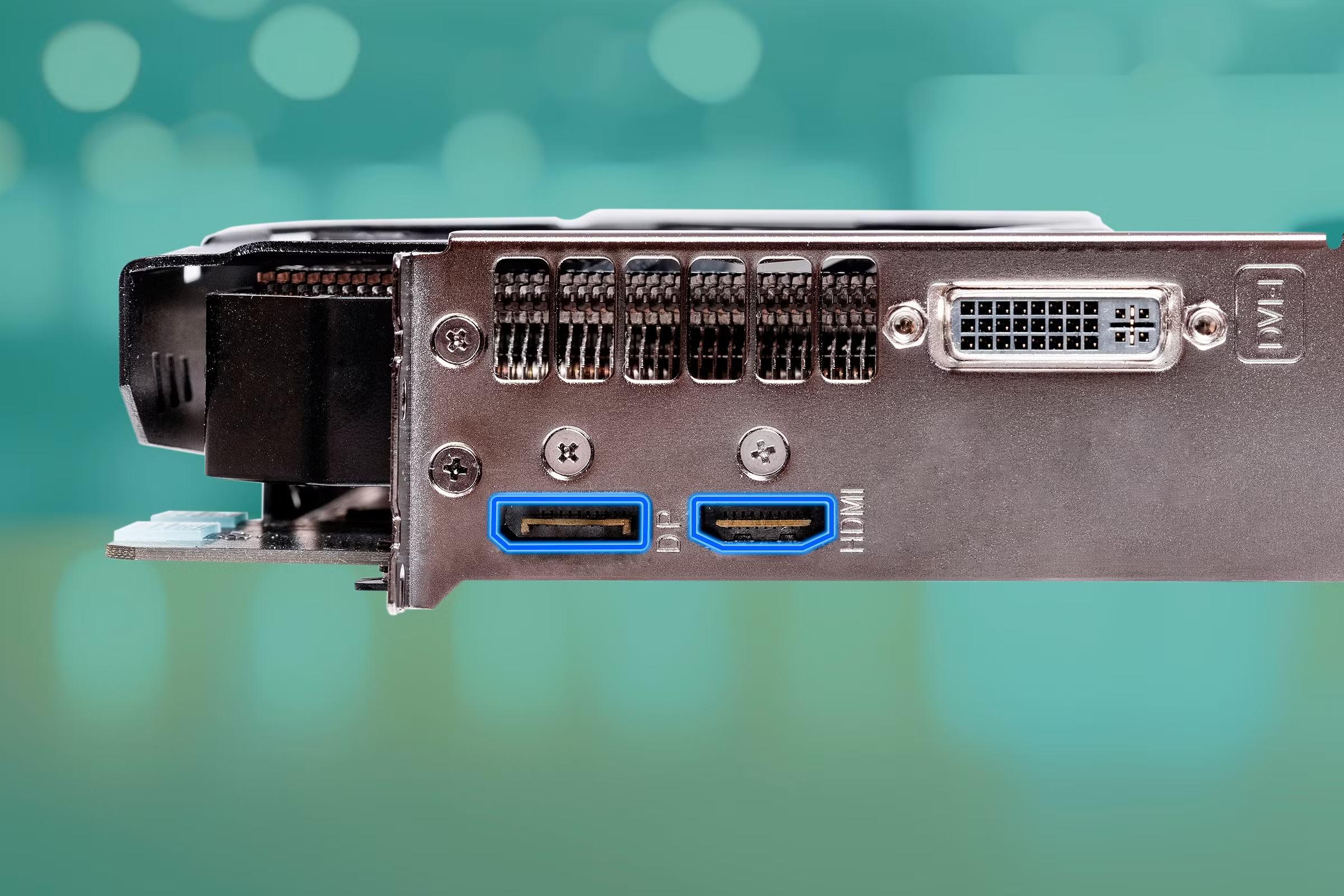
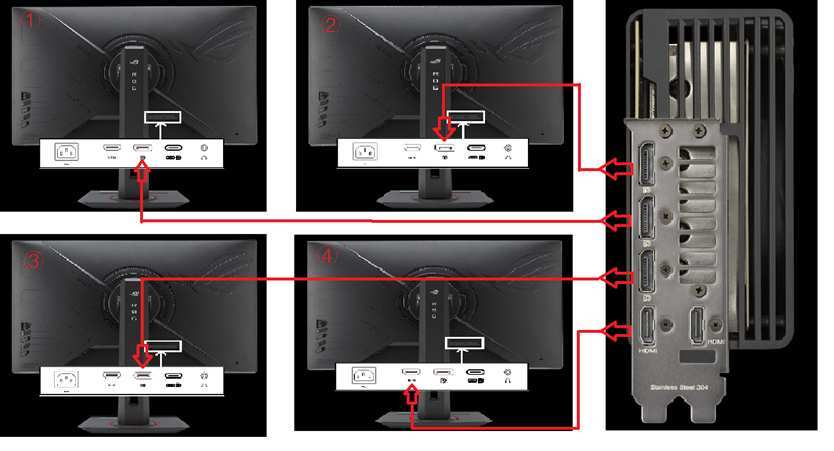
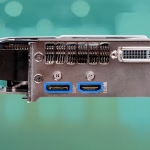
Plugging into the motherboard instead of the GPU. This is one of the most common mistakes. If you plug your monitor into the HDMI or DisplayPort port on the back of the motherboard (near the USB ports), you’re using the integrated graphics, not your dedicated GPU. That usually maxes out at 60Hz.
Always plug into the GPU ports lower down on the case.
Forgetting to change the refresh rate in Windows. Even with the right cable and port, Windows defaults to 60Hz. You have to manually set it to 144Hz. Go to Settings > System > Display > Advanced display settings.
Under “Choose a refresh rate,” select 144Hz. If it doesn’t show up, the cable or port isn’t capable.
Using a long cable. DisplayPort cables over 10 feet can lose signal quality, especially at high bandwidth. HDMI is more forgiving up to about 15 feet. If your run is longer, use a shorter cable or an active repeater.
Otherwise you might get flickering or a blank screen at 144Hz.
Real-World Specs: Bandwidth Limits at a Glance
Let’s compress the numbers into something you can scan in five seconds.
Image source: Bing (Web (fair-use with source credit))
| Connection Type | Max Bandwidth | Can It Do 1080p 144Hz? | Can It Do 1440p 144Hz? | Can It Do 4K 144Hz? |
|---|---|---|---|---|
| HDMI 1.4 | 10.2 Gbps | No (120Hz max) | No (60Hz max) | No (30Hz max) |
| HDMI 2.0 | 18 Gbps | Yes | No (120Hz max) | No (60Hz max) |
| HDMI 2.1 | 48 Gbps | Yes | Yes | Yes (with DSC) |
| DP 1.2 | 21.6 Gbps | Yes | Yes | No (60Hz max) |
| DP 1.4 | 32.4 Gbps | Yes | Yes | Yes (with DSC) |
| DP 2.0 | 80 Gbps | Yes | Yes | Yes |
A few things to notice. DP 1.2 is the baseline that handles 1440p 144Hz. DP 1.4 adds enough bandwidth for 4K 144Hz by using Display Stream Compression.
DSC is visually lossless in practice. You won’t notice a difference in games or movies.
If your monitor is 1080p 144Hz, almost any modern cable works. For 1440p 144Hz, you need at least DP 1.2 or HDMI 2.1. For 4K 144Hz, you need DP 1.4 or HDMI 2.1.
No exceptions.
Expert Tips: Adapters, Cables, and Settings to Check
Now that you know the specs, here are the practical steps to get 144Hz working without frustration.
Use the cable that came with the monitor first. Monitor manufacturers tend to include the right cable for the panel’s native resolution and refresh rate. If your 1440p 144Hz monitor includes a DisplayPort cable, use it. If it includes an HDMI cable, check the version.
It’s likely HDMI 2.0, which won’t do 1440p at 144Hz. That’s the clue the manufacturer expects you to use DisplayPort.
If you need an adapter (HDMI to DisplayPort or vice versa), only use active adapters. Passive adapters don’t boost bandwidth. They just change the physical connector. An active adapter converts the signal and can sometimes bridge version gaps.
But they’re not perfect. In our research, active HDMI-to-DP adapters often cap out at 1080p 60Hz. For 144Hz, skip adapters entirely.
Use a native cable.
Check the monitor’s OSD for a refresh rate setting. Some monitors default to a lower refresh rate to save power or ensure compatibility. Go into the on-screen display menu. Look for “Refresh Rate,” “Response Time,” or “Game Mode.” Set it to the highest available option.
Some monitors lock 144Hz behind a specific input (like “DisplayPort 1” instead of “HDMI 1”).
Update your GPU drivers. Outdated drivers can fail to enumerate the full list of supported refresh rates. Go to NVIDIA or AMD’s website. Download the latest driver.
Restart. Then check your display settings again.
If you’re on a laptop, watch out for the “iGPU passthrough.” Many gaming laptops route the dedicated GPU through the integrated graphics. That can cap the refresh rate. Check your laptop’s BIOS or GPU control panel.
Look for a setting like “MUX switch” or “GPU mode.” Set it to “dGPU only” if possible.
Frequently Asked Questions
Does a 144Hz monitor come with a DisplayPort cable?
Most 1440p and 4K 144Hz monitors include a DisplayPort cable in the box. Many 1080p 144Hz monitors include an HDMI cable instead. Check inside the box before buying a separate cable.
Use whichever cable matches the monitor’s primary high-refresh input.
Can HDMI 2.0 run 144Hz at 1440p?
No. HDMI 2.0 maxes out at 120Hz at 1440p. To get the full 144Hz at that resolution, you need DisplayPort 1.2 or higher, or HDMI 2.1.
If your monitor only has HDMI 2.0, use the DisplayPort input.
Is DisplayPort better than HDMI for 144Hz?
Generally yes, for two reasons. DisplayPort has higher bandwidth at the same price point. It also supports G-Sync and FreeSync more consistently across different monitor brands.
If your GPU and monitor both have DisplayPort, it’s the safer choice for any resolution above 1080p.
Why is my 144Hz monitor only showing 60Hz?
The most common cause is a cable or port that can’t handle the bandwidth. Check that you’re using a certified cable (DP 1.2+ or HDMI 2.0+). Also check that you’re plugged into the GPU, not the motherboard.
Finally, make sure you’ve manually set 144Hz in Windows display settings.
Do I need a special DisplayPort cable for 144Hz?
Any certified DisplayPort cable rated for DP 1.2 or higher will handle 1080p and 1440p at 144Hz. For 4K 144Hz, you need a DP 1.4 certified cable. Look for “DP 1.4” or “8K” on the cable packaging.
Avoid uncertified cheap cables longer than 10 feet.
Final Decision Guide: What Cable to Buy Right Now
If you’re still unsure, here is the simplest possible advice based on your monitor resolution.
- 1080p 144Hz, Buy a certified High Speed HDMI cable (HDMI 2.0). It’s cheap and works. Only buy DisplayPort if your GPU lacks HDMI 2.0. In that case, get a DP 1.2 cable.
- 1440p 144Hz, Buy a DisplayPort 1.2 or 1.4 cable. Do not use HDMI unless both your GPU and monitor have HDMI 2.1. If they do, get an Ultra High Speed HDMI cable.
- 4K 144Hz, Buy a DisplayPort 1.4 cable (certified for HBR3). If your monitor and GPU both support HDMI 2.1, you can use that instead. Get an Ultra High Speed HDMI cable.
One final rule: always buy certified cables. Look for the VESA certification mark on DisplayPort cables and the “Ultra High Speed” label on HDMI 2.1 cables. Cheap uncertified cables are the number one reason 144Hz monitors don’t hit their refresh rate.
Spend the extra five dollars. Your monitor will thank you.

Similar Posts