Can Ps5 Use 144Hz Monitor
So you've got a 144Hz gaming monitor sitting on your desk, and you're wondering if your PlayStation 5 can actually use it. It's a fair question. The answer isn't a simple yes or no, and getting it wrong can leave you staring at a blank screen.
Here's the deal. The PS5 can't output 144Hz natively, so your monitor will either cap at 120Hz or behave unpredictably. Making it work smoothly depends on your specific monitor, your HDMI cable, and a few settings tweaks we'll walk through.
Quick Answer
The PS5 cannot output 144Hz. Its maximum refresh rate output is 120Hz. A 144Hz monitor will work if it accepts a 120Hz signal.
You need an Ultra High Speed HDMI cable for full compatibility.
Why This Isn't a Simple Yes or No
Most people assume that a 144Hz monitor would automatically run at 144Hz with any device. That's how it works on PC, where graphics cards can push custom refresh rates fairly easily. Consoles are a different story.
The PS5 has a fixed set of output modes. Manufacturer specifications confirm the console supports up to 120Hz at 4K, 1440p, and 1080p resolutions. There's no 144Hz mode in the system settings, and no way to add one through software.
That doesn't mean your 144Hz monitor is useless here. Most modern 144Hz monitors accept a 120Hz input signal without issue. The monitor just runs at 120Hz instead of its maximum 144Hz.
You lose those extra 24 frames per second, but everything else works.
The problem starts when a monitor doesn't handle the 144Hz-to-120Hz mismatch well. Some scaler chips get confused. Some monitors display a "no signal" message.
Others force an unnatural scaling that makes the image look off.
This is why you'll see conflicting answers online. Some people say it works perfectly. Others say their PS5 won't display at all on their 144Hz monitor.
Both are right. It depends on the specific monitor's scaler and how it handles non-native refresh rates.
Per HDMI Licensing Administrator specifications, the PS5's HDMI 2.1 port supports a fixed set of refresh rates. 144Hz is not one of them. The console's VRR implementation also only functions within a 48-120Hz range, which further confirms the 120Hz ceiling.
What the PS5 Actually Supports (And What It Doesn't)
Understanding the PS5's output capabilities clears up most of the confusion. Let's break down exactly what Sony built into this console.
The 120Hz Hard Limit
The PS5 maxes out at 120Hz. Period. This applies across all resolutions the console can output.
Whether you're running 1080p, 1440p, or 4K, 120Hz is the ceiling.
Sony made this choice deliberately. 120Hz covers the vast majority of console games that support high frame rate modes. It also aligns with the HDMI 2.1 standard's capabilities without pushing into niche territory that most TVs and monitors don't support.
As of 2026, Sony hasn't added 144Hz support through any system update. The PS5 Pro, released with an upgraded GPU, still sticks with the same 120Hz maximum. If Sony was going to add 144Hz, the Pro model would've been the place to do it.
HDMI 2.1 and Why It Matters
Every PS5 model, including the original, the Slim, and the Pro, ships with an HDMI 2.1 port. This is the key piece of hardware that enables high refresh rate output.
HDMI 2.1 provides 48 Gbps of bandwidth. That's enough to handle 4K at 120Hz with HDR enabled. It's also enough for 1440p at 120Hz, which Sony added support for in a system update after launch.
The console ships with an Ultra High Speed HDMI cable in the box. This cable is certified for the full 48 Gbps bandwidth. If you swap it out for a cheaper or older cable, you might not get reliable 120Hz output at higher resolutions.
Here's a practical breakdown of what works and what doesn't.
| Output Mode | PS5 Supported | Notes |
|---|---|---|
| 1080p at 60Hz | Yes | Default for most games |
| 1080p at 120Hz | Yes | Works for games with 120fps mode |
| 1440p at 60Hz | Yes | Added post-launch |
| 1440p at 120Hz | Yes | Requires monitor support |
| 4K at 60Hz | Yes | Default for quality mode |
| 4K at 120Hz | Yes | Needs Ultra High Speed HDMI |
| Any resolution at 144Hz | No | Not a supported output mode |
VRR Support on PS5
Variable Refresh Rate lets the PS5 sync its output to your display's refresh cycle. This eliminates screen tearing and reduces stutter. Sony added VRR support through a system update.
PS5 VRR uses the HDMI Forum VRR standard. It works within a range of 48Hz to 120Hz. If a game's frame rate drops below 48fps, VRR disengages and you may see tearing again.
Enabling VRR on the PS5 is straightforward for compatible monitors. We'll cover the exact steps later.
Aggregate reviews report good VRR performance across a range of monitor brands. That said, some users report flickering or brightness fluctuations with VRR enabled, particularly on certain monitor models. This isn't a PS5 problem per se.
It's a monitor scaler implementation issue that varies by manufacturer.
The console also supports FreeSync over HDMI on compatible displays. This expands VRR compatibility beyond just HDMI Forum VRR monitors. If your 144Hz monitor supports FreeSync, there's a good chance it'll work with PS5 VRR.
What Happens When You Connect a 144Hz Monitor
Here's where things get practical. You plug your PS5 into a 144Hz monitor. What actually happens depends on your specific monitor.
Scenario 1: Monitor Accepts 120Hz Signal, Works Fine
This is the ideal outcome. You connect everything, the PS5 sends a 120Hz signal, and the monitor displays it. The monitor runs at 120Hz instead of 144Hz, but everything looks smooth and works correctly.
Most decent 144Hz monitors handle this well. Popular models from ASUS, LG, Samsung, and Gigabyte generally accept a 120Hz input without complaint. The EDID handshake between the PS5 and the monitor confirms the mutual support for 120Hz, and the console outputs accordingly.
You won't notice a meaningful difference between 120Hz and 144Hz in practice. The jump from 60Hz to 120Hz is dramatic. The jump from 120Hz to 144Hz is marginal, maybe visible in fast-paced competitive shooters if you're specifically looking for it.
Scenario 2: Monitor Forces 144Hz, Potential Problems
Some monitors attempt to force their native refresh rate regardless of the input signal. This can cause several issues.
- Screen flickering or intermittent blackouts
- Frame pacing issues, where some frames display longer than others
- Input lag increase due to frame buffering
- Color banding or image quality degradation
This happens when the monitor's scaler tries to interpolate or duplicate frames to fill the 144Hz refresh cycle. The PS5 outputs 120 frames per second. The monitor needs to display 144 per second.
The math doesn't divide evenly, leading to judder.
If you experience this, forcing the monitor to 120Hz through its on-screen display menu usually fixes it. Some monitors have a specific "console mode" or let you manually select the input refresh rate.
Scenario 3: No Signal or Blank Screen
The worst case. You connect everything, turn on the PS5, and get nothing on screen. The monitor shows "no signal" or goes into power saving mode.
This usually happens when the monitor's scaler can't interpret the signal format the PS5 is sending. It's more common with older 144Hz monitors that predate widespread HDMI 2.1 adoption. Some monitors only support high refresh rates over DisplayPort and cap HDMI input at 60Hz.
Troubleshooting steps for this scenario:
- Try booting the PS5 in safe mode by holding the power button for seven seconds. This forces a 480p output that any display should recognize.
- Once in safe mode, navigate to Video Output settings and change the resolution to 1080p.
- Connect to a different display temporarily, set the PS5 to 60Hz output, then reconnect to the 144Hz monitor.
- Check if the monitor has a firmware update that improves HDMI compatibility.
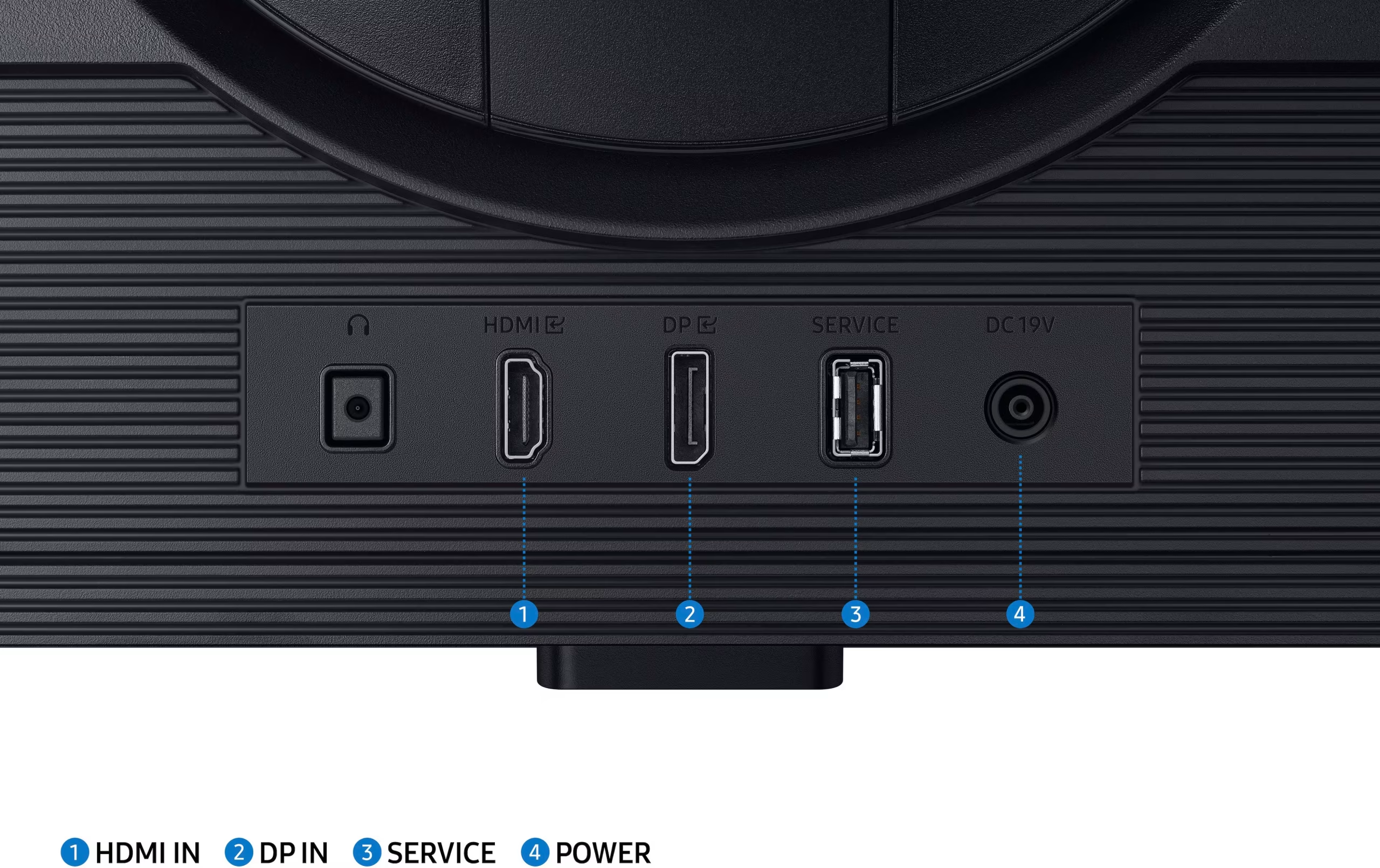
- Try a different HDMI port on the monitor if it has multiple inputs.
How to Set Up Your PS5 With a 144Hz Monitor
Getting everything working correctly takes a few deliberate steps. Follow these in order.
Step 1: Check Your HDMI Cable
Start with the cable. The PS5 needs an Ultra High Speed HDMI cable, also known as a 48 Gbps cable, for anything above 60Hz at 4K resolution. The included cable works fine.
If you've replaced yours, verify it's certified.
Look for "Ultra High Speed" or "48 Gbps" printed on the cable packaging or connector housing. Cables labeled "High Speed" or "Premium High Speed" top out at HDMI 2.0 bandwidth and won't reliably handle 4K 120Hz.
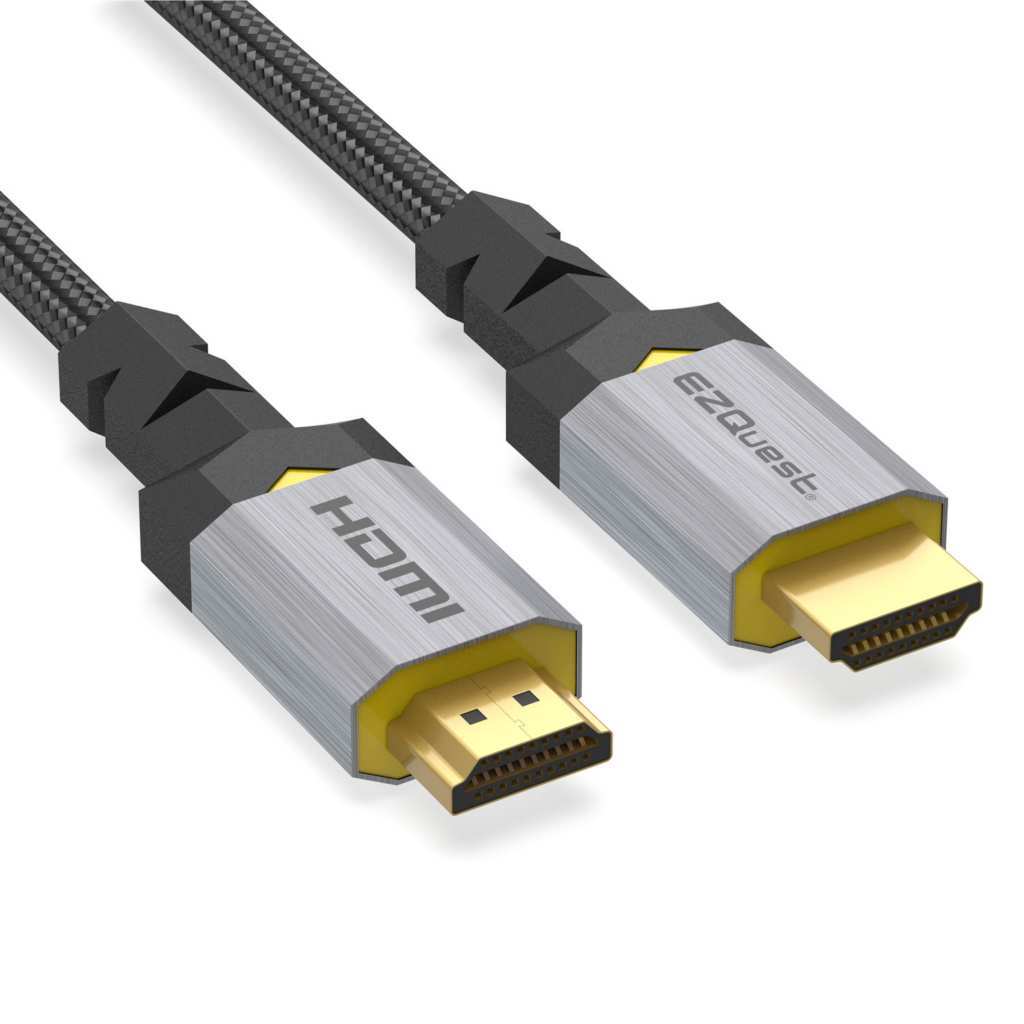
Don't spend a fortune. The official Sony cable works, but several reputable third-party options work just as well. Monoprice, Cable Matters, and Belkin all make certified Ultra High Speed cables at reasonable prices.
Step 2: Enable 120Hz Output on PS5
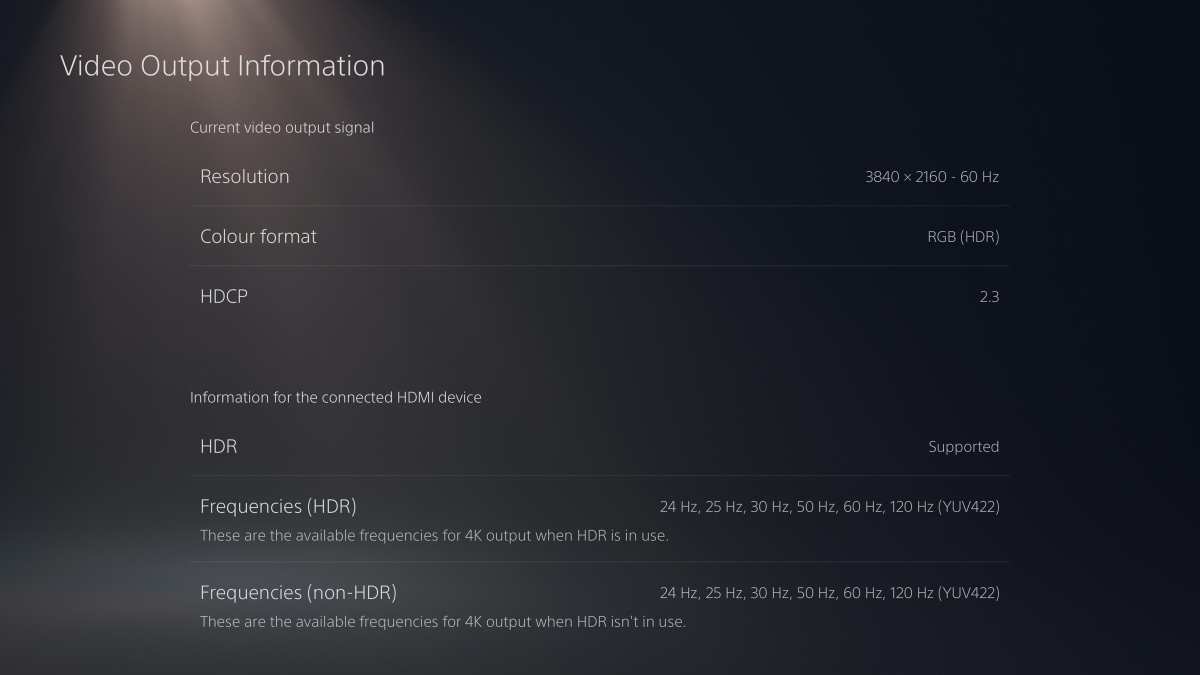
The PS5 doesn't always default to 120Hz. You need to enable it manually in the system settings.
Navigate to:
Settings → Screen and Video → Video Output → Enable 120Hz Output
Set this to "Automatic" if you want the PS5 to switch between 60Hz and 120Hz depending on the content. Some games lock to 60Hz, and the PS5 will honor that unless a performance mode is active.
Also check your resolution setting. If you're on a 1440p monitor, set the resolution to "Automatic" and let the PS5 detect the native panel resolution. Forcing an incorrect resolution can cause the high refresh rate options to disappear.
Step 3: Configure Your Monitor Settings
Before testing, check your monitor's on-screen display. Make sure:
- The correct HDMI input is selected
- Any "game mode" or "low latency" setting is enabled
- The monitor isn't forcing a specific refresh rate that conflicts
- If available, set the refresh rate to "auto" or the highest available option
Some monitors let you choose between HDMI 2.0 and HDMI 2.1 mode in the OSD. If you see this option, make sure it's set to 2.1 or "enhanced" mode.
Step 4: Enable VRR (If Supported)
If your monitor supports variable refresh rate, enable it on both devices.
On the PS5:
Settings → Screen and Video → Video Output → VRR → "Automatic"
On your monitor, enable FreeSync or Adaptive Sync in the OSD menu. Some monitors have this disabled by default.
After enabling VRR on both ends, test with a game that fluctuates in frame rate. You should see a reduction in screen tearing compared to VRR off.
Step 5: Test With a 120fps-Compatible Game
Theory is great, but you need to verify everything works with actual gameplay. Launch a game known to support 120fps on PS5.
Good test games include:
- Call of Duty: Modern Warfare III (performance mode)
- Fortite (120fps mode in settings)
- Rocket League (uncapped at 120fps on supported displays)
- Ratchet and Clank: Rift Apart (performance mode)
Check that gameplay feels smooth and responsive. Open your monitor's OSD to confirm the actual refresh rate. It should show 120Hz, not 60Hz, while the game is running.
If it still shows 60Hz, double-check the 120Hz output setting on the PS5 and make sure the game itself is set to prefer performance or frame rate over resolution. Many games default to their quality mode, which locks output to 60fps.
144Hz Monitor vs. 120Hz Monitor for PS5: Does It Matter?
If you're choosing between monitors specifically for PS5 use, a 120Hz monitor makes more practical sense than a 144Hz panel. You won't use those extra 24Hz anyway, and 120Hz monitors tend to be cheaper.
That said, 144Hz monitors have come down in price significantly. If you also game on PC, a 144Hz display gives you the best of both worlds. It handles PC gaming at full capability and works fine with the PS5 at 120Hz.
Here's a quick comparison to help you decide.
| Factor | 120Hz Monitor | 144Hz Monitor |
|---|---|---|
| PS5 compatibility | Full native support | Works at 120Hz, minor risk of issues |
| Price | Generally lower | Slightly higher, gap narrowing |
| PC gaming | Good | Better, full native support |
| Availability | Widely available | Widely available |
| Future console support | Likely sufficient | More headroom if next console supports higher |
The honest recommendation? Buy based on your overall use case. If PS5 is your primary gaming device and you don't game on PC, save some money with a quality 120Hz 4K monitor.
If you're a multi-platform gamer, grab the 144Hz panel and don't look back.
Common Mistakes People Made
After researching user reports and forum discussions, several patterns emerge. These are the most frequent issues people run into.
Forcing 144Hz in monitor settings. Some users try to manually set their monitor to 144Hz when the PS5 is connected. This doesn't work. The PS5 can't output 144Hz, so forcing it creates a mismatch that causes flickering or signal loss.
Always let the monitor auto-detect or manually cap it at 120Hz.
Using an old or cheap HDMI cable. This catches more people than you'd think. They have a great monitor and a PS5, but they're using an HDMI cable from 2015 that tops out at 10.2 Gbps. At best, they get 4K at 60Hz.
At worst, they get intermittent signal drops. Always verify your cable is Ultra High Speed rated.
Not enabling 120Hz in PS5 settings. The console defaults to 60Hz output in many scenarios. If you never manually enable 120Hz output in the system settings, you'll never see the benefit regardless of your monitor. This setting lives under Screen and Video, Video Output.
Assuming all HDMI ports on the monitor are equal. Some monitors have multiple HDMI ports with different capabilities. One port might support full HDMI 2.1 bandwidth while another is limited to HDMI 2.0. Check your monitor's manual to confirm which port supports the highest refresh rate.
Ignoring the game's performance mode. Many PS5 games ship with separate quality and performance modes. Quality mode typically locks to 60fps at higher resolution. Performance mode drops resolution to hit 120fps.
If you want 120Hz output, you need to select performance mode in each game's settings.
Which Games Actually Run at 120fps on PS5
Not every game supports 120fps. In fact, most don't. Games that hit 120fps tend to be less graphically demanding or offer a specific performance mode that reduces visual fidelity.
Here's a solid list of titles that support 120fps on PS5 as of 2026.
- Call of Duty: Modern Warfare III, Black Ops 6
- Fortnite
- Rocket League
- Rainbow Six Siege
- Overwatch 2
- Apex Legends
- Destiny 2 (select activities)
- Ratchet and Clank: Rift Apart (performance mode)
- Spider-Man: Miles Morales (performance mode)
- Horizon Forbidden West (performance mode)
- Uncharted 4 (remastered, performance mode)
- Doom Eternal
- The Witcher 3 (next-gen update, performance mode)
Notice the pattern. Competitive multiplayer games are the most common 120fps titles. Single-player narrative games usually prioritize visual quality and lock to 30fps or 60fps.
If you mainly play story-driven games, the difference between 60Hz and 120Hz matters less. You'll still benefit from lower input lag on a gaming monitor, but you won't see the smoothness advantage of high frame rates.
Competitive FPS and battle royale players benefit the most from 120Hz output. The smoother motion and reduced input lag provide a genuine advantage in fast-paced gameplay.
Should You Buy a 144Hz Monitor Just for PS5?
Probably not, unless you have other reasons to want one. The PS5 can't use 144Hz, so you'd be paying for capability you can't access on console.
If you're buying a display exclusively for PS5, a 4K 120Hz monitor hits the sweet spot. You get the maximum output the console can deliver, with HDR support and high resolution. Monitors like the Gigabyte M28U or ASUS VG289Q1A are popular choices that pair well with the PS5.
If you game on PC as well, the calculus changes. A 144Hz monitor makes sense for PC gaming, and it'll work fine with the PS5 as a secondary device. You just accept that the console runs at 120Hz instead of 144Hz.
The PS5 Pro changes the equation slightly. Its more demanding performance modes can push higher frame rates in certain titles. But it still maxes out at 120Hz output.
No current PlayStation console supports 144Hz, and there's no indication that will change with future hardware revisions.
Budget-wise, 144Hz monitors start around $150 for 1080p panels. 4K 144Hz monitors begin around $350 and climb from there. 4K 120Hz monitors can be found in the $250 to $400 range. The price gap between 120Hz and 144Hz has narrowed considerably, so the premium for 144Hz isn't as steep as it used to be.
Frequently Asked Questions
Can the PS5 output 144Hz at 1080p?
No. The PS5's maximum output is 120Hz regardless of resolution. Lowering the resolution to 1080p doesn't unlock 144Hz.
The console's HDMI output is capped at 120Hz across all supported resolutions.
Will a 144Hz monitor damage my PS5?
No. Using a 144Hz monitor won't harm the console. At worst, you'll get no signal or display issues.
The PS5 and monitor negotiate the output signal through EDID handshake. If they can't agree on a compatible mode, the display simply won't show an image.
Do I need HDMI 2.1 for 120Hz on PS5?
For 4K at 120Hz, yes. You need an Ultra High Speed HDMI cable and an HDMI 2.1 port on the monitor. For 1080p at 120Hz, HDMI 2.0 technically has enough bandwidth, but Sony recommends HDMI 2.1 for reliable performance.
Does VRR work on all 144Hz monitors?
Not necessarily. VRR compatibility depends on the monitor's scaler and firmware. Monitors that support FreeSync over HDMI or HDMI Forum VRR generally work.
Some monitors require a firmware update to enable VRR with PS5. Check your monitor manufacturer's support page for console VRR compatibility.
Can I use an adapter to get 144Hz from PS5?
No reliable adapter exists to convert the PS5's 120Hz output to 144Hz. Active adapters introduce latency and often cause more problems than they solve. Running the monitor at 120Hz is the simplest and most reliable option.
Is 120Hz to 144Hz noticeable?
Barely. The difference between 60Hz and 120Hz is dramatic and immediately obvious. The difference between 120Hz and 144Hz is subtle.
Most people can't perceive it without direct side-by-side comparison. Competitive players may notice slightly smoother motion in fast-paced games.
Final Verdict: What Should You Do?
If you already own a 144Hz monitor, use it. Connect your PS5 with an Ultra High Speed HDMI cable, enable 120Hz output in the system settings, and enjoy smooth gameplay. Your monitor will run at 120Hz instead of 144Hz, and you'll barely notice the difference.
If you're buying a new monitor primarily for PS5, go with a 4K 120Hz display. You get full compatibility with the console's maximum output, and you save money compared to 144Hz alternatives.
If you split your gaming time between PC and PS5, grab the 144Hz monitor. It serves both platforms well. You get full refresh rate on PC and smooth 120Hz on console.
The bottom line is simple. Your PS5 works with a 144Hz monitor. It just won't use all 144 of those hertz.
And honestly, you won't miss them.

Similar Posts





















